If you need to know how to use emergency SOS on a phone, here is the short version: you trigger it from the Lock Screen or with a button combination, the phone shows a countdown you can cancel, and then it calls your local emergency number and messages your emergency contacts with your location. On iPhone the combination is the side button plus a volume button, or five quick presses of the side button. On Android the same idea lives under a different name on every brand.
It takes about five minutes to set up properly, and almost nobody does it before they need it. That is the whole problem worth fixing.
Table of Contents›
- What You Need
- How to Use Emergency SOS on a Phone, Step by Step
- How to Use Emergency SOS on iPhone
- How to Activate Emergency SOS on Android
- How to Set Up Emergency Contacts and Medical ID
- What Happens After You Activate Emergency SOS
- Common Mistakes
- Frequently Asked Questions
- Will Emergency SOS work if my phone has no service?
- Does Emergency SOS automatically share my location with emergency services?
- Can I test Emergency SOS without calling the emergency number?
- What should I do if I accidentally activate Emergency SOS?
- Why does my Android phone use a different emergency call option than my friend’s phone?
- Does Emergency SOS call all of my emergency contacts?
- Conclusion
What You Need
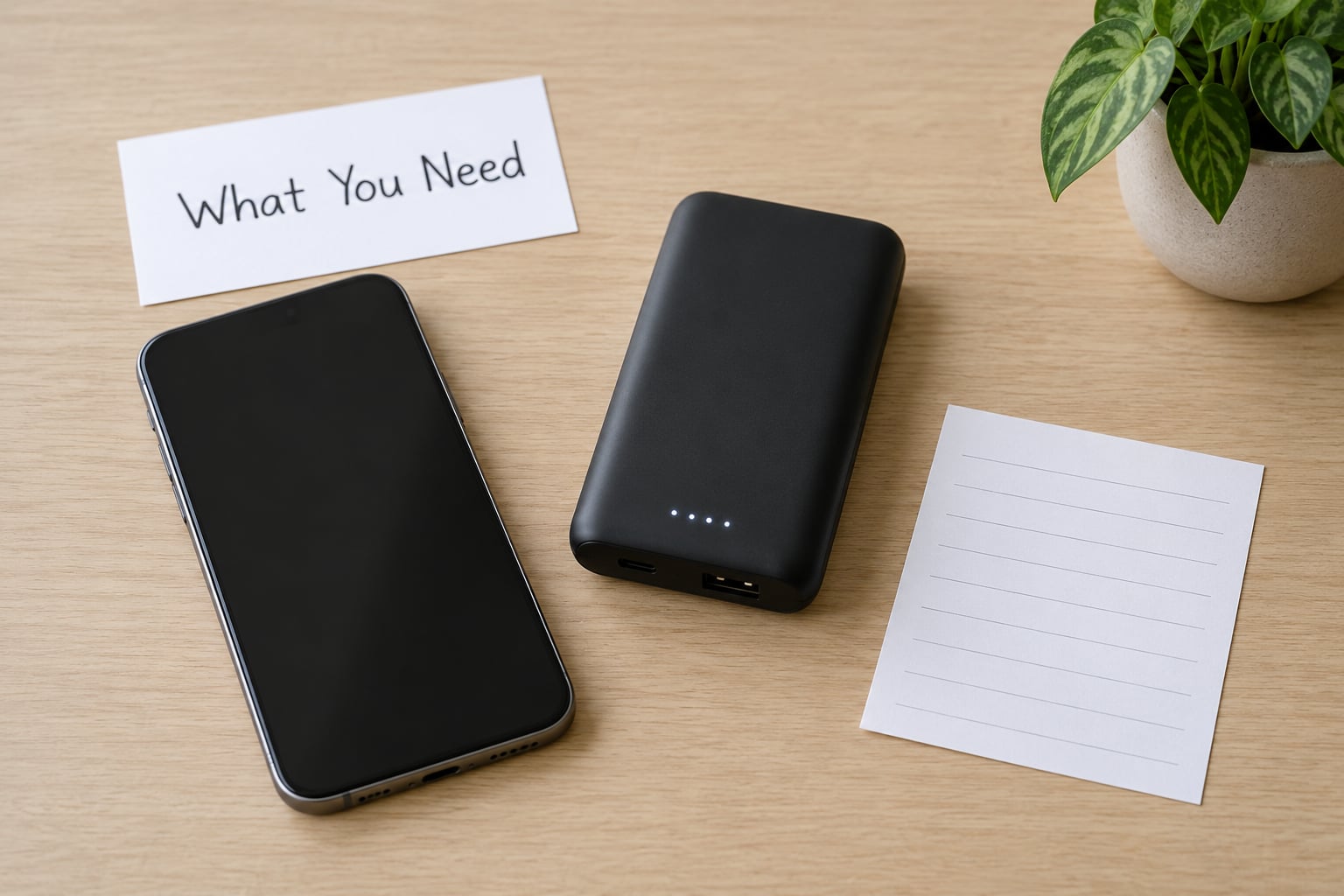
You need four things: a charged phone, some kind of network, at least one saved emergency contact, and about five minutes. That is genuinely it.
- A charged phone. A dead phone cannot call anyone. A power bank in the same bag matters more than people expect.
- A SIM with service, or any available network. Emergency calling works on networks that show no bars, but only if the phone is switched on and not in Airplane Mode.
- Emergency contacts saved on the device. They are the reason a location reaches a human who can actually come and get you.
- Medical ID filled in. Paramedics read this first. It takes two minutes.
One important caveat before any button pressing: menu names, trigger combinations and even the number of presses change by model generation, brand, carrier, country and software version. An iPhone 7 works differently from an iPhone 8, and a Samsung Galaxy behaves differently from a Pixel, which behaves differently from a Xiaomi.
The rest of this guide covers both platforms, and I flag where the paths split. My rule for anything on this page: if the exact wording on your screen differs, search your phone’s Settings for “SOS” or “Emergency” and you will land in the same place.
How to Use Emergency SOS on a Phone, Step by Step
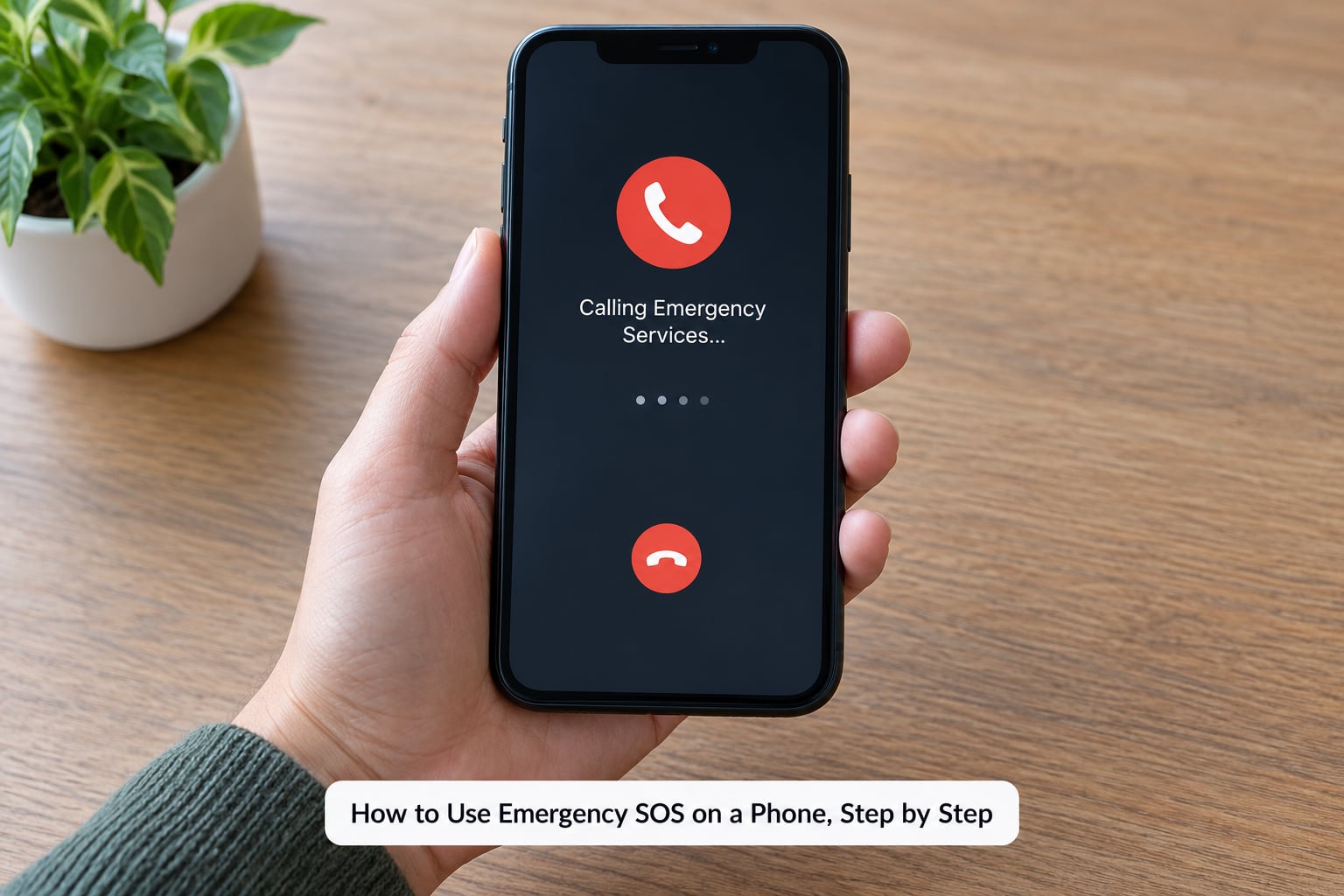
How to Use Emergency SOS on iPhone
On iPhone, the feature is called Emergency SOS and it lives in Settings. The setting screen has two options you will see quoted everywhere: Call with Hold and Call with 5 Presses. Which one applies depends on your model.
Set it up first.
- Open Settings, then scroll down and tap Emergency SOS.
- Turn on Call with 5 Presses if you have an iPhone 8 or later. On an iPhone 7 or earlier, turn on Call with Hold. In India the press count is set to three rather than five.
- Turn on Notify Emergency Contacts so your people get your location after the call connects.
- Turn on Automatically Send Emergency SOS if you want Crash Detection on a supported iPhone to fire it for you.
- Tap Set up Emergency SOS in Medical ID to add contacts and health details.
Trigger it on an iPhone 8 or later.
- Press and hold the side button and either volume button at the same time.
- Keep holding until the Emergency SOS slider appears. Do not let go early.
- Slide Emergency SOS to the right, or press and hold the button until it completes.
- A countdown of a few seconds starts. Tap Cancel to stop it if this was a mistake.
Trigger it on an iPhone 7 or earlier. Press the side or top button five times in quick succession. A similar fast-press sequence is available on iPhone 8 and later if you prefer it.
From the Lock Screen. Press the home button or swipe across, tap Emergency SOS, then slide to call. You do not need your passcode, and a call still connects if the phone is locked.
On an Apple Watch, hold the side button until the Medical ID screen appears, then slide Emergency SOS to the right. Watch fall detection and iPhone crash detection can send the alert for you when you cannot reach either device.
If you own an iPhone 14 or later, Emergency SOS via Satellite works where there is no cellular coverage at all, in supported countries. It needs a clear view of the sky and several minutes to connect, so you move to open ground and point the top of the phone at the sky.
How to Activate Emergency SOS on Android
Android has no single system-wide name for this. Google calls the app Personal Safety on Pixel and many stock devices, Samsung calls it Send SOS messages, and several Chinese brands ship their own Emergency SOS toggle. The fastest way in is to search Settings for “SOS” or “Emergency”.
Set it up.
- Open Settings and use the search box at the top.
- Type SOS or Emergency and open the result your phone offers.
- On a Pixel or Google phone, open the Personal Safety app and choose Emergency SOS & emergency sharing.
- On a Samsung, look under Warnings and alerts or Advanced features for Send SOS messages.
- Turn on sending your location and notifying emergency contacts, then add your contacts.
Trigger it. The most common routes are the power button pressed three or five times in a row, or the power and volume buttons held together until an SOS screen appears. On most brands you then confirm by tapping or holding a button on screen.
From the Lock Screen. Swipe down for the quick settings panel and tap Emergency, or open the Phone app and tap Keypad and dial the local emergency number yourself. Leave the Phone app sitting on the Keypad screen rather than a contact, which saves a few seconds when your hands are shaking.
| Brand | Feature name | How it is triggered | Where it lives in Settings |
|---|---|---|---|
| Samsung Galaxy | Send SOS messages | Press the Side key three times, or five on supported models | Warnings and alerts, or Advanced features |
| Google Pixel | Personal Safety | Hold Power plus Volume Up, or use the Lock Screen Emergency button | Apps, then Personal Safety |
| Xiaomi and Redmi | Emergency SOS | Press the power button three or five times | Settings, search Emergency SOS |
| Oppo and Realme | Emergency SOS | Press the power button three or five times | Settings, then Emergency SOS |
| Motorola | Emergency SOS or Personal Safety | Power button presses or Lock Screen Emergency | Settings, search SOS |
When you press the button sequence and nothing happens, the setting is usually switched off, or the phone has a case or screen protector interfering with the button. Test the combination rather than assuming it works.
How to Set Up Emergency Contacts and Medical ID
Medical ID is the part people skip and the part paramedics actually want. It holds blood type, allergies, medications, conditions and emergency notes, and it can be read from the Lock Screen without a passcode.
On iPhone: open the Health app, tap your profile picture at the top right, tap Medical ID, then Edit. Add your emergency contacts under the same screen, fill in blood type, allergies and medications, and set Show When Locked to Always. Tick Share During Emergency Call so details go to the dispatcher automatically.
On Android: open Google Health Connect or your Samsung Health app, go to your profile and find Medical information or Emergency information. Add contacts and turn on display on the Lock Screen. Some brands bury this under Settings, then Security or Privacy, so searching Settings is faster.
Keep the details current. An emergency contact who changed number two years ago is worse than no contact at all, because it looks like help is on the way and nobody is notified.
A shared emergency contact is one-way only. Your phone cannot alert someone else’s phone unless they have set you up on theirs, which is why the family plan conversation matters more than any setting.
What Happens After You Activate Emergency SOS
Once the countdown ends, the phone calls your local emergency number and shares your location automatically. That automatic location sharing is the part most people do not realise, and it is why the feature works even if you cannot speak.
The call usually goes out on speakerphone and on speakerphone audio so the operator can hear the room. If no one answers, the phone tries again and then tries the alternate local number, 112 in much of Europe, 999 in the UK and 000 in Australia. Numbers differ by country, so trust the number your phone displays rather than a number from a web page written somewhere else.
If you enabled it, your emergency contacts receive a message with your location once the call connects. If you cancel during the countdown, nothing is sent, because the system has not placed a call yet. If you hang up after connecting, a carrier can mark the call as a failed emergency call and dispatchers may ring back to check on you. That is normal and worth knowing.
Emergency SOS via Satellite on an iPhone 14 or later works with no cellular coverage at all, but only in countries where Apple has enabled it, only outdoors with a clear view of the sky, and only after you have already set it up. It is slower than a normal call. No phone plan pays for a rescue, tow or evacuation, so keep roadside assistance and insurance separate from this.
Understanding what happens afterwards also tells you how to use Emergency SOS on a phone when the worst part is being unable to reach the device. Press the buttons where the phone sits, then let the countdown run.
Common Mistakes
Accidental activation is the big one. Dropped phones, phones in a tight pocket, lying on the couch with the phone under you, and a watch crown pressed against a mattress all cause it. Posts on r/tifu describe paramedics arriving at someone’s front door for a pocket-triggered call. On Samsung community boards, Galaxy A-series owners report repeated 999 misdials from a pocket with no clean fix other than switching the feature off.
The fix is to turn off the automatic trigger and keep the on-screen confirmation. On iPhone that means turning off both Call with Hold and Call with 5 Presses in Settings, then Emergency SOS, which leaves you with the Lock Screen slider. On Android it means clearing the power-button press setting and using the Lock Screen Emergency button instead. You trade a little speed for a lot fewer false alarms, which is a good deal unless you drive alone at night.
Crash and fall detection also produce false positives, because they react to sudden force. One widely shared story describes two phones calling 911 when a snapping rope mimicked the crash pattern. If that happens to you, ring your number back before assuming it was a glitch.
Other mistakes worth knowing:
- Location services turned off. The call still connects, but the operator gets no coordinates. Check Settings, Privacy, Location Services.
- No SIM and no coverage. Any phone can call 112 on a nearby network without a SIM in most countries, but 911 may not connect at all. Airplane Mode guarantees nothing works.
- Confusing SOS mode with Emergency SOS. SOS mode is the banner that says no service and no calls available. It is not a safety feature and it does not call anyone.
- Stale emergency contacts. Check the list twice a year.
- Passcode confusion. If you hit Cancel instead of Call, tap Cancel again on the passcode screen and the Medical ID screen opens right there.
- Assuming it is tested. The only true test is walking through the sequence with the phone unlocked. Never dial the emergency number to check it works.
Frequently Asked Questions
Will Emergency SOS work if my phone has no service?
Usually yes, as long as your phone can see any network at all. Phones are allowed to call the emergency number on a nearby tower even when your own plan has no service, and most devices try 112 automatically in countries that use it. What will not work is Airplane Mode, a dead battery, or genuine coverage nowhere nearby. For remote terrain, an iPhone 14 or later can reach a satellite where the feature is supported in your country.
Does Emergency SOS automatically share my location with emergency services?
Yes. Once the call connects, your phone sends your location to the dispatcher automatically, and if several emergency numbers are available it shares with all of them. This works from the Lock Screen without a passcode. Turning location services off means the call still reaches an operator, but they receive no coordinates. On Android, allow location access while sending the SOS message or your contacts will only get the message, not your position.
Can I test Emergency SOS without calling the emergency number?
You can, mostly. Walk through the sequence with your phone in hand, unlocked and on a table, so you see the SOS screen and the slider appear, then tap Cancel. That teaches your fingers the combination without placing a call. Test it again later from the Lock Screen so you know where the Emergency SOS button is. Do not dial the emergency number to test it, because operators treat that as a real call and may send someone to check on you.
What should I do if I accidentally activate Emergency SOS?
Tap Cancel during the countdown and nothing happens. If the call has already connected, tap End Call, then tap End Call again to confirm, and stay by the phone in case dispatchers call back. Stay on the line if you can and explain it was accidental, since carriers flag dropped emergency calls as possible welfare checks. If it keeps happening from a pocket, turn off the button-press trigger and use the Lock Screen Emergency button instead.
Why does my Android phone use a different emergency call option than my friend’s phone?
Because Android hands this feature to each manufacturer, and Samsung, Google, Xiaomi, Oppo, Realme and Motorola each label and wire it differently. Samsung calls it Send SOS messages and uses three Side key presses, while Google uses the Personal Safety app with a power plus volume button hold. Settings search for SOS or Emergency reveals the right path on your device in a few seconds, whatever the brand label says.
Does Emergency SOS call all of my emergency contacts?
No. It alerts your emergency contacts by sending them your location once an emergency call connects, but it does not call them, and it only sends to the contacts you have listed in Medical ID. On iPhone, the toggle is Notify Emergency Contacts in Settings, Emergency SOS. On Android it lives with the SOS settings. If you want someone called directly rather than messaged, set that up as a separate plan with your carrier or a family safety service.
Conclusion
Start with the boring part: open Medical ID tonight and check that your emergency contacts are still reachable, then fill in your blood type and allergies. After that, walk through your phone’s exact trigger sequence on a table, cancel at the countdown, and repeat it from the Lock Screen.
That is how to use emergency SOS on a phone with confidence rather than hope. Five minutes now, and you will recognise the screen instantly if you ever need it.