To manage family app sharing on Android, you build one family group in the Google Play Store and control it from the manager account. Open Google Play, tap your profile picture, choose Family, then your family name, and everything else lives under Manage members. From there you invite people, turn sharing on or off for individual apps and purchases, remove members, and set approval rules for children.
Set aside about ten minutes for the first pass. It all happens in the Play Store app on the manager device, and the same screen works on Samsung and other Android phones, though One UI labels a couple of the taps differently.
Table of Contents›
- What You Need
- Step-by-Step
- Create or Choose a Family Group
- Turn On Family Sharing for an App
- Approve or Decline a Family Sharing Request
- Manage Shared Apps and Purchases
- Set Parental Controls for Child Accounts
- Common Mistakes
- Frequently Asked Questions
- How do I turn off Family Sharing on Android?
- Can you family share app subscriptions?
- Why isn’t my Google Family Library showing up?
- How do I stop family from seeing my app purchases?
- Can my child turn off Family Link?
- How many family members can share purchases on Google Play?
- Conclusion
What You Need
You need one Google account for the person running the group, a personal Google account for everyone joining it, and an internet connection. That is genuinely all of it.
Here are the eligibility rules that trip people up:
- The family manager must be 18 or older. That account owns the group and the payment method attached to it.
- Members must be 13 or older with their own Google account. Younger children need a supervised child account created through Google Family Link first.
- A family group holds up to six people: one manager plus five members.
- Everyone must be in the same country or region. A group that mixes countries silently fails to share.
- Accounts tied to a managed Google Workspace organisation, including many school accounts, cannot take part in a Play family group.
Google accounts created for a business, the old Google Apps for Business type, are also excluded. If a member keeps hitting an error at the invite screen, check the account type before anything else.
Step-by-Step
Create or Choose a Family Group
Start in the Google Play Store on the account that will manage everything.
- Open Google Play and tap your profile picture in the top-right corner.
- Tap Family. If you already belong to a group, its name appears here and you can skip to the next step.
- If you have no group, tap your family name, then tap Create family and follow the prompts. You may be asked to agree to the family terms and, in some regions, to a purchase confirmation.
- Tap Manage members, then Add family member. Enter the Gmail address of the person you want to invite and send it.
- Ask that person to accept. Until they do, the group exists but nothing is shared.
How to tell it worked: when you open Family again, the group name and a member count appear, and Manage members lists everyone who has accepted.
One warning before you continue. Google Play only shares eligible purchases made after the group is formed. Anything you bought beforehand sits in your library until you share it item by item, which is the single most common reason a member says the family library is empty.
Turn On Family Sharing for an App
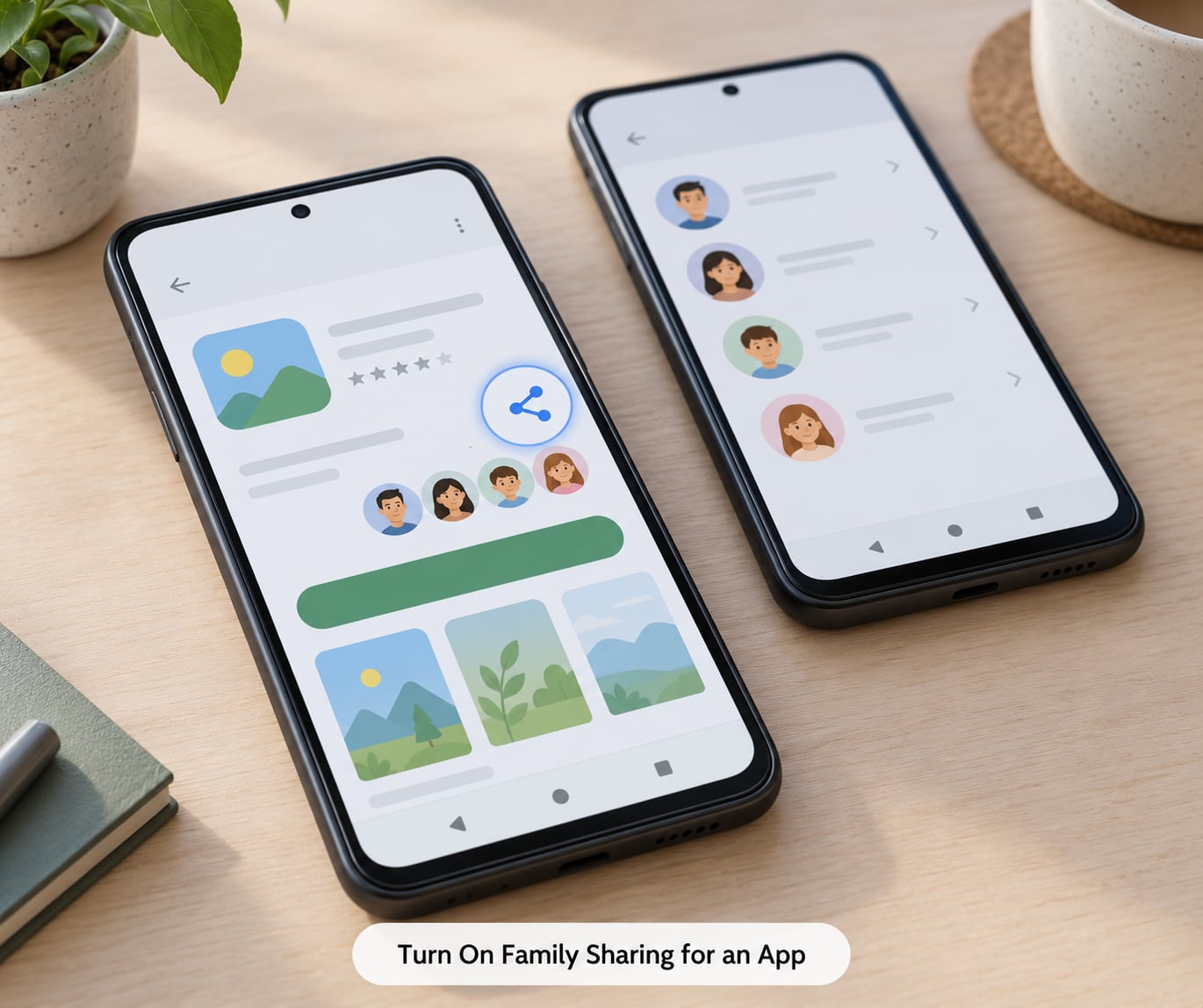
You share an app, game, film or book from its own Play Store page, and you can share it with everyone in the group or pick named members.
- Find the app in Google Play and open its listing page.
- Scroll to Family sharing, near the Share and Wishlist options. If the section is missing, the item cannot be shared at all.
- Tap the family sharing toggle to turn it on.
- Choose Turn on family sharing, then select the members you want to include, or select everyone for future members.
- Tap Done, then open the item in your own Library to confirm it shows as shared.
The same tap sequence works for in-app purchases on the product’s page. Note that a shared app stays owned by you. The member installs their own copy on their device, and if they leave the group later, that copy goes with them.
On a Samsung Galaxy running One UI, expect the same path with slightly different words. Family sharing sits in the listing’s Share row, and the toggle is labelled Family rather than Family sharing. Nothing else changes.
Approve or Decline a Family Sharing Request
Requests appear in the family manager’s account, not on the member’s phone, and a request can be approved or declined outright.
- Open Google Play on the manager device, tap your profile picture, then tap Family and your family name.
- Tap Manage members, then Requests. Pending requests are listed with the requesting name and what they want.
- Tap Approve or Decline next to the request. Declined requests do not block the person from staying in the group.
How to tell it worked: the Requests entry disappears from the list and the item shows under the manager’s own library with family sharing switched on.
Children cannot approve their own purchases. When approvals are switched on, the request goes to the parent app instead, so check the Family Link app as well as the Play Store if something seems stuck.
Manage Shared Apps and Purchases
Managing sharing means reviewing what is in the group, taking items out of it, and knowing which purchase types can never be shared at all.
- Open Google Play, tap your profile picture, then Family and your family name. You land on the Family Library page.
- Use the filter row across the top to switch between apps, games, films and books, and see which members each item is shared with.
- To stop sharing, open the item’s page, turn the family sharing toggle off, and confirm. The member loses access, and you keep the purchase.
- To remove someone entirely, go to Manage members, tap the three-dot menu beside their name, and choose Remove from family. Confirm with your account password.
Some purchase types never appear in the Family Library no matter what you toggle, which is why the list below matters more than the toggles.
| Purchase type | Shareable | Notes |
|---|---|---|
| Paid apps and games | Yes | Each member installs their own copy on their own device. |
| Movies, TV shows and books | Yes | Sharing depends on the title’s region availability. |
| Auto-renewing subscriptions | Yes | Members can use what you pay for; they are not billed separately. |
| Non-renewing subscriptions | No | Google does not share these through the Family Library. |
| Consumable in-app purchases | No | Coins, gems and single-use items are never shared. |
| Non-consumable in-app purchases | Sometimes | Only if the developer enabled family sharing for that item. |
Privacy works one way here, and it catches people. Members of your group can see the names of the items you share, in the family library list, on their own devices. You cannot share an app and keep its title hidden. If a specific purchase is private for you, do not turn sharing on for it.
Removing a member does not take back what they already installed, and it does not delete anything you bought. The share simply ends.
Set Parental Controls for Child Accounts
Family Library handles sharing; Google Family Link handles supervision. Most parents use both together.
- Install the Google Family Link app on the parent device and sign in with the manager account.
- Tap the child’s name in Family Link, then Controls, then Google Play.
- Set purchase and download approvals. Requiring approval for everything, including free apps, is the setting most parents settle on.
- Turn on content restrictions and pick the age level. Google applies ratings from the Play Store, App Store-equivalent listings and YouTube.
- Set app limits and screen time schedules from the Controls and Screen time tabs.
How to tell it worked: have the child try to install an app you have not approved. The request should land in the Family Link app and stay there until you approve or decline it.
Changes to limits and content restrictions need the parent access code, which the Family Link app generates on request. That code expires after about thirty minutes, so a child cannot sit on it and wait for a weak moment.
Family Link supervises Android devices and Chromebooks. It cannot control a child’s iPhone, which is worth knowing before a mixed-ecosystem household buys subscriptions expecting one set of rules.
Common Mistakes
Most of these come down to a wrong account, a country mismatch, or an app that was never eligible for sharing. Work down the table rather than reinstalling things.
| Symptom | Likely cause | Fix |
|---|---|---|
| The app shows for one member but not another | Sharing was set to specific members, or the other person has not accepted the inviteOpen the app page, tap family sharing, and select all members, then have the missing person check Family in the Play Store | |
| An old purchase is not in the family library | Google Play shares only eligible purchases made after the group was createdOpen the item in your library and turn family sharing on for it | |
| Family Library is missing entirely | The group is in a different country or region than the memberCompare Play Store countries on both devices; a group cannot span regions | |
| The share toggle is not there | The app, or that in-app purchase, is not eligibleConsumables and some non-renewing subscriptions are never shareable | |
| No share option on a school or work account | Managed Google Workspace accounts cannot join a Play family groupUse a personal Google account for the Play family group | |
| A child can install anything and nothing is blocked | Approvals are off, or the parent access code was recently used by a parentReopen Family Link, tap the child, then Controls, then Google Play, and require approval for everything | |
| A member left and lost shared items | Access to shared content ends when someone leaves the groupReinvite them, then re-share the affected items; already-installed apps stay on their device |
Two extra habits save trouble later. First, keep the manager account’s password somewhere your family can find if you are ever locked out of the group. Second, if you are moving to a new manager account, add the new manager as a member first, then transfer the role, because transfer is the one step that can lock the group if it is rushed.
Frequently Asked Questions
How do I turn off Family Sharing on Android?
Open Google Play, tap your profile picture, then Family and your family name. Open the app page of the item you shared, turn the family sharing toggle off and confirm. Members lose access immediately, though anything they already installed stays on their device. To end sharing for a whole person instead, use Manage members and remove them from the group.
Can you family share app subscriptions?
Yes, for auto-renewing subscriptions. Members of the group can use what the manager pays for without being billed again themselves. Non-renewing subscriptions and consumable in-app purchases, such as coins or gems, are never shared. A subscription only joins the Family Library if the developer enabled sharing for it, so check the app page for a family sharing option first.
Why isn’t my Google Family Library showing up?
The most common cause is that the member has not accepted the invitation yet. After that, check that both accounts sit in the same country or region, that neither is a managed school or work account, and that the purchase was made after the family group was created. Older purchases stay in the manager library until sharing is turned on for each item.
How do I stop family from seeing my app purchases?
You cannot hide an item once it is shared. Family members can see the titles of everything shared through the group, listed under the family library on their own devices. The fix is preventive: leave family sharing off for purchases you want to keep private, and share only the specific apps, games or subscriptions the household actually needs.
Can my child turn off Family Link?
No. Changing screen time, app limits, content restrictions or purchase approvals in Family Link requires the parent access code, which the app shows an adult and which expires after roughly thirty minutes. Children can decline requests and leave a group when they are old enough, but they cannot weaken the controls set on their account without that code.
How many family members can share purchases on Google Play?
A family group holds up to six people: one family manager and five members. The manager must be 18 or older, and members must be 13 or older using their own Google accounts. Children under 13 need a supervised account created through Family Link before they can be added. Everyone in a group must be in the same country or region.
Conclusion
Managing family app sharing on Android comes down to four actions in order. Create the family group from the manager’s Play Store account, turn on family sharing for the apps and subscriptions the household actually uses, invite each member and confirm they have accepted, then set purchase approvals and content restrictions in Family Link.
From here on, the same Family screen handles everything: reviewing requests, switching sharing off for a single item, and removing a member. If something does not show up, work through the causes in the table above before you reinstall anything, since reinstalling rarely fixes an account, region or eligibility problem.