To set up a kids profile on a tablet, you switch to the adult account, open that platform’s parental controls, create a child account with your child’s birthdate, and set a parent PIN. Then you apply screen-time, content and purchase limits so the restrictions apply on their own every time the tablet is switched on. It takes about 15 minutes on Android, iPad, Samsung or Amazon Fire, and no separate app is required.
Menu names shift between operating system versions, so the exact words on your tablet may read slightly differently. This guide was written for October 2026 and covers Android 13 and newer, iPadOS 18 and newer, and current Fire OS builds.
Table of Contents›
- What You Need
- Step-by-Step: How to Set Up a Kids Profile on Any Tablet
- How to set up a kids profile on an Android tablet
- How to set up a kids-friendly Apple Account on an iPad
- Set up a child profile on an Amazon Fire or Kindle tablet
- Choose apps, content, and communication permissions
- Set daily screen-time limits and a bedtime schedule
- Test the child profile and lock in adult controls
- Common Mistakes
- Quick Safety and Setup Tips
- Frequently Asked Questions
- Can I create a kids profile on any tablet?
- What is the difference between a kids profile and screen time controls?
- How do I stop a child from making purchases on a tablet?
- Can parents see everything on a child’s tablet?
- How do I switch between the parent and child profiles?
- What should I do if I forget the parent account password?
- Start With the Platform Controls
What You Need
A kids profile is a separate user account with its own apps, content library and settings. Setting one up takes five things.
- An adult account on the tablet. Sign in first. A child account is always created from inside a parent’s account, never the other way around.
- The child’s date of birth. Every platform uses this to pick an age rating filter, and it is the setting that decides what content appears without asking you.
- A parent PIN you will remember. This is the password that gets you back into settings. If you forget it, recovery means removing the child account and rebuilding it.
- A recovery route for the adult account. Know the adult email, the password manager entry, or the second device linked to the family. Forum threads are full of parents locked out of their own tablet.
- A working Wi-Fi connection. Child accounts are created in the cloud first and then attached to the device, so a profile can fail to load on a tablet with no network.
You also want the child’s real age, not a rounded one. On Amazon and Google, the age band decides the content rating, and choosing an older band to unlock one app is how children end up in content you never approved.
Step-by-Step: How to Set Up a Kids Profile on Any Tablet
Seven steps cover every platform, whichever tablet is in front of you.
- Unlock the tablet and switch to the adult or parent profile.
- Open Settings and find Parental Controls, Screen Time, or Profiles & Parental Controls.
- Create a child account or child profile and enter the date of birth.
- Set a parent PIN the child cannot guess. Avoid birth years and repeated digits.
- Apply content ratings, web browsing and app installation rules.
- Set a daily screen-time limit plus a bedtime or downtime schedule.
- Sign out of the adult profile and test the child profile before handing it over.
The menu paths differ more than people expect, so here is the same route written out for each ecosystem.
| Platform | Where the child account lives | Where limits are managed |
|---|---|---|
| iPad | Settings > your name > Family Sharing > Add a Child | Settings > Screen Time |
| Android | Family Link app on the parent’s phone, or the tablet during setup | Family Link app > child name > Controls |
| Samsung Galaxy Tab | Samsung Kids or the Family Link flow | Settings > Parental controls, or the Family Link app |
| Amazon Fire | Settings > Profiles & Parental Controls > Create Profile | Amazon Kids Parent Dashboard |
How to set up a kids profile on an Android tablet
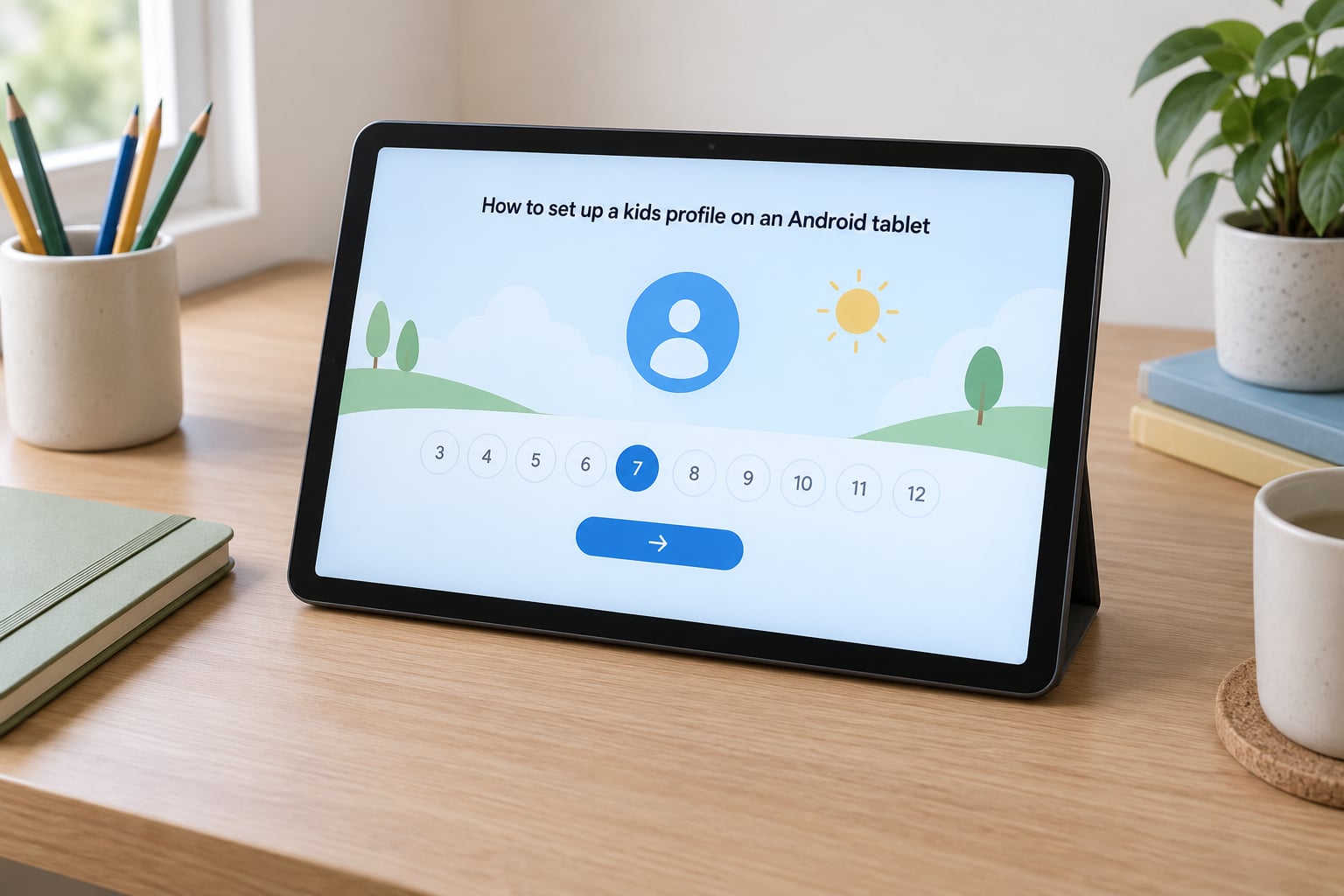
On Android, Family Link is Google’s parent app and it is the most complete option. You can create the child account from the tablet itself during setup, or from your phone while the tablet sits nearby.
On the tablet, open Settings > Digital Wellbeing & device care > Family controls on most builds, or Settings > Parental controls on others. Tap Create a child account, then follow the prompts to sign in as the child, confirm it is supervised, and enter the birthdate.
Google emails you a confirmation link. Open it on the child’s account before you go any further, or the setup stalls at the verification screen. In the same Family controls screen you can also create a restricted account that lives only on that tablet, which is useful when a second child shares one device.
Manage limits from the Family Link app on your phone. Tap the child’s name, then set app timers, a daily limit, a bedtime schedule, web content, app install approvals, location and calling or messaging permissions.
Newer Android versions also carry on-device Parental Controls under Settings > Digital Wellbeing & device care > Parental controls. It handles app limits, downtime and content rules without a separate app, but it has no cross-device remote control. Families who want one place to manage two tablets should stay with Family Link.
How to set up a kids-friendly Apple Account on an iPad
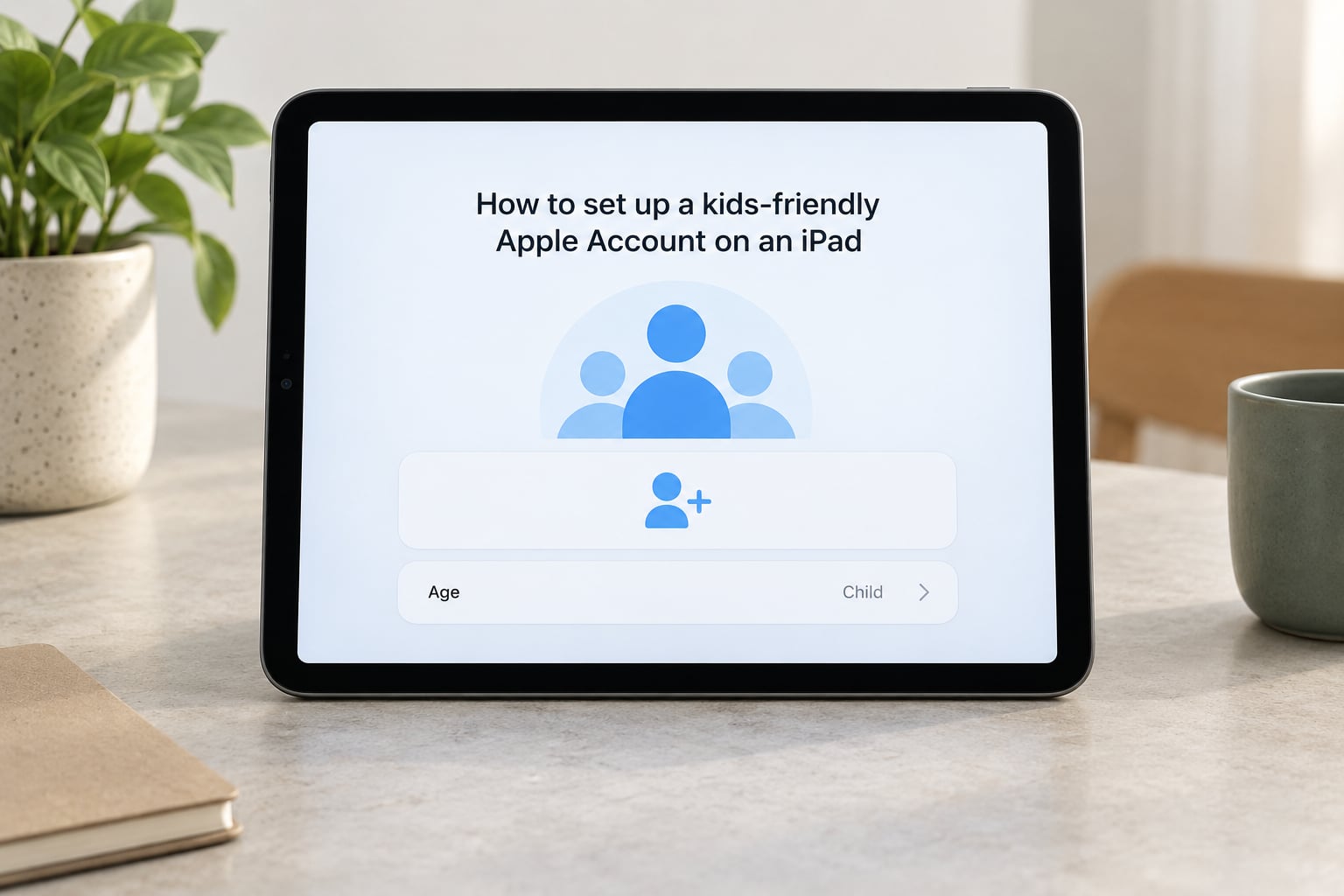
Apple handles this differently. There is no child login of your own making. You create a full Apple Account for the child and then decide what it is allowed to do.
- Open Settings and tap your name at the top.
- Choose Family Sharing, then Add a Child or Create a Child Account.
- Enter the birthdate. Apple derives an age band from it.
- Choose the permissions to allow: Apple Account creation, communications, location sharing, Family Sharing purchases and Screen Time.
- Set a Screen Time passcode that is not the iPad passcode.
Apple Account creation for a child has to be approved by the parent with the Family Sharing code, so have that code ready. If your child is under 13, some permissions are off by default and only an adult can switch them on later.
Limits live under Settings > Screen Time: App Limits for individual apps, Downtime for a scheduled block, App & Website Activity for installs and categories, and Screen Distance for the camera and proximity sensors. For a younger child, add Settings > Accessibility > Guided Access, which locks the iPad into a single app until an adult exits with the passcode.
Set up a child profile on an Amazon Fire or Kindle tablet
An adult Amazon household profile is not a child account. It carries your sign-in, your apps and your browsing history, so a child should never be left in it. On Fire tablets a child profile is a separate profile with its own PIN and its own content.
- Swipe down twice from the top of the screen and tap the profile name.
- Open Profiles & Parental Controls.
- Choose Amazon Kids or Create a Profile for a child.
- Enter the child’s name or initials, birthdate and a four-digit profile PIN.
- Open Amazon Kids and choose an age filter.
Content and limits are managed from the Amazon Kids Parent Dashboard, in the app on your phone or at parents.amazon.com from a browser. That dashboard sets Daily Screen Time and Weekly Screen Time limits, chooses between no web access, hand-picked sites, or filtered browsing, and controls Store Access so a child cannot buy apps or content on their own.
The free tools are the profile, the age filter, the PIN, web filtering and store restrictions. Amazon Kids+ is a paid subscription that adds a larger curated library and a few extra features. It is not required, and nothing about the basic controls stops working if it lapses.
Choose apps, content, and communication permissions
Now decide what the profile may actually reach. Work through each category rather than accepting defaults.
- App installs. Turn on require approval so new installs land in a pending queue instead of appearing instantly. On Android and Fire this sits in the app-install approval setting; on iPad it is App Limits > Installing Apps.
- Web content. Pick the strictest level that still allows homework. No access is for small children, hand-selected sites lets you whitelist, filtered browsing blocks known adult and risky pages.
- Video and games. Age ratings apply inside the store and inside system apps. They do not automatically apply inside a streaming app you installed yourself.
- Music and photos. Explicit browsing, search and sharing permissions matter more than most parents expect, particularly on shared family devices.
- Calling and messaging. On Fire, Settings > Communications > Calling & Messaging decides whether contacts can reach the child at all. Android and Apple both restrict contacts under their family controls.
- Location. Decide separately from screen time. Some families want it on for safety and off for privacy.
- Purchases. Block in-app purchases as well as store installs. A game installed on a parent’s account can still charge through an account you never restricted.
One caveat worth repeating: the age filter set on the tablet does not reach inside third-party apps. Netflix, YouTube, Minecraft and most streaming apps carry their own profile and rating system, so set those up separately or do not install them at all.
Set daily screen-time limits and a bedtime schedule
A limit alone tends to get negotiated. A schedule enforces itself, which is why a bedtime block beats a daily total for most families.
Set three things: a per-app timer for the two or three apps that eat the time, a daily total across everything, and a scheduled downtime that starts at bedtime on school nights. On Fire this is Daily Screen Time in the Parent Dashboard, with weekend limits set separately if they differ.
Two settings prevent arguments later. Turn on notifications off during downtime so nothing buzzes, and add break reminders so the child is told when time is nearly up. Accessibility features, schoolwork and medical needs come first: if a child uses a communication app or an assistive tool, exempt it from the timer rather than weakening the whole schedule.
Test the child profile and lock in adult controls
Setup is not finished until you have been inside the child profile and tried to break it.
- Switch to the child profile and try to open a store, an adult app and a video site.
- Attempt a purchase to confirm it is refused or sent for approval.
- Try leaving the profile without the PIN.
- Switch back to the adult profile and confirm every setting still saves.
Write the PIN down somewhere the adults can reach and the child cannot. If the tablet is shared, keep the adult passcode distinct from the Screen Time or parent passcode, otherwise the child unlocks settings with the device passcode. On a shared device, review the approval queue every few days, because requests quietly stack up.
Common Mistakes
Treating screen-time limits as a substitute for a child account. A timer on your own profile leaves your apps, messages and photos one tap away. Fix: create the separate profile first, then layer limits on top of it.
Creating the account on the wrong device. Family Link and Family Sharing both want the adult’s phone nearby to approve. Fix: start on the tablet, finish the confirmation on the adult’s phone, then go back.
Forgetting the approval step. The account exists but nothing is attached to it until the emailed or on-screen approval is completed. Fix: search the parent’s inbox for the confirmation message before rebuilding anything.
Expecting one set of limits to follow the child across devices. Settings configured on one tablet do not apply to another tablet until the same child account is added there. Fix: add the child to each device from the parent app.
Leaving purchases open. Store access set to allow, or an adult card saved in the account, and one tap in a game costs money. Fix: set Store Access or in-app purchase approval to require a password, and remove saved payment details.
Writing the parent PIN where the child can find it. A PIN on a sticky note under the keyboard is not protection. Fix: store it in the adults’ password manager and say plainly that it exists.
Panicking and resetting the whole tablet. A profile that will not load rarely needs a factory reset, and a reset wipes your own data too. Fix: test the adult profile, restart, check Wi-Fi, check for an update, then rebuild the profile. That order is the one experienced owners recommend.
Quick Safety and Setup Tips
Before the tablet goes into a child’s hands, remove adult accounts from the device itself, delete anything sensitive from local storage, and unlink saved cards. On a hand-me-down tablet this step matters more than the profile.
Set a strong adult passcode separate from the parental PIN, and keep device location sharing on so you can find a lost tablet. Camera, microphone and location permissions should be off for apps the child did not specifically need, and reviewed again when the child swaps apps.
Add a recovery contact on the family account, and check that a second parent can actually approve requests. If you lose the PIN, the usual route is removing the child profile from the family account and creating it again, so know that route before it becomes urgent.
Review settings every couple of months rather than once. Apps get added, age bands change, and children get older. When your child outgrows the kids profile, create a standard account on the device, move approved content across, and remove the child profile deliberately so the old age filter does not linger.
None of this replaces supervision. Pediatric bodies advise that adults know what their children are using and check in regularly, so treat the controls as the guardrail rather than the whole plan.
Frequently Asked Questions
Can I create a kids profile on any tablet?
Yes, every major tablet has some form of child account. iPads use a child Apple Account created through Family Sharing, Android and Samsung tablets use Family Link or the on-device Parental Controls, and Amazon Fire and Kindle tablets use a child profile with the Amazon Kids Parent Dashboard. Older or heavily modified devices may have fewer options, so check the Settings menu before buying for a child.
What is the difference between a kids profile and screen time controls?
A kids profile is a separate account with its own apps, content library, settings and sign-in, so the child never sees your stuff. Screen time controls are limits layered on top of an account, such as app timers, downtime and a daily total. On their own, screen time controls still leave your apps and messages reachable, so create the profile first and then set the limits.
How do I stop a child from making purchases on a tablet?
Turn off store access or require approval for every purchase in the parental controls menu, which is Store Access on Fire, App Limits on iPad and app install approval in Family Link. Remove saved payment methods from the account. Also block in-app purchases inside games, since a child can charge through a game installed under an adult account without touching the store.
Can parents see everything on a child’s tablet?
No. The activity reports show which apps were used and for how long, and location can be shared, but they are not a live view of the screen. Messaging content stays private to the accounts involved. If you need to see exactly what is on screen while sharing one tablet, use Guided Access on iPad or a screen-time-aware supervision app rather than a kids profile alone.
How do I switch between the parent and child profiles?
Open the profile switcher and pick the adult profile, then enter the parent PIN or Screen Time passcode. On Fire tablets, swipe down twice and tap the profile name. On Android, the switcher sits in quick settings. On iPad, swipe up from the bottom and tap the profile icon. The PIN is what stops the child doing the same thing in reverse.
What should I do if I forget the parent account password?
Use the recovery options your platform offers, starting with the email address or phone number linked to the family account and any second trusted device. If that fails on a child profile, the practical route is removing the child profile from the family account and creating it again. Keep a second adult on the family so approvals never depend on a single forgotten password.
Start With the Platform Controls
Figure out which operating system the tablet runs before touching anything, because that decides the whole setup route. Create the child profile from the adult family account rather than alongside it, walk through the permission categories one by one, and then test the result by switching to the child profile yourself.
If the profile will not load, work the order: adult profile, restart, Wi-Fi, software update, rebuild. Skip the factory reset until the rest has failed.