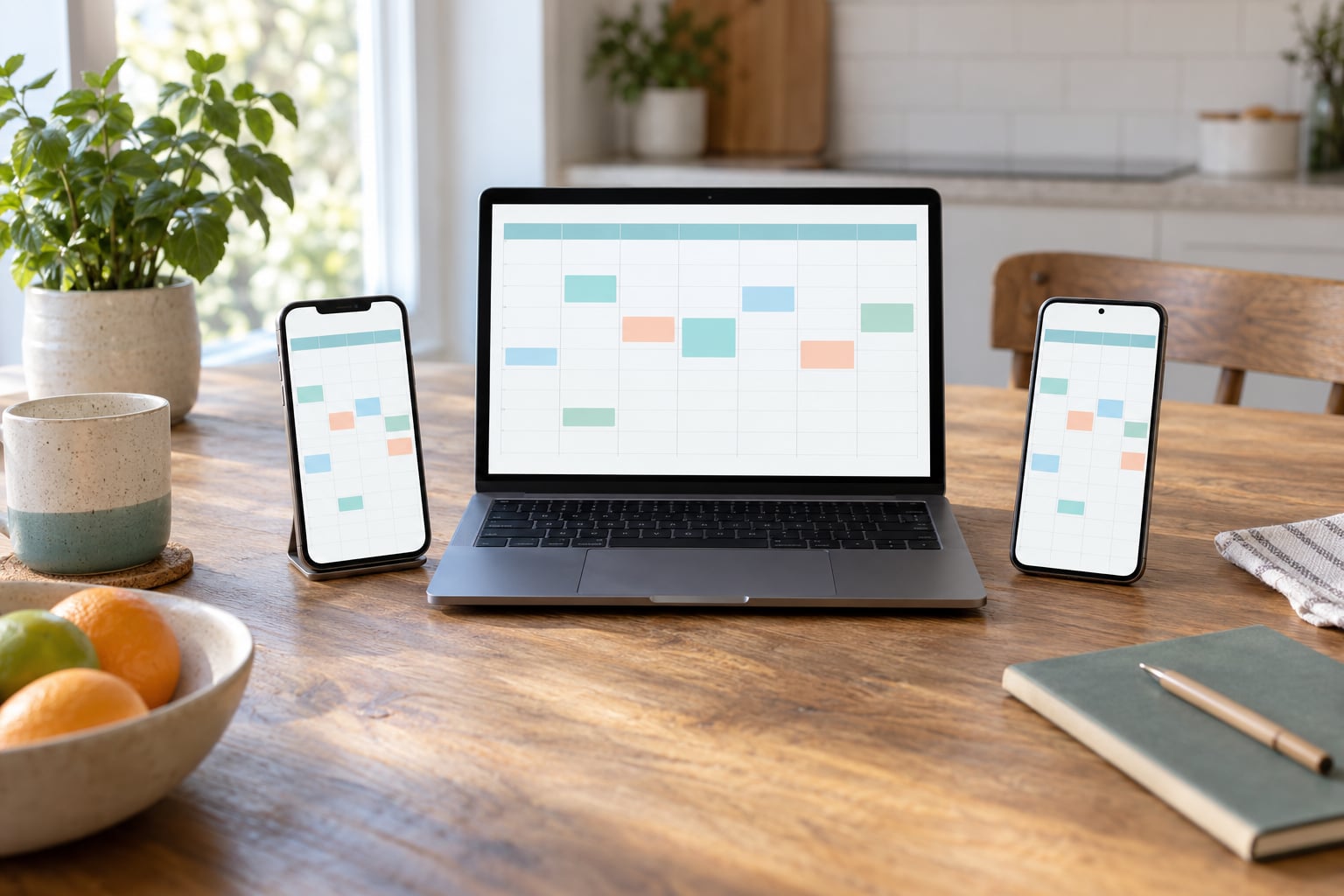
To set up a family calendar on phones, create one calendar inside the account of the person who owns the family phone account, invite the others by email, then turn on alerts. With Google Calendar it takes about five minutes on Android and iPhone alike. With Apple Calendar through iCloud, it works only if every invited person uses an Apple account.
Below is the version that works for almost every household, including mixed iPhone and Android homes, plus the iCloud route for all-Apple families and a fix list for the usual problems.
Table of Contents›
- What You Need to Set Up a Family Calendar
- Step-by-Step
- Choose the Calendar Account
- Create the Shared Family Calendar
- Add Family Members and Set Permissions
- Open the Shared Family Calendar on Each Phone
- Set Reminders and Default Notifications
- Test and Maintain the Calendar
- Common Mistakes
- Frequently Asked Questions
- What is the best way to create a shared family calendar?
- Is there a family calendar app that works on both Android and iPhone?
- Can I have two calendars on my Android phone?
- Why can’t my family member see the shared calendar on their phone?
- Can I share a calendar with my kids without showing my work events?
- How do I share a calendar with a grandparent or sitter who does not use these apps?
- Conclusion
What You Need to Set Up a Family Calendar
You need one email account per adult. A Google account works on every phone, iPhone or Android, which is why it is the default choice here. An Apple account only reaches the Calendar app on Apple devices.
Everyone who gets invited needs the calendar app on their phone already: Google Calendar from the Play Store or the App Store for a Google account, and the built-in Calendar app for an iCloud one. Installing it after the invitation arrives works fine.
Decide two things before you start. Who owns the calendar, and who is allowed to add events. The owner can delete or unshare the calendar later, so pick the person least likely to lose their phone or change accounts.
Step-by-Step
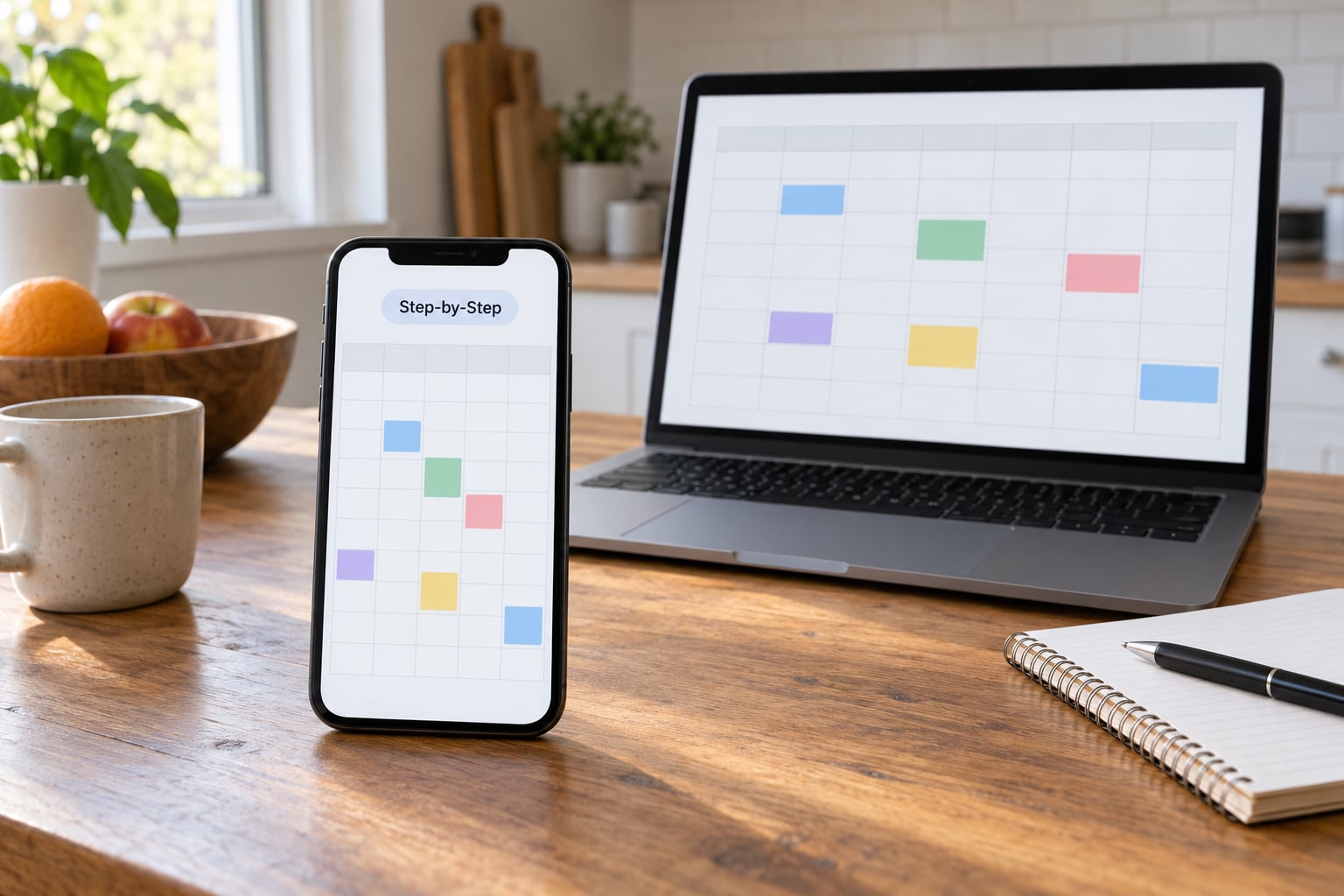
Choose the Calendar Account
There are three realistic choices, and they behave differently.
A personal Google or Apple account is simplest. Nobody learns a new login, and the calendar sits beside your existing events.
A dedicated family account, such as [email protected], keeps the calendar separate from a parent’s personal schedule and survives a phone being replaced. Both adults sign in with the same address on their own phones, and anyone with the password can change settings, so use a long one and keep recovery on an account the household actually checks.
Another service, such as a subscription family organizer app, only makes sense if you also want shared lists, chores or meal planning. The calendar setup itself is free with either native app.
Create the Shared Family Calendar
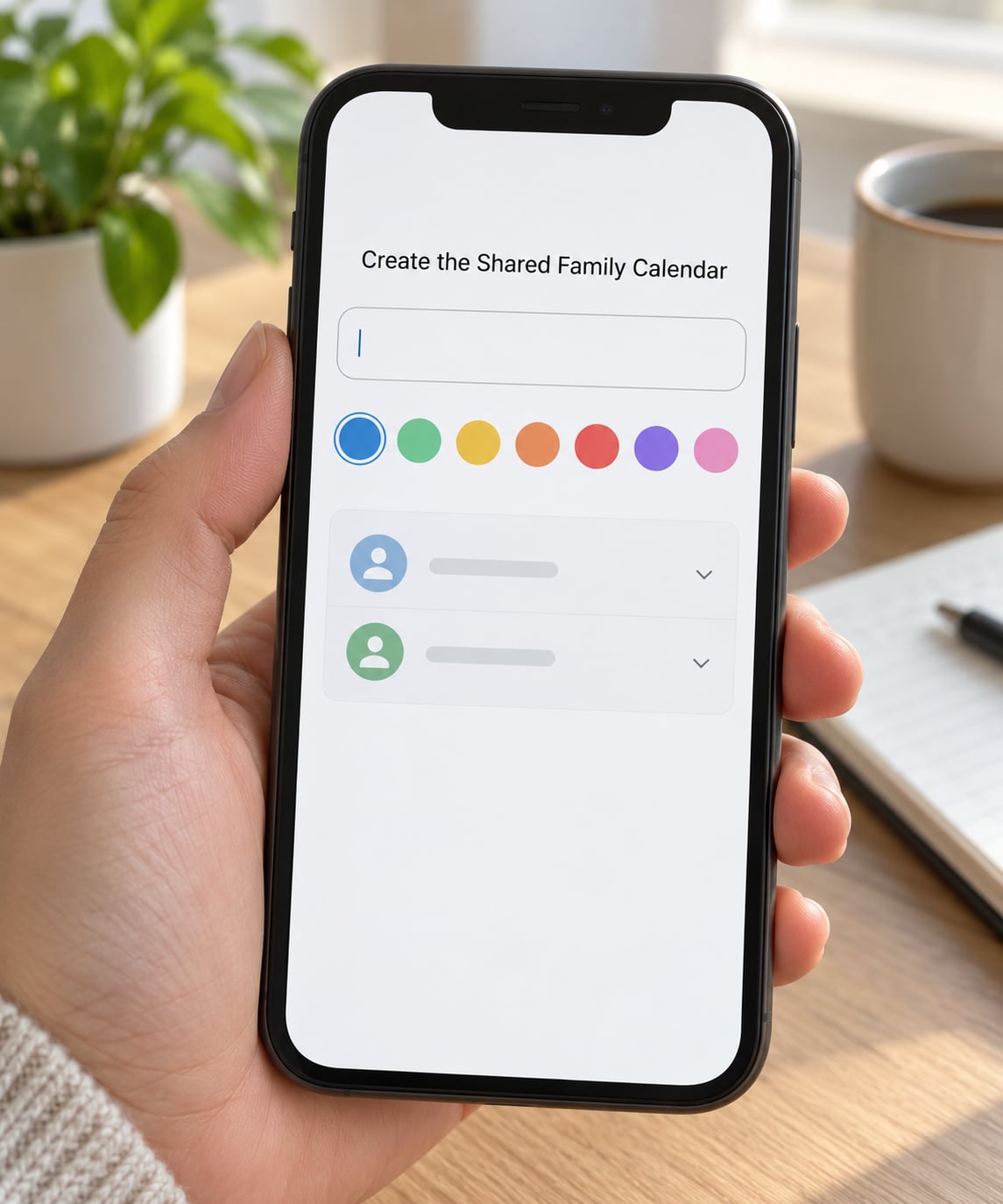
On Android, open Google Calendar, tap the three-line menu at the top left, scroll to the account you want the calendar under, and tap Other calendars. Tap the plus sign, type a name everyone will recognise, such as Family, pick a colour, and tap Done.
On iPhone, open the Google Calendar app, tap the menu icon at the top left, choose Other calendars, then the plus sign. Name it, pick a colour, and tap Done.
If you use Apple Calendar on iPhone instead, open Calendar, tap the calendar name at the top of the screen, tap Share Calendar, then Add People. Name the calendar in that panel before you invite anyone.
Turn off birthday, holiday and other informational calendars you do not need while you are in there. Extra subscriptions add noise to a family view.
Add Family Members and Set Permissions
Sharing differs between the two apps, and this is the step people usually get wrong.
In Google Calendar on Android, tap the three dots next to your new calendar in the list, tap Share calendar, turn on Share with specific people, tap Add people, and enter each address. Choose Can edit events for adults and Can view events for children or relatives who only need to see what’s on. Tap Save, then Send email.
On iPhone, the same panel is reached by tapping the calendar name at the top of the Calendar app and then Share calendar. Enter addresses, choose the permission level, and tap Send.
Apple Calendar offers the same choice as Can Edit or Can View. Can View means the person sees events but cannot add or change anything, which is the right setting for a teenager or a grandparent who only needs pickups and appointments.
In a share link, you can publish the calendar to a web address instead. That link is read-only, so anyone with it can see every event on it. Use it for a sitter, never for the family calendar.
Open the Shared Family Calendar on Each Phone
The owner must be right here: the invited person usually needs to accept once before the calendar appears anywhere.
On Android, open the invitation email or Google Calendar notifications, tap Join calendar, then open the Calendar app. Find the family calendar in the calendars list and tick its checkbox. An unticked checkbox is the reason a shared calendar looks missing.
On iPhone, the iCloud invitation opens in the Calendar app with an Add button. After accepting, open the Calendar app and tap Calendars at the bottom. The new calendar appears there with its colour and needs the same tick to be visible.
For a Google calendar on an iPhone, sign in with the family address through Google Calendar settings, or add the account from Settings, then Apps, then Gmail, then Accounts. Adding the account to Mail does not automatically add it to Calendar.
Set Reminders and Default Notifications
A shared calendar with no alerts is a silent archive. Set notifications per calendar instead of per event.
On Android, tap the three dots beside the family calendar, open the overflow menu, tap Notifications and guests, turn off Use default, then set the alert window, for example 10 minutes or 1 day before, plus the minutes before reminder. Repeat for each member who needs a different lead time.
On iPhone in Google Calendar, tap the menu icon, then Settings, then the family calendar name, then Notifications and guests, and use Add reminder for a repeated alert on every event in that calendar.
On iPhone in Apple Calendar, tap the calendar name, tap Alert next to each event, and pick options like 15 minutes before. Then open Settings, then Notifications, then Calendar, and allow notifications. Also check Settings, then Apps, then Calendar, where the default alert for new events lives.
Set the family calendar as the default so new entries land there without thinking. On Android: menu, Settings, Default calendar, then tap the family calendar. On iPhone with Apple Calendar: Settings, Apps, Calendar, Default Calendar.
Test and Maintain the Calendar
Add one test event with a time 20 minutes out and title it Family calendar test. Each person should confirm three things: the event is visible, the colour matches, and an alert arrives on the right phone.
If an alert lands on the wrong device, check which phone is signed into which account. People often keep a work account and a personal account on one phone, and the calendar attaches to the account, not the person.
For later changes, keep one adult as the calendar owner and route additions through the shared calendar rather than private entries. To let someone in later, edit the sharing panel and add their address. To let someone out, remove them there, or change the link access to Restricted.
Common Mistakes
Calendar not showing after an invite: the checkbox beside the calendar is unticked, or the invite is still sitting in the other account’s inbox. Open the calendars list, tick the box, and search the secondary account.
Duplicate calendars: two accounts are synced to one phone, each carrying a copy. Remove the account you do not need, or hide one calendar with the eye icon rather than deleting it.
Nobody gets an alert: the phone’s main Calendar notifications are switched off, or Use default is on and the family calendar inherits a long alert window from another calendar. Check both levels.
Events land in the wrong calendar: the family calendar is not set as default, so every new event goes to a personal calendar nobody else can see. Set the default as described above.
Sharing the wrong account: an invitation sent to a work address, an old phone number, or a spelling typo means it waits forever. Send again to the address the person confirmed.
Permission confusion: a view-only member thinks their edit failed, or an edit member deleted an event. Say who has which level when you hand out access, and keep Can View for children.
Times that look wrong for relatives in other zones: set the event time zone when you create it. Both apps keep the original zone and display it in the viewer’s local time.
Frequently Asked Questions
What is the best way to create a shared family calendar?
Create one calendar in a Google account, invite family members by email through the sharing panel, and choose Can edit for adults or Can view for children. Everyone signs in with the same account on their own phone, including iPhones. Google is the best starting point because it runs on both Android and iOS and costs nothing.
Is there a family calendar app that works on both Android and iPhone?
Google Calendar is the one most families already have on both platforms, and a shared Google calendar syncs to any phone signed into that account. Apple Calendar sharing through iCloud only reaches other iCloud users, so it does not help a mixed household. Dedicated family organizer apps do work across both platforms and add shared lists, but the calendar part is the least useful feature of most of them.
Can I have two calendars on my Android phone?
Yes, and most families end up with three or four. In Google Calendar, tap the menu, scroll to the account, and use the plus sign to add as many calendars as you want, each with its own colour. Tick or untick the checkbox beside each one to show or hide it, and open Settings, then Default calendar, to choose which one new events land in.
Why can’t my family member see the shared calendar on their phone?
Four causes cover nearly every case. The invitation was never accepted, so it is still pending in another inbox. The calendar checkbox is unticked in the calendars list. The person is signed into a different account on that phone. Or the calendar was created under an account the other person does not use. Check the account name at the top of the app on both phones first.
Can I share a calendar with my kids without showing my work events?
Keep work in your own calendar, never the shared one, and create a separate family calendar that holds school, sports, appointments and pickups. Share that one with Can view access for older children and Can edit for the adults. Because only that calendar is shared, work meetings, appointments and anything personal never appear on a child’s phone.
How do I share a calendar with a grandparent or sitter who does not use these apps?
Turn on the public web link in the calendar sharing panel and send the address by text or email. It opens in any browser and updates automatically, with nothing to install and no account needed. It is read-only, so the sitter cannot change or delete anything, and you can switch the link to Restricted later to switch it off.
Conclusion
Start by opening Google Calendar on the phone that will own the family calendar, creating a calendar named for the family, and adding one adult at Can edit. Send the invite, have everyone accept it and tick the checkbox in their calendars list, then set alerts and make that calendar the default. Do a single test event before anyone loads in the school year.