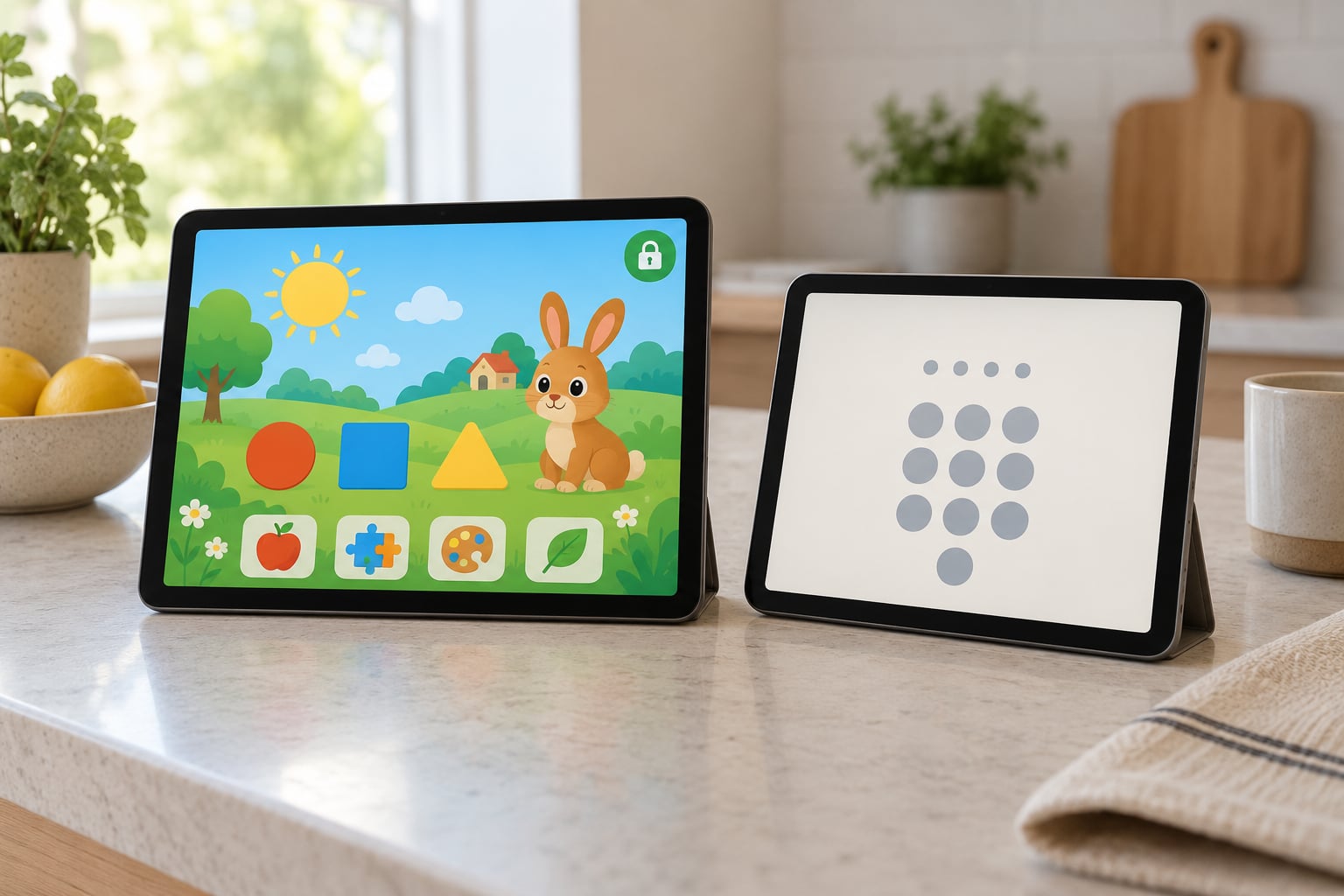
If you want to know how to lock a single app on a tablet for kids, the feature is called kiosk mode, and every major platform has some version of it. Apple calls it Guided Access, Android calls it screen pinning or a kiosk lock app, Amazon Fire uses child profiles, and Windows uses Assigned Access. On most tablets it takes about five minutes to set up and one passcode to open.
Screen Time and Google Family Link are not a substitute. They cap how long an app can run, but a child can still swipe, open the browser or buy something during that window. A single-app lock removes those exits entirely.
Table of Contents›
- What You Need
- Step-by-Step: Locking One App on Each Platform
- How to Lock a Single App on an Android Tablet
- How to Lock a Single App on an iPad
- How to Lock a Single App on an Amazon Fire Tablet
- How to Lock a Single App on a Microsoft Windows Tablet
- How to Test and Adjust the App Lock
- Common Mistakes
- Frequently Asked Questions
- Can a child turn Guided Access off without my passcode?
- Does Guided Access end if the tablet restarts?
- What do I do if my tablet has no single-app mode?
- Is there a way to lock apps only after a certain time?
- Which method suits a toddler versus an older child?
- Conclusion
What You Need
Before you open any settings menu, work out which of these you actually have. The steps differ enough that following an iPad tutorial on a Galaxy Tab wastes an afternoon.
- The tablet’s operating system: iPadOS, Android, Fire OS, Windows or ChromeOS
- Access to the parent account, plus the device passcode
- The one app you want the child to reach, installed and signed in
- A passcode the child cannot guess and you will not forget
- About five minutes of the tablet, set up before you hand it over
The same job has a different name on each system, so here is what you are looking for before you start hunting through menus.
| Tablet type | Built-in single-app lock | Needs passcode | Allows several apps |
|---|---|---|---|
| iPad and iPhone | Guided Access | Yes | No, one app only |
| Android phone or tablet | Screen pinning | Yes | No, one app only |
| Samsung Galaxy Tab | Samsung Kids or Knox | Yes | Yes, via a kids profile |
| Amazon Fire tablet | Child profile and app limits | Yes | Yes, within the profile |
| Windows 11 tablet or 2-in-1 | Assigned Access | Yes | No, one app or one URL |
| Chromebook | None by default | Not applicable | Managed devices only |
Only the iPad and Windows methods hold with a true passcode and no way out without it. Android screen pinning asks for a PIN, but it is easy to switch off and weaker than the others. Chromebook has no consumer-level single-app lock at all, so you are relying on a supervised account there.
Step-by-Step: Locking One App on Each Platform
How to Lock a Single App on an Android Tablet
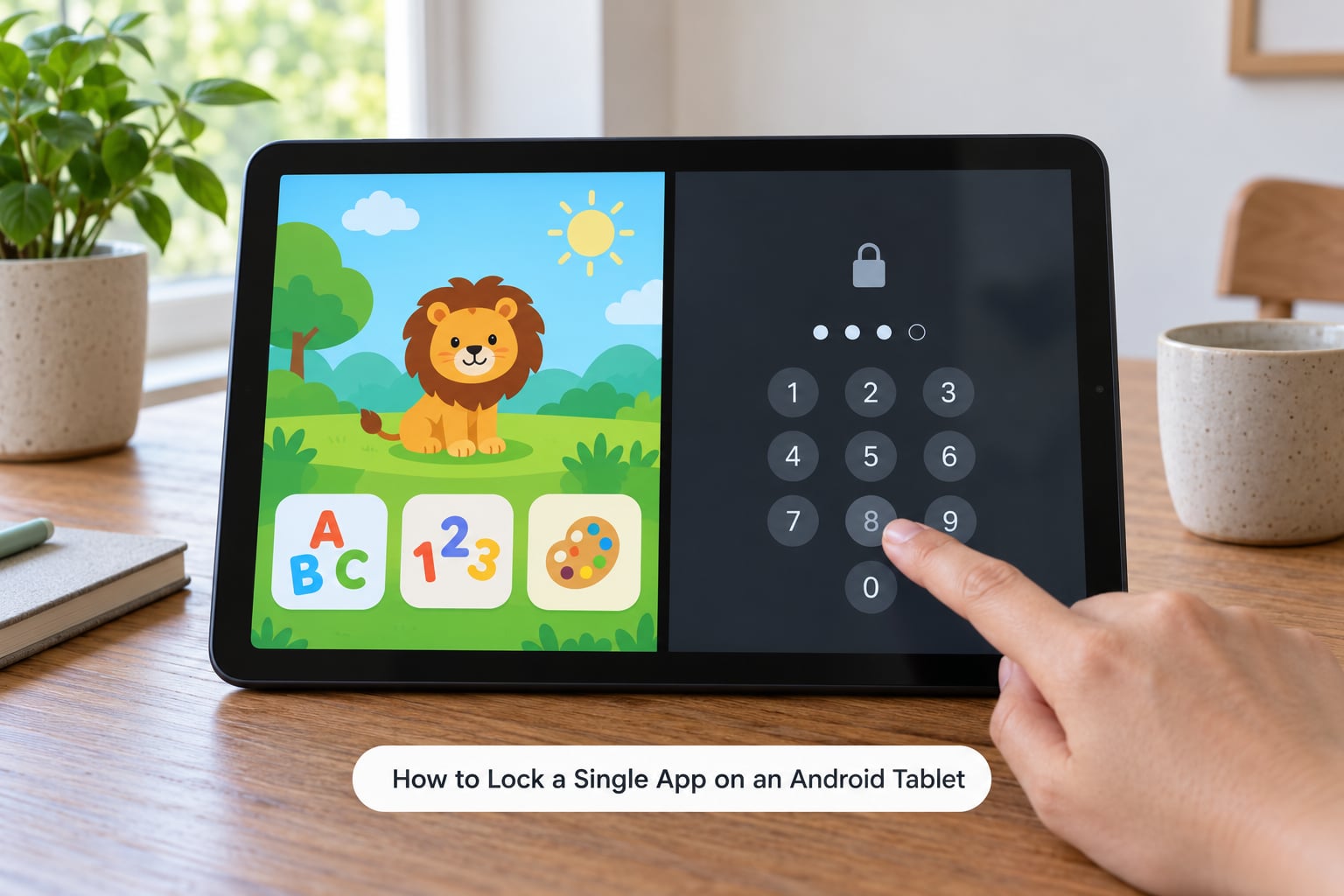
Android has no first-party equivalent of Guided Access, which is the single biggest reason parents end up searching for one. You have three realistic options, in ascending order of how hard they are to break.
Option 1: Screen pinning. This is built into every phone and tablet running Android, and it works well enough for a five-year-old.
- Open the app you want the child locked into.
- Tap the three-dot menu in the top corner of the app and choose Screen pinning, or use the recent apps view and tap the pin icon.
- Read the warning that you will need your PIN to unpin, then confirm.
- Set your PIN when prompted. This is separate from your device unlock code.
- Press the Home button. The tablet stays in the app.
- To release it, hold Home and the square overview button together, then enter the PIN.
Check what your manufacturer offers before you rely on it. Samsung tablets add a PIN requirement and a sensitive-content block on top of standard pinning, and several other brands ship their own supervised-user mode in Settings. Menu names shift with both the Android version and the brand skin, so if you cannot see Screen pinning, search Settings for pinning.
Option 2: A kiosk lock app. Screen pinning has gaps: on many devices a child can swipe up into the app switcher, and volume buttons still work. A kiosk lock app takes over the whole screen and usually needs device administrator permission to stop the child uninstalling it. Expect to grant that permission, and understand what you are handing over before you do.
Option 3: A restricted child profile. Family Link on Google Play lets you create a supervised Google account for a child with an allowlist of apps. It is not a hard lock, since the child can still reach any app you permitted, but it is the right choice when the tablet is shared and the child is old enough to follow simple limits.
Samsung deserves its own mention because parents ask about it constantly. Samsung Kids is a free launcher with a PIN that opens into a walled garden of approved apps, and Knox adds deeper controls such as blocking the camera and microphone outright. Both live in Settings under Knox and Samsung Kids on current Galaxy tablets.
How to Lock a Single App on an iPad
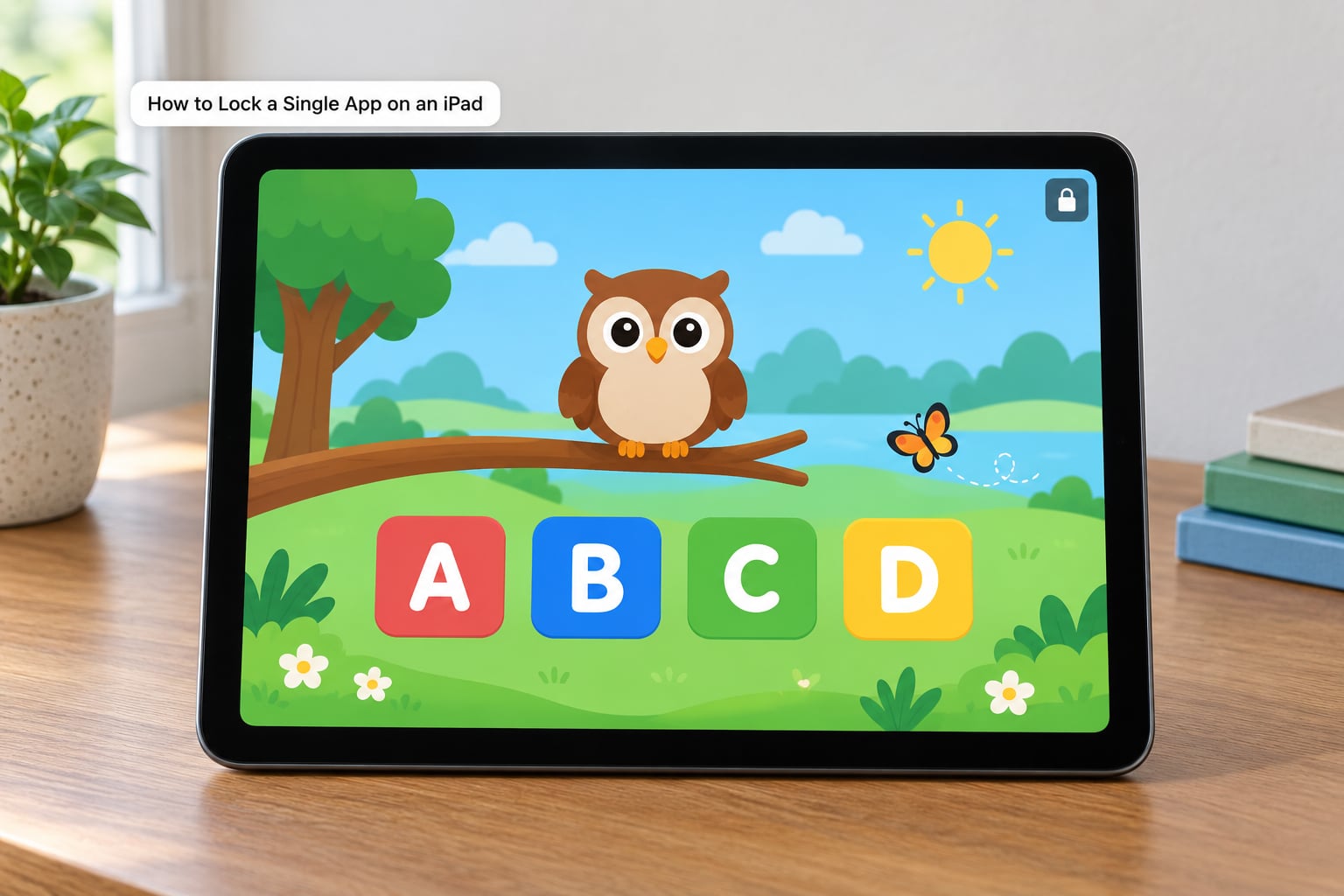
Guided Access is the most reliable built-in lock of the four systems, and it takes about a minute once you know where it is. It is a temporary lock, not a permanent setting, which surprises people.
- Open Settings, then General, then Accessibility, then Guided Access.
- Turn on Guided Access. You will be prompted to set a passcode.
- Choose your passcode and turn off every option you do not want. Leaving the hardware-button options on lets a child press the side buttons and get to the Control Center.
- Open the app you want to lock, for example a reading or drawing app.
- Triple-click the top button on an older iPad, the side button on a newer one, or the top-right corner on a model with no button. On an iPad with a Touch ID button, triple-click that instead.
- Tap Start in the top-right corner. The app now fills the screen and the status bar disappears.
Inside Guided Access you can set a time limit under Options, block specific touch areas from the edges of the screen, and turn off the hardware buttons. The edge-block setting is worth using: without it a child can swipe from the left edge and summon the multitasking view.
To end it, triple-click the button again, enter the passcode, and tap End. There is no other exit.
Two honest limits. Guided Access locks exactly one app, so if a child needs to move between a lesson, a drawing app and a dictionary, it is the wrong tool. A library running dozens of educational apps on shared iPads hit this constantly and end up using a managed device profile instead. Second, it ends whenever the session ends, so a restart or a shutdown puts the tablet back to normal.
For a single app rather than a full kiosk, there is a lighter option. Long-press an app icon, choose Quick Actions, then Require Face ID or Require Touch ID. The app then asks for your face or fingerprint every time it opens, with no passcode to hand over.
For stopping a child from opening other apps without a hard lock, use Screen Time app limits. Settings, then Screen Time, then App Limits, then Add App Limit. Set a daily limit and block Settings, Safari and the App Store by setting their limit to zero.
How to Lock a Single App on an Amazon Fire Tablet
Fire tablets get the least honest coverage anywhere online, so take the menus slowly. Fire OS moves things between versions, so if a path below does not match what you see, check Settings, then Device Options, to see your Fire OS version.
- Open Settings, then Parental Controls, and create a PIN if you have not already. This PIN gates every later change.
- Choose Profiles, then Create Profile, and name the profile for your child.
- Set an age band and content settings for that band.
- Open Amazon FreeTime and turn it on for the profile. Amazon Kids+ gives a larger app library and a content filter that hides anything outside the age range.
- Add only the apps the child needs. Anything not added is not visible in the profile.
There is no true one-app lock in Fire OS. What you have is a walled profile, which is often better anyway, since a child can move between a drawing app, a reading app and a video app without asking you to restart the session each time.
If you need a genuine single-app kiosk on a Fire tablet, you are into the third-party app route, with the same device administrator caveat as Android. Check the Fire OS version first, because several of these tools need a recent build to run reliably.
How to Lock a Single App on a Microsoft Windows Tablet
Windows tablets and 2-in-1s behave like small laptops, so you get the Windows lockdown tools rather than a phone-style one. Windows 11 has a Kiosk mode under Settings, then Accounts, then Other users, then Kiosk. It locks the whole session to a single app or a single website, needs a sign-in with a local account, and forces a restart when you exit, which makes it awkward for a daily family tablet but fine for a reception desk.
On Windows 10 and earlier, the equivalent is Assigned Access under Control Panel, then Ease of Access, then Ease of Access Center, then Set up family controls. You choose one app, set a PIN, and the account cannot reach anything else.
For younger children, Family Safety in the Microsoft Family app is the softer layer. It gives you activity reports, screen time limits for apps you approve, and a way to pause the device from your own phone.
If the built-in controls leave your child able to wander, a device-management app is a reasonable next step, and only then. Those tools need elevated rights on the machine and are built for business fleets, so treat installing one as a bigger decision than setting a Guided Access passcode.
How to Test and Adjust the App Lock
Set up the lock, then test it before the child does. Ten minutes now saves a month of finding out they reached the browser.
- Hand over the tablet and confirm the intended app opens and is usable.
- Try to leave: press Home, swipe up for the app switcher, and swipe in from the left edge on iPad.
- Try the side buttons and check that the Control Center and notification shade stay out of reach.
- Restart the device and confirm whether the lock survived. Guided Access does not survive; a locked profile usually does.
- Check that your passcode still gets you back in, and that the child cannot work around it by unplugging the tablet.
To remove a lock, you never need to delete anything. Guided Access ends with a triple-click and your passcode. Screen pinning ends with a long press on Home plus the PIN. Fire and Android profiles are removed by entering your parental PIN in settings, and the app data stays where it was. The one thing to avoid is uninstalling the kiosk app to escape a lock, because that removes the app’s settings along with it.
One habit worth building in: set the screen timeout so the display does not sleep mid-lesson, since a child often cannot wake it from the side of the lock without a passcode.
Common Mistakes
Screen pinning without a PIN. Pinned with no PIN set, a child can usually release the pin by holding the buttons together. Set the PIN during setup and write it somewhere outside the tablet.
Guided Access turned on but no passcode set. If you skip the passcode prompt, the child can triple-click and end the session themselves. That is the most commonly reported escape route on iPads.
Leaving hardware buttons enabled. Guided Access options can lock out the side buttons. With them on, a child can reach the Control Center, switch apps or drop the volume to zero.
Treating app time limits as a lock. Screen Time and App Limits cap duration, not access. For blocking the browser and Settings entirely, set those apps to a limit of zero or use Guided Access.
Using a kids profile where you need a hard lock. Fire and Android kids profiles are walled gardens, not kiosks. If a determined seven-year-old should not reach the browser at all, use Guided Access, pinning or a kiosk app instead.
Setting it up on the wrong device or account. Parental controls follow the child account, not the tablet. If you configured the parent’s profile, the child account will not inherit any of it.
Picking a guessable passcode. Sequences like 1234 and repeated digits are the first thing a five-year-old tries. Use something you will genuinely remember, not something clever enough to be forgotten at the school pickup.
Two more things people miss. Kids tend to defeat an edge-swipe escape, so use the touch-blocking option in Guided Access. And if the screen dims mid-activity, the child often cannot wake it, which turns a good session into an argument.
Frequently Asked Questions
Can a child turn Guided Access off without my passcode?
No. Once a Guided Access passcode is set, ending the session requires triple-clicking the top or side button and entering that passcode. The gap most parents hit is skipping the passcode prompt during setup, which leaves the session open to anyone who knows the gesture. Two further escapes exist: a restart ends the session without any passcode, and a swipe from the left edge can reach multitasking unless you block the screen edges in Options.
Does Guided Access end if the tablet restarts?
Yes. Guided Access is a temporary session, not a permanent setting, so a restart, a shutdown or a forced crash returns the tablet to its normal state. That is fine for a single sitting but a problem for a fixed kiosk, which is why schools and reception desks use a locked profile or Windows kiosk mode instead. If you need the lock back automatically, pair Guided Access with Screen Time app limits so the restricted apps stay blocked between sessions.
What do I do if my tablet has no single-app mode?
Use the closest built-in equivalent and treat it as a lockout rather than a kiosk. On Chromebook and most Android tablets, set up a child account with a parental PIN and an app allowlist, then add a screen timeout and disable sideloading where the platform allows it. If the built-in controls are not enough, a third-party kiosk app fills the gap, though it needs device administrator rights. For classroom or library fleets, a managed device profile is the proper answer.
Is there a way to lock apps only after a certain time?
Yes, and for many families it is the better fit than a hard lock. On iPad, set app limits and a downtime schedule in Screen Time so YouTube or a game becomes inaccessible after bedtime while reading apps stay open. On Android, Google Family Link does the same with app-specific time limits managed from the parent account. Amazon FreeTime offers comparable scheduling on Fire tablets. None of these block the browser outright, so combine them with app limits set to zero for the apps you never want opened.
Which method suits a toddler versus an older child?
For a toddler, a hard lock is worth the friction. Guided Access on iPad or a locked child profile on Amazon Fire keeps a small child inside one app without any decision-making on their part. For a school-age child who moves between two or three apps, a walled profile or app limits are less annoying and still cover the main risks. For a tween, guided restrictions plus an honest conversation usually beat a lockdown, since an aggressive lock tends to push them toward a device they control.
Conclusion
Start by identifying the operating system, because that is the only step that cannot be skipped. Then set up the strongest mode the device actually offers: Guided Access on an iPad, a PIN-protected screen pin or kiosk app on Android, a locked child profile on Fire, and Assigned Access on Windows.
Then test it yourself before the child does. Try Home, the app switcher and the side buttons, and if any of them get out, close the gap before it matters.
Two habits keep a setup working over time. Keep the passcode off the tablet, and choose one you will remember on a tired Tuesday. And remember that a single-app lock is a tool, not a strategy: app limits, a shared family account and an honest conversation still do the work a lock cannot.