If you are wondering how to play music in a car from a phone, the job is really two moves: connect the two devices using one of four methods, then switch the car’s stereo to that same source. Bluetooth and CarPlay or Android Auto take about a minute after the first pairing, while an AUX or USB cable works even on cars old enough to predate in-car apps.
Nearly every complaint about this ends up being one of the same three things: the stereo is on the wrong input, the phone is paired but its media audio is switched off, or the cable only charges without carrying audio. This guide walks through all four connection methods for iPhone and Android, then the fixes for when a connection that looks perfect produces silence. Do the setup while parked, and sort out calls and navigation with voice control once you are moving.
Table of Contents›
- What You Need
- Step-by-Step: How to Play Music in a Car From a Phone
- Step 1: Check What Your Car Supports
- Step 2: Connect the Phone
- Step 3: Select the Car Audio Source
- Step 4: Start Playing Music in the Car From a Phone
- Step 5: Confirm and Troubleshoot the Connection
- Common Mistakes
- Frequently Asked Questions
- Can I play music from my phone in my car without Bluetooth?
- Can you use Bluetooth audio and CarPlay at the same time?
- Why is my phone connected to my car but no music plays?
- Why is my audio playing through my phone speakers instead of CarPlay?
- How do I play music in an old car with no AUX jack and no Bluetooth?
- Does playing music in the car use a lot of mobile data?
- Conclusion
What You Need
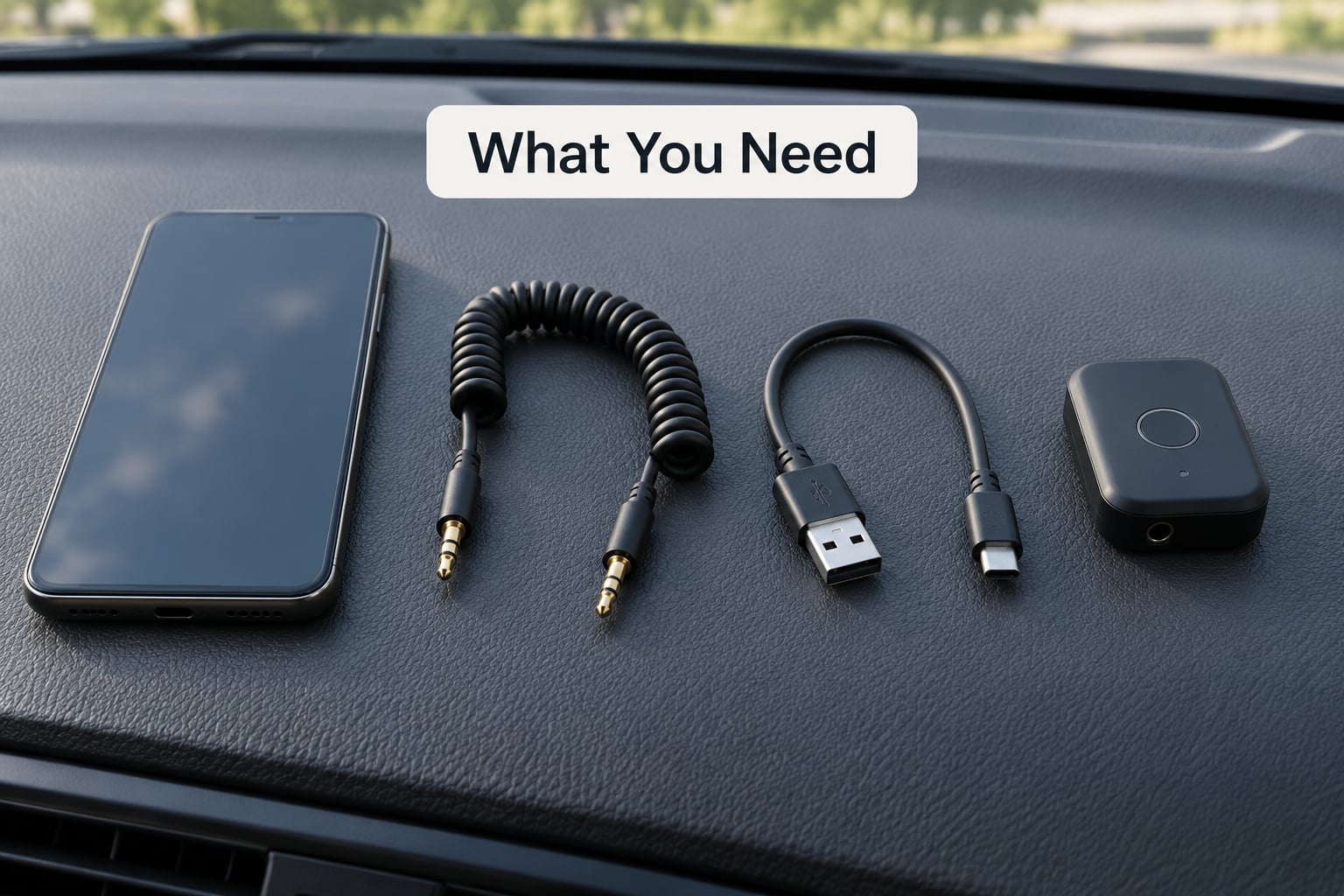
What you need depends entirely on which methods your car supports. Check the owner’s manual or just look at the dashboard and centre console for a Bluetooth button, a 3.5mm jack, a USB port, or a screen that already runs CarPlay or Android Auto. Most cars built in the last fifteen years have at least two of them.
- Bluetooth audio: nothing but the phone and the car. Turn the toggle on, pair once, and every later drive reconnects on its own. This is the cleanest option if your stereo supports it.
- CarPlay or Android Auto: a head unit that supports the interface. iPhones need CarPlay, Android phones need Android Auto. Wired versions use a charging cable; wireless versions need compatible hardware on both ends.
- AUX cable: a 3.5mm jack on the car plus a matching cable. Phones without a headphone jack need a USB-C to 3.5mm adapter that converts the digital signal, not just a charging dongle.
- USB: a port in the car that carries data, plus either a cable for your phone or a flash drive full of MP3s. Plenty of in-car USB ports only charge, so test before you rely on one.
- Older cars with neither Bluetooth nor an AUX jack: a Bluetooth FM transmitter or a cassette-to-AUX adapter. Owners of older vehicles report these work fine as a stopgap rather than a permanent fix.
On the software side, keep your phone updated. For Android, Android Auto over a cable generally needs Android 8.0 or newer, and wireless Android Auto usually needs Android 11 or later, or an Android 9 phone from Samsung or Google. Wireless Android Auto also wants a 5GHz Wi-Fi connection, which is why it drops out in some car parks and garages.
These steps work on current iPhone and Android versions as of 2026. If a connection that used to work suddenly stops after an operating system update, that is a known pattern rather than something you broke.
Step-by-Step: How to Play Music in a Car From a Phone

Step 1: Check What Your Car Supports
Look for the source button on the head unit. Most stereos have a knob or key labelled AUX, BT or Media, and pressing it cycles through the inputs the car has. Find the physical ports before you start: the 3.5mm jack is often behind a flip-down panel in the centre console or inside the armrest, and the USB port is frequently in the console, the glovebox or next to the AUX jack.
If the screen runs CarPlay or Android Auto, the car may only expose those apps rather than a plain AUX input, which is why the source list looks different on a modern head unit. Check the manual for the exact port list; it is usually in the audio or infotainment section rather than under features.
Step 2: Connect the Phone
On an iPhone, swipe down from the top right corner to open Control Center and tap the Bluetooth icon. On Android, swipe down twice for Quick Settings, or open Settings, tap Connected devices, then Pair new device. Tap your car’s name in the list. The car usually asks for a pairing code, so type the number on the head unit into your phone, or accept the code the phone shows you.
For CarPlay, plug the phone into the car’s USB port with a cable that carries data, unlock the phone when the prompt appears, and tap Accept on the head unit. Android Auto works the same way with a data cable: plug in, unlock, and tap the Android Auto icon on the screen when it asks you to choose USB mode.
For AUX, push the 3.5mm plug into the car’s jack and the other end into your phone or a USB-C adapter. For USB audio, plug in the cable or stick a flash drive into the port, then set the source to USB. If the phone only charges and the screen never asks about USB mode, you are on a charge-only port or a cable that lacks data lines.
Step 3: Select the Car Audio Source
The phone being connected proves nothing. Until the stereo’s source is switched to Bluetooth, USB, AUX, CarPlay or Android Auto, you will hear silence. Press the source or media key on the head unit, or turn the knob until the display names the input you just connected.
Raise the phone’s media volume to around 80 percent before you start. The car controls the level above that setting, and a phone sitting at volume 3 is the single most common reason a correctly paired phone produces no sound.
Step 4: Start Playing Music in the Car From a Phone
Open your music or streaming app and press play. On a plain Bluetooth connection the audio plays through the car while the app stays on your phone screen. With CarPlay or Android Auto you get a proper app on the dashboard, and music is one tap away from the home screen.
Steering-wheel buttons usually skip tracks and change volume, and the track title appears on the car’s display. Say Siri or Hey Google to change music hands-free, which keeps your eyes on the road and satisfies the deal-breaker drivers care most about: never handling the phone while moving.
Step 5: Confirm and Troubleshoot the Connection
Play a track, turn the cabin volume up, and check the car is on the right source. If you hear it through the phone speakers instead, tap the AirPlay or output picker. On iOS it sits in Control Center and sometimes Apple CarPlay appears; on Android it is in the notification shade under Media output or Cast.
If the car shows a paired device but offers no music option, open the Bluetooth device settings on the head unit and check the media audio or playback profile. On some stereos, turning off the Phone Calls profile also kills media audio, a fix that circulates on Reddit’s r/AndroidQuestions because it looks like a broken phone rather than a stereo setting.
When nothing else works, forget the car on both sides, delete it from the phone’s Bluetooth list, reboot the head unit and pair again. Several users fixed stubborn setups that way, and it takes under two minutes.
Common Mistakes
The car says connected but no sound comes out. Almost always the source. Press the Bluetooth or AUX key on the head unit, then raise the phone’s media volume. If the source is already right, mute-check the car itself, because the phone mute switch and the cabin mute button are separate things.
Audio keeps playing from the phone instead of the car. Tap the output picker and choose the car. Pause and resume playback once, since the routing sometimes snaps back after a pause. If CarPlay is selected but the sound stays on the phone, unplug and replug the cable while the phone is unlocked.
Bluetooth drops out every few minutes. Clear the paired device list on the car and re-pair, and delete the car from the phone’s Bluetooth menu before connecting again. Interference from other Bluetooth devices in the car, or an old battery in the key fob emulating a device, causes repeat connection attempts that fight the phone.
The USB port charges the phone but never plays music. That port is charge-only, or the cable has no data lines. Try the cable that came with the phone, keep it under about three feet, and confirm the head unit accepts phone audio rather than only a drive.
The song starts then immediately pauses. This is a USB-C to 3.5mm adapter problem, and owners report it repeatedly in the EE community forum. The cheap dongles often pass audio to the phone’s DAC and confuse it, so playback stumbles. Replace it with an adapter that explicitly supports audio output, and keep the phone’s Bluetooth switched off so the phone stops re-negotiating the audio path.
Unsupported file formats. Older stereos handle MP3 and sometimes WMA well but refuse AAC, FLAC or protected streaming downloads. If a USB drive plays nothing at all, try one MP3 first before rewriting the whole stick.
Calls interrupt music and it never comes back. Some cars pause playback for a call and stay paused afterwards. Press play again on the phone and the audio usually resumes on the car within a second.
An operating system update broke a working setup. Deleting the car entry from both sides and re-pairing after the update fixes most of these. Check the phone and head unit for pending software updates before you start redoing cable routing.
A few habits keep this painless. Pair Bluetooth once while parked and let it reconnect automatically. Download playlists for offline listening before long trips if your signal is patchy, and remember that streaming over cellular burns data fast, so a full playlist costs noticeably more than the same music on Wi-Fi. Keep the phone in the cabin or the glovebox, not somewhere the sun can cook it.
Frequently Asked Questions
Can I play music from my phone in my car without Bluetooth?
Yes, three routes work without any Bluetooth at all. Plug into the AUX jack with a 3.5mm cable, adding a USB-C to 3.5mm adapter if your phone has no headphone jack. Use a USB port that carries data to play MP3s from a flash drive or the phone itself. In a car with neither port, a Bluetooth FM transmitter or cassette adapter is the usual stopgap.
Can you use Bluetooth audio and CarPlay at the same time?
You can pair both, but only one carries audio at a time. CarPlay uses the car microphone and speaker system for calls, while Bluetooth audio is the plain fallback that also handles calls. If music will not play over CarPlay, forget the Bluetooth profile temporarily and try again, since some head units hold the audio route on the older Bluetooth connection.
Why is my phone connected to my car but no music plays?
Check three things in order. First, the head unit source must be switched to Bluetooth, USB, AUX or CarPlay, not Radio. Second, the phone’s media volume should be near maximum, because the car only controls audio above that level. Third, open the car’s Bluetooth device menu and confirm media audio or playback is enabled, since some stereos tie media playback to the Phone Calls profile.
Why is my audio playing through my phone speakers instead of CarPlay?
The output device on the phone is set to itself. On iPhone, open Control Center and pick your car from the AirPlay list, or check the audio route inside CarPlay settings. On Android, pull down the notification shade and choose the car under Media output or Cast. Pausing and resuming once also clears a stale route in a lot of cases.
How do I play music in an old car with no AUX jack and no Bluetooth?
A USB-to-AUX adapter is the cheapest fix if your phone has a USB-C port, though results depend on the adapter. Otherwise a Bluetooth FM transmitter that plugs into the 12V socket sends audio to the car radio on an FM frequency you tune to manually. A cassette-to-AUX adapter works too if your car still has a working cassette deck.
Does playing music in the car use a lot of mobile data?
Streaming does, and the difference adds up on a long drive. An hour of continuous streaming typically consumes a few hundred megabytes depending on audio quality, while downloaded music plays offline and costs nothing. If you mostly drive in areas with poor signal, download your playlist before you set off and leave streaming off, which also cuts the dropouts.
Conclusion
Start with whatever your car already gives you for free. Pair Bluetooth once while parked, switch the head unit to the Bluetooth source, and your phone’s music plays on every drive afterwards. If the car has CarPlay or Android Auto, plug in and accept the prompt for a proper dashboard interface with streaming apps and voice control.
Keep an AUX or USB cable in the glovebox as the fallback for an older car or a failed pairing, and remember the three fixes that solve most problems: correct source, phone volume turned up, media audio enabled on the stereo.