Battery saver mode is a built-in power saving setting that limits CPU performance, dims the screen, turns off vibration, and restricts background app activity so the last 20% of your battery lasts longer. Knowing how to use battery saver mode effectively comes down to three things: turning it on from the right menu, setting a sensible trigger level, and checking battery usage afterwards to see what it actually changed. On Android it takes about a minute; on iPhone it is two taps.
That last part matters more than people expect. The toggle is the easy half. The half that actually adds hours is telling the phone which apps are allowed to keep working in the background, because that is where most of the drain lives.
Table of Contents›
- What You Need
- How to Use Battery Saver Mode Effectively: Step by Step
- How to Use Battery Saver Mode Effectively on Android
- How to Use Battery Saver Mode Effectively on iPhone
- Common Mistakes
- Frequently Asked Questions
- Is it okay to keep battery saver mode on all the time?
- How much battery life does battery saver mode actually save?
- Does battery saver mode make your phone slower?
- Why is my phone still draining battery fast with battery saver on?
- How do I turn on battery saver mode on a laptop?
- Where are the battery settings on Android?
What You Need
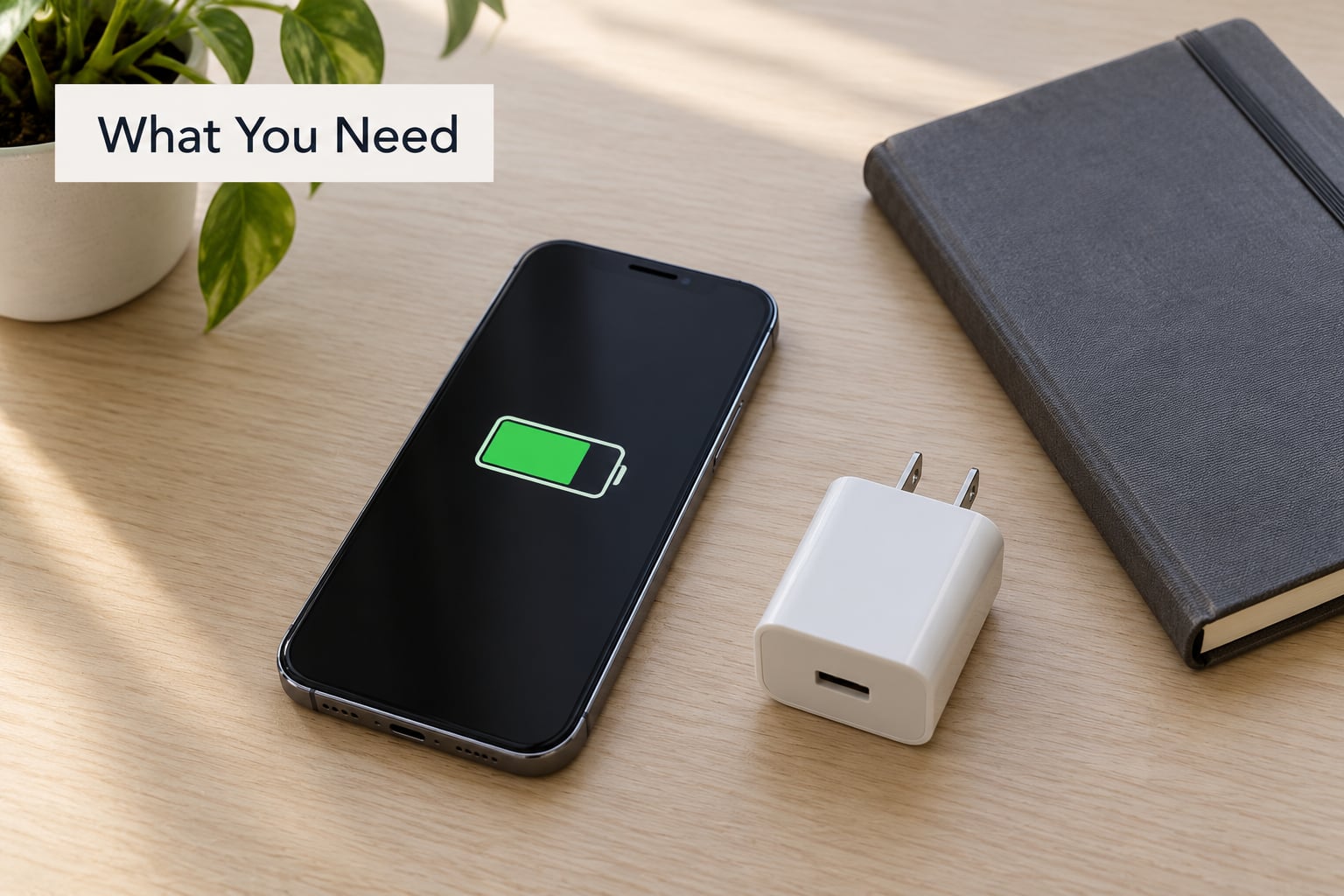
Before you change anything, note four things: your phone model, your operating system version, your current battery percentage, and whether you have a charger within reach today. That last detail decides which tier makes sense.
Menu names are the usual stumbling block. Stock Android calls it Battery Saver. Samsung One UI calls it Power saving mode and buries it inside Battery and device care. iPhone calls it Low Power Mode. Same idea, three different labels.
Check your Android version first, because the layout moved again in recent releases. On most phones: swipe down twice for Quick Settings, then tap the battery icon or open Settings and search for battery. Search is faster than hunting through menus that may have been renamed.
How to Use Battery Saver Mode Effectively: Step by Step
How to Use Battery Saver Mode Effectively on Android
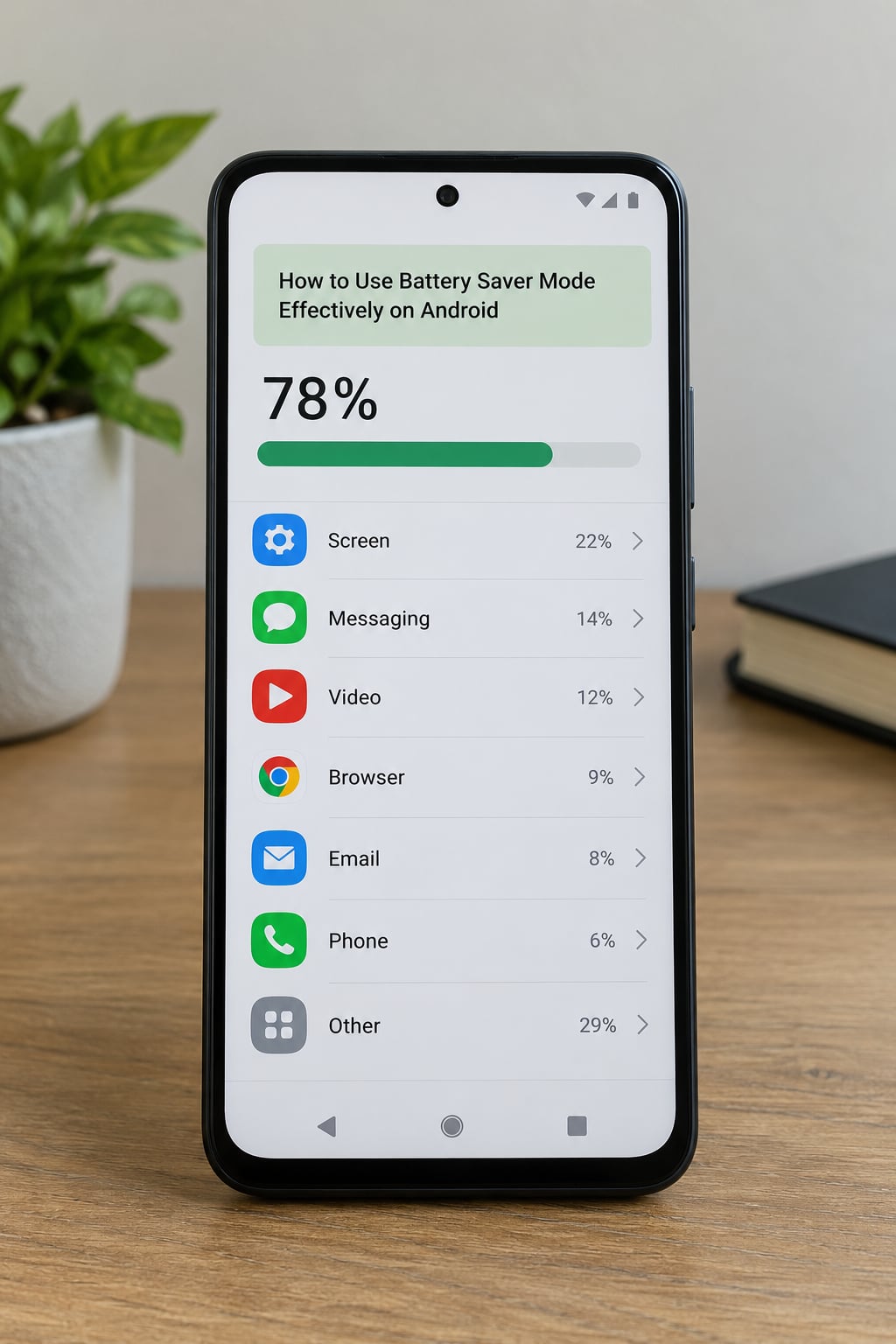
Android versions from Google, current releases: swipe down twice for Quick Settings and tap the Battery Saver tile, or go to Settings > Battery > Battery Saver and flip the toggle. The gear icon beside the toggle opens options rather than turning it on. Under that same Battery screen you will find Adaptive Battery, which learns your routine and restricts apps you rarely open, plus an Always allow list for apps such as maps and messaging that you want untouched.
Samsung One UI: open Settings > Battery and device care > Battery, then tap Power saving mode to switch it on. Right under that toggle sit three options that decide how aggressive it is: Limit background app usage, Limit CPU speed, and Dim screen. Turning all three on gives the biggest runtime gain and the most noticeable lag. Samsung also offers an Adaptive Battery setting, an Always allow apps list, and Modes and Routines if you want power saving to switch itself on overnight.
Extreme Battery Saver: found under Settings > Battery > Extreme Battery Saver on recent Android phones. It stops background activity almost entirely, blacks out most of the screen, and limits you to a short allowlist of essential apps you pick yourself. Expect messages and the camera to stop working until you add them back. Treat it as an emergency tier for a dead battery, not a daily setting.
Set the automatic trigger while you are in there. Most Android phones offer 20%, 30%, 40%, or never. Thirty percent is the sensible pick for most people: you keep full performance through the working day and get the help when it counts. Owners who set a 30% trigger usually pick up another hour or two over the day, which is roughly what most people report in normal use.
Scheduling beats manual toggling, and it is the pattern people settle on after a few weeks of testing it. On Samsung, open Modes and Routines, create a custom routine set to run at 22:00, switch on Power saving mode, and optionally turn mobile data and location off as well. Run it overnight, from around 8pm to 7am, so the phone is not quietly burning through notifications while you sleep. On other Android builds, the automatic trigger percentage covers most of the same ground without the extra setup.
Then verify the result. Settings > Battery > Battery usage shows which apps consumed the most power since your last charge, sorted by percentage. Compare that list before and after a day with saver on. If a single app sits far above everything else, restrict it specifically rather than turning restrictions on wholesale.
How to Use Battery Saver Mode Effectively on iPhone
Go to Settings > Battery > Low Power Mode and tap the switch. That is the whole path on current iOS versions. Turn it on manually, or let it switch on by itself at 20% and switch off at 90% when you charge past that level.
Low Power Mode turns off background app refresh, reduces visual effects, throttles some background activity, and can limit 5G to 4G on supported models. Screen brightness and Auto-Lock behave slightly differently than on Android, so do not expect to find brightness sliders next to the toggle.
Here is the honest difference: iOS does not give you the granular controls Android does. There is no per-app background allowlist, no adaptive learning, and no extreme tier. What you do get is the Location, Background App Refresh, and per-app Battery usage screens under Settings > Privacy & Security and Settings > Battery, and those are where the real wins are on iPhone.
If your phone still dies early, switch off Background App Refresh for the two or three apps that check constantly, set Location to While Using rather than Always, and check Settings > Battery > Battery for the per-app drain list. Heat and background refresh, not radios, are the usual culprits on iPhone.
On laptops the label changes again. Windows 11: Settings > System > Power & battery > Battery saver, or drag the battery saver slider in the taskbar to Best power efficiency. macOS: Apple menu > System Settings > Battery, then switch Low Power Mode on, which trades quiet fans and background tasks for longer runtime.
Common Mistakes
Turning on every restriction at once. Limit CPU speed and Dim screen together are the two that make a phone feel slow and the screen look washed out. Keep saver on, turn those two off, and restrict the apps you know are draining you instead. You get most of the benefit without the daily annoyance.
Leaving radios and location always on. Bluetooth and Wi-Fi cost very little power on a modern phone, but GPS running continuously does not. If one app holds location in the background, move it to While Using the app and check whether your battery usage list changes the next day.
Using it during demanding tasks. Saver throttles the processor and caps the frame rate, so gaming, video recording, video calls, and hotspot use all suffer. Turn it off before you start and back on when you are finished.
Expecting it to protect the battery overnight. Low Power Mode has nothing to do with charging behaviour. It does not stop your phone sitting at 100% all night. If long-term battery health is your concern, that is a charging-limit setting, not a saver setting. Samsung phones have a Protect battery option that caps charging near 85%; Apple and Android both charge to 100% without issue, though sitting full for long stretches ages a cell faster than topping up in shorter sessions.
Ignoring a battery that has aged out. If a two-year-old phone drops from 60% to 20% in two hours with saver on and background activity already restricted, no setting will fix that. Battery usage tells you whether software is the problem; a sudden drop in capacity over a few weeks usually points at the cell itself.
Believing that swiping apps closed saves power. Force-closing everything actually costs a little, because each relaunch burns CPU to reload the app. Close the apps you are not returning to today, and stop there.
Frequently Asked Questions
Is it okay to keep battery saver mode on all the time?
It is safe to leave it on, but you will probably regret it. Constant throttling makes scrolling and app launches slower, and on Samsung the dim-screen option washes out the display. A better setup is Adaptive Battery on, saver off during the working day, and a scheduled routine or 30% trigger to switch it on automatically when you need the extra hours.
How much battery life does battery saver mode actually save?
For most phones, expect an extra hour or two of screen time from the standard setting, and considerably more on Extreme Battery Saver. The figure depends on what you were doing beforehand: if screen time already dominates your drain, gains are modest, while if background activity was the problem the improvement can be obvious. Check the battery usage screen before and after to measure it on your own device.
Does battery saver mode make your phone slower?
Yes, and that is the trade-off. Saver caps processor speed and reduces the frame rate, so games, camera processing, and heavy apps feel noticeably slower. Basic messaging, browsing, and calls are barely affected. If speed matters more than runtime on a given day, leave it off and rely on the 20% automatic trigger instead.
Why is my phone still draining battery fast with battery saver on?
Work through it in order. Open battery usage and check the top three apps, then restrict or close them. Look for GPS running constantly and any app syncing in the background. If a single app or your system is draining fast right now, restart the phone to clear a stuck process, and check for an operating system update. If drain stayed high for several days, the cell may be worn rather than the settings being wrong.
How do I turn on battery saver mode on a laptop?
On Windows 11, open Settings, then System, then Power and battery, and switch Battery saver on. You can also drag the battery saver slider in the taskbar to Best power efficiency for a stronger effect. On a Mac, open System Settings, select Battery, and turn on Low Power Mode. Hibernating a Windows laptop when you are not using it saves far more power than either setting.
Where are the battery settings on Android?
On Android versions from Google they sit at Settings u0026gt; Battery, and the power saving toggle is the first item on that page. Samsung moves them to Settings u0026gt; Battery and device care u0026gt; Battery, where the option is called Power saving mode. If the path feels wrong, swipe down twice for Quick Settings and tap the battery tile, or just search for battery in the Settings search box.
Start with one change: set the automatic trigger to 30% on Android, or leave Low Power Mode on automatic on iPhone. Then open the battery usage screen tomorrow and see which app deserves your attention. That is how to use battery saver mode effectively, without spending your day with a slow, dimmed phone.