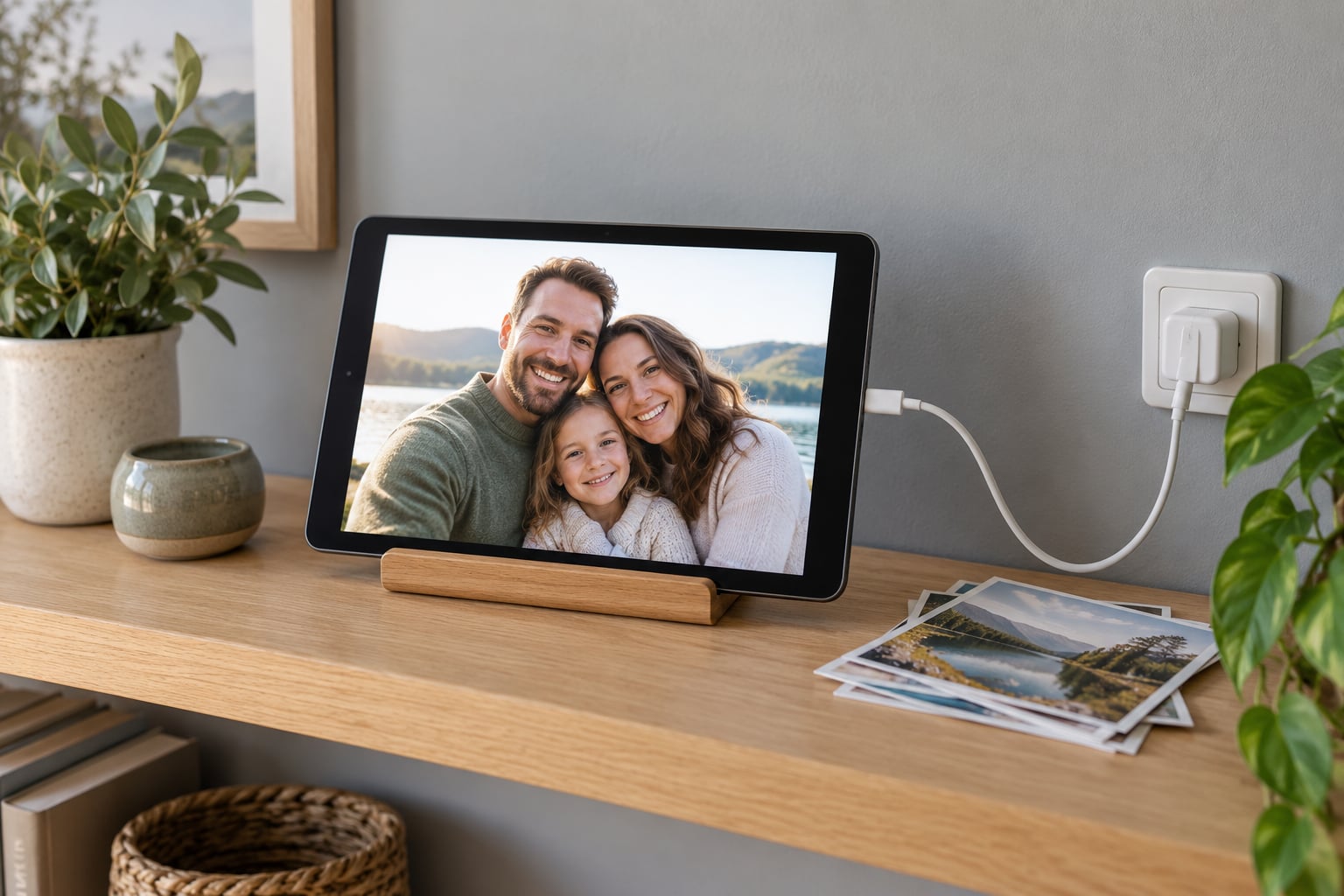
Yes, a tablet makes a genuinely good digital photo frame, and the setup takes about twenty minutes. Three things do all the work: set the screen timeout so it never sleeps, pick a photo frame app that cycles through a folder or album full-screen, and put the tablet somewhere it can stay plugged in and propped up. Everything else is fine-tuning.
The screen you already own is usually bigger and brighter than a dedicated frame, and you can update photos from your phone instead of carrying a USB stick to the hallway. The trade-off is that you are asking a battery to sit plugged in for months at a time, so the power and screen settings matter more than they would on a normal device.
- Set the screen timeout to Never and turn on stay-awake-while-charging.
- Install a photo frame app or use the built-in Photos app with its slideshow.
- Copy photos into one folder, then prop or mount the tablet on a stand.
Table of Contents›
- What You Need
- Step-by-Step: How to Use an Old Tablet as a Digital Photo Frame
- Check the Tablet and Its Display
- Choose a Digital Photo Frame App
- Add and Organize Photos
- Configure the Slideshow and Display Settings
- Set Power Management and Display Behavior
- Test the Finished Digital Photo Frame
- Common Mistakes
- Tips for a Better Tablet Photo Frame
- Frequently Asked Questions
- Can a tablet be used as a photo frame?
- How can I use my old iPad as a digital photo frame?
- What is the best free photo frame app for Android?
- Will an old tablet screen burn in as a photo frame?
- Do I have to leave the tablet plugged in all day?
- What if my old tablet is too slow to run a photo frame app?
- Conclusion
What You Need
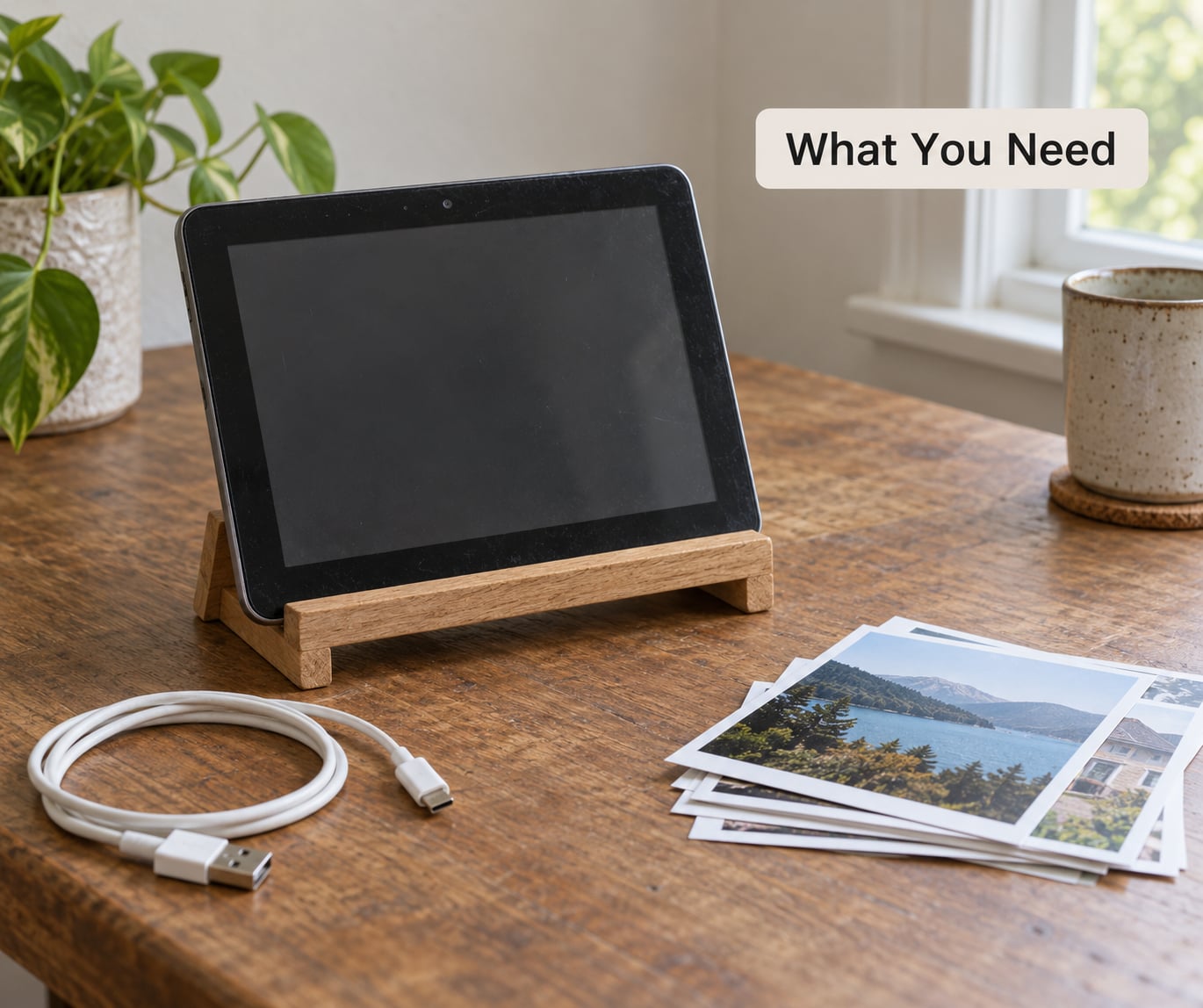
A working tablet is the obvious requirement, but the specifics matter more than people expect. You need a healthy charging port and a screen with no dead pixels or heavy scratches, because a frame runs that screen for ten hours a day and any flaw becomes permanent scenery.
Alongside the tablet, you want a charging cable long enough to reach an outlet from wherever the frame sits, plus something to hold it upright. A folding tablet stand, a leather-bound bookend, or a small easel all work. A cable that only just reaches is the one thing that causes a lot of these setups to fail.
Storage matters less than you would think. A few hundred phone photos take up very little room, and cloud-synced apps can pull straight from Google Photos or iCloud instead of storing copies locally.
Wi-Fi only matters if you want new photos to appear without walking over to the tablet. Offline playback works fine, and it is more reliable long-term.
One more decision to make now: whether to keep a mobile connection active. If the tablet has a SIM you never use, pulling it out saves power and stops carrier messages from popping up over your slideshow.
Step-by-Step: How to Use an Old Tablet as a Digital Photo Frame
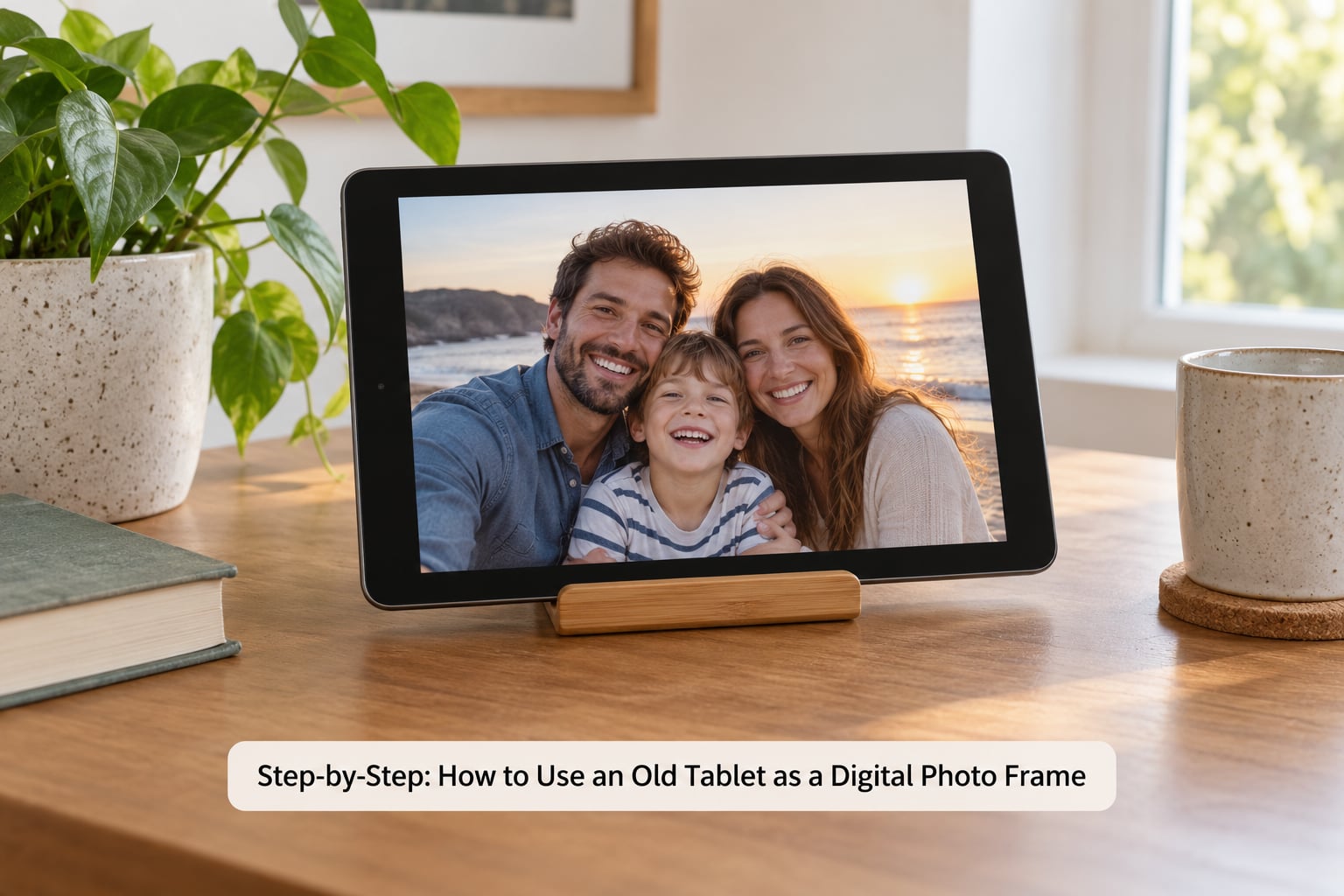
Check the Tablet and Its Display
Start by charging the tablet fully, then leaving it unplugged for an hour to see roughly how far the battery drops. Older tablets often hold 60 to 70 percent of a full night on a single charge, which is a reasonable target for a device that spends most of its life tethered to power.
Wipe the screen with a dry microfiber cloth. Fingerprints and dust scatter room light and make a slideshow look hazy from across the room.
If the tablet runs an operating system so old that the app store no longer supports it, you still have options. Android devices on legacy versions can often use a browser-based slideshow, and a standalone media player like VLC works as a photo viewer without a store install. More on that in the troubleshooting section.
Choose a Digital Photo Frame App
Look for four things in any photo frame app: local folder support, cloud sync, interval control, and offline playback. Everything else is preference.
On Android, free options cover nearly everything most people need. Google Photos opens any album full-screen with a slideshow timer built in, and there is nothing to install if the tablet already has it. Third-party apps add transition effects, random ordering, clock and weather overlays, and the ability to pull from a network share. Some are free with a paid tier for cloud sync, others are free outright.
On iPadOS the built-in Photos app handles the job without a purchase. The details differ enough that they are worth their own step below.
On Amazon Fire tablets, check the app store first. Fire OS runs its own version of the Android store with a smaller catalog, and some photo frame apps listed in the Play Store have no Fire equivalent. Amazon Photos itself works as a basic frame with no extra download.
Add and Organize Photos
Create one folder called something like Frame and copy your selection into it. Keeping it separate means the app indexes a few hundred files instead of your entire camera roll, which starts noticeably faster and avoids screenshots you never meant to display.
Delete duplicates and any accidental screen captures, then crop anything that looks wrong in horizontal orientation. Tablet screens are wider than tall, so a portrait phone photo displayed sideways leaves a lot of empty space unless the app fills the background with a blurred copy or a solid color.
To pull from cloud storage instead, connect the tablet to Wi-Fi, open the photo app, and set the frame to a synced album. Any photo you add on your phone shows up within minutes without touching the tablet.
Configure the Slideshow and Display Settings
For a polished result, set these six values:
- Orientation turned sideways, so the long edge runs along the shelf or wall
- Full-screen display with the status bar hidden
- Photo interval between 10 and 30 seconds
- Random ordering so the same images do not repeat on a short loop
- Fade transitions rather than slides, which are gentler on the eye and the panel
- Do Not Disturb turned on, with notification access revoked for the frame app
On Android, find these under Settings, Display, then Screen timeout, set to Never. The stay-awake-while-charging option sits under Settings, Battery, or in Developer options on some models. On iPadOS, look for Settings, Display and Brightness, then Auto-Lock, set to Never.
Brightness is the setting most people get wrong. Setting it to maximum in a bright living room is the single biggest contributor to screen wear on an always-on display. Match it to the room instead, and let automatic brightness do the rest if the tablet supports it.
Background music works well at low volume if your app supports it, but plan on it cycling through the same short set of tracks. A quiet ambient playlist works better than your actual music library.
Set Power Management and Display Behavior
A frame is a plugged-in device, so run it that way. Most modern tablets have a battery protection or charging limit option that stops charging at 80 or 90 percent; on models without one, leaving the battery at a full charge permanently is what causes long-term wear.
If your tablet has no charge limiting built in, a smart plug with a timer is the simplest workaround. Run it six hours a day instead of twenty-four, or use a smart plug you can cut power to remotely when nobody is home.
On iPads, Battery Health charging limits stop charging at a set level, which works well for a permanent frame. Android tablets vary widely; some flagship models added similar options in recent software updates.
Give the tablet air. A frame in a tight shadow-box frame runs hotter than one on an open stand, and sustained heat shortens both battery and panel life.
Test the Finished Digital Photo Frame
Run the slideshow for at least ten minutes while you do something else in the room. That catches the three common problems: the screen sleeping anyway, a notification banner appearing every few minutes, and photos cropping awkwardly at the edges.
Then pull the charger for a minute and watch what happens. If the slideshow freezes the moment you disconnect, the never-sleep setting did not take and the app was relying on stay-awake-while-charging instead.
Test offline behavior by turning Wi-Fi off for an hour. If the display goes blank, your photo source is streaming rather than local, and it will fail the first time the network drops.
Finally, watch it from where you will actually sit. Photos that looked sharp at arm’s length often look soft from the sofa, and that is a resolution limit no setting fixes.
Common Mistakes
The screen sleeps after a few minutes. Almost always the timeout setting was left at default, or the app is set to exit when it loses focus. Set timeout to Never, then confirm stay-awake-while-charging is on.
Photos are missing. Check the app has permission to read your photos, and confirm the photos sit in the exact folder or album you selected rather than a nested subfolder.
The app will not install on an old tablet. The operating system is out of support. Fall back to a browser-based slideshow, VLC as a photo viewer, or the tablet’s own gallery app if one exists.
Photos look cropped or pixelated. The app is stretching images to fill a screen with a different aspect ratio. Set the background fill to fit, blurred, or solid color instead of stretch.
The tablet gets hot. That is normal under sustained display, but if it is too hot to touch, move it out of its mount. Check that the charging cable is not pinned against the port.
Notifications appear over the slideshow. Turn on Do Not Disturb, then revoke notification permission for the frame app and any leftover messaging apps.
The same photos keep repeating. The album is smaller than you think, or ordering is chronological rather than random. Set random ordering, or fill the folder with more images.
The battery is swelling or the tablet dies overnight. This one is serious. Stop using the tablet as a frame, and have the battery checked. Swelling after months plugged in is a known failure mode on older devices.
Tips for a Better Tablet Photo Frame
Use two timing rules rather than one. Set 10 to 12 seconds for photos of people, so nobody blinks away mid-glance, and 30 seconds or more for landscapes and group shots.
Mirror only the best dozen photos on the busiest screen in your house. A short, curated loop reads better than a long one that includes every blurry shot from a birthday party.
Pick a background color deliberately. A neutral gray or a warm off-white makes portrait photos look intentional rather than letterboxed.
Schedule dark mode or a dimmer slideshow at night if the frame is in a bedroom or hallway. Many frame apps support schedules, and a dim display also reduces wear.
Consider mounting the tablet inside a conventional wooden picture frame using double-sided foam tape, which is the cheapest way to make it look like real framed art. Cut a mat slightly smaller than the screen so the bezel stays hidden.
Update photos remotely rather than walking the tablet over. A synced cloud album handles this on its own, and it is the reason a tablet beats a dedicated frame for anything beyond a holiday card.
Add the tablet to a weekly reminder to check the charging cable and wipe the screen. Dust and a loose cable cause most of the slow failures.
Frequently Asked Questions
Can a tablet be used as a photo frame?
Yes, and plenty of people do it every day. A tablet has a larger, brighter screen than most dedicated digital frames, plus Wi-Fi so you can update photos from your phone. Set the screen timeout to Never, run a photo frame app or the built-in Photos slideshow, and leave it on a stand plugged in.
How can I use my old iPad as a digital photo frame?
Open Photos, pick the album you want, tap the ellipsis menu and choose Slideshow. Set Play each photo for 15 seconds or Never to advance manually. Then go to Settings, Display and Brightness and set Auto-Lock to Never. Turn on Do Not Disturb, and use Battery Health charging limits so the battery does not sit full all day.
What is the best free photo frame app for Android?
Google Photos is the easiest free option and many old tablets already have it. It displays any album full-screen with a slideshow timer and no account juggling. For more control, look for an app with random ordering, fade transitions, clock and weather overlays, and a local folder source. Avoid anything that needs a monthly subscription for basic slideshow features.
Will an old tablet screen burn in as a photo frame?
It can, though LCD tablets are far more resistant than OLED ones. To reduce the risk, drop brightness to match the room rather than running it at maximum, use fade transitions, and avoid leaving one static image on screen for hours. Random photo ordering means no single pixel pattern sits lit for the whole day.
Do I have to leave the tablet plugged in all day?
Not strictly, but a frame that dies after three hours is a frame nobody enjoys. Run it on power and use the battery protection or charging limit setting if the tablet has one, ideally stopping at 80 to 90 percent. A smart plug on a timer is a simple alternative if your tablet lacks that option.
What if my old tablet is too slow to run a photo frame app?
Use a browser-based slideshow instead. Build a free online album, open it in the tablet browser, and use full-screen mode. VLC also plays a folder of photos as a slideshow with no store install. Either way, set the timeout to Never so the screen stays on, and expect the browser to need a reload every few days.
Conclusion
Start with two things: install a photo frame app and create one dedicated folder for the photos it will display. Everything after that is adjustment, and you can tune the interval, transitions and brightness once the slideshow is already running.
Before you leave the tablet plugged in on its stand, watch the slideshow for ten minutes and check the screen settings once more. If the display sleeps, the crop looks wrong, or the tablet gets uncomfortably hot, you want to know now rather than a month later.