You can use an old phone as a security camera by installing a surveillance app like AlfredCamera on both the old phone and the phone you carry, setting the retired device to camera mode and your daily device to viewer mode. The old phone then streams its live view, motion alerts and two-way audio to you over Wi-Fi, and the whole thing takes about ten minutes and no new hardware.
It works because a retired phone still has a decent camera, a Wi-Fi radio and a charger sitting in the same drawer. What it does not have is weatherproofing, a wide field of view or the low-light sensor a purpose-built camera carries, so it suits indoor entry points, a garage, a nursery or a short-term rental better than it suits a driveway.
Which old phone you use matters less than most guides suggest. An Android handset with a 2013-era chipset and a USB port still streams video perfectly well, and the same setup works on an old iPhone. The details that actually break the rig are screen timeout settings, background permissions and where you plug the cable in.
Table of Contents›
- What You Need
- Step-by-Step
- How to Use an Old Phone as a Security Camera: Install and Configure the App
- How to Use an Old Phone as a Security Camera: Position the Phone and Test the View
- How to Use an Old Phone as a Security Camera: Maintain Power and Connections
- Common Mistakes
- Frequently Asked Questions
- Can an old phone work as a security camera 24/7?
- Do I need to buy a new security camera, or is an old phone enough?
- Can I use an old phone as a security camera without Wi-Fi?
- How much storage does security camera recording use?
- How do I keep the phone from overheating while it is recording?
- Is it safe to put an old phone with a camera in my home?
- Conclusion
What You Need
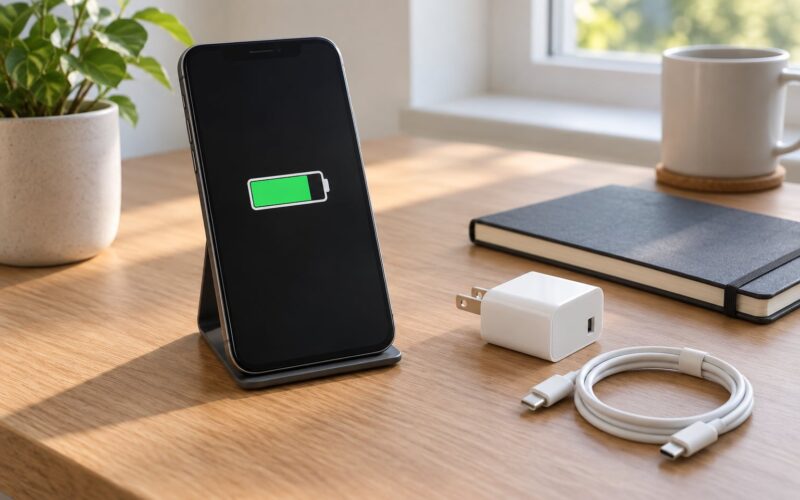
Four things, and you probably already own all of them:
- An old phone with a working camera and Wi-Fi — the rear camera is the better one, since the front camera is fixed at selfie angle.
- A second phone, tablet or computer — this is your viewer, the device you check the feed from.
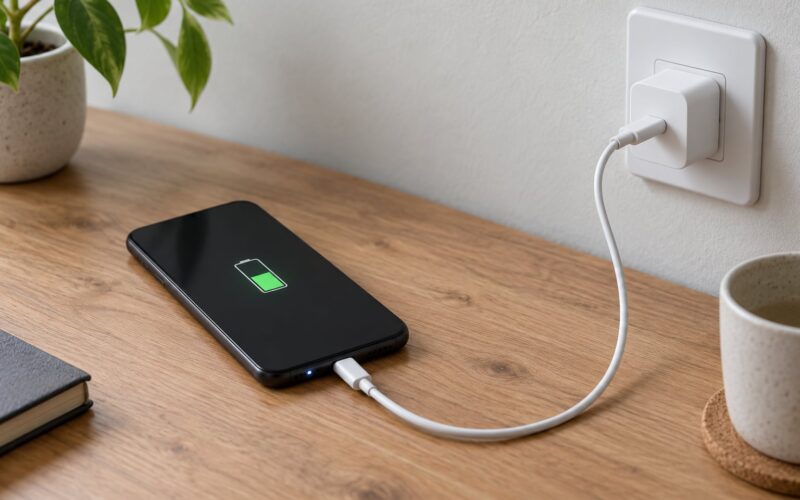
- A charging cable long enough to reach an outlet — a thin three-metre USB cable is usually the difference between a working setup and one that keeps dropping out.
- Something to hold the phone still — a small tripod, a clamp stand, a wall mount or even a weighted stack of books.
Beyond that, decide two things before you start. The old phone needs enough free storage to save clips, which on an unused handset is usually a storage-cleaning job first, and it needs to be signed in to an account you control. People who skip that second part are the ones who get locked out of their own camera feed a year later.
If you would rather have nothing of this sent to a server, plan on IP Webcam instead of a cloud app. It runs a local network stream that your own devices talk to directly, with no account and no subscription, at the cost of only working inside your own Wi-Fi.
Step-by-Step
Every app in this category works the same way underneath. One device is the camera device: plugged in, aimed, streaming. The other is the viewer device: in your pocket, showing you the feed. The two are linked either by signing both into the same account or by scanning a QR code that the viewer displays and the camera scans.
How to Use an Old Phone as a Security Camera: Install and Configure the App
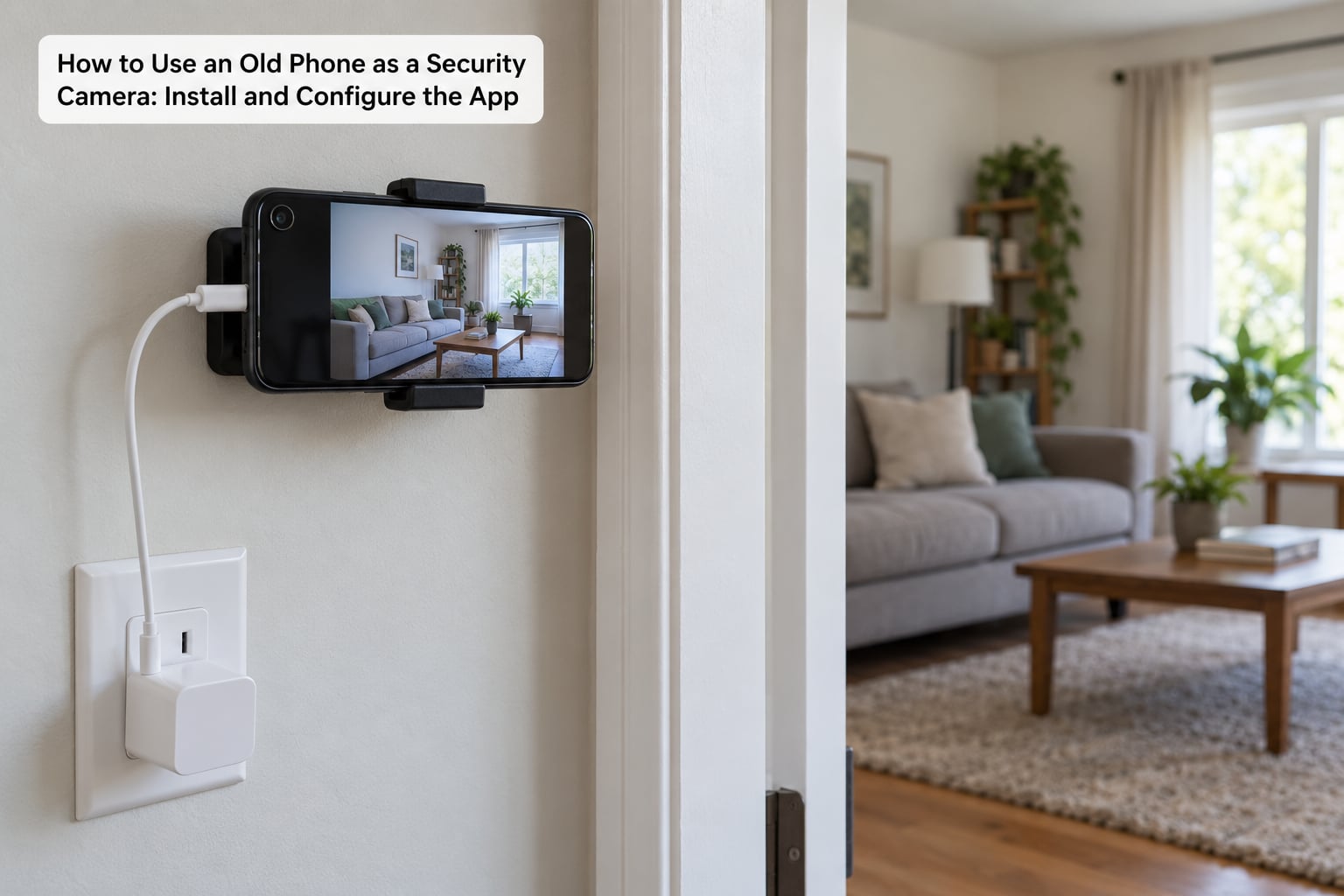
Start on the old phone rather than your new one, so you discover a dead camera before you have paired anything.
- Check the old phone still works. Charge it fully, confirm the rear camera opens and shoots a short clip, and clear enough storage to hold a few hours of video.
- Install the app on the old phone. AlfredCamera and IP Webcam are the two most widely used; Manything is a solid third option if you plan to run several old phones from one account.
- Set the old phone to camera mode. Alfred calls this Camera, IP Webcam just asks you to pick the camera to serve. Name it something useful at this stage, like Front Door or Garage, because you will be scanning for it later.
- Install the same app on your viewer device and sign in. Alfred pairs through a Google account or by scanning the QR code the viewer shows; IP Webcam prints a web address and password on the camera screen for you to type in.
- Grant the permissions it asks for. Camera, microphone and notifications are obvious. The one people miss is background activity: on Android, battery optimisation will kill the app within minutes of the screen going dark unless you exclude AlfredCamera from battery optimisation.
- Turn off screen timeout on the old phone. Settings, Display, Screen timeout, Never. On iPhone, Settings, Display and Brightness, then move Auto-Lock to Never.
- Test the live view before you walk away. You should see a moving image from your viewer device within seconds of pairing. If it is black, the other phone is probably still on the lock screen with the camera permission unconfirmed.
The pairing confusion in r/AndroidQuestions threads almost always comes down to that Viewer-versus-Camera distinction. Your everyday phone is the viewer. The phone in the hallway is the camera. Setting both to the same mode gives you two devices that do nothing useful together.
How to Use an Old Phone as a Security Camera: Position the Phone and Test the View
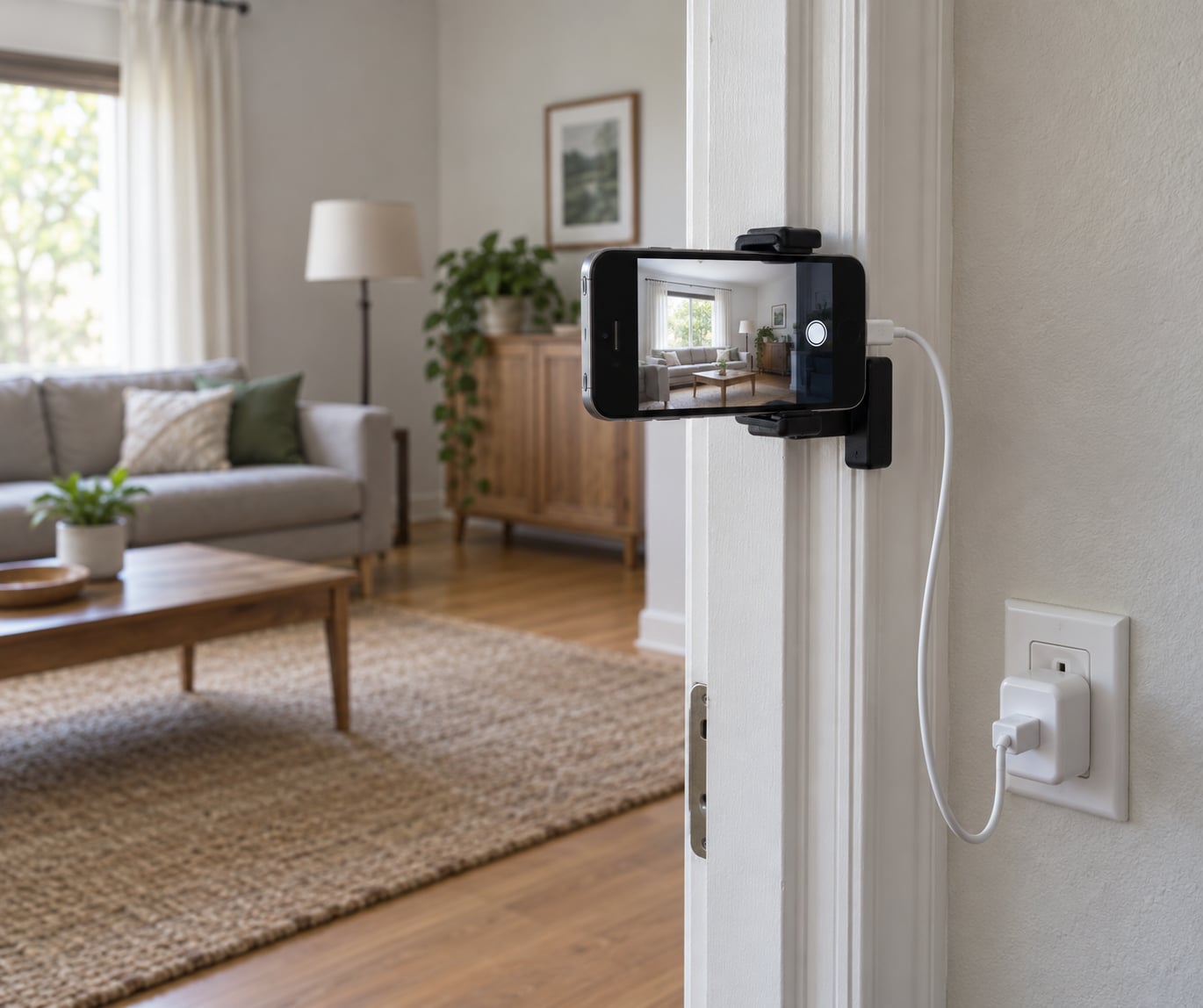
Put the phone somewhere it sees the whole room rather than cropping it to the door. The wide field of view on a phone camera means a camera pointed at a doorway from four metres back captures most of a hallway and gives you the context of what someone was wearing.
Never point it into a bright window or a doorway with daylight behind it. Backlight crushes everything else into shadow, and the automatic exposure then keeps hunting, which makes the clip useless for identifying anyone.
Check the view from your viewer device rather than from the spot where the phone sits. Walk to the far corner of the room, look at the live feed, and see whether you could tell a person from a coat on a hook. Rotate the phone or nudge it until the useful part of the frame fills the picture.
Test it at night as well. Phone cameras in low light fall back on digital noise reduction, so the picture softens and moving faces get harder to identify. If the app has a low-light mode or a flashlight-as-light-source option, turn it on and see whether the result is usable before you commit to that spot.
A phone on a tripod advertises itself, which is worth thinking about before you mount it. High on a shelf, inside a plant, or behind a lamp shade is less obvious than eye-level in the middle of a wall, and a mount that requires a screwdriver to remove is harder to deal with than one held in place with a dab of adhesive.
How to Use an Old Phone as a Security Camera: Maintain Power and Connections
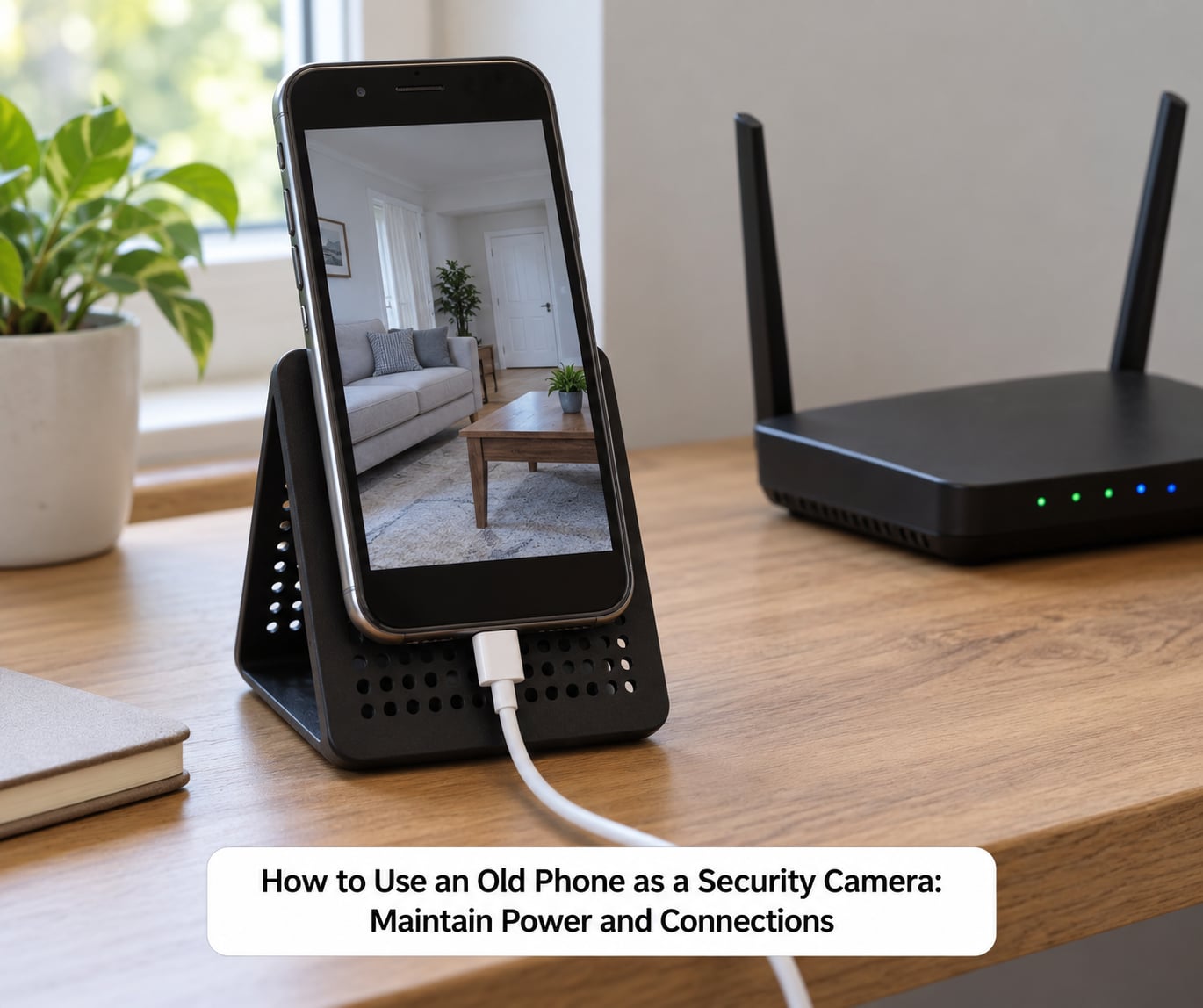
Continuous charging is the whole trick. Plugged in, an old phone will sit there for weeks; unplugged, it lasts a day or two, which is not much use for overnight coverage.
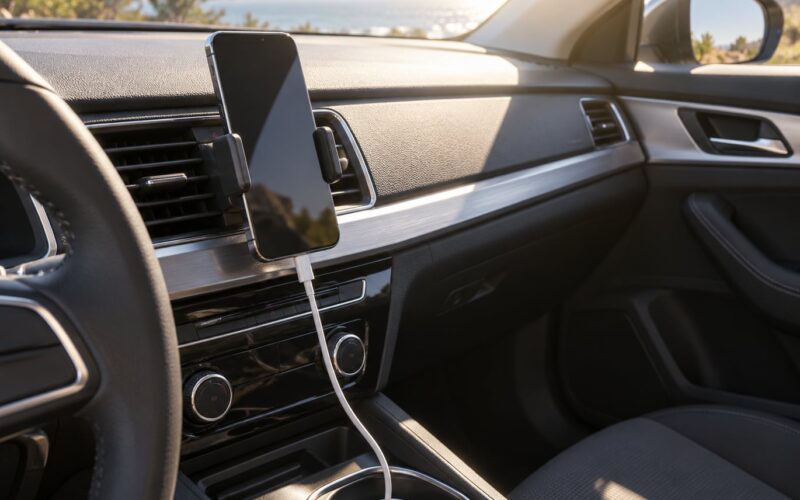
Where you plug it matters more than the cable’s wattage. A phone charging hard for hours next to a wall can get genuinely hot, and heat is the leading cause of a phone restarting or an app crashing overnight. Leave the space around the phone open, skip a thick case, and if your charger is rated well above what the phone draws, use a lower-power brick or drop to a slower USB mode.
Aging batteries are the other hardware concern. A battery kept near full for months can swell, so check the phone’s back now and then and take it out of service if the case starts to bulge. On Android, the battery health figures live under Settings, Battery, Battery usage.
Wi-Fi signal decides whether the feed is watchable. A phone behind a closed door or two walls from the router will buffer constantly. Test it by walking the viewer device to the far end of the property and streaming for a minute. If it stutters, move the router, add a mesh node, or fall back to mobile data.
Mobile data works, but the arithmetic is unfriendly. A continuous stream runs through a monthly data allowance quickly, and most phone plans have a cap that turns into throttling rather than a bill. Motion-only alerts with clip recording cost far less data than a live stream you leave running.
Two more reliability settings are worth the two minutes. On Android, enable auto-relaunch after reboot in AlfredCamera’s settings so a power cut does not leave the camera dead, and set the app to exempt from battery optimisation in Settings, Apps, Special app access. On iPhone, keep Background App Refresh on for the app and avoid Low Power Mode on the old phone, since Low Power Mode throttles background work.
Storage needs attention more often than people expect. Clips saved to the camera device’s internal storage will eventually fill it and stop recording. Move the save location to an SD card where the app supports it, or set a short clip length and clear the folder on a schedule.
Common Mistakes
Almost every failure with this setup falls into one of eight categories, and each has a fix you can apply in under a minute.
- The app stops when the screen locks. This is the single most reported problem. Set screen timeout to Never, then exclude the app from battery optimisation on Android or turn off Low Power Mode on iPhone. If the feed still dies, the fix is to keep the screen dimmed rather than off using the app’s power-saving or screen-dim setting.
- Pairing fails with an Alfred error 7007. That code shows up when the camera phone cannot reach Alfred’s servers or the account cannot be verified, usually after a password change or a long gap without using the app. Open the app on the old phone, sign out and back in, confirm both devices are on the same Wi-Fi network, and update the app first. If it persists, uninstall and reinstall on the camera device and rescan the pairing code.
- The feed is live but nothing is recorded. Free tiers across these apps cap clip length and retention. Check the app’s storage setting, and be realistic: many free plans keep only a few days of short clips. That is enough to catch an event, not enough to build a library.
- Upgrade prompts interrupt clip playback. This is Alfred’s most criticised behaviour. Saving a clip straight to your camera roll before you try to review it sidesteps the prompt entirely, which is how people who use it daily handle it.
- The picture is dark or grainy at night. Turn on the app’s low-light mode, point the flash at the far wall rather than straight down the lens to bounce light, and accept that identification from a phone sensor degrades sharply past about five metres.
- The stream buffers or drops. Move the router, get closer, or switch the app from Wi-Fi to mobile data. Reducing resolution in the app settings is usually more effective than anything else you can try.
- The phone restarts overnight. Heat, or an ageing battery. Improve ventilation, drop to a lower-power charger, and remove the case. Check battery health before anything else.
- Nobody can get in, or someone else can. Use a strong passcode on the old phone, never a four-digit PIN, and keep the camera app’s account on an account only you control. If a camera app asks to be your default SMS or accessibility service, decline it.
Two more things people skip. If the phone will sit somewhere a visitor can reach it, put it in a kiosk-style case or a locked mount so it cannot be picked up and carried off. And point it only at your own property: filming a neighbour’s window or a shared hallway raises real problems, since audio recording generally requires consent from the person being recorded and video rules vary by country and state.
When you finally retire the phone, factory-reset it, sign out of the camera account and any Google account still on it, and take it to a proper e-waste point. A phone that streamed your hallway for a year should not go to a resale site with your account still logged in.
Frequently Asked Questions
Can an old phone work as a security camera 24/7?
Yes, as long as it stays plugged in and its screen timeout is disabled. Most people run one for months at a time this way. Keep the phone ventilated, use a charger that does not overdrive it, and turn on auto-relaunch after reboot so a power cut does not leave the camera dead.
Do I need to buy a new security camera, or is an old phone enough?
An old phone covers live view, motion alerts and two-way talk for indoor rooms, entry points, garages and temporary monitoring. A dedicated camera wins on night vision, wide field of view, weatherproofing and recording you do not have to think about. If you need outside coverage or evidence-grade footage, buy the camera.
Can I use an old phone as a security camera without Wi-Fi?
Not with a cloud app, since the stream travels through the vendor’s servers. IP Webcam does it: both phones join the same local network and view the stream at a local web address, with no account and no internet. The catch is that it only works inside your own Wi-Fi, so you cannot check in from the street.
How much storage does security camera recording use?
Roughly 1 to 3 GB per hour for a continuous stream at moderate quality, and considerably less for motion-only clips. A 32 GB card holding a handful of days is realistic for most rooms. Check free storage on the old phone before you start, because a full card stops recording silently.
How do I keep the phone from overheating while it is recording?
Leave space around the phone, take the case off, and use a lower-power charger than the one that came with the phone. Do not tuck it into a cabinet or behind a curtain. If the phone restarts or the feed drops at the same time every night, heat is the first thing to rule out.
Is it safe to put an old phone with a camera in my home?
The setup itself is safe. Keep the phone passcode-locked with more than four digits, keep the camera app signed into an account only you control, and decline any request for it to become your default SMS or accessibility service. If you use a cloud app, your video travels over the vendor’s servers, so check what it stores and for how long.
Conclusion
Five things to do first, in order: install a camera app on both phones and pair them, name the camera device after its location, disable screen timeout and exclude the app from battery optimisation, plug it in somewhere ventilated, and watch the live view for a full day before you trust it.
If it holds up, you have working home security at no cost, from a device that was going in a drawer anyway. If the spot is outdoors, the room is dark, or you need footage you could hand to police or an insurer, a dedicated camera is the better buy, and an old phone is still worth setting up as a second angle.