You can tell if an app is safe to install by checking four things before you tap the button: where the file came from, who published it, what permissions it asks for, and what other users and scanners report about it. An app that passes all four is about as close to safe as a phone app gets. Give the process ten minutes.
That matters more in 2026 than it ever has. Malicious apps still reach the Google Play Store, not just sketchy download sites, and a flashlight utility that quietly collects your location is not the app the listing described. On iPhone the exposure is smaller, mostly because installation runs through Apple’s App Store, but EU users now have alternative marketplaces and the same questions apply.
The people who worry about this most are ordinary users on forums like r/SafeOrShady, where the standing question is simply whether a given app is safe or shady. The recurring answer is that no single tool settles it. Google Play Protect and VirusTotal both help, and both return clean results on files that turn out to be harmful, so treat a scan as one signal rather than a verdict.
What follows is the order I would actually use. It runs from the strongest signal to the weakest, so if you only have a couple of minutes, do the first two checks and stop.
Table of Contents›
- What You Need
- Step-by-Step: How to Tell if an App Is Safe to Install
- 1. Confirm You Are Using an Official or Trusted Source
- 2. Identify the Developer and Check Its Reputation
- 3. Read Ratings and Reviews for Warning Signs
- 4. Inspect Permissions Before Granting Access
- 5. Review the Privacy Policy and Data Practices
- 6. Check Update History and Technical Details
- 7. Scan the App and Install It Cautiously
- Common Mistakes
- Frequently Asked Questions
- Can Google Play Protect or an iPhone security feature prove an app is safe?
- Is it safe to install an app that asks for permissions unrelated to its main function?
- Are APK files safe if they come from a familiar app store mirror?
- How can I tell whether an app store listing is legitimate?
- Should I remove an app immediately if it behaves suspiciously?
- How do I check whether a mobile app collects or sells my data?
- Conclusion: Start With the Source
What You Need
Not much, which is the point. Before you start, get these four things lined up.
The device the app is for. Android and iOS behave differently, and the menu paths below are not interchangeable. Know which platform you are on before you read further, because roughly half of these checks have no iPhone equivalent.
The official app store, or the developer’s own website. If the app is not in the store, you need somewhere verifiable to confirm it exists and that the developer is real.
The full store listing, not the install prompt. The listing carries the developer name, the data safety label, the update history, and the permission list. The install prompt carries almost none of that.
A second source to cross-check against. The developer website, a privacy policy page, or a long-running thread on a forum. One source can be faked. Two matching sources are much harder to fake.
That is the whole toolkit. No scanner required for most of this, which is worth saying out loud because the instinct is to look for an app that does the checking for you.
Step-by-Step: How to Tell if an App Is Safe to Install
Run these in order. Each one takes a minute or two, and the first three catch the large majority of problems.
1. Confirm You Are Using an Official or Trusted Source
Install through the Google Play Store or the Apple App Store and you have already eliminated the single largest category of risk. Everything else on this list is a refinement of that first decision.
On Android, “install from unknown sources” is the setting that opens the door to sideloading. It is off by default and it should stay that way unless you are deliberately testing an app you built yourself. In current Android versions you find it under Settings, then Apps, then Special app access, then Install unknown apps, and you can grant that permission per app rather than device-wide.
Third-party stores and direct APK links are not automatically malicious, but they remove the review layer. Nobody at Google or Apple looked at the code. That is the whole difference, and it is a bigger difference than most people assume.
Links are the usual way people get talked into sideloading. A search result that says “official download” can lead anywhere, and a shortened link in a Discord or Telegram message has no visible destination at all. If a link claims to come from a developer, type the developer’s domain into your browser yourself and navigate from there. If the real domain and the link differ by one letter, that is your answer.
On iPhone, check the developer name shown on the listing before you trust it. Apple vets apps before they appear in the App Store, which is a real filter, though reviews in the EU’s alternative marketplaces can be less scrutinised than those in the main store.
2. Identify the Developer and Check Its Reputation
A named, contactable developer is one of the strongest safety signals you have, and a generic or absent one is close to disqualifying on its own.
On the Play Store, scroll to the developer section on the listing and tap the developer name. That opens their publisher page, which lists every app they have shipped, how long they have been on the store, and their contact details. On iPhone, the seller name and the developer name appear in the app’s information page, and tapping the developer name opens their other apps.
What you are looking for: a real name or a real company, a support email or a website that answers, and a catalogue that makes sense. A developer with nine apps all in one narrow category is a specialist. A developer with apps named “HD Photo Editor Pro 2026,” “Fast Cleaner & Boost,” and “Private Browser Max” is running a business model, and you should work out what that business is before installing anything from them.
Three things that warrant a closer look. A developer account created in the last few weeks has no track record at all. An unrelated catalogue is a signal that the account was bought, and bought accounts are how legitimate apps get used as a launchpad for a malicious update. And no contact details anywhere means nobody is accountable when something breaks.
Search the developer name plus “scam” or the app name plus “spyware” before you install. It costs thirty seconds and it surfaces things a store listing will never tell you.
3. Read Ratings and Reviews for Warning Signs
Read the one-star reviews from the last few months. The average rating tells you almost nothing on its own.
Two things distort it. Volume matters: 4.7 stars across forty reviews is a very different signal from 4.7 across four hundred thousand, and a brand-new app with no reviews at all is unproven rather than safe. Timing matters too. Sort by newest rather than most helpful, because patterns in the recent comments are the ones that describe the current build.
Look for specific complaints rather than general grumbling. Malware and unwanted-install reports, forced full-screen ads that block the interface, data loss after a sync, fake subscription flows that charge through a third-party billing system, and requests for Accessibility or Device Admin access at first launch are all worth stopping for. A one-star review that describes a crash on a specific phone model is a bug report. A one-star review that says the app installed something else entirely is a different category entirely.
Also watch the shape of the distribution. A five-star average where almost every review lands on five stars, and nothing in between, often means reviews were bought. Genuine apps have two and three-star reviews in them, and those middling reviews are actually a sign of authenticity because real users are not uniformly delighted.
On Android you can read some reviews through the Play Store, and Google Play Protect’s status appears on the listing too. On iPhone, ratings and reviews sit directly on the App Store product page, and reading them takes one tap. A community of users who post evidence and argue over permission lists is a better check than most built-in scores, which is why r/SafeOrShady and android.stackexchange.com come up so often in searches on this topic.
4. Inspect Permissions Before Granting Access
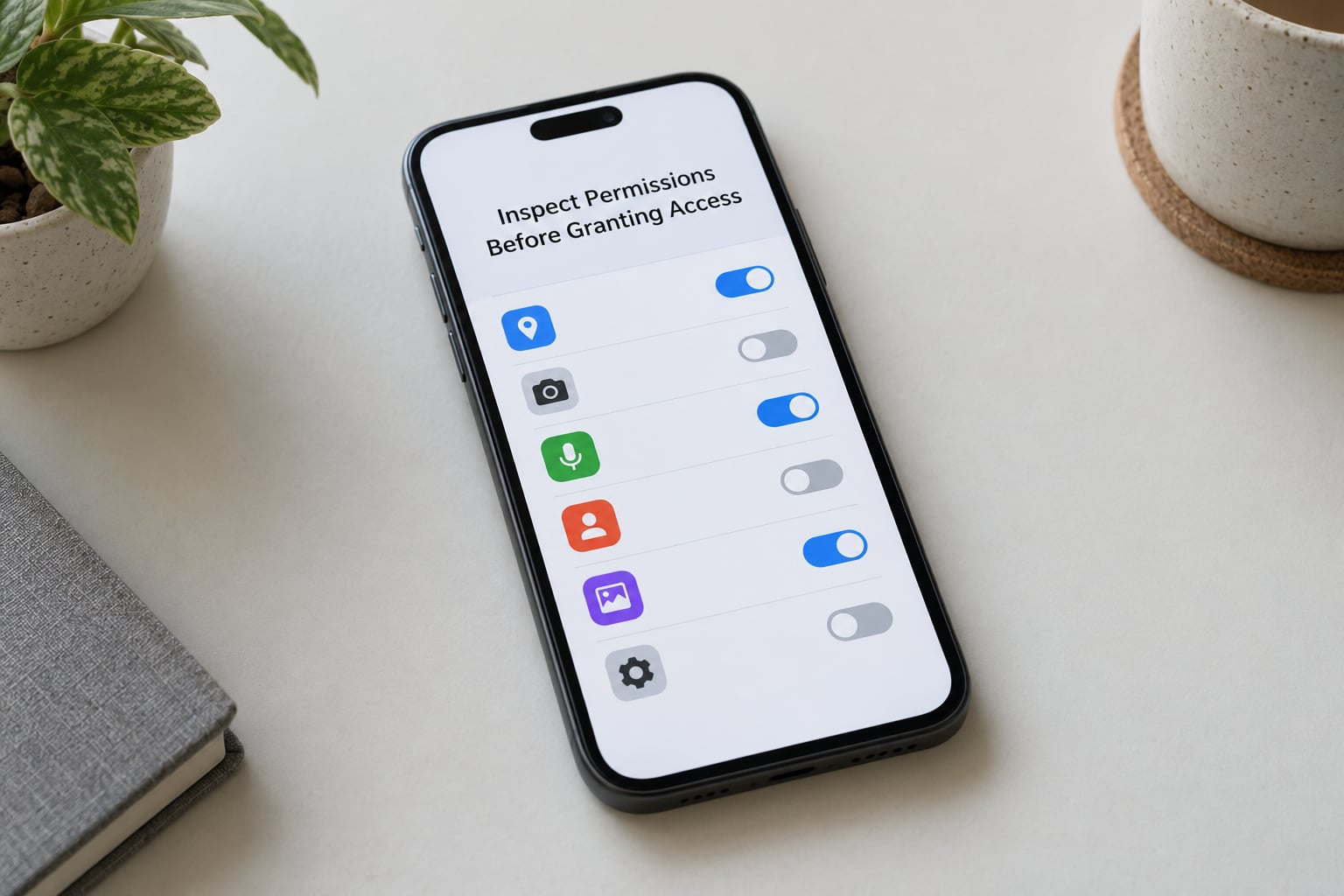
Permissions are the most actionable pre-install check there is. Every permission tells you what the app can reach, and most bad apps announce themselves here.
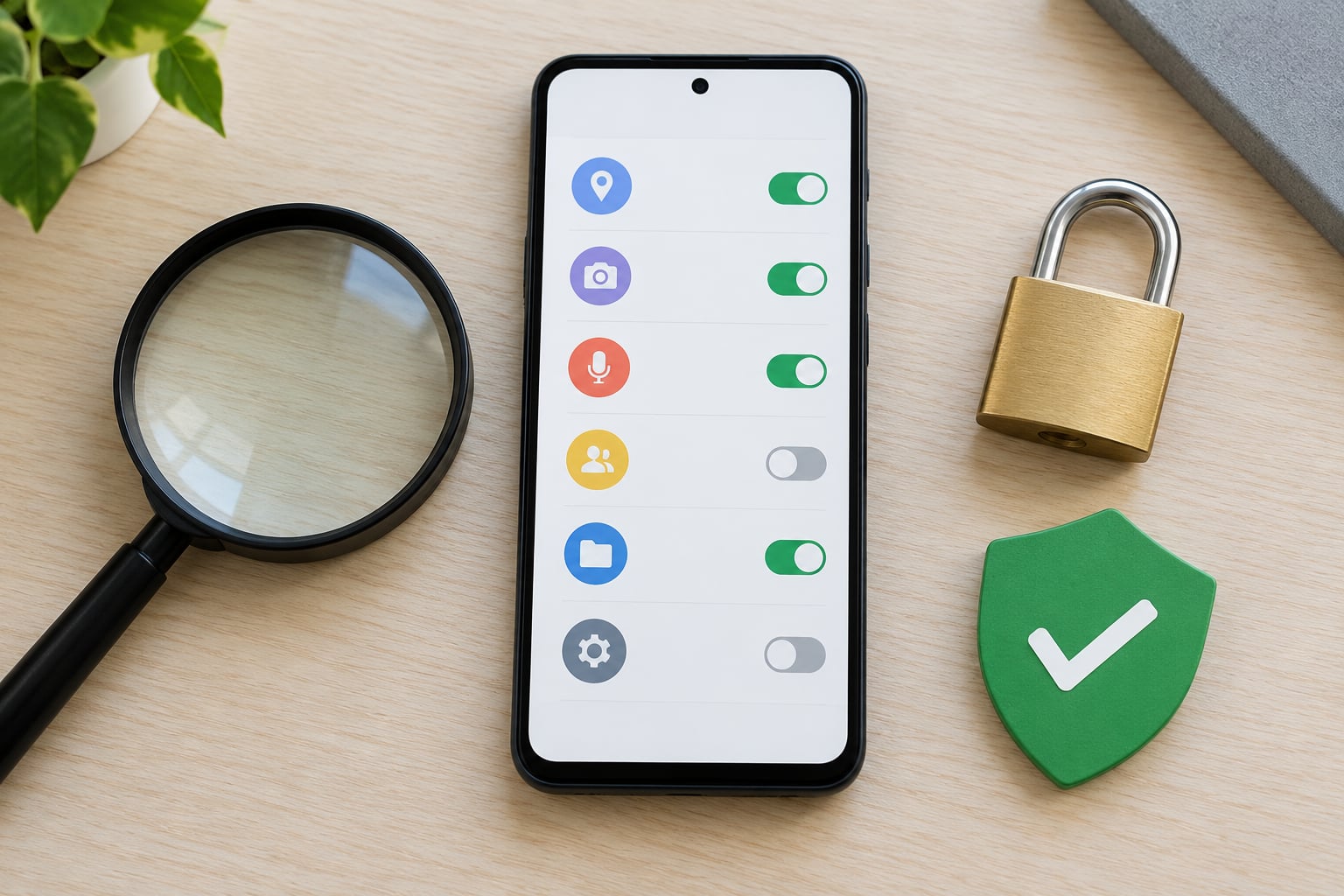
On Android, the full declared list is on the store listing under App info, then Permissions, and it shows both the requested and the granted set. On iPhone, the privacy label on the listing summarises data types rather than system permissions, and individual prompts appear only when the app actually needs them at runtime. On iOS, Settings, then Privacy and Security, then App Privacy shows which apps have touched which system areas, and the report is cumulative.
Match every request to the app’s core function. A flashlight app has no reason to know your location. A QR scanner has no reason to read your contacts. A notes app has no reason to hold microphone access. Unrelated permissions are not proof of malware, but they are a strong reason to walk away, and forum consensus lands on exactly that: a flashlight wanting GPS means something is wrong.
Combinations matter more than single permissions. Location plus network access plus the ability to see your other installed apps is a profiling setup, because it can match where you are against what you own. Microphone plus screen overlay plus the ability to start at boot is the classic spyware shape. Contacts plus SMS sending is a spreading or phishing tool, since it can message your contacts on your behalf. Camera plus Accessibility Service means something can read what is on your screen while it watches.
The three prompts that precede most real spyware on Android are Accessibility Service, Device Admin, and Notification Listener. Ordinary apps rarely need any of them at first launch. Treat a request for one of the three as close to a red flag unless the app’s core function obviously requires it, which accessibility, parental control, and password manager apps genuinely do.
You do not have to grant everything. Android lets you deny non-essential permissions and still use most apps, and it lets you revoke later. On iPhone you can set each permission to Ask, Allow While Using, or Deny, and change your mind any time in Settings.
You can also grant permissions temporarily. If an app is asking for your address to find nearby shops, give it location for the visit rather than permanent access, and revoke it afterwards.
5. Review the Privacy Policy and Data Practices
The privacy policy tells you what the developer claims to do with your data, and comparing that claim against the permissions list is where the lies show up.
On the Play Store it is under the developer section of the listing, labelled Privacy policy. Apple requires a link too, usually in the app’s information page. Both stores also carry a structured disclosure: Google’s Data safety section and Apple’s privacy label. These are self-reported by the developer, which is the limitation worth holding onto, but they are a useful cross-check because overstating a disclosure in that panel carries a review penalty while a vague privacy policy does not.
What to look for. A policy that names the actual company behind the app, not a page with a contact form and nothing else. Clear language about what is collected, whether it is shared with third parties, whether it is sold, and how long it is kept. A stated way to request deletion. A mention of the specific analytics and advertising SDKs in use, which is unusual for small developers and tells you a lot when it is present.
Red flags include copy-pasted boilerplate that does not mention the app’s category at all, a policy dated years ago while the app updates weekly, language that says nothing about deletion, and a data safety panel that claims no data collection while the permission list includes location and contacts. When the two disagree, believe the permission list.
Apple and Google disclose differently, so a direct comparison can mislead you. Apple’s label groups types of data rather than purposes. Google’s section is organised around what is collected, shared, and whether collection is optional. Judge each on its own terms and compare the result against the permissions, which is the part that is not self-reported.
6. Check Update History and Technical Details
Update history is the cheapest signal of whether someone is actually maintaining the app, and it costs ten seconds to read.
On both stores the listing shows the last update date and, on Android, a full version history with release notes. An app updated this week is being worked on. An app whose last release was three years ago, with the same version number for most of that time, is abandoned, and abandoned apps are a security liability because nobody is patching the library dependencies they ship.
Release notes tell you their own story. A developer writing about crash fixes and new features is behaving like a developer. A stream of identical entries that only say bug fixes and performance improvements, with no detail across dozens of versions, is filler. So is a sudden jump in version number, which often means a rebuild from a different codebase.
Other technical details worth a glance. The app size should roughly match what the screenshots imply; a five-megabyte file claiming to be a full productivity suite is suspicious. The compatibility section tells you the minimum Android or iOS version, which is useful context, since very old minimums sometimes signal neglected code. The declared content ratings tell you what the developer says the app contains, and a mismatch with the actual behaviour is a good sign the developer is not paying attention. Support information should point somewhere real, and a support page full of broken links is telling you something.
For an APK obtained outside the store, there is one more layer. The file is signed with a certificate, and that signature is the cryptographic proof of who built it. A repackaged APK carries either a different certificate or a debug signing key, and comparing it against the hash of the official build is how you catch it. The tooling for this exists and is used widely, but it is a step past what most people need.
7. Scan the App and Install It Cautiously
Scanning is the last check, not the first, because a clean scan is weaker evidence than it looks.
Google Play Protect is built into Android and scans apps at install time, with a stronger pass for apps that arrive from outside the store. You can see its status on the Play Store listing, and you can run a manual scan from the Play Store app under your profile and then Safety, then Scan. The certification status of a device is visible in the same area. A clean result here means no known bad code was found in the file. It does not mean the app is not collecting your data, sending premium SMS, or behaving like a trojan dressed up as a utility.
VirusTotal is a file-hash lookup service. You compute the SHA-256 hash of a downloaded APK and paste it in; the service compares it against every engine that has seen that file. Zero or near-zero detections from reputable engines is a useful data point. So is a hash that returns no results at all, which means nobody has looked at that file before, which is its own kind of answer. Users on r/antivirus complain regularly that hash lookups and Play Protect return clean on plenty of files that later turned out to be unwanted, and the complaint is fair.
Antivirus apps on Android add a real-time layer, but forum consensus is blunt about their limits. None of them catch everything, and installing one from an unknown developer introduces the very risk you are trying to avoid. If you want one, take it from the official store and pick a publisher with a long, clean history.
When you do install, deny the optional permissions first. Run the app, see whether it works, and only then grant what it genuinely needs. Add the app to your battery and data usage screens so you can watch what it does. On a work or school device, check with IT first, because the install may be blocked or logged and sideloading may be prohibited by policy. If anything behaves unexpectedly in the first ten minutes, uninstall it and change the passwords you used in it.
There is one more thing scanners cannot help with: what an app does after it is installed. If you want to audit what is already on your device, check Settings, then Apps, then Special app access on Android, where Accessibility, Device Admin, and Notification Listener entries live. iPhone users can open Settings, then Privacy and Security, and go through the permission categories to see which apps have access to location, camera, microphone, and contacts, plus the App Privacy report under App Privacy and Security.
While you are in Settings, battery and data usage tell the same story from the other end. An app using noticeably more data or battery than its function justifies is behaving differently from its listing.
Here is the shortcut. If you remember nothing else, these are the red flags that should stop you on the spot.
| Red flag | What it usually means | What to do |
|---|---|---|
| Install link from a chat, email, or shortened URL | Destination is hidden and may be a lookalike site | Close it and navigate to the store or the real domain yourself |
| Generic developer name, no contact details | Nobody is accountable for the app | Skip it, or verify through a second source |
| Permissions unrelated to the app’s job | Data harvesting or a repackaged original | Deny the request, and if essential, do not install |
| Accessibility, Device Admin, or Notification Listener at first launch | Reads screens, locks the device, or reads notifications | Decline unless the app’s core function needs it |
| Forced account creation before any use | Harvests email, phone, and identity data | Walk away |
| Recent reports of forced ads, data loss, or mystery charges | Adware, billing fraud, or a broken sync | Read the newest one-star reviews before deciding |
| Last update years ago, same version number | Abandoned, so nobody is patching it | Look for a maintained alternative |
| Asks to be your default browser or SMS handler at setup | Takes over the main channels on your device | Decline, and revoke later if already accepted |
Some categories deserve extra suspicion regardless of the listing. Free VPNs are the classic one, because running a VPN means routing everything through the developer’s servers. Loan and finance apps want bank details and identity documents before you have any relationship with them. Modded and cracked games come from outside the store by definition. Utility clones, especially cleaners, flashlights, and battery savers, are cheap to build and popular enough to be worth faking. And scareware, which shows fake virus warnings designed to push you toward a paid scan, still works on people who have read every other article like this one.
Browsers are the underrated answer. For anything you do occasionally, the browser version of a service gives you a working link without giving a third party permanent access to your notifications, your files, and your screen. On Android you can use a disposable browser profile, which keeps cookies and logins out of your main one.
And if you do need an app you cannot get from the store, there are better sources than a link someone sent you. F-Droid is a curated catalogue of open-source Android apps with visible build sources, which lets you check what is actually in the binary. Aurora Store is a client that pulls apps from Google Play without needing a Google account on the device. APKMirror is widely used and mirrors Play Store packages with their hashes intact, so a file from there can be compared against the official one. The file format itself is not the danger; the unverified source is.
Common Mistakes
Most people who install a bad app did not ignore the warnings. They made one of these eight mistakes, and each has a straightforward fix.
Treating a high rating as proof of safety. Ratings measure popularity and satisfaction, not behaviour. A scam app can have thousands of five-star reviews and still be a scam. Fix: read the newest one-star reviews, which is where the actual complaints live.
Ignoring the permission list. People accept the prompt to get to the app. Fix: match each permission to the app’s core function before you accept anything, and deny what you cannot justify.
Downloading from a link instead of a store. A search ad that says official download is not an official download. Fix: type the store or the developer domain into your browser yourself.
Skipping the developer check. A name in the developer field gets skimmed. Fix: open the publisher page and look at the catalogue and the contact details.
Assuming a clean scan settles it. Play Protect and VirusTotal both miss plenty. Fix: use the scan as one signal alongside source, developer, permissions, and reviews.
Granting every permission because the prompt blocks setup. Some apps refuse to run without a permission that has nothing to do with their function. Fix: that behaviour is itself the answer, and the right move is to decline the app.
Not updating the phone and the app. Unpatched apps and unpatched systems are the easy targets. Fix: keep automatic updates on for both.
Ignoring behaviour after install. The install is the easy half. Fix: watch battery and data usage, audit Accessibility and Device Admin access, and revoke anything that grew after you installed.
Two habits cover most of the rest. Keep install from unknown sources off unless you are actively testing something, and keep the list of apps with elevated access short enough that you can actually remember it.
If you have already installed something you are not sure about, the order of operations is short. Uninstall it first. Then revoke its permissions in case part of it survives. Run a Play Protect scan from the Play Store. Change any password you used inside the app and turn on two-factor authentication. Check battery and data usage for an unusual spike. If the app was granted Accessibility or Device Admin access, remove it there. And if you entered card details, contact your bank rather than waiting to see a charge.
Frequently Asked Questions
Can Google Play Protect or an iPhone security feature prove an app is safe?
No. Google Play Protect scans for known bad code and analyses app behaviour, and a clean result means nothing malicious was detected in that file. It cannot tell you that an app is quietly selling your location or sending premium SMS. Apple’s review process filters submissions before they reach the App Store, which raises the baseline, but it is a one-time check on a build that can change after release. Treat both as one signal among four, never as a verdict.
Is it safe to install an app that asks for permissions unrelated to its main function?
Usually it is a sign to skip the app. Over-requesting permissions is the single most common pattern forum users spot, because a legitimate app rarely needs access it cannot use. A flashlight app requesting location, or a notes app requesting the microphone, has no functional reason. Some apps over-request out of laziness or to power an advertising SDK, which is not malware but is not harmless either. Judge the combination, not the individual permission.
Are APK files safe if they come from a familiar app store mirror?
The file format itself is harmless. What matters is whether the package is the original, and a mirror that preserves the official file and its hash lets you verify that. Sources such as F-Droid, Aurora Store, and APKMirror publish apps that can be traced back to a known build. A file passed around in a chat message, however familiar the sender, cannot. Compare the SHA-256 hash of the download against the official build before installing anything from outside the store.
How can I tell whether an app store listing is legitimate?
Check four things on the listing. The developer name should be a real company with contact details and a publisher page showing a catalogue that makes sense. The permissions should match the app’s function. The privacy policy should name the same company and be dated recently. And the newest reviews should be specific rather than uniform. A lookalike app usually fails at least two of these, most often the developer identity, because the attacker does not own the real publisher’s account.
Should I remove an app immediately if it behaves suspiciously?
Yes. Removing it costs you a reinstall, while leaving it costs you data, battery, or money. Uninstall it, then revoke its permissions, run a Play Protect scan, and change any password you entered in it. Check battery and data usage afterwards for a spike that stops, which tells you whether it was still active. If it had Accessibility or Device Admin access, remove it there too, since a normal uninstall can leave that grant behind on some devices.
How do I check whether a mobile app collects or sells my data?
Start with the store disclosure. On Google Play it is the Data safety section, and on iOS it is the privacy label, both self-reported by the developer. Then compare those claims against the permission list on the listing, because the permissions are what the software can actually reach. Finally, check what has already happened on the device: iPhone users open Settings, then Privacy and Security for the App Privacy report, and Android users review per-app data usage in Settings, then Apps.
Conclusion: Start With the Source
Start with the source. Installing through the Google Play Store or the Apple App Store does more for your safety than every scanner combined, and turning off install from unknown sources takes ten seconds.
When a listing does not reassure you, work down the same order every time: confirm the source, identify the developer and read their publisher page, read the newest reviews rather than the average, match every permission to the app’s function, compare the privacy policy against the permission list, check the update history, and only then scan. If the developer cannot be named, the permissions cannot be justified, or the app has been abandoned for years, none of the later checks will rescue it.
No single tool settles the question, and nobody’s scanner catches everything. Four independent signals agreeing is as good as it gets on a phone.