To restore apps after a factory reset, sign back into the same Google or Apple account you used before and let the setup wizard restore your app list, then reinstall anything missing from the Play Store or App Store. App data comes back only if a backup existed. Sign-in passwords never come back at all.
That last sentence is where most people get stuck. They expect a reset phone to hand them back a working phone, logins intact, and it never does. Restoring apps is genuinely simple; restoring the data inside those apps is the part that depends entirely on what was backed up beforehand.
The good news is that a factory reset is reversible in one important sense: the app list itself is stored in your Google or Apple account, not on the phone. You can get every app back. The photos, notes and messages inside them are a separate question, and I’ll get to that below.
Table of Contents›
- What You Need
- Step-by-Step
- 1. How to restore apps after a factory reset automatically
- 2. Restore from a backup after setup is already finished
- 3. How to reinstall apps from the Play Store or Apple App Store
- 4. Restore app data, photos, and messages
- 5. Check that your apps and data were restored
- 6. Common Mistakes
- Frequently Asked Questions
- What happens to my apps if I do a factory reset?
- How do I restore apps on an iPhone after Erase All Content and Settings?
- Can a factory reset be reversed or undone?
- Why did all my apps disappear on my Android phone?
- Will my subscriptions and in-app purchases come back after a reset?
- How long does it take to restore apps after a factory reset?
- Conclusion
What You Need
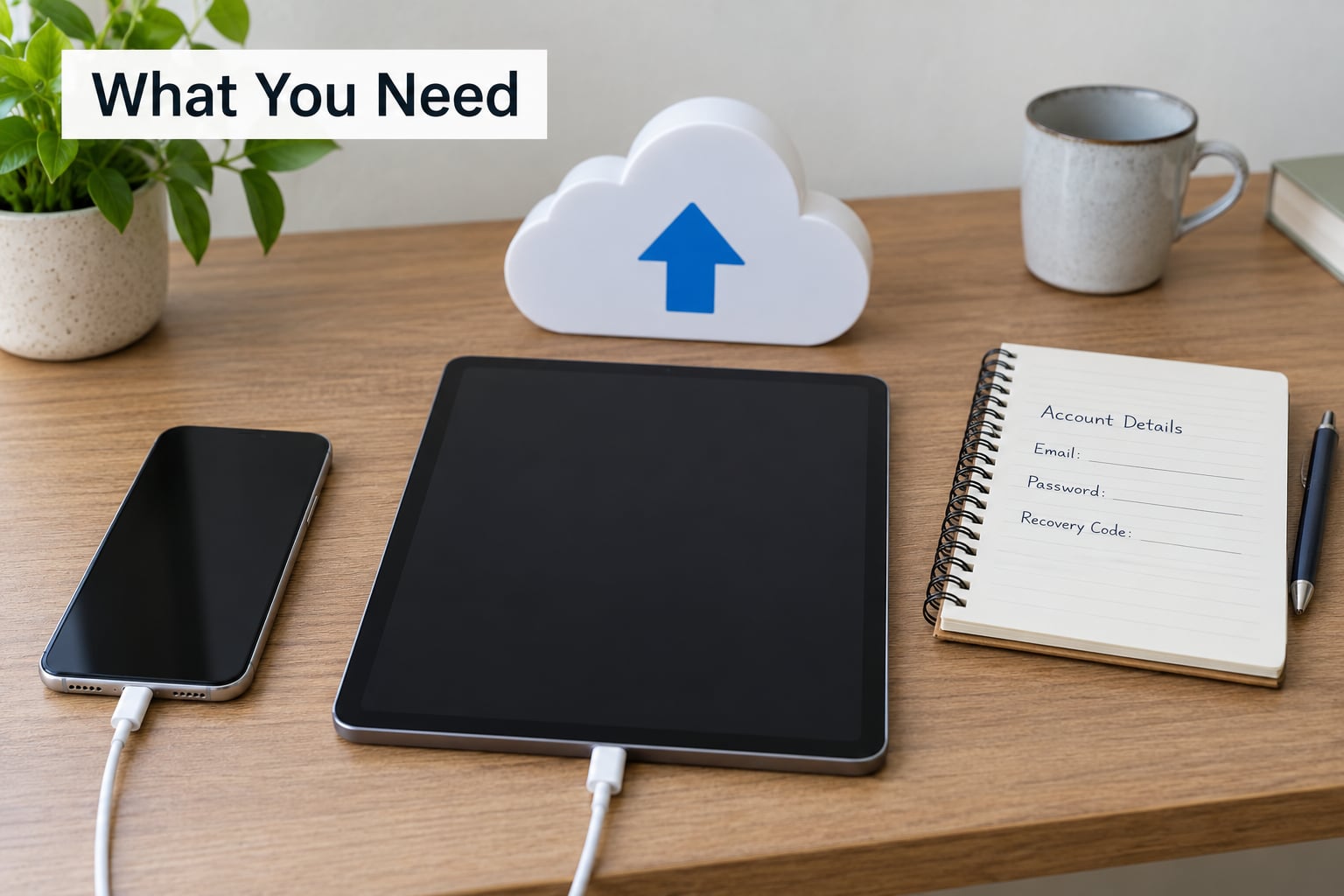
Before you touch anything on the reset phone, gather these. Most of it takes five minutes and saves hours later.
- Your Google Account password. Restore pulls the app list from whichever Google account was signed in before the reset. If you sign into a different account, you’ll get a clean phone and no apps.
- Your Apple ID password. Same idea on iPhone. You’ll also need the password if Find My iPhone is still on the device.
- Confirmation that a backup exists. On Android: Google account, then Google services, then Backup, and check the last backup time. On iPhone: Settings, your name, iCloud, then Manage Storage or Back Up to iCloud Now.
- Your two-factor codes or backup codes. This is the one people forget. If your authenticator app was wiped and your phone number changed, this is how you get back into everything else.
- A charger and reliable Wi-Fi. A full restore can run for a couple of hours. A phone that dies at 4% during setup leaves you with a half-restored device and a much worse afternoon.
- Your device model and Android version. Menu names shifted between Android versions, and Samsung and iPhone use completely different paths.
Two Android-versus-iPhone differences are worth knowing before you start. Android calls it a factory reset; iPhone calls it Erase All Content and Settings, and the restore flow is entirely different. Also, Android backups can restore settings, app data and account logins on some devices, while iCloud restores almost never bring back passwords or Wi-Fi credentials.
Step-by-Step
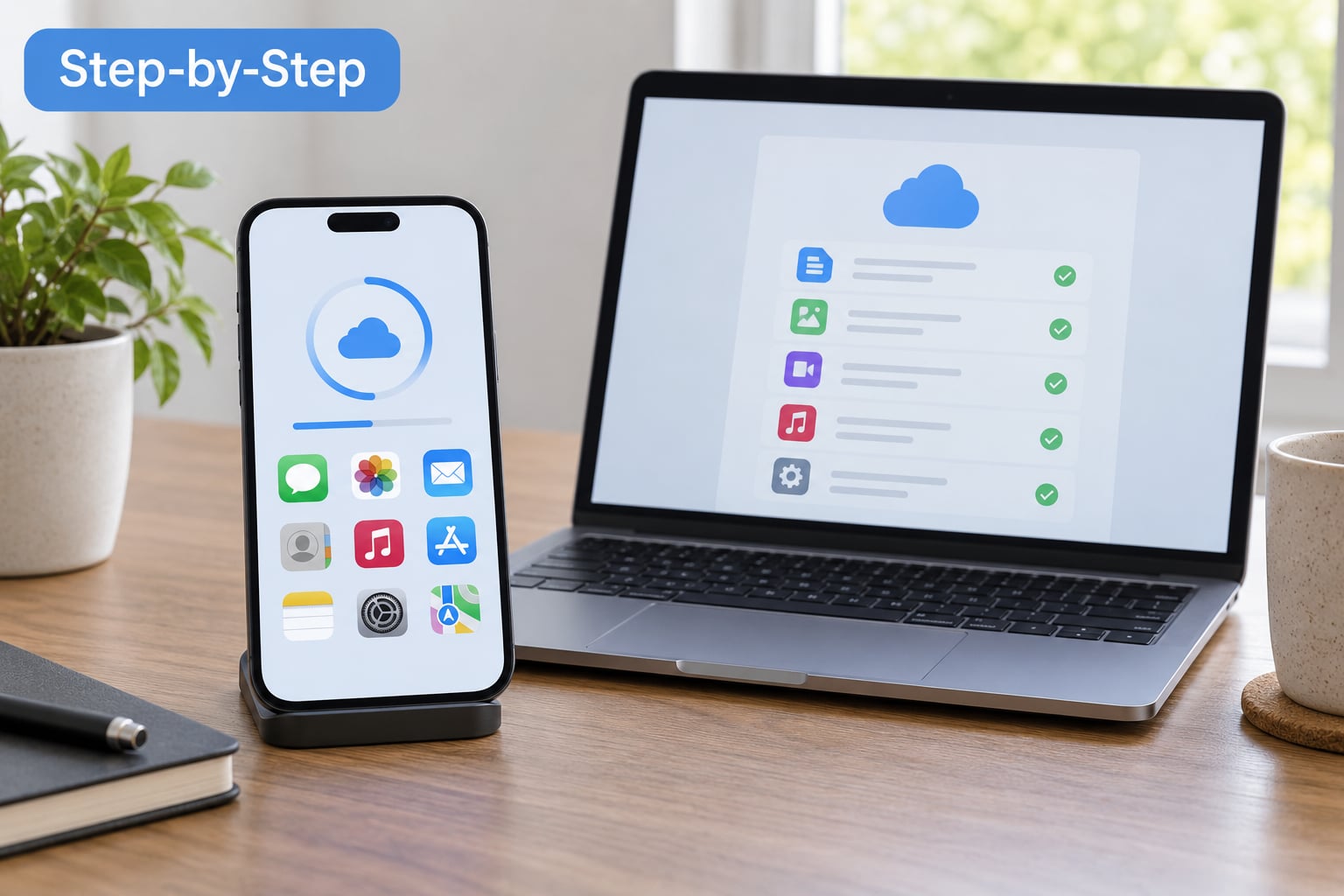
Here is the order that works. Start at step one and don’t skip ahead, because each step depends on the one before it.
1. How to restore apps after a factory reset automatically
Automatic restore only happens once, during the setup wizard, right after the wipe. If you missed that screen, step 5 is your path instead.
On Android, power the phone on and work through the language and Wi-Fi screens. When you reach the Google sign-in screen, sign in with the same Gmail address you used before the reset. You’ll see a prompt about restoring from a backup, usually something like “Restore data from a backup” or “Copy data from your old device”. Tap it, choose the most recent backup, and tap Restore.
You’ll know it’s working when a progress bar appears showing app icons downloading one after another, with a countdown estimate in the corner. Don’t touch the phone during this. Pulling the charger is the fastest way to end up with a phone restored halfway.
On iPhone, go to Settings, General, Transfer or Reset iPhone, then Erase All Content and Settings. Once it restarts, choose Restore from iCloud on the Apps & Data screen. You’ll sign in to iCloud, pick a backup by date, and the phone downloads everything over Wi-Fi. The steps and the app icons appear in the same order you had them before.
One warning from the forums: automatic restore can silently fail on some non-Google-branded Android phones and on certain carrier variants. If the prompt never appears, or the restore finishes in a few seconds with an empty phone, your backup either wasn’t there or the device didn’t offer it. That isn’t fixable by retrying on the same screen.
2. Restore from a backup after setup is already finished
You finished the wizard, tapped Skip on the restore prompt, and now you have a blank phone and no idea where the option went. This is the single most common complaint on Google support boards and Android Central, and it has a fix.
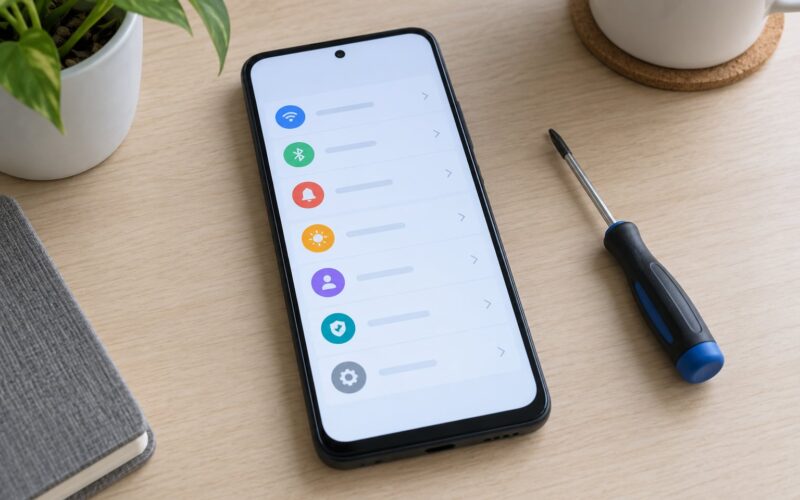
On most Android phones: Settings, Accounts, Google, then tap the account email, then Back up and restore, then Restore data. Your backup appears in the list with its date. Tap it and confirm.
On Pixel and some newer devices the path is Settings, System, Backup, Restore, though the wording shifts. On Samsung it’s Settings, Accounts and backup, Back up and restore, Restore data. If you’re on a Verizon-branded Samsung, the Samsung restore entry is sometimes hidden, so use the Google account backup option instead.
On iPhone, restoring after you’ve already set up means erasing again. Settings, General, Transfer or Reset iPhone, Erase All Content and Settings, then this time pick Restore from iCloud on the Apps & Data screen instead of Set Up as New iPhone.
3. How to reinstall apps from the Play Store or Apple App Store
Even after a perfect restore, you’ll usually find a handful of apps missing. Anything bought, sideloaded or delisted won’t come back automatically.
On Android, open the Play Store and tap your profile picture, then My apps, then Library. Everything you’ve ever downloaded and still purchased appears in two lists: Recently updated and Previously purchased. Tapping Install on the previous list brings them back.
On iPhone, open the App Store and tap your profile picture in the top right, then Apps, then Purchases. That’s the equivalent list.
A few things to expect here:
- Sign-ins are not restored. Some apps remember your session through the account token, but most ask you to log in again. This is the biggest source of frustration after a reset and it’s completely normal.
- Purchases return, subscriptions reactivate themselves. Paid apps you own will redownload. Subscriptions tied to your Google or Apple account typically resume automatically, so check your billing page before assuming you stopped paying for something.
- Home screen layout usually doesn’t return. You get your apps back in a default arrangement, not your old folder layout. Android backups from some manufacturers do preserve it; iCloud backups generally don’t.
- Apps pulled from the store are gone for good. If an app has been delisted, there’s nothing to reinstall from. Check now whether anything you rely on still has a listing, before you ever reset again.
- Work and school apps may refuse to install. Managed devices pull apps from your organisation’s portal, which needs a working work profile and VPN.
4. Restore app data, photos, and messages
Reinstalling an app gives you the app. Restoring its data is a separate operation, and each app handles that differently.
Photos. Photos live in two different places. If Google Photos had cloud backup on, they are already back as soon as you sign in, even with no device backup. On iPhone, iCloud Photos restores during the iCloud restore; otherwise check Recently Deleted, which keeps files for 30 days.
Messages. SMS and WhatsApp threads are the hardest category. SMS can come back through Google backup or Smart Switch, depending on your backup type. WhatsApp keeps its own encrypted cloud backup, so re-install the app, verify your number, and choose Restore. You’ll need the same network as when the backup was made if end-to-end encryption was on. Community consensus is clear here: treat text messages as lost unless a backup covers them.
Files and notes. Google Drive, Google Docs and Google Keep contents return on sign-in. iCloud Drive, Notes and Pages return through iCloud. Anything you typed into a note app with no cloud sync is gone.
Authenticator apps. This is where people get permanently locked out. Google Authenticator, Microsoft Authenticator and similar apps now offer cloud sync or a transfer QR code, but only if you turned it on beforehand. If you didn’t, use backup codes, an SMS fallback number, or the account recovery flow. Do this immediately after the reset, before you need it.
Here’s the honest version for anyone with no backup at all: you get your app list back, you reinstall the apps, and you log in again. Most local data is permanently gone. Community consensus across support forums is that a factory reset is immediately irreversible without a backup, and third-party recovery software that promises otherwise is selling something.
5. Check that your apps and data were restored
Run through these checks before you declare the restore finished. It’s easier to fix a problem in the first hour than a month later.
- App presence. Swipe through your Play Store library and App Store purchases. Anything with a cloud icon or a listed purchase still needs installing.
- Account sign-in. Open your email, calendar and cloud storage. If they show signed out, the account token didn’t restore even though the apps did. This is expected.
- Recent media. Check your photos for the last week, not just last month. Missing recent items usually means sync is still running, not that they’re lost.
- Messages. Look for recent threads. If the most recent conversation is old, that tells you messages did not come back.
- Permissions. Open the camera, microphone and location. Reset wipes granted permissions, and each app has to ask again.
- Local files. Check Downloads and any SD card. Files on removable storage survive a reset; files on internal storage do not.
Also verify your backup actually contains things, not just a timestamp. Google shows you a preview of what a backup covers. On iPhone, your iCloud backup is dated but the app list inside it isn’t browsable, which is why checking before you reset matters.
6. Common Mistakes
You restored into the wrong Google account. The phone is empty and won’t take a second account’s backup. Add the correct account under Settings, Accounts, Add account, then repeat step 2.
A previously synced account is stuck on the device. Add the fresh account first, then remove the old one, or you can end up locked out of both. On Samsung, this lives under Accounts and backup, Manage accounts.
Your apps restored but no settings or logins did. This is the single most reported failure. It usually means a Smart Switch backup restored without a Google backup behind it. A second reset choosing Google restore is the fix that Android Central moderators recommend.
The restore option isn’t showing at all. Either there was no backup, or the device skipped the prompt. Check the backup date on the Google account or iCloud before resetting a second time, so you don’t wipe twice for nothing.
A forgotten password is blocking setup. Reset the password from another device first. Fighting a lockout during the setup wizard, with no second screen, is how people end up with a phone they can’t get into.
Work or school apps won’t install. Managed devices push apps from an organisation server and block Play Store installs for them. Connect to the work Wi-Fi or VPN so the device can enrol itself again.
An app you used isn’t in the store. There’s no workaround. It was delisted or removed, and no restore path brings back something the store no longer hosts.
Frequently Asked Questions
What happens to my apps if I do a factory reset?
A factory reset removes every installed app, all of its local data, your settings, and every saved login on the device. Your Google or Apple account keeps a record of which apps you downloaded, which is why reinstalling them is usually easy. App data only returns if a backup covered it. Saved passwords are not restored on either platform.
How do I restore apps on an iPhone after Erase All Content and Settings?
Erase the device through Settings, General, Transfer or Reset iPhone, Erase All Content and Settings. On the Apps and Data screen after the restart, choose Restore from iCloud rather than Set Up as New iPhone, sign in to Apple, pick a backup by date, and wait for the download to finish. If you already set the phone up, erase it a second time and choose the restore option this time.
Can a factory reset be reversed or undone?
No. A factory reset overwrites the storage sectors holding your data, so there is no undo button and no way to reverse it after the fact. What you can still get back is what exists elsewhere: your app list in your Google or Apple account, photos in Google Photos or iCloud, and files that were synced or stored on an SD card.
Why did all my apps disappear on my Android phone?
If you reset or erased the device, your apps are still recorded in your Google account even though they are off the phone. Open the Play Store, tap your profile picture, choose My apps, then Library, and tap Install on anything listed as previously purchased. If the list is empty, you either signed into a different Google account or you never had backup switched on.
Will my subscriptions and in-app purchases come back after a reset?
Paid apps and games you bought re-download from your library automatically once you sign into the same account. Subscriptions usually reactivate on their own too, because they are attached to your Google or Apple billing account rather than the device. Check your subscriptions page after signing in to confirm you have not started paying twice for something.
How long does it take to restore apps after a factory reset?
A typical phone backup restores in 30 minutes to two hours over Wi-Fi, depending on how much data you had and how fast your connection is. An iCloud restore of a large backup can run longer. The app download phase alone takes another 10 to 30 minutes. Keep the phone on the charger the whole time and do not interrupt it.
Conclusion
If you have just wiped a phone, do four things in order. Sign in to the same Google or Apple account you used before, because that account holds your entire app list and nothing else does. Then use the built-in restore option while you still can — during setup on Android, or from Back up and restore if setup is already finished. After that, reinstall anything missing from your purchased-app library rather than hunting through the store. Finally, sign into Google Photos, Drive, iCloud and WhatsApp to pull your photos, files and messages back separately.
Save your authenticator backup codes before you close this page. Everything else on this list is recoverable. Those are the ones that are not.