Back up your data, sign out of every account, and run a factory reset. Those three moves are the core of what to do before selling your old phone, and they take about 40 minutes if you are organised. The rest of this checklist exists because that trio, done by itself, still leaves four things behind: your authenticator apps, your iMessage registration, the physical SIM, and any activation lock tied to your Apple or Google account.
That last one is the reason so many people end up in Reddit threads asking the same question again. A buyer who gets a phone demanding your password cannot fix it themselves, and in the meantime your photos, messages and saved passwords may be one curious tap away from being read. Updated for 2026, this is the order I work through, with the exact menu paths for both platforms.
Table of Contents›
- What You Need
- What to Do Before Selling Your Old Phone, Step by Step
- 1. Back Up Your Photos, Contacts, and Important Files
- 2. Transfer Your Data to the New Phone or Computer
- 3. Remove SIM and Storage Cards
- 4. Disable Accounts, Purchases, and Carrier Services
- 5. Clear App Data and Remove SIM-Related Services
- 6. Factory-Reset the Phone
- 7. Confirm the Reset Worked Before Selling Your Old Phone
- 8. Sell, Trade In, or Recycle It Safely
- Common Mistakes
- Frequently Asked Questions
- Should I remove the SIM card before selling my old phone?
- What should I do with the eSIM before selling my phone?
- Does factory resetting a phone remove all personal information?
- Can I sell a phone that is still signed in to my Google or Apple account?
- Should I erase my phone before sending it for a trade-in?
- What if I already backed up my phone but forgot to save my authenticator apps?
What You Need
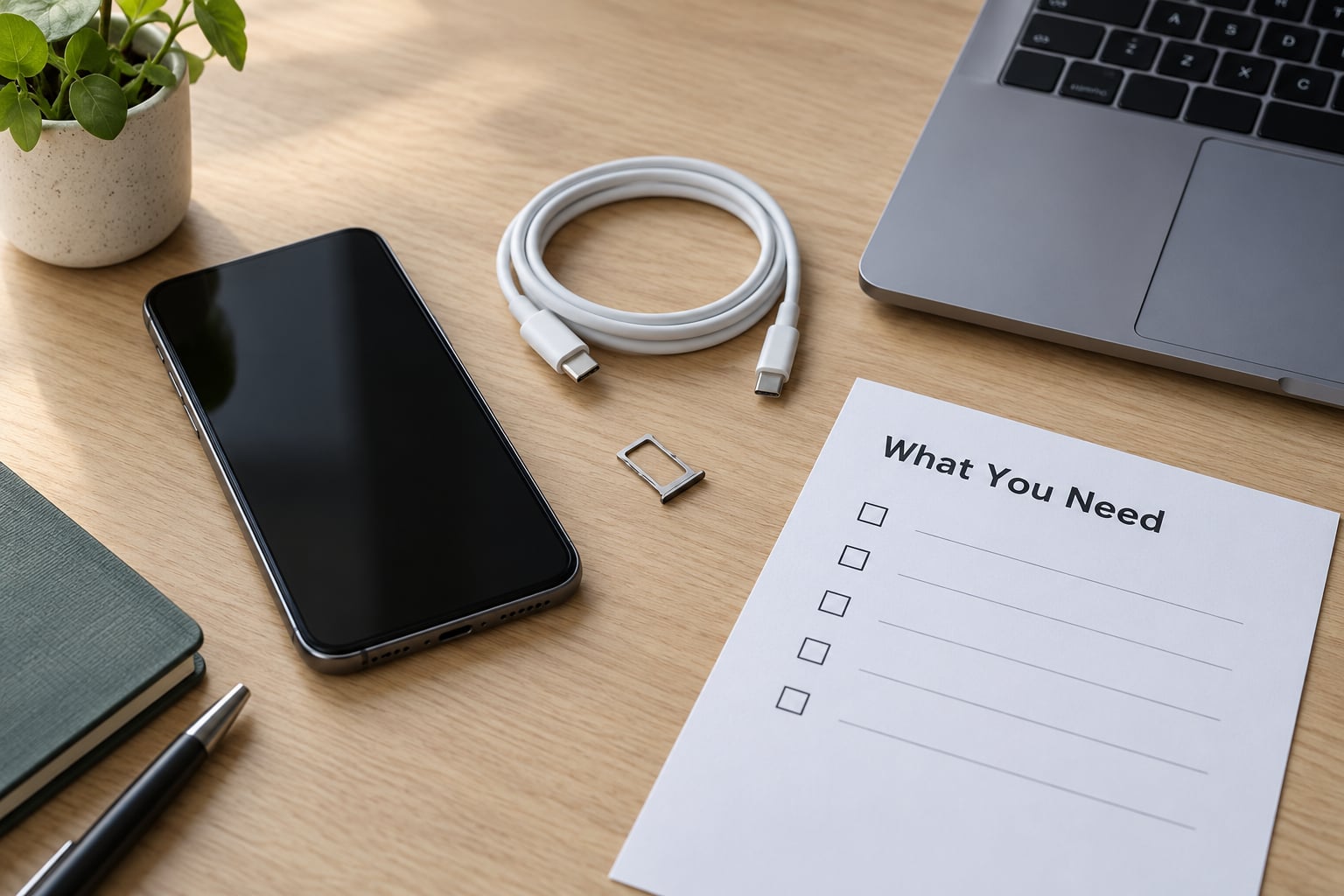
Gather this before you touch any settings. Rushing the preparation is what causes the mistakes later.
- The phone, charged. A reset on 20 percent battery that dies halfway leaves you with a half-erased device and no idea what state it is in.
- Your account password. You will need it to sign out of iCloud or Google, and some accounts ask for it again during the reset.
- A computer or cloud access to check that your backup actually finished, and to pull files off if the cloud copy looks thin.
- Your carrier account details plus photo ID if the phone is still locked or financed.
- The SIM eject tool or a paperclip for the tray, plus a small container so the SIM does not end up down a sofa cushion.
- Your new phone or computer ready to receive the transfer, plus a way to photograph the finished condition of the device.
What to Do Before Selling Your Old Phone, Step by Step
1. Back Up Your Photos, Contacts, and Important Files
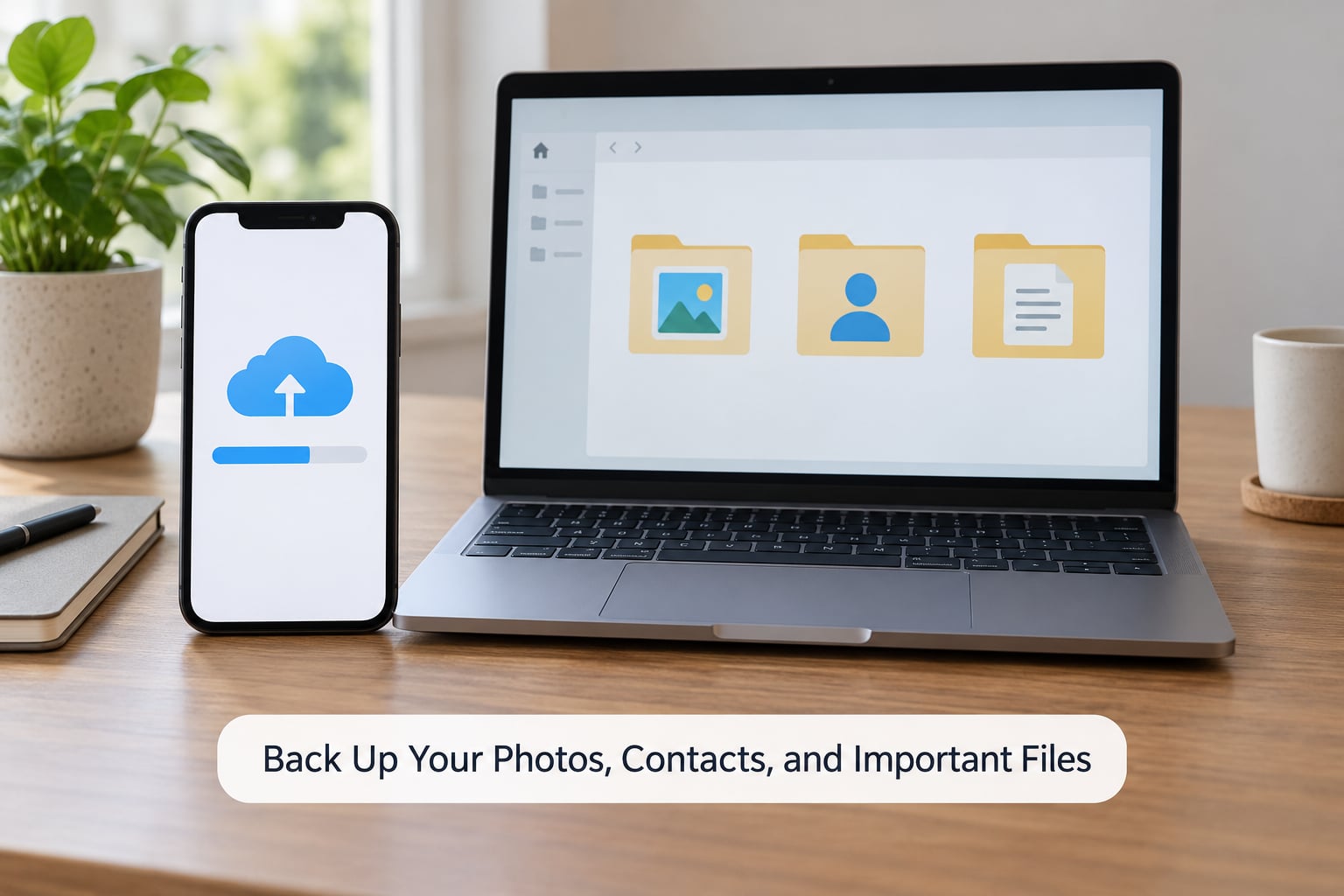
Back up first, and do not start wiping until you have confirmed the backup rather than assuming it ran. On an iPhone, go to Settings, tap your name at the top, then iCloud, then iCloud Backup, then Back Up Now. On Android, open Google, tap your profile picture, then Backup, then Back up now.
Verify it properly. Open your photo library on another device or the cloud site and scroll back months, not just the last ten photos. The backups that fail quietly are usually the ones where a single full backup ran months ago and every recent week is missing.
Pay attention to what does not live in a photo backup: text messages and attachments, authenticator apps, notes, saved passwords, downloaded files, and anything inside banking or work apps. Those each need their own export. Messages on iPhone sync to iCloud if that setting was on, and on Android, SMS backup is a separate toggle most people have never touched.
2. Transfer Your Data to the New Phone or Computer
Set up the new phone and transfer before you erase anything, because once the reset runs, the old device is no longer a source. Apple’s Move to iOS app and Android’s device-to-device transfer both handle photos, contacts and messages if you start them from the old phone while it is still connected and unlocked.
Move authenticator apps deliberately rather than by accident. Google Authenticator, Microsoft Authenticator and Authy all have a transfer or export flow that moves accounts to a new phone through a QR code or a backup sync. Open the app on the old phone, start the transfer, and confirm each account appears on the new device before you wipe anything. Without this, accounts protected by two-factor authentication can lock you out entirely, and recovery means an identity check and a wait.
Export passwords from the password manager too, and confirm the new phone shows them. Then check the transfer by opening a few old photos, scrolling your message history and making a test call from the new number.
3. Remove SIM and Storage Cards
Power the phone off first. On most models you press and hold the side button plus volume down until the slider appears, slide it to power off, then push the SIM tray out with the eject tool or a straightened paperclip.
Take the SIM out and keep it somewhere safe. On an iPhone, the tray holds two nano-SIM cards; on many Androids the tray combines the SIM and the microSD card slot, so pull both and check the tray is empty. A missing card found in someone else’s phone is a bill in your name.
An eSIM is different, and it is the step most guides skip. Apple’s own support documentation states that a factory restore does not delete an eSIM. If you have one, delete it yourself before the reset: on iPhone go to Settings, Cellular, then Manage eSIMs or Add eSIM, tap the plan and choose Delete eSIM, and confirm with your carrier if asked. On Android, the path is Settings, Connections, SIM manager or eSIM manager, then Delete. Port your number to the new device first, or you will lose the line.
4. Disable Accounts, Purchases, and Carrier Services
This is where most lockouts come from, and it is the part to slow down on. Turn off the tracking lock, then remove the accounts, then sign out.
iPhone: Settings, then Find My iPhone, then tap your Apple Account at the top and choose Find My iPhone Off, then confirm with your passcode. Leave Find My off. On an iPhone, activation lock survives a factory reset unless you sign out of your Apple Account, and nobody but you can remove it afterwards.
Android: Settings, then Passwords and accounts or Accounts, tap Google, select your account, then Remove account. Also remove any work or school account, then sign out of Samsung, Xiaomi or other manufacturer accounts so the new owner is not stuck on a setup screen. Android’s protection is called Factory Reset Protection, and it triggers when a Google account is still signed in at reset time. Anyone who hits that screen cannot set the phone up without your credentials.
Then remove the device itself from your account list. On iPhone, sign in at appleid.apple.com and remove the handset from your devices; on Google, open the account’s Devices page and remove it. Do the same for Microsoft and Samsung accounts.
Handle the small print while you are still logged in: deregister iMessage and FaceTime if the new phone uses a different number, unpair any Apple Watch, and transfer or cancel AppleCare+ and device insurance. Deregistering iMessage takes up to 48 hours to take effect. Ask your carrier to release any device payment plan or remove the carrier lock before you list it, and confirm the IMEI is clear of blacklist records.
5. Clear App Data and Remove SIM-Related Services
Some apps hold things a reset will not cleanly remove, and payment tokens deserve special attention. Open your wallet or payment app, remove every saved card, and confirm the account shows no devices. Banking and payment apps keep cards and session tokens, so delete the app and sign out properly instead of relying on the wipe.
Do the same for social apps, email, VPN and password manager. After you have removed the accounts, delete each app and check its folder in Files or My Files, because cloud attachments can sit there independently of the app. Any prepaid plan linked to the SIM needs cancelling with the carrier separately.
6. Factory-Reset the Phone
Only reset after the transfer is verified. A correct reset on current iOS and Android does remove your personal data, so the common claim that a factory reset leaves recoverable files behind is wrong for supported modern devices. The real risks are an interrupted reset, a skipped account removal, and an eSIM that survives.
iPhone: Settings, then your name at the top, then Transfer or Reset iPhone, then Erase All Content and Settings, enter your passcode, and confirm. If you no longer have the passcode or the settings will not cooperate, connect to a Mac or PC with Finder or Apple Devices and use Restore. Turn off Find My first either way, or the restore will stop and ask for your Apple Account.
Android: Settings, then System, then Reset options, then Erase all data or Factory reset. Samsung runs it through Settings, General Management, Reset, Factory data reset, and Pixel, Xiaomi and Motorola place it in slightly different spots but use the same wording in the confirmation dialog. On Android, disable your screen lock and turn on OEM unlocking in Developer options before you remove the Google account, otherwise the phone can be left in a state where a new account cannot be added.
The reset takes 10 to 30 minutes depending on the model and how full it is. Leave it on Wi-Fi and power until it returns to the initial setup screen, the one that asks for language and region. Not reaching that screen means the reset did not finish.
7. Confirm the Reset Worked Before Selling Your Old Phone
Do not take the seller’s word for it, because the setup screen is your only proof. Power the phone on and confirm the Hello or welcome screen appears with no logo, no previous owner’s account, and no photo of it locked at a login. Take a photo of that screen and keep it with your sale records.
Write down the model, storage size, colour and IMEI or serial number before you hand it over. Photograph the device from all four sides plus any scratches, cracks or battery swelling, and describe those honestly in the listing. Buyers who find damage you did not mention tend to renegotiate hard or open a dispute.
Give the phone a clean with a dry microfibre cloth, and wipe the ports. A light clean of the charging port and the screen takes ten minutes and quietly moves a listing up.
8. Sell, Trade In, or Recycle It Safely
Selling privately gets you the most, and it carries the most risk. Trade-in counters and carrier programmes are lower risk but take a lower return, and many wipe the device themselves, which is fine, though check before you hand it over. Recycling through a manufacturer take-back programme or a certified e-waste collector suits a phone too damaged to sell. Check your local authority’s guidance on certified disposal.
Either way, wipe first and hand over second. Never create the account on the phone for the buyer and never keep a profile signed in. If you shipped it, use tracked delivery with insurance and require the payment before you release tracking. If you meet in person, hand it over in daylight and in public where you can.
The classic private-sale scam goes like this: the buyer sends an overpayment by Zelle or PayPal, then asks you to ship the phone and pay the “extra” to a courier, or asks to meet so they can “check that the phone is wiped and reset it themselves.” No legitimate buyer overpays. Keep the phone until the money clears, and never let someone handle your unlocked phone on your account. Ask the carrier to block the IMEI as stolen if a buyer pressures you to keep the account active, since that kills their ability to place it on an account.
Common Mistakes
- Deleting apps and photos by hand. It leaves hundreds of cached files, saved passwords and app data behind. Fix: factory reset, always.
- Forgetting the second account. Work, school, secondary Google or Microsoft accounts are the ones still attached after a reset. Fix: check every account list before you start.
- Never verifying the backup. Fix: open the backup on another device and scroll back several months before you touch the phone.
- Leaving iMessage active on the old number. Your texts keep going to a phone you no longer own. Fix: turn iMessage off, wait 48 hours, and deregister at Apple.
- Leaving Find My on. Fix: turn it off before the reset, then remove the device from your account’s device list.
- Leaving the Google account signed in. This is what triggers Factory Reset Protection and hands the buyer a locked phone. Fix: remove the account first, confirm it is gone, then reset.
- Forgetting the eSIM or microSD card. Fix: delete the eSIM in settings and pull the physical tray, every time.
- Losing authenticator access. Fix: transfer or export those apps while the old phone still works.
- Overstating condition. Fix: photograph and describe cracks, screen marks and battery issues plainly.
One more that gets missed: if the phone has an Apple Watch paired to it, unpair the watch before you sell, or the watch locks itself when the iPhone disappears. Android’s equivalent is a linked smartwatch or an active Find My Device network, which keeps reporting the phone’s location after the sale.
Frequently Asked Questions
Should I remove the SIM card before selling my old phone?
Yes, always. Power the phone off, eject the tray with the SIM tool or a paperclip, and take the card with you. On many Androids the tray holds the SIM and a microSD card together, so check both slots are empty. Keeping the SIM means the buyer inherits a line tied to your name, and a SIM found in someone else’s phone can become a bill in your mailbox.
What should I do with the eSIM before selling my phone?
Delete it yourself in settings before you reset. Apple’s support documentation states that a factory restore does not delete an eSIM, so a reset alone can leave your cellular plan attached to a phone you no longer own. Port the number to your new device first, then delete the eSIM under Cellular on iPhone or SIM manager on Android, and confirm the line still works on the new device.
Does factory resetting a phone remove all personal information?
A correctly completed reset on current iOS and Android removes your personal data, and the phone should return to the initial setup screen. It does not remove everything, though: activation lock and Factory Reset Protection persist if an account is still signed in, an eSIM survives a restore, and your cloud copies stay in iCloud or Google Photos until you delete them from your account.
Can I sell a phone that is still signed in to my Google or Apple account?
Do not. On Android, a Google account left signed in triggers Factory Reset Protection, so the buyer sees a setup screen demanding credentials they do not have. On iPhone, Find My iPhone keeps activation lock on, which only you can lift. In both cases you would have to remove the device remotely and prove ownership to sort it out, and the buyer gets a phone they cannot use.
Should I erase my phone before sending it for a trade-in?
Erase it. Trade-in staff wipe devices, but doing it yourself first means your data is gone before the phone leaves your hands, which protects you if the device is lost in transit or the company resells it. Remove your accounts, turn off the tracking lock, run the factory reset and confirm the setup screen appears before you hand it over at the counter.
What if I already backed up my phone but forgot to save my authenticator apps?
Check the old phone before you reset it. Authenticator apps like Google Authenticator and Microsoft Authenticator often hold a cloud backup you can restore on the new device, and Authy syncs continuously. If the old phone still works, open each app and start its transfer or export. Once the device is wiped, recovery means going through the provider’s account recovery, which can take days.
Start with the backup, then the accounts, then the reset. Get those three right and the rest of what to do before selling your old phone is small details you can handle with the phone in your hand. Verify the reset landed on the setup screen before it leaves your possession, and keep that photo as proof you did it properly.