To set a mobile data limit and warning, open your phone’s data settings, set the usage cycle to match your carrier’s billing date, then set a warning threshold below your plan and a hard limit at or under it. Android can switch cellular data off by itself at the limit. iPhone cannot, so you set Low Data Mode and lean on carrier alerts. Allow about five minutes.
- Usage since a custom start date: both platforms, once you have matched the cycle to your billing date (on iPhone you reset the counter first).
- Notification at a chosen threshold: Android only. iPhone owners get the same nudge from their carrier’s app or text alerts.
- Automatic cutoff when the limit is hit: Android only. On iPhone there is no equivalent switch.
- Cut data for one app only: available on both, through per-app mobile data switches.
- Reduce background traffic: Data Saver and an unlimited-data apps list on Android, Low Data Mode and Background App Refresh off on iPhone.
- True hard cap with overage protection: carrier-side on both platforms, which is why Step 3 exists.
Table of Contents›
- What You Need
- Step-by-Step: Set a Mobile Data Limit and Warning
- Step 1: Set a Data Usage Alert on Android
- Step 2: Set a Cellular Data Limit on iPhone
- Step 3: Use Carrier Controls and Alerts
- Step 4: Set a Limit for a Tablet or Hotspot
- Step 5: Test and Monitor the Setup
- Common Mistakes
- Frequently Asked Questions
- Can I set a mobile data limit that actually turns data off?
- Why is my phone warning me about data when I have an unlimited plan?
- Why does my phone’s data total differ from what my carrier shows?
- How do I set a daily data limit?
- Does Data Saver or Low Data Mode stop background updates?
- How do I set data limits for individual apps?
- Conclusion
What You Need
You need a phone or tablet with an active cellular plan, the built-in Settings app, and access to your carrier’s account or carrier app. That last one matters more than people expect, because the phone controls what it sees and the carrier controls what it charges.
Before you touch any menus, find two numbers: the gigabytes in your plan and the day your billing cycle resets. Write them on paper next to the phone. Setting a warning at 80% of a 20 GB plan is a decision; setting one at “somewhere near 16” is a guess.
A few more prerequisites worth sorting first. Know whether you are on a prepaid plan, a metered plan with overage charges, or an unlimited plan that slows down after a threshold. Each one needs a different tool, and the rest of this guide branches on that answer.
Finally, check whether your plan is shared. On a family or group plan, the allowance belongs to the whole group, so a per-line cap only works if your carrier offers one.
Step-by-Step: Set a Mobile Data Limit and Warning
Step 1: Set a Data Usage Alert on Android
On a standard Android phone, including Pixels, the path is Settings, then Network & internet, then Data usage. Some versions put it at Settings, then Network & internet, then SIMs, then the network name, then App data usage. Open the screen and look for the small line that says your usage since a given date.
Set the cycle first, because a warning means nothing if the counter starts on the wrong day. On the Data usage screen, tap the usage cycle line. You will see the date the counter resets, usually the carrier’s billing date on a physical SIM, or “Last 30 days” on some eSIM plans and prepaid lines. Change it to the billing cycle option so your numbers line up with what the carrier will bill.
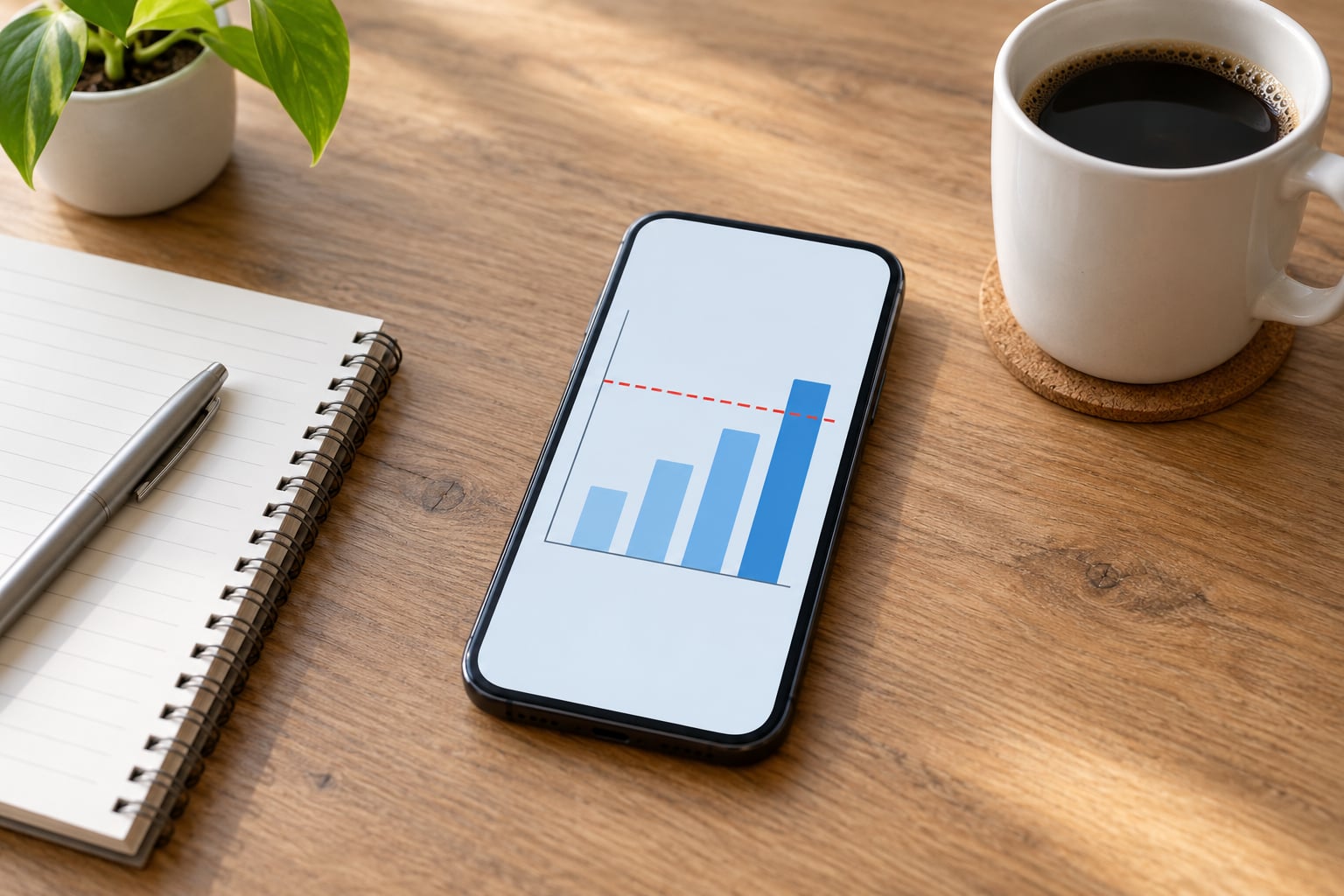
Then set the warning. Tap Data warning & limit, set the toggle to on, and choose the amount. Most people do well at 70 or 80 percent of the plan. Pick a round number and let the phone do the arithmetic, because a threshold of 15.5 GB is harder to argue with your carrier later than “close to 16”.
While you are in that dialog, set the hard limit too. It is the toggle labelled Limit mobile data usage, and it sits under the warning amount. When usage crosses it, Android turns mobile data off and tells you. Data comes back when you re-enable it manually or when the cycle resets, so treat it as a safety net rather than a monthly ceiling you can lean on.
On Samsung Galaxy phones, the path is different. Go to Settings, then Connections, then Mobile network, then Data usage. Under the graph you will find Billing cycle and data warning, which contains both the Data warning and Limit mobile data usage switches. The logic is identical; only the labels move. Samsung also keeps Data saver one level up, under Mobile network, and it has an Unlimited data apps list where you name the apps allowed to keep using mobile data.
If you want a per-app limit on Android 13 and later, the controls are per app rather than global. Open Settings, then Apps, then your app, then Mobile data. There you can switch mobile data off for that app entirely, allow it on metered networks only, or restrict it to Wi-Fi. Run through the top ten apps by usage and trim the ones you do not need on the road; streaming apps and automatic cloud photo backup are usually the worst offenders.
Android has no native daily data limit. What you can do instead is leave the monthly warning on and check the counter every morning, or set a hard limit low enough that one careless day cannot hurt much. If you genuinely need a daily ceiling, a network-level app or an automation that watches the counter is the only route, and both are extra moving parts.
Step 2: Set a Cellular Data Limit on iPhone
There is no hard cellular data limit in iOS, and any guide that claims otherwise is wrong. What you have instead is usage visibility, Low Data Mode, and per-app switches. Set up the visibility first, because everything else depends on the counter being right.
Open Settings, then Cellular, and you will see the app-by-app breakdown with totals for Current Period and Last 30 Days. Tap Cellular Data Usage for the long view. To start a clean month, go back to Settings, Cellular, and tap Reset Statistics. Reset it on the day your plan renews, not the day you set it up, or your totals will be permanently skewed.
For the reduction side, open Settings, then Cellular, then Cellular Data Options, and turn on Low Data Mode. It pauses background transfers, stops auto-updates and photo syncing, and turns off Wi-Fi Assist. That last one matters: Wi-Fi Assist silently hands traffic to cellular when a Wi-Fi network is weak, which is one of the most common reasons people blow through data they did not think they were using.
Two more switches are worth a look. In Settings, then General, then Background App Refresh, you can set it to Off or limit it to Wi-Fi only. In Settings, then Cellular, scroll past the app list and check Roaming is off unless you are travelling on purpose. Turning roaming off is the single cheapest insurance on an international trip.
For an iPhone alert, you need the carrier. Most carriers send threshold alerts by text or push through their own app, and some will hard-stop your line at a number you choose. That is a carrier-side control, not an iPhone setting, and it is the closest thing iPhone owners get to a real cutoff.
Step 3: Use Carrier Controls and Alerts
The device setting is the early-warning system; the carrier setting is the one that actually stops the meter. If overage charges would hurt you, set both. Searching how to set a mobile data limit and warning usually lands you on phone-only walkthroughs, which is why this step gets its own heading. Sign in to the carrier’s site or app and look for a data management, usage, or control page. Names differ by carrier, so search their help for your own rather than following a stranger’s screen.
What you are usually looking for is a usage alert at a percentage or gigabyte figure, an automatic cutoff or block at a hard number, and a record of when the cycle resets. Prepaid carriers are often the most generous here, since every megabyte on their side is one they resell. Postpaid carriers usually offer alerts on metered plans and only hard caps on shared or family plans.
On a shared or family plan, this is where per-line limits live. Some carriers let each line carry its own cap inside the group allowance, which is the closest thing to a per-person limit available anywhere. Where that is missing, the next best option is a line-level plan for the person most likely to use the data, such as a teenager streaming video.
A quick sanity check is worth doing before you trust any of it. Most carriers will report current usage over a phone call or a short code entered in the dialer, and the code is usually printed on the account page. Compare that figure with what your phone reports. If the two are miles apart, you have found the reason your warning feels wrong, and Common Mistakes below covers what to do about it.
Step 4: Set a Limit for a Tablet or Hotspot
A cellular iPad uses the same menus as an iPhone: Settings, then Cellular, then Cellular Data Options, then Low Data Mode. The usage figures live in Settings, then Cellular, and Reset Statistics is in the same place. If the tablet has no Cellular menu at all, it is the Wi-Fi model and the cellular plan lives in the account settings of the device you set it up from.
Android tablets follow the phone: Settings, then Network & internet, then Data usage, then Data warning & limit. Samsung tablets use the Connections, Mobile network, Data usage path instead. The one caution on tablets is that many run on Wi-Fi by default, so their usage numbers look tiny next to a phone that is out all day.
Hotspot and tethering are where people get surprised. Data you push through a personal hotspot is cellular data on the plan, and it usually counts against the same allowance as data on the phone itself. There is no separate bucket unless your carrier offers one. Watch the tethering line separately in your usage breakdown, because it often shows up under a different label and gets missed.
On Android, Data Saver restricts app traffic but does not always cover tethered devices, which means a laptop pulling updates through your hotspot can eat a month of data in an afternoon. On iPhone, Low Data Mode has a known setting for personal hotspots that you can leave enabled or turn off depending on whether you actually want tethering to throttle. If you tether often, set the phone limit and accept the slower speed; if you rarely tether, turn tethering off completely so nothing runs when you are not looking.
Step 5: Test and Monitor the Setup
To check it worked, open the data usage screen and look at the cycle start date first. If that is wrong, everything after it is wrong too. Then confirm the warning figure matches what you intended and that both toggles are on, not just the warning.
Counters update in batches rather than live. Android refreshes when an app loses focus or when you open the screen after leaving it, and iPhone updates more slowly still. Give it a few minutes, switch apps, then reopen. If the number refuses to move, toggle airplane mode on and off, or restart the phone, which nudges the radio and the counter to re-register with the network.
You do not have to wait for a real overage to test a hard cutoff. Open the data limit screen, temporarily set the limit to a tiny amount just above current usage, and switch the limit on. Mobile data should stop and a notification should appear. Set it back afterwards.
After that, treat the carrier dashboard as the source of truth and the phone as the early warning. Phone counters measure what the radio saw; carriers measure what they billed, and the two differ by a rounding rule and a lag. On a family plan, check the group total rather than any single line.
Common Mistakes
Counting Wi-Fi as cellular. The number that surprises people is usually traffic that was on Wi-Fi all along, or traffic moved onto cellular by Wi-Fi Assist or a weak-signal switch. Turn Wi-Fi Assist off on iPhone, and on Android check whether background sync switched networks mid-transfer.
Using an outdated menu path. Android moves these screens often, and Samsung’s labels rarely match Google’s. If a path does not exist on your phone, search Settings for “data usage” or “data warning”; the search box finds the right screen faster than any guide can.
Setting a warning with no carrier cap. A phone warning is a notification, not a control. It tells you at 80 percent and does nothing at 95 percent. If overage charges are the worry, the cutoff has to be configured in the carrier’s account.
Counting hotspot data twice or not at all. Tethered usage appears in the same allowance as phone usage, usually under a separate label in the breakdown. Check both lines before you assume you have room.
Ignoring roaming and shared plans. Roaming often uses a separate pool or a different rate, and on a family plan your line’s total is a fraction of a group total. A per-line reading that looks tiny can still mean the group is nearly finished.
Cycle date mismatch. If the phone’s reset date does not match the carrier’s, every warning you get will be early or late, sometimes by a week. This is the single most common cause of a warning that fires at 60 percent of your real usage.
Third-party monitoring that runs on the data it measures. Apps that report per-app usage still use data, and some back up in the background. Useful for daily patterns, not a substitute for the built-in screens.
Frequently Asked Questions
Can I set a mobile data limit that actually turns data off?
On Android, yes. Go to Settings, Network u0026amp; internet, Data usage, then Data warning u0026amp; limit and switch on Limit mobile data usage. When you cross that number, Android shuts off mobile data until you turn it back on or the usage cycle resets. On iPhone there is no hard limit, only Low Data Mode, so iPhone owners need their carrier to set a real cutoff.
Why is my phone warning me about data when I have an unlimited plan?
Unlimited plans usually carry a high-data threshold after which speeds are reduced, and your phone has no way to see that threshold, so the warning is generic. The same thing happens when the usage cycle date does not match your billing date and the counter has not reset. Check Settings, Network u0026amp; internet, SIMs, your network, App data usage, and confirm the cycle start date matches your bill.
Why does my phone’s data total differ from what my carrier shows?
The phone counts bytes as the radio sees them, while the carrier applies its own rounding and may bill in larger blocks, so a gap of a few megabytes is normal. A gap of several gigabytes usually means a different cycle start date or that the phone has not synced recently. Restart the phone, wait a day, and compare again. When it matters, the carrier figure is what gets billed.
How do I set a daily data limit?
Neither platform offers a native daily cap. Android’s warning is tied to a usage cycle that is normally a month, and iOS has no cutoff at all. Practical substitutes are checking the counter each morning, setting a deliberately low monthly hard limit, or using a network-level monitoring app that can block data once a daily figure is reached. Expect to give up some background reliability for that control.
Does Data Saver or Low Data Mode stop background updates?
Yes, that is the main job of both. Android Data Saver blocks background data for apps you have not marked as unlimited, and iPhone Low Data Mode pauses background transfers, app updates, and photo syncing until you are on Wi-Fi. Neither one reduces what the apps you are actively using download, and tethering is handled separately on many Android devices, so check the tethering setting on its own.
How do I set data limits for individual apps?
On Android 13 and later, open Settings, Apps, choose the app, then Mobile data, where you can switch cellular off entirely, allow it on metered networks only, or restrict it to Wi-Fi. On iPhone, open Settings, Cellular and use the switch beside each app in the list. Limit the apps that stream video or sync photos first, since they dominate most monthly totals.
Conclusion
Start in the data settings on your own phone: open the usage screen, set the cycle to your billing date, put the warning at around 80 percent of your plan, and turn on the hard limit just below it. That is how to set a mobile data limit and warning on a phone in about five minutes. If overage charges would actually hurt, spend the extra two minutes in your carrier’s account and set a real cutoff there too, since the phone’s warning alone will not stop the meter.