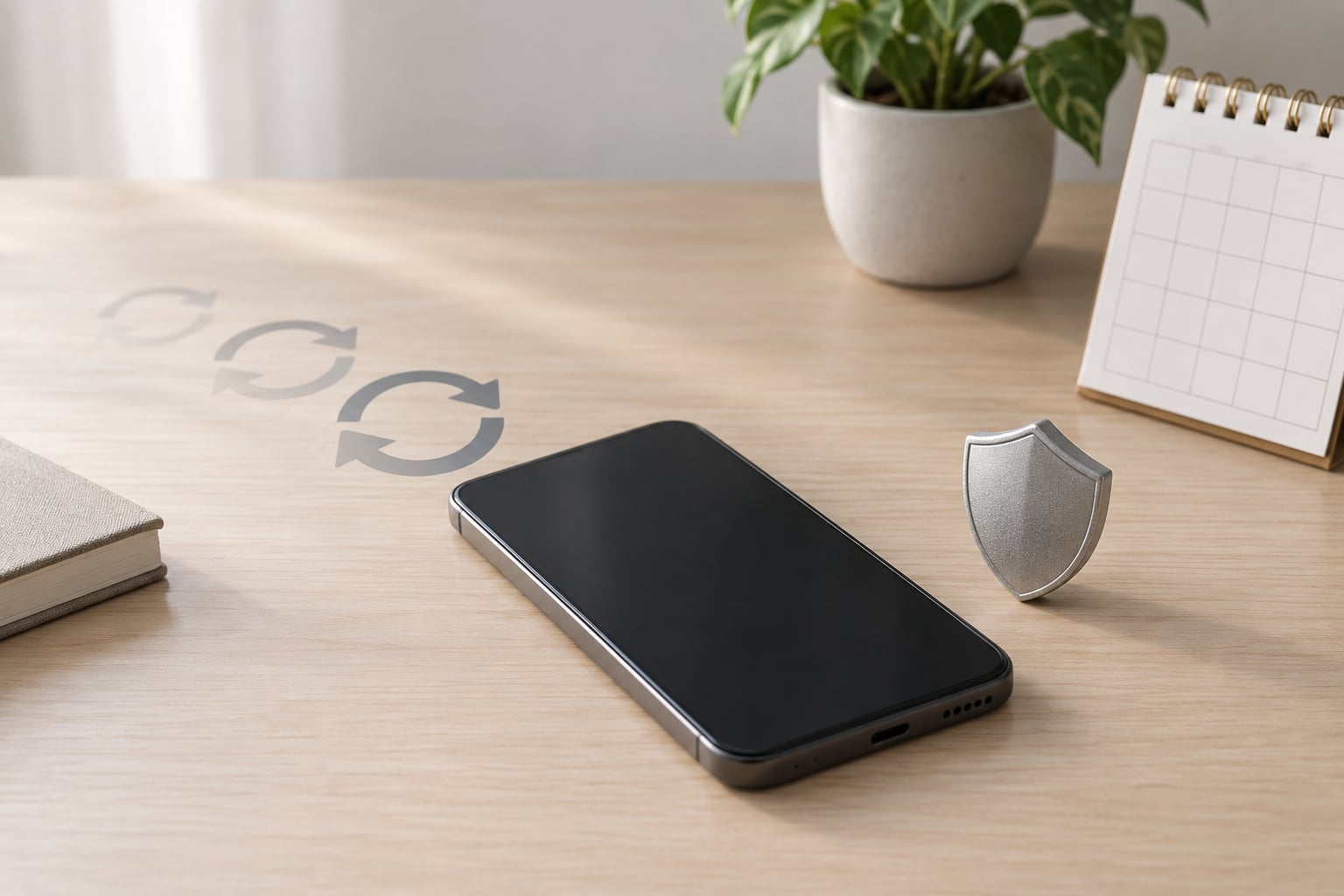
When a phone stops getting updates, it does not break or switch off. It keeps working exactly as it did the day before, but it permanently stops receiving fixes for newly discovered security flaws, and eventually it falls behind the minimum operating system version that app developers require.
That is the whole answer, and everything below is detail. Most owners notice nothing for months. The phone does not brick, the screen does not go blank, and your photos do not disappear. What changes is quieter and slower: the list of unfixed flaws grows every month, and the list of apps willing to run on your version gets shorter every year.
The people who get burned are rarely the ones using a cheap handset for offline music. They are the people whose banking app stops accepting their password on a Tuesday, or whose work email server refuses the device certificate, because nobody warned them the clock had run out.
Table of Contents›
- What Happens When a Phone Stops Getting Updates: Risks and Changes
- What Happens When a Phone Stops Getting Updates Over Time?
- How Phone Update Support Usually Ends
- Does an Unsupported Phone Become Insecure Immediately?
- What Happens to Features, Apps, and Performance?
- Which Features May Stop Working First?
- How to Tell When Your Phone Has Stopped Getting Updates
- What to Do When Your Phone Is No Longer Supported
- Can You Keep Using an Unsupported Phone?
- Frequently Asked Questions
- Is it safe to use a phone that no longer gets security updates?
- Do updates slow your phone down?
- How long do manufacturers keep updating phones?
- Why does my banking app say I need to update Android?
- Why isn’t my Android phone updating when it should be?
- What to Do First
What Happens When a Phone Stops Getting Updates: Risks and Changes
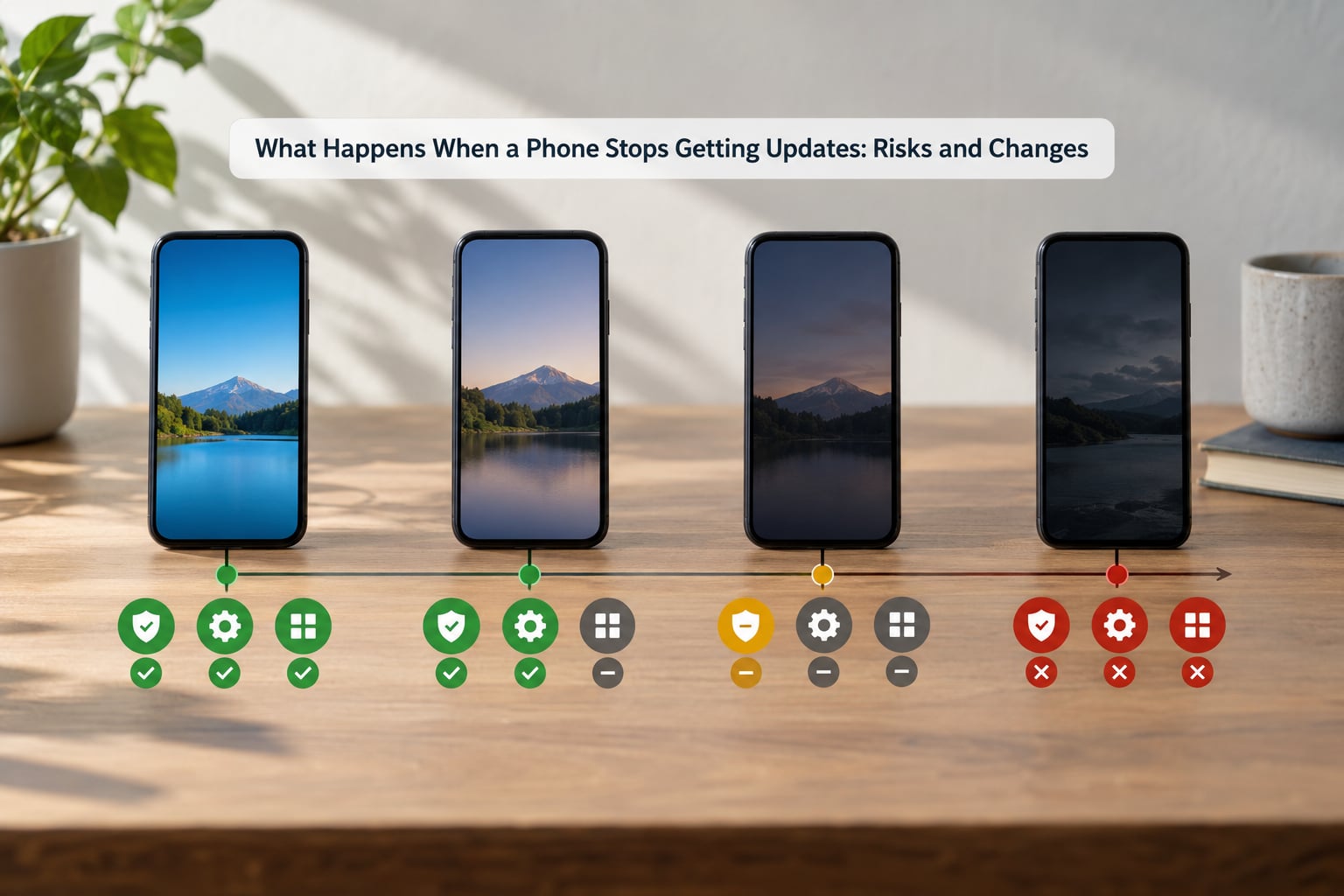
Here is the short version, split into what actually changes and what stays the same. Read the first four bullets and most of the fear evaporates.
- Your phone keeps working. Calls, texts, camera, offline maps and every app already installed carry on as before. Nothing is switched off remotely.
- Security flaws stop getting fixed. Every vulnerability patched after your last update stays open, permanently, on that device.
- You stop getting new features. No major version upgrades, no redesigned interface, no new privacy controls, no camera modes.
- Apps start dropping support. Developers raise their minimum system version, and older devices stop receiving app updates or lose access entirely.
- Websites can get harder to use. Some sites quietly drop support for older browsers and system versions used by that phone.
- Battery life gets worse, but that is hardware. Lithium-ion cells age regardless of software support. It is a separate problem wearing the same coat.
One clarification up front, because it comes up constantly: an unsupported phone does not brick. There is no switch where the manufacturer disables your device. The only way a phone becomes unusable is if something physically fails, or if every app you rely on refuses to run.
What Happens When a Phone Stops Getting Updates Over Time?
The damage compounds rather than arrives. In the first months nothing measurable happens, because the patches you missed were minor. A year out, the gap covers fixes for flaws that were actively being used against phones, and the operating system version is old enough that app developers start excluding it.
Two clocks run at once. The security clock measures unpatched flaws, and it only ever moves in one direction. The app clock measures how many developers still support your version, and it moves against you as requirements rise. Owners who assume one implies the other are usually right on the app side and wrong on the security side, or the reverse.
A clean reinstall is not a magic fix, but it does clear out years of accumulated junk files, background processes and storage pressure. If a device feels slow, that is often the larger factor. It also resets nothing about your support status.
How Phone Update Support Usually Ends
Support does not end on a single dramatic date, and it never ends the same way for every device. It varies by manufacturer, by model, by region and by which software version the phone shipped with. A phone sold in one country can carry a different update promise than the same model elsewhere.
What actually varies is which channels close, and in what order. This is the single most useful thing to understand, because most people assume support is a single on/off switch.
| What stops | What it controls | How it usually ends |
|---|---|---|
| Major OS upgrades | New features, redesigned interface, new privacy settings | First, usually years before anything else stops |
| Security patches | Fixes for newly discovered vulnerabilities | At the end of the manufacturer’s stated support window |
| Google Play system updates | Google-delivered patches separate from the OS upgrade | Can continue, stop or run on their own schedule, which confuses a lot of people |
| App support | Whether developers still ship updates to your system version | Quietly, one app at a time, whenever developers raise their minimum |
| Accessory and service support | Smartwatches, car integration, cloud features | Drifts away from the phone as models are retired |
That Play system update line trips people up more than anything else. A phone can receive a Google Play system update months after its manufacturer has stopped issuing anything, which leads owners to assume the device is still fully supported. It is not. Those patches come from a different pipeline and say nothing about the rest.
Some owners also report that their phone reports a patch level that does not reflect what the manufacturer actually shipped for that model, so treat the date as a rough indicator rather than a guarantee. The manufacturer’s own support page is the more reliable source.
A practical rule of thumb used widely in the Android community: no patch for three or four months is a warning sign, and six to twelve months of nothing at all means support has effectively ended even if nobody announced it.
Does an Unsupported Phone Become Insecure Immediately?
No. Nothing about the phone changes on the day support ends. A security update is a small release that patches security flaws without changing how the phone looks or works, and the risk comes from what happens after the last one, not from the update window closing itself.
The realistic path to harm looks like this. Somebody finds a flaw in a component your phone uses. It gets written up, and every supported model gets a fix within weeks. Your model never gets that fix, so the flaw stays live on your device indefinitely. Then somebody packages that flaw into malware, and it reaches devices through convincing phishing messages, malicious apps from outside your store, and compromised websites.
That last step is where your habits decide everything. A phone used mostly offline, as an alarm clock or a music player for a toddler, has almost no attack surface. A phone with banking, work email and password management on it has plenty.
There is a real counter-argument, and it deserves an honest hearing. People who push back against the panic online make a fair point that the risk is heavily overstated for light users. Someone whose phone never sees a text link from a stranger is not the target of the attacks that make old phones dangerous.
What the argument gets wrong is the assumption of permanence. A light-use phone today is often a phone that gets sold, passed to a family member, or handed to a child who installs games. The exposure changes hands even when the device does not.
Two further risks deserve plain naming. Banking apps are increasingly the ones that act first, blocking a device that sits below their minimum system version rather than quietly misbehaving. And spyware is a different category entirely, typically installed deliberately by someone with physical access or through a compromised account, where a current patch genuinely would have helped.
What Happens to Features, Apps, and Performance?
Feature loss is the mildest of the three and the one people accept most readily. You stay on your version, so you never get the redesigned interface, the new photo processing, the extra battery options, or the privacy controls that ship with each release. Manufacturers add permission management and tracking protection over time, and you simply stop receiving them.
App compatibility is the practical wall. Developers target a minimum system version because older systems lack required security capabilities and testing effort. Once you drop below that line, three things can happen: the app stops offering updates, new installs are blocked, or the app stops working at all. Banking, payment, password managers and two-factor authentication apps are the ones that tend to move first, because they carry the highest fraud liability.
Websites break in the same way, more gradually. Browsers on older systems stop supporting current encryption standards and modern web features, and a growing number of sites quietly stop serving them properly. Nothing dramatic happens. You just find more errors, more failed checkouts, and more sites that look wrong.
Accessories and services drift too. A smartwatch paired to an unsupported phone may lose features or drop pairing after a firmware update. Car integration and manufacturer cloud services often depend on the phone’s version, and those features can disappear years before the hardware gives up.
Now the performance question, because it gets answered wrongly most of the time. A phone that stops getting updates does not automatically get slower. The software sitting on it does not change size or behaviour overnight.
What actually happens is battery ageing, and it is easy to confuse with a software problem. Lithium-ion cells lose capacity over years of charge cycles, and a tired battery triggers slower charging, aggressive background power management, and the occasional unexpected shutdown. Owners describe a phone that feels sluggish and blame lost updates; in a lot of those cases a new battery would have fixed it, and the support status never mattered.
Which Features May Stop Working First?
Some things degrade in a predictable order because they depend directly on the system version. This is the practical order, roughly from soonest to latest.
| Capability | What happens | Why it fails first |
|---|---|---|
| Banking and payment apps | Sign-in blocked or app refuses to launch, often with no warning | Developers set a hard minimum system version for fraud liability reasons |
| Password managers and authenticator apps | Updates stop, then old builds refuse to sync or fail security checks | Tied closely to encryption rules the system version depends on |
| Streaming formats | Higher-quality video and audio profiles disappear from apps | New codecs require hardware and system support added in later releases |
| Camera modes | New computational modes, formats and editing tools never arrive | Dependent on vendor software, delivered only with OS upgrades |
| Voice assistant capabilities | New commands and on-device processing features stay unavailable | Assistant features ship as part of system updates |
| Authentication options | Passkeys and newer sign-in methods may not be offered | System APIs required by these features are missing on older versions |
| Manufacturer cloud and device services | Backup, find-my-device and sharing features degrade or vanish | Services require minimum server and system support |
| Work email and managed apps | Device certificates fail, so the account needs re-enrolment | Company policy usually requires a currently supported system version |
The pattern matters more than any individual row. Every one of these fails for the same underlying reason: something in the software stack refuses to proceed on an old system version. It is not that the hardware cannot do it. It is that keeping it working stopped being worth the developer’s cost.
How to Tell When Your Phone Has Stopped Getting Updates
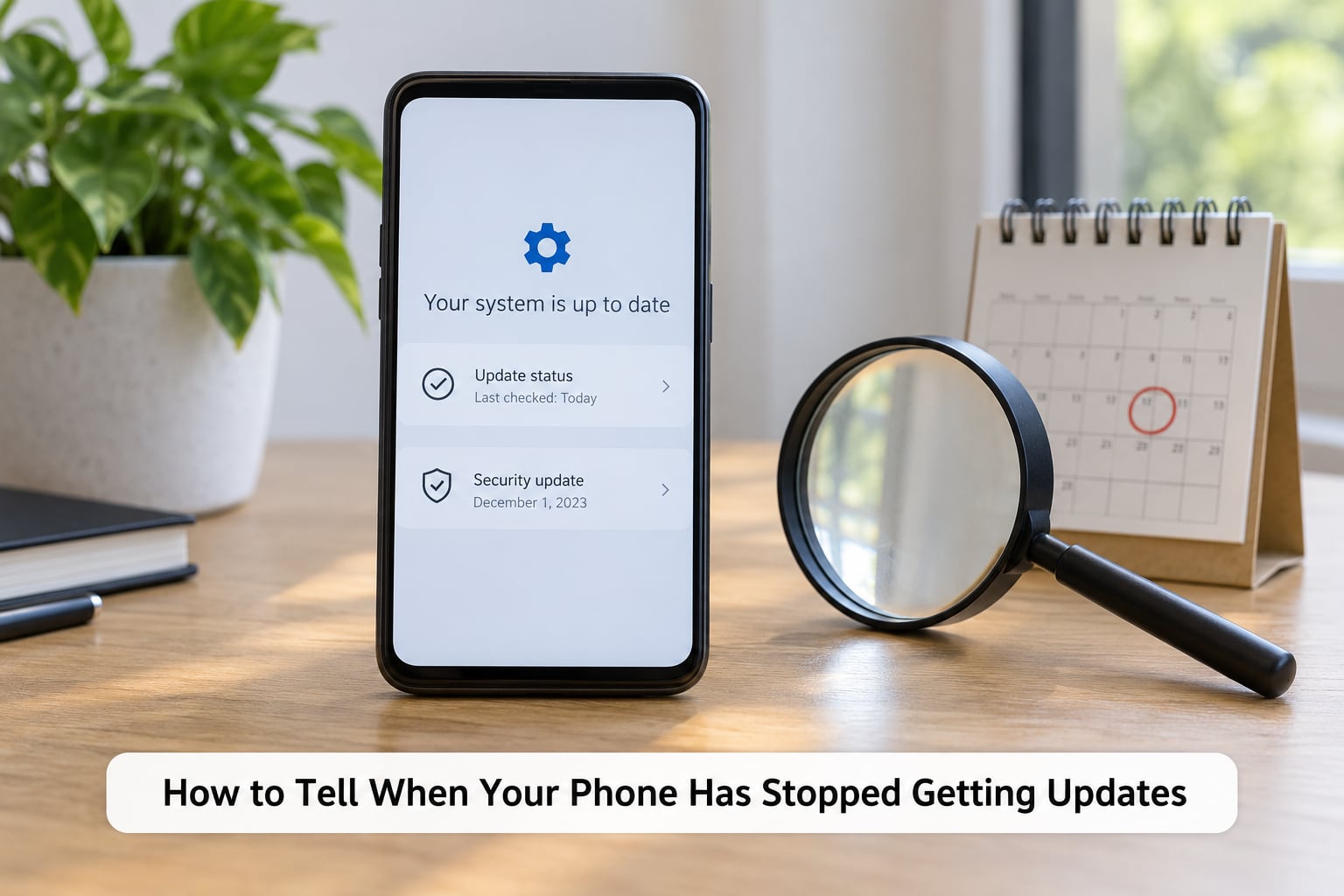
Finding the date takes about a minute. The path varies by version and by skin, so check the label rather than the version number alone, since menu names shift between releases.
On Android, look for the security patch level:
- Open Settings and scroll to About phone, or System then About phone on newer versions.
- Tap Android version to confirm which system version you are running.
- Tap Android security patch level or Security patch level. The date shown is the last patch your phone received.
- On Samsung devices, the equivalent sits under Settings, then About phone, then Software information, where Android security patch level is listed separately from the Google Play system update entry.
On some Android versions the patch date also appears under Settings, then Security, then Security updates. If you find a Google Play system update date there, treat it as a separate data point rather than proof of ongoing support.
On iPhone: Apple does not publish a patch level date on the device, so check a different way.
- Open Settings then General then Software Update. This shows the current iOS version and whether an update is waiting.
- Tap the iOS version number three times if it is greyed out. This reveals the exact iOS version and Model Number.
- Compare your model against your manufacturer’s published support list to see whether you are still inside the update window.
Then confirm the policy, not just the date: the manufacturer’s own security support page is authoritative, and your carrier’s support page may list a different end date for the same model. Where those two disagree, the manufacturer’s schedule is the one that governs the operating system.
If a phone genuinely refuses to install updates it is still eligible for, common causes are a full or failing storage drive, a battery too degraded to complete an install, an interrupted update that needs clearing, or background restrictions on the system updater. Clearing the downloaded update file and retrying often fixes it.
What to Do When Your Phone Is No Longer Supported
Work through these in order. The first three take ten minutes and cost nothing.
1. Confirm the status from the source. Check the manufacturer support page for your exact model and region, and compare it with the security patch level on the device. A carrier-branded phone may follow a different schedule.
2. Install everything still available. Even an unsupported phone usually has pending Google Play system updates and app updates waiting. Clear the Play Store cache, then check the system updater manually rather than waiting for it to offer.
3. Update every app individually. Open the Play Store or App Store, update everything, and check for apps offering an old build. Those are the ones about to fail.
4. Harden what remains. Remove apps you no longer use, especially ones loaded from outside your store. Turn on automatic updates. Use a strong, unique password on your main account and on your email, and turn on two-factor authentication with an authenticator app rather than SMS where you can. Avoid links in unexpected messages, whatever device they arrive on. That last habit matters more than most patch levels, by a wide margin.
5. Back up before anything else. Confirm your photos, contacts and documents are copied to a cloud account or a computer. Do this before any factory reset, and before you hand the phone on.
6. Decide between hardening and replacing. If your phone holds banking, work email or the two-factor codes for those accounts, replacement is the sensible call. If it sits in a drawer as an offline player, hardening plus occasional use is a reasonable outcome.
Before you pass the device to a buyer, a family member or a recycler, remove the accounts, wipe it through the factory reset in Settings, and physically take out the SIM card and any memory card. A factory reset on its own is not enough if the reset was interrupted, so confirm the phone asks for setup on first power after the wipe.
If you are technically confident, a custom system image such as LineageOS can extend a device’s life, since these community builds continue issuing patches for models the manufacturer abandoned. It is not a casual procedure: it usually voids the warranty, can brick the phone if interrupted, wipes your data, and can break features specific to your model, such as the camera or secure enclaves. Back up first, read the device’s own support page thoroughly, and never flash a build whose maintainer you have not read about.
Can You Keep Using an Unsupported Phone?
Sometimes yes, and the honest answer depends on what the phone is for rather than on a general rule. Someone running a phone purely offline as an MP3 player, a baby monitor or a bedside alarm clock faces a fraction of the exposure of someone doing banking on it.
Keeping one going is reasonable when the device handles low-risk tasks, the battery is still in reasonable condition, and the apps you actually need still run. It is a poor idea when the phone carries payment details, work email, or the authenticator for your primary accounts, because those are the parts that break with no warning and can lock you out of things that are not strictly stored on the phone.
The compromise most people land on is a two-phone arrangement: keep the unsupported device for offline or low-stakes use, and move the accounts that matter to a supported phone. That buys time without pretending the risk is zero.
Before buying a replacement, weight the software support promise more heavily than the spec sheet. Check how long the manufacturer commits to security updates for that exact model, not the launch-year flagship. A less powerful phone with a longer support window is the smarter purchase if you intend to keep it four or five years, and that is now the normal ownership period.
Frequently Asked Questions
Is it safe to use a phone that no longer gets security updates?
It is safe for low-risk use and increasingly unsafe over time for high-risk use. A phone used offline as an alarm clock or music player carries little exposure. A phone holding banking, work email or two-factor codes does not, because unpatched flaws stay open permanently and apps will eventually block the device outright. Risk grows slowly and silently rather than arriving on a particular day, so the decision is about what the phone does for you.
Do updates slow your phone down?
Not directly. Losing update support does not make a phone slower, because the software already installed keeps behaving the same way. What people notice is battery ageing: lithium-ion cells lose capacity over years, which causes slower charging, aggressive power management and unexpected shutdowns. Storage pressure and accumulated background apps contribute too. If a phone feels sluggish after updates stop, a new battery or a clean reinstall often helps more than a new handset.
How long do manufacturers keep updating phones?
It varies widely by manufacturer, model and region, and the same phone can have different schedules in different countries. Google’s own Pixel devices and several Samsung flagship lines carry among the longest commitments, while many budget models from smaller brands get a much shorter window. Apple supports iPhones for longer than most Android makers. Always check the manufacturer’s published support page for your exact model rather than trusting a general rule of thumb.
Why does my banking app say I need to update Android?
Banks and payment apps set a minimum system version because older systems lack security capabilities they need and because fraud liability sits with them. Once your phone falls below that threshold, the app blocks sign-in or refuses to install. This is the most common real-world consequence of an unsupported phone and the one most likely to force an upgrade, often with no advance warning. Keeping the phone supported is the only reliable fix.
Why isn’t my Android phone updating when it should be?
If your phone is still inside its support window, the usual causes are full storage, a failing battery that cannot complete an install, an interrupted update, or background restrictions on the system updater. Free up space, restart, then check for updates manually in Settings. On some models the downloaded update file needs clearing before a retry succeeds. If the phone is outside its support window, no amount of forcing will produce a version that is no longer shipped.
What to Do First
Check your phone’s security patch level today, compare it against your manufacturer’s published support window, and install everything still waiting. Then back it up.
If the phone is no longer receiving security patches, replace it if it carries banking, work email or your two-factor codes. If it is a low-stakes device, harden it, keep it on trusted networks, and stop expecting new features.
The failure mode people regret is not the slow battery. It is discovering at a bank counter, or locked out of a work account, that the warning nobody gave was the banking app itself.