Charge it to about 50%, power it fully off, and put it in its original box or an anti-static bag somewhere cool, dry and dark. Aim for 15-25C (60-77F) and keep it away from direct sun, magnets and moisture. Check it every three months.
Most people who store a phone get one of two things wrong. They leave it at 100% charge in a hot closet, then wonder why the battery is dead six months later. Or they shove it in a drawer without signing out of their accounts, creating a privacy problem the day they sell it or hand it over.
The good news is that knowing how to safely store a phone you are not using takes about fifteen minutes. Do it once, correctly, and a phone can sit in a drawer or a storage unit for years and still boot up when you need it.
Table of Contents›
- What You Need Before You Store a Phone
- Ideal storage conditions at a glance
- Step-by-Step: How to Safely Store a Phone You Are Not Using
- How to Safely Store a Phone You Are Not Using: Back Up Your Data First
- How to Safely Store a Phone You Are Not Using: Remove Accounts and Disable Tracking
- How to Safely Store a Phone You Are Not Using: Remove the SIM and Storage Cards
- How to Safely Store a Phone You Are Not Using: Factory Reset or Power Off
- How to Safely Store a Phone You Are Not Using: Store It in a Dry, Protected Place
- How to Safely Store a Phone You Are Not Using: Check It Occasionally
- Common Mistakes When Storing a Phone
- Tips for Long-Term Phone Storage
- Frequently Asked Questions
- How long can you store a phone before the battery dies?
- Should I store my phone at 50% or 100% charge?
- Can I store a phone in the refrigerator?
- Do I need to remove the SIM or SD card before storing a phone?
- Does a factory reset really erase your data before you donate or sell a phone?
- What happens when you turn on a phone that has been off for a year?
- Conclusion
What You Need Before You Store a Phone
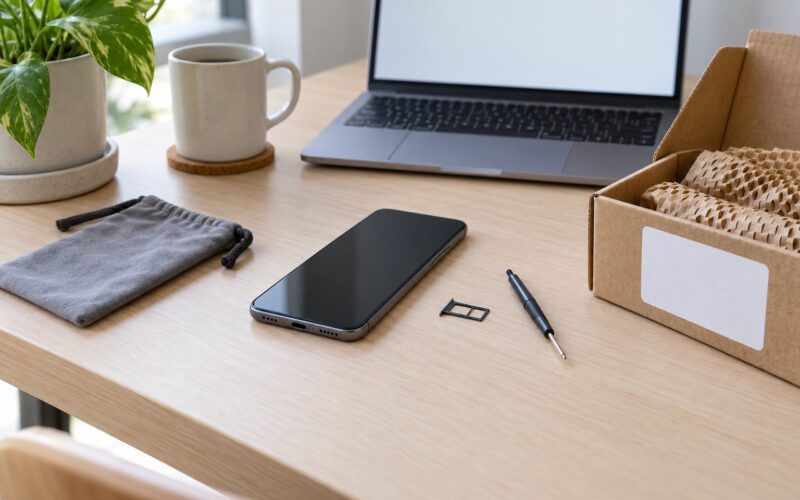
Gather five things first. Everything on this list is cheap or free, and skipping any of them is what turns storage into a problem.
- A backup destination. Your account’s cloud backup, a computer, or an external drive. Verify the backup actually completed before you wipe anything.
- Account access. Your password manager entry for the phone’s Apple or Google account, plus your two-factor codes. Without these, a factory reset can cost you the account permanently.
- A SIM eject tool (or a bent paperclip) if your phone has a physical tray.
- A container. The original OEM box with its foam inserts, or an anti-static bag sealed with a small desiccant pack.
- A dry spot indoors. A bedroom closet shelf or a dresser drawer beats a garage, attic, basement or car every time.
- A note. Write the storage date, the charge level and the container location on paper. You will not remember this in eighteen months.
Ideal storage conditions at a glance
These numbers come from lithium-ion battery chemistry and standard component handling, and they hold whether you are storing the phone for a month or a decade.
| Condition | Target | Why it matters |
|---|---|---|
| Charge level (state of charge) | 40-60% | Cells age fastest at full or empty charge; the middle of the range is the most stable |
| Temperature | 15-25C (60-77F) | Heat accelerates chemical ageing, cold alone does not |
| Relative humidity | 30-50%, never above 60% | Moisture corrodes board contacts and charging ports |
| Light | Dark | Direct sun raises internal temperature and can degrade the screen and adhesives |
| Power state | Fully powered off, not airplane mode | Airplane mode still drains and wakes the radio |
| Check frequency | Every 3 months | Recharge only if it has dropped below 30% |
| Container | OEM box, or anti-static bag with desiccant | Blocks electrostatic discharge, dust and pressure on the screen |
| Avoid | Magnets, sunlight, damp basements | Magnet sensors may stay awake; damp air causes corrosion |
One honest caveat before you go further: storage slows battery ageing, it does not stop it. Every lithium-ion cell loses some capacity no matter how well you treat it.
Step-by-Step: How to Safely Store a Phone You Are Not Using
Work through these six steps in order. Each one depends on the step before it, and the whole process takes roughly fifteen minutes.
How to Safely Store a Phone You Are Not Using: Back Up Your Data First
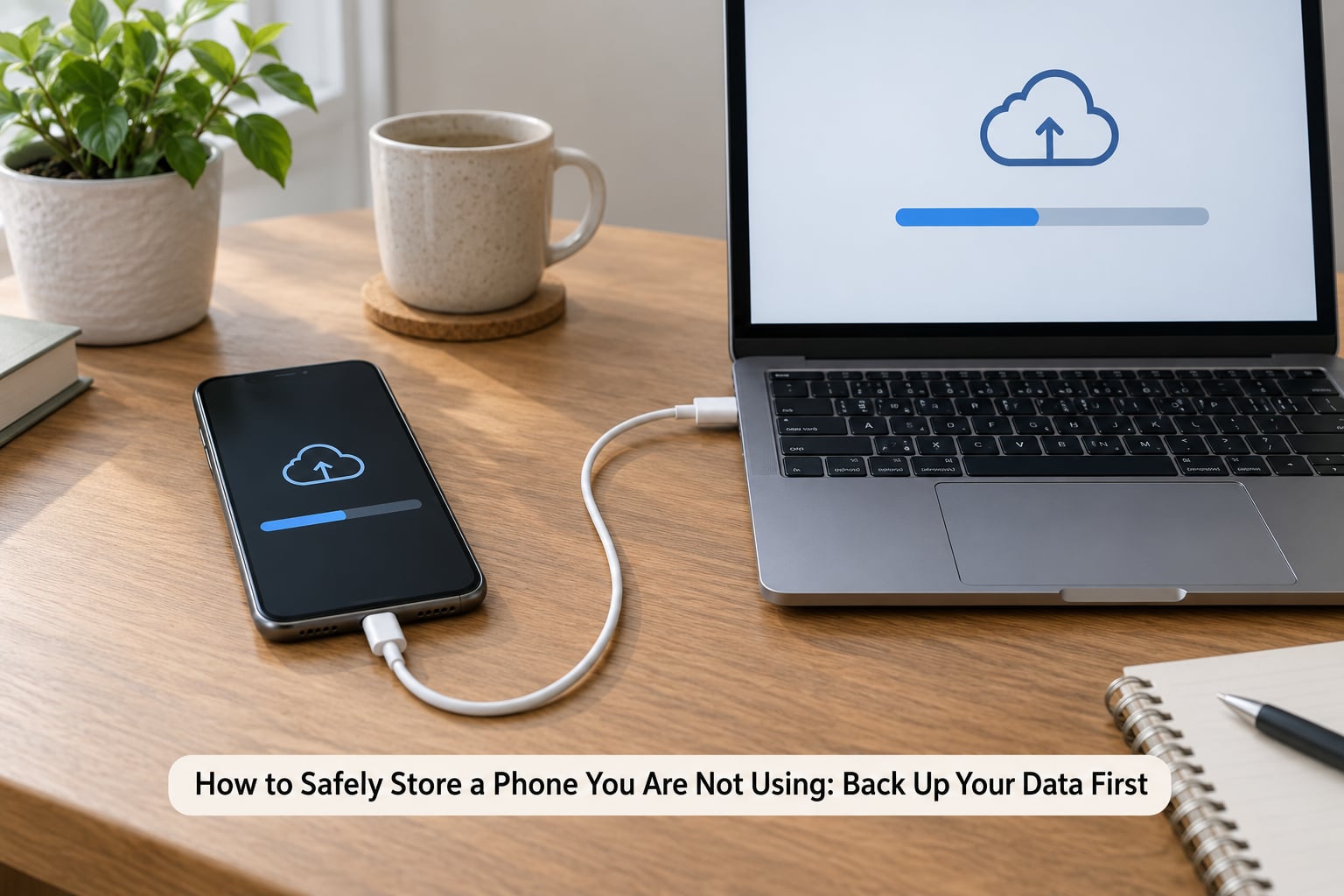
Back up everything before you touch the accounts, because signing out often removes access to the cloud copy too. Photos, contacts, messages, saved files, authenticator apps and your authenticator seed codes all need to exist somewhere other than the phone.
On an iPhone, plug it in, open Finder or iCloud on a Mac, choose the phone, and run a backup to iCloud or to the computer. On Android, plug it in with a data-capable USB cable and choose Back up in the notification shade, or run a Google backup from Settings, Accounts, Google, Manage your Google account, Back up. Samsung phones also keep a separate copy under Samsung Cloud.
Confirm the backup before you go further. Open a photo from a year ago on another device and check that it is really there. A backup that silently failed is more common than people think, and it is not something you can discover three months later.
Do not skip authenticator apps. Those QR codes or seed phrases are the only way to get back into an account once the phone is wiped.
How to Safely Store a Phone You Are Not Using: Remove Accounts and Disable Tracking
Sign out of everything, then remove the phone from the account’s device list so nobody can locate, ring or erase it remotely. This is the step most guides rush past.
- iPhone: Settings, your name at the top, then Find My iPhone off, then Erase All Content and Settings if you are wiping. After the reset, sign in at icloud.com/find and remove the device from your account list.
- Android: Settings, Accounts, Google, tap the device’s email, then Manage, then Remove Account. To clear Find My Device, Settings, Security, Find My Device, then turn it off and tap Clear.
- Samsung: Settings, Accounts, Google, Manage Accounts, tap the phone, then Remove Account. Samsung also has Find My Device under the same idea as Google.
Make sure you know the password before you do any of this. Wiping a phone while locked out of the account can turn a spare device into a paperweight.
How to Safely Store a Phone You Are Not Using: Remove the SIM and Storage Cards
Take the SIM and microSD cards out and store them separately from the phone. A SIM sitting in a dormant handset for years is still a live credential attached to your phone number, and the riskiest thing in a drawer should not be that card.
Eject the tray with the pin tool or a paperclip, slide the nano or micro SIM out, and note which way round it faces so it goes back correctly. The same applies to a microSD card. If the card is stuck, warm the phone slightly and push gently with a plastic card rather than a metal tool, or take it to a repair shop.
Most modern iPhones and many newer Androids have no tray at all, which means the SIM is soldered to the board and the storage is internal. Nothing to pull there. For an eSIM, delete the profile from Settings, Cellular, then Manage eSIM on iPhone, or from your carrier’s app, so the number is released rather than left dangling on a device you may resell.
If the phone is locked to an account through an activation lock or a carrier lock, deal with that now. It is much easier to remove the lock while you can still sign in.
How to Safely Store a Phone You Are Not Using: Factory Reset or Power Off
The right choice depends on what happens to the phone next. Resetting protects a stranger’s privacy. Powering off keeps your spare phone ready.
For storage only, on your own spare: skip the reset, power the phone fully off with a long press on the side button, and confirm the screen goes black. Do not leave it on airplane mode, and do not park it on a charger. A powered-off phone sitting on a live charger still creeps upward in charge and sits warm.
For a phone you plan to sell, donate or give away, erase it instead. On iPhone, Settings, General, Transfer or Reset, Erase All Content and Settings. On Android, Settings, System, Reset options, Erase all data and reset, or the manufacturer equivalent. Enter your passcode when asked, which disables the activation lock as part of the process.
Check the battery health before you put it away: Settings, Battery, Battery Health on iPhone. Android varies by maker, so look for a battery diagnostics or battery information section under Settings, Battery or About phone.
How to Safely Store a Phone You Are Not Using: Store It in a Dry, Protected Place
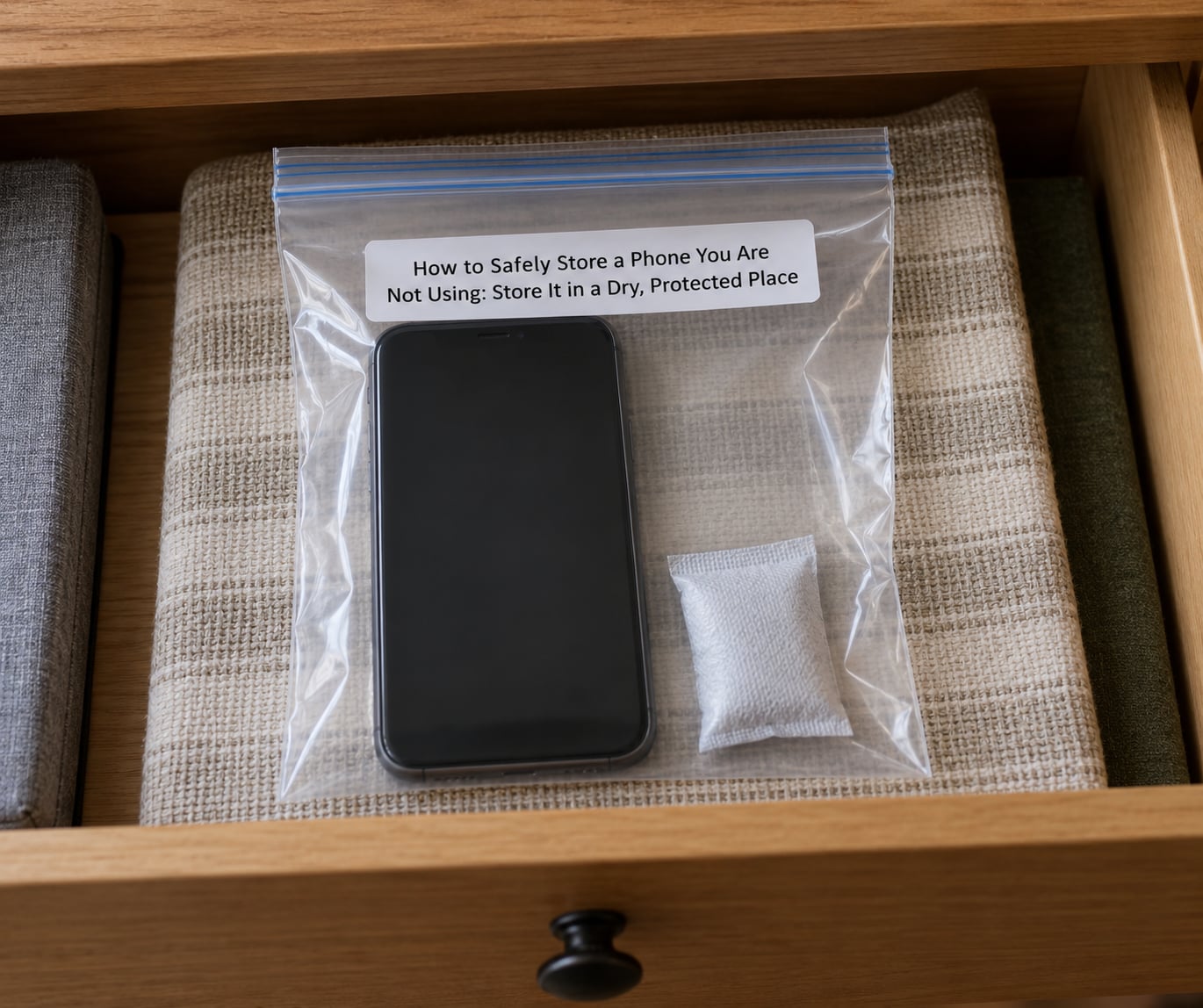
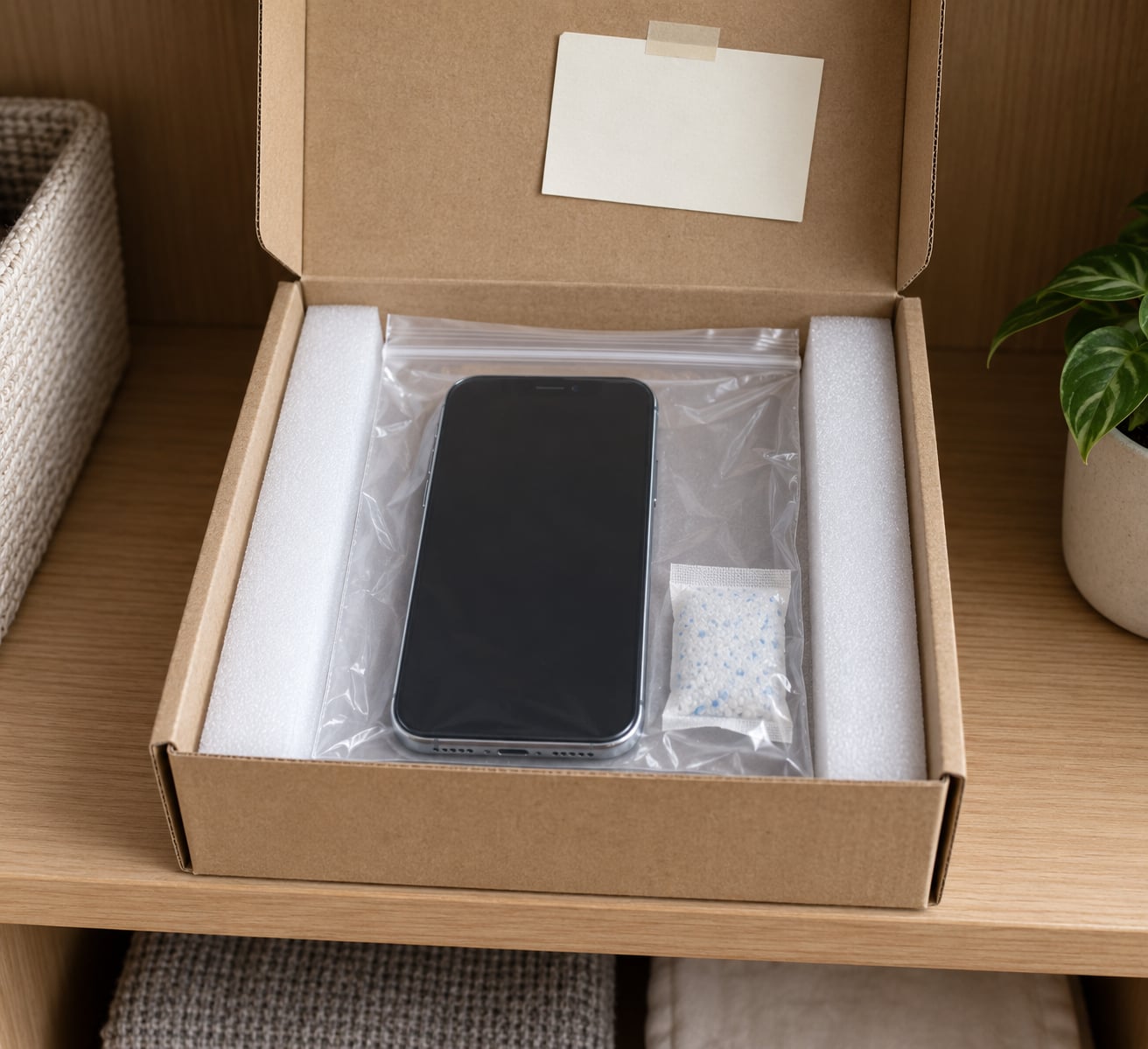
Put the phone in its original box with the foam inserts if you still have them, or seal it in an anti-static bag with a desiccant pack. The bag matters for a reason you might not expect: a bare phone sitting in a drawer can pick up an electrostatic discharge from walking over carpet, and that is exactly what static-safe packaging is designed to prevent.
Keep it indoors at room temperature, in the dark, away from direct sunlight and away from magnets. A closet shelf or a dresser drawer is ideal. Avoid garages, attics, unheated basements, sheds and cars, because those are the places with big temperature swings and damp air, and both are worse for a battery than the phone being slightly dusty.
Do not stack heavy items on top of the box. Pressure on the screen over months can cause delamination, where the display lifts slightly away from the panel, and it is not something a screen protector protects against.
If you have a hygrometer, check the drawer. Above 60% relative humidity is worth fixing with a dehumidifier or a fresh desiccant pack before the phone goes in.
How to Safely Store a Phone You Are Not Using: Check It Occasionally
Set a reminder every three months. Long storage is not “store and forget forever”. A quick check catches swelling, corrosion or a flat battery while those are still small problems.
Without turning the phone on, look at the screen and back for any lifting, bowing or a gap where the glass meets the frame. That is battery swelling, and swelling means you do not store the phone or charge it. Take it to a certified e-waste recycling point instead.
Check for white or green speckling on the charging port or headphone jack, which is early corrosion, and for moisture on the surface. If the phone has already been in a humid spot, leave it powered off, uncharged and open to air for a day or two before deciding anything.
If you need to check the charge level, turn the phone on briefly, read the battery percentage, then power it straight back off. Recharge only if it has fallen below 30%, and take it back to around 50% rather than topping it to 100%.
Common Mistakes When Storing a Phone
Almost every storage problem traces back to one of these habits. The first column is the belief, the second is what actually happens.
| The belief | What actually happens | The fix |
|---|---|---|
| Leave it charged so it is ready | Full charge is the fastest-ageing state; months here can mean a flat cell | Store at 40-60% |
| Put it in the fridge to keep it cool | Condensation forms when you take it out, and moisture corrodes the board | Room temperature, dry and dark |
| Seal it in a vacuum bag | Crush pressure on the screen and no way to see swelling forming | Anti-static bag with desiccant, not a vacuum seal |
| Keep it signed in so it is ready | Accounts stay live and activation locks can strand the device | Sign out, remove the device, wipe if it is leaving your hands |
| Leave the SIM in | The number stays linked to a device in a drawer, which matters if you sell it | Remove the SIM and microSD card |
| Leave it on the charger, powered off | It stays warm and creeps toward full charge | Unplug it and store at 40-60% |
| Store it face-down under books | Months of pressure can delaminate the display | Nothing heavy on top |
| Battery saver mode is enough | The phone still wakes, drains and generates heat | Full power off |
Battery swelling deserves repeating because it is the one mistake with a safety dimension. A lithium-ion cell under heat, mechanical pressure or physical damage can go into thermal runaway, and that means fire. If you find a swollen battery, do not store it, do not charge it and do not throw it in household rubbish. Take it to a certified e-waste recycler or a phone repair shop.
Tips for Long-Term Phone Storage
These are the details that make a phone easy to find and easy to recover later.
Label the box with the model, the date, the charge level and the storage date. When you go looking in two years, you will not recognise the box, and a mystery device in a labelled box gets opened before it gets thrown out.
Keep your account recovery information somewhere separate from the phone itself: a password manager, a printed sheet in a safe, whatever you already trust. Codes that live only on the stored device are lost the moment that device is wiped or stolen.
Avoid repeated cycling. Every time you charge from 30% to 100% you add a cycle, and that is what wears a cell out. A stored phone sitting at 50% adds almost nothing.
Note honestly what storage does and does not do. It prevents heat damage, corrosion and privacy leaks. It does not freeze battery ageing, and a two-year-old spare phone will not have the capacity it had when you put it away.
When you take the phone back out, expect a few normal things. It may boot slowly the first time, the battery gauge may read inaccurately until you run it through a full charge from low to high and back down. Let it charge to 100% unprompted once, then return to normal habits. Check battery health and install any pending system updates before you rely on it as an emergency phone. Then reinsert the SIM only after the phone has finished its first boot, and expect the device to take a few minutes to register with your carrier.
Frequently Asked Questions
How long can you store a phone before the battery dies?
A phone stored at 40-60% charge, fully powered off, at room temperature in a dry place can sit for a year or more without the battery going flat. Expect slow capacity loss the whole time, since lithium-ion ages whether or not you use it. Check it every three months and recharge only if it drops below 30%.
Should I store my phone at 50% or 100% charge?
Store it around 50%, somewhere between 40% and 60%. A full charge is the state that ages a lithium-ion cell fastest, and an empty cell can drop into a deep discharge state that permanently damages it. The 20/80 rule is about daily use, where keeping charges between those points reduces wear. For storage, the middle of that range is the safest single number.
Can I store a phone in the refrigerator?
No. A refrigerator is damp, and condensation forms on a cold phone the moment it warms up again. That moisture corrodes the board and charging port. If heat is your concern, a normal indoor closet at 15-25C is cooler than any sunny shelf and far drier than a fridge.
Do I need to remove the SIM or SD card before storing a phone?
Yes, if the phone will be out of your hands or sitting for a long time. Pulling the SIM keeps your number from staying attached to a device in a drawer, and removing the microSD card protects your photos and files if the phone is lost or stolen. Phones with no tray need nothing removed, but delete any eSIM profile from the settings so the number is released.
Does a factory reset really erase your data before you donate or sell a phone?
A factory reset on a phone you can still unlock does remove personal data and disables the activation lock. On a phone you cannot unlock, the reset clears the visible content but the data may still be recoverable. That is why you back up and remove every account first, and why reselling a phone you cannot sign into is best avoided entirely.
What happens when you turn on a phone that has been off for a year?
It will usually boot fine. Expect a slow first start, a battery gauge that reads inaccurately until it completes one full charge cycle, and a few missing minutes while it searches for a carrier signal. Check the battery health setting, run pending system updates, then charge it uninterrupted to 100% once before relying on it as a backup.
Conclusion
Four things matter most, and they take fifteen minutes. Back up your data and confirm the backup opens. Remove accounts, the SIM and any memory card. Power the phone fully off at 40-60% charge. Then put it in its original box or a sealed anti-static bag in a dry, dark, room-temperature spot away from magnets and sunlight.
Set a three-month reminder, glance at it for swelling or corrosion, and recharge only if it drops below 30%. Do those things and the phone will be there, working, when you pull it out.