Learning how to keep a phone cool during long gaming sessions takes about ten minutes of setup, and none of it requires root access or specialist tools. Cut in-game graphics and frame rate, switch the display to its normal refresh setting, lower brightness, keep the phone out of direct sun, and stop charging while you play. Those five changes handle the overwhelming majority of the heat a phone produces in a match.
The reason a gaming phone heats up is simple. The processor and graphics chip do the rendering work, the display and battery supply power, and the radios keep hunting for signal. All three produce heat, and when it builds faster than the body can pass it off, the phone cuts its own performance to protect the battery.
That cut is called thermal throttling, and it is the reason your frame rate drops and the screen dims at the worst possible moment. The fix is not more hardware. It is giving the phone less work to do and more room to breathe.
Table of Contents›
- What You Need
- Step-by-Step
- How to Keep a Phone Cool During Long Gaming Sessions
- Adjust Battery, Performance, and Display Settings
- Avoid Charging Heat During Play
- Reduce Network and Display Work
- Use a Phone Cooling Accessory Safely
- Take Smart Breaks and Let the Phone Recover
- Common Mistakes
- Frequently Asked Questions
- How hot is too hot for a smartphone during gaming?
- Is it safe to play games while my phone is charging?
- Does a phone cooling fan really work?
- What should I do if my phone gets too hot while gaming?
- Can I use a refrigerator or freezer to cool my phone quickly?
- How often should I take a break during a long mobile gaming session?
- Start With Three Changes Tonight
What You Need
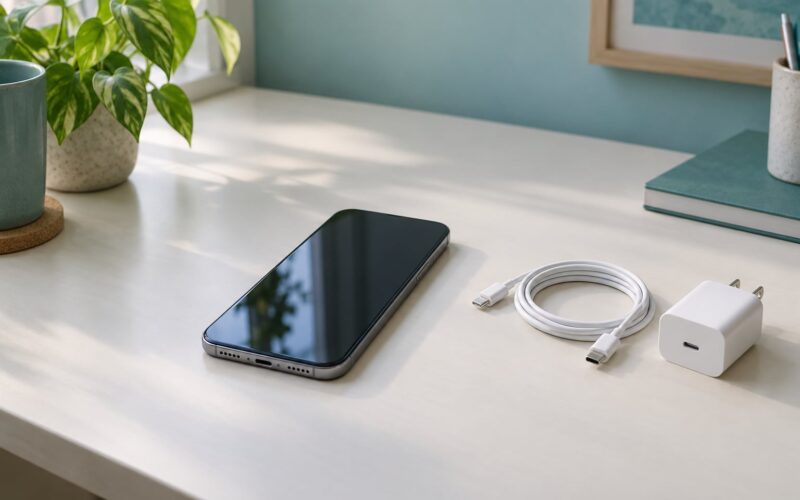
You need the phone itself, the charging cable it came with or a manufacturer-approved replacement, and a spot with moving air and no direct sunlight. A stable internet connection helps too, because a weak signal makes the radio work harder and run warmer.
An optional extra is a phone cooling accessory. It does not have to be expensive. A simple stand that blows air across the back of the phone handles most of what an accessory can do.
You do not need root, a factory reset, or an engineering menu. Every setting described below sits in the normal menus on current Android phones and current iPhones.
Step-by-Step
How to Keep a Phone Cool During Long Gaming Sessions
Start before the match rather than after the phone is already hot. Update the operating system and the game itself, because outdated software often burns cycles on work you did not ask for.
Close every background app you are not using, clear the recent apps list so suspended apps are not periodically waking, and put the phone into its performance or game mode. On iPhone that setting lives under Settings, then Display and Brightness, where you can raise or lower the refresh rate; on Android the equivalent sits in Display settings or in the game hub on gaming phones.
Set brightness to something you can live with rather than maximum, unplug unused accessories such as a wired controller or an external microphone, and put the phone somewhere with air moving across it. A desk with a small fan pointed at the back of the phone is plenty.
You will know it worked if the phone stays comfortable to hold at the ten-minute mark and frame rates hold steady rather than sliding in the second half of the session.
Adjust Battery, Performance, and Display Settings
Android gives you the most control here. Battery Saver sits in Settings, Battery, and reduces background activity, though it can also cap peak performance, so use it between matches rather than during one if you need stable frame rates. Per-game battery settings let you pick a profile for each title: no restrictions, or restricted background use for games you only play casually.
Refresh rate is the other big lever. On most Android phones, Settings, Display, Display mode and motion offers 60 Hz, 90 Hz, or a dynamic setting that switches automatically. Fixed 60 Hz is a meaningful heat saving over 120 Hz, and the difference in feel is smaller than most players expect. Samsung devices also expose a Game Booster panel with a thermal control toggle that caps the processor deliberately.
On iPhone, turn on Low Power Mode under Settings, Battery to schedule it automatically below 20 percent, and set a Low Power Mode specific to individual games in the per-app battery settings. Turning off ProMotion at Settings, Display and Brightness, Advanced reduces heat on Pro models, at the cost of a smoother-looking scroll.
Test any combination you pick over 20 to 30 minutes. If the phone still stutters, drop one setting rather than all of them, so you know which change actually mattered.
Avoid Charging Heat During Play
Charging adds its own heat on top of everything the game already asks for, and it is the single easiest habit to change. The charger, the cable, and the battery all warm up while power moves through them, and that warmth has nowhere to go except back into the phone.
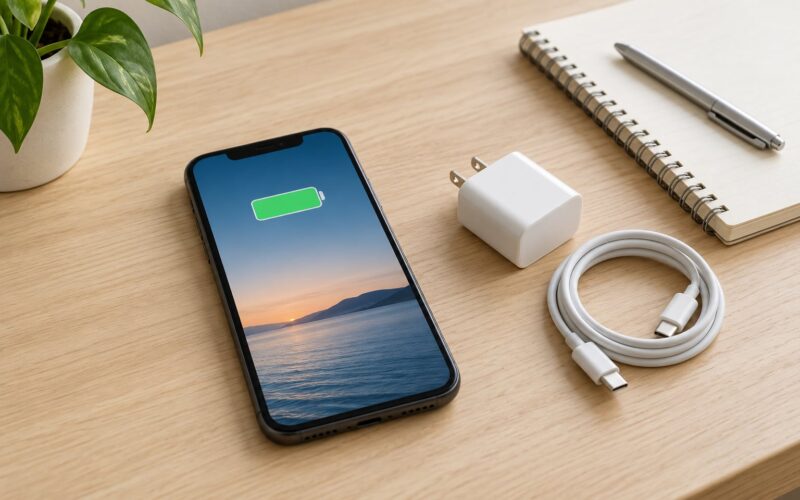
Charge before you sit down or after you finish, not during. If you have no second device and no second cable, top the battery up to a comfortable level first, then unplug. Some gaming phones offer bypass charging, where power runs straight to the phone without charging the battery, which cuts the battery’s contribution to the heat while keeping the cable attached.
Wireless charging runs warmer than a wired cable because energy transfers across coils rather than through a conductor, so avoid wireless pads during long sessions. Use the cable and power source the phone was designed for, and resist cheap third-party bricks that push more current than the phone expects.
Trust the thermal warning your phone shows over a reading from an app. The manufacturer built that warning around real limits for your model; a sensor app reading is only a guess at one internal sensor.
Reduce Network and Display Work
The display is the second-largest heat source after the processor. Lower brightness further than feels comfortable at first, or set auto-brightness and let the phone manage it, then turn off high brightness in direct sun. Leaving a phone at full brightness in a lit room does real work for no benefit.
Turn off location services for games that do not need it. On Android that is Settings, Location, App permissions, and on iPhone it is Settings, Privacy and Security, Location Services. Also switch off Bluetooth and Wi-Fi scanning if you are not using accessories, and put the phone in airplane mode when you are on wifi only.
Do not stream or record while you play. Screen recording re-encodes everything on the device and adds sustained load to the same processor already rendering the game. If you must capture a clip, record the replay afterwards instead of live.
Weak reception generates its own heat because the radio boosts power to hold a connection. Moving away from a metal cabinet or a crowded bus can cool the phone more than any setting change.
Use a Phone Cooling Accessory Safely
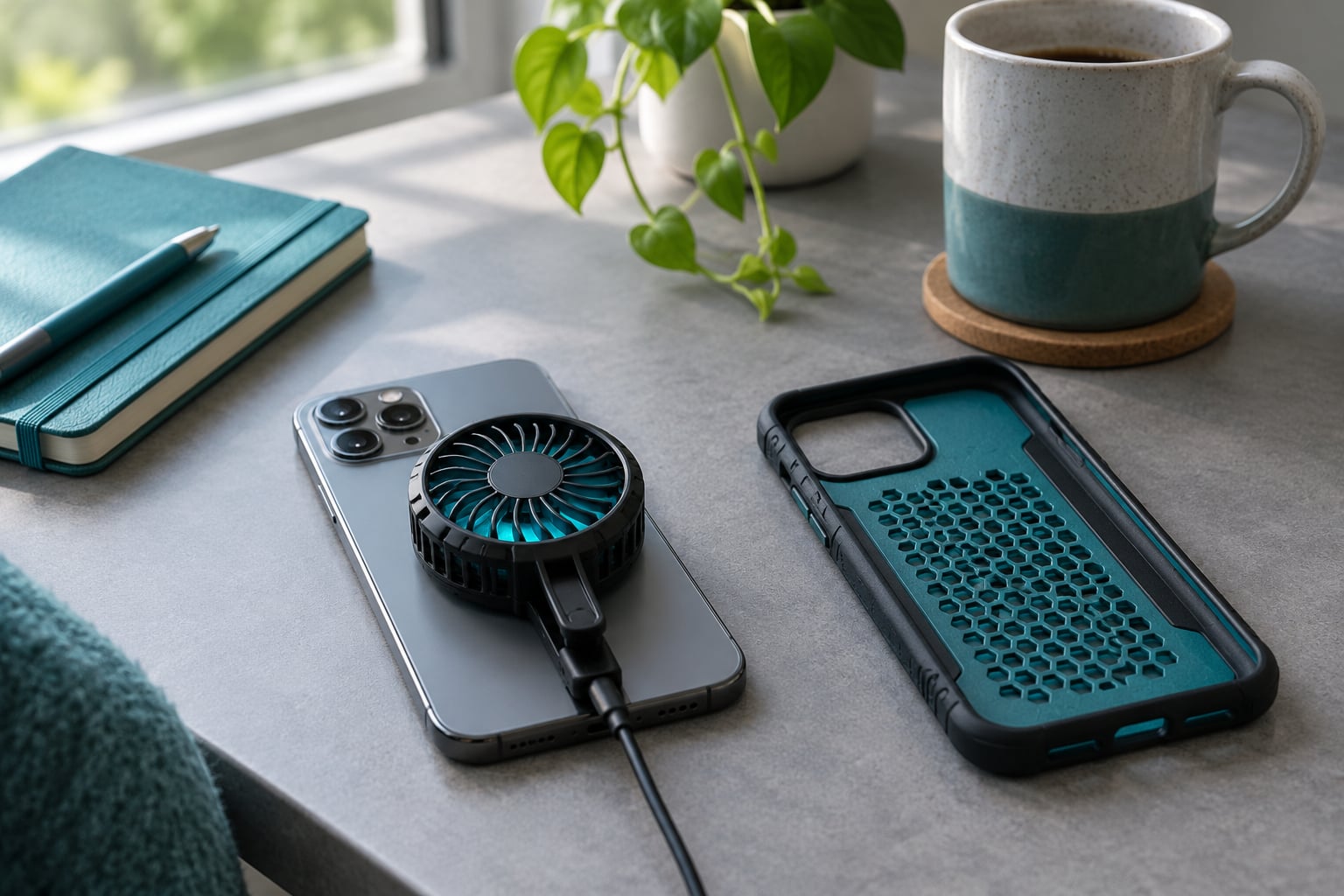
Accessories fall into a few groups, and they are not equal. Cooling cases and passive stands add nothing but airflow, which is genuinely useful and costs almost nothing. Clip-on fans blow air across the back panel and help a lot more than most buyers expect if the phone has vents or a bare back to aim at. Magnetic coolers attach to a compatible case and typically combine a fan with a small cooling plate.
Semiconductor coolers, often sold as Peltier or TEC devices, actively pull heat from a plate pressed against the phone. They are the strongest option and the most expensive, and they produce condensation in humid conditions. Wrapping a cold pack in a cloth so the phone never touches it directly works on the same principle, and costs far less.
For phones without a headphone jack or a clip-friendly edge, a stand with a built-in fan is the practical pick, because it needs no attachment at all.
Position matters more than most adverts admit. The hottest region on many phones sits near the camera bump or the charging port rather than dead centre, and cooler attachments that sit in the middle can miss it entirely. Do not cover vents, and stop using any accessory the moment the phone gets unstable, the plate frosts over, or readings climb instead of falling.
Take Smart Breaks and Let the Phone Recover
Heat needs somewhere to go, and that takes time. A workable rhythm is a 10-minute break every 40 minutes of demanding play, plus a longer break whenever the back of the phone becomes uncomfortable to hold.
During a break, close the game rather than leaving it running in the background, set the phone on a cool surface with air moving over it, and leave it alone. Resist plugging it in during the break too.
On Android, battery usage under Settings, Battery shows which apps are drawing power, and some models expose temperature and thermal status under Settings, About phone or Settings, Device care. On iPhone, battery health and charging behaviour sit under Settings, Battery, and there is no stock temperature display, so judge by feel and by whether the screen dims or performance drops.
Warm is normal during a demanding match. Hot enough to be uncomfortable, hot while idle, or hot near the charging port when nothing is running is not. If it is the last kind of hot, stop and let it cool.
Common Mistakes
Gaming while plugged in is the most common mistake, and it stacks two heat sources. Top the charge up, then unplug.
Leaving brightness and the highest refresh rate on costs you heat for polish nobody notices mid-match. Fixed 60 Hz and moderate brightness are the two easiest wins.
Playing under a blanket or with the phone on soft bedding traps heat with nowhere to escape. This one comes up constantly, and it is worse than most people expect because bedding blocks convection entirely.
Putting the phone in a refrigerator or freezer, or pressing it against ice, causes condensation on or inside the device. Water and electronics do not mix, and a chilled phone brought back into warm air can gather moisture inside the casing.
Dousing a hot phone with water, a wet cloth, or a fridge spray makes the situation worse and risks liquid damage.
Keeping a thick case on while playing traps heat against the body and can block vents. Removing it for the session is fine even if it is annoying.
Gaming outdoors in direct sun adds environmental heat the phone cannot shed. Find shade, and remember that ambient temperature sets the floor for everything else.
Playing through a thermal warning is the real mistake. A warning means the phone has already decided it needs to slow down, and forcing through it costs battery health for nothing.
Downloading a cooling app and expecting physical results is a waste. An app can show you a reading and adjust settings, but it cannot move heat out of a chip.
Frequently Asked Questions
How hot is too hot for a smartphone during gaming?
Warm is fine during a demanding match. Too hot means the back is uncomfortable to hold for more than a few minutes, the screen keeps dimming on its own, frame rates fall away from what you set, or the phone shows a temperature warning. A phone that is hot while idle, or hot near the charging port with nothing running, points at a hardware or battery fault rather than your settings, and deserves a service visit.
Is it safe to play games while my phone is charging?
It is not dangerous in the ordinary sense, but it is the fastest way to make a phone hot. The charger, the cable, and the battery all produce heat while power moves through them, and that heat lands on the same processor the game is already loading. Play on a full charge instead, or use bypass charging on phones that support it so the battery stays out of the loop.
Does a phone cooling fan really work?
Yes, an airflow cooler does more than most sellers claim, because it raises the rate at which the body sheds heat. Small clip-on fans vary a lot, and many cheap ones move too little air to matter. A stand with a larger fan pointed at the back of the phone is often the better buy. Semiconductor coolers cool harder but cost more and can produce condensation in humid air.
What should I do if my phone gets too hot while gaming?
Stop the game, unplug any cable, and move the phone to a cool, ventilated surface with no direct sun. Do not put it in a fridge, near ice, or under a wet cloth, since condensation and liquid are the real risks here. Let it return to normal before you play again, and if it runs hot again with nothing demanding, treat it as a battery or hardware problem.
Can I use a refrigerator or freezer to cool my phone quickly?
No. Chilling a phone fast brings the risk of condensation, both on the surface and inside the casing, where it can cause corrosion and short circuits. A sealed bag in the fridge limits the moisture, but a fridge-freezer is far below safe operating temperature for a lithium battery. Airflow at room temperature works, is safer, and takes only a few minutes longer.
How often should I take a break during a long mobile gaming session?
Every 40 minutes or so is a reasonable rhythm, and every 20 minutes if you are playing something heavy such as an emulated console title or recording while you play. Use the break to close the game, unplug, and leave the phone somewhere with air moving over it. Breaks cost you little and let the heat actually escape instead of accumulating across a whole evening.
Start With Three Changes Tonight
If you do one thing tonight, drop your graphics settings and frame rate, fix the refresh rate at 60 Hz, and stop charging during play. Add a break every 40 minutes and take the case off, and most phones stay comfortable through a whole session. Keep an eye on it across a few evenings, and if it still runs hot while doing nothing demanding, that is a battery or hardware question rather than a settings one.