An SD card in a tablet is removable, portable storage. Slide a microSD card into the tablet’s slot and the operating system mounts it as a separate drive, where you can save photos, videos, downloads and some apps. Knowing how to use an SD card with a tablet takes about ten minutes the first time, and the right file system makes it painless.
One question comes before anything else: does your tablet have a microSD slot at all? Plenty of them ship without one, including most iPads, Google’s Pixel Tablet and the current Amazon Fire models. If yours has a slot, the rest of this guide is straightforward. If it does not, a USB-C card reader or an OTG adapter gets you the same result with a slightly different workflow.
Most tablet storage problems trace back to three decisions: which storage mode to pick, which file system to format with, and whether it is safe to pull the card out. Get those right and the card is boring in the best possible way.
Table of Contents›
- What You Need
- Check Compatibility Before You Buy a Card
- Step-by-Step: How to Use an SD Card with a Tablet
- Check That Your Tablet Supports a Removable SD Card
- Insert and Format the SD Card
- Choose the Storage Mode Your Tablet Supports
- Transfer Files and Apps to the SD Card
- Safely Remove the SD Card
- Common Mistakes
- Frequently Asked Questions
- How do I get my tablet to recognize an SD card?
- Can I install apps from an SD card on any tablet?
- Should I format an SD card as FAT32 or exFAT?
- Can I move photos and videos from internal tablet storage to an SD card?
- Why does my tablet only show part of the SD card capacity?
- Can I use the same SD card in another tablet?
- Conclusion
What You Need
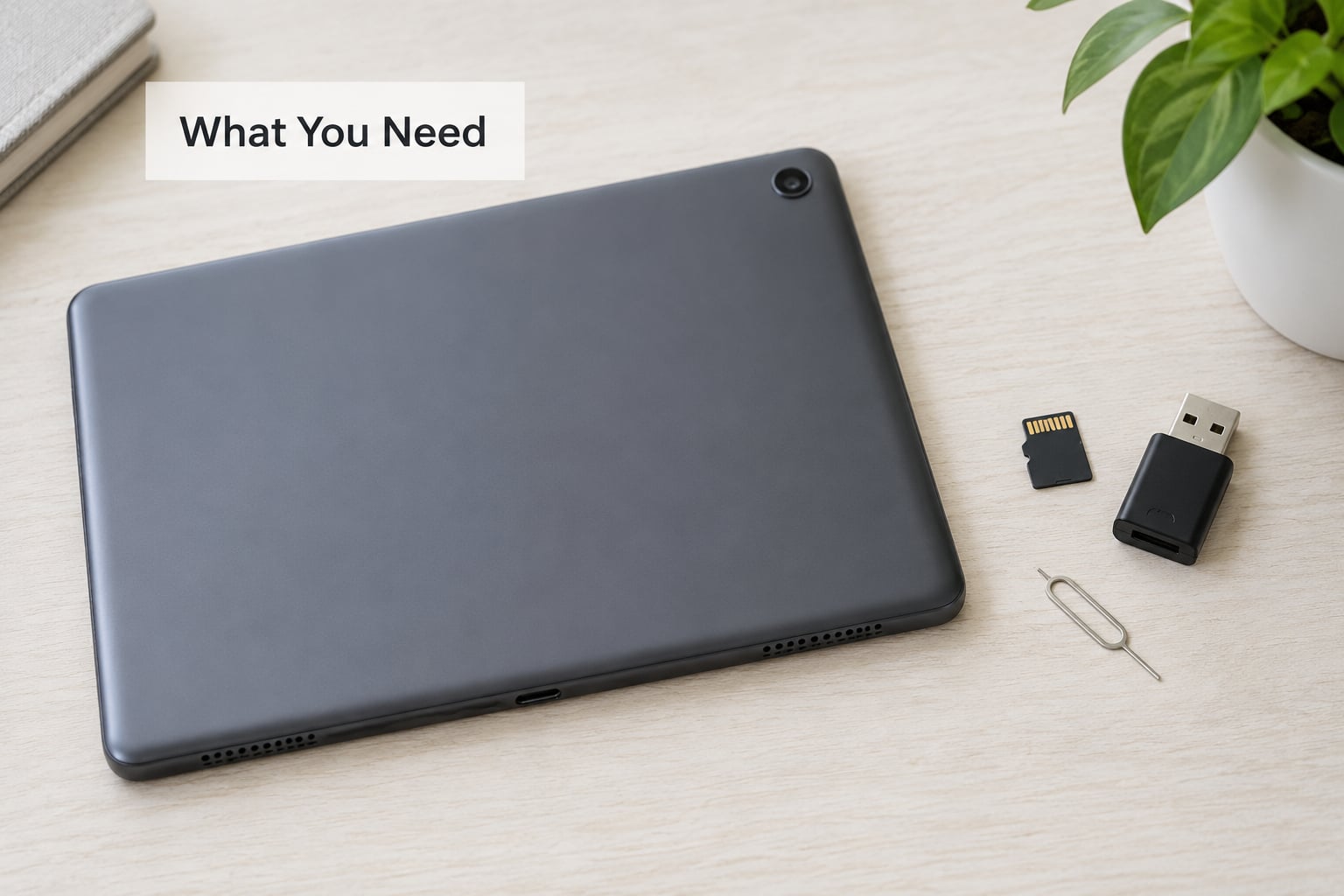
The list is short. Three items on it decide whether the rest of the process goes smoothly, and everything else is optional.
- A tablet with a microSD slot, or at least a USB-C port if a card reader is your plan.
- A microSD card in the capacity you need. For photos and video, 128GB or 256GB covers most people. If you plan to run apps from it, look for an A1 or A2 application performance class marking on the card.
- A microSD to full-size SD adapter if the device you are working from only takes full-size cards.
- A USB-C card reader for tablets with no slot, such as iPads or the Pixel Tablet.
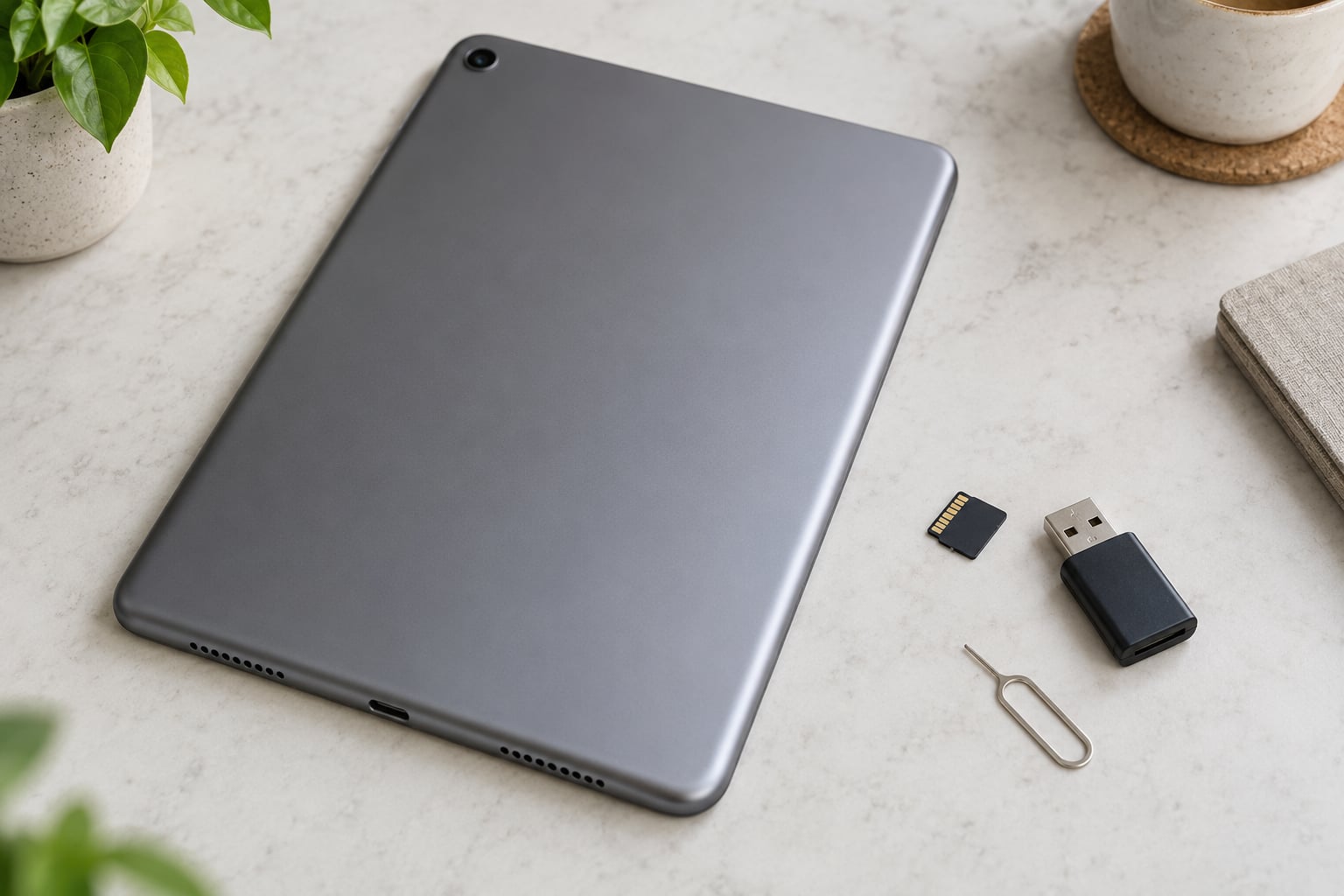
- A SIM tray tool or a paperclip, only if your tablet hides the card in a hybrid tray.
Check Compatibility Before You Buy a Card
Check the specification page for your exact model before buying anything, not the product family and not the photo on the retail listing. Searching the model number alongside “expandable storage” gets you a straight answer in about a minute, and a card you cannot insert is a card you cannot use.
Here is the honest state of things across the families people ask about most often:
| Tablet family | MicroSD slot | What to do instead |
|---|---|---|
| iPad, any model | No | USB-C or Lightning card reader with the Files app |
| Google Pixel Tablet | No | USB-C hub with a card reader |
| Current Amazon Fire tablets | No | USB-C OTG adapter with a card reader |
| Older Kindle Fire 7 and 8 inch models | Some did | Verify with the model number on the back |
| Samsung Galaxy Tab | Yes on many Tab A models and older Tab S models; newer slim models have none | Check the spec page for expandable storage |
| Lenovo Tab | Yes on many models | Check the spec page |
| Windows tablets | Varies by model; some slots cap card speed | USB-C reader, or the built-in slot |
There is also a quick in-device check. Open Settings > Storage. A tablet with a working slot and a card already in it shows an SD card entry with capacity figures. No entry means you are working with an adapter instead.
Step-by-Step: How to Use an SD Card with a Tablet
The workflow runs from compatibility through insertion, formatting, storage mode, transfers and a safe removal. Each step below includes the sign that it worked, so you can stop as soon as something goes sideways instead of debugging an hour later.
Check That Your Tablet Supports a Removable SD Card
Begin in the specification sheet for your model. Search the model number with the words “microSD” or “expandable storage” and read the port list, not the marketing headline. Retail listings sometimes reuse a stock photo of a different model’s slot, which is where a lot of the disappointment comes from.
Physically, a microSD slot is a thin rectangle roughly 15 millimetres wide, usually but not always sitting beside the SIM tray. Some tablets hide it behind a tray that holds both the SIM and the card together. If you cannot find it after a few patient minutes, the spec sheet will tell you faster than searching forum threads by model number.
What to look for on the page: a line reading “microSD card slot”, “memory card” or “expandable up to 1TB”. If the port list mentions only USB-C, treat the tablet as slot-less and buy a reader instead.
Insert and Format the SD Card
Insert the card with the gold contacts facing the same direction as the screen, flat and level with the tablet’s edge. Never force it. A card that needs pressure is almost always backwards, and bending the contacts ruins a perfectly good card.
The Android sequence that works most often:
- Power the tablet off completely, or at minimum lock the screen. Some models start writing to the card the moment it makes contact.
- Find the microSD slot, or open the hybrid tray with a SIM tray tool.
- Push the card in until it clicks, or until it sits flush if the slot has no click mechanism.
- Power the tablet on and open Settings > Storage.
- Tap the SD card entry, open the three-dot menu and choose Format, Erase, or Format as portable storage. The exact label depends on your Android version.
- Pick the file system: FAT32 for a 32GB card, exFAT for 64GB and above.
- Tap Erase or Format, confirm, and leave the tablet alone until it finishes.
You know it worked when the SD card entry in Settings > Storage shows a total and a used figure rather than an error message.
Windows tablets run the same job through File Explorer. Open This PC, right-click the removable drive, choose Format, and pick exFAT. FAT32 is the fallback for older Windows tablets that cannot read exFAT, with its 32GB ceiling in mind.
On a Mac, use Disk Utility instead: insert the card through a reader, click the drive in the sidebar, then Erase. Choose exFAT for anything the card will touch in a camera or a Windows machine.
Formatting erases everything on the card, including photos you moved there last week. Copy anything off it first.
Choose the Storage Mode Your Tablet Supports
Android offers two modes and they are not interchangeable. Portable storage treats the card as a separate drive that any device can read. Adoptable storage, sometimes labelled “format as internal storage”, merges the card into the tablet’s own storage and encrypts it. Choose portable storage unless you have a specific reason, and this table is the reason.
| Portable storage | Adoptable (internal) storage |
|---|---|
| Readable in any camera, computer or other tablet | Encrypted and locked to the tablet that adopted it; a computer sees an unreadable volume |
| Eject and swap cards freely | Cannot be safely ejected, because the tablet expects it to stay |
| Photos, video, music, downloads, documents | The same, plus whatever the developer allows to be installed |
| No effect on tablet speed | System operations can slow to card speed, so the whole tablet feels less responsive |
| Offered on nearly every tablet with a slot | Removed by Samsung from current Galaxy Tab models and unavailable on many others |
Two more honest caveats about adopting a card. Many app developers forbid their app from being moved, so you can partition a large card and still hit “insufficient memory” when installing. And a card adopted on one device cannot simply be adopted on another, which makes the whole thing awkward the moment you upgrade. Portable storage avoids both traps for free.
Samsung tablet owners run into a specific wall here. Current Galaxy Tab models do not show the “format as internal storage” option in Settings at all, so a large card on those tablets is mainly useful for photos, video and downloads. Older Galaxy Tab models that do offer it inherit the encryption and performance caveats above.
Transfer Files and Apps to the SD Card
Moving files takes a few taps in the Files app. Open Files, tap Internal storage, long-press the items you want, open the three-dot menu and choose Move to SD card. A progress bar appears and the files leave internal storage for good, so check the selection before you confirm. Copy keeps the originals in place, which is the safer choice while you are still sorting things out.
Photos and video work the same way in the Gallery app. Open the album, select the shots, open the menu and choose Move to SD card or Copy to SD card. The files land in the card’s DCIM or Camera folder, which is where Gallery looks for them.
To make the camera use the card automatically, open the Camera app, tap its settings gear and set Storage location or Save to SD card. On Samsung tablets this sits under Camera settings; on other Android tablets it appears under Storage or Camera options. Menu names shift between Android versions, so hunt for a setting that mentions storage rather than expecting one exact label.
Downloads and offline media are handled by each app separately. Some streaming services let you change the download location inside their own settings, and on some Android versions the Files downloads folder can be pointed at the card. Check app by app rather than assuming a formatted card is now the default everywhere.
Moving apps is a different story with a different set of rules. Go to Settings > Apps, tap the app, and look for Move to SD card. If the button is greyed out or missing, the developer disabled it, and no amount of formatting changes that. Even when it works, Android usually keeps part of the app on internal storage for speed, which is why people often see only a few megabytes move and assume something broke.
For a tablet with no slot, the same transfers run through an adapter. Connect a USB-C card reader, tap the notification that offers access, and open Files. Your card shows up as a drive you can copy to and from. On an iPad, open Files, tap Browse, and the reader appears under On My iPad. Browsing, copying and deleting all behave as they would with a built-in slot.
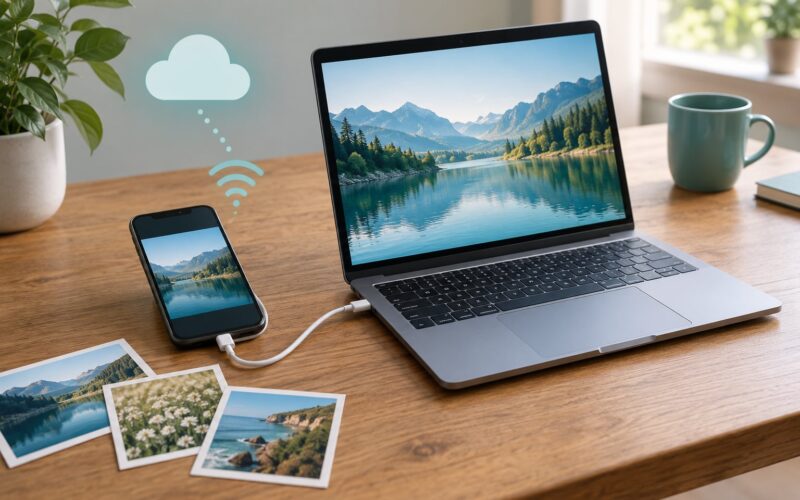
To move files between a tablet and a computer instead, connect the cable and pick File transfer or MTP mode when the prompt appears. A USB-C to USB-C cable beats the charge-only cable that came in the box, which often refuses to carry data at all. Windows treats the card as a drive under This PC, and macOS needs Android File Transfer or a third-party file app to browse MTP devices.
Safely Remove the SD Card
Eject the card in software before you pull it out. In the Files app, open the SD card, tap the three-dot menu and choose Eject. On most Android versions you can also pull down the notification shade, tap the SD card notification and tap Eject there. The card vanishes from Storage, and it is safe to remove.
If no eject option appears, or the tablet is behaving oddly, power it off fully and wait for the screen to go black before removing the card. That habit alone prevents most corrupted-file stories.
Removing a card while the tablet writes to it is what produces the “archive the data” prompt that shows up after inserting a card into a tablet already configured to save there. Files caught mid-write get flagged for repair, and on some devices the repair step fails outright. Copy anything you care about off the card on a schedule instead of trusting the card as the only copy.
Common Mistakes
Almost every SD card problem on a tablet has a specific cause behind it. Here is what is going wrong, followed by the fix.
The card is not detected at all. Reseat it in the opposite orientation first, since that solves a surprising share of cases. If the slot still shows nothing, try the card in a computer or a phone to rule out a dead card. On older tablets, a large card formatted as exFAT is the usual culprit.
The tablet says it does not support this SD card. Older firmware and budget tablets often cap capacity or reject exFAT outright. Formatting as FAT32 on a computer fixes it, with one catch: FAT32 stops at 32GB, so the standard Windows formatter will not produce it on a 64GB card. The practical answer is a smaller card or a newer tablet.
The card is detected but no files appear. The media scanner has not indexed the new content. Restart the tablet and reopen Gallery. If photos still refuse to show, confirm they sit in the card’s DCIM or Camera folder, because Gallery only scans known media folders.
Formatting fails or the option is greyed out. Something is holding the card open, often a file manager, a camera app, or a computer still connected to it over USB. Close those, restart, and try again. If it fails on a computer too, test the card in another device first. Repeated failed formats on a card that is going bad will destroy the last recoverable copy of its contents.
Files disappeared after a format or a prompt. The card was erased. Formatting wipes everything, and the archive prompt on some tablets can wipe a card that was set as a save destination. Stop writing to the card immediately and try recovery software on a computer through a USB reader. How much of the data comes back depends on how much has been written since.
The camera says to insert an SD card. The camera is set to save to the card while no card is seated. Open Camera settings and switch Storage location back to internal storage, or insert the card.
Transfers crawl. On the cable side, use a USB-C to USB-C cable rather than a charge-only one, and expect USB 2.0 speeds around 30 megabytes per second on older tablets. On the card side, an A2 rated card reads noticeably faster than an older U1 card, though the tablet’s own reader is usually the bottleneck.
The tablet reports less capacity than the card label. A card adopted as internal storage gets split into a media partition and an app partition, with part of it reserved by the system. Reformatting as portable storage from Settings > Storage restores the full figure.
Speed class matters when nothing else works. The number printed on a card, such as U3 or A2, describes sustained write speed and random read performance. Cards rated V30 or above handle 4K video recording from a tablet camera without dropping frames, while older U1 cards are fine for photos and documents. That is the one specification worth paying attention to; the rest is packaging.
Frequently Asked Questions
How do I get my tablet to recognize an SD card?
Insert the microSD card with the tablet powered off, then open Settings and tap Storage. The card appears as its own entry with a total and used figure. If it does not appear, reseat the card, try the opposite orientation, and test it in another device. On a 64GB or larger card formatted as exFAT, reformatting on a computer sometimes helps, though FAT32 caps out at 32GB.
Can I install apps from an SD card on any tablet?
No. Apps can only be installed or moved to removable storage when the tablet offers the option and the app developer allows it. Many developers block it, and Samsung removed the format as internal storage option from current Galaxy Tab models, so a large card there is mainly useful for photos, video and downloads. Portable storage keeps your files readable on other devices as well.
Should I format an SD card as FAT32 or exFAT?
Use FAT32 for a 32GB card and exFAT for 64GB and above. FAT32 is broadly compatible but cannot hold a single file larger than 4GB and cannot format above 32GB without extra tools. exFAT handles large files and larger capacities, and Windows, macOS, cameras and most Android tablets read it. Older tablets may reject exFAT entirely, which is when FAT32 becomes the fallback.
Can I move photos and videos from internal tablet storage to an SD card?
Yes. Open Files, tap Internal storage, long-press the photos or videos, open the three-dot menu and choose Move to SD card. You can do the same from the Gallery app. Use Move when you want to free space immediately, or Copy if you are not ready to remove the originals. Files land in the card DCIM or Pictures folder so Gallery can find them.
Why does my tablet only show part of the SD card capacity?
A card adopted as internal storage gets split into a media partition and an app partition, and part of it is reserved by the system, so the reported figure is smaller than the label. A card formatted on a computer with a different partition table can also read as smaller. Reformatting as portable storage from Settings, Storage restores the full capacity the tablet reports.
Can I use the same SD card in another tablet?
Yes, as long as it was formatted as portable storage, which is the default. The files stay readable in any tablet, camera or computer with a slot. A card adopted as internal storage is encrypted and bound to the device that adopted it, so its files will not be readable anywhere else. That is the main reason to avoid adoptable storage.
Conclusion
Start by confirming your tablet has a microSD slot. That single check decides everything after it, and it takes less time than ordering a card you cannot insert. If the slot exists, power the tablet off, seat the card with the gold contacts facing the screen, and format it as portable storage with exFAT on anything 64GB or larger.
Use the card for files. Photos, video, offline downloads, documents and comics all work well in portable storage, they stay readable in a camera or on a computer, and you can eject the card whenever you want. Treat adoptable storage as a last resort: it encrypts the card, ties it to a single device, slows the tablet down, and still may not let apps move.
And eject before you pull. A card removed while the tablet is writing to it sits behind most of the lost-photo stories on tablet forums, and preventing it takes one extra tap.