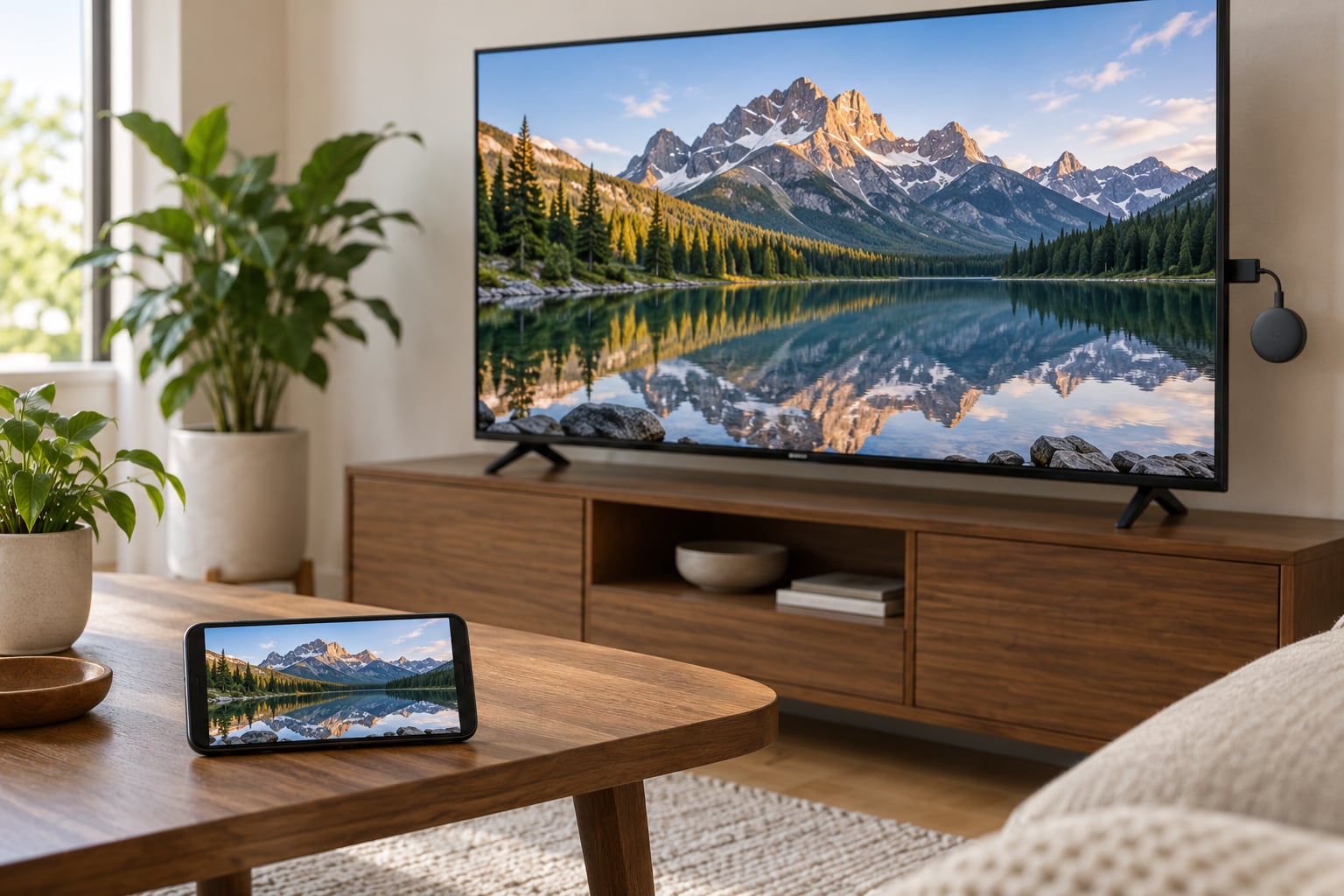
To mirror a phone screen to a TV, put both devices on the same Wi-Fi network, then open your phone’s casting menu and pick the TV. On an iPhone that menu is AirPlay in Control Center, and on Android it is the Cast icon, Smart View or Quick Settings. You need a TV that supports one of those standards, or a small HDMI dongle if it does not.
Most people get stuck before they even start, because the TV never appears in the device list or the screen stays black. Those are almost always network or content-protection problems rather than anything wrong with the phone.
Table of Contents›
- What You Need
- Step-by-Step
- How to Mirror an Android Phone to a TV
- How to Mirror an iPhone to an Apple TV or AirPlay TV
- How to Mirror a Linux Phone Screen to a TV
- How to Mirror a Phone to a TV Without Wi-Fi
- Common Mistakes
- Common Mirroring Problems and Quick Fixes
- Frequently Asked Questions
- Can I mirror my phone screen to a TV without an internet connection?
- Why does my TV show a black screen when I start screen mirroring?
- Does screen mirroring include sound from my phone?
- Can I mirror an Android phone to an iPhone or Apple TV?
- Why can I cast apps but not mirror my entire phone screen?
- Is screen mirroring better over Wi-Fi or an HDMI cable?
- Conclusion
What You Need
For wireless mirroring you need three things: a TV or streaming box with built-in casting, a phone on the same Wi-Fi network as that TV, and both devices outside any guest network. For a wired connection you need only an HDMI port on the TV and the right adapter for your phone.
- Same Wi-Fi network. Not the same router in theory, the same network in practice. Guest Wi-Fi and networks with client isolation block discovery even when the password matches.
- A mirroring-capable TV or dongle. AirPlay on Apple TV and recent Samsung and LG sets, Google Cast on Chromecast and Google TV, Miracast on most Android TVs, DLNA on older sets.
- A phone that outputs video. Every recent iPhone and Android phone does. Older Android models and some budget phones may only output audio over USB.
- An HDMI cable and adapter for the wired route. USB-C to HDMI for Android phones and USB-C iPhones, Lightning Digital AV Adapter for older iPhones.
This table picks the right method for the phone and TV you actually own.
| Phone and TV | Method | Typical lag |
|---|---|---|
| iPhone and Apple TV | AirPlay from Control Center | Low |
| iPhone and Samsung or LG smart TV | AirPlay, then Screen Mirroring | Low to moderate |
| iPhone and Roku or Fire TV | AirPlay app on the streaming device, or HDMI | Moderate |
| Android and Google TV or Chromecast | Google Cast icon, then Cast screen | Low for apps |
| Android and Samsung smart TV | Smart View or the Cast icon | Moderate |
| Any phone and an old or hotel TV | HDMI adapter or wireless display dongle | None |
| Linux phone | Scrcpy over USB, or KDE Connect | Low |
Step-by-Step
The order that works most often: choose the method your hardware supports, get both devices onto the right network, start the mirror, then confirm the picture and sound actually arrived. If the TV never shows up, stop there and read the troubleshooting section below before switching methods.
How to Mirror an Android Phone to a TV
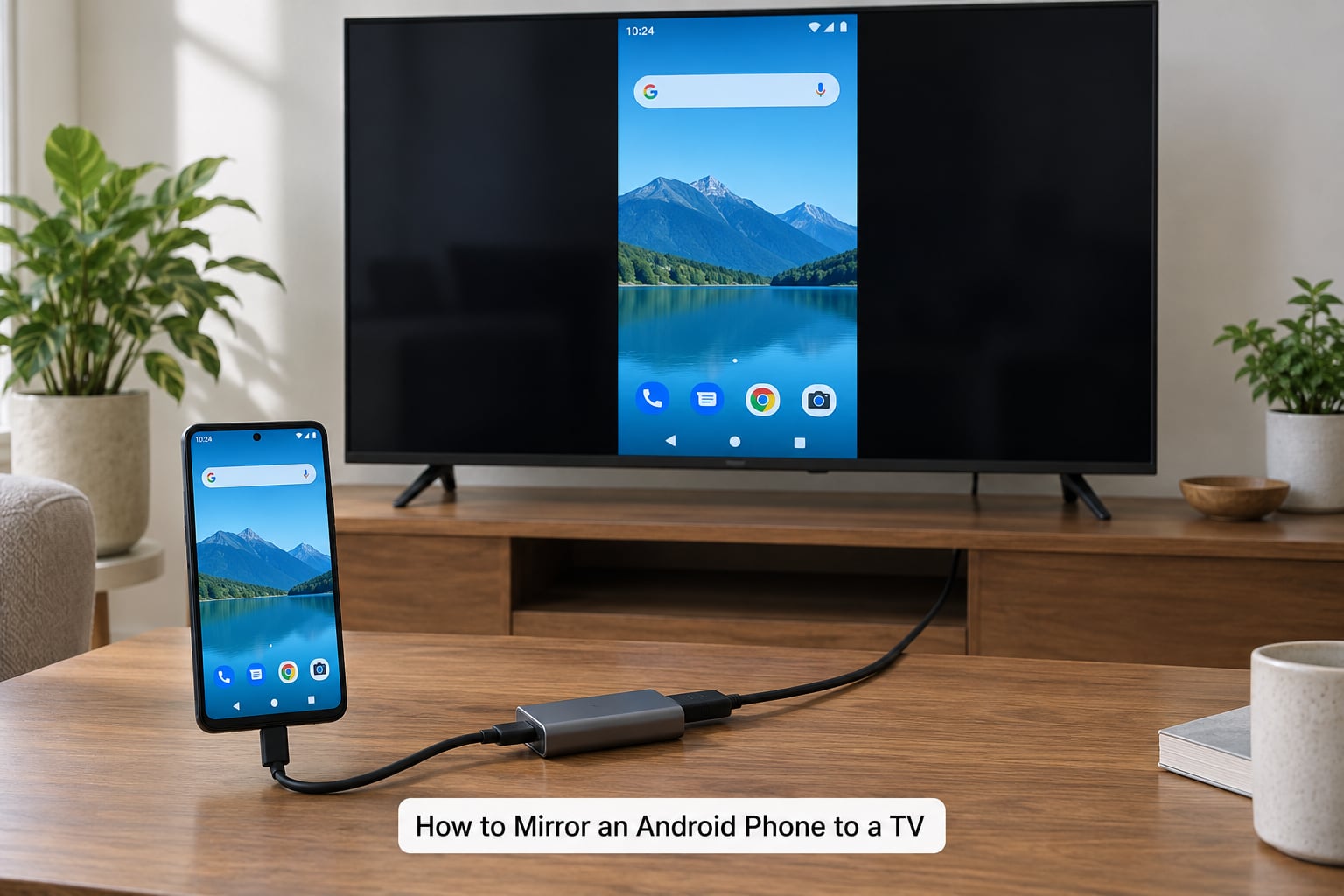
On most Android phones, pull the Quick Settings panel down with two fingers from the top right and tap the Cast, Screen cast or Smart View tile. Your TV should appear within a few seconds, and tapping it starts mirroring.
That single tile changes meaning depending on the TV. On a Google TV or Chromecast it opens the Google Cast picker, where you choose the TV and then pick a single app or Cast screen. On a Samsung TV the tile is Smart View, which mirrors straight away. On TVs with Miracast, the tile opens a wireless display search and the TV shows up as a model name.
Some manufacturers bury it. Samsung phones are at Settings then Connections then Connection preferences then Tap to View, and Google Pixel devices are at Settings then Cast and then Cast screen. On Amazon Fire TV, Settings then Display and Sounds then Enable Display Mirroring turns on the receiver side first.
If the wireless tile does nothing useful, go wired. Plug a USB-C to HDMI adapter into the phone, run an HDMI cable from the adapter to an open HDMI port on the TV, then switch the TV to that input with the remote or the input button. The phone screen appears within seconds, with no lag and no network involved.
How to Mirror an iPhone to an Apple TV or AirPlay TV
Swipe down from the top right corner to open Control Center, tap the Screen Mirroring icon, then choose your TV from the list. The newest iOS releases have shuffled Control Center again, so if you do not see the icon, swipe down a second time or edit the controls from Settings then Control Center.
When a TV is selected, iOS asks whether to Mirror iPhone or stream just the video. Tap Mirror iPhone for the full screen including notifications and app chrome. Choosing the streaming option instead is why some people think mirroring failed when the TV is only playing audio.
AirPlay targets include Apple TV boxes, Samsung and LG sets from recent years, and some Hisense and Philips models. Older Samsung and LG televisions need the Smart View or Screen Share app installed on the TV first, then you pick the same entry from the iPhone.
Roku and Fire TV do not support AirPlay natively. Install the AirPlay app on the streaming device, or skip it and use a USB-C to HDMI adapter. iPhones with USB-C charge and output video through the same port, so no adapter is needed beyond a USB-C to HDMI cable. Older Lightning models still need the Lightning Digital AV Adapter.
How to Mirror a Linux Phone Screen to a TV
Linux-based phones have fewer built-in casting options than Android, so the reliable route is usually a cable. Install Scrcpy on your computer, connect the phone over USB, and it streams the screen to the desktop with very low latency and no internet at all. From the desktop you can then output that window to a projector or TV over HDMI.
For desktop Linux machines, KDE Connect can send a phone screen to Plasma, and GNOME has a built-in cast panel that sends to Chromecast and Cast targets discovered over the network. Both are worth trying if your phone exposes a standard cast interface, but neither is as smooth as Smart View on a Samsung phone.
Be realistic about expectations here. Miracast and AirPlay support depends on the phone’s firmware, so check Settings for a Cast or Display output entry before assuming your model supports wireless casting. A USB-C to HDMI adapter works on most modern Linux phones and skips the compatibility question entirely.
How to Mirror a Phone to a TV Without Wi-Fi
Use HDMI. A USB-C to HDMI adapter or a Lightning Digital AV Adapter plus an HDMI cable is the whole setup. The TV goes to that HDMI input, the phone feeds it a direct signal, and the picture is instant with no buffering.
If your phone has no video output at all, try a travel router or a phone hotspot. Create a hotspot on the phone and join it from the TV or streaming dongle, which puts both devices on a small private network with no router in between. Wireless display dongles also create their own network and cast to it directly, so they work in hotel rooms with no internet.
What you lose with those workarounds is streaming. Apps that check in with a service, and DRM-protected video, need a real internet connection. Expect the phone to run hot and the battery to drain faster, since the screen is on the whole time.
Common Mistakes
Five failures account for most of the problems people run into.
The TV never appears in the list. Guest networks, VPNs on the phone, and routers with client isolation all block local discovery. Join the main network, turn the VPN off, and restart the router.
Black screen with sound playing. Netflix, Disney+, Prime Video and similar apps block mirroring through DRM. Use the cast icon inside those apps instead of mirroring your whole screen, which sends the stream directly to the TV and looks better anyway.
Picture but no sound, or sound but no picture. Mute the TV and check the phone’s media volume, then pick the correct HDMI input. On a wireless connection, restart casting after the TV firmware updates.
Buffering and dropped frames. Move both devices closer to the router, prefer the 5 GHz band when your phone supports it, and plug the TV or Chromecast into Ethernet if you can. Older 2.4 GHz-only networks are the usual culprit.
Mirror connects then drops mid-session. A phone that sleeps ends the session. Turn off auto-lock for the duration, close background apps, and power-cycle both devices before assuming something is broken.
Common Mirroring Problems and Quick Fixes
Work down this table from your symptom. The first fix for most people is restarting the router, which fixes more discovery failures than any app setting.
| Symptom | Likely cause | Fix |
|---|---|---|
| TV missing from the device list | Guest network, VPN or client isolation | Join the main Wi-Fi, turn off the VPN, restart the router |
| Black screen with audio | DRM-protected app | Cast the app itself instead of mirroring the screen |
| Mirroring worked on the old phone | New device not paired | Forget the TV on both devices, power-cycle, reconnect |
| Stutter and buffering | Weak or crowded Wi-Fi | Move closer to the router, use 5 GHz, Ethernet on the TV |
| Screen frozen at an angle | Rotation lock or an app bug | Remove rotation lock, close and reopen the app |
| No picture over HDMI | Wrong input or adapter without video output | Cycle the TV inputs, confirm the adapter supports video |
| Only sound reaches the TV | Streaming mode selected, not mirroring | Choose Mirror iPhone or Cast screen instead of the media option |
If your phone used to see the TV and now does not, reset the pairing rather than reinstalling anything. On iPhone, open Settings then General then AirPlay and then Accessories and tap the TV to remove it, then reconnect from Control Center. On Android, clear the cast app and toggle Bluetooth, then pull the Quick Settings casting tile again.
Power-cycling helps more often than it has any right to. Turn the TV off, unplug it for ten seconds, and start it again while your phone is awake and on the same network. Then restart the router.
One security note worth taking seriously. Mirroring sends your notifications, messages and anything else on screen to another display, so avoid it on hotel or airport Wi-Fi where others may share the network.
Frequently Asked Questions
Can I mirror my phone screen to a TV without an internet connection?
Yes, over HDMI. Plug a USB-C to HDMI or Lightning adapter into your phone, connect an HDMI cable to the TV, and switch the TV to that input. A phone hotspot or a wireless display dongle that creates its own network also works without a router, though streaming apps and DRM-protected video still need a real internet connection to play.
Why does my TV show a black screen when I start screen mirroring?
Almost always because the app uses DRM. Netflix, Disney+, Prime Video and similar streaming apps refuse to show video over a mirrored screen, so you get audio with a black picture. Cast the app from its own cast button instead of mirroring your whole phone, which sends the stream straight to the TV and usually looks better. A wrong HDMI input or an adapter without video output causes the other type of black screen.
Does screen mirroring include sound from my phone?
Yes, both wireless mirroring and an HDMI connection carry your phone’s audio to the TV. If you hear nothing, check the TV is not muted and that the phone’s media volume is up. When you select an AirPlay or Cast target you are sometimes offered a streaming option that sends only media, so choose Mirror iPhone or Cast screen when you want the full screen with sound.
Can I mirror an Android phone to an iPhone or Apple TV?
Not with AirPlay, since it is Apple’s protocol and Android phones do not include it. An Apple TV with the AirPlay app installed does accept Android connections from some casting apps, and DLNA senders also work on many sets. The dependable answer for an Android phone is HDMI with a USB-C to HDMI adapter, or a DLNA or wireless display app that both sides support.
Why can I cast apps but not mirror my entire phone screen?
They are different features. Casting sends one app’s video to the TV and works on almost everything, while mirroring copies your whole screen and depends on the phone and TV sharing a wireless standard such as Miracast or AirPlay. On a Google TV or Chromecast you get the Cast icon in supported apps but no full-screen option unless the device supports wireless display. On a Roku or Fire TV, casting is the normal path and mirroring needs an app or a cable.
Is screen mirroring better over Wi-Fi or an HDMI cable?
Use HDMI when you care about reliability, gaming or latency. The cable carries a direct signal, so there is no buffering, no dropouts and no dependence on your router. Wi-Fi is better for casual use, sharing photos or presenting, because there is nothing to plug in and both devices just need to be on the same network. If wireless performance is poor, moving the router or switching to the 5 GHz band often closes the gap.
Conclusion
Start wireless if your phone and TV already support the same standard. Join the main Wi-Fi network, open Control Center or Quick Settings, pick the TV, and confirm you can see your screen within a few seconds.
Drop to an HDMI cable when latency matters, when the network is crowded, or when the TV is an older model with no casting built in. If something misbehaves, check the TV input source and the connection method first, then work down the fixes above.
These steps hold for 2026 and the versions of Android, iOS and TV firmware running now, and the Control Center layout shifts with iOS updates, so expect the icon position to move slightly.