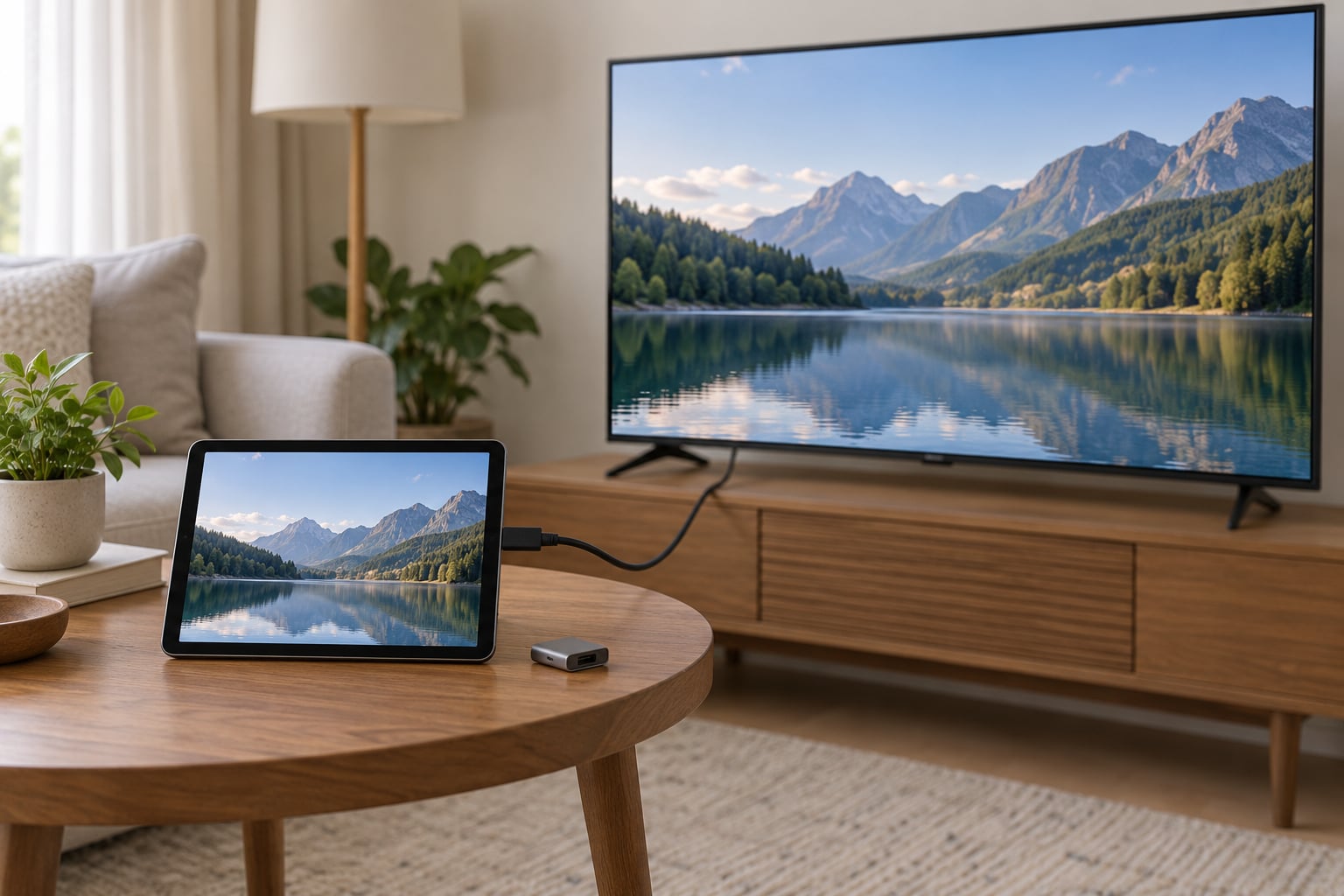
You can cast a tablet to a TV without WiFi, and the most dependable route is a wired one: an HDMI cable, or a USB-C or Lightning adapter that carries video into the TV’s HDMI port. No router, no hotspot, no app to install. If you already own the right cable, the whole job takes about two minutes, mostly spent picking the right input on the television.
Table of Contents›
- What You Need
- Step-by-Step: Connect and Mirror Without WiFi
- Step 1: Use HDMI for a Direct Connection
- Step 2: Use USB-C or Lightning Video Output
- Step 3: Use a Wired Streaming Adapter If the TV Has No HDMI
- Common Mistakes
- Frequently Asked Questions
- Can I cast a tablet to a TV without WiFi or internet?
- Do USB-C tablets always support HDMI output?
- Why is my tablet screen not showing on the TV?
- Can I use an HDMI adapter while charging my tablet?
- Does casting a tablet without WiFi use mobile data?
- Which method works best for an iPad without WiFi?
What You Need
Four things, and only one of them is usually the thing that trips people up.
- A tablet with video output. Any tablet with a built-in HDMI port, micro-HDMI port, or a USB-C port marked for display output will work.
- A television with an HDMI input. Nearly every TV made in the last fifteen years has at least one, usually on the back or side and labelled HDMI 1, HDMI 2 or HDMI ARC.
- The right cable or adapter. A full-size HDMI cable, a micro-HDMI to HDMI cable, or a USB-C to HDMI adapter, depending on your tablet.
- Two display settings changed. The TV has to be told to accept the signal, and the tablet has to be told to mirror or extend to an external display.
The port confusion is worth sorting out before you start, because the three common tablet ports behave differently.
A tablet with a dedicated micro-HDMI socket takes a micro-HDMI to HDMI cable, which is the smallest cable you will ever find in a drawer and easy to lose. A tablet with a full-size HDMI port takes a normal HDMI cable, end to end, with no adapter at all. That is the version of this how to cast a tablet to a TV without WiFi that works every time.
A tablet with a USB-C port is the ambiguous one. Plenty of USB-C tablets charge through that port and do nothing else. Others support DisplayPort Alt Mode, which means they will drive an external screen through a USB-C to HDMI adapter. Check the tablet’s specification sheet or its manual for the words video out, display output or DisplayPort Alt Mode before you buy an adapter for it.
One warning about cables: a USB-C cable that came in the tablet box is usually charge-only. It carries power and nothing else, so a monitor stays black no matter what you plug it into. If your tablet’s charging cable has no video in its description, treat it as a charging cable.
Step-by-Step: Connect and Mirror Without WiFi
Step 1: Use HDMI for a Direct Connection
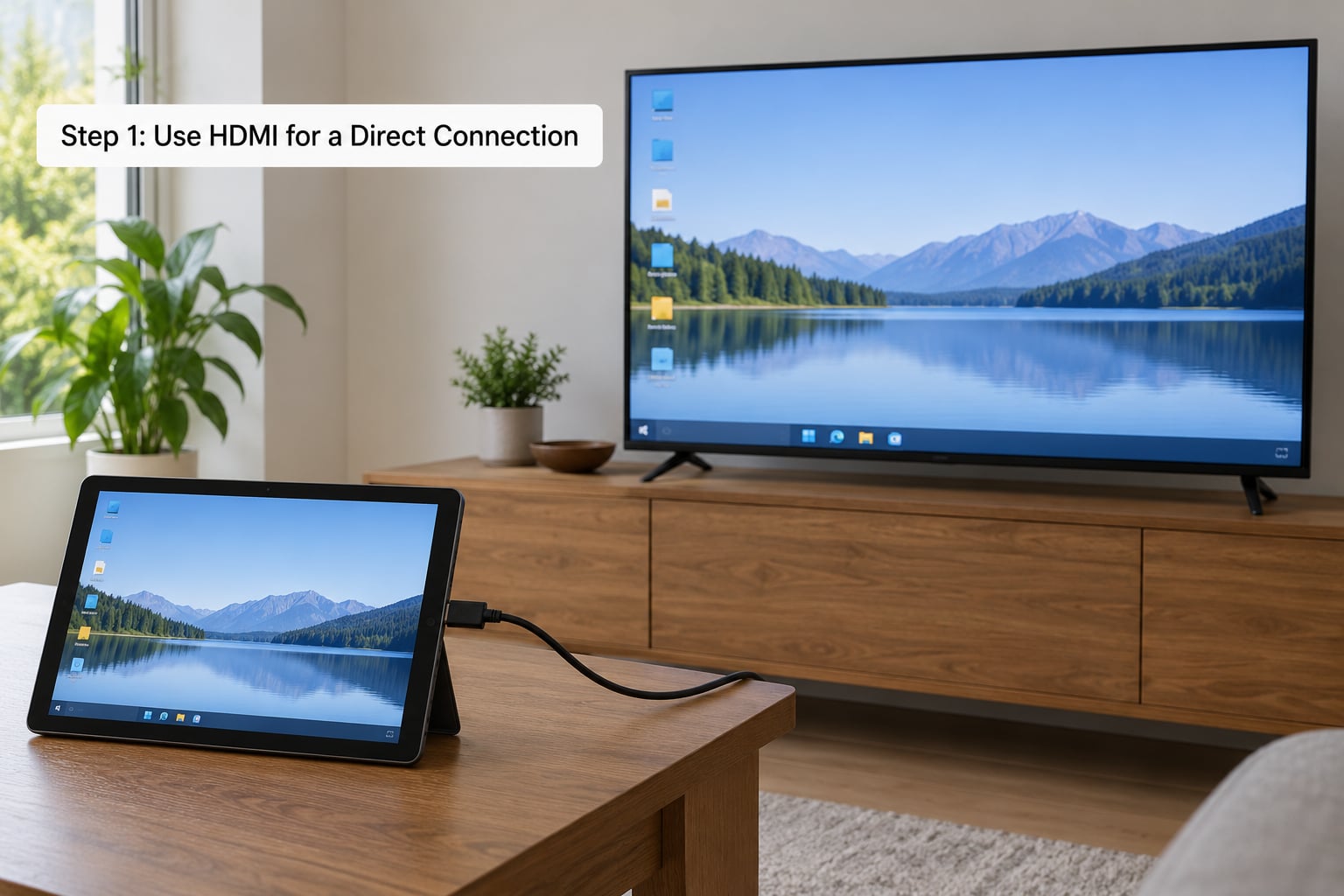
This is the method to try first, because it has the fewest ways to fail.
Plug the HDMI cable into the tablet’s port and into the television. Turn the TV on with the remote, then press the Input or Source button until the screen matches the port you just used, HDMI 1 for example. If the TV shows a blue screen with no picture, you are on the wrong input, so cycle through them.
On the tablet, open the display settings. On Android tablets the path is usually Settings, Display, Cast, then choose the television from the list. Some Android tablets instead show a Wireless Display option, which behaves the same way for a wired connection. On tablets that support a wired external display, a Screen mirroring or Cast screen toggle appears once the cable is seated, and switching it on puts the tablet’s picture on the television.
iPads need one honest caveat here. No iPad has a built-in HDMI port. Older iPads with a Lightning connector need Apple’s Lightning Digital AV Adapter, and the newest iPad models use USB-C and take a standard USB-C to HDMI adapter. Older iPads, including many before 2018, simply cannot drive an external display at all, so check your model before you plan around this.
You will know it worked the moment the TV shows a second cursor or a second set of app icons. If the television stays black but the tablet shows a message about an external display, the cable is the suspect.
Step 2: Use USB-C or Lightning Video Output
This is the same idea as Step 1 with an adapter in the middle, and it is the normal path for any modern tablet without a dedicated video port.
First confirm the tablet can output video. On Android, open Settings, About phone or About tablet, and look for video output or DisplayPort Alt Mode in the specification list. On iPad, the model matters: iPads with a USB-C port support external displays, and Lightning iPads support them through the Digital AV Adapter.
Then connect a USB-C to HDMI adapter to the tablet, run an HDMI cable from the adapter to the television, and set the TV to that HDMI input. The tablet should recognise the screen straight away.
If nothing happens, check three things in order. Is the tablet plugged in and awake? Is the television on the matching HDMI input? Did you buy a charge-only adapter or a charge-only cable, which is the single most common reason a USB-C setup stays dark?
Charging while you watch is a fair question here. Most USB-C tablets will keep charging through a port that is also carrying video, because power and video travel in parallel, but not every budget tablet manages it. If yours stops charging, charge it separately or accept a shorter viewing session.
Step 3: Use a Wired Streaming Adapter If the TV Has No HDMI
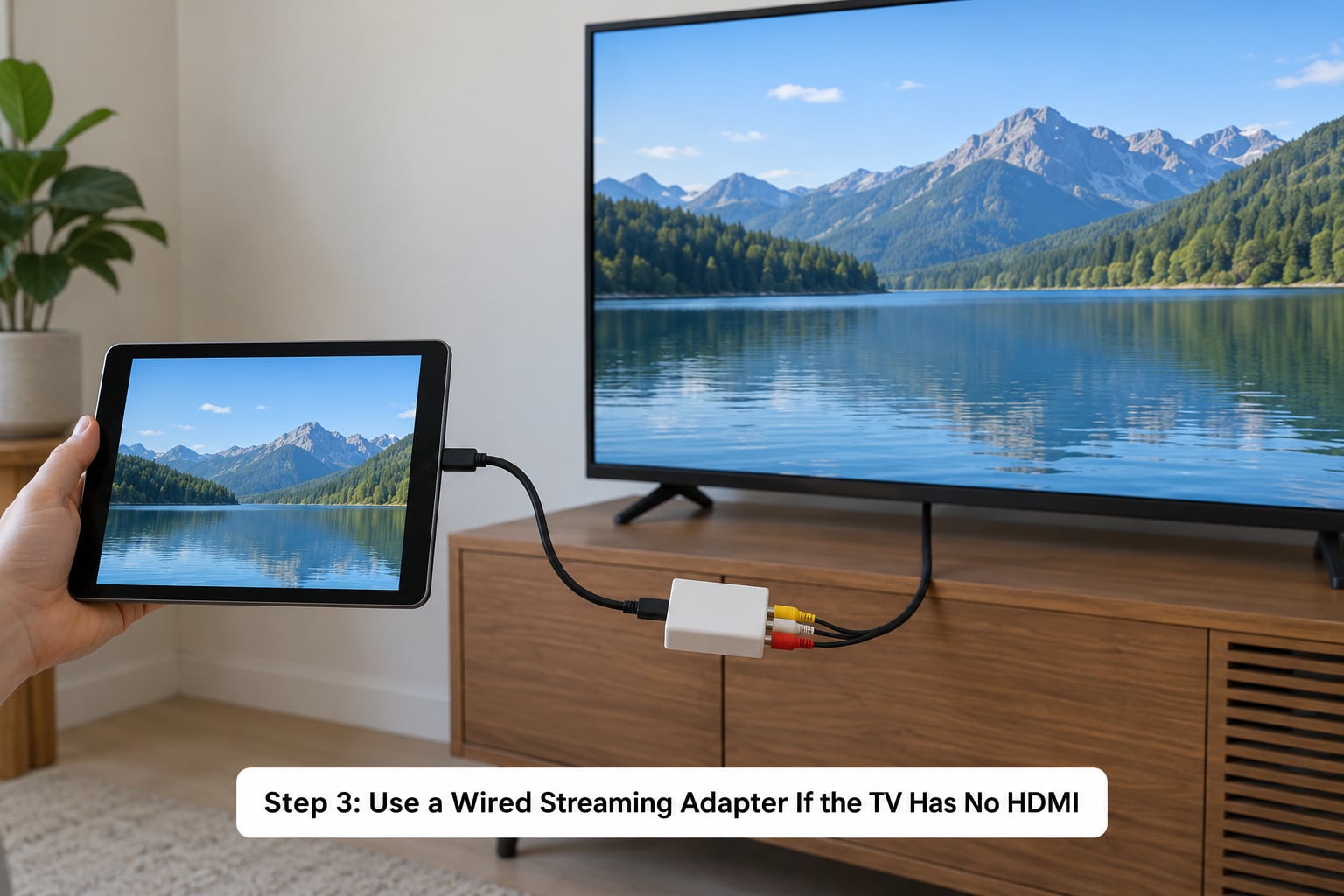
Some older sets, monitors and portable projectors have no HDMI socket, and a few TVs have HDMI inputs that are damaged or blocked by a permanent HDMI extender. In those cases a wired display adapter does the job.
Two kinds exist and they are not interchangeable. A wireless HDMI transmitter and receiver pair sends video over its own radio link with no router anywhere in the room, and it is the right pick when there is no cable run between the tablet and the screen. A wired display adapter is the simpler option where the TV has a usable port, usually USB-C or DisplayPort on a desktop monitor, plus an HDMI output for the television.
With a transmitter and receiver, plug the transmitter into the tablet, plug the receiver into the TV, power both, set the TV to the receiver’s HDMI input, and the picture appears without any network. Expect a small delay between moving the cursor and the picture following it, and expect full HD more often than 4K.
Streaming sticks are a different story. Most of them rely on network discovery to find your tablet, so with no WiFi they will not show up in the list at all. A dongle with Miracast built in can mirror a tablet offline, because it creates a direct wireless link instead of searching a network. Read the specification and look for screen mirroring or wireless display, not just casting.
Common Mistakes
Nearly every failed attempt lands on one of these six.
Wrong television input. The cable is fine and the picture is fine, but the TV is showing HDMI 2 while you are plugged into HDMI 1. Press Input or Source repeatedly until the label matches the port you used.
A charge-only cable or adapter. The most common failure on USB-C tablets, and the one that sends people hunting through menus that were never the problem. If the cable that shipped with the tablet never carried video, buy one that explicitly supports video or DisplayPort Alt Mode.
A tablet that cannot output video. Some budget Android tablets have a USB-C port for charging and data only, and older iPads have no display output at all. No setting will change this. Check the specification sheet.
Picture but no sound. Video arrived, audio did not, usually because the television is set to the wrong output or the adapter passes only video. Check the TV’s audio output setting and try a different adapter.
A black or frozen screen on the television. Protected streaming content is often blocked from mirroring, and that block is enforced in hardware, not by a setting you can find. Rotate-locked screens also tend to stall on some tablets. Rotate the device and try again.
Expecting an app to stream with no internet. Mirroring your tablet screen offline works. Streaming Netflix or YouTube does not, because those apps fetch video from the internet every second they play. Downloaded films, photos and files stored on the tablet are the only content that plays with no connection at all.
One more worth knowing: Bluetooth cannot carry your video. It helps devices find each other during the handshake, and the picture then travels over a direct WiFi link or the cable. If someone suggests pairing a tablet to a television over Bluetooth alone, that setup will show no picture.
Frequently Asked Questions
Can I cast a tablet to a TV without WiFi or internet?
Yes. A wired HDMI connection needs neither WiFi nor internet, and wireless options like Miracast and peer-to-peer AirPlay create a direct device-to-device link with no router involved. The catch is content: anything stored on your tablet mirrors fine offline, while streaming apps still need an internet connection to play.
Do USB-C tablets always support HDMI output?
No. Many USB-C tablets use the port for charging and data only, and those will never drive an external screen. Look for video out, DisplayPort Alt Mode, or USB-C video output in the specification sheet before buying an adapter. If the port is charge-only, no cable or adapter will make it work.
Why is my tablet screen not showing on the TV?
Work through it in order: confirm the TV is on the HDMI input you plugged into, try a different input, then swap the cable for one rated for video rather than charging only. After that, check the adapter matches the tablet port and confirm the tablet supports display output. Protected streaming apps block mirroring by design, so try a photo or video from your own library.
Can I use an HDMI adapter while charging my tablet?
On most modern tablets, yes. Power and video travel through a USB-C port at the same time, so the tablet charges and mirrors. Budget models are the exception, and some stop charging when an external display is attached. If the battery level stops climbing, unplug the display and charge separately, or use a tablet that supports simultaneous charging and video.
Does casting a tablet without WiFi use mobile data?
No, not when the two devices are talking directly. A cable sends video through the wire, and wireless mirroring options such as Miracast and peer-to-peer AirPlay use a direct link between tablet and television without touching the internet. Mobile data only gets used if you turn your tablet into a hotspot and give the TV access to that network instead.
Which method works best for an iPad without WiFi?
A cable or adapter wins. Older iPads with a Lightning port need a Lightning Digital AV Adapter plus an HDMI cable, and the newest iPads use USB-C to HDMI adapters. iPads made before 2018 have no display output capability at all, so HDMI is the only reliable route, and nothing about it touches the network.
Start with the cable. Match it to your tablet’s port, confirm the tablet actually supports video output, plug in, and set the television to that HDMI input. Everything beyond that is a fallback for sets that have no usable HDMI socket. And keep the distinction straight as you go: mirroring your screen works with no network, but streaming from the internet never will.
Last updated: 2026.