Poor video call quality on a phone almost always traces back to one of four things: the connection, the phone’s camera, the app and its settings, or the room you are sitting in. Test the call first, then work through those four in that order and most problems disappear in under ten minutes.
Video calling is harder on a phone network than browsing is. Streaming video can buffer and catch up, so a slow link just means waiting. A live call cannot, which is why a connection that feels fine for everything else can still turn your face into a mosaic.
Apps also react to a weak link automatically. They drop resolution and frame rate to keep audio smooth, so a blurry-but-fluid call usually means bandwidth, not a broken camera.
Table of Contents›
- What You Need
- Step-by-Step: Fix Video Call Quality in Seven Steps
- Step 1: Test the call and work out which layer is failing
- Step 2: Improve your lighting
- Step 3: Clean the camera lens and microphone
- Step 4: Check your internet connection and upload speed
- Step 5: Adjust video call settings in the app and phone
- Step 6: Reduce competing network activity
- Step 7: Restart, update or reinstall the app
- Common Mistakes That Ruin Phone Video Calls
- Frequently Asked Questions
- Why is my video call blurry even when my internet speed test is fast?
- Can I improve video call quality on an Android phone or only an iPhone?
- How much internet speed does a phone video call need?
- Why is my video clear but the other person cannot hear me?
- Does video calling use more mobile data than voice calls?
- Conclusion
What You Need
None of the steps below require a purchase. You need only these four things to start:
- Your phone, charged above 50% if the call is long. A hot phone throttles itself and stutters.
- A stable connection, either Wi-Fi near the router or a strong mobile signal.
- The app you call with, updated to its current version.
- A light source in front of you, ideally a window or a lamp at face height.
Optional extras help but rarely matter first: wired earbuds or a headset with a mic, a small phone stand, and a soft cloth for the lens.
Step-by-Step: Fix Video Call Quality in Seven Steps
Step 1: Test the call and work out which layer is failing
Make a two-minute call and note exactly when quality drops and what changes. Blurry but smooth means bandwidth. Freezing and reconnecting means an unstable signal. Dark and grainy means the room. Muffled or echoing audio means the microphone or speaker.
Then swap one variable at a time: same call on mobile data instead of Wi-Fi, and if you have a second app installed, the same call there. If mobile data fixes it, the router is the problem. If the second app fixes it, the first app’s settings are.
Knowing the layer before you start is what keeps this from becoming an afternoon of guessing.
Step 2: Improve your lighting
Face a window with the light coming toward your face, never behind you. A window behind you turns you into a dark silhouette and forces the camera to brighten grainy noise instead of your face.
Overhead ceiling lights are the second worst option, because they put shadows under your eyes. One lamp at face height, slightly to one side, does more than any settings change.
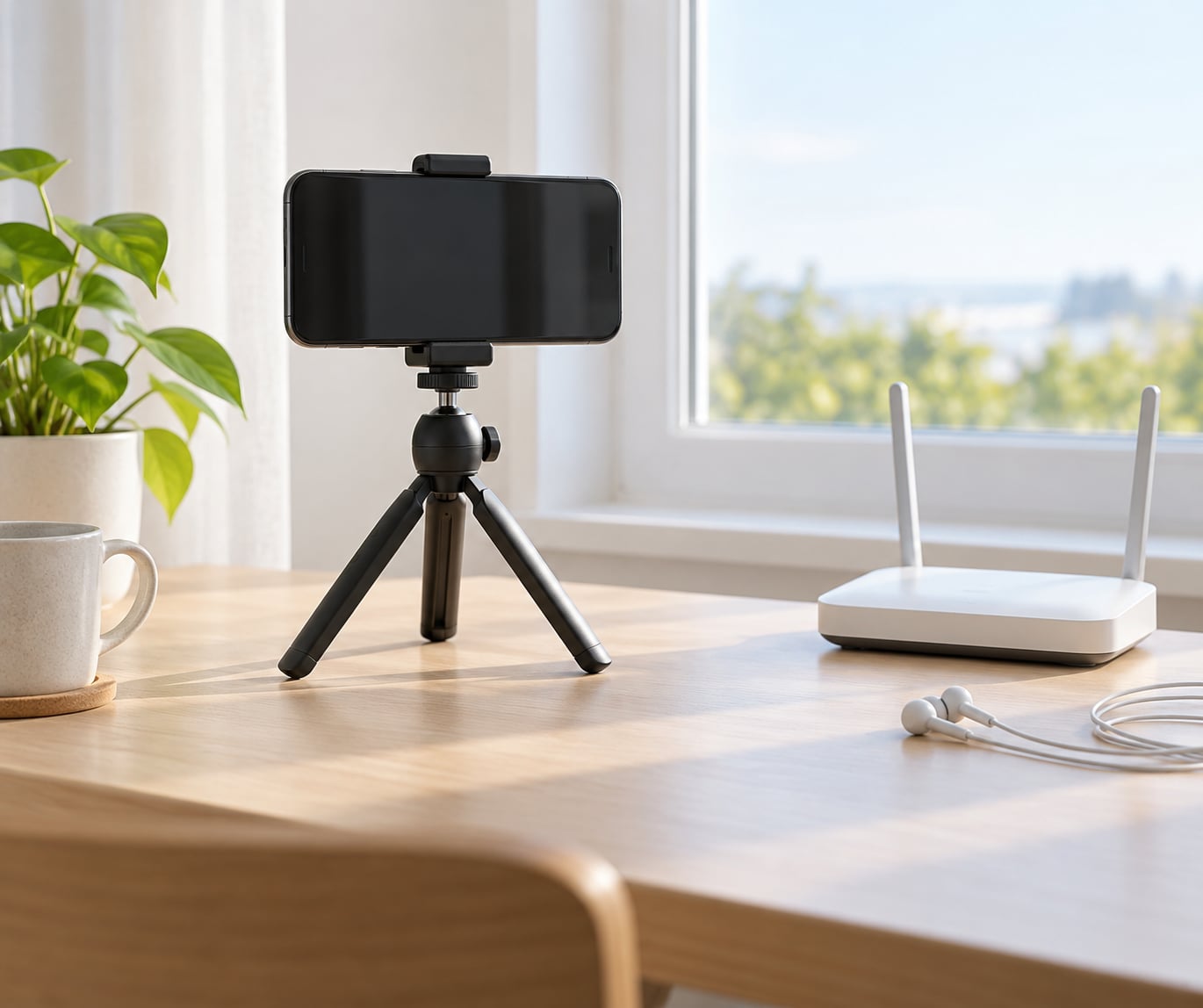
Keep the camera at eye level. Holding a phone at chest height gives everyone an unflattering upward angle, and propping it on a bag or a stack of books fixes that in ten seconds.
Step 3: Clean the camera lens and microphone
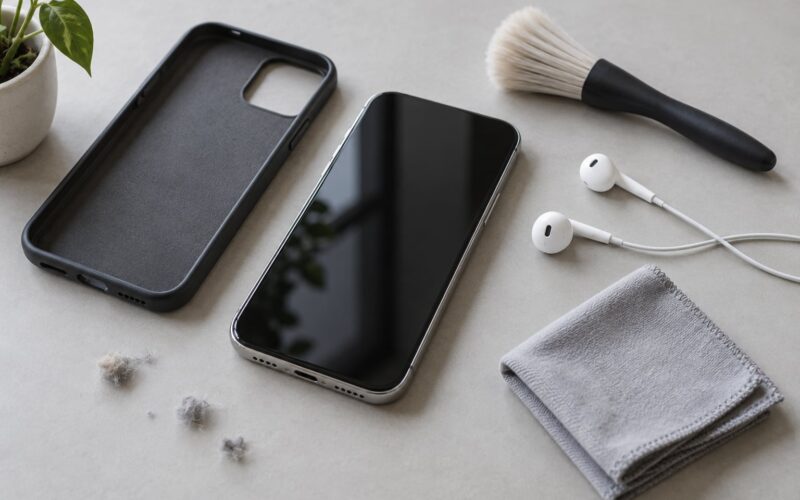
A smudged lens is the single most common cause of a soft, blurry picture. Wipe the lens with a dry microfiber cloth or the corner of a clean shirt. Do not use a tissue, which can scratch the coating.
Check the case too. Thick or mismatched cases often clip over the lens ring or the microphone opening, and the picture looks like a software bug the whole time.
For the microphone, find the small pinhole, usually at the bottom edge or near the rear camera, and give it a gentle clean. Never push anything into the opening, which just packs debris deeper.
Step 4: Check your internet connection and upload speed
Video calls depend on upload speed, not download speed. Most phone speed tests measure both, so read the upload number.
- About 0.7 Mbps upload is the floor for a single video call.
- 1.5 Mbps is where faces stop looking compressed enough to read lip movements.
- 2 Mbps and above is what group calls and screen sharing need.
Signal strength matters more than the headline number. Move within a few metres of the router, and if your router broadcasts both 2.4 GHz and 5 GHz, try the 5 GHz band on a phone close to the router for less congestion.
Toggle airplane mode on for ten seconds before reconnecting. It forces the phone to renegotiate its connection with the network, which fixes a surprising number of calls that dropped straight into a bad state.
Step 5: Adjust video call settings in the app and phone
How to improve video call quality on a phone is mostly a settings question on both platforms, and the paths differ.
iPhone: Settings > Camera > Video gives you a Format choice (1080p records more detail but needs more bandwidth than 720p). Turn off Auto Macro and any Video Enhancement filter if the picture looks smeared, and turn off the mirrored preview if you want the other person to see the same framing you do.
Android: Settings > Camera > Additional settings or Video settings holds the resolution and stabilisation options. Portrait or beauty mode blurs edges mid-call, so switch it off. Settings > Apps > your calling app > Data usage lets you restrict background data for that app.
Inside the call itself, check that you are on the rear camera if you have one, that video is not stuck on low quality, and that camera and microphone permissions are not restricted.
Step 6: Reduce competing network activity
A paused 4K stream on the same Wi-Fi is enough to ruin a call. Before you dial, stop streaming video, cancel large downloads, and wait for phone backups and photo syncing to finish if they are running.
On Android, open the recent-apps view and swipe away anything heavy. Also check Settings > Battery > Battery usage to find an app quietly uploading in the background.
Turning off auto-updates in your photo gallery and cloud apps for the duration of an important call is a small habit that pays off every time.
Step 7: Restart, update or reinstall the app
Update the app and the operating system first. Bug fixes for call quality ship often, and an outdated app is a common culprit on phones that work perfectly otherwise.
Next, force-close the app and restart the phone. Long calls on older phones degrade after 30 to 60 minutes as the device heats up, and a restart clears that state.
If problems persist, clear the app cache (Android: Settings > Apps > app > Storage > Clear cache) or delete and reinstall the app. Make sure you still have free storage; a nearly full phone struggles to encode video smoothly.
Common Mistakes That Ruin Phone Video Calls
Buying a new phone first. Most quality complaints are fixable in software, and front selfie camera limits are a hardware ceiling. Check the free fixes before you change anything.
Trying to force HD. Higher resolution needs more bandwidth. On a marginal connection, dropping to 720p often looks sharper than a stuttering 1080p feed.
Sitting with a window behind you. Backlighting is the number one reason people look dark and grainy, and no setting compensates for it.
Holding the phone low and freehand. Movement causes motion blur and shaky framing. Propping the phone up fixes both at once.
Speakerphone in a small hard room. Tile, glass and bare walls reflect your voice back into the microphone. Earbuds remove almost all echo.
Calling it a network problem when it is a camera problem. Pixelation that arrives and disappears with the audio is bandwidth. Video that stays soft while the audio is perfectly clean is the lens or the front camera.
For recurring problems, run the isolation test once a month and note which layer fails. You will usually find it is the same one every time, and that is the one worth fixing properly.
Frequently Asked Questions
Why is my video call blurry even when my internet speed test is fast?
Most speed tests measure download speed, and a video call leans on upload. If the blur never changes while the audio stays clean, it is not bandwidth at all, it is the lens or the front selfie camera. Wipe the lens, check the case is not covering it, switch to the rear camera, and turn off portrait or beauty mode. If the picture is soft on a spotless lens in good light, that is the sensor, and no setting will fix it.
Can I improve video call quality on an Android phone or only an iPhone?
Every fix in this guide works on both, and most are identical on either platform: clean the lens, face a window, close background apps, restart the phone and update the app. Only the menu paths differ. On iPhone, video format and filters sit under Settings, Camera, Video. On Android they sit under Settings, Camera, Video settings or Additional settings, and app data use sits under Apps, then the app, then Data usage.
How much internet speed does a phone video call need?
For one person on video, roughly 0.7 Mbps of upload speed is the floor. Around 1.5 Mbps upload, faces stop looking compressed enough that you can read lip movements comfortably. Group calls and screen sharing need 2 Mbps or more, ideally 4 Mbps. Signal strength matters as much as the number, so sitting close to the router beats a fast speed test taken from the far side of the house.
Why is my video clear but the other person cannot hear me?
That is a microphone problem, not a video one. Check that the app has microphone permission and that the call is not muted. Look for a case, a lint pocket or a strap covering the pinhole microphone. Move the phone closer to your mouth, turn down the speaker volume so the mic does not pick up your own playback, and try wired earbuds if the room is echoing.
Does video calling use more mobile data than voice calls?
Yes, considerably. A voice call uses a small, steady stream, while video sends an image every frame and scales up when the quality looks good. At standard definition a one-to-one call can use roughly 3 to 5 MB per minute, and higher resolutions use more. If you are on a limited data plan, connect on Wi-Fi or lower the video quality before the call starts.
Conclusion
Start with lighting, then connection stability, then camera position, and only after that move into app settings and gear. That order matters because the first three are free, take a couple of minutes, and fix the majority of bad calls.
None of it needs new hardware. If you have followed every step and the picture is still soft on a clean lens in good light, you are hitting a front camera limit that no setting is going to change.