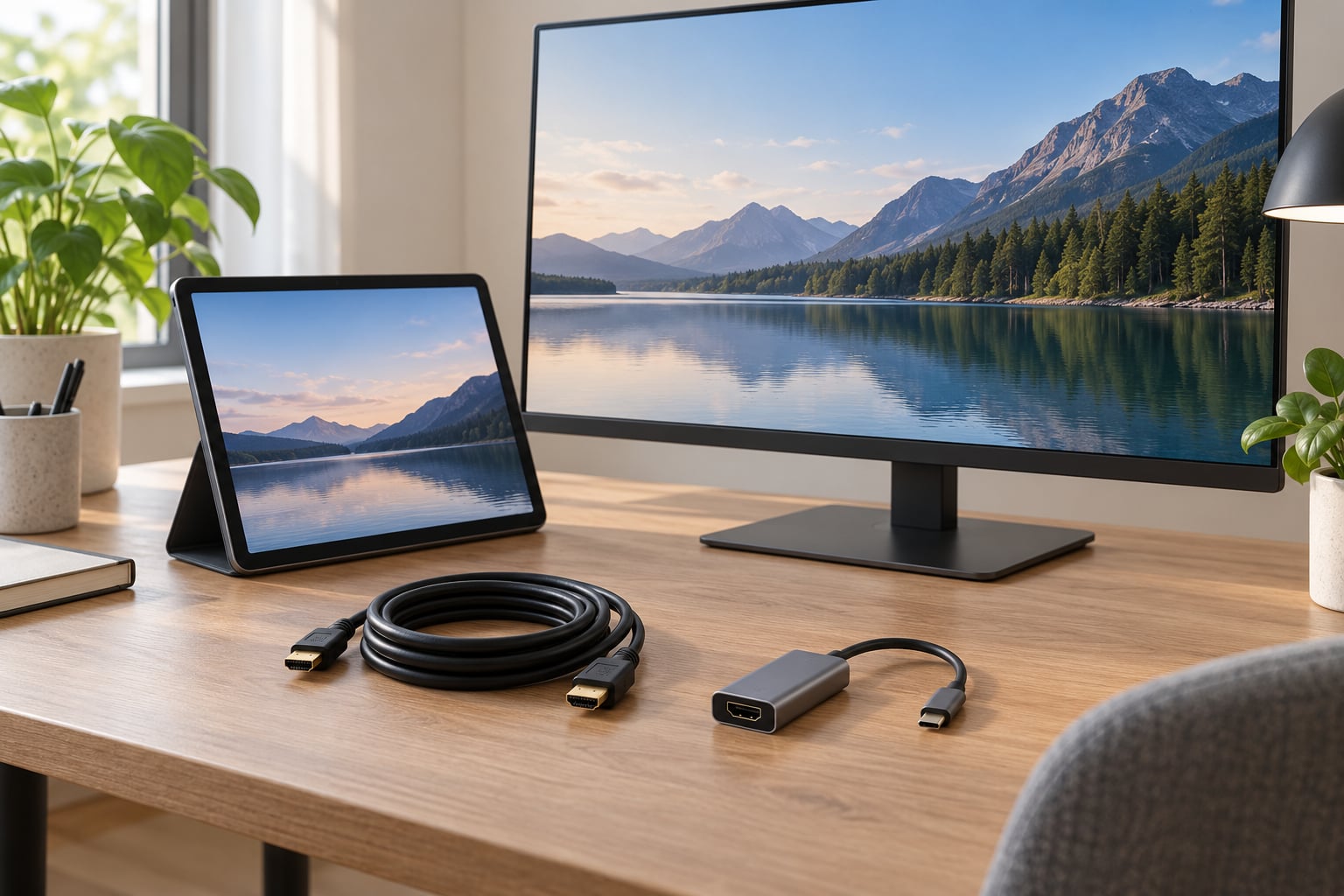
To connect a tablet to a monitor, plug a USB-C to HDMI cable or video adapter into the tablet, run the HDMI cable to the monitor, and pick the matching input on the monitor. Tablets without video output need a different route entirely, and casting over Wi-Fi works when a cable is not an option.
That first sentence is the whole job for most people. The messy part is checking one thing before you buy anything: whether the port on your tablet can send a picture at all. Plenty of tablets, especially cheaper ones, cannot, and no cable on earth will change that.
Two routes cover almost everything. A USB-C cable or adapter to the monitor’s HDMI port is faster, sharper and keeps charging if you use the right hub. Wireless casting needs no adapter but adds a beat of lag and sometimes drops frames. Most people end up using both, depending on whether they are typing or watching.
Table of Contents›
- What You Need
- Step-by-Step
- How to Connect Using HDMI or a USB-C Video Adapter
- How to Connect a Tablet Wirelessly
- Common Mistakes
- Frequently Asked Questions
- Do I need a special cable to connect a tablet to a monitor?
- Can I connect my iPad to a monitor via HDMI?
- Why won’t my iPad play video through an HDMI adapter?
- How do I switch from mirror to extend display?
- Why does my tablet stop charging when a monitor is connected?
- Can I use my tablet as a second monitor for my computer?
- Conclusion
What You Need
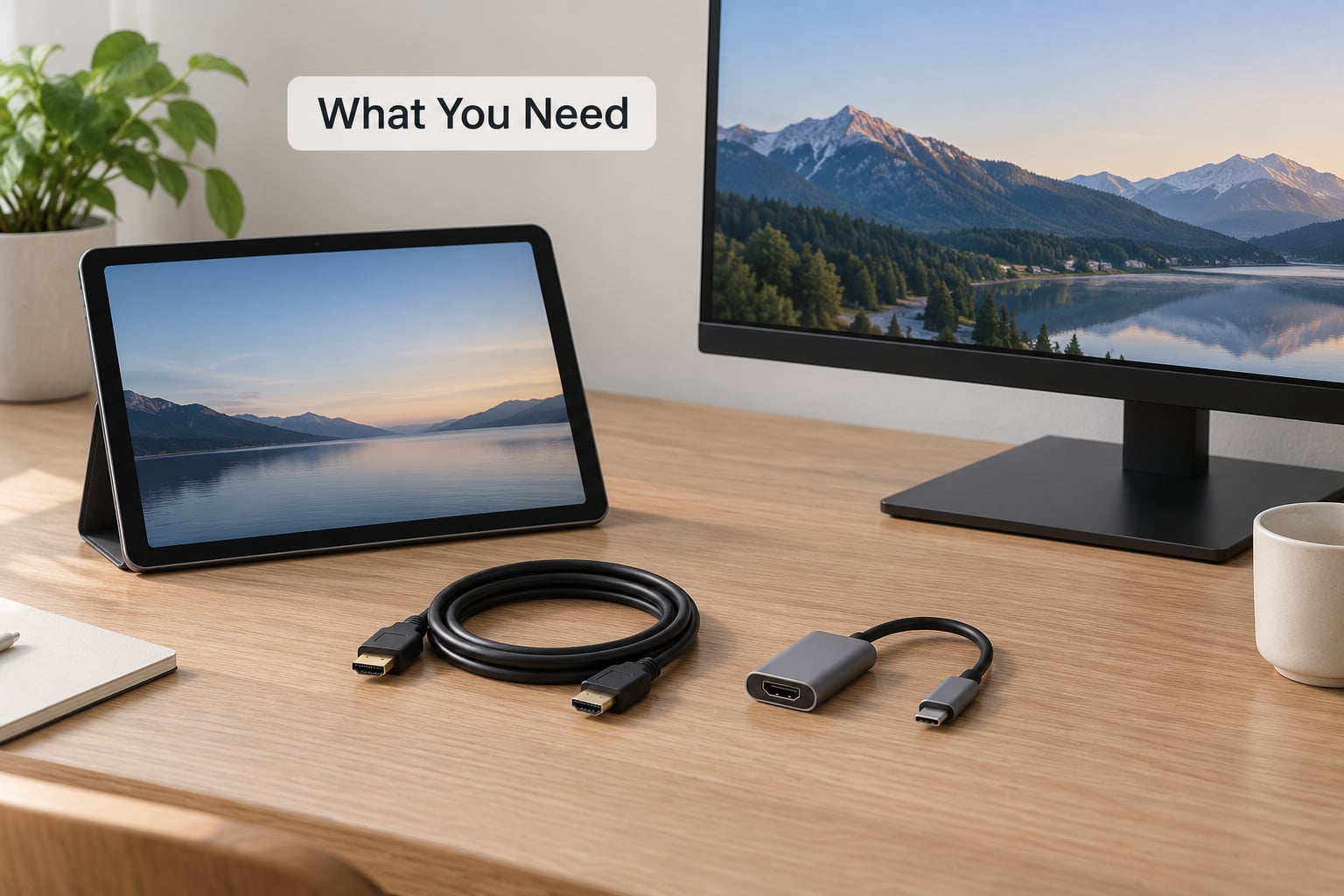
Before anything else, confirm your tablet has video output. On a USB-C tablet, that means DisplayPort Alt Mode, which lets the port carry a video signal that an adapter converts to HDMI. Manufacturer spec sheets usually list “video output” or “DisplayPort 1.4” under ports. If the spec sheet only says “USB-C (data)” and lists USB 2.0 speeds, treat video output as unlikely.
The rest depends on the port your tablet actually has:
- A tablet with USB-C video output needs a USB-C to HDMI cable, or a USB-C to HDMI adapter if you prefer a short cable.
- A USB-C tablet with only one port needs a USB-C hub with an HDMI port, ideally with Power Delivery pass-through so it charges while you work.
- An iPad with USB-C uses the same USB-C to HDMI adapter or cable as any other USB-C tablet.
- An iPad with a Lightning port needs Apple’s Lightning Digital AV Adapter, and a separate charging cable plugged into its second port.
- A tablet with micro-HDMI just needs a standard HDMI cable, no adapter.
- A tablet with DisplayPort needs a DisplayPort cable and an HDMI adapter at the monitor end, or a DisplayPort input on the monitor itself.
Beyond that, you want an HDMI cable long enough to reach and a monitor input that matches it. Most monitors label their inputs HDMI 1, HDMI 2 and so on, and the number matters because it tells you which one to select.
| Device you have | What to connect | Good to know |
|---|---|---|
| USB-C Android tablet | USB-C to HDMI cable or USB-C to HDMI adapter | Samsung Galaxy Tab models marked DeX also give you a desktop taskbar and resizable windows |
| USB-C iPad or iPad Pro | USB-C to HDMI cable or adapter | Third-party adapters vary; Apple’s own adapter is the reliable fallback if a cheap one gives you a black screen |
| Lightning iPad | Lightning Digital AV Adapter plus a second charging cable | Only one port, so the tablet cannot charge and send video on the same cable |
| Tablet with micro-HDMI | Standard HDMI cable | Nothing else required |
| Budget tablet, USB 2.0 only | Wireless casting only | No adapter will add video output the hardware does not have |
Step-by-Step
How to Connect Using HDMI or a USB-C Video Adapter
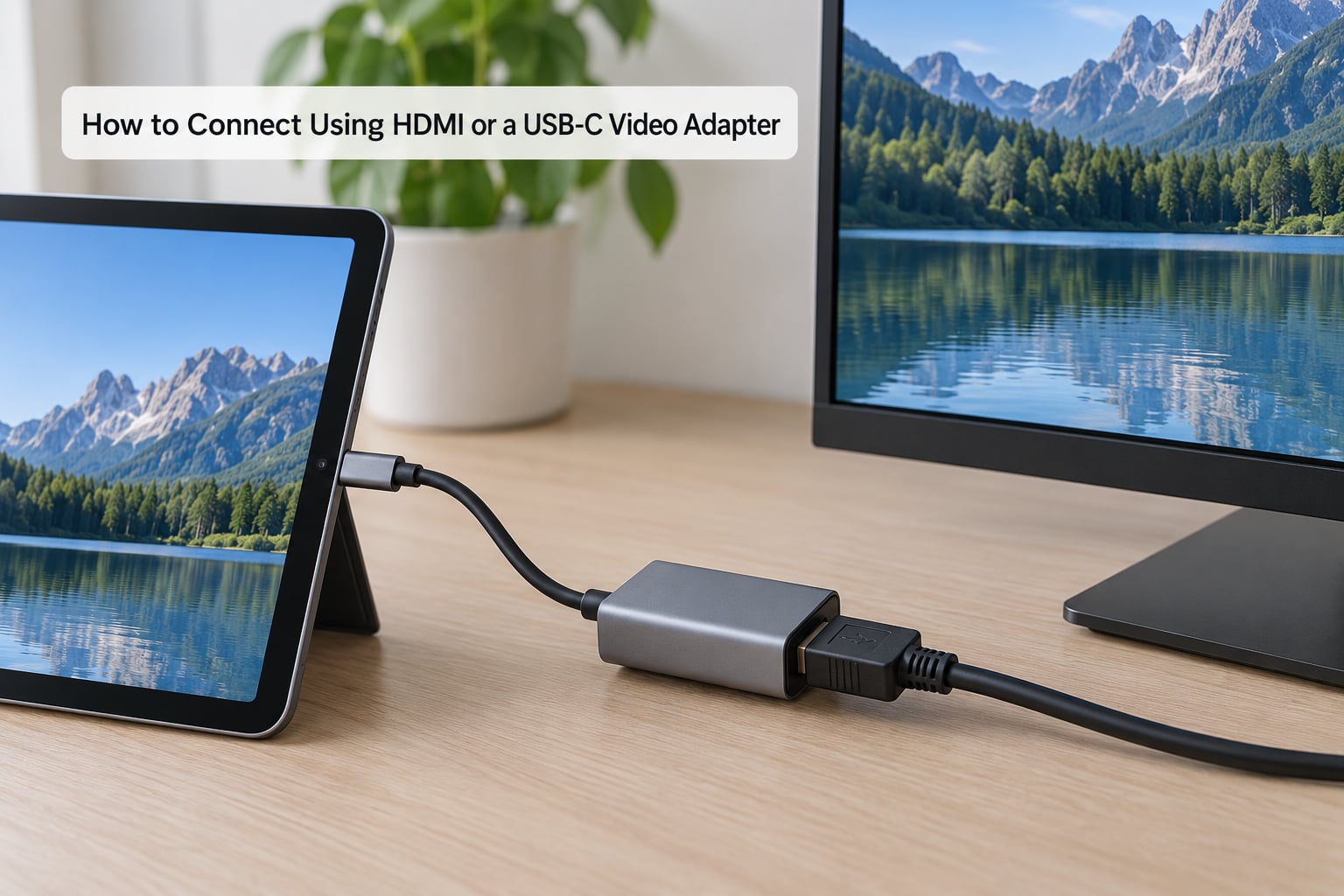
This is the reliable route and the one to use if you type, edit video or stream in anything above standard definition. It takes about two minutes.
- Connect the USB-C to HDMI adapter or cable to the tablet’s video-capable USB-C port. Wait a few seconds, the tablet usually announces an external display.
- Plug the HDMI end into the monitor. Note which port you used, usually the one closest to the power button is HDMI 1.
- Press the monitor’s Input or Source button and pick the HDMI number matching that port.
- On the tablet, open the display settings. Android tablets usually surface this in the Quick Settings shade under Cast or Second screen; iPads show a screen mirroring icon in Control Center.
- Choose Mirror if you want an identical picture on both screens, or Extend if you want the tablet to keep its own display while the monitor shows something else.
- Set the resolution and orientation on the tablet so the picture fills the monitor. A portrait tablet mirrored onto a landscape screen will often show black bars on the sides.
You know it worked when the monitor’s no-signal message disappears and the tablet screen appears on the larger display. If it does, Samsung Galaxy Tab owners get one extra option worth turning on: DeX mode adds a desktop taskbar, a start menu and resizable app windows, which changes the tablet from a mirror into something closer to a small workstation. Newer Android tablets expose a similar desktop mode built into the system settings under connected displays.
One accessory changes the experience more than the cable does. A USB-C hub with PD pass-through sends power into the tablet while the HDMI port carries video, so a single-port tablet keeps working all day instead of draining in a couple of hours. Pair it with a Bluetooth keyboard and mouse and the setup stops feeling like a compromise.
How to Connect a Tablet Wirelessly
Wireless display needs no adapter and works on tablets that cannot output video at all, which makes it the only option for many budget models. It also adds lag, so it suits watching and presenting better than typing.
Both devices need to be on the same Wi-Fi network, which sounds obvious but accounts for a large share of failed attempts.
- Android tablets: swipe down for Quick Settings and tap Cast, Wireless display or Second screen, then pick your monitor or TV from the list.
- Samsung tablets: Quick Settings has a Second screen tile that connects to a Samsung Smart TV or monitor with no extra app at all.
- iPads: tap the screen mirroring icon in Control Center, then the name of your display. Apple TV and many modern TVs show up there directly.
- Windows laptops acting as the receiver: press Win+K and choose your tablet, then set it to Extend so the laptop display stays independent.
If the wireless picture stutters or drops frames, move the router away from obstructions, connect both devices to a 5GHz network rather than 2.4GHz, and close anything streaming video on the same Wi-Fi band. When reliability matters more than the absence of cables, the wired route wins.
Common Mistakes
Almost every failed tablet-to-monitor setup falls into one of these buckets. Work down the table rather than guessing.
| Symptom | What is causing it | Fix |
|---|---|---|
| Monitor says no signal | Wrong input selected, or the cable only carries power | Cycle through the monitor inputs with the Source button, then test a cable listed as HDMI video rather than charge-only |
| Tablet sees the adapter but the monitor stays black | The USB-C port has no video output, or the adapter is unsupported | Confirm video output in the tablet specs, then try a different adapter. People report that unplugging and replugging the cable fixes a surprising share of black screens |
| Only the tablet screen lights up | Tablet is set to mirror and the app blocks external output | Switch the display mode to Extend in display settings and reopen the app |
| Streaming apps show black but everything else works | HDCP copy protection blocks the video signal over HDMI | Some streaming apps simply refuse external displays. Play the content in a browser, or use casting for that app instead of a cable |
| Tablet stops charging when connected | The tablet’s port is occupied by the adapter | Use a hub with PD pass-through so power and video share one port |
| Picture is small with black bars | Aspect ratio or scaling set to match the tablet | Change the display scaling to fill the monitor, and set orientation to landscape for a landscape screen |
| No sound on the monitor | Audio is still routed to the tablet speaker | Set audio output to the HDMI device in the tablet’s sound settings |
| Wireless connects then drops | Two networks, or a firewall blocking the handshake | Put both devices on the same network and allow the casting app through the firewall on the receiving computer |
Two more worth knowing. On Windows machines, a graphics driver update plus a scan for hardware changes in Device Manager resolves stubborn no-signal cases. And if your tablet has only one USB-C port and no video support, stop shopping for adapters and cast instead.
Frequently Asked Questions
Do I need a special cable to connect a tablet to a monitor?
Usually yes, unless the tablet has a full-size HDMI port. A USB-C tablet needs a USB-C to HDMI cable or adapter, and one port marked as charge-only will not work. Budget cables that ship in the box are often data-only or charge-only, so buy a cable or adapter that lists HDMI video support explicitly.
Can I connect my iPad to a monitor via HDMI?
Yes, on every iPad built since 2018. USB-C iPads take a USB-C to HDMI cable or adapter. Older Lightning iPads need Apple’s Lightning Digital AV Adapter plus a second cable for charging, because the single Lightning port cannot send video and power at once. Only apps that support external displays will show up on the monitor.
Why won’t my iPad play video through an HDMI adapter?
Streaming apps block external output over HDMI using HDCP copy protection, which is why Netflix and some others show a black screen while everything else works. Try the same content in a browser instead. If your own video is also black, the adapter is the likely culprit, and Apple’s own adapter is the fallback many owners end up buying.
How do I switch from mirror to extend display?
Open the tablet’s display settings and change the mode from Mirror or Duplicate to Extend these displays. On Samsung tablets the Second screen tile in Quick Settings handles it, and on iPad it is in Control Center. In Extend mode the tablet screen stays independent, so you can read something on the tablet while showing slides on the monitor.
Why does my tablet stop charging when a monitor is connected?
The adapter is occupying the tablet’s only charging port, so nothing is powering it. A USB-C hub with Power Delivery pass-through solves this by drawing power from the monitor’s USB port and feeding it into the tablet while the hub’s HDMI port carries video. Expect slower charging than from a wall plug, but steady enough for a full working day.
Can I use my tablet as a second monitor for my computer?
Yes, though it is a software setup rather than a cable. On a Windows PC, Spacedesk and Super Display both turn an Android tablet into a wireless or USB-connected second display, with touch and stylus input working. On Linux, tools like Sunshine or Deskreen handle the mirroring side. Expect some latency, so it suits documents and dashboards better than games.
Conclusion
Start by confirming your tablet’s USB-C port supports video output. If it does, plug in a USB-C to HDMI cable, select the matching HDMI input on the monitor, and choose Extend rather than Mirror for a working desktop-style setup. If it does not, skip the adapter hunt and cast over Wi-Fi instead.
For anything involving typing, editing or long sessions, use a USB-C hub with Power Delivery pass-through and a Bluetooth keyboard. Casting is the easier option for watching and presenting.