Thin, muffled, or oddly quiet Bluetooth audio on Android usually comes down to three things: which codec your phone and headphones actually negotiated, whether interference is forcing that codec to drop its bitrate, and whether an app or equalizer is reshaping the sound. To improve Bluetooth headphone sound quality on Android, work through connection, codec, volume, and app settings in that order, one change at a time.
Most of it takes about ten minutes once you know which menu holds each setting. The catch is that menu names move around between Android versions and phone makers, so this guide names the path and tells you what to do if your phone words it differently.
Table of Contents›
- What You Need
- Step-by-Step
- 1. Check the Bluetooth Connection First
- 2. Set the Best Audio Codec on Android
- 3. Match Android and App Volume Levels
- 4. Disable Restrictions and Check App Settings
- 5. Use the Equalizer Carefully
- 6. Reset the Pairing and Test for Hardware Problems
- 7. Update Software and Know When to Stop
- Common Mistakes
- Frequently Asked Questions
- Why does my Bluetooth audio quality drop when I use the microphone?
- Should I turn LDAC on or off on Android?
- Why does Bluetooth sound worse on Android Auto than on my phone?
- How can I make Bluetooth headphones louder on Android?
- Do I need a USB-C DAC to get good sound from my phone?
- Conclusion
What You Need
None of these fixes need extra hardware. You do need the same setup you already use for listening, so the results mean something.
- Your Android phone or tablet, with its screen unlocked.
- The Bluetooth headphones or earbuds you want to fix.
- The app you actually listen in, such as a streaming app or a local player.
- The headphone manufacturer’s companion app, if one exists for your model.
- One track you know well, ideally something with hats, bass, and vocals you can pick apart.
That last item matters more than people expect. Testing with random music makes small changes impossible to judge, so pick a song you have heard hundreds of times before you start.
Step-by-Step
Test after each step rather than changing everything at once. If you switch codec, move the equalizer, and reset the pairing in one go, you will not know which change helped, and you will not be able to put the bad ones back.
1. Check the Bluetooth Connection First
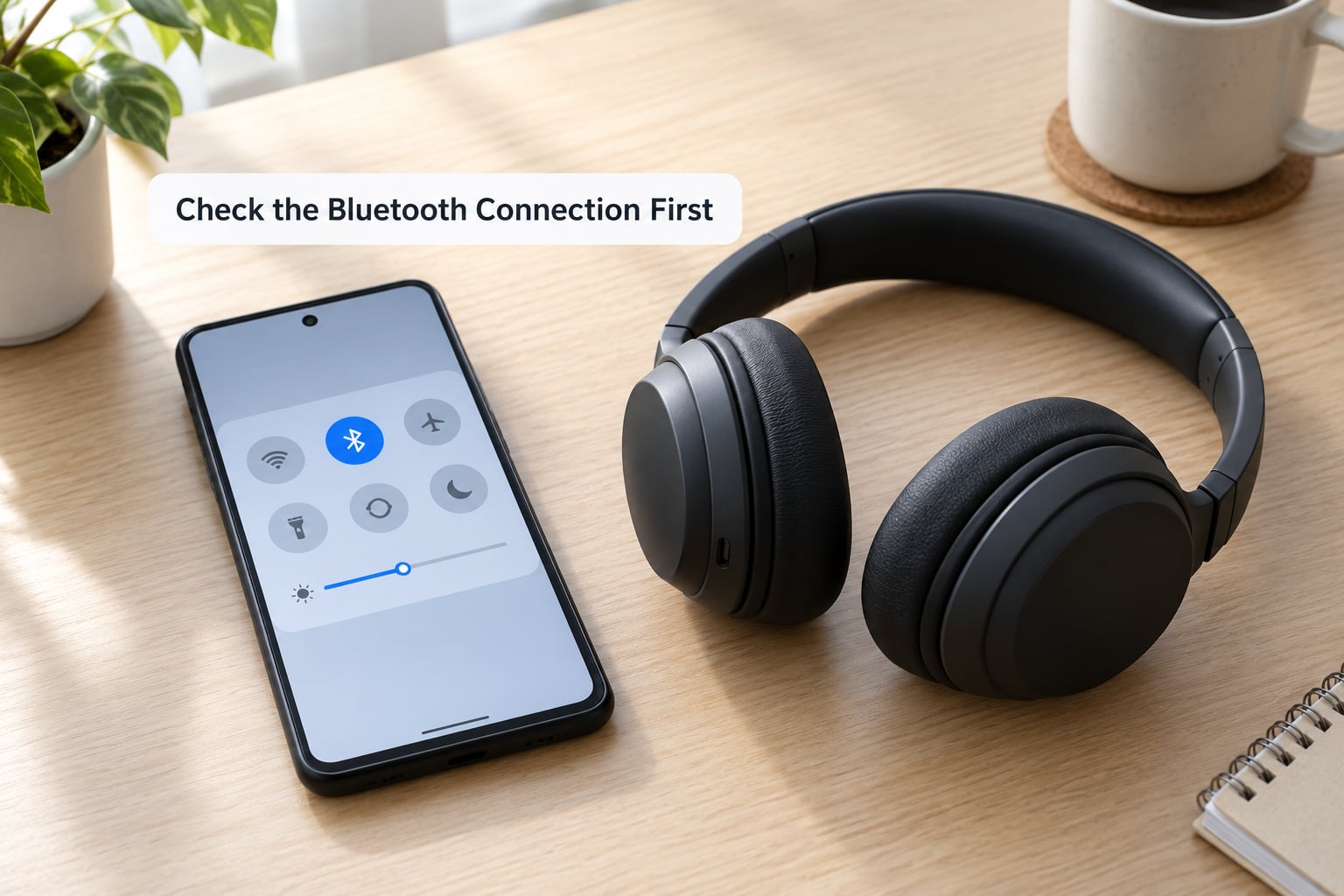
Pull down your quick settings and confirm the headphones show as connected, not just paired. A device that is paired but not actively connected will play through the phone speaker or fall back to a low-quality profile, and plenty of people miss this because the icon still sits in the panel.
Open Settings > Connected devices, tap your headphones, and look at the details screen. You are checking two things here: whether media audio is switched on, and which Bluetooth profile is active. On some phones that profile is shown directly. On others you find it later in Developer options.
Then disconnect and reconnect once. If the sound is better after a fresh connection, the problem was a stuck link rather than a setting.
Interference is the other half of this step. Bluetooth shares the 2.4 GHz band with many Wi-Fi routers, cordless phones, and car systems, and Android lowers the audio bitrate as distance or congestion rises without telling you. Move the phone within a few feet of the headphones, step away from a router, and disconnect other paired devices you are not using, such as a second set of headphones or a car kit. Experienced listeners on Head-Fi point out that this silent bitrate drop is the reason quality seems to vary from room to room.
2. Set the Best Audio Codec on Android
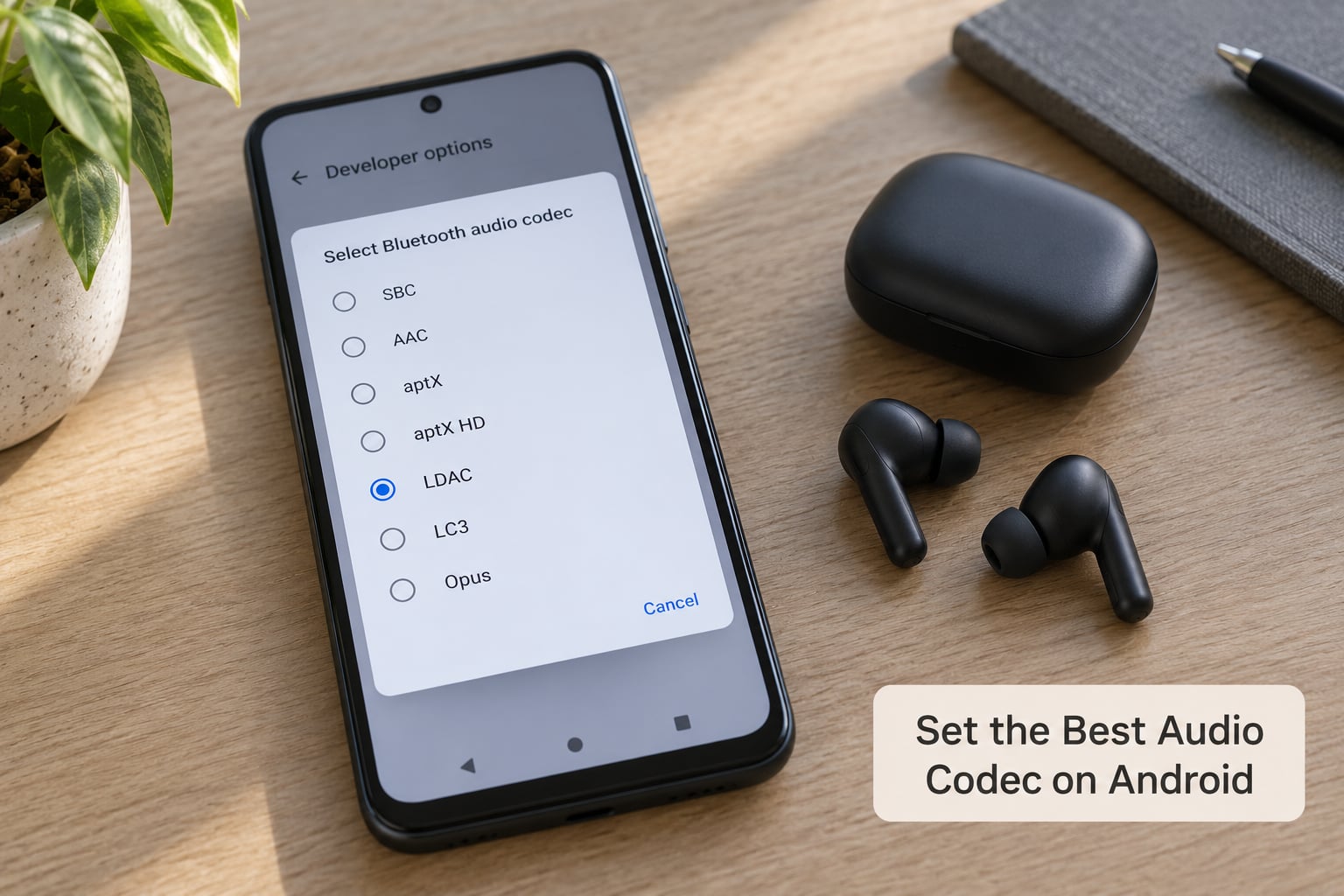
A codec is the compressor that squeezes your digital audio into wireless packets. Both devices must support the same one, and the phone will only offer codecs its own hardware supports, which is why an aptX HD headphone can end up on plain SBC and sound disappointing.
To change it on most Android phones, open Settings > About phone and tap Build number seven times. Enter your PIN, then go back to Settings and look under System > Developer options. Some One UI, HyperOS, and OxygenOS builds place Developer options under Additional settings or Additional settings > Developer options instead. There you will find Bluetooth audio codec, sometimes labeled A2DP audio source or Preferred codec.
Pick the best option your headphones support, then reconnect the headphones or restart the phone, because the change does not apply to an active connection. On some builds you will also see a separate setting for Bluetooth audio bandwidth, and on many devices an LDAC option for highest quality.
| Codec | Max bitrate | Bit depth | Max sample rate |
|---|---|---|---|
| SBC | 345 kbps | 16-bit | 44.1 kHz |
| AAC | 256 kbps | 16-bit | 48 kHz |
| aptX | 392 kbps | 16-bit | 44.1 kHz |
| aptX HD | 576 kbps | 24-bit | 44.1 kHz |
| aptX Adaptive | up to 1232 kbps | 24-bit | 96 kHz |
| aptX Lossless | up to 1100 kbps | 24-bit | 96 kHz |
| LDAC | up to 990 kbps | 24-bit | 96 kHz |
| LHDC / LLAC | 900 kbps | 24-bit | 96 kHz |
| LC3 (LE Audio) | 160 to 320 kbps typical | 24-bit | 48 kHz |
| Samsung Seamless | 1440 kbps | 24-bit | 96 kHz |
SBC is the baseline every device supports, so when a phone and a pair of headphones share nothing better, that is what you get. LDAC is often enabled by default at a lower bitrate and can sound worse than aptX, which is why owners on r/samsung and r/Pixel4a usually report better results after forcing aptX or aptX HD.
Where your phone puts extra audio controls depends on the brand:
- Pixel: Developer options is the main lever. Also check Settings > Sound & vibration for a media volume slider.
- Samsung One UI: Settings > Sound and vibration > Sound quality and effects holds UHQ Optimizer, Adapt Sound, Sound Assistant, and Dolby Atmos when the model supports them.
- Xiaomi and Redmi: Settings > Sound & vibration > Sound effects or the Mi Sound panel, plus a separate Sound assistant entry.
- OnePlus and Oppo: Settings > Sound & vibration > Audio effects, where Dirac tuning and headphone options appear on supported models.
- Motorola: Settings > Sound & vibration > Audio effects, with Moto Audio tuning on some flagships.
Be aware of the latency trade-off. SBC and AAC add noticeable delay, aptX sits lower, and LDAC adds enough lag that lips drift on film and input feels soft in games. For video and gaming, aptX Adaptive, aptX LL, or LC3 are better picks. For music with a stationary phone and headphones, take the higher bitrate codec.
To see what is really active rather than guessing, turn on Bluetooth audio device information, sometimes called Bluetooth HCI snoop log or found under audio diagnostics in Developer options, then reconnect the headphones. The negotiated codec appears there.
3. Match Android and App Volume Levels
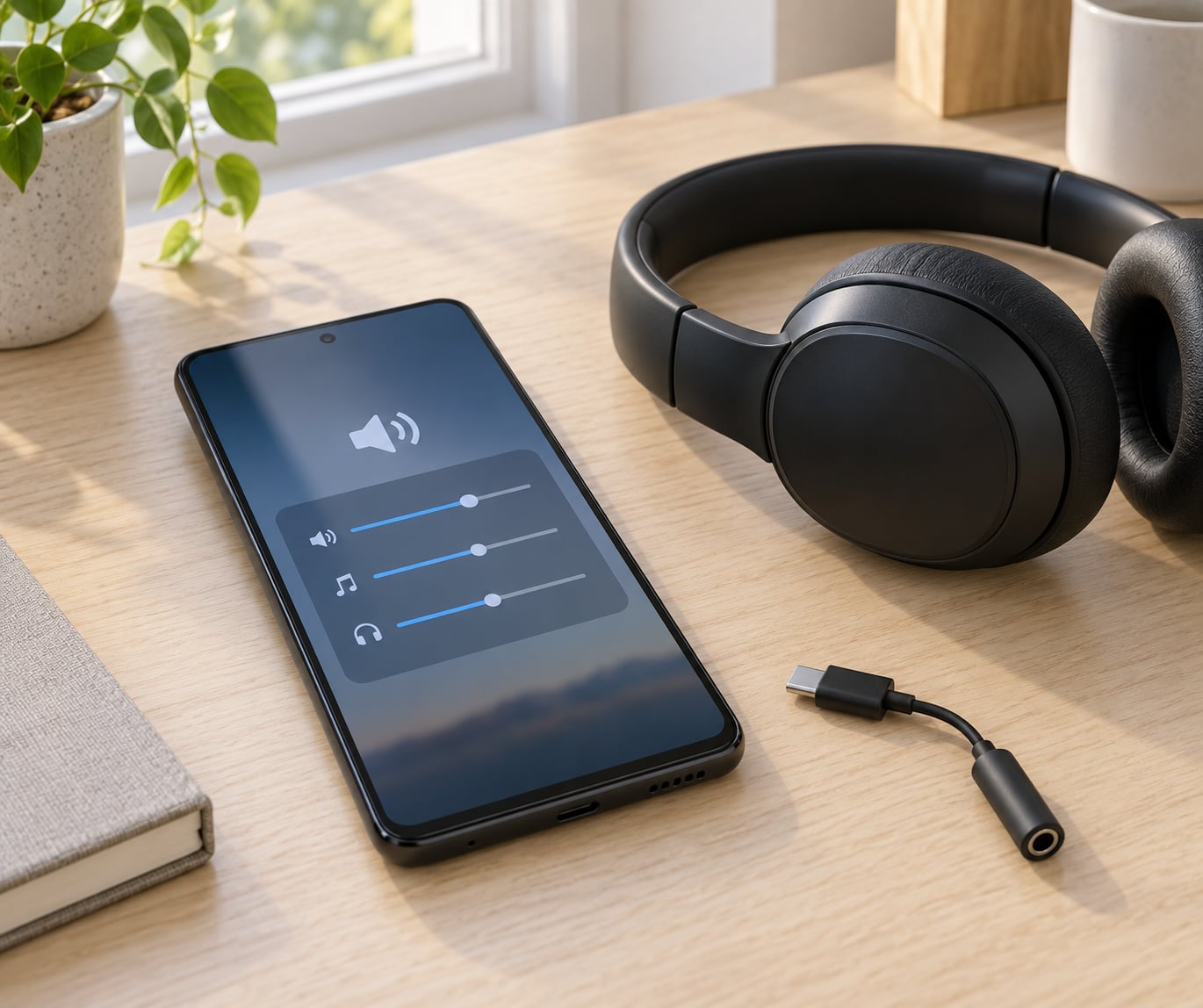
A low media volume or a low app slider makes Bluetooth headphones sound quiet and uneven without anything actually being wrong with the audio path. Raise the media volume in the volume panel and the app’s own slider until the phone is near maximum, then use the headphone’s onboard controls for the final level.
Bluetooth also sounds quieter than the old headphone jack at the same number, because the codec and the phone’s limiter both cap headroom. If your headphones let you raise the volume from the cup, use that instead of pushing the phone past maximum, which only adds distortion.
While you are here, check what happens during calls. The moment a headset microphone activates, Android and the headphones negotiate a hands-free profile instead of the high-quality stereo one, and the music thins out to a narrow, mono-sounding stream. That is expected behaviour, not a fault, and it switches back when the call ends.
4. Disable Restrictions and Check App Settings
Android’s battery optimisation can throttle streaming quality or stall playback when the screen is off. Go to Settings > Apps, find your audio app, and under Battery set it to Unrestricted. Check Data usage on the same screen and allow background data, since streaming apps drop to a lower quality on mobile data by default.
Most streaming apps also have their own audio quality menu. Set Wi-Fi and cellular quality to the highest option the app offers, and note that the highest tiers often require a paid tier and unmetered data.
If quality is still uneven, play the same track in a different app. Fine in one app and bad in another points at that app’s settings or its streaming quality. Fine in both points at the phone, the codec, or the headphones.
5. Use the Equalizer Carefully
Most Android phones and many headphone apps ship with a multi-band equalizer. Start from a flat profile, apply the headphone preset if one matches your exact model, and change one band at a time. Reducing a runaway bass or treble by two or three steps fixes the most common complaints without touching the signal.
Do not stack effects. Running a boosted equalizer on top of Dolby Atmos and UHQ Optimizer at the same time is the fastest way to make clear music sound worse, because each stage adds its own processing.
On Samsung, UHQ Optimizer is greyed out until wireless headphones are connected, and it is worth understanding what it does: it tries to reduce the artifacts of wireless compression. It cannot recreate detail the codec already discarded, and the same is true of any upscaler. Stream or play a proper source, and no processing setting will make up for a 128 kbps file.
6. Reset the Pairing and Test for Hardware Problems
Go to Settings > Connected devices > Bluetooth, tap your headphones, choose Forget or Unpair, then restart the phone. Put the headphones into pairing mode and pair them again from scratch.
Pairing history and codec settings get into a bad state more often than people expect, and a clean re-pair fixes a surprising share of problems. Users on XDA forums who fought audio issues after Android 12 and later releases report the same combination working: clear the system cache, reset network settings, then confirm the Bluetooth audio codec in Developer options.
After the reset, isolate the variable. Pair the same headphones to a second device, then pair a different pair of headphones to your phone. Bad on both means the phone or the codec, bad only with one pair means those headphones, and a second device ruling them out narrows it to the phone.
7. Update Software and Know When to Stop
Check Settings > System > System update for security and firmware patches, and update the audio app and the headphone companion app too. Firmware updates sometimes adjust tuning and codec behaviour, and LDAC users on Sony’s own community forums have reported the signal changing for better and worse after OS updates.
Clear the audio app’s cache if playback has become stuttery or distorted. That is cheap and it rules out a corrupted local state.
Then be honest about the ceiling. Bluetooth is always lossy, and once your phone and headphones share the best codec they both support, the radio is the limit, not your settings. Background downloads on the same band, a low battery on either device, an older phone, and a jack port that is being used for charging all make things worse.
If you want a genuine upgrade after the software work, a USB-C DAC is the honest next step. It routes digital audio directly and takes the radio out of the chain entirely, which is why it still makes a measurable difference on modern phones.
Common Mistakes
Changing the equalizer before the codec. No EQ setting can restore what the codec threw away. Set the codec first, then judge the tone.
Running several enhancers at once. Dolby Atmos, UHQ Optimizer, and a boosted equalizer stacked together add processing noise. Pick one and leave the rest flat.
Leaving one volume low. Media volume at half with the app slider at maximum is a common cause of quiet or uneven Bluetooth playback.
Staying paired to two devices. Headphones connected to a phone, a tablet, and a laptop can negotiate the codec for another device. Disconnect what you are not using.
Skipping the restart. A codec change usually needs a reconnect or reboot before it applies, so judging it immediately is misleading.
Expecting software to fix hardware. A worn driver, a damaged cable on the charging port, or headphones that never supported a high-quality codec will not improve with any setting in Developer options.
Frequently Asked Questions
Why does my Bluetooth audio quality drop when I use the microphone?
Because Bluetooth uses different profiles for playback and calls. Stereo playback uses A2DP, while a call activates a hands-free profile that sacrifices bandwidth to keep the microphone working, so music turns thin and mono-sounding. It is expected behaviour and returns to normal once the call ends.
Should I turn LDAC on or off on Android?
For music with a stationary setup, leave it on and set it to the highest quality option, since it caps around 990 kbps when both devices cooperate. For video or gaming, turn it off or switch to aptX Adaptive, because LDAC adds visible lip-sync delay. If LDAC sounds worse for you, aptX or aptX HD often reads cleaner.
Why does Bluetooth sound worse on Android Auto than on my phone?
Android Auto renegotiates the codec itself and often lands on a lower one, and a congested car environment adds radio interference that forces the bitrate down further. Set your preferred codec in Developer options before connecting, remove other paired devices from the car, and restart the head unit if the problem persists.
How can I make Bluetooth headphones louder on Android?
Raise both the media volume and the app’s own volume slider, then set the streaming app’s quality to its highest option. Use the headphone’s onboard volume control for the last step, since pushing the phone past maximum only adds distortion. An equalizer can also help perceived loudness by trimming the low-mid range that masks the rest.
Do I need a USB-C DAC to get good sound from my phone?
Only after the settings are right. Once both devices share the best supported codec and the connection is stable, Bluetooth is the limit, and a USB-C DAC routes digital audio directly with no radio in the chain. It is a real upgrade at that point, but it solves a hardware limit that no equalizer can.
Conclusion
Start with the connection and codec, then balance volume, then touch the equalizer. That order fixes the large majority of Android Bluetooth audio complaints because codec and interference account for most of what people hear as bad sound. Test with one familiar track after each change so you can tell what worked.
When a clean re-pair and a second-device test both come back normal, the headphones and phone are fine and the codec is simply the ceiling. At that point further settings stop making a meaningful difference, and the honest answer is that Bluetooth compression, not a misconfigured phone, is the limit.