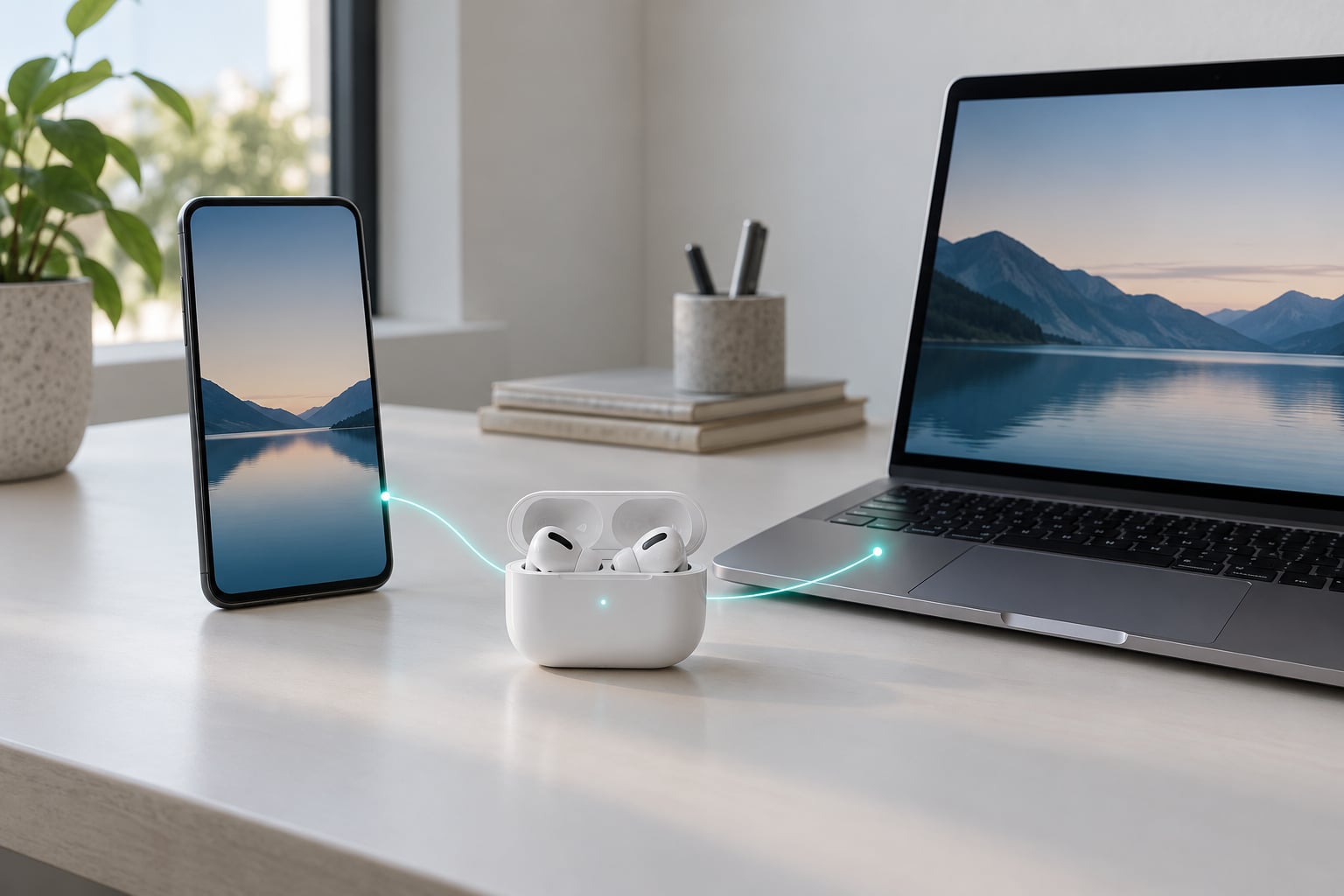
Connecting two Bluetooth devices at once comes down to one question: do you want two live connections, or two audio outputs? If you want your earbuds on your phone and laptop at the same time, that is multipoint, and the headphones do the work. If you want music playing out loud from two speakers, that is audio sharing, and the phone does the work. Getting those two ideas apart solves most of the problems people hit.
Table of Contents›
- What You Need
- Step-by-Step
- Step 1: Confirm That Your Devices Support Two Connections
- Step 2: Prepare and Reset the Devices
- Step 3: Pair the First Bluetooth Device
- Step 4: Pair the Second Device and Turn On Multipoint
- Step 5: Send Audio to Two Devices at Once
- Step 6: Pair Two Bluetooth Speakers for Stereo Sound
- Step 7: Test, Switch and Reconnect
- Common Mistakes
- Frequently Asked Questions
- Can a phone connect to two Bluetooth devices at once?
- What is Bluetooth multipoint and how does it work?
- Can two phones connect to one pair of Bluetooth earbuds?
- Can two Bluetooth devices play audio from one phone at the same time?
- Why does only one Bluetooth device connect at a time?
- Conclusion
What You Need
Bluetooth used to be a simple one-to-one link: one headset, one source. That has loosened up, but no single feature covers every situation you might mean by “two at once”. Before you touch a menu, decide which of these three jobs you are trying to do.
Two live connections. Your headphones or earbuds stay linked to a phone and a laptop at the same time, and you switch between them by playing on one. The headphones do the work, and you hear audio on one device at a time. This is called multipoint, or sometimes dual device connection.
Two audio outputs. One phone sends the same sound to two pairs of headphones or two speakers at the same moment. The phone does the work, and both receivers play at once. Look for dual audio, audio sharing or dual output in the settings.
One stereo system. Two speakers behave as a single left and right pair. The speaker maker’s app does the work, and the two speakers play as one unit. Look for stereo pairing or party mode.
For the multipoint route you need three things: a source device with Bluetooth turned on, a pair of headphones or earbuds that explicitly lists multipoint or a similar term in its specification, and two separate source devices. Some earbuds that look identical on the outside have no multipoint at all, so check the spec sheet before you buy.
For audio sharing you need a phone or computer with the dual-output option enabled plus two receivers that are already paired to it. On Android the setting usually lives under Connections, More connection settings, then Audio device. Some models bury a second toggle behind Developer options.
For stereo pairing you need two speakers from the same maker, that maker’s companion app, and usually a firmware update on both. Mixed-brand speaker pairs almost never group properly.
Step-by-Step
Step 1: Confirm That Your Devices Support Two Connections
Start by checking what each device is capable of, because ordinary Bluetooth will not do this on its own. Open the specification page for your headphones or earbuds and search for multipoint, dual device, two devices, or simultaneous connection. Manufacturers use their own wording, so the search term changes with the brand.
On the source side, look for audio sharing, dual audio, or dual output in the Bluetooth menu. Windows 11 and recent macOS builds both have their own version of this. If the setting simply is not there, the hardware or software build does not support it and no amount of re-pairing will change that.
One useful reality check: two live connections is the normal ceiling, three is rare, and anything above that is a manufacturer trick rather than a standard. Forum threads ask about this constantly, and the answer is almost always that the two-slot limit is real while the fear of hitting it with a keyboard, mouse and controller is usually overstated.
Step 2: Prepare and Reset the Devices
Charge both peripherals fully. A headset at 15 percent will happily pair and then drop the second connection a few minutes later, which looks like a software fault and is not one.
Disconnect the headphones from anything else that might grab them, including a tablet left on the coffee table and a laptop that auto-reconnects. On iPhone and Android, go to Settings, Bluetooth, tap the device, then choose Forget This Device. On Windows 11, open Settings, Bluetooth and devices, Devices, expand the entry with the chevron, and choose Remove device. On macOS, open System Settings, Bluetooth, click the info button next to the device, and choose Forget This Device.
Reset the peripheral itself only if it is the one failing to appear. Most makers put the factory reset in their app or on a support page, and holding a button on the wrong one can put the headset into a firmware update mode instead of pairing mode, which is a confusing ten minutes.
Step 3: Pair the First Bluetooth Device
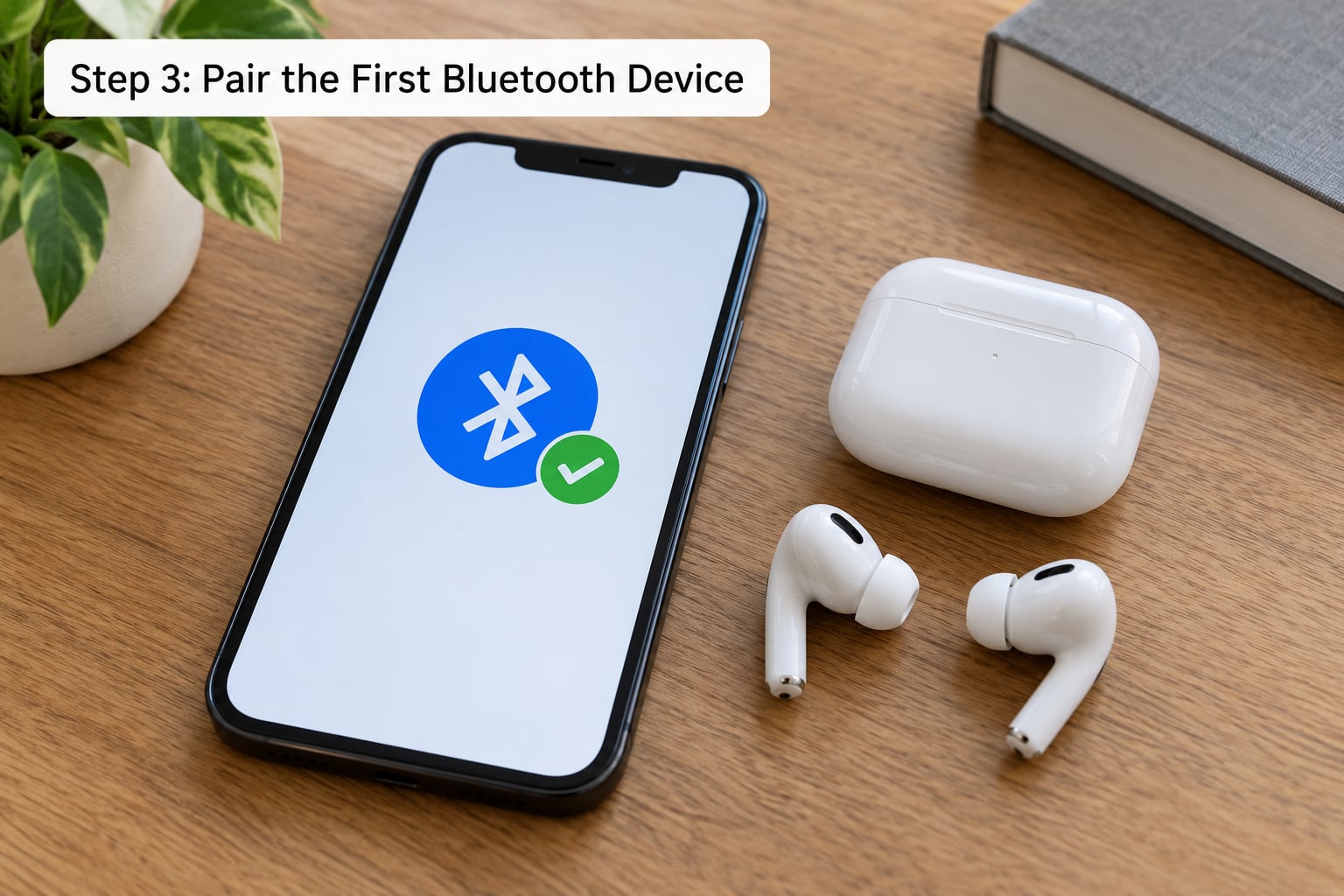
Put the headphones or earbuds into pairing mode first, then open the Bluetooth menu on your source device and tap the new entry. The name usually appears within a few seconds.
On iPhone and iPad, open the Settings app and tap Bluetooth, then tap the row with the device name. On Android, pull down the notification shade, tap the Bluetooth icon in quick settings, then choose your device from the list. On Windows 11, go to Settings, Bluetooth and devices, Add device, then Add Bluetooth. On macOS, open System Settings, Bluetooth and turn Bluetooth on if it is off, then click Connect next to the device name.
The success signal is a filled or Connected label under the device name rather than a Not Connected one. On Windows 11 the device also appears in the Audio and video drop-down list, which confirms the system has assigned it an output.
Step 4: Pair the Second Device and Turn On Multipoint
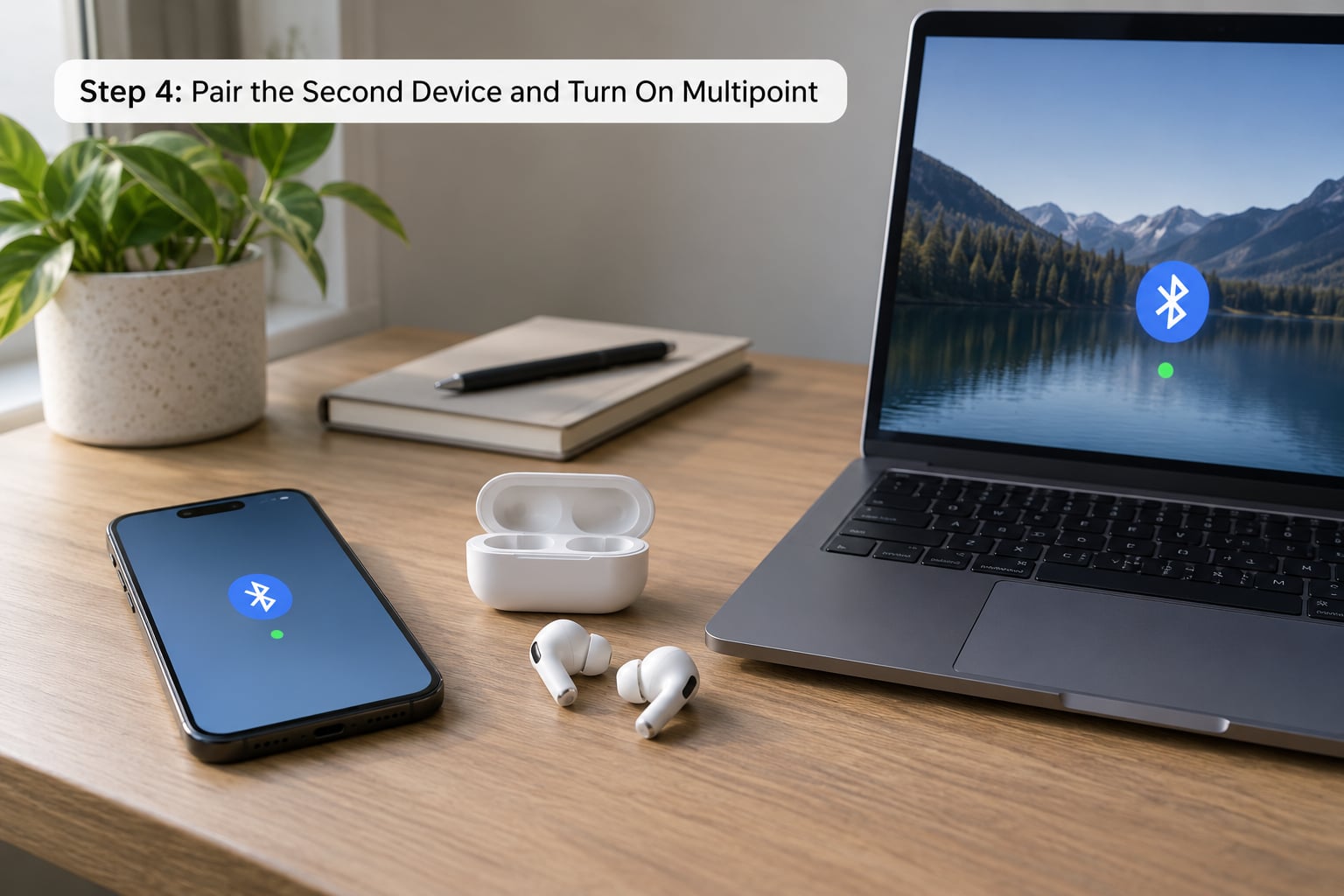
Now the part that trips people up. Do not unpair the first device. Put the headphones back into pairing mode while the first connection stays alive, open Bluetooth settings on the second source device, and tap the same device name again. Now you know how to connect two Bluetooth devices at once for the common case: one laptop, one phone, one headset.
Most multipoint headsets make this automatic. Some need you to pick the second device from a list in the maker’s app, where you will see entries labelled with the two devices you have paired, something like Device 1 and Device 2. The app may also let you set which one wins when both try to play audio at the same moment.
Verify it the honest way. Play audio on the phone, stop it, then play something on the laptop. Both sources should now show as connected, and pressing play on either one should take over the sound. Many headsets give a short tone when the source switches, which is a useful confirmation when you are not looking at either screen.
Step 5: Send Audio to Two Devices at Once
This is the other job, and it is not multipoint. Here the source device streams the same audio to two receivers at the same moment, so two people can watch a show together or a pair of speakers can fill a room.
On Android, pair both receivers normally, then go to Settings, Connections, More connection settings, Audio device, and turn on Dual Audio. Select the two devices from the list. On some models the toggle stays greyed out until you enable the Developer options menu, which you reach by tapping Build number seven times in About phone.
On iPhone and iPad there is no built-in dual audio output for Bluetooth. Two pairs of AirPods can share one stream through the share-audio feature in Control Center, but that is an Apple-only path and it depends on both devices being close to each other.
On Windows 11, pairing two Bluetooth headsets is easy but playing both at once is not built in. The reliable route is a second USB Bluetooth dongle, one adapter per headset, so the system sees two separate audio devices that you can then pick in the volume mixer. On macOS, Audio MIDI Setup or an app such as SoundSource can present two Bluetooth outputs simultaneously.
Know the limits before you start. Both receivers usually play identical audio rather than letting you control each one independently, and the second stream can run a fraction behind the first. Users comparing setups report the same thing every time: it works, and the two sides are not perfectly in step.
Step 6: Pair Two Bluetooth Speakers for Stereo Sound
Stereo pairing is a third thing entirely. Instead of one phone streaming twice, the two speakers talk to each other and one handles each channel, which sounds much better than two identical speakers in the same room.
Open the speaker maker’s app and look for a menu named Stereo, Pair Speakers, Left and Right, or Party Mode. Charge both speakers, connect the first one over Bluetooth, then put the second one into pairing mode using the button or gesture the maker specifies. Many models need the second speaker held down for a few seconds until you hear a chime.
Select the second speaker in the app by name, choose the stereo option, and confirm which unit takes which channel. Then play something with clear left and right separation, a stereo music track works well, and listen from the midpoint between them. If both channels come out of one speaker, swap the channel assignment in the app.
If the second speaker keeps dropping off, that is usually a firmware or Wi-Fi network issue rather than a Bluetooth one. Update both units in the app first, and keep the phones or tablets running the two speakers within a few metres of each other during the pairing attempt.
Step 7: Test, Switch and Reconnect
Test the setup in the order you will actually use it. Start audio on the laptop, pause it, answer a call on the phone, hang up, and press play on the laptop again. The headset should return to the laptop on its own. That single cycle proves multipoint is working, because it exercises the switch in both directions.
On switching, a headset with multipoint takes its cue from whichever device is actually playing. When a call arrives on the idle phone, the headset switches to it through the hands-free profile and switches back when the call ends. This is also why notification sounds from your phone can interrupt laptop video, which feels like a bug but is the profile doing exactly what it should.
Expect a short delay when you switch sources, usually under a second on current hardware. Anything longer often means the codec has dropped to the basic SBC option, which happens on some headsets when a second connection is active and costs a little battery life as well.
Automatic reconnection after a restart depends on both sources being awake. A laptop that is still asleep at the login screen often cannot answer the reconnect request, and the headset waits until it wakes up. If your headset seems slow after a reboot, power cycle it once and it will settle.
Common Mistakes
The second device will not appear at all. The peripheral is almost certainly still paired to something else, or you unpaired the first device while trying to add the second. Forget the device on the first source, put the peripheral back into pairing mode without touching the first pairing, and try again.
Both devices show as connected but only one plays. This is not a pairing failure, it is multipoint behaving correctly. The headset follows whichever device is playing audio, so stop playback on the other one. If you genuinely need sound from both at once, that is the audio sharing method in Step 5.
No sound from the second receiver during dual audio. On Windows 11 the second dongle needs to be installed and assigned an output before it appears in the list. On Android, toggle Dual Audio off and on again, and check that Developer options has not reverted after an update.
Audio keeps jumping to the wrong device. Usually a call or a notification on the other phone. Set a priority for each source in the companion app if your headset offers that choice, and expect the switch to happen every time the other device tries to play.
Choppy or crackling sound when the paired phone sleeps. Widely reported with Android phones and computers from other makers. Keeping a second Bluetooth link open while one screen sleeps puts strain on the older Bluetooth Classic path, and there is no setting that removes it completely.
Two identical speakers, second one connects, first stops. That is a single-source limitation, not a fault. Both speakers are competing for one source connection. Use the maker’s stereo or party pairing command instead of pairing them independently.
The stereo channels are reversed. Swap the channel assignment in the speaker app. Some makers bury it under an advanced or expert menu rather than the main pairing screen.
Windows 11 will not show a second Bluetooth device at all. Two separate adapters solve this, since Windows treats each dongle as its own radio. With one built-in adapter, the second device may appear in the list but never become the active output.
Pairing records are corrupted. Clear them from both sides. Forget the device on every source, reset the peripheral, and start from a clean list. This fixes more broken setups than any firmware update.
Two habits keep the connection solid afterwards. Update the peripheral firmware and its companion app once every few months, since pairing bugs are usually fixed there first. And if someone you do not know ever shows up in your Bluetooth list, remove it and change nothing else; an unknown entry means someone put their device into pairing mode within range, and it can only act on hardware they can physically reach.
Frequently Asked Questions
Can a phone connect to two Bluetooth devices at once?
Yes, on most modern phones, but which method you use depends on what you want. For two live connections, pair both devices and rely on multipoint in the headphones, which switch between your phone sources. For two audio outputs at the same moment, turn on Dual Audio under Settings, Connections, More connection settings, Audio device. The first gives you two connections you switch between, the second gives you the same sound on both.
What is Bluetooth multipoint and how does it work?
Multipoint is a feature on headphones, earbuds and speakers that keeps two separate Bluetooth connections open at once, usually one to your phone and one to your computer. You pair each source in turn without unpairing the first, then playing audio on either device takes over the sound. When a call arrives on the idle phone, the headset switches to it and returns afterwards.
Can two phones connect to one pair of Bluetooth earbuds?
Only if the earbuds support multipoint or dual device connection. Check the specification for that wording, pair the first phone, then put the earbuds back into pairing mode and pair the second without forgetting the first. Some models need you to pick Device 2 in the companion app. Earbuds without multipoint can only be paired to one phone at a time, no matter what the menu shows.
Can two Bluetooth devices play audio from one phone at the same time?
On many Android phones, yes, using the Dual Audio setting. Pair both receivers first, then open Settings, Connections, More connection settings, Audio device and switch Dual Audio on. Some models hide the toggle until you enable Developer options. Expect both devices to play the same audio with a slight delay between them, and expect no independent volume control for each one.
Why does only one Bluetooth device connect at a time?
Because most headsets hold one connection unless they support multipoint, or because the phone’s dual output setting is off. If the second device never appears, something else is holding the pair, so forget it on the other source and retry. If both appear but only one plays, the headset is switching to whichever device is active, which is normal. Paired memory and an active connection are two different things.
Conclusion
Three jobs, three different methods. Two live connections at once is multipoint, and you set it up by pairing the first source, then pairing the second without forgetting the first. Two audio outputs at once is Dual Audio on Android or a second USB dongle on Windows. Two speakers grouped as one stereo system is the maker’s pairing command inside the speaker app.
Start where the failure is. Confirm your hardware supports the mode you actually want, forget every previous pairing on both sides, then pair one device and get a clean connection before you touch the second. Once you know how to connect two Bluetooth devices at once for your own gear, the whole thing takes under five minutes and stops being a problem you think about.