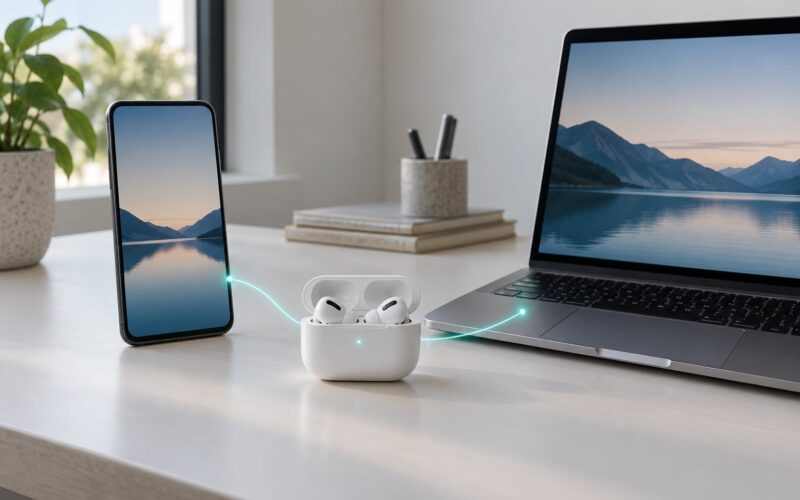
Most Bluetooth dropouts come down to one of six things: the signal is weak, something is interfering with the 2.4 GHz band, your body or a wall is blocking the link, a battery is low, software or drivers are misbehaving, or the hardware is damaged. Working through how to fix bluetooth audio that keeps cutting out takes about ten minutes if you follow the steps below in order instead of guessing at settings.
The order matters. Most people jump straight to a factory reset, which erases your pairing list and buys you nothing. Start with the free checks, move through the software fixes, and only test the hardware once everything else is ruled out.
Table of Contents›
- What You Need
- Step-by-Step
- Step 1: Check the Basic Connection and Audio Source
- Step 2: Reduce Interference and Check Range
- Step 3: Disable Bluetooth Audio or Battery Features
- Step 4: Forget and Re-Pair the Bluetooth Device
- Step 5: Restart and Update the Affected Devices
- Step 6: Reset Bluetooth Network Settings
- Step 7: Test the Accessory and Check for Hardware Problems
- Common Mistakes
- Frequently Asked Questions
- Why does Bluetooth audio cut out on only one device?
- Does resetting Bluetooth on my phone delete my data?
- Why does Bluetooth audio cut out during calls only?
- Can a low battery cause Bluetooth audio to cut out?
- When is it better to replace a Bluetooth device?
- Conclusion
What You Need
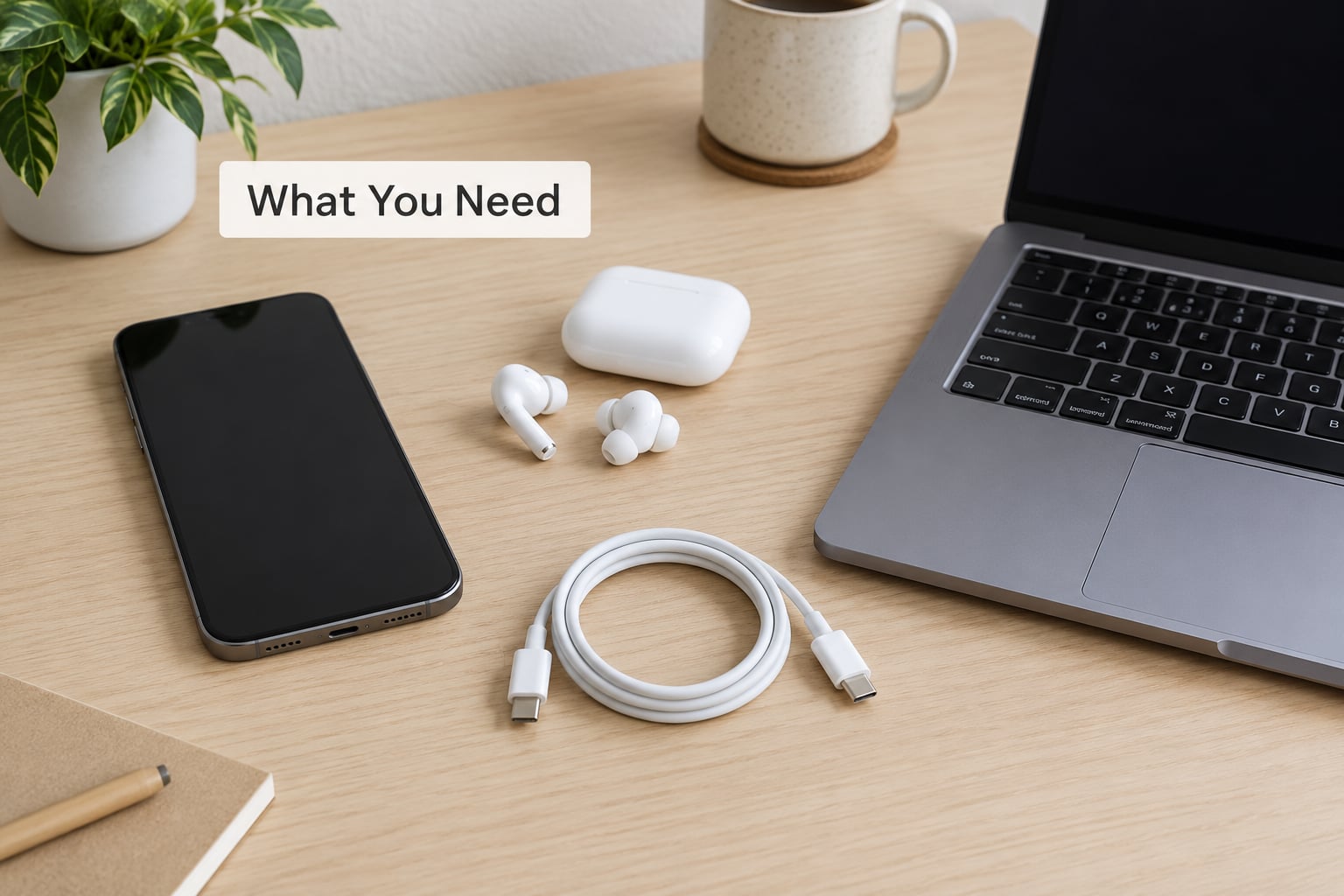
You do not need tools or software for most of this. You need access to both ends of the connection: the device sending the audio and the headset, speaker or car receiving it.
Before you start, gather these four things:
- The affected source device — the phone, tablet or computer that plays the audio. Note whether the problem also happens on a second source device, because that single test tells you more than any other.
- The Bluetooth accessory — earbuds, headphones, speaker or car stereo. Know whether it is also paired to a tablet, a laptop or a TV, because multipoint switching causes more mystery dropouts than anything else.
- A charger and cable — a low battery on either end throttles transmission power and causes exactly the stutter you are trying to fix.
- Access to the Bluetooth menu — plus admin rights on a PC if you need to touch drivers.
Menu paths differ between operating systems and between manufacturers. The step names below are written for Android 12 and later, iOS 17 and later, Windows 10 and 11, macOS, and current Linux desktops. Samsung, Pixel and Xiaomi skins rename some entries, so match the setting by function rather than by exact label.
Allow about ten to fifteen minutes for the full sequence. If you are on Windows, budget a little extra since driver steps take longer to take effect than phone settings.
Step-by-Step
Step 1: Check the Basic Connection and Audio Source
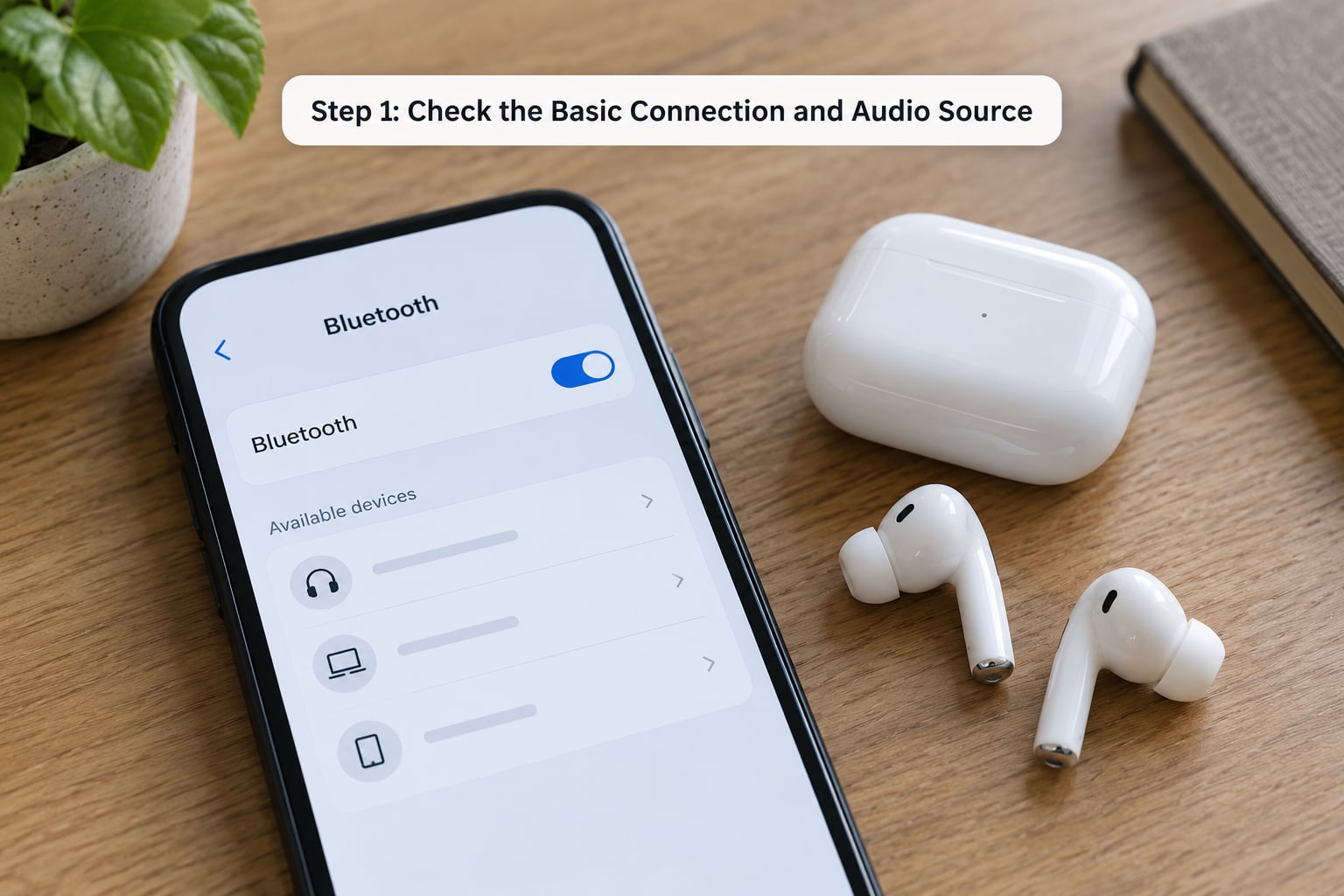
Confirm the basics before assuming anything is broken. Bluetooth is switched on, the accessory shows as Connected rather than just paired, and the audio is playing from the device you think it is.
On Windows 10 and 11, click the speaker icon in the taskbar, choose your headset from the output list, and set the right output as default. On Android, pull down the shade twice and use the media output tile. On iPhone and iPad, the audio routes to the nearest connected accessory automatically, which is worth checking in Settings, Bluetooth, tap the device, Audio Routing.
Then test a different app. Play something in a video app instead of your usual music app, or the reverse. If the cutting out disappears, the Bluetooth link is fine and you have an app bug, usually a misbehaving equalizer, a system-level audio effect like spatial sound or mono audio, or an app fighting over the audio focus on Android.
How to tell it worked: audio plays continuously for five minutes straight without a skip, and the volume stays where you set it.
Step 2: Reduce Interference and Check Range
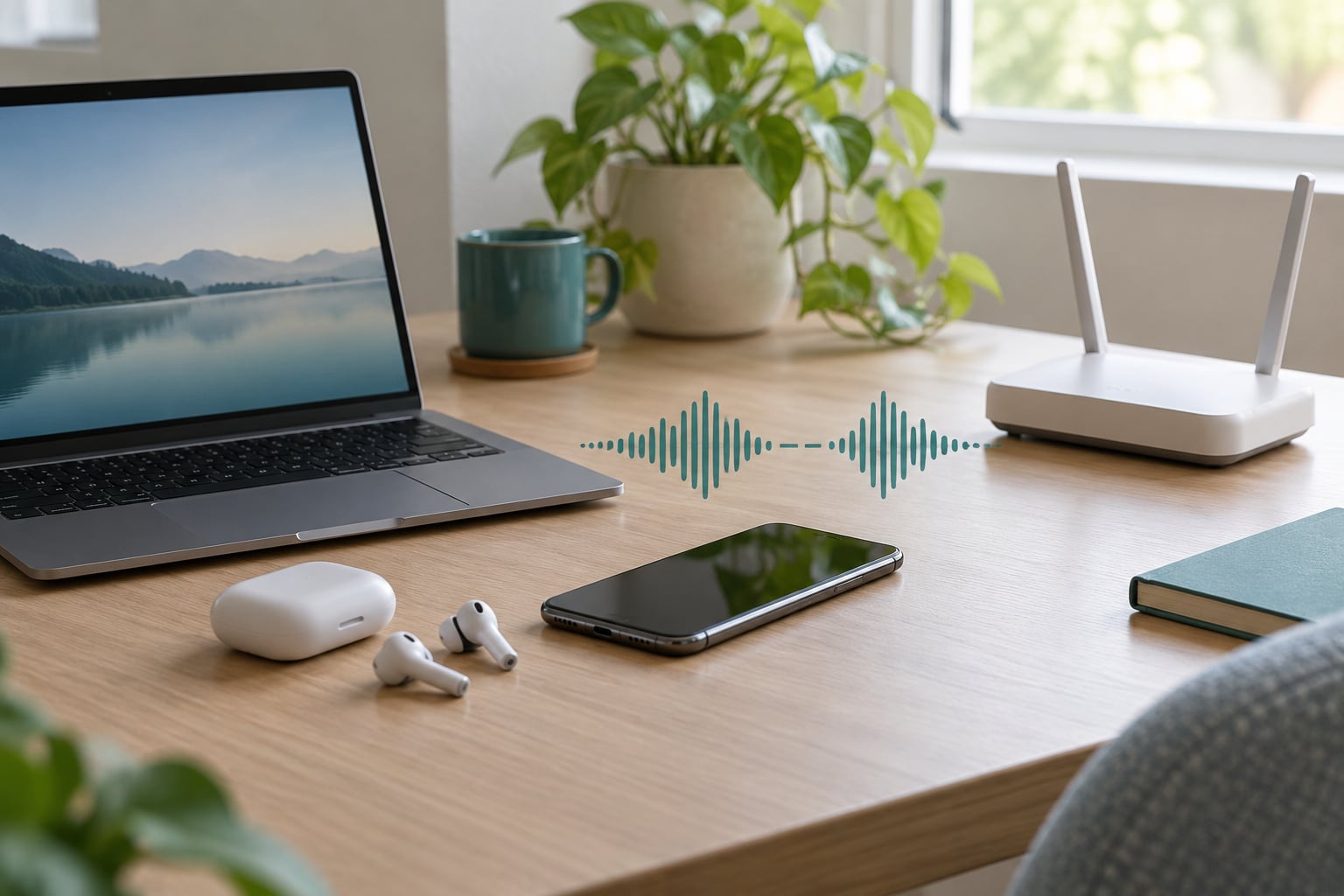
Bluetooth shares the 2.4 GHz band with Wi-Fi routers, cordless phones, baby monitors, wireless keyboards and microwave ovens. When a 2.4 GHz Wi-Fi network is on the same channel as your headset, packets collide and audio skips.
Move within about 10 to 30 feet of the source device with no more than one wall in between. Water, mirrors, reinforced concrete and metal attenuate 2.4 GHz badly, and so does your own body — this is why a phone in a back pocket cuts out every time you lean back, and why a single earbud fails whenever the phone sits in the opposite pocket.
Four things worth trying in order:
- Switch your router to the 5 GHz or 6 GHz band, or change the 2.4 GHz Wi-Fi channel to 1, 6 or 11.
- Unplug peripherals you are not using, especially USB-C docks, wired mice and external hard drives. Charging bricks and USB 3 ports are a common source of noise on laptops.
- Disconnect a second Bluetooth keyboard, mouse or controller. Users on gaming PCs report that a Bluetooth mouse and headset stuttering together is usually one of the two, not both.
- Move away from the microwave, the Wi-Fi router and any crowded room, then retest. Interference you cannot see is still interference.
How to tell it worked: the cutting out stops the moment you move two metres or change rooms, which points squarely at range or interference rather than hardware.
Step 3: Disable Bluetooth Audio or Battery Features
Several settings quietly throttle Bluetooth without telling you. Battery savers on phones and laptops cut radio power to save energy, and noise cancelling, transparency mode and multipoint all add processing that some older chips cannot sustain.
On Android, open Settings, Apps, see all apps, find the app you use for audio or your manufacturer’s companion app, and clear its battery usage under Battery, App battery usage, Unrestricted. Separately, turn off any battery optimisation exemption for Bluetooth system apps in Settings, Battery, Battery usage.
On iPhone and iPad, open Settings, Bluetooth, tap the (i) next to your accessory and check what is switched on. Turning off Multipoint and switching off Spatial Audio and Headphone Accommodations are the two most common wins.
On Windows, search for Power options, open Change plan settings, then Change advanced power settings. Set Wireless Adapter Settings, Power Saving Mode to Maximum Performance for both battery and plugged in. Then open Device Manager, expand Bluetooth, right-click your adapter, Properties, Power Management and uncheck Allow the computer to turn off this device to save power.
On Linux, Bluetooth Low Energy and power saving are controlled by the Bluetooth daemon. Disabling aggressive power save there usually removes stutter on long sessions.
Turn off noise cancelling temporarily as a test. If the drops vanish with it off, you are hitting a processing limit rather than a radio problem.
How to tell it worked: an hour of playback with no skip, and the behaviour holds on battery as well as while plugged in.
Step 4: Forget and Re-Pair the Bluetooth Device
A stale pairing record is the most common fix nobody thinks of. Deleting the device from both sides forces a clean handshake, which clears a corrupt profile far more often than a restart does.
Android: Settings, Connected devices, Bluetooth, tap the accessory, then Unpair or Forget. Confirm, then re-pair from the same screen.
iPhone and iPad: Settings, Bluetooth, tap the accessory, then Forget This Device. Do the same in the manufacturer’s app if it uses one.
Windows: Settings, Bluetooth and devices, choose the device, Remove device. To clear it completely, open Device Manager, show hidden devices, expand Bluetooth, right-click every greyed-out adapter and uninstall it, then restart and let Windows reinstall.
macOS: System Settings, Bluetooth, click the (i) next to the device and choose Forget This Device.
Linux: Settings, Bluetooth, remove the device, then pair again. The Bluez stack sometimes needs a clean cycle in the Bluetooth menu too.
Now re-pair. Keep the two devices within about a metre of each other during pairing, and if pairing fails entirely, restart both devices first and clear the accessory’s own pairing memory. Most earbuds and speakers clear their memory by holding the power button for 7 to 10 seconds until the indicator flashes several times.
Pair to one device only for testing. If it holds steady for a day, multipoint was part of the problem.
Step 5: Restart and Update the Affected Devices
Restart the phone, tablet or computer and the accessory where the accessory has its own power cycle. Hold the accessory’s power button until it turns off, wait ten seconds, then turn it back on. On Windows the full shutdown is better than a restart, since Fast Startup can keep a broken driver loaded.
Then check for updates:
- Phone and tablet: Settings, System, System update, or Settings, Software update on iPhone and iPad.
- Windows: Settings, Windows Update, Check for updates, including optional driver updates. This matters most, because a large Windows update can replace your Bluetooth driver overnight and start the dropouts.
- Bluetooth adapter drivers on Windows: Device Manager, Bluetooth, right-click the adapter, Uninstall device, then restart. Windows usually reinstalls a working generic driver.
- macOS: System Settings, General, Software Update.
- Linux: update through your distribution’s package manager, and check whether a newer kernel or firmware package is pending.
- Accessory firmware: open the manufacturer’s app and check for a firmware update. This is where codec and multipoint bugs actually get fixed.
Skip third-party driver download tools. They bundle outdated drivers, which makes stutter worse and a common source of malware.
If the problem started right after a major OS update, note the date before you keep troubleshooting. You may be looking at a regression that needs a patch or a driver rollback rather than anything you do.
Step 6: Reset Bluetooth Network Settings
This is the last software step before you test hardware, and it has a real cost: saved Bluetooth pairings and sometimes saved Wi-Fi networks are erased. Everything reconnects, but you will need your network passwords.
Android: Settings, System, Reset options, Reset Wi-Fi, mobile network and Bluetooth, then Reset. Some builds put this under System, More settings, Reset options. Samsung also has Reset network settings under General management.
iPhone and iPad: Settings, General, Transfer or Reset, Reset, Reset Network Settings. This clears Bluetooth pairings and stored Wi-Fi credentials, not your photos or apps.
Windows: there is no single Bluetooth reset, but you can rebuild the stack. Restart the Bluetooth Support Service from Services.msc, run the hardware troubleshooter under Settings, System, Troubleshoot, Other, Run hardware troubleshooter, then re-pair. In Windows 11, Reset, Recovery, Fix problems using Windows Update, Reinstall now repairs the Bluetooth driver without touching your files.
macOS: hold the Option and Command keys at startup, choose Bluetooth as the startup volume, and let it reset. You can also delete the Bluetooth preference pane from /Library/Preferences and restart.
Linux: restart the Bluetooth service with sudo systemctl restart bluetooth. If pairing records are corrupted, clear them from the Bluetooth menu and pair again.
Pair fresh, test for a full session, and only continue if the dropouts survived all of this.
Step 7: Test the Accessory and Check for Hardware Problems
Four tests tell you where the fault lives. Run them in this order and stop when the answer appears.
- Move three feet closer. If it fixes the audio, the hardware is fine and you have a range, obstruction or interference problem.
- Play a different app. If the new app is clean, it is an app or audio-effect bug on the source device.
- Connect the accessory to a second device. If it cuts out there too, the accessory or its firmware is at fault. If it works, the original source device is at fault.
- Test the source device with another accessory. If the new accessory also stutters, the phone, computer or adapter is the problem, not the headset.
Signs the accessory itself is failing: cutouts appear on every device you test, moisture got into the earpiece or charging port, one side drops out first, or the damage follows a drop. A swollen battery is another hardware signal — stop using the device and have it serviced.
Signs the source device is failing: Bluetooth works with accessories in the same room but not across it, the pairing list gets corrupted repeatedly, or the Bluetooth radio fails entirely. On Windows, run a DPC latency check to rule out driver timing faults; a healthy system sits under roughly 500 microseconds. Users who need to lean against the device to keep sound playing usually have a weak or poorly placed USB Bluetooth dongle, not a bad headset.
Check battery contacts too. Dirty or corroded charging pins on an earbud case cause intermittent charging, and an earbud that never fully charges cuts out within minutes.
Common Mistakes
Most people who never fix this make the same handful of mistakes. Each has a simple correction.
Toggling Bluetooth too quickly. Switching it off and straight back on before the radio finishes cycling leaves the connection in a half state. Wait about ten seconds after turning it off before turning it back on, and give the accessory a full power cycle too.
Pairing with two devices at once. Multipoint and dual-device auto-switching hand the connection to whichever device makes a sound. Disable multipoint while testing, then re-enable it once things are stable and decide deliberately whether you want it.
Skipping output selection. Windows and Android will happily keep playing audio to a device nobody is listening to, or the stream keeps switching between outputs. Set the output manually and confirm it before blaming the Bluetooth link.
Ignoring battery optimisation. Aggressive power saving throttles the radio. Setting the app or accessory to unrestricted battery use is a one-minute change that resolves a surprising share of Android stutter.
Resetting the wrong settings. A full factory reset wipes your apps and data and rarely touches the Bluetooth problem. The network reset is the targeted option; the factory reset is not.
Assuming every platform uses the same menu path. Resetting Bluetooth on Windows looks nothing like resetting it on iPhone, and Android paths moved between versions. Follow the path for your platform rather than a generic instruction.
Downloading drivers from an update tool. Random driver updaters install builds that are older than the ones Windows already ships, which makes stutter worse.
A few habits prevent this from coming back. Keep firmware current through the manufacturer’s app, avoid leaving a paired device connected to a second source you rarely use, keep at least one wired fallback for important calls, and take earbuds out of the case and dry the contacts if you exercise them often. If you work in a dense office with heavy 2.4 GHz Wi-Fi, moving your laptop to 5 GHz is the single most useful change you can make.
Frequently Asked Questions
Why does Bluetooth audio cut out on only one device?
If Bluetooth audio cuts out on your phone but plays perfectly when the same headset connects to a laptop or tablet, the headset is fine and the phone is the problem. Common culprits are aggressive battery optimisation, a crowded pairing list, a Bluetooth radio that has degraded, or an app-level audio effect fighting for control. Forget the device on the phone, restart, re-pair, and retest before suspecting the hardware.
Does resetting Bluetooth on my phone delete my data?
Resetting the network settings on Android or iPhone clears saved Bluetooth pairings and stored Wi-Fi passwords, but nothing else. Your photos, apps, messages and files stay exactly where they were. On Windows there is no single Bluetooth reset, so you rebuild the driver instead and your files are untouched. Know your Wi-Fi password before you start, since you will need it to reconnect.
Why does Bluetooth audio cut out during calls only?
During a call, Bluetooth switches from the A2DP music profile to the hands-free profile, which uses far more bandwidth and is more sensitive to interference. Poor signal, a low battery, or a weak microphone path can break calls while music plays fine. Move the phone out of a back pocket, disable multipoint, and move off the 2.4 GHz Wi-Fi channel while you test.
Can a low battery cause Bluetooth audio to cut out?
Yes. Both devices reduce radio output power when the battery runs low, which shortens range and causes packet loss you hear as popping and crackling. An aging earbud battery can also trigger shutdown during loud passages to protect itself. Charge both ends fully, then retest for a full session. If it only holds for ten minutes after a full charge, the battery has lost capacity and the accessory likely needs service.
When is it better to replace a Bluetooth device?
Stop troubleshooting and head for warranty or replacement when the cutouts happen on every device you test, when the reset already fixed it once and the problem came back within days, when moisture or a drop damaged a port or earpiece, or when a firmware update is the point the problem started and no newer build fixes it. Contact the manufacturer first, because faulty accessories are often replaced free.
Conclusion
Start with the two-minute checks: confirm the output is set to the right device, move within a couple of metres, and try a different app. That rules out half of the possible causes before you open a single settings menu.
Then work down the sequence in order. Most of what people search for when they want to know how to fix bluetooth audio that keeps cutting out gets solved by forgetting and re-pairing the device, disabling battery optimisation, or moving off a crowded 2.4 GHz channel.
If you reach the four isolation tests and the problem follows the accessory to every device, stop debugging and contact the manufacturer for warranty service. If it follows the phone or computer everywhere, take that device in — a failing Bluetooth radio is not something settings can repair.