Most USB-C cables can be judged in about ten minutes without lab equipment. If you know how to tell if a USB-C cable is good quality, you can read its markings, watch what happens during a charge, and run a quick file transfer to see what it can really do. The honest truth is that a cable’s full spec lives on a tiny eMarker chip inside the connector, so the outside can only ever tell you so much.
That’s why this guide moves in order: what to look at, what to plug in, and how to read the result. It works on the cable in your pocket and on the one you are about to buy. Everything here runs on hardware most people already own.
Table of Contents›
- What You Need
- Step-by-Step: How to Tell If a USB-C Cable Is Good Quality
- 1. Check the connector fit and alignment
- 2. Inspect the cable jacket, strain relief and connectors
- 3. Test basic charging with a known-good charger
- 4. Verify fast-charging negotiation
- 5. Test USB-C data transfer
- 6. Check for display or accessory support
- 7. Test the cable with the devices you actually use
- 8. Confirm certification, warranty and seller information
- How to check a cable with no writing on it at all
- Common Mistakes
- Quick Cable Quality Checklist
- Frequently Asked Questions
- How can I tell if a USB-C cable is fast charging?
- Can a bad USB-C cable damage my phone?
- How do I know if a USB-C cable supports data transfer?
- Does USB-C tell me which version of USB a cable supports?
- Why does one USB-C cable work with my phone and another does not?
- Is a longer USB-C cable always slower?
- Conclusion
What You Need
You do not need to buy anything to run the core checks. You need one USB-C device you already charge every day, and one charger you trust.
- A phone or tablet with a USB-C port for the charging and data tests. An iPhone 15 or newer counts, since Apple moved to USB-C.
- A known-good charger rated for the speed you expect. A 20W or 30W wall plug is enough for most phones; a 65W or 100W brick covers laptops.
- A second, trusted USB-C cable so you have a baseline. This matters more than anything else on the list.
- A computer with a USB-C port, or any USB-C drive, for the transfer test. A laptop with a USB-C port handles both steps.
- A USB-C power meter if you want a wattage readout. These are inexpensive dongles that sit between charger and cable.
- An eMarker reader for cables that claim to be 100W or 240W. Some phone apps read it, and small reader dongles exist for the same job.
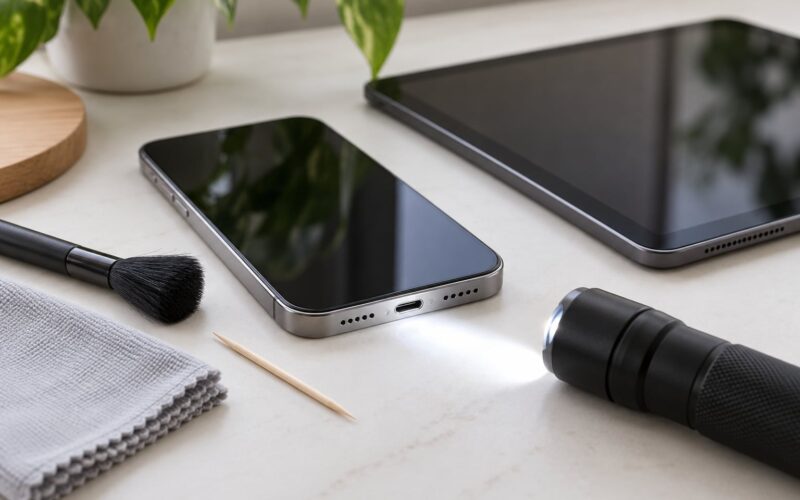
- A bright light and your hands. Jacket cracks, discoloration and a loose connector shell are all visible without instruments.
Two things to keep in mind before you start. Charging tests are safe; a bad cable may run warm at the connector, so stop if it gets uncomfortably hot. And never test a cable that is visibly frayed or has exposed wire.
Step-by-Step: How to Tell If a USB-C Cable Is Good Quality
The eight checks below go roughly cheapest to most expensive. Do them in order and stop when one fails. A cable that cannot charge at all will not become a good data cable further down the list.
1. Check the connector fit and alignment
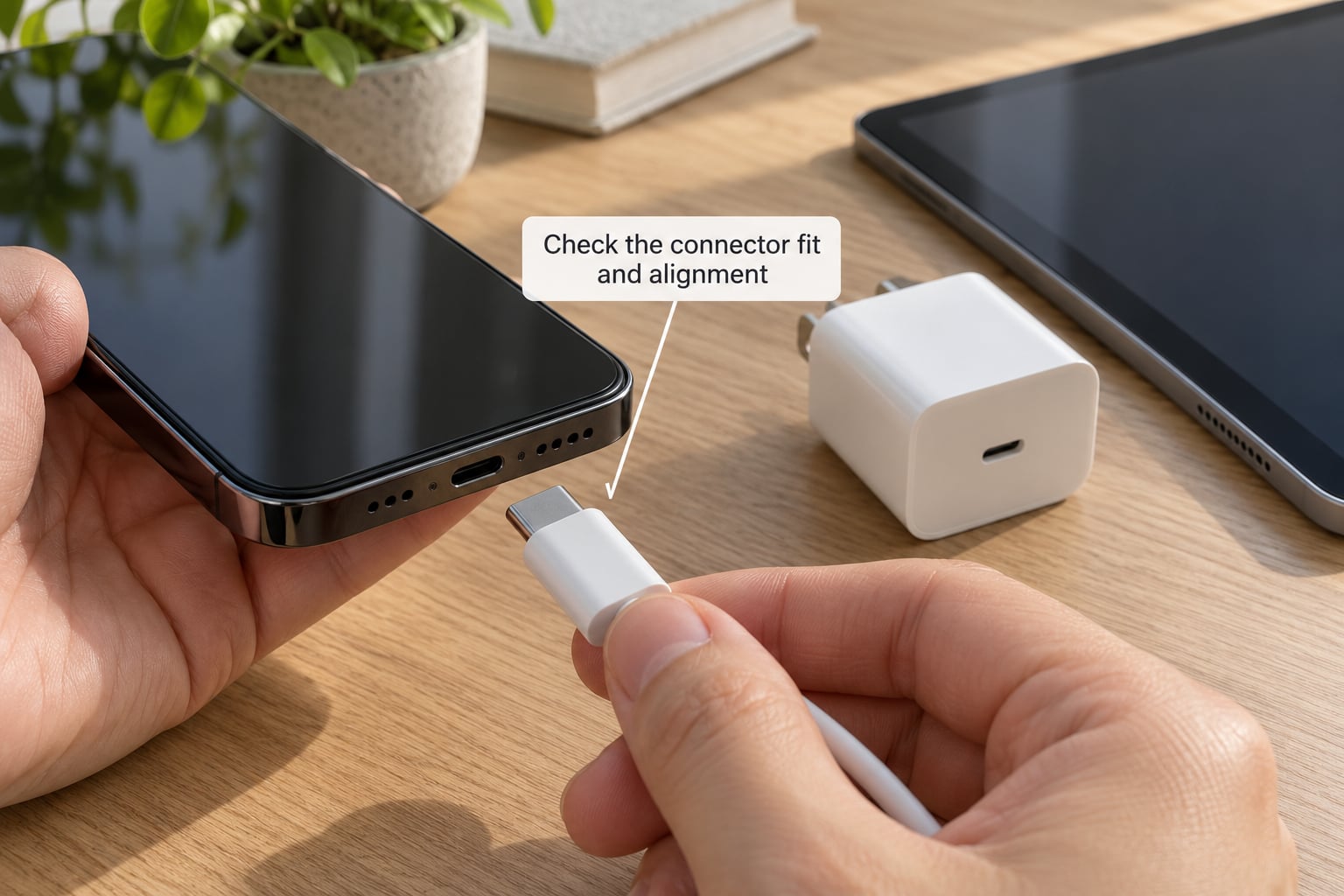
Fit is the fastest honest test you have. A good USB-C connector slides into the port with light, even resistance and sits flush. A poor one either needs force, rocks side to side once seated, or leaves a visible gap.
The shape tells you something too. On the male tip, look for the symmetrical rounded rectangle that USB-C uses on both ends, with no obvious moulding seam or flash line. Cheap tips often feel slightly rough at the edges, and the tongue inside the connector should be seated evenly, not tilted.
- Slides in easily and comes out with a gentle pull: pass.
- Needs a wiggle or a push to seat fully: replace it. A connector that only works at an angle is a connector that will fail inside the port.
- Won’t go in at all: check that the port is actually USB-C and not a USB-A or micro-USB socket. Look for the oval, symmetric shape.
Not every device is a fair test. Some older tablets and a few laptops use USB-C ports with a narrower tongue, so a cable that fits one snugly can bind in another. If the fit is tight in exactly one device and fine everywhere else, that is the port, not the cable.
2. Inspect the cable jacket, strain relief and connectors
This is where build quality shows itself, and it costs nothing to check. Run the cable end to end under a light and look at the part of the cable that bends most, which is right where the connector meets the jacket.
Strain relief is the moulded boot at each end that gives the internal wires somewhere to bend gently instead of sharply. Good ones are long, usually 1.5 to 2 cm, and taper into the cable. Cheap ones are short, square and hard, so the wire inside takes the full bend radius every time you plug it in. Cables break at the connector for this reason alone.
- Jacket: braided nylon feels slightly textured and resists abrasion. TPE or silicone feels smooth and pliable. A jacket that feels thin, flat or papery has little conductor inside it.
- Cracking, yellowing or stickiness: all three mean the polymer has degraded, often from heat. Discontinue use.
- Connector shell: it should not rotate or pull loose inside the boot. Grip the boot and wiggle the tip gently; movement there is a fail.
- Weight: a heavier cable usually means thicker conductors, which is a rough proxy PCWorld uses in its own testing. It is a hint, never a verdict.
Why does thickness matter? Resistance rises as conductors get thinner. The extra power turns into heat at the weakest point, usually a connector or a strained wire, and heat is what kills cables early. That single mechanism is the whole reason cheap USB-C cables are not all the same.
3. Test basic charging with a known-good charger
Plug the cable into your trusted charger and your device, and leave it for a full minute. Then look at the charging readout on the phone or tablet. The wording differs by device, so know what yours says before you start.
- Charging, no warning, and the wattage matches the same phone on the trusted cable: pass.
- “Slow charging” or a low-watt readout on a device that fast charges with the other cable: the cable is the bottleneck.
- Repeatedly cycling between charging and not charging, or needing the connector held at an angle: fail, and stop using it now.
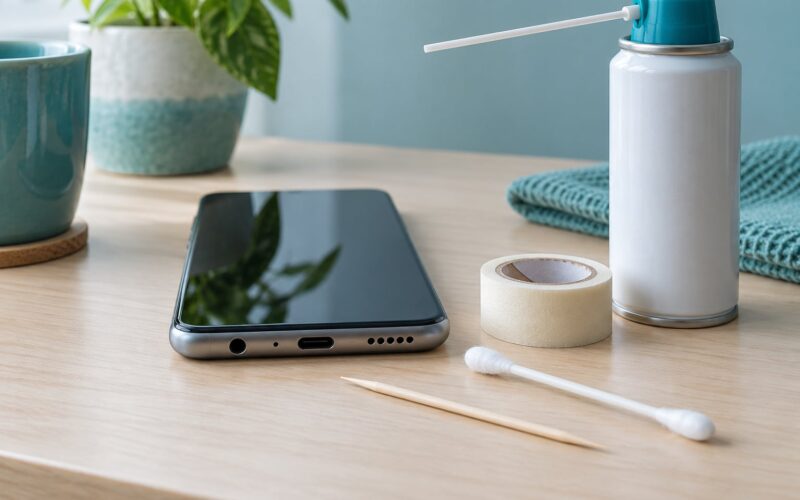
- No charging at all, with a click or a light flicker: the cable may be charge-only, damaged, or the port may be dirty. Clean the port with a dry wooden toothpick first.
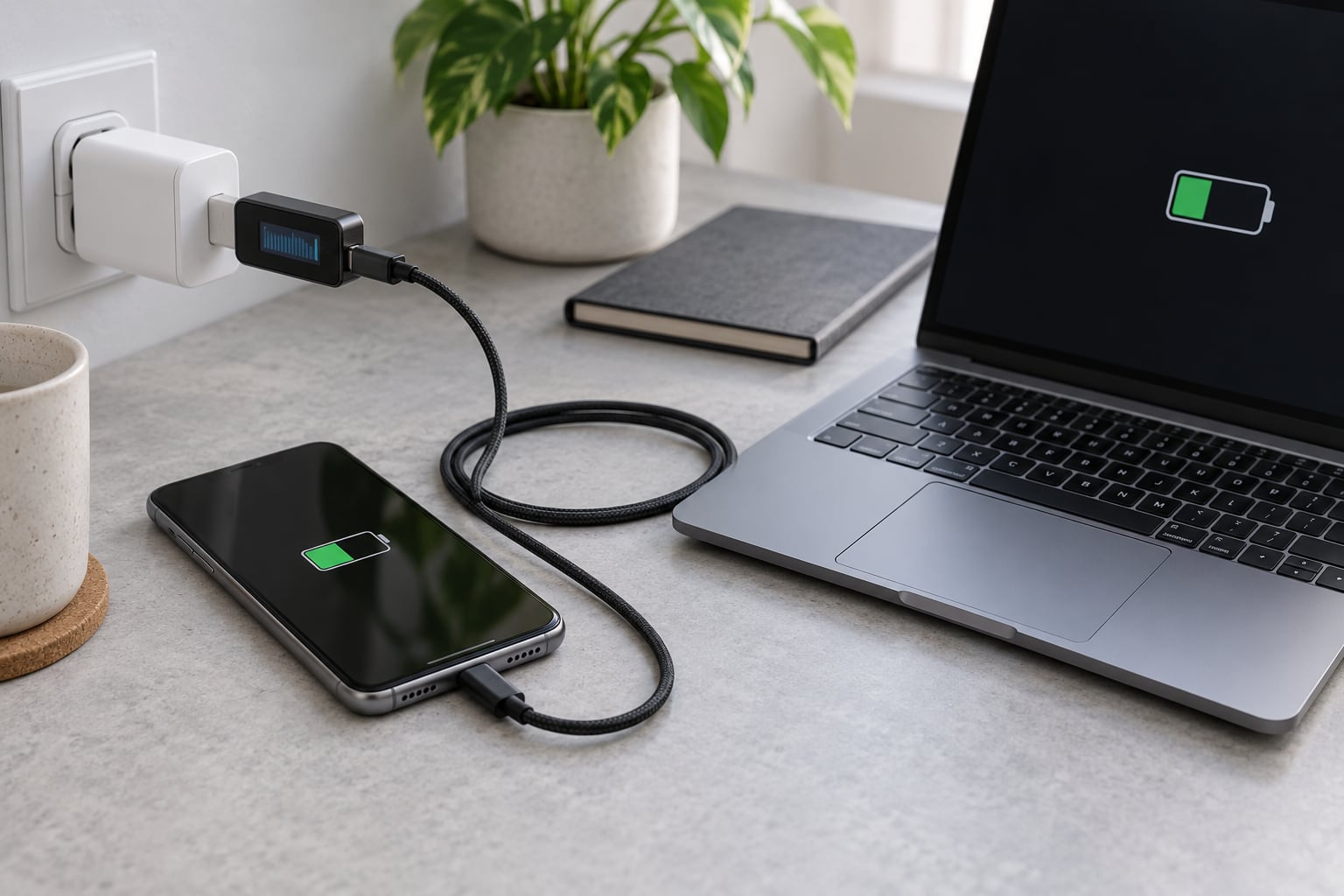
For a harder number, add a USB-C power meter between the charger and the cable. It shows voltage, current and wattage live, which turns a vague “feels slow” into a figure you can compare cable to cable. A good 5A cable holding a phone at its rated speed and the same phone on a budget cable landing at a fraction of it is a result you will never forget.
If the meter shows full speed on one end but the phone says slow charging, the negotiation is failing at the phone, not the wire.
4. Verify fast-charging negotiation
Charging speed is a conversation between five things: the cable, the charger, the phone or tablet, the power standard both support, and conditions like battery level and temperature. The cable can only fail to keep up; it cannot make a device charge faster than the device allows.
USB Power Delivery is the protocol behind it. A cable without an eMarker chip is capped at 3A, which works out to about 60W at 20V. A cable with an eMarker can declare 5A for roughly 100W, or, under USB PD 3.1’s Extended Power Range (EPR), up to 240W. That EPR capability is a stated 5A rating on the cable.
Here is what the rating means for hardware you actually own.
- 20W to 30W: phones at standard fast charge, earbuds, small accessories.
- 60W, the 3A baseline: most phones at full speed, tablets, and most thin laptops at reduced speed.
- 100W, a 5A eMarker cable: the common choice for a 14-inch laptop, a Steam Deck, or a tablet plus a display.
- 140W to 240W, EPR: large 16-inch and 17-inch performance laptops and desktops that charge over USB-C.
The 60W versus 100W question comes down to your charger. If your wall plug is rated for 100W, a 60W cable caps you at 60W and the laptop will say so. If the plug is 65W, the 100W cable gains you nothing.
One more variable is length. Users across forums report problems clustering around cables past 2 metres, and long runs add resistance. For runs beyond about 2 metres, an active or USB-over-fibre extender is a better tool than a longer passive cable.
5. Test USB-C data transfer
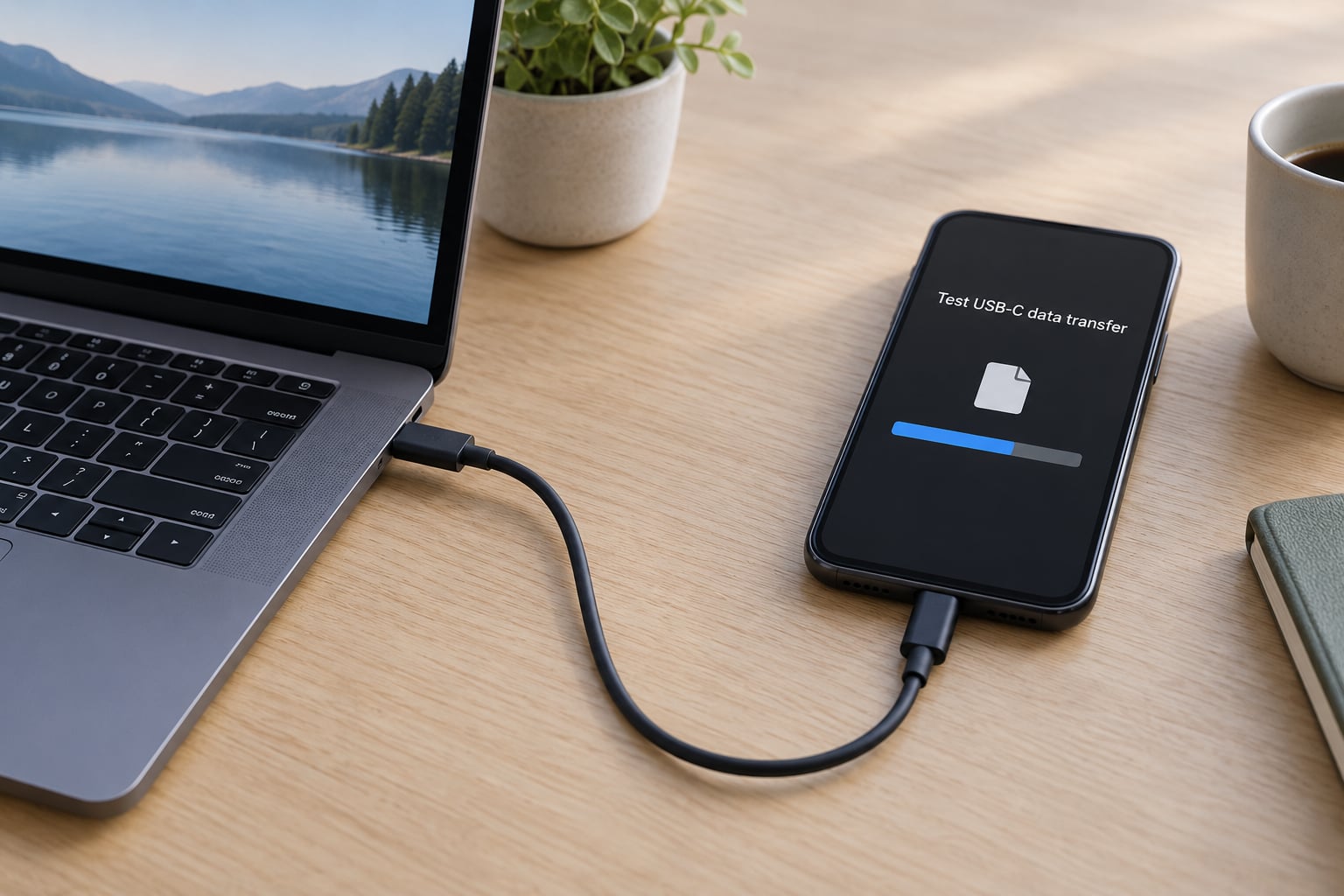
Plenty of USB-C cables ship with no data wires at all. They charge beautifully and transfer nothing, and the connector looks identical either way. This test takes two minutes.
Connect the cable between your computer and a phone, or between your computer and a USB-C drive, then move a large file, say a 2GB video, and time it. Watch for a progress indicator; if the device is only charging and no storage appears, the cable is charge-only.
- Around 40MB/s or better, sustained: a real USB 3.2 cable.
- Capped near 30MB/s and never higher: still SuperSpeed, on a slower host port.
- Capped around 1MB/s, or the transfer drops out: a USB 2.0 fallback cable at 480Mbps, or a genuine fault.
- Disconnecting when you wiggle the cable: stop using it.
Remember that the host port sets the ceiling. A laptop with a USB 2.0 port will throttle a fast cable, so test on a port you know supports 10Gbps, or compare two cables on the same port.
6. Check for display or accessory support
Video output is where many cables quietly fall short. DisplayPort Alt Mode, the system that sends video over USB-C, needs specific high-speed wires, and above 10Gbps it needs an electronically marked cable.
Connect the cable to a monitor that supports USB-C video and try it. A blank screen, a flickering image, or a monitor that only offers a low refresh rate all point to a cable without the right signalling. On a dock, some ports go dead when the monitor is attached, because video and USB data share the same bandwidth on one cable. Splitting video and peripherals across two cables is the standard fix.
USB4 and Thunderbolt cables take this further, carrying 20Gbps to 40Gbps. The USB4 trident marking on a cable tells you it carries both USB4 and Thunderbolt 3 signalling. The number printed beside it, 20 or 40, is the maximum bandwidth in gigabits per second. If you rely on an external SSD, a dock or a high-resolution monitor, pay that bandwidth attention once and buy accordingly.
7. Test the cable with the devices you actually use
Lab results tell you what a cable can do. Only your own setup tells you whether it works for you. Run the cable through a normal day with the gear you rely on: your phone and its charger overnight, your tablet, a power bank, a car adapter, a keyboard, a pair of wired earbuds.
Specific things worth checking, because they fail quietly:
- A phone that charges at full speed overnight but drops to a trickle at 40 percent points to marginal current handling.
- A power bank that charges slowly, or never at its rated output, may need more current than the cable passes.
- A car adapter is a harder environment. Heat and vibration punish thin conductors and short strain reliefs, so this is a good torture test.
- A pair of wired earbuds that only charge, or a game controller that will not pair, may indicate missing or misrouted data wires.
- A keyboard or mouse that stutters on a dock usually means bandwidth contention with video on the same cable.
If a cable passes the charger test and fails in your car, the cable is not bad enough to trash. It is just not a cable for that job, and you now know which drawer it belongs in.
8. Confirm certification, warranty and seller information
Markings are claims, and claims are the easiest part of a cable to fake. Here is the decoding key for what gets printed.
- 3A or 60W: current-carrying limit, about 60W at 20V. Usually no eMarker needed.
- 5A, 100W, or 240W with EPR: an eMarker-rated cable for high-power charging.
- SS with a number, such as SS 5 or SS 10: SuperSpeed data at 5Gbps or 10Gbps. Without it, assume 480Mbps.
- DP or a DisplayPort logo: DisplayPort Alt Mode video support.
- The USB4 trident: USB4 and Thunderbolt 3 signalling, with 20 or 40 marking the bandwidth.
- The USB-IF Certified logo: third-party certification, meaning the cable passed the compliance suite.
- No printing at all: the rating is unknown, not zero. Assume the 3A and 60W baseline until testing proves otherwise.
Verify rather than believe. The USB-IF maintains a Certified Product List you can search by brand and model. If the cable is not on it, the logo is decoration. Warranty length also says something: a lifetime warranty with exclusions spelled out means the manufacturer expects the cable to survive, while a 12-month warranty on a cable priced like a premium one is a hint to keep looking.
Two separate r/UsbCHardware threads exist for one reason: people want to verify that a 240W EPR cable really does 240W rather than just saying so. The printed number is not proof. Only a load test with real current proves it.
How to check a cable with no writing on it at all
The most common real question is the unlabelled one: a drawer of braided cables with no printing on the jacket or the heads. Four tests, no purchases required.
- Compare charge readouts. Charge the same phone to the same battery level on the mystery cable and on your trusted one, same charger, same wall socket. Read the wattage on screen during both. A big gap is your answer.
- Run a timed transfer. Move a known-size file to a computer or drive. Timing separates a real SuperSpeed cable from one stuck at 480Mbps.
- Try video output. Plug it into a USB-C monitor. No signal means no Alt Mode wires.
- Test a laptop charge briefly. If the laptop reports charging at a reduced wattage and warns about performance or temperature, the cable is under-rated for that load.
Be honest about the limits here. These tests prove capability, never the internal quality of the conductors. Two cables can pass all four and differ in resistance by a factor of three, and only a milliohm meter with breakout boards on the VBUS and ground wires shows that. PCWorld measured 62 milliohms on a good 240W braided cable against 209 milliohms on a budget one. If you need that number, you need that tool; for everything else, the four tests above are enough.
Common Mistakes
Judging by brand alone. A familiar name on the box tells you nothing about the cable inside, and an unknown name can ship a genuinely excellent cable. Test the individual cable, every time.
Assuming every USB-C cable is the same. The connector is the same physical shape on both ends, which is exactly why people assume the cable is interchangeable. The connector is a shell; inside it sits a 24-pin arrangement carrying up to 18 internal wires, and how many of those wires exist and how thick they are decides what the cable can do.
Confusing USB-A and USB-C. A USB-A to USB-C cable charges fine and does no data at all. So does a USB-C to USB-C charge-only cable. Neither is broken; you just bought the wrong cable for the task.
Believing the thickness rule. A fat cable is not automatically a fast cable. Thickness can come from a braid, a filler or a marketing budget rather than copper.
Testing with a suspect port. If the same cable fails in two devices, suspect the cable. If it fails in only one, clean that port and retest before you bin anything.
Ignoring the printed rating. A cable marked 60W will never deliver 100W, no matter which charger you pair it with.
Quick Cable Quality Checklist
Run this before you commit to a cable, or before you stop blaming a charger for a dead connection.
- Connector fit: slides in flush, comes out without force, no rocking. Fail if it binds or needs a wiggle.
- Construction: long tapered strain relief, jacket free of cracks, yellowing or sticky patches, connector shell firmly seated.
- Stable charging: no on-and-off cycling, no need to hold the plug at an angle.
- Expected speed: the on-screen wattage matches the same device on a trusted cable with the same charger.
- Data support: a timed file transfer moves a large file at more than about 1MB/s and stays connected.
- Required features: display output works if you need it; video and peripherals do not fight over one cable’s bandwidth.
- Guarantees: a rating you can decode, a brand that appears on the USB-IF Certified Product List, and a warranty with written exclusions.
Anything that fails here is a replacement, not a second opinion from the charger.
Frequently Asked Questions
How can I tell if a USB-C cable is fast charging?
Compare the same phone on the mystery cable and a trusted one using the same charger and the same wall socket, then read the wattage on screen during both. A cable without an eMarker chip caps at 3A, roughly 60W; one with an eMarker can carry 5A for about 100W, or up to 240W under USB PD 3.1 EPR. A USB-C power meter gives you the exact voltage and current rather than an estimate.
Can a bad USB-C cable damage my phone?
Usually the phone protects itself: it reads the eMarker and negotiates only what the cable declares, so an under-rated cable more often charges slowly than harms the battery. The real risk is heat. A cable with thin conductors or resistance building up at a damaged connector can run hot enough to melt the jacket or stress the port. Stop using any cable that disconnects repeatedly, discolours or becomes uncomfortable to hold.
How do I know if a USB-C cable supports data transfer?
Connect it between a computer and a phone or a USB-C drive and move a file of a gigabyte or more. If only a charging symbol appears and no storage shows up, the cable has no data wires. A transfer that tops out near 1MB/s means it has fallen back to USB 2.0 at 480Mbps. Speed above about 40MB/s sustained indicates a genuine SuperSpeed cable.
Does USB-C tell me which version of USB a cable supports?
No. The connector is physically identical across versions, which is why the cable looks the same no matter what it can do. You have to read the printing or test the cable. An SS 5 or SS 10 marking means 5Gbps or 10Gbps SuperSpeed, the USB4 trident means 20 or 40Gbps with Thunderbolt 3 signalling, and no printing means you should assume the 480Mbps USB 2.0 baseline.
Why does one USB-C cable work with my phone and another does not?
One is probably a charge-only cable with no data wires, or one without an eMarker, so it caps at 3A and about 60W and the phone reports slow charging. The other negotiates the full rating and charges at speed. If a cable works in a wall socket but not in a car, heat and vibration in that environment are usually the difference rather than the cable itself.
Is a longer USB-C cable always slower?
No, but resistance builds with length, and long passive runs are where problems show up most often. Users report the worst behaviour on cables past 2 metres. For short runs under 2 metres, a decent 5A cable keeps its rating. For longer distances, an active extender or a USB-over-fibre solution holds speed where a passive cable will not.
Conclusion
Start with connector fit, then the physical inspection, then a charging test against a cable you trust. Those three take ten minutes and catch most bad cables. If a cable disconnects, runs hot, or fails a function you need, replace it rather than debugging around it.