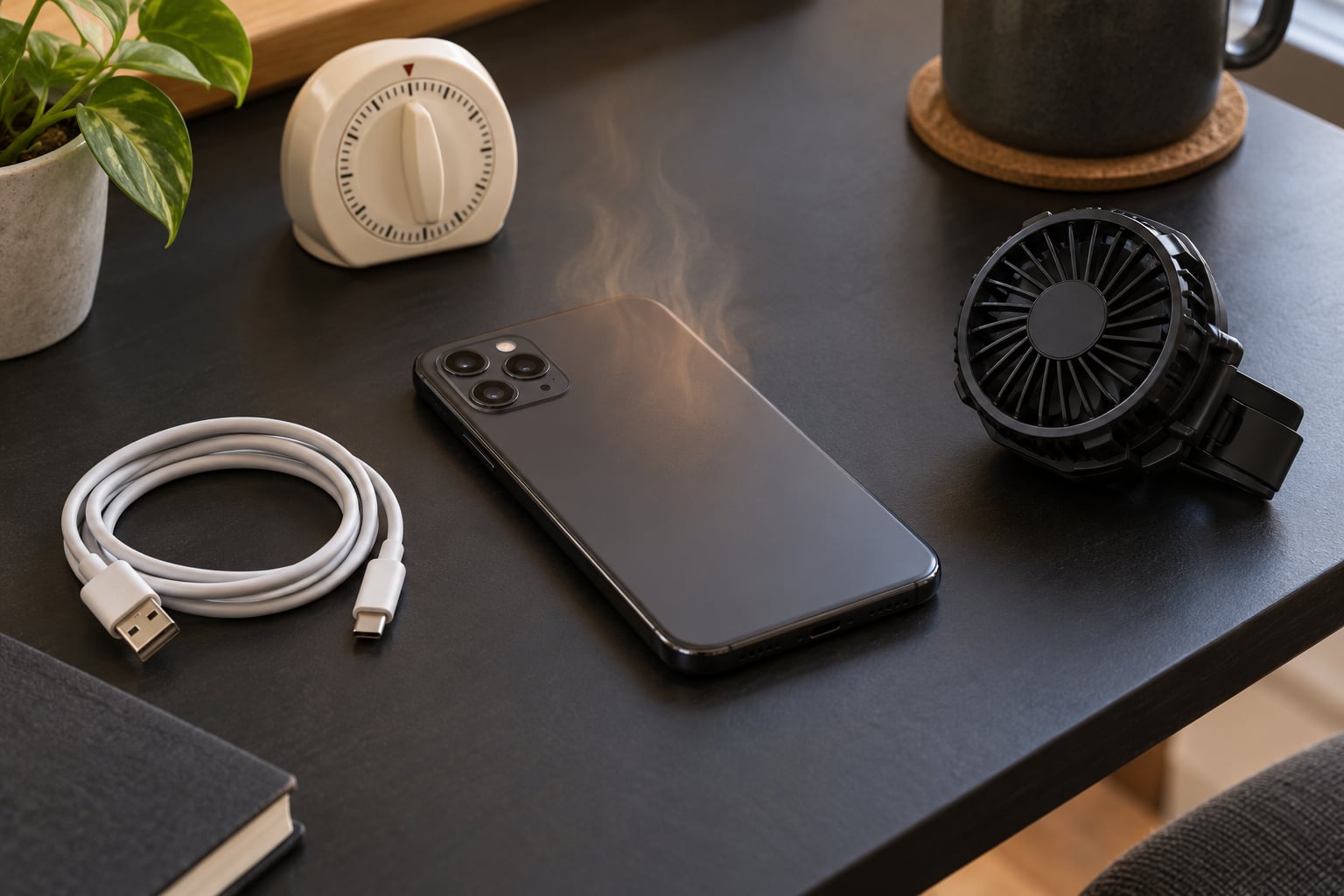
Gaming is the most power-hungry thing a phone does, because it pushes the processor and graphics chip to sustained peak load, keeps the screen bright and fast, and drives heat. That combination is why your phone battery drains while gaming, and heat is usually the clue that tells you whether the drain is normal or a sign of something wrong.
This guide covers Android and iPhone, since the settings and diagnostics differ. No product recommendations here: this is about diagnosing the device already in your hand.
Table of Contents›
- Why Does My Phone Battery Drain While Gaming? Quick Answer
- What Causes a Phone Battery to Drain During Gaming?
- Heat Is the Biggest Clue
- What temperature is too hot while gaming?
- A safe test you can run tonight
- How to Check Battery Usage on Android
- How to Check Gaming Battery Drain on iPhone
- Game Settings and Performance Modes That Consume Power
- Why Does My Phone Battery Drain While Gaming at High FPS?
- How to Reduce Battery Drain While Gaming
- When Is the Drain Caused by an Aging or Faulty Battery?
- Frequently Asked Questions
- Is it normal for my phone battery to drain quickly while gaming?
- How much battery should a 30-minute mobile gaming session use?
- Does lowering graphics improve gaming battery life significantly?
- Can using my phone while charging damage the battery?
- How do I know if fast gaming drain means the battery is bad?
- What to Do First
Why Does My Phone Battery Drain While Gaming? Quick Answer
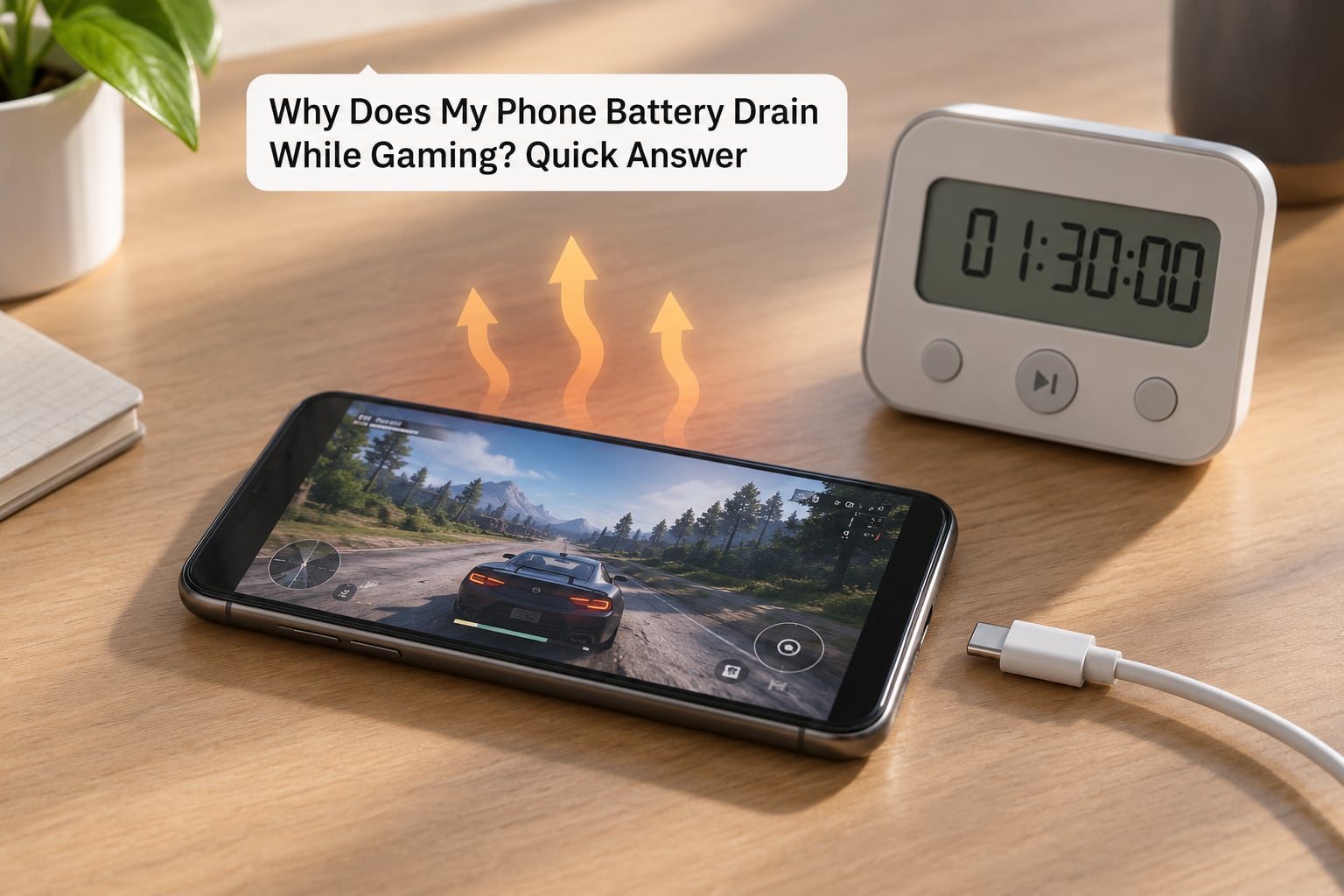
Four things do most of the damage: heavy graphics settings, the heat that comes with them, a bright high-refresh-rate screen, and the modem working hard on an online game. On top of that sit background apps, a weak signal, and an aging battery that no longer holds as much charge.
Faster drain is not automatically a defective battery. Losing 40 to 45 percent over two and a half hours of moderate play sits in the normal range for most current phones, and demanding 3D titles on a 120 Hz screen land near the worse end of it.
Two details separate normal from a real problem: how hot the phone gets, and how long you played. Temperature and time played are the two numbers worth tracking before you do anything else.
What Causes a Phone Battery to Drain During Gaming?
This table ranks the usual suspects by how likely they are to be the reason your phone battery drains while gaming, what you actually notice, and how much difference addressing it tends to make.
| Cause | Likelihood | What you notice | Severity | Typical effect on drain |
|---|---|---|---|---|
| Heavy graphics settings | Very high | Hot phone, fan noise, dropped frames near the end of a session | High | The single biggest draw on most modern phones |
| Heat and thermal throttling | Very high | Warm to hot back, performance dip after 20 to 30 minutes | High | Adds a compounding penalty on top of the load itself |
| High refresh rate | High | Smooth scrolling and gameplay at 90 or 120 Hz | Medium | Noticeably higher than the same game at 60 Hz |
| Screen brightness | High | Screen at maximum outdoors | Medium | Small but constant, and it also adds heat |
| Background activity | Medium | Notifications, syncing apps, social feeds waking up | Medium | Several percent per hour, more if apps are misbehaving |
| Weak cellular signal | Medium | Laggy online play, bars fluctuating | Medium | Modem works harder for the same data |
| Battery health | Varies by age | Sudden drops, shutdowns under load, swelling | High when present | Capacity loss shows up as shorter sessions |
| Charger or cable issues | Lower | Phone warms while plugged in, charging stops | Medium | Adds heat and draw rather than drain |
| Faulty app or overlay | Lower | Drain even when the game is closed | Medium | Often several percent an hour on its own |
Read the table top to bottom and you will find that the first three rows account for most of the drain in most cases. Everything below them is worth checking once the obvious levers are already pulled.
Heat Is the Biggest Clue
Heat and drain are not two separate problems. They feed each other. When a phone gets warm, the processor slows its clock to protect itself, and that throttling can last well past the session. Meanwhile the cooling system, the screen and the battery all work harder as temperatures climb, so a hot phone burns more power for the same frame.
For gaming, the second effect is worse than you might expect. Owners posting on Reddit and on the XDA forums describe throttling that kicks in before the phone feels hot to the touch, because the temperature sensor sits near the processor rather than where your palm rests.
What temperature is too hot while gaming?
Under 40 degrees Celsius is where you want to be during a session. Between 40 and 45 the phone is warm but behaving normally. From 45 to 50 you can expect clock speeds dropping and frame rates wobbling. Above 50 is where you should stop and let the phone cool down.
A safe test you can run tonight
Start at 100 percent, note the room temperature, then play one game for 20 minutes at your normal settings and stop. Check the percentage again. Repeat later with one setting changed, such as the frame rate cap, and nothing else different.
Do not run repeated full discharges to gather data. That is the one experiment worth skipping, because it stresses the cell for no useful reason.
How to Check Battery Usage on Android
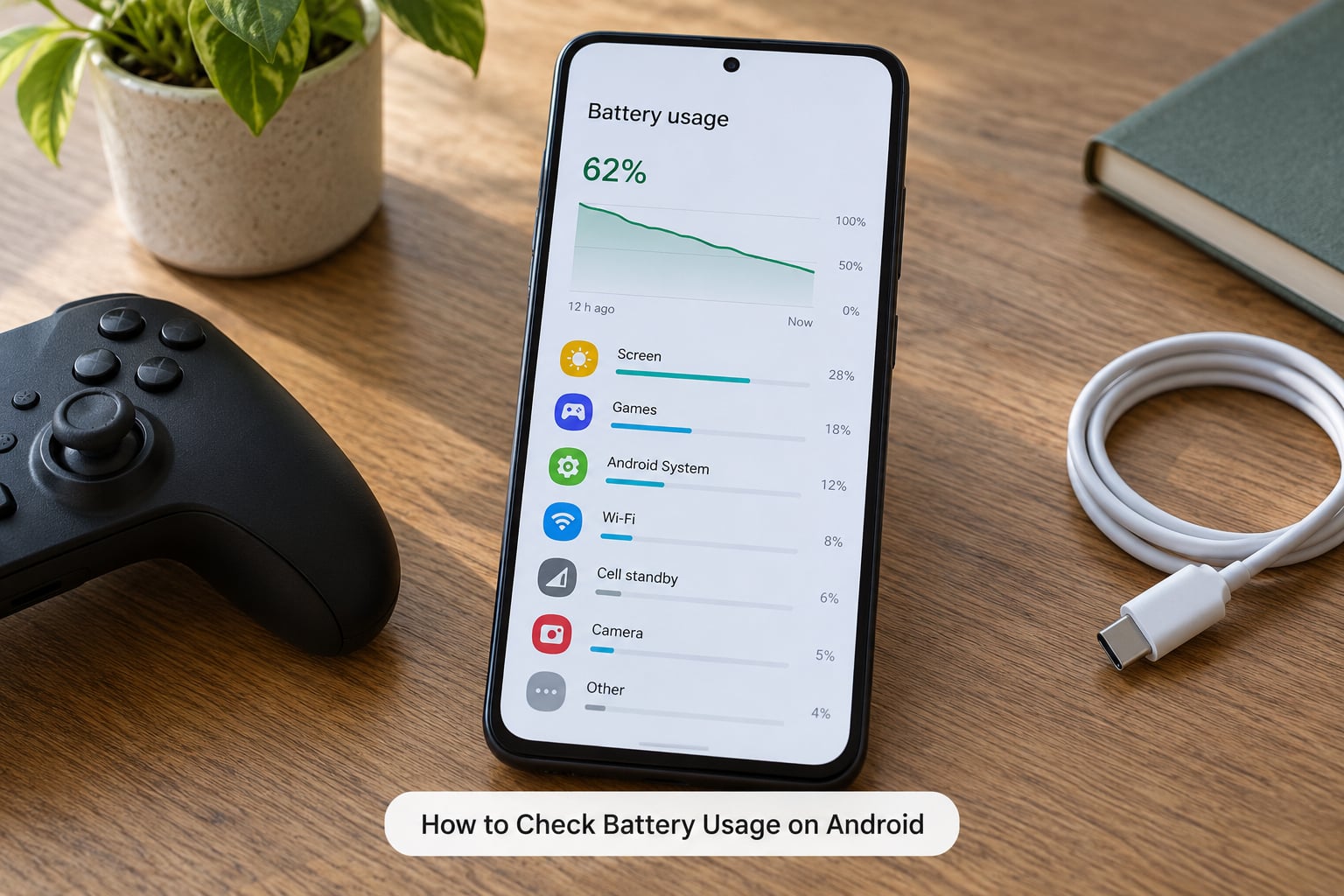
On Android 12 and later, open Settings, tap Battery, then Battery usage. The list is ordered by how much each app consumed, with the screen, mobile network and Bluetooth usually listed above the apps themselves.
Manufacturers move things around. Samsung keeps Battery under Settings, while battery information and charge limit options live under Settings, About phone, Battery information. Xiaomi and Redmi devices expose Battery usage in a similar place but with extra toggles for power saver and charge limiting.
What to look for in the report: an app you do not recognise near the top, a game that sits high when you were not playing it, or a background item using several percent an hour with no screen time of its own. Turn off background activity for that app and watch the next day.
One caveat worth knowing. Android’s percentage is an estimate derived from voltage and charge counters rather than a direct measurement, so a jump from 30 percent to 28 percent does not mean you lost something you can account for.
How to Check Gaming Battery Drain on iPhone
Open Settings, tap Battery, and you will see a per-app consumption list with a coloured bar and time used for the last 24 hours. Below that, Battery Health and Charging give you cycle count, maximum capacity and, on newer models, a charging limit you can adjust.
Settings, General, About holds the same kind of software and hardware detail, and it is a useful second look if Battery seems to be reporting oddly.
The catch on iPhone is attribution. While a game is in the foreground, iOS often does not attribute its consumption to the game in that list, so an apparently clean report while gaming means very little. Treat the Battery screen as a tool for finding the background culprits rather than for measuring the game itself.
Test one change at a time. Turning on Low Power Mode, dropping to 60 Hz and disabling background app refresh all at once tells you nothing about which one helped. Users report that Low Power Mode plus a refresh cap plus background refresh off gives a noticeable improvement, but you cannot tell which part did the work unless you separate them.
Settings, Accessibility, Motion, Reduce Motion is worth a try if you want one more adjustment. It cuts animated interface effects, so it does nothing for the game’s own frame rate. Treat it as a small extra, not a fix.
Game Settings and Performance Modes That Consume Power
The settings inside the game usually matter more than anything on your home screen. Each extra effect is work for the graphics chip, and the graphics chip is the main consumer during play.
Frame rate is the first dial. Letting a game run uncapped at 120 or 144 Hz on a high-refresh screen asks the chip to draw frames you may not need. A cap at 60 Hz, or at a lower multiple of your screen’s rate, often changes nothing visually and takes a real bite out of drain.
HDR, high resolution output, anti-aliasing, bloom, deep shadows and ray tracing all add per-frame cost. Ray tracing in particular is the single most expensive option, and most mobile titles do not need it. Dropping resolution from a QHD-plus setting to 1080p is usually the second biggest saving after the frame rate cap.
Vendor performance modes need care here. Balanced, efficiency, battery saver and game booster modes differ by brand, and on some Android phones a performance mode raises the drain rather than lowering it, because it holds clocks high instead of letting them scale. Game booster style tools also vary a lot: some Samsung owners turn the game optimization service off to avoid early throttling, while others report it helping. There is no uniform answer, so treat these as one more variable to test rather than a fix.
Why Does My Phone Battery Drain While Gaming at High FPS?
Because frames are the unit of work. Higher FPS means more of them per second, each one costing graphics power, and it also keeps the processor at higher clock speeds because it is never idle between bursts. The display has to push those extra frames too, so a 144 Hz session costs more than the same game at 60 Hz on the same phone, in the same room, at the same brightness.
How to Reduce Battery Drain While Gaming
Work down this list in order. The first few take a minute and usually do most of the work.
- Cap the frame rate in the game, or in the system settings if the game does not offer one.
- Drop graphics quality a step, or lower the resolution setting, and turn off ray tracing and HDR.
- Play on Wi-Fi in a strong-signal spot, rather than on a weak cellular connection.
- Close background apps, especially social and messaging apps, and silence notifications with Do Not Disturb or Focus.
- Turn on the platform battery saver for the session, accepting the frame rate cost.
- Take the case off for long sessions if you can do so safely, and keep the phone out of direct sun.
- Lower brightness to a comfortable level, not to the minimum.
- Remove accessories like a cooling fan clip or a controller dock that draws from the phone.
- Let the phone cool between sessions rather than playing straight through.
One thing that does not help during a session: an 80 percent charge limit or battery protection mode. Those are long-term battery-health tools that cap where the cell charges. They do not reduce the power your phone draws while you play, and switching one on will not extend today’s session.
When Is the Drain Caused by an Aging or Faulty Battery?
Normal drain scales with time played and settings. Excessive drain has a different shape: a sudden drop of 10 or 15 percent while the phone is idle on the lock screen, a shutdown under load that used to be survivable, or a session that is dramatically shorter than it was a year ago at the same settings.
Where the information lives: iPhone users find maximum capacity and cycle count under Settings, Battery, Battery Health and Charging. Android varies widely, but many makers surface battery or charge information under Settings, About phone, and some expose a capacity figure in the same area. Check your manufacturer’s own guidance for the exact path on your model.
Warning signs that deserve a service visit rather than another settings tweak include visible swelling, a screen lifting away from the body, unusually fast heating even on the home screen, or a phone that shuts off above a normal battery percentage.
Do not charge, heavily use, or puncture a swollen or damaged battery. Stop using it, keep it away from heat and anything flammable, and take it to the manufacturer or a qualified repair service. Follow the manufacturer’s instructions for any diagnostic run, since capacity figures are only meaningful against their reference.
Frequently Asked Questions
Is it normal for my phone battery to drain quickly while gaming?
Yes, mostly. A demanding 3D game with high graphics on a high-refresh screen commonly uses somewhere in the region of 8 to 15 percent an hour, and lighter 2D or idle games far less. What matters more than the number is whether the phone gets hot, whether frames drop near the end of a session, and whether the drain got worse suddenly rather than gradually.
How much battery should a 30-minute mobile gaming session use?
For a demanding title at high settings, roughly 4 to 8 percent over half an hour is typical, and closer to the upper end on a bright 120 Hz screen in warm conditions. The same half hour of a 2D or idle game can cost under 2 percent. Track your own number over two identical sessions and judge the trend rather than comparing it to anyone else’s phone.
Does lowering graphics improve gaming battery life significantly?
Usually yes, and the frame rate cap matters more than the quality preset. Cutting resolution and turning off ray tracing, HDR and anti-aliasing reduces work per frame, while capping the frame rate stops the graphics chip from running at full tilt. Combined, those changes are often the difference between an hour and closer to two on the same phone.
Can using my phone while charging damage the battery?
Charging while gaming generates more heat, and sustained high temperature is the main thing that ages a lithium cell. Playing plugged in for a long stretch is fine occasionally. Bypass or pass-through charging, where the phone draws power from the charger without topping up the battery, is better on phones that offer it. Keep sessions shorter and watch for a hot back panel.
How do I know if fast gaming drain means the battery is bad?
Compare the same game at the same settings over two sessions and look at the trend. A gradual change over a year is normal wear. Signs of a problem include sudden drops while idle, shutdowns at a normal percentage, swelling, or heat even when you are not gaming. Check maximum capacity or cycle count in the battery settings before paying for a replacement.
What to Do First
Play one game for 20 minutes at a fixed brightness, on a fixed network, and note the percentage you started and finished at. That single controlled test tells you more than an hour of changing settings.
Then read the result with the guide above in hand. High drain plus high heat points at graphics settings and cooling, so cap the frame rate and drop the quality a step before you touch anything else. High drain with a cool phone points at background apps and the battery report. Sudden drain with swelling or shutdowns is a hardware question, and it belongs with the manufacturer or a qualified service, not with a settings change.
Before you buy a new charger or start blaming the cell, take the two cheap wins. Cap the frame rate and let the phone cool between sessions.