If people tell you your voice sounds muffled on calls, something between your mouth and the recording is dulling the high frequencies that make speech intelligible. In almost every case the cause is one of five things: a covered microphone opening, moisture or debris in the port, a Bluetooth headset dropping to a low-bandwidth profile, several noise suppression systems fighting each other, or a failing microphone itself.
The order you test things in matters more than people expect. Most of us spend an hour changing app settings while the real culprit is a case sitting three millimetres over the mic hole.
Quick answer, the short version:
- Something is physically covering the microphone opening. Remove the case first.
- Debris, a screen protector, or moisture is blocking the port. Look at it with a light.
- Bluetooth switched your headset to the hands-free profile, which has far less bandwidth.
- Two or more noise cancellation systems are running at once and cutting your voice.
- The wrong input is selected, or the microphone has failed.
If you only do one thing, take the case off and make a call. That test takes ten seconds and rules out the most common cause.
Table of Contents›
- Why Does My Microphone Sound Muffled on Calls?
- How to tell a hardware problem from a call problem
- Quick Checklist: Isolate the Problem in Five Minutes
- Common Reasons Your Microphone Sounds Muffled
- Why a phone case or screen protector can muffle the mic
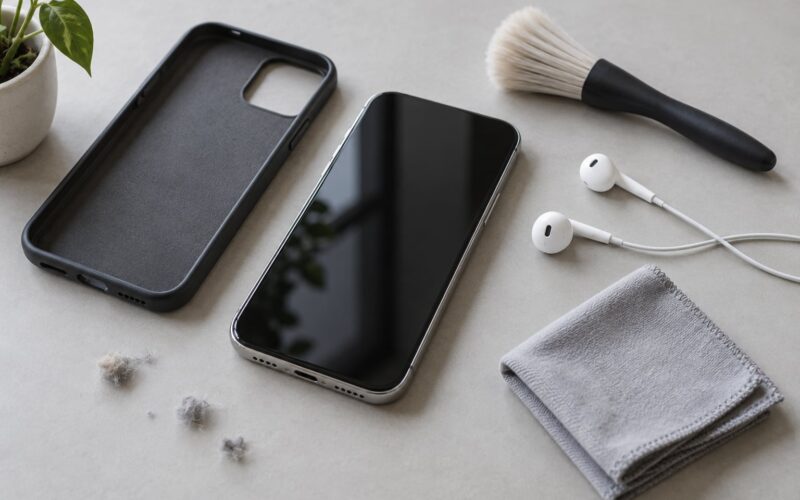
- Lint, dust and pocket debris
- Moisture and water damage
- Bluetooth headsets and the hands-free profile
- Stacked noise suppression
- The case where sound is fine until you turn the mic on
- Wrong input device selected
- Carrier and network problems
- Physical microphone damage
- Microphone position and distance
- How to Fix a Muffled Microphone on Android
- How to Fix Muffled Call Audio on iPhone
- How to Fix Muffled Microphone Sound on Linux-Based Mobile Devices
- How to Clean a Microphone Opening Without Damaging It
- How to Test Whether the Microphone or the Call Is at Fault
- When a Muffled Microphone Requires Repair or Replacement
- Frequently Asked Questions
- Can a phone case make my microphone sound muffled?
- Why does my microphone sound muffled only on Wi-Fi calls?
- How do I fix a muffled microphone after my phone gets wet?
- Can I use compressed air to clean a phone microphone?
- Why can other people hear me clearly while I sound muffled?
- Should I replace my phone if the microphone still sounds muffled after cleaning it?
- Start With the Microphone Opening
Why Does My Microphone Sound Muffled on Calls?
A microphone sounds muffled when the frequencies above roughly 1 kHz arrive at it weak or missing. Those frequencies carry the sibilance and consonant detail that tell one person from another. Block the opening and you get the classic blanket effect. Over-process the signal and you get the underwater or robotic effect instead. The symptom sounds similar but the fix is completely different.
Most often it comes down to one of these: a blocked or obstructed microphone opening, an accessory or case covering that opening, interference from software such as stacked noise cancellation, a Bluetooth connection forced into the hands-free profile, moisture inside the device, or hardware damage to the microphone itself.
The first thing to establish is who hears the problem. If several different people on several different calls tell you the same thing, the problem travels with you and it lives in your hardware or your settings. If one person, on one call, heard it once, that call is not your evidence.
How to tell a hardware problem from a call problem
Play a voice memo back on the same device. A muffled recording means the signal is bad before it ever reaches the network. A clean recording that other people still call muffled points to software, accessories, or the call itself.
There is one more wrinkle worth knowing early. You will almost always hear yourself clearly on your own phone, because your voice arrives at your ear through the earpiece at full fidelity while your microphone input is the only link that is broken. That is why people often keep a call going for weeks before noticing.
Quick Checklist: Isolate the Problem in Five Minutes
Work through these in order and stop as soon as the muffling disappears. Each step rules out a group of causes, so a fix at step three tells you the problem was physical rather than software.
- Take the case off and make a test call with the phone bare.
- Look into the microphone opening with a light. Check for lint, dust, a film, or a case lip sitting over the port.
- Restart the device fully, not just lock and unlock it.
- Record a ten-second voice memo and play it back on the same device.
- Make a second call on a different network, and ask the other person to compare.
Those five steps separate almost every case. Here is how to read the result.
| What you found | Likely cause | Where to go next |
|---|---|---|
| Bare phone is clear, case on is muffled | Case covering the microphone port | Try a case with open ports, or no case at all |
| Voice memo is muffled too | Blocked port, moisture, or damaged microphone | Clean the opening, then test again |
| Voice memo is clear, calls are muffled | Software, Bluetooth profile, or network | Check noise suppression, disconnect accessories, test another app |
| Muffled only with a Bluetooth headset | Hands-free profile bandwidth limits | Test with the headset off |
| Muffled only in one app | App input selection or in-app processing | Change the input inside that app |
| Muffled on Wi-Fi calls only | Router, VoIP settings, or bandwidth | Compare against a cellular call |
Notice what the table tells you. A case is the single most common finding in my experience with this problem, and it is the one test people skip because the phone looks fine with the case on.
Common Reasons Your Microphone Sounds Muffled
Why a phone case or screen protector can muffle the mic
Cases are designed around ports they do not control. A thick bumper that extends past the bottom edge, a wallet case with a card slot, or a screen protector that wraps over the microphone can leave the mic sitting behind a thin layer of plastic or silicone.
You can often hear the difference before you see it. A case obstruction usually makes the voice quieter and duller but still clean, because no water or corrosion is involved. Users on Samsung and OnePlus forums describe phones that pass a manufacturer diagnostic test yet still sound muffled in calls, and taking the case off is the first thing that gets suggested there.
Lint, dust and pocket debris
Phone and headset microphones sit in a small grille that collects fabric fibres from pockets and bags. This is the most-cited fix in troubleshooting threads and the one that actually resolves a surprising share of cases. Debris can also compact into a near-solid plug over time.
Moisture and water damage
Liquid inside the microphone housing changes how the small port behaves acoustically, and corrosion can form on the contacts. The result is a voice that sounds distant and thin, often described as underwater. If the device got wet, this is the first thing to check even if it seemed fine at the time.
Bluetooth headsets and the hands-free profile
A Bluetooth headset can carry high quality music and terrible microphone audio at the same time, because those use different profiles. Music runs over A2DP, which has plenty of bandwidth. The moment a microphone activates, many headsets switch to the hands-free profile, or HFP, which shares one narrow channel between audio in both directions.
That is why people describe their headphones as excellent for music and terrible for calls. The codec that carries your voice over HFP is a low-bandwidth one, and the audio comes across as flat and compressed. Multipoint connections make it worse: if another device grabs the headset, your call may keep the connection while the mic routes somewhere else.
AirPods Pro, Galaxy Buds, and Sony WF and XM users all describe this pattern. On some units, turning off the earbuds noise cancelling in the companion app fixed it outright.
The profile switch is worth understanding because it explains a contradiction people notice constantly: the same headset sounds excellent for music and unusable for calls.
| Profile | Used for | Bandwidth | How your voice comes across |
|---|---|---|---|
| A2DP | Music and video playback | Wide stereo | Not used, there is no microphone input |
| HFP or HSP | Calls and voice chat | Narrow, mono, shared | Flat, compressed, thin on sibilance |
| LE Audio or LC3 | Newer headsets on newer devices | Wider within the call profile | Noticeably clearer on supported pairs |
| Wired 3.5 mm or USB | Headsets with a physical cable | Full range | Clearest, no codec in the path |
The practical takeaway is simple. If call quality matters to you, a wired headset beats any wireless one, and there is no software setting that widens the HFP channel.
Stacked noise suppression
Noise suppression is aggressive by design. It cuts frequencies the algorithm thinks are noise, and a confident voice with room echo or keyboard clatter is exactly what it misreads. When the operating system, the calling app, and a headset each run their own suppression at once, the combined effect is a muffled or robotic voice.
The fix is to leave exactly one layer active. Turn the headset noise cancelling off, test, and only reintroduce a second layer if the room genuinely needs it.
The case where sound is fine until you turn the mic on
This one confuses people more than any other. The music and game audio are perfect, then you open Discord or start a voice chat and everything goes thin and distant at the same moment. Nothing broke. Two different audio streams are simply taking different paths: game output goes straight to your speakers over one profile, while voice chat pulls in a microphone and switches the headset to the call profile.
If you play voice chat on Windows, close every other voice app first. Discord, Steam, and Teams each apply their own suppression, and having two of them active at once is the usual reason the mic sounds robotic rather than merely quiet. Set your input level in one place only, and leave the others on automatic.
Wrong input device selected
Devices with several microphones, docks, webcams, and Bluetooth headsets often leave more than one input available. When the wrong one is selected, you get a distant thin voice from the wrong microphone, or a voice that changes quality when you move the device.
On a computer this also includes input volume and gain being pulled down, and the microphone sitting on a different sample rate from the output. Sample rate mismatch of 44.1 kHz on one side and 48 kHz on the other is a common source of a thin or broken-sounding signal.
Carrier and network problems
Calls that run over Wi-Fi or Wi-Fi calling depend on your router and your internet provider, not only the phone. A weak uplink, a saturated connection, or a voice-over-IP setting that prioritises something else can strip the top end out of your voice without touching the microphone at all.
Physical microphone damage
A drop, a pocket press, or a failed repair can damage the microphone flex cable or the mesh above it. The tell is that nothing you change in software makes any difference. If the voice memo test is muffled on every app, on every network, with every accessory removed, you are looking at hardware.
Wind is worth treating separately from muffling, especially outdoors or in a car. A steady whoosh across the mic is airflow, and noise suppression reacts to it by cutting the frequency range your voice depends on. A small foam windscreen on a headset boom fixes that in a way no setting will.
Microphone position and distance
A microphone held far from the mouth picks up room tone along with speech, and the ratio between them is what makes a voice sound thin. Keeping a headset boom near the corner of your mouth rather than in front of it, and staying within roughly 6 to 12 inches of the mic, does more than most software settings.
The detail that gets missed most often is the gap between the phone and your face. Holding a phone flat on a desk across the room, or propped against a laptop speaker, puts the microphone in the middle of the room instead of near your mouth.
How to Fix a Muffled Microphone on Android
On Android the quickest fix is almost always to remove accessories, restart, and check that the calling app has microphone access. Menu names shift between manufacturers and Android versions, so look for the equivalent rather than an identical label.
- Remove the case and any connected Bluetooth or wired headset, then restart the phone.
- Open Settings, then Apps, find the calling or messaging app you use for calls, and confirm Microphone permission is set to Allow while using the app.
- Check Settings, then Sounds and vibration, then Extra sound options or Sound enhancement. Turn off any adaptive or effect-based audio processing and retest.
- Update the phone, then update the carrier settings under Settings, then System, then System update if your carrier provides that option.
- Test with a different calling app and with the built-in dialer to separate app behaviour from device behaviour.
- If a hearing aid or audio accessory feature is enabled somewhere in Accessibility or Connected devices, turn it off for one test call.
- Boot into Safe Mode by holding the power button, then long-pressing Reboot. If the mic is clear in Safe Mode, a third-party app is at fault.
- Run the phone manufacturer’s own hardware diagnostic, if the brand provides one, and compare the microphone result with a voice memo.
Samsung’s own community forums are full of owners asking whether a passing diagnostic means the microphone is fine. It does not. Those threads usually resolve on accessory removal or a settings change, and only rarely on a warranty claim.
How to Fix Muffled Call Audio on iPhone
On iPhone the most common culprits are a covered microphone port, an active audio processing feature, and Bluetooth still holding a connection in the background. Separate the microphone input from the speaker output, because fixing the wrong one wastes an afternoon.
- Turn off Bluetooth, or disconnect the headset entirely, then restart the iPhone and place a test call.
- Update iOS, then check Settings, then Accessibility, then Sound and Media for any audio or hearing feature you have enabled.
- Inspect the microphone opening at the bottom edge and the rear grille near the camera flash with a light. Debris here is common on phones that live in bags.
- Record a voice memo, play it on the iPhone, then play the same file on another device to hear the difference.
- Check Settings, then Sounds and Haptics for any change in audio behaviour, and confirm nothing is rerouting calls to another device such as a nearby iPad or Mac.
- If you use Wi-Fi calling, test one call on cellular to rule out the network path.
- Reset Network Settings under Settings, then General, then Transfer or Reset, but only after everything above, since it clears saved Wi-Fi passwords and carrier settings.
One detail worth flagging for iPhone 15 owners searching this problem: the bottom microphone port sits next to the charging connector, so a case with a raised lip around that connector is a frequent cause. Users on iPhone forums have traced persistent muffled calls to exactly that.
How to Fix Muffled Microphone Sound on Linux-Based Mobile Devices
On Linux-based phones, tablets, and other mobile Linux devices, the audio path is explicit, which makes diagnosis faster once you know where to look. Most muffled cases here are a wrong default input or a missing permission rather than hardware.
- Check which device is currently the default input. Under Settings, open Sound and look at the input device list, then select the internal microphone or headset you actually want.
- Confirm the calling or conferencing app has microphone access under Settings, then Privacy, then Microphone.
- On a desktop or a docked Linux device, list sources with
pactl list short sourcesunder PipeWire or PulseAudio and look for the active default source. - Set the correct source as default with
pactl set-default-source <device>, and check the input volume and whether the source is muted. - Disconnect Bluetooth devices that may still be holding the default input, since a stale hands-free profile looks exactly like a hardware fault.
- Restart the audio service or the device, then record a short sample with
arecordorparecordand play it back. - Test outside the calling app. If a plain recording is clean and only the call is muffled, the problem is in the application or its audio processing, not the driver.
If you see repeated device switches in the output when you start a call, a daemon such as a Bluetooth or PipeWire wireplumber policy is reassigning the stream. Pinning the source fixes that class of problem outright.
How to Clean a Microphone Opening Without Damaging It
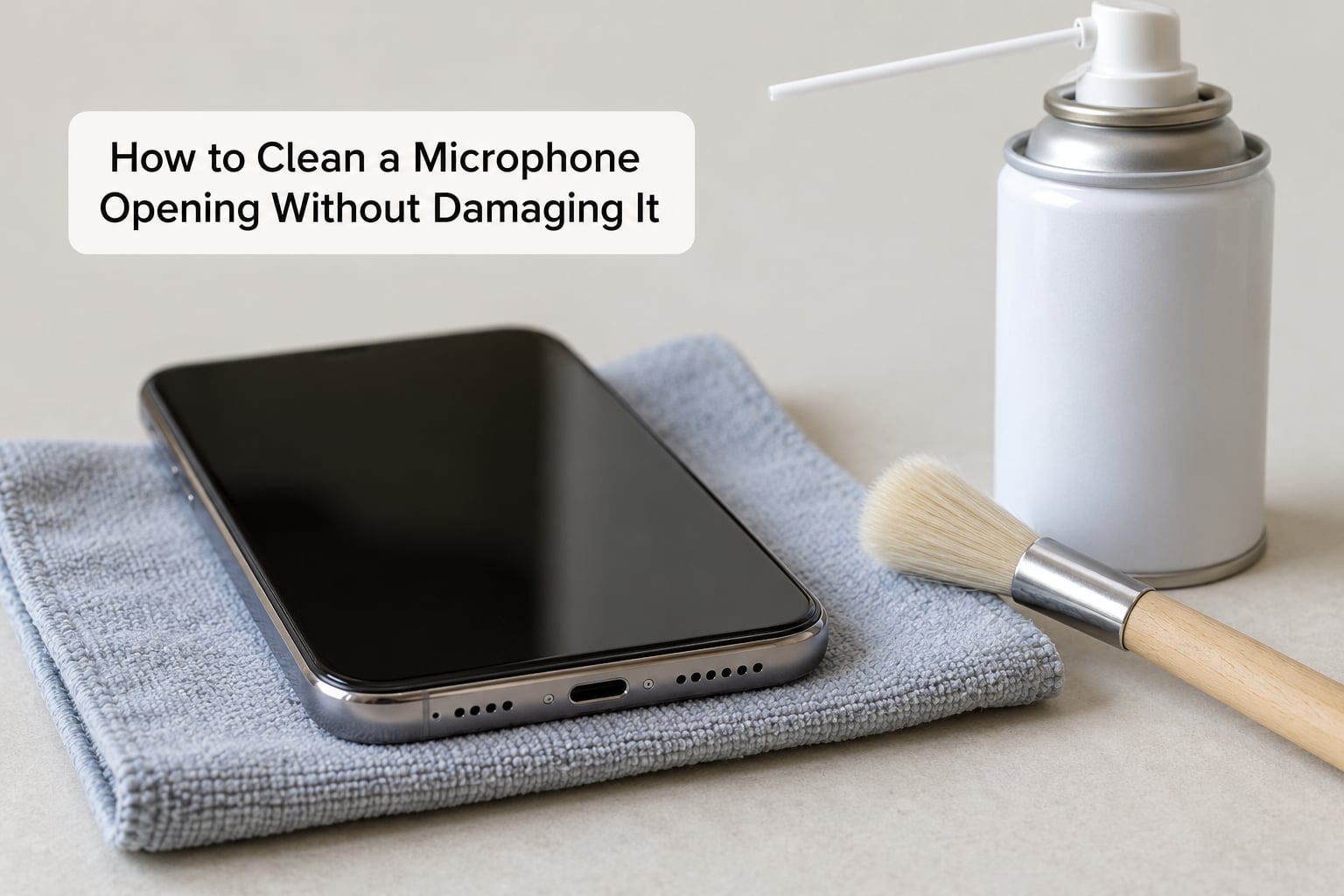
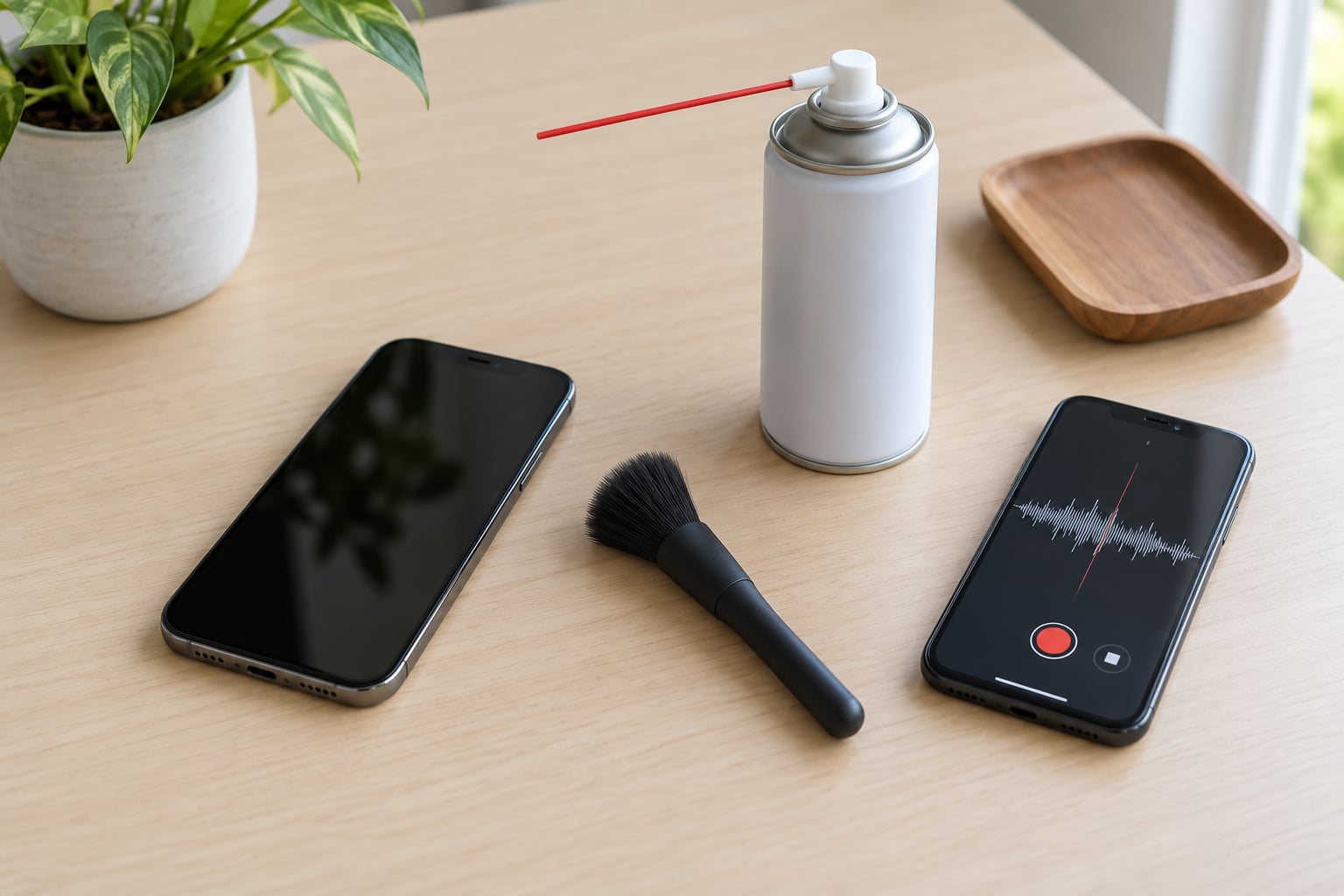
Power the device off before you clean it. Compressed air and brushes are safe when used dry and gently; liquid, pins, and metal tools are not, and they are how a repairable problem becomes an unrepairable one.
- Dry soft brush: a clean, unused paintbrush or an anti-static brush swept lightly across the grille clears loose lint. Brush away from the opening so debris does not get pushed deeper.
- Compressed air: hold the can roughly 15 centimetres away, keep it upright, and use short bursts. Never shake the can hard right next to the microphone.
- Air blowers: a hand pump blower is gentler and avoids the cold-air condensation that a can of compressed air can cause if sprayed too close.
- Headset microphone covers: peel off a removable windscreen foam, clean it separately, and let it dry fully before refitting.
- What not to use: no water, no alcohol dripped into the port, no toothpicks, no paper clips, no vacuum cleaner, and no swab pushed into the opening.
If the grille is removable on your model and comes loose, clean it and the port separately and refit it only when both are completely dry. Water in the port that has not been fully dried produces the exact muffled symptom you were trying to fix.
How to Test Whether the Microphone or the Call Is at Fault
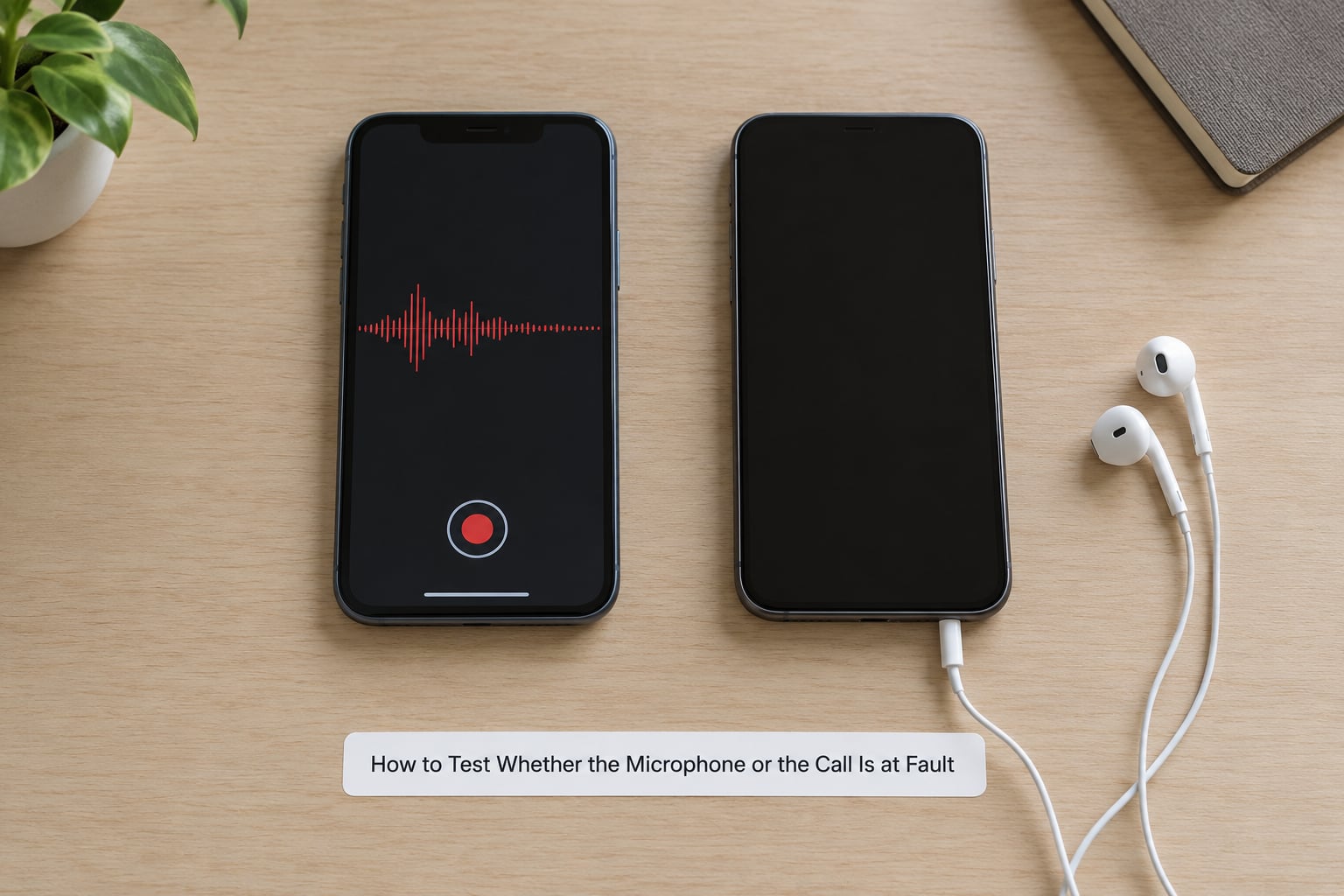
These tests take about ten minutes and give you a definitive answer instead of a guess. Run them in order, because each one rules out a larger group of causes than the last.
- Record a ten-second voice memo. Say something with hard consonants, so the sibilance is easy to judge.
- Play it on the same device. Muffled playback means the problem is at the microphone or the input path.
- Play the same file on another device. Clean here and muffled there means the mic is the fault. Muffled on both means something else entirely.
- Make a call on cellular, then on Wi-Fi calling. Compare the two. If one is clear and the other is not, the microphone is fine and the network is the problem.
- Try a second app. A built-in dialer against a messaging app tells you whether a particular application is processing your voice badly.
- Ask the other person directly. Have them describe what they hear: quiet, muffled, echoey, robotic, or cutting out. Each description points at a different cause.
- Test with the case off and the headset disconnected. Do this even if you already believe it cannot matter.
One pattern shows up again and again: the voice memo is clean, media playback is clean, and only the call is muffled. That combination points away from hardware and toward the app, the network, or an active audio processing feature.
The opposite pattern is just as telling. A muddy recording on the built-in recorder, on every app, with no accessories, is a hardware or port problem. No amount of settings work will change it.
When a Muffled Microphone Requires Repair or Replacement
Troubleshooting has reached its limit when the same muffled recording follows the device across apps, networks, and accessories. Before spending money, confirm it is not the call, the case, or a settings change you have not found yet.
The signs that point to hardware:
- A voice memo sounds muffled with no case, no headset, and no Bluetooth pairing.
- The problem follows the phone to another network and to every app that uses the microphone.
- The microphone opening is physically damaged, dented, or pushed inward from a drop.
- The device has been wet and the voice has stayed thin since, especially if it got worse over days as corrosion developed.
- A hardware diagnostic test reports a microphone failure.
At that point, contact the manufacturer or an authorised service provider. If the phone is under warranty or an insurance plan, the service provider can usually handle it directly, and the carrier can confirm coverage for network-related issues. Back up your data first, and remove your accounts and SIM or eSIM before handing over a device.
For a headset, check the warranty before replacing anything. A replacement earpad or a fresh boom arm costs a fraction of a new headset and fixes a surprising number of headset complaints, since the foam against your cheek or the fabric over the mic degrades faster than the electronics do.
If the device is old enough that the battery is swollen or the back glass is lifting, replace it rather than repairing it. Those conditions rarely coexist with a working microphone for long, and a swollen battery is a safety issue, not a quality issue.
Frequently Asked Questions
Can a phone case make my microphone sound muffled?
Yes, and it is one of the most common causes. Thick bumpers, wallet cases and screen protectors can leave a thin layer of plastic or silicone over the microphone port, which absorbs the high frequencies that make speech clear. The test takes ten seconds: take the case off and make a call. If the voice is clear without it, the case is the problem.
Why does my microphone sound muffled only on Wi-Fi calls?
If cellular calls are clear and Wi-Fi calling is muffled, the microphone is working fine and the problem is in the network path. Wi-Fi calling sends your voice over the internet using your router and provider, so a weak uplink, a congested connection, or a voice-over-IP setting on the router can strip detail from your audio. Try a different network, such as a mobile hotspot, to confirm.
How do I fix a muffled microphone after my phone gets wet?
Turn the device off, do not charge it, and do not put it in rice or a warm oven. Dry the exterior, remove the case, and let it air dry in a ventilated room with the port facing down. Do not use compressed air or heat. Once it is fully dry, record a voice memo to test. If the voice stays thin, corrosion has formed and the device needs professional service.
Can I use compressed air to clean a phone microphone?
Yes, used gently and from a distance. Power the device off first, hold the can about 15 centimetres away, keep it upright, and use short bursts rather than a long spray. A dry soft brush works well for loose lint. Never use liquid cleaners, toothpicks, or swabs pushed into the port, since those push debris deeper and can leave residue that keeps muffling the microphone.
Why can other people hear me clearly while I sound muffled?
Your own voice reaches you through the earpiece or your headphones at full quality, so your brain treats it as normal while the microphone side is broken. The people on the other side depend entirely on that damaged path. That gap is why muffled microphones often go unnoticed for weeks. Recording a ten-second voice memo and playing it back removes the bias and tells you what they actually hear.
Should I replace my phone if the microphone still sounds muffled after cleaning it?
Not on cleaning alone. If the port was blocked and cleaning fixes the voice memo, you are done. If a muffled voice memo persists with no case, no headset, and no Bluetooth pairing, on cellular and Wi-Fi, then cleaning will not help and the microphone or its connection has likely failed. Check warranty and insurance before buying a replacement, and back up your data before any repair.
Start With the Microphone Opening
Take the case off, look into the microphone port with a light, clear it with a dry brush or short bursts of compressed air, then restart the phone and record a ten-second voice memo. Those five actions resolve the majority of muffled microphone cases I have seen, and they take about five minutes.
If the recording is clear but callers still hear a muffled voice, the problem is software or network, not hardware. Disconnect Bluetooth, leave only one noise suppression layer running, and compare a cellular call against a Wi-Fi call.
If the recording stays muffled with no case, no headset, and no accessories on any app or network, stop changing settings. That is a hardware failure, and warranty or authorised service is the next step rather than another afternoon of settings changes.