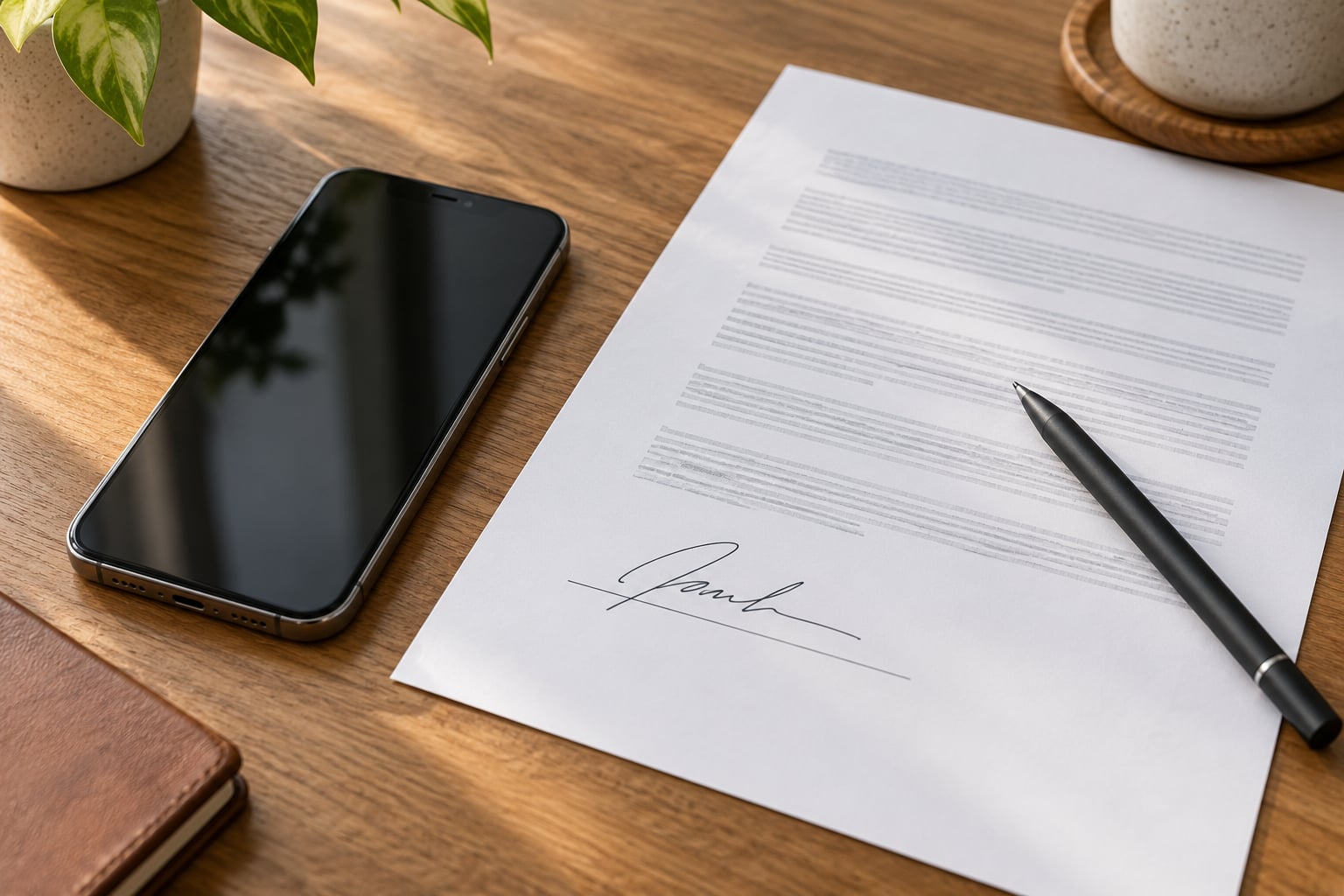
You can sign a PDF on a phone in about two minutes, and you do not need to download anything. On iPhone, open the file in the Files app, tap the Markup pen, then the plus button and choose Signature. On Android, open it in Google Drive, tap the pencil icon and use the pen tool. The tricky part is not the drawing. It is saving a proper copy afterwards.
Most people hit the same snag: they sign the document, close it without saving, then send the untouched original. This guide walks through each method tap by tap, then covers how to check the finished file before it goes back out.
Table of Contents›
- What You Need
- Step-by-Step
- 1. Sign a PDF with a Built-in Android App
- 2. Sign a PDF on an iPhone or iPad
- 3. Use a Trusted PDF Signing App
- 4. Sign a PDF by Email or Messaging App
- 5. Verify and Share the Signed PDF
- Common Mistakes
- Frequently Asked Questions
- Can I legally sign a PDF on my phone?
- Is it safe to use a free PDF signing app?
- How do I sign multiple pages in one PDF?
- Can I sign a PDF that was sent by text message?
- What should I do if my phone will not let me edit or sign the PDF?
- How to Sign a PDF on a Phone: Start with the Right Method
What You Need
Three things, and that is it. The PDF itself (usually an email or message attachment), a phone, and a way to add your signature. Every method below works offline once the file is on the device, so a patchy connection is not a blocker.
Before you start, know which kind of signature you want:
- Draw it. Finger, stylus or Apple Pencil. Fastest, most personal, and it looks closest to a wet signature.
- Type it. Pick a script font so it does not come out looking like a form field someone filled in by accident.
- Import an image. Photograph your signature on white paper, crop it, and drop it in. Useful if you have no good handwriting sample.
Drawing suits most one-off forms. Typing or an image suits documents you sign regularly, because the saved version can be reused instead of redrawn each time.
Step-by-Step
1. Sign a PDF with a Built-in Android App
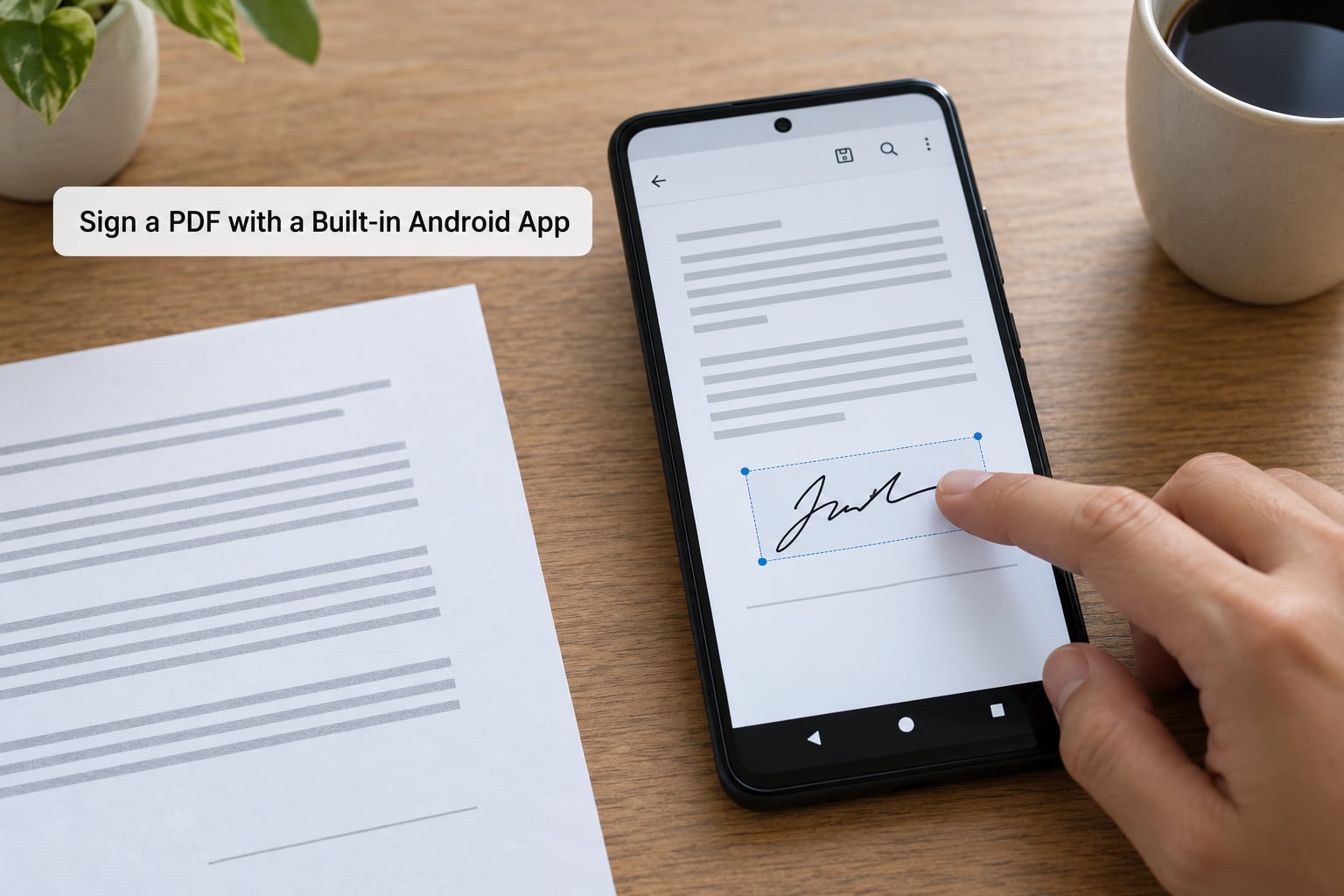
Android has no single built-in PDF signer, but Google Drive covers most people at no cost. Open the Google Drive app, find the PDF, and tap it.
- Open the PDF in Google Drive and tap the pencil icon at the top right to enter edit mode.
- Select the Marker tool and pick a thin pen size.
- Draw your signature with your finger, or scroll to the signature line and draw directly next to the printed name.
- Use the Select tool to drag the signature into position. Pinch the handles to resize it.
- Tap the undo arrow once to clear any stray marks before you save.
- Tap Save to Drive. Drive saves a new copy rather than overwriting the file you opened.
Two warnings specific to Android. First, avoid the “Open with Google Docs” option, which converts the PDF into an editable document and reflows the whole layout. Second, some Samsung Internet and Chrome versions handle markup differently from Drive, so if the pencil icon is missing, open the file in Drive instead. One Android question people ask constantly: yes, there is a free way to sign a PDF on Android, and this is it.
2. Sign a PDF on an iPhone or iPad
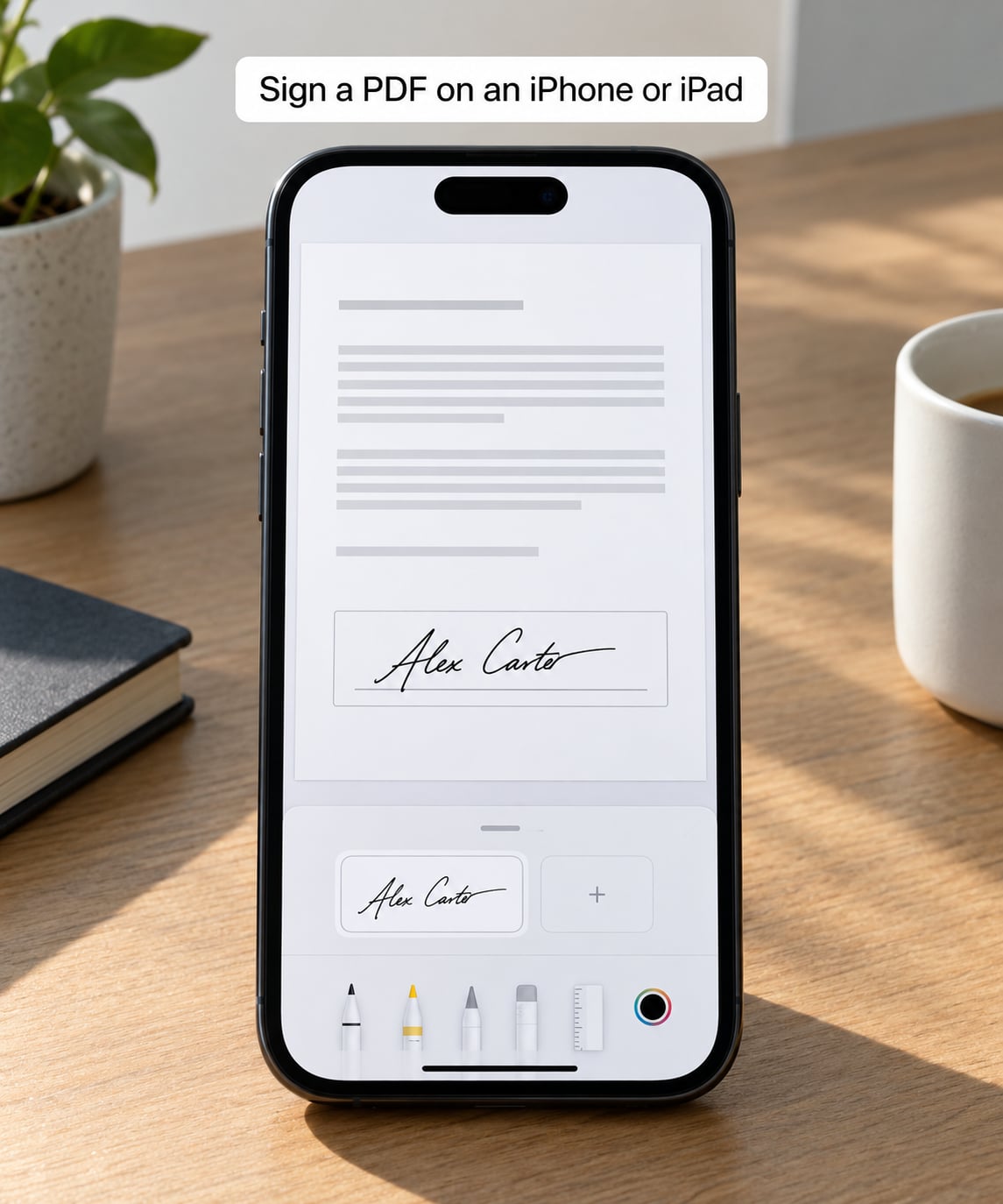
Apple built the whole flow into iOS. Menu labels shift slightly between versions, but the sequence is stable.
- Save the PDF to the Files app, then tap it to open it.
- Tap the Markup pen icon in the top right, or pinch out on the page to zoom and reveal the markup toolbar.
- Tap the plus (+) button, then choose Signature.
- Draw with your finger or Apple Pencil, tap Done, then drag the signature to the right spot and pinch to resize.
- Tap Done again to close Markup.
- Tap Share, choose Save to Files or Export as PDF, then send that new copy.
The signature lands as an annotation layer on top of the page, which is why it can look fine on your screen yet shift when someone re-compresses the file. If the document has a real signature form field, tap it directly first. A drawn signature on top of the field is fine if the field will not accept a tap.
3. Use a Trusted PDF Signing App
A dedicated app is worth it for anything contract-shaped: a lease, an NDA, a client agreement. The workflow is the same in every reputable editor. Import the document, create or paste a signature, place it on the correct page, save.
Two options that work without a subscription for basic signing: Adobe Acrobat (the Fill & Sign tool handles forms and freehand signing) and Xodo (a general PDF editor with a signature tool you can save and reuse). Adobe Fill & Sign is built for exactly this job and works with a finger or a stylus.
Check two things before you commit. Look for a watermark or trial banner on the exported file, and read the permissions the app asks for. Plenty of free Android signing apps work, but a few stamp a promotional line across every page or upload the document to a server you did not agree to. If a client contract is going through, use a company you can name.
4. Sign a PDF by Email or Messaging App
When the PDF is still sitting in an email or chat thread, save it before you touch it. In Gmail, tap the paperclip, then Download. In Outlook or WhatsApp, tap the attachment and use Save to Files or Save to Drive.
Sign it with whichever method above applies, save the signed copy, then return to the conversation and attach the new file. The old attachment is still sitting there unchanged, so pick the file you just exported rather than resending the original. Two users forwarding the same attachment is the single most common way a signed document gets lost.
If the message app previews PDFs and offers an edit tool, you can sign inside the conversation, but the export path is the same: save a copy first, sign, then send that copy.
5. Verify and Share the Signed PDF
Open the file you just saved and check four things. The signature is on the page you intended, at a readable size, not overlapping any printed text. The page count matches the original. Zoom to 200 percent and read your signature. And confirm the file is not flagged read-only.
Sharing is then a normal share sheet. On iPhone, Share sends to Mail, Messages, AirDrop or iCloud Drive. On Android, the share sheet covers Gmail, Drive, WhatsApp and Bluetooth.
One naming detail catches people out: many tools keep the original filename, so you end up with two files called contract.pdf in the same folder. Rename the signed one to something like contract-signed.pdf before you send it. It takes two seconds and removes all doubt about which version went out.
Common Mistakes
The signature moved after reopening the file. Annotation layers can reflow when a document is re-compressed or reopened in a different viewer. Export a flattened copy before sending, and re-check it after sending to yourself once.
The signature box will not accept a tap. Some signature areas are form fields that are not fillable, or the document is protected. Draw the signature just above or below the line instead, which is standard practice for paper forms too.
You cannot edit the file at all. Password-protected and read-only PDFs block built-in markup tools. You need the password, or a copy of the document from whoever sent it.
You sent the wrong version. It happens when the filename is unchanged. Rename the signed copy before sharing.
Other pages shifted after signing. Google Drive converting a PDF into a Google Docs document is the usual cause. Never use that route for a formal document.
The signature is too small or too low resolution. Draw it larger than feels natural. It gets scaled down when placed.
A short checklist before anything leaves your phone: signature on the correct page, nothing overlapping printed text, page count unchanged, file renamed, and a flattened copy saved for your own records.
Frequently Asked Questions
Can I legally sign a PDF on my phone?
Yes, in most countries. Under the US ESIGN Act and the similar UETA in other jurisdictions, an electronic signature has the same legal weight as a handwritten one when both parties agree to use it. A drawn or typed signature on a phone counts as an electronic signature. Certified digital signatures with a certificate and audit trail are a stronger, separate category mainly used for regulated records. This is general information, not legal advice.
Is it safe to use a free PDF signing app?
It depends on the developer. Free apps from Adobe or Xodo are established companies with published privacy policies. Unknown apps may upload your document to a server or add a watermark to the exported file. For personal forms, the free route is fine. For a contract, a tax form or anything containing personal data, use a named company you can trace, and check the app permissions on install.
How do I sign multiple pages in one PDF?
Open the document and place your signature on each page that needs one, using the same drawing or the saved signature. On iPhone, Markup stays open as you swipe between pages, so you can drop a signature on page one, scroll to page two and add another. On Android in Google Drive, move between pages inside the editor before saving. Then flatten and save once at the end rather than after every page.
Can I sign a PDF that was sent by text message?
Yes. Save the attachment to your phone first, sign it with any of the methods above, then attach the newly saved file to your reply. In WhatsApp or Signal, tap the attachment, choose Save or Open in Files, sign, and attach the exported copy. Do not forward the original attachment again, because that sends the unsigned version and is the most common reason a signed document gets lost.
What should I do if my phone will not let me edit or sign the PDF?
Three causes account for almost every case. The file is read-only or password-protected. The signature area is a form field that is not fillable, so tapping it does nothing. Or you are using a plain viewer with no markup tools. Try the Files app on iPhone or Google Drive on Android, tap the pencil or Markup icon, and draw the signature next to the line instead of inside the box. If the document is restricted, ask the sender for an unprotected copy.
How to Sign a PDF on a Phone: Start with the Right Method
Open the document in a built-in viewer first. On iPhone that means the Files app and Markup; on Android it means Google Drive and the pencil tool. Neither costs anything and neither needs an account beyond the ones you already have.
Reach for a signing app only when the document is contract-shaped, has several signers, or arrives as a request through a service like Adobe Sign. And before you send anything, reopen the file you saved, zoom in on the signature, and confirm you are sending that copy. That single check prevents nearly every problem people run into when they try to sign a PDF on a phone.