A phone that will not turn on is very often still holding your data. In most cases you can get photos, contacts and messages back without any specialist software: check for a cloud backup, confirm the phone is genuinely dead rather than frozen, look for a computer connection, and only then think about paying someone. The order matters, because several popular “fixes” destroy the files you are trying to rescue.
- Check your cloud backup first. Sign in to the Google or Apple account on a computer, not the phone. A backup made in the last week can put almost everything back within an hour.
- Rule out a flat battery. Plug in a known-good cable and wall adapter and leave it for 30 minutes. A charging icon, a faint backlight, a vibration or a click on the charging port all count as a sign of life.
- Try a safe forced restart. A frozen phone is the most common “dead” phone. The key combinations below clear a stuck process and delete nothing.
- Plug it into a computer. If the phone enumerates, you can copy files directly. If it never appears in Windows Explorer or Finder, no desktop recovery tool on earth will help, because the phone has to talk to the computer before anything can be read.
Here is the honest version: there is no universal trick. What decides your chances is whether the storage chip is reachable, and that depends on which part failed. A shattered screen over a perfectly good board is the good news story. A corroded or dead logic board is a repair job, and possibly an expensive one.
Table of Contents›
- What You Need
- Step-by-Step: How to Recover Data From a Phone That Will Not Turn On
- 1. Check for a Recent Backup
- 2. Confirm That the Battery Is Actually Dead
- 3. Try a Safe Forced Restart
- 4. Check Whether the Computer Can See the Phone
- 5. Copy Available Files Before Troubleshooting Further
- 6. Use Official Recovery or Backup Tools Carefully
- 7. Decide Whether Professional Recovery Is Necessary
- Common Mistakes
- Frequently Asked Questions
- Can data be recovered from a phone that will not turn on at all?
- How do I force a dead phone to turn on?
- How do I get photos off a phone that will not turn on?
- Is recovery different for an Android phone and an iPhone?
- Is it worth paying a repair shop to recover data from a dead phone?
What You Need
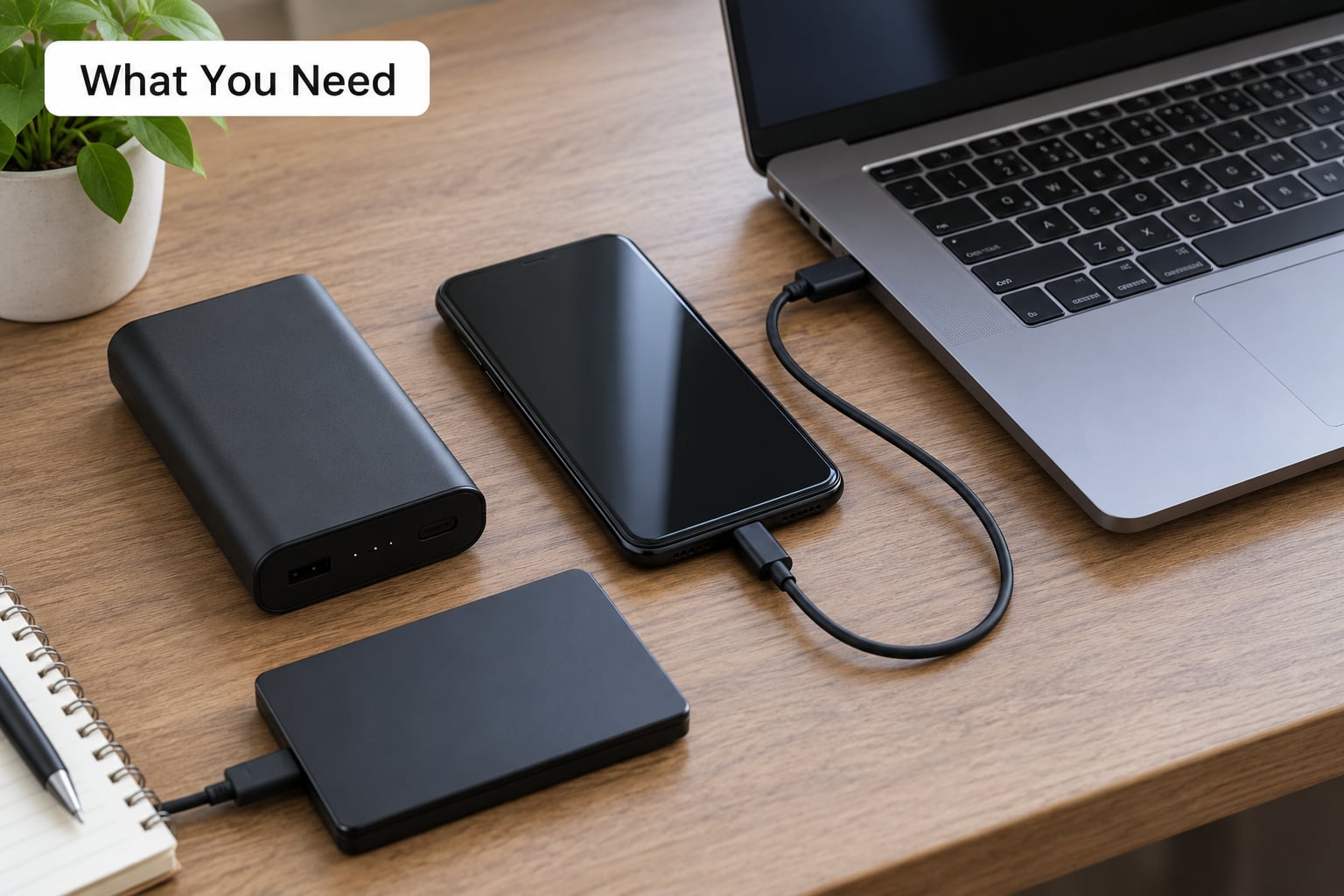
Gather these before you start. Trying to recover data with the wrong cable is the most common reason a perfectly readable phone shows up as nothing.
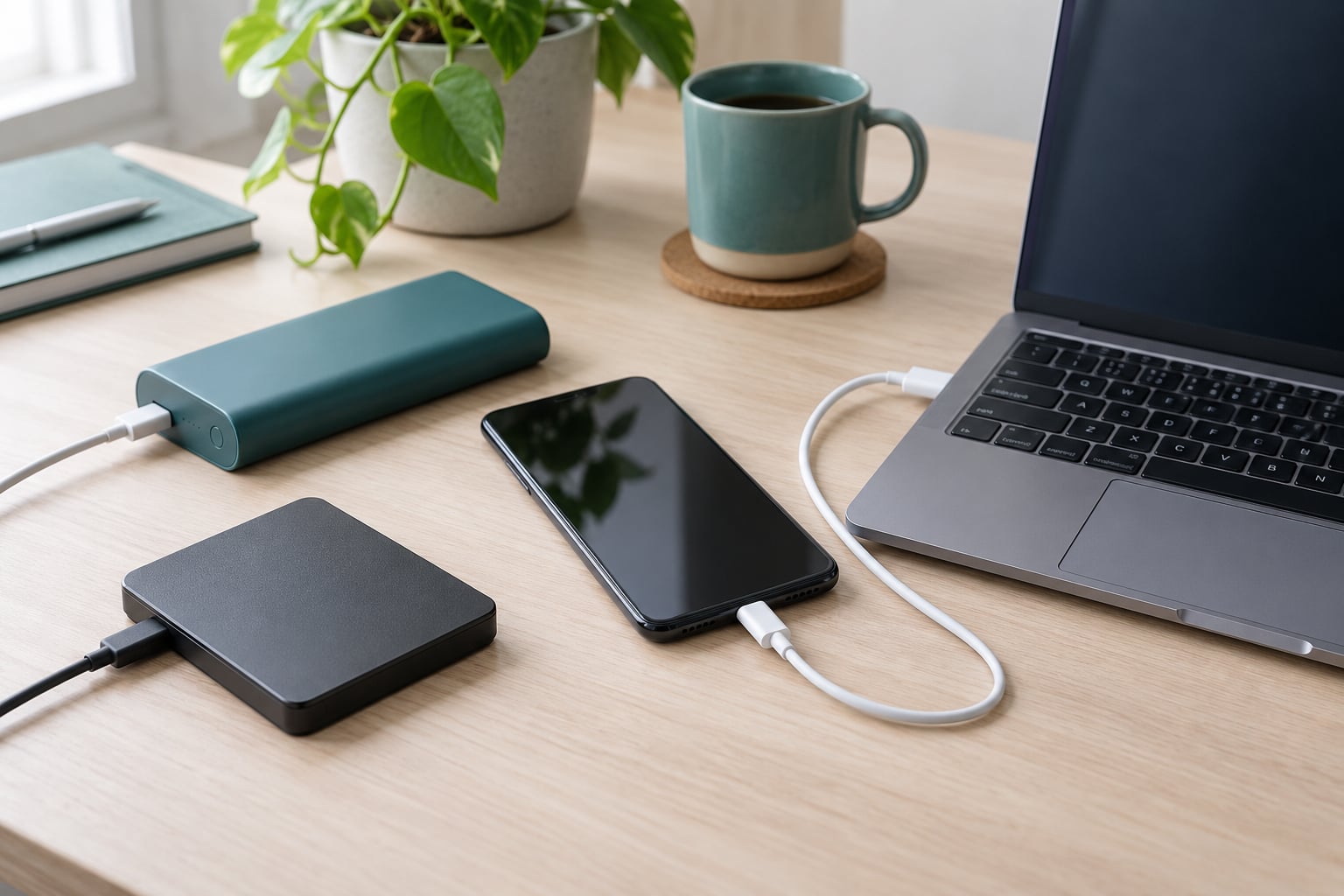
- A second, known-good charging cable and a wall adapter. Charging-only or badly frayed cables power some phones at a trickle and never charge them. Test the cable on another device first if you can.
- A computer, ideally with a spare USB port. A desktop gives you more power and more ports than a laptop, and you can add a powered USB hub.
- A USB OTG adapter and a wired USB mouse. A wireless mouse will not wake a phone with a black screen, because it needs a receiver. This pair is the whole trick for a display-only failure.
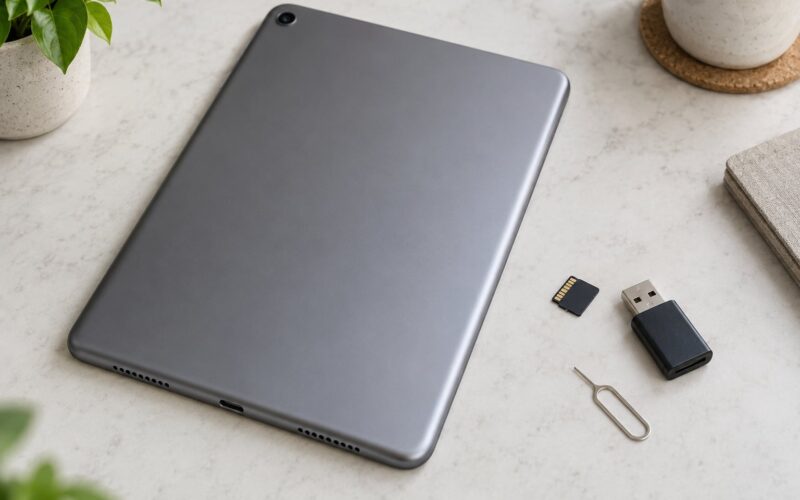
- A USB SD card reader. If the phone has a microSD or SD card, the files on that card are readable with zero power from the device. This is the cheapest recovery route that exists.
- An external drive with real free space. Photos off a phone fill a laptop drive fast. Copy to the drive, not to a second folder on the same disk.
- Your account passwords. You will need your Google or Apple account password, and the phone passcode if the phone has a screen.
Keep the phone itself untouched. No resets, no updates, no new apps, no tapping through setup screens on a phone that is running but behaving strangely.
What is not safe on a phone that will not power on: any tool that claims to read a dead device, any “restore” or “repair firmware” option, and any attempt to root or jailbreak. Software cannot read storage the hardware refuses to present. That is not a limitation of the software, it is how the phone works.
Step-by-Step: How to Recover Data From a Phone That Will Not Turn On
Work through these in order. Each step is either free, reversible, or both, and each one tells you something about the next.
1. Check for a Recent Backup
Most phones already made a copy you forgot about. This costs nothing and needs no access to the device, so do it first even if you think you never turned backups on.
On Android, open Google Drive on any computer, tap the account icon in the top right, then Backups. The date under Last backup is the moment your phone last copied itself. Restore from a computer by opening Google Drive, switching to the computer view, and restoring the backup file. Photos are often separate: go to photos.google.com and you may find years of images already synced even when the device backup is ancient.
Samsung phones can also hold a Samsung Cloud copy, listed on the Samsung account page under Back up and restore. On iPhone, open icloud.com in a desktop browser and sign in. You get Find My iPhone first, then iCloud storage, then a Restore option that lists every device backup with its date and size.
Here is the part that catches people out. A backup is a snapshot, not a live mirror. Anything you took in the two days after that date is gone from the backup. App data is also patchy: Google Photos covers your pictures, not your WhatsApp history, and Messages on iPhone sit inside a full device backup rather than in iCloud Photos. Treat a backup as a strong starting point, not a guarantee.
2. Confirm That the Battery Is Actually Dead
Plug the phone into a wall outlet, not a laptop port, and leave it alone for 30 minutes. Do not press buttons or start it up. Laptop USB ports often cannot supply enough current to charge a phone at all, so testing there tells you nothing.
Any sign of life changes the diagnosis. Look for a charging symbol, a faint glow behind cracked glass, a vibration, a click as the connector seats, or warmth on the back. Charging past 20 percent and then trying a restart solves a surprising share of these cases.
Two exceptions. If the phone got wet, do not charge it. Powering a wet phone drives current through corrosion and can kill a board that was still readable. If the back is bowing, the screen is lifting off the frame, or the phone rocks on a flat table, stop charging and stop using it. A swollen lithium cell is a fire risk, not a data problem, and it needs servicing before anything else.
Also look at the liquid damage indicator, a small sticker inside the SIM tray. Red or white means liquid has been inside. Same rule: no charger.
3. Try a Safe Forced Restart
A phone that is asleep, frozen or stuck in a boot loop looks exactly like a dead phone. A forced restart clears the running software without touching storage, so it is the cheapest thing you can try.
| Brand | From powered off | While running or frozen |
|---|---|---|
| Apple, iPhone 8 and newer | Press and release Volume Up, then Volume Down, then hold the Side button until the Apple logo appears | Press Volume Up, then Volume Down, then hold Side |
| Apple, iPhone 6 and 7 | Hold Side and Volume Down together for about 10 seconds | Same combination |
| Apple, iPhone 5s and older | Hold Home and Top or Side for about 10 seconds | Same combination |
| Most Android, including Pixel | Hold Power for 10 to 30 seconds | Hold Power for 30 seconds or more |
| Samsung | Hold Power and Volume Down for 10 to 15 seconds | Same combination |
| Huawei | Hold Power and Volume Up for 10 seconds, then Power and Volume Down | Same sequence |
| Xiaomi and Redmi | Hold Power and Volume Down for 10 to 20 seconds | Same combination |
On Android 8 and later you can also hold Power plus both volume keys to open a Power menu with three options: Power off, Reboot and Wipe data. Reboot is safe. Wipe data is the one that ends your recovery attempt, and we will come back to why.
If the phone flashes the logo and drops back to it, or restarts into the same screen, the board and storage are alive but the operating system is broken. That is still good news, because a booted-enough phone is readable.
4. Check Whether the Computer Can See the Phone
Connect the phone with a data-capable USB cable while it is switched on or in the recovery screens described later. On Windows, a notification asks what this connection is for: choose File Transfer or Android Device, never Charge Only. A folder named the phone model then appears in File Explorer. On Mac, open Finder, pick the device in the sidebar, and use the Files tab.
This protocol is called MTP, and seeing the device means the phone has powered up far enough to run code and talk to a computer. That single fact decides everything downstream. Third-party desktop recovery software does exactly the same handshake, so the forum complaint that these tools report “no device found” on a truly dead phone is not a bug. There is nothing to talk to.
Two practical details. First, the phone asks for its passcode before the drive mounts, even with a black screen, and the on-screen keyboard appears but you cannot see it. That is what the OTG mouse is for. Second, USB debugging is irrelevant for a plain file transfer and only matters for command-line tools such as the Android Debug Bridge. If debugging was never switched on, a dead screen means you cannot authorise it, so plan for the mouse route.
If the device appears and then drops out, the connection is unstable, usually a cable or port problem. If it never appears at all on two cables and two ports, the board is not reaching the USB stage. Move to step 7 rather than buying recovery software.
5. Copy Available Files Before Troubleshooting Further
Once the phone shows up as a drive, copy everything before you do anything clever. Pull the DCIM and Pictures folders first, then Documents, Downloads and any app folder you recognise. Drag the whole internal storage folder if you have the space; it is slower and far more complete than picking folders one at a time.
Some data simply cannot move this way, and it is better to know that now. WhatsApp stores its messages in an encrypted database inside app storage, and exporting or decrypting them needs the phone unlocked and working; on older Android builds the file is even password-protected. iPhone Messages exist only inside a full device backup, not as loose files. App logins and authenticator codes are lost with a factory reset regardless.
Check for a physical card. Many Android phones hide a microSD slot behind the battery, beside the SIM tray, or under a pull-out tray, and the slot is often unpowered. Pull the card, put it in a USB reader, and everything on it is yours. Note the honest limit: a card reader gives you the card’s files and nothing from internal storage. It is still the single best odds for a phone that never wakes up.
6. Use Official Recovery or Backup Tools Carefully
Official tools have a narrow, legitimate job: moving an existing backup onto a replacement device. On Android, Samsung Smart Switch restores a Samsung backup to a new phone, and the platform backup is a full wipe-and-restore, so both require that you already have the copy. On iPhone, a Finder or iTunes restore from a backup installs that backup onto a new or reassembled device. None of these tools creates a backup from a phone that cannot talk.
Recovery and download modes are the advanced tier, and they exist for reinstalling operating system files, not for reading photos. Enter Android Recovery on most phones by holding Power and Volume Up, or Power and both volume keys, from powered off. Samsung Download mode is Power with both volume keys. DFU on iPhone is trickier: connect to a computer, hold Power for 3 seconds, add Volume Down for 10 seconds, release Power and keep holding Volume Down. The screen stays black in DFU, which looks like a dead phone but is not one.
Everything in these modes that writes firmware or formats storage will destroy what you came for. Both platforms encrypt storage by default, and the decryption keys live in a hardware secure area. A factory reset destroys those keys permanently, which turns a readable device with a broken operating system into an empty one. This is the single most common way people lose their data for good, and it is exactly why step 5 comes before this step.
7. Decide Whether Professional Recovery Is Necessary
Use the symptom table below to place your phone on a route, then decide whether that route is worth paying for. The broad split is simple: a display-only failure is a cheap part swap with excellent odds, a battery or port failure is moderate, and a board-level failure is expensive and uncertain.
| Symptom | What it usually means | Route |
|---|---|---|
| Charging icon, glow or vibration, but black screen | Display or its ribbon cable | Forced restart, then OTG mouse, then a screen repair |
| Flashes the logo, then restarts or freezes | Broken operating system, storage intact | Try computer connection; if none, repair shop |
| No response to any cable, no warmth, no sound | Logic board or power path failure | Board-level diagnosis; a lab decides if it is worth it |
| Did not charge after liquid exposure | Corrosion | Cleaning and board repair before anything else |
| Screen lifted or back bowed | Swollen battery | Stop charging, service the cell first |
What a technician actually does: bypass the failed part so the phone can be read normally, or in harder cases remove the storage chip and read it directly, or transplant it onto a donor board. That last option, sometimes called micro-soldering, is skilled work and it is where the quotes jump. Ask for a written diagnosis and a written quote, and ask what happens to the device if the recovery fails.
Two things to insist on. No recovery tool or shop can read encrypted storage without your passcode, so anyone promising everything back without it is describing a wipe. And nobody honest will guarantee an outcome; posts on r/DataRecoveryHelp and r/datarecovery make the blunt point that fixing the phone first is usually the only route, because recovery requires the device to communicate.
Steer clear of social media “unlock” services that ask you to wipe the handset, hand it over unreceipted, or disable Find My before posting it. Legitimate data recovery never requires you to erase anything, because erasing is the one thing that guarantees failure.
Common Mistakes
Factory resetting the phone to “get it working again.” This is the worst one, and it is well intentioned. The reset destroys the encryption keys, so even a later chip-level read finds nothing. Fix: copy files or restore a backup first, every single time.
Charging a phone that has been wet. Everyone does it because the battery is flat. It pushes current through corrosion and can take a readable board to a dead one. Fix: leave it off, do not put it in rice, and have it opened and cleaned. Rice does nothing for a phone and fills the ports with starch.
Buying recovery software for a phone the computer cannot see. Every one of these tools needs the same USB handshake your computer already failed. Fix: spend the money on a diagnosis instead.
Rooting, jailbreaking or installing a custom system. These write to the same storage you are trying to rescue. Fix: if the phone is running at all, back it up, then do whatever you like.
Opening the phone yourself with a heat gun or a metal pry tool. Lithium cells, ribbon cables and display adhesive all suffer, and a lifted battery connector looks identical to a dead phone. Fix: a screen-only swap is a job for someone who has done it before.
Leaving a flat battery phone unused for months. A deeply discharged lithium cell can swell without anyone noticing. Fix: if it is more than a few weeks old, look at the screen gap and the back panel before charging it.
Then set backups up so this never happens again. On Android, turn on Google Photos backup and check the device backup date in Google Drive. On iPhone, confirm iCloud Backup and iCloud Photos are on. On Samsung, add Samsung Cloud. Most people who describe a painless recovery in the forums are simply the ones who had one of these running. A backup that has never been tested is a rumour, so open the restore page once and confirm a real file list is sitting there.
Frequently Asked Questions
Can data be recovered from a phone that will not turn on at all?
Usually yes, but the phone has to communicate in some way. A backup on your Google or Apple account needs no access to the device at all, and a phone that powers on enough to appear in Windows Explorer or Finder can be copied file by file. A phone with no power, no warmth and no response to two known-good cables needs a technician to bypass the failed part or read the storage chip directly. No shop can guarantee the outcome, and none can read encrypted storage without your passcode.
How do I force a dead phone to turn on?
For most Android phones, hold the Power button for 10 to 30 seconds while it is off. On iPhone 8 or newer, press and release Volume Up, then Volume Down, then hold the Side button until the Apple logo shows. On iPhone 6 and 7, hold Side and Volume Down together for about 10 seconds. On Samsung, hold Power and Volume Down for 10 to 15 seconds. A forced restart clears a frozen process and deletes nothing.
How do I get photos off a phone that will not turn on?
Check photos.google.com for Android or icloud.com for iPhone first; many phones synced years of images already. If the phone enumerates on a computer, copy the DCIM and Pictures folders straight to your drive before doing anything else. If the screen is dead but the phone is running, plug in a USB OTG adapter and a wired mouse, unlock it, then transfer. If a memory card is fitted, pull it and read it with a card reader, which needs no power at all.
Is recovery different for an Android phone and an iPhone?
Yes, the routes and the trust models differ. Android backups live in Google Drive and Google Photos, and files transfer over MTP in File Explorer. iPhone backups are read at icloud.com from a computer, and file transfer goes through Finder. Android is more open, so an OTG mouse and third-party tools are practical options. iPhone is locked down, so a dead screen usually means professional repair. Both are fully encrypted, so a factory reset permanently destroys the keys on either.
Is it worth paying a repair shop to recover data from a dead phone?
It depends entirely on which part failed, and you can narrow it down first. A display-only failure where the phone vibrates or makes sound is a cheap part swap with very good odds. A board-level failure with no response to any cable is a professional diagnosis first: quote for the diagnosis, ask what happens if the data cannot be read, and get everything in writing. Anyone guaranteeing a full recovery without your passcode is planning to wipe the phone.
If your phone is unresponsive right now, do these four things and nothing else: sign in to your Google or Apple account from a computer and check the backup date, plug the phone into a wall outlet with a different cable for 30 minutes, try the forced restart combination for your brand, then connect it to a computer in file transfer mode. Every one of those is free and reversible.
If none of them works, the decision changes from recovery to repair, and the two cheapest parts to replace are the screen and the battery. Move to a technician for a written diagnosis rather than buying software, because how to recover data from a phone that will not turn on is decided by what the phone will still do, not by what any program promises.