If you want to know how to find duplicate photos on a phone, start with the gallery app that already sits on the device. On iPhone running iOS 16 or later, open Photos, tap Albums, scroll to Utilities, choose Duplicates, then tap Merge. Samsung phones group similar shots from the Gallery menu. Most people finish in under five minutes, though iPhone needs the library indexed first.
A word on what counts as a duplicate before we start. An exact duplicate is the same file saved twice, byte for byte. A similar photo is a different file that looks nearly identical, such as a burst sequence or an edited copy. The built-in tools mostly catch the second kind, which is why review matters more than tapping Merge.
Table of Contents›
- What You Need to Find Duplicate Photos on a Phone
- Step-by-Step
- Use the built-in duplicate cleanup tool
- Search for exact duplicates by filename
- Find similar photos manually
- Check Google Photos cleanup tools
- Use an iPhone duplicate-photo workflow
- Use a reputable duplicate-photo app carefully
- Common Mistakes
- Frequently Asked Questions
- Why aren’t duplicate photos showing up in my iPhone Photos app?
- Does Google Photos have a duplicate finder?
- Are similar photos safe to delete?
- How do I recover a photo I deleted by mistake?
- Why do I still have no space back after deleting duplicates?
- How much space do duplicate photos actually use?
- Conclusion
What You Need to Find Duplicate Photos on a Phone
Almost nothing. Your phone’s own Photos or Gallery app handles most libraries, and none of the built-in methods upload your library to a server.
- On iPhone: iOS 16 or later, and a synced library. The Duplicates album sits under Photos, Albums, Utilities.
- On Samsung Galaxy: the stock Gallery app. Menu names shift a little between One UI versions.
- On other Android: Files by Google for local files, plus Google Photos for storage clean-up.
- Free space: a few hundred megabytes so the library can index and build its suggestions.
- A backup: iCloud, Google Photos, Samsung Cloud, or a copy on a computer before you delete anything in bulk.
- Optional: an offline duplicate-finder app, useful only when the built-in tool misses what you know is there.
Step-by-Step
| Platform | Where to look | Finds |
|---|---|---|
| iPhone (iOS 16+) | Photos, Albums, Utilities, Duplicates | Exact and similar, with Merge |
| Samsung Galaxy | Gallery, Pictures, three-dot menu, Group similar images | Similar and near-identical |
| Other Android | Files by Google, Clean up | Locally stored copies only |
| Google Photos | Profile icon, Clean up | Large, old and similar items |
Use the built-in duplicate cleanup tool
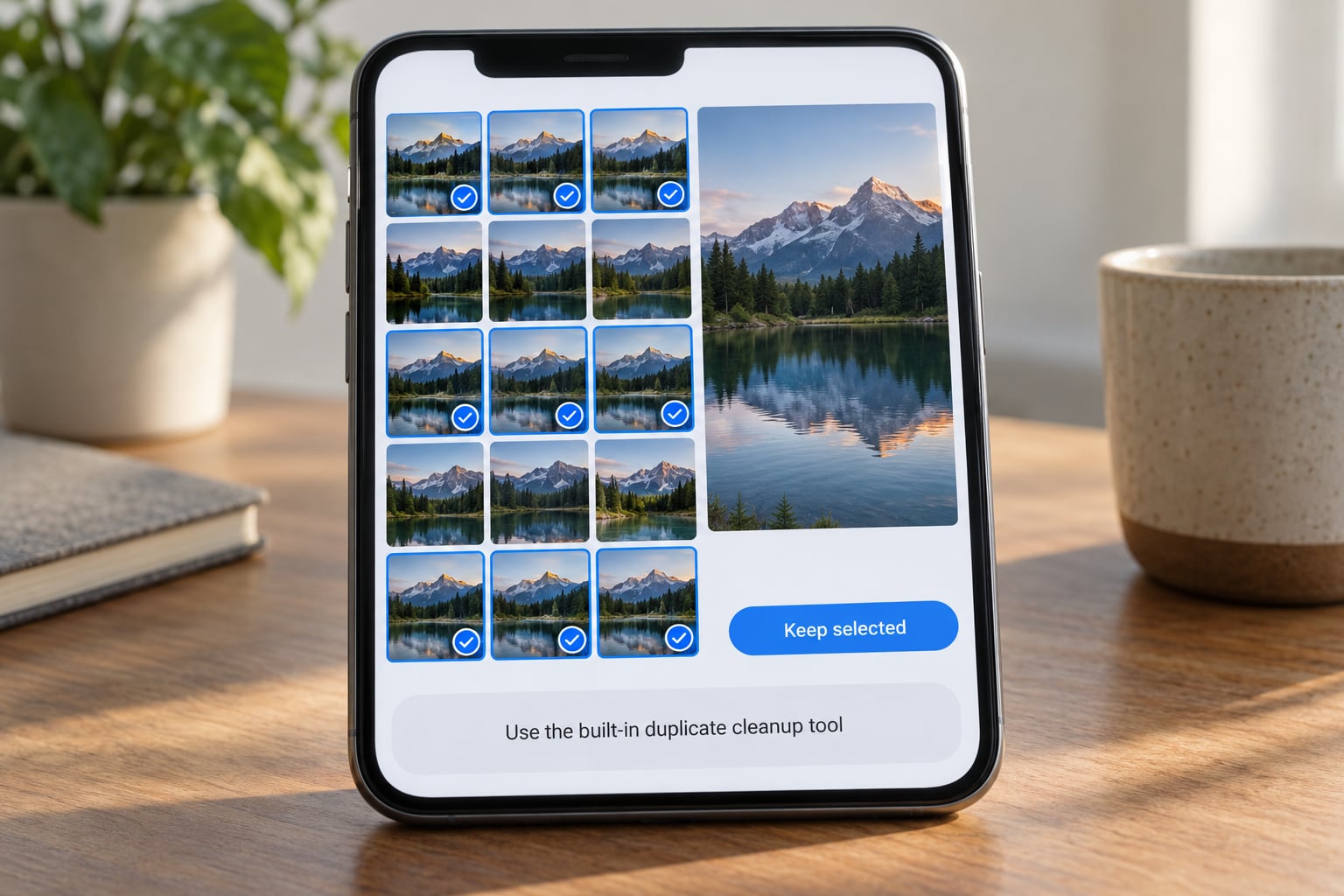
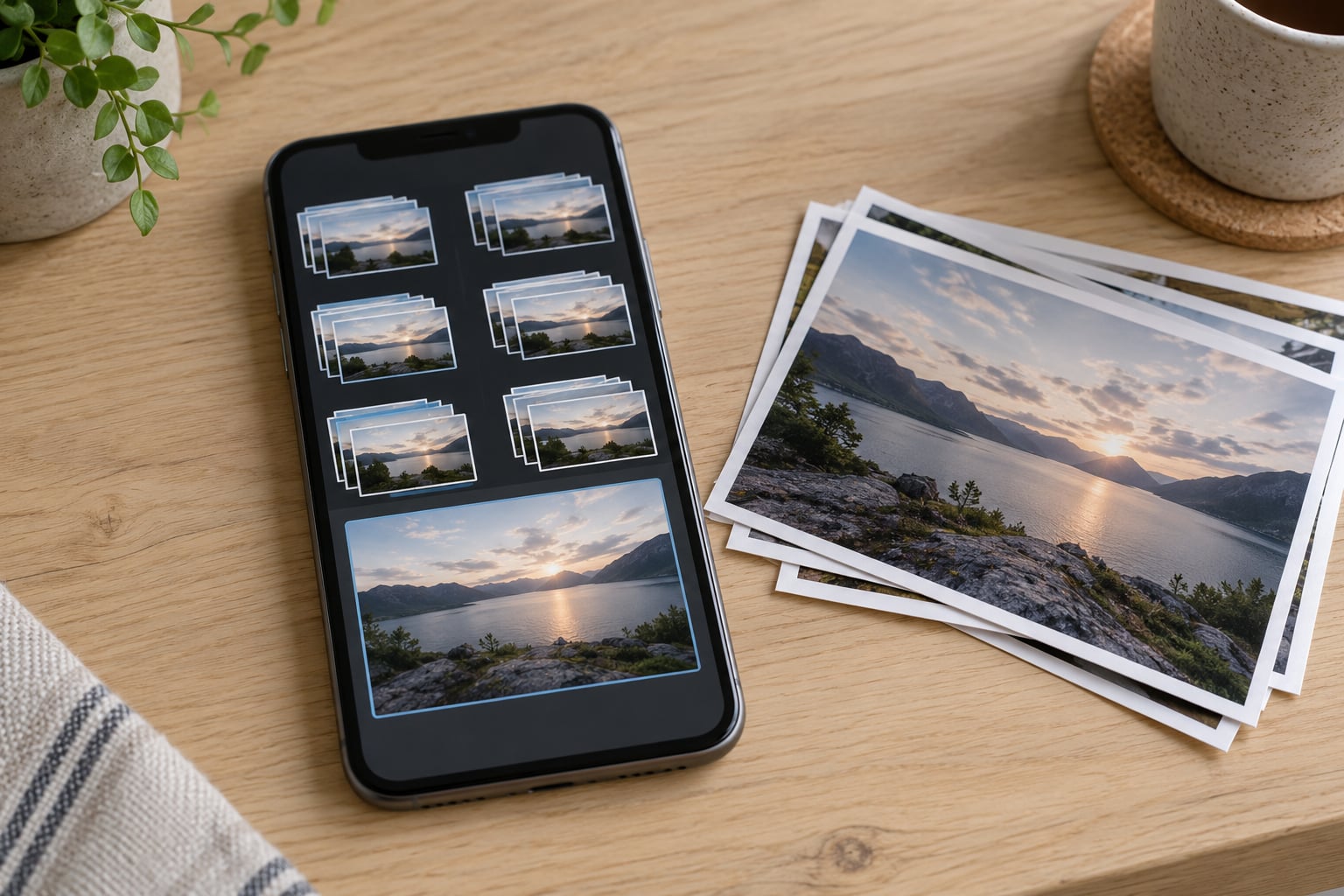
Start here because it is free, fast and offline. On iPhone, open Photos, tap Albums at the bottom, scroll past My Albums to Utilities, and tap Duplicates. Groups appear with the keeper on top, so you can tap each stack to compare.
On a Samsung Galaxy, open Gallery, switch to the Pictures tab, tap the three-dot menu in the top right, then choose Group similar images. Every cluster opens with a stack view. Pick the best frame, tap the trash icon, and confirm Delete Duplicates. Samsung Community members recommend this path over the older Clean up screen, which now focuses on videos and large files.
On other Android phones, open Files by Google, tap Clean up in the bottom left, then switch to Duplicates. One limit worth knowing before you spend time on it: Files by Google only scans photos stored locally on the device, which Android Central moderators have confirmed repeatedly in their forums. Photos living only in the cloud will not appear.
Whatever the platform, review before you delete. Expanding a stack, checking the date and resolution, and confirming that the copy you are about to remove is genuinely redundant takes ten seconds per group and prevents the one mistake that cannot be undone quickly.
Search for exact duplicates by filename
Exact copies almost always share a filename, because they arrived as the same file saved twice. This method is slower than the built-in grouping, but it catches leftovers the grouping missed, especially in the Downloads folder.
On iPhone, open Photos, tap the search icon, and search for IMG, IMG_, or DSC. A burst of sequential names usually means sequential shots, and repeated identical numbers usually mean the same shot saved more than once. Tap a result to see the full group in the grid.
On Android, open Files, tap the three-dot menu, choose Sort by and set it to Name. Scrolling a folder with duplicates sorted by name makes them appear next to each other in seconds. Sorting by Size catches same-name and same-size files from cloud restore conflicts.
The catch: a photo you re-edited has a new filename, so this method will never find it. Treat filename searches as a complement to grouping, not a replacement.
Find similar photos manually
Similar photos live in predictable places. On iPhone, check Albums, then Recently Deleted for leftovers, then the Screenshots album, which is usually the messiest folder on any phone. On Android, open Files and walk through Camera, Screenshots, Downloads and the WhatsApp or Telegram media folders.
Compare burst frames one stack at a time. Keep the sharpest and most evenly exposed shot, not necessarily the first or last one. Edited copies are trickier: an edited version may have better colour but lower resolution, so check the file details before discarding either.
Set the zoom in the viewer to a high level. At a glance two shots look identical; at 4x or more, focus and noise tell you which one is worth keeping.
If a stack looks identical to you and neither frame is better, keep one and delete the rest rather than keeping both out of indecision. Zero duplicates is the goal.
Check Google Photos cleanup tools
Google Photos has no duplicate finder. What it has is a clean-up tool that suggests large photos, large videos, old screenshots and similar images, which is still worth running before you install anything else.
Open Google Photos, tap your profile picture in the top right, tap Clean up, then choose the category you want to review. Swipe through the suggestions and delete only what you recognise. Google Photos also flags pictures taken close together, which is where burst clusters and rapid-fire shots usually live.
If your Google Photos library shows everything twice, one copy backed up and one on the device, the problem is the local copy in the device gallery rather than anything in the app. Clean the duplicates from the phone’s own gallery, then check that Google Photos is set to back up and remove synced images from the device, not the other way around.
Free up space inside Google Photos deletes both the backup and the local copy. Use it only when you have verified the photo exists somewhere else.
Use an iPhone duplicate-photo workflow
The iPhone path deserves its own walkthrough because it is the most capable of the built-in methods. The Duplicates album is created by iOS itself, and it groups exact matches separately from similar ones.
Before anything appears, the library has to be indexed. Leave the phone locked and connected to power, ideally overnight with Wi-Fi on. Indexing a large library can take hours and occasionally a couple of days, and the Duplicates entry is simply absent until it finishes. Users on Reddit describe exactly this routine and finding their groups the next morning.
Once the album is there, tap a group to see the stacked images, then tap Merge. Apple keeps the highest-quality version and moves the rest to Recently Deleted. From there you can delete each group individually or use Select All, which is where people get carried away, so review the album once before using it.
If iCloud Photos is on, the album shows every synced device’s copies, including ones sitting in iCloud but not on the phone. Deleting through the Duplicates album updates every device on the library, which is exactly what you want and also exactly why an accidental tap travels everywhere.
Recovery is the safety net: Recently Deleted holds deleted items for 30 days, and anything older is gone. Recovering one photo there puts it back at the end of your library, not the original date.
Use a reputable duplicate-photo app carefully
An app earns its place when the built-in tool leaves duplicates behind, which happens most often when a library spans cloud and local storage. Check what the app claims about privacy before you grant access to your photos.
Open-source cleaners that work entirely on the device are the ones Android users recommend, because they have no server to send your library to. If a listing does not mention where processing happens, treat that as a bad sign. Whatever you choose, download it from the official store rather than a download site.
The safe order of operations is scan first, review the selections, back up the keepers, then delete. Test with one folder of a few dozen images before you run it across everything, and never accept a one-tap delete for a whole group. Some apps also request broad permissions like full media access or network access; declining them costs you little.
Common Mistakes
Deleting before reviewing. A grouped stack always has a keeper and a candidate. Open it, look at both, then decide.
Treating similar as identical. Two burst frames are different images. Deleting the wrong one loses a moment you cannot re-shoot.
Removing the only original. If a photo exists once, in one place, it is not a duplicate. Check Recently Deleted before you assume the worst.
Forgetting that Recently Deleted still holds the files. Space only comes back once you empty Recently Deleted, either immediately or when the 30 days run out.
Ignoring cloud behaviour. Delete from the cloud app and the device copy may re-download. Delete consistently from one place and let the other sync.
Using aggressive cleanup settings. Automatic suggestions that hide blurry shots or old screenshots are fine; anything that deletes without a review screen is not.
Before a large cleanup, take ten minutes: confirm your backup ran, keep the single best version of anything that matters, and run the tool on a small batch first.
Frequently Asked Questions
Why aren’t duplicate photos showing up in my iPhone Photos app?
You need iOS 16 or later, and the library has to be fully indexed first. Indexing only runs while the phone is locked and connected to power, so leave it charging overnight with Wi-Fi on and check again the next day. Large libraries can take a couple of days. If Utilities shows no Duplicates entry at all, restart the phone and give it more time.
Does Google Photos have a duplicate finder?
No. Google Photos has no search for duplicates. Its clean-up tool suggests large photos, large videos, old screenshots and similar images, and its free up space option removes both the backup and the local copy. To remove actual copies, clean up the device gallery itself with Files by Google or your phone’s built-in Gallery tool, which only scans locally stored files.
Are similar photos safe to delete?
Similar photos are different files, so treat them more carefully than exact duplicates. Compare them at high zoom, keep the sharpest and best-exposed frame, and check resolution before discarding an edited version. For a burst sequence, keeping one strong frame is normal. If you are unsure, move the group to an album instead of deleting it.
How do I recover a photo I deleted by mistake?
On iPhone and on most Android phones, deleted photos move to a Recently Deleted album where they stay for 30 days. Open Photos, Albums, then Recently Deleted, tap the image and choose Recover. It returns to your library at the end, with its original capture date intact. Anything older than 30 days is permanently gone, and your backup is the only remaining copy.
Why do I still have no space back after deleting duplicates?
Because the files are still sitting in Recently Deleted or in a trash album. The space comes back once you empty that album, either immediately or when the 30-day window expires. Also check that you deleted from a single place: removing a photo from the cloud app while the local copy remains does nothing until the sync catches up.
How much space do duplicate photos actually use?
Duplicates and similar shots tend to make up around 5 to 15 percent of a typical photo library. On a 50 GB camera roll that works out to roughly 3 to 7 GB recoverable, mostly from clusters of burst frames, re-saved edits and messaging app copies. Videos usually account for more space per item, so clean those up first for the biggest win.
Conclusion
Open your phone’s built-in duplicate cleanup feature first, review each suggested group, and delete only the copies you have confirmed are redundant. On an iPhone, give the library a full night of indexing before you decide the feature is not working. Before removing hundreds of images, confirm your backup ran and remember that the space only frees up once Recently Deleted is empty.