To remotely erase a phone, sign in to the cloud account already linked to it and send an erase command: iCloud Find My iPhone at icloud.com/find for an iPhone, or Google Find My Device (now called Find Hub) at android.com/find for Android. The wipe restores the phone to factory settings and cannot be undone. If the device is offline when you send it, the command waits and runs the next time it connects.
That last detail is the one people get wrong. A phone shown as offline in the finder tool has usually not rejected your erase — it simply has not heard it yet. Meanwhile you have very little time: a phone in someone else’s hands is a passcode, an unlocked mail app, and a saved authenticator.
One decision to make before you press anything. If the phone is merely misplaced and you think it will turn up, use Lock or Mark as Lost. That keeps tracking running and preserves your chance of getting it back. Erase is the right call when the phone is stolen and you have accepted it is gone, or when you are preparing it for sale or recycling. Erasing does not lock you out of your own account, but it does end the ability to locate the device afterwards.
What follows is the full sequence, both platforms, plus the checks that catch a half-finished erase before a buyer sees your data.
Table of Contents›
- What You Need
- Step-by-Step: How to Remotely Erase a Phone
- How to Remotely Erase an Android Phone
- How to Remotely Erase an iPhone
- What to Do If You Cannot Erase the Phone Remotely
- Verify the Erase Before Selling the Phone
- Common Mistakes
- Quick Tips
- Frequently Asked Questions
- What happens if I remotely erase a phone that is offline?
- Can I stop a remote erase after sending the command?
- How do I unlock my phone after remotely erasing it?
- Will remotely erasing my phone affect other devices on the same account?
- Does remotely erasing a phone remove its eSIM?
- Conclusion
What You Need
Remote erase sounds like a single button press. It is not — most failed attempts fail at the preparation stage, before anything is wiped.
You need the following before you start:
- The cloud account linked to the phone. The Apple ID on an iPhone, the primary Google Account on Android. If the phone has a second Google account or a work profile, the owner list in the finder tool will tell you which one the device sits under.
- A second trusted device or computer. Using the phone you are trying to wipe is the classic dead end. A laptop with a browser is enough for both platforms.
- The phone’s passcode. Apple will ask for it, or for the Apple ID password, when you confirm an erase. Note it down before you start rather than hunting for it mid-command.
- A second-factor route that is not the lost phone. This is the single biggest reason a remote erase stalls. If your verification codes go only to the missing device, you need another factor before anything works.
- Your carrier account login. Useful for suspending the SIM and any mobile plan attached to the device, and for lifting a carrier lock afterwards.
- MDM admin rights, if it is a work phone. A company-managed device usually cannot be wiped from a personal account. Your IT department can push the wipe from the management console.
None of this matters if tracking was never switched on. Find My iPhone is on by default on iOS, and Google Find My Device is usually on when you add a Google Account, but plenty of Android phones reach a second owner with it disabled or with location permissions turned down.
Step-by-Step: How to Remotely Erase a Phone
The two platforms work the same way underneath — sign in, select the device, lock or erase, confirm — but the labels differ, and those labels are what you will actually see on screen.
- Service name. Find My iPhone (Find Devices on newer iOS releases) on Apple. Find My Device, called Find Hub in current Android, on Google.
- Web address. icloud.com/find for Apple, android.com/find for Google.
- Lock option. Mark as Lost, or Lost Mode, on iPhone. Secure device on Android.
- Erase option. Erase This Device (or Erase iPhone) on Apple, Erase device on Android.
- If the phone is offline. The command queues and runs at the next connection, on both platforms.
- Lock left afterwards. Activation Lock stays on an iPhone until you remove the Apple ID. An Android handset keeps the FRP account lock until the previous account is removed.
- Second factor. Apple ID password or a trusted-device passcode on Apple, Google Account password or a backup code on Google.
How to Remotely Erase an Android Phone
Go to android.com/find from any browser, or open the Find Hub app on another Android device. Sign in with the Google Account the missing phone is registered to, not just any account you own.
Select the device from the list. If you see several entries, match the model name and the last known location timestamp before you go further.
Choose Secure device first if you still want to try recovering it. You get a PIN you can read out to whoever finds the phone, and the option to display your phone number and a short message on the lock screen. Choose Play sound if it might simply be in a coat pocket on silent; volume is usually set high enough to hear in another room.
When you are ready, choose Erase device. Google asks you to confirm with your Google Account password.
Give the erase a few minutes while the phone is online. You can tell it worked when the device drops off the list, shows an empty map with no location history, or changes to a greyed-out entry that no longer reports a position.
On many Samsung Galaxy models there is a second, useful path. Go to findmymobile.samsung.com and sign in with the Samsung account on the phone. The site offers Erase Device plus controls the Google service does not, such as locking the device onto a specific network and controlling individual sensors. The command still only runs once the handset connects, so treat the date on the site as a request timestamp rather than a completion time.
Offline is normal and does not mean the erase failed. Android shows the queued request and keeps retrying. It will run when the phone next reaches a network, which includes the moment someone inserts a new SIM.
How to Remotely Erase an iPhone
Go to icloud.com/find and sign in with the Apple ID. If you have more than one Apple ID, check all of them before assuming the phone is unlocatable — this catches people more often than anything else on this page.
Select the device at the top of the device list, then choose the device name from the panel that opens. Choosing the wrong entry here is easy to do with several iPhones or an old one still listed.
Choose Mark as Lost, which locks the phone and puts it in Lost Mode, or Lock to lock it on the current passcode. Both keep Find My Network running, so the device can still be found afterward.
Choose Erase This Device. You may first see a confirmation that the device will be kept in your account. Choose Erased All Content and Settings, then confirm with the Apple ID password or the passcode.
The erase is permanent, and Find My tracking stops the moment it completes. The phone ends at the Hello screen, Activation Lock remains on, and it cannot be set up by anyone until your Apple ID is removed from it.
That last point matters enormously before a sale. The device will not accept a new owner while your Apple ID is attached. People on Apple support forums describe exactly this when buying second-hand — the phone demands an Apple ID and password they do not have.
Never remove the device from your Apple Account device list before the erase finishes. That strips Activation Lock without wiping anything, leaving your data intact and unprotected on a phone you can no longer track. On the same theme, members of r/applehelp report that the wipe mainly removes the passcode key rather than physically overwriting flash storage, so treat a remote wipe as a strong deterrent rather than a certified secure erase.
If the iPhone is offline, the erase stays pending and executes on the next connection. Activation Lock, however, stays active the whole time — which is your safety net if someone wipes the device before receiving it from you.
What to Do If You Cannot Erase the Phone Remotely
Two-factor authentication sends the verification code to the device you just lost. Reports from r/apple and r/applehelp describe this constantly: you sit at icloud.com/find, the prompt sends a six-digit code by text, and nothing arrives. The documented workaround is that icloud.com/find can be signed into without a fresh code when you still have one trusted device signed in, so start on a personal computer or an old device that already has access rather than a brand-new browser.
For Google, add or restore a backup code. Without it, the account’s password plus a verification you can actually receive are both mandatory.
If you are signed in but the device is not listed at all, you are almost certainly in the wrong account. Work through every Google Account and Apple ID you have used on the handset. On Android, check whether it was signed in to a work or school account, because that device sits under the organisation’s account, not yours.
For a company-managed handset, ask your IT department. Mobile device management consoles can issue a remote wipe without any account action from you, and in most organisations you are not permitted to do it yourself.
If you hold the phone in your hands and remote access is unavailable, do the physical reset instead. Back up first, then on an iPhone go to Settings, General, Transfer or Reset, Erase All Content and Settings. On Android the path is Settings, System, Reset options, Erase all data, or the equivalent under Reset in some skins. Samsung often hides it under Settings, General management, Reset.
Remove the SIM card physically and delete any eSIM profile in Settings before you sell, so the buyer cannot inherit your number on a new plan. If you genuinely cannot remove an account lock, write it down for the buyer: which Apple ID or Google Account is attached and what they need to do to sign it out. It saves both of you a bad day.
Verify the Erase Before Selling the Phone
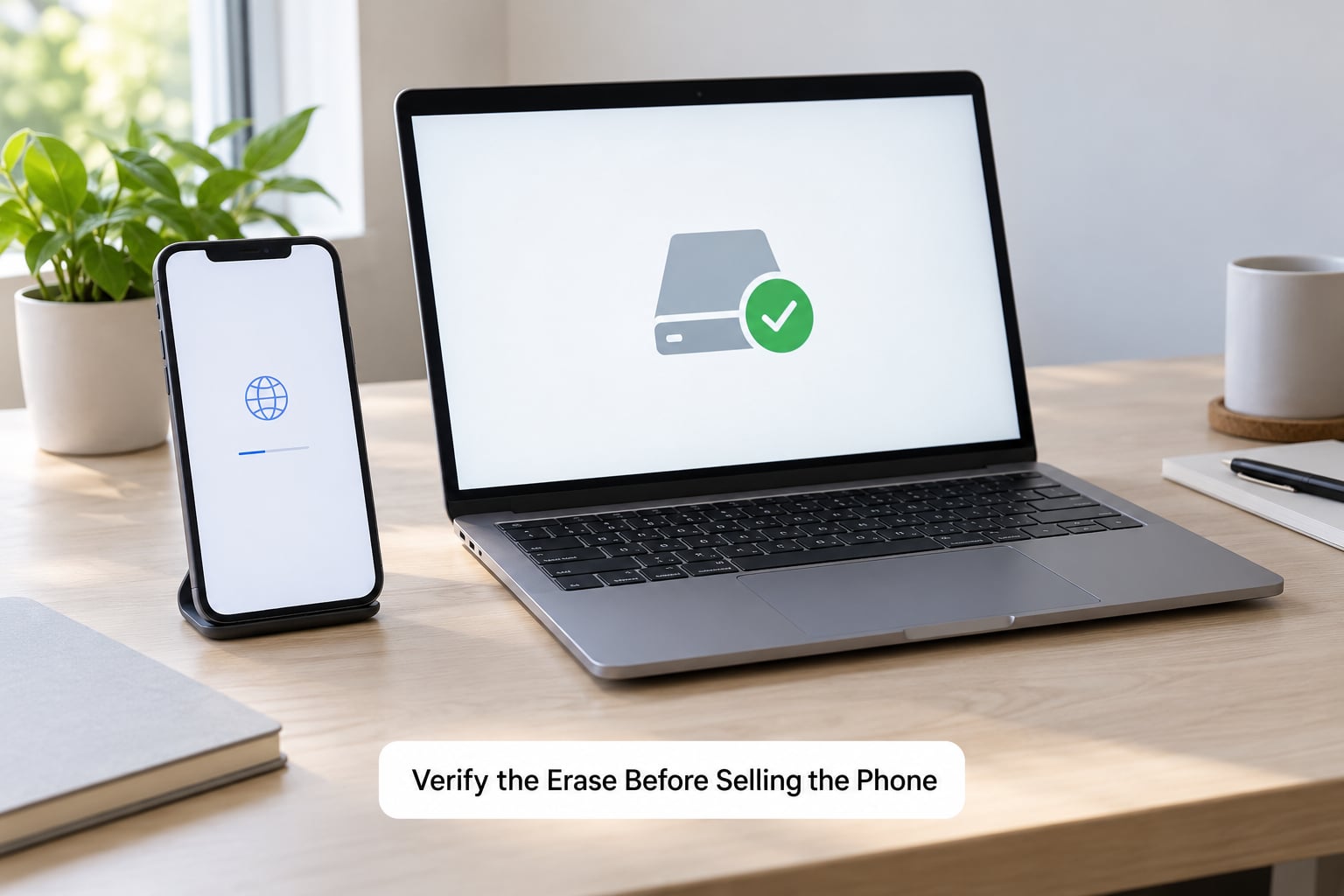
A queued command is not a completed one. Check before the phone changes hands.
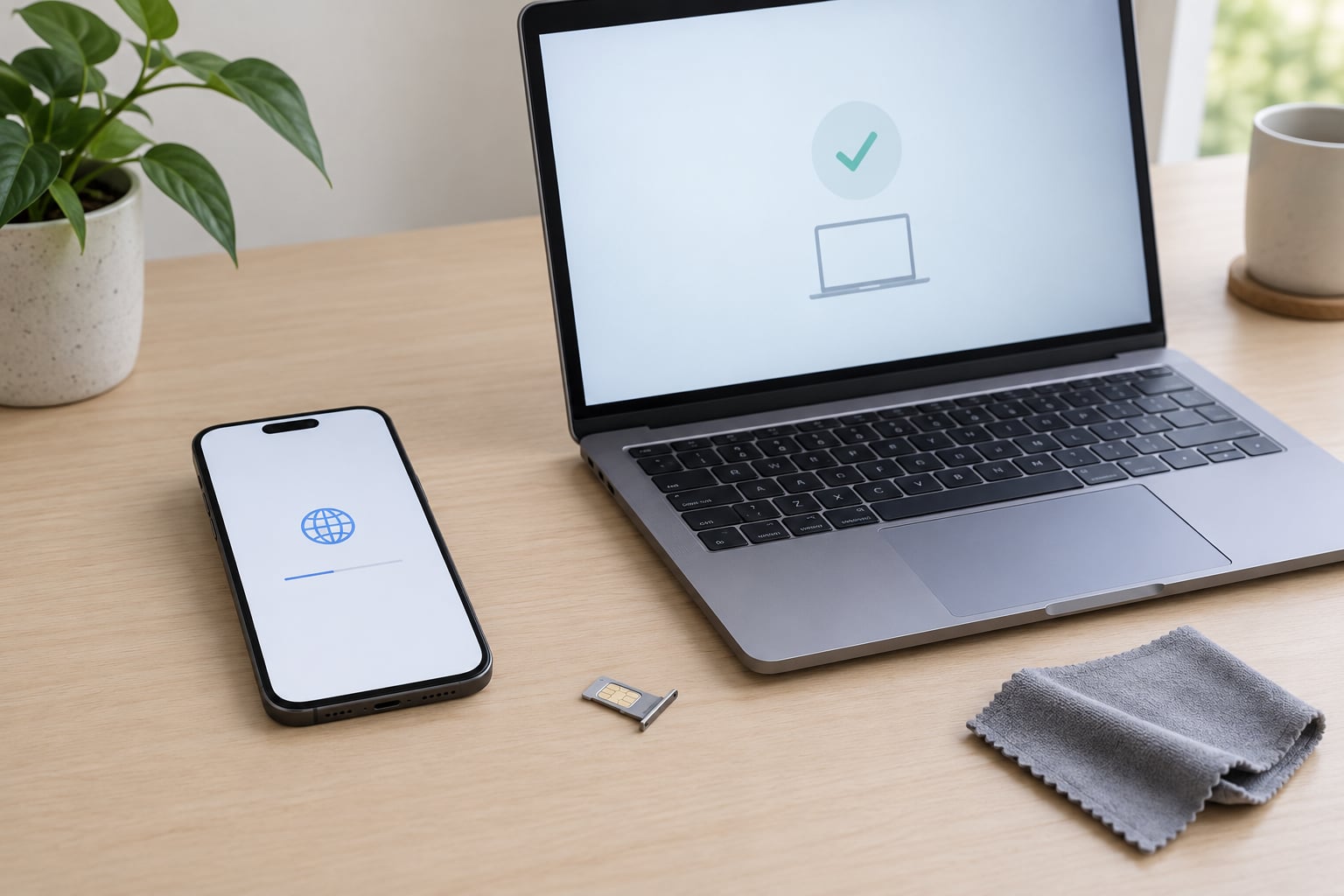
Boot it up if you can. A correctly wiped phone lands on the Hello screen or the Android greeting with language and region prompts. No photo grid, no app drawer, no partially loaded home screen — that last state is the tell that the wipe is still running or was interrupted.
Look at the device page in icloud.com/find or android.com/find. A completed erase leaves an entry with no location, no battery level, no storage figure and no last seen time. A device stuck showing battery percentage and a timestamp has not wiped.
Confirm nothing identifying remains in the details: the phone number, the carrier, your name on the lock screen, or a SIM contact list. If you used Mark as Lost with a message, that message persists until the device is wiped or set up.
Then check the account side. Your Apple ID or Google Account should still list the device as erased, not simply gone. Keeping that record means the activation lock stays tied to you, and you can remove it later when the buyer confirms they have the phone in hand.
One thing a wipe never touches: anything already in the cloud. Photos in iCloud Photos or Google Photos, mail in Gmail, chat histories in a WhatsApp or iMessage cloud backup all survive the erase. If that matters to you, delete them from the account separately, and remember your own archive is erased either way.
Common Mistakes
Erasing the wrong device. The list holds old iPhones and traded-in handsets too. Read the model name and the last location timestamp before confirming, not after.
Using the wrong account. Signing in with your other Google Account shows an empty list and looks exactly like “remote tracking was never on”. Check every account before concluding anything.
Removing the device from the account list first. On Apple this cancels your protection without deleting data. Leave the device listed until the wipe completes, then remove it deliberately.
Not recording the passcode. Apple will ask for it, and typing it from memory onto a phone you can no longer see is how people get stuck at the last step. Write it down first.
Expecting the erase to work on a powered-off phone. The command needs the device online. If it has been powered off for weeks, it wipes the first time it charges and connects — lock the account side in the meantime.
Reading a network reset as a factory reset. Resetting network settings on the handset clears Wi-Fi and cellular lists and leaves your photos, apps and files untouched. The remote wipe is what returns the device to factory settings.
Erasing and then forgetting to remove the account. For a sale, wiping is only half the job. The account lock is what protects your data on the buyer’s device; the buyer needs the credentials to remove it, and you should expect to help them once.
Stopping at the wipe. The device is one of your accounts. Change the password, revoke active sessions, and move the SIM to a new number.
Quick Tips
Back up only what you need, and do it before the wipe. A restored backup from before the sale is a good safety net if the buyer finds a problem.
Use a strong account password and a six-digit passcode with no repeated digits or years. On Android, a PIN of at least six characters stops someone bypassing it with the four-digit guess.
Pull the SIM and delete eSIM profiles, then check that any number-based two-factor prompts move to your new phone number before the buyer activates theirs.
Unlink smart watches, earbuds, smart-home speakers and car connections from the phone first. Otherwise the new owner may end up sharing a smart-home account with a stranger.
Save the erase confirmation — a screenshot of the device page showing the erased state. If the buyer argues months later that data was left behind, that is your evidence.
Sell only after the verification pass in the previous section. It takes two minutes on the device and about the same online.
Frequently Asked Questions
What happens if I remotely erase a phone that is offline?
The command is queued on Apple’s or Google’s servers and stays pending until the phone connects to a network. Neither company sends a notification when it completes, so the device page simply changes to show no location and no last-seen time. Expect an offline handset to stay listed with a stale timestamp for days, then wipe on its own the first time it charges and finds signal.
Can I stop a remote erase after sending the command?
Only while the phone is still offline. If the erase is pending and the device has not connected, you can cancel it from icloud.com/find or android.com/find by choosing Mark as Lost or locking instead. Once the wipe has actually run there is nothing to cancel — it is permanent, and the only way to influence what the phone contains next is to erase your Apple ID or Google Account from the device.
How do I unlock my phone after remotely erasing it?
If it is your own phone, the wipe leaves you at the setup screen but Activation Lock still requires your Apple ID password. Sign in again with the same credentials and the phone reactivates. If the phone is in someone else’s hands, they cannot set it up until you remove the device from your Apple Account or Google Account device list, which is why buyers of second-hand phones ask for the previous owner’s sign-in details.
Will remotely erasing my phone affect other devices on the same account?
No. Each device is erased individually, and you select the exact handset from the list before confirming. On Apple, Erase All Devices is the option that hits everything at once, so check which one you actually clicked. Family Sharing members’ devices also appear in your list and are not affected unless you erase them specifically, which is useful when a parent manages a child’s phone.
Does remotely erasing a phone remove its eSIM?
The wipe resets the eSIM profile and removes the downloaded mobile plan from the handset, but it does not automatically cancel the plan with your carrier. To get the number back you must contact the carrier, confirm the account holder’s identity, and either port the number out or have them issue a replacement eSIM onto your new device. Pull the physical SIM and any eSIM profile out before the sale as well.
Conclusion
Start with the account, not the phone. Confirm you are signed into the exact Apple ID or Google Account the device sits under, then open icloud.com/find or android.com/find, select the right handset, and choose Erase This Device or Erase device.
Lock it first if there is any real chance of getting it back, and erase it once you have accepted the loss or when you are preparing the device for sale. Then verify: a wiped phone shows the setup screen and an account page entry with no location or battery data.
For a sale, the wipe is only half the job. Leave your Apple ID or Google Account attached so the activation lock protects your data until the buyer signs it out, keep the number off the SIM, and change your own passwords before you close the laptop.