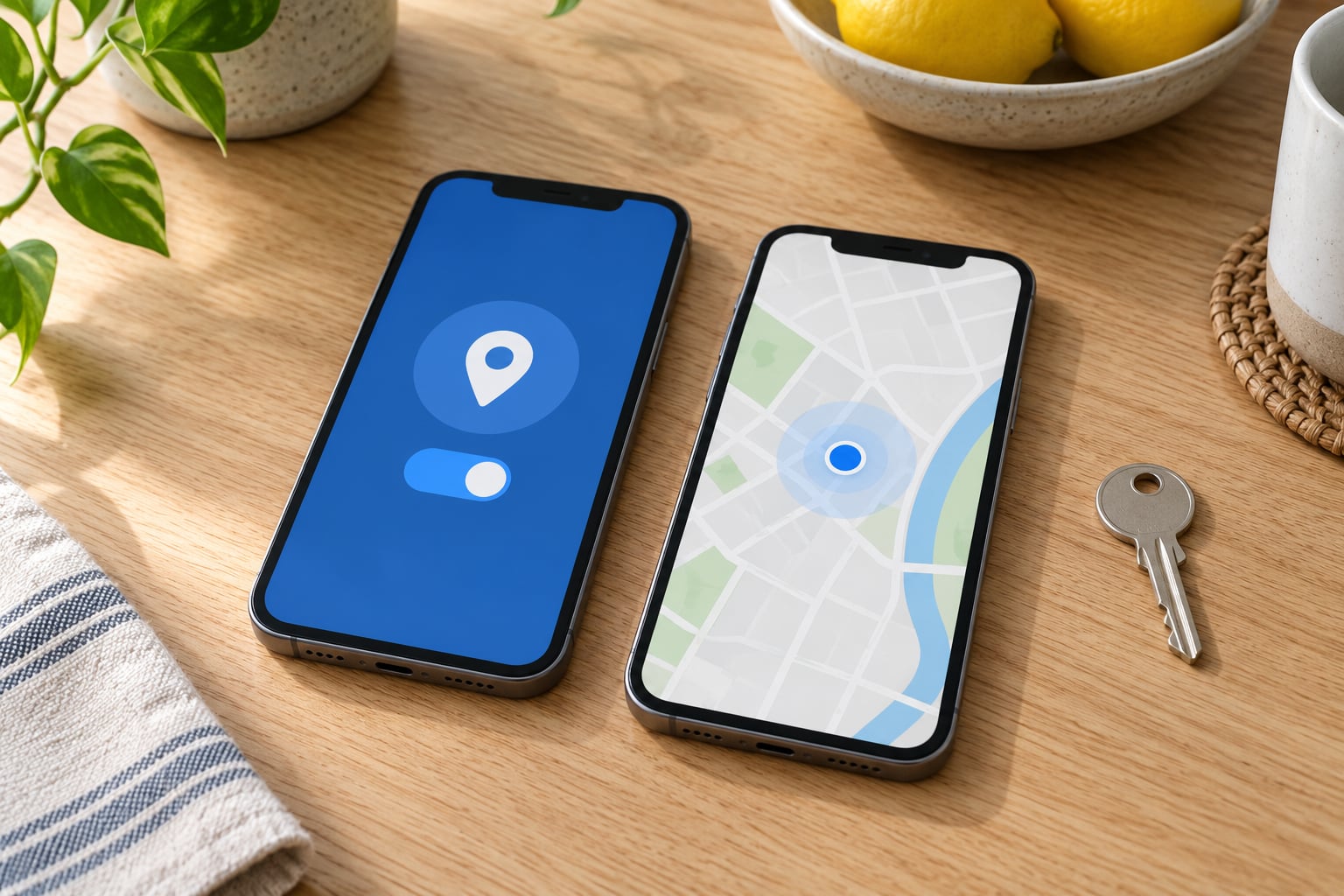
To share your location with family safely, use your phone’s built-in sharing and always set an expiry. On iPhone that means Find My, on Android it means Google Maps location sharing, and either one can send a live or one-time pin to specific people you pick. Ten minutes of setup buys you the map pin that replaces the “did you get home safe” text.
Most of the discomfort around location sharing comes from the default being indefinite and silent. Flip those two things and the rest is easy.
Table of Contents›
- What You Need to Share Your Location with Family Safely
- Step-by-Step
- Step 1: Choose the Right Sharing Method
- Step 2: Set Up Sharing on iPhone
- Step 3: Set Up Sharing on Android
- Step 4: Verify What Is Shared
- Step 5: Adjust Privacy and Permissions
- Step 6: Stop Sharing When It Is No Longer Needed
- Common Mistakes
- Tips
- Frequently Asked Questions
- Can I share my location with family without installing an app?
- How long does a shared location stay available?
- Does live location sharing use a lot of battery?
- Can my family see my location when my phone is off?
- What is the difference between sharing my location and live tracking?
- How do I stop sharing my location on iPhone or Android?
- Conclusion: What to Turn On First
What You Need to Share Your Location with Family Safely
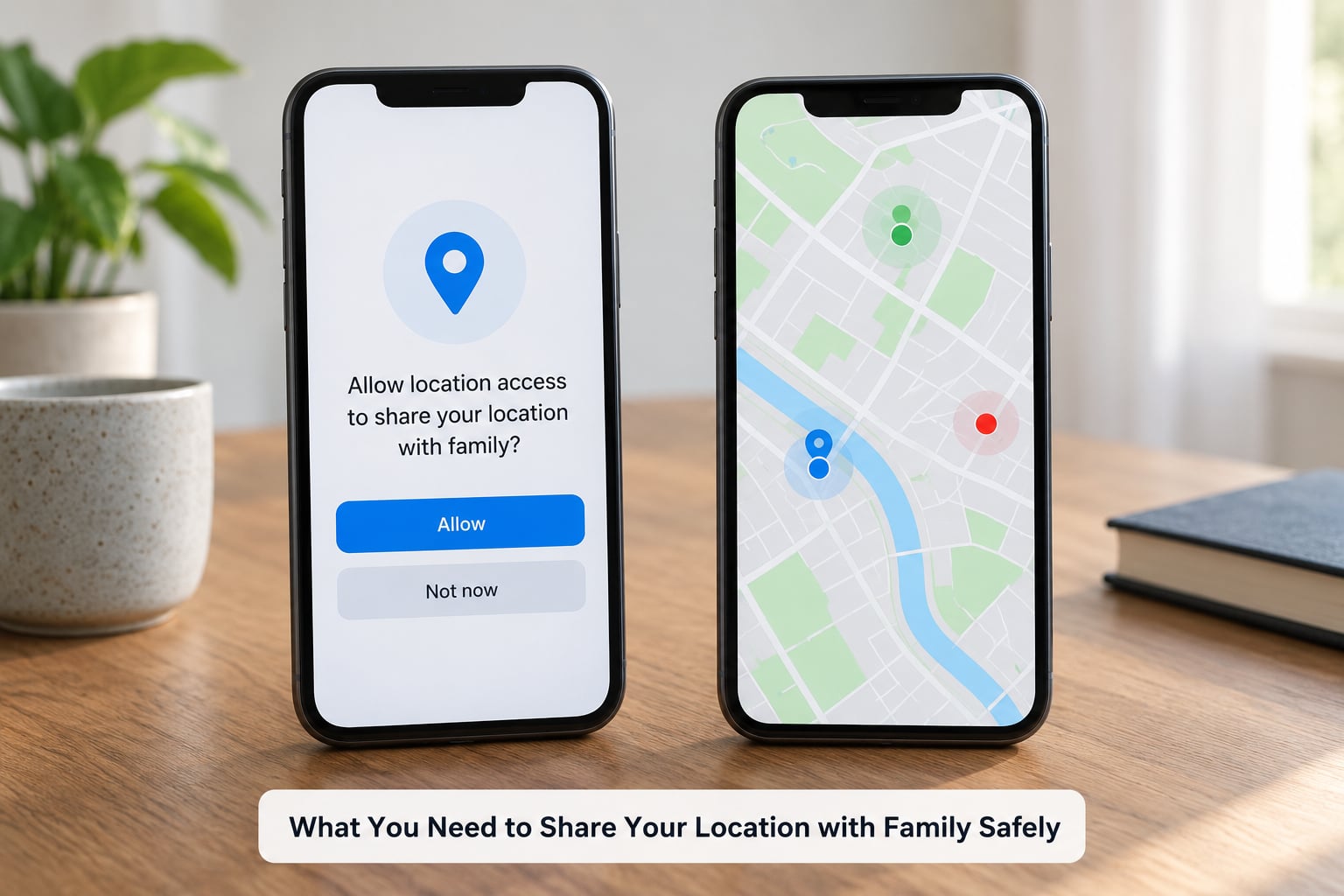
You need four things, and three of them you already have.
- A phone with location services switched on. Both iPhone and Android keep this under Settings, not inside the sharing app. Settings, Privacy and Security, Location Services on iPhone; Settings, Location on Android.
- An Apple ID or Google account on both phones. Location sharing rides on the account, not on the SIM card, so a device signed out of iCloud or Google cannot send a share.
- The relevant app updated. Find My ships with iOS. On Android, update Google Maps from the Play Store, because the sharing screen moved around in earlier versions.
- A decision about duration. Deciding up front whether this is a ten-minute meetup share, an eight-hour school run, or an open-ended family circle makes everything downstream simpler. Pick a shorter window than feels comfortable.
You do not need to install a tracking app to do any of this. Both built-in tools are free and already on the phone.
Step-by-Step
Step 1: Choose the Right Sharing Method
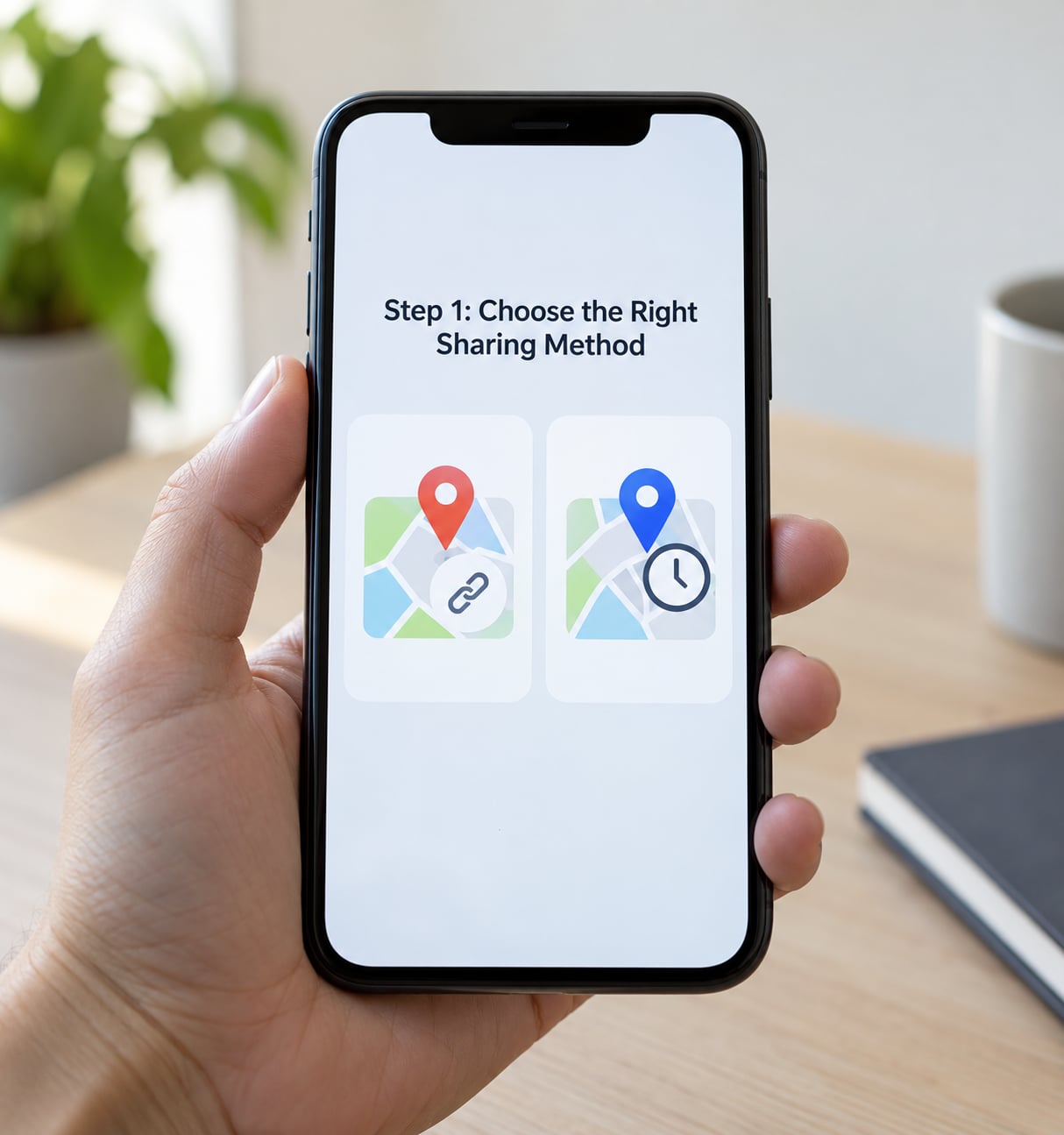
Four methods cover almost every family situation, and they differ mostly in duration and in who sees the data.
A one-time share is a single pin that does not move. It suits “here is the cafe” or “this is where the car is parked.” It is the least exposing option because there is no trail left behind.
A live share updates while it is active and then disappears when the timer runs out. That is what you want for a school run or a long drive home.
A recurring share in Find My or Google Maps keeps a person in a standing list you can check any time. Convenient, and the one most people regret leaving on.
A dedicated family app such as Life360 adds place alerts, crash detection and driving reports on top of the map dot. Some of those extras sit behind a paid tier, and the free tier is ad-supported, which is the part families tend to mind most.
Rule of thumb: if it is a single moment, send a pin. If someone needs to know where you are for the next few hours, send a live share with a timer. If you want it every day, have that conversation before turning it on.
Step 2: Set Up Sharing on iPhone
In Find My, tap the People tab at the bottom, then Add People in the top right. Pick a contact from your list, or tap Share My Location at the bottom of the screen if you would rather send an invitation to a number not saved in your contacts.
Choose the duration from the options Find My offers: one hour, eight hours, until tomorrow, or indefinitely. Until tomorrow covers an overnight flight or a long drive. Indefinitely is the one that needs a real conversation first.
Tap Send. Your contact receives an invitation and has to accept it before they see anything, so nothing is visible on their end until they tap Accept. That acceptance step is worth knowing about, because a share that never gets accepted looks identical to one that failed.
You can also send live location through Messages. Open the thread, tap the location icon or the plus button, choose Share My Location, and pick the same duration options. This works with a non-Apple recipient because it arrives as a link in the conversation.
Step 3: Set Up Sharing on Android
Open Google Maps and tap your profile picture in the top right, then Location sharing. From there tap Share location and choose either a saved contact or More options to send a link to a number you have not saved.
Set the duration. Google Maps offers 15 minutes, 1 hour, 8 hours, 24 hours, until you turn it off, or until you accept a new share request. Pick a real number of hours rather than the last option.
Tap Share, then confirm with Send. The other person gets an invitation, and they see your dot only after accepting it.
To review or end shares later, the same Location sharing screen lists everyone you are sharing with, the duration, and when you last updated. Tap the arrow next to a name to change the window or switch sharing off.
Step 4: Verify What Is Shared
Do this once, before you need it. Set up a ten-minute share with someone in the house, have them accept it, and watch their screen while you move a block away.
Confirm three things: that their map shows a dot that moves, that the countdown reflects the duration you picked, and that no one else appears in the list. On iPhone the People tab in Find My shows every active share. On Android the Location sharing screen does the same job.
While you are there, check that nothing unexpected is in the list. An entry for a contact you do not recognise is the one thing worth stopping to investigate.
Step 5: Adjust Privacy and Permissions
Set location access for the sharing app to While Using the App or While In Use rather than Always. Background access is what lets live tracking keep working with the screen off, and it is also the setting stalkerware relies on.
Background access is genuinely useful if someone might need to be found overnight. It is not useful for a coffee run. Match the permission to the duration of the share, then put it back.
Two habits that reduce exposure without giving anything up: share the venue name rather than an exact live trail when precision is not needed, and never put a home address into a public link. A link forwarded beyond your family is no longer under your control.
Step 6: Stop Sharing When It Is No Longer Needed
On iPhone, open Find My, tap People, tap the contact, and tap Stop Sharing My Location. On Android, open Google Maps, tap your profile picture, tap Location sharing, and use Stop sharing on that name.
For a link you sent in Messages or WhatsApp, deleting the conversation removes the message but does not necessarily end an active live share. End the share in Find My or Maps first, then delete the message.
If you want to shorten an open-ended share rather than cancel it, tap the arrow next to the contact’s name and pick a fixed number of hours. Then check your phone’s privacy settings to see whether the location permission changed at any point.
Common Mistakes
Sharing with the wrong contact. Google Maps search will match partial names. Open the entry before you hit Send and confirm the phone number belongs to who you think it does.
Assuming a link expires immediately. A one-time pin is static, but a live share keeps updating until its timer ends. Until you turn it off, it runs indefinitely by design.
Leaving background access on permanently. Set it to While Using the App for routine check-ins and switch it only while a longer share is running.
Location services switched off at the system level. App-level permissions cannot override a disabled system toggle, so the share will sit frozen on an old position. On Android this is a common cause of “the pin has not moved in an hour.”
The invitation was never accepted. A pending request shows nothing on the recipient’s screen. On Android it stays as an unaccepted request until they respond.
Not testing before it matters. The ten-minute test in Step 4 catches most of these. It costs two minutes and takes all the guessing out of an emergency.
Battery settings quietly ending the share. Aggressive battery optimisation on Android can restrict background activity. For a share that runs overnight, set that app to Unrestricted in battery settings for the duration.
Tips
Default to temporary. A share with an expiry ends on its own. That single habit removes most of the risk from location sharing.
Keep it to one person at a time. Share with the person who needs the information, not the whole family group, unless everyone genuinely agreed.
Build a routine instead of a standing feed. A daily ten-minute share after school pickup gives you the safety net without permanent tracking.
Say it out loud. Tell people when sharing is on and when it is off. Consent is the mechanism that makes location sharing workable inside a family, and teenagers notice the difference immediately.
Agree on a lost-phone plan. Decide in advance which account the family checks first. Apple Find My needs Find My switched on and Find My network enabled; Android users have Google Find Hub, formerly Find My Device, which is built into Google Play Services.
Leave location history off by default. A recurring share in Find My can retain a history of past positions. For most family check-ins you do not need it.
Check for unknown trackers. Both iPhone and Android will alert you to an unfamiliar AirTag or tag nearby. If that alert appears and you did not place one, move to a populated place and consider checking for stalkerware.
Never share a live location publicly. Social posts with a real-time location tell more than people realise, especially in a place you will be again.
Frequently Asked Questions
Can I share my location with family without installing an app?
Yes, on both platforms. iPhone users already have Find My, which is built into iOS. Android users already have Google Maps, where location sharing sits behind your profile picture and the Location sharing option. Both work without a subscription or a third-party tracker, and both send invitations that the recipient has to accept before seeing anything.
How long does a shared location stay available?
It depends on the duration you choose. Find My offers one hour, eight hours, until tomorrow, or indefinitely. Google Maps offers 15 minutes, 1 hour, 8 hours, 24 hours, or until you turn it off. The practical limitation is Google Maps tops out at 24 hours, so anything longer needs Find My, a recurring share, or a dedicated family app.
Does live location sharing use a lot of battery?
More than most people expect, mostly because the GPS stays active during the share. A one-time pin costs almost nothing since it takes a single fix. A multi-hour live share can shave several percent off a day’s charge, which is why short durations are the sensible default. On Android, aggressive battery optimisation can also cut a share short on its own.
Can my family see my location when my phone is off?
No. Once the phone is off it stops reporting a position, and the recipient sees the last update time instead of a moving dot. What they can still see is the last known location and when it was recorded. That is exactly why sharing something before you travel matters: the last known position is often all anyone has.
What is the difference between sharing my location and live tracking?
Sharing sends a single pin, or a link that shows where you were when you sent it. Live tracking keeps sending your position for as long as the share lasts, and the recipient watches it move. A one-time pin leaves no trail and exposes far less. Live tracking is what you want for a journey, and rarely what you want permanently.
How do I stop sharing my location on iPhone or Android?
On iPhone, open Find My, tap People, tap the contact, then Stop Sharing My Location. On Android, open Google Maps, tap your profile picture, tap Location sharing, and choose Stop sharing on that name. Deleting a message thread does not always end an active share, so end it in the app first, then delete the message.
Conclusion: What to Turn On First
Start with a single ten-minute share to one person, chosen duration, no background permission. Confirm they received it and watched the dot move, then repeat it when someone actually needs it. Everything else, including apps and recurring circles, only makes sense after that loop works.