If you’re wondering why does my phone battery drain so fast overnight, the short answer is that your phone never fully sleeps. It wakes for notifications, app syncs and network handshakes all night, and anything that keeps the processor busy turns standby drain into a visible drop before morning.
Five causes cover nearly every case: background app activity, weak cellular signal, Always-On Display, pending updates or software bugs, and natural battery aging. The order you work through them matters more than people expect, because the first three take ten minutes to rule out and the last two cost you an afternoon.
Community consensus on the big phone forums puts normal overnight drain at 5 to 10 percent, with 5 to 15 percent described as perfectly typical. Once you’re past 20 percent, you’re usually looking at one specific fixable thing rather than general wear.
Table of Contents›
- What You Need
- Step-by-Step
- 1. Check Battery Usage Overnight
- 2. Disable or Restrict Battery-Heavy Features
- 3. Look for a Swollen or Failing Battery
- 4. Test the Charger, Cable, and Charging Setup
- 5. Update or Reinstall Problem Apps
- 6. Reset Network and App Settings
- Common Mistakes
- Frequently Asked Questions
- Is it normal for a phone battery to drain overnight?
- Is 1% battery drain in 3 minutes normal?
- How do I stop my iPhone battery from draining overnight?
- How do I fix Android battery draining fast overnight?
- Does battery saver mode stop overnight drain?
- What are the signs that my phone battery is going bad?
- Conclusion
What You Need
You need a charged phone, its original or approved charger, and a USB cable you can swap out for testing. That’s the whole kit. Everything else happens inside the settings menus.
Budget about 10 to 15 minutes for the first checks. The overnight isolation test takes longer in wall-clock terms because it has to run while you sleep, so plan one night for it and start the next morning’s work on the following day.
Two caveats before you start. Instructions differ between current Android versions, including Samsung’s One UI, and current iPhone versions, so I’ll name both paths where they diverge rather than pretending there’s one menu. And a swollen battery changes everything, so check for that before step two.
Step-by-Step
1. Check Battery Usage Overnight
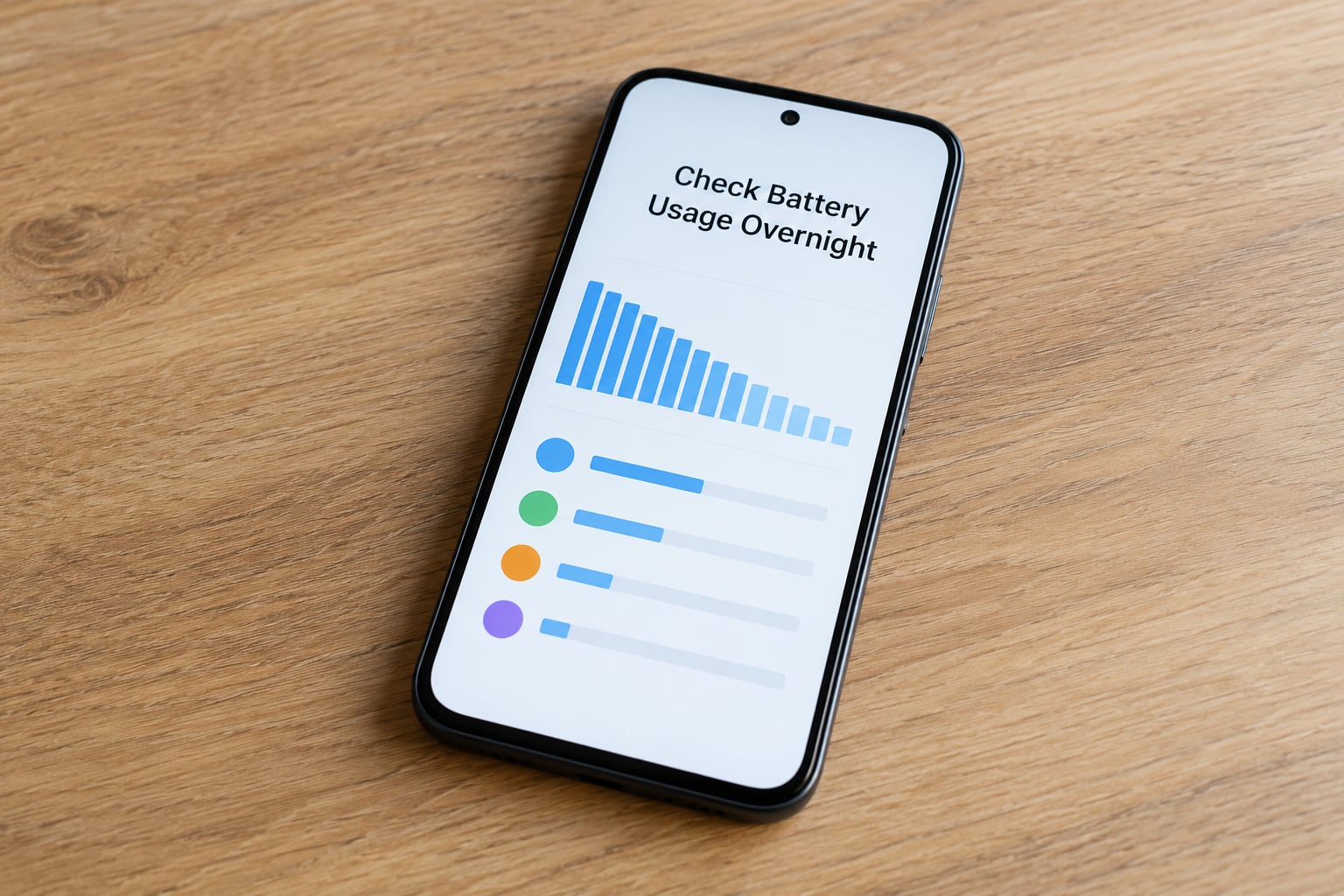
Overnight drain lives in a time-graph, not the live percentage reading, so you need the history screen rather than the battery widget.
On iPhone: Settings, then Battery, then scroll to the graph under Battery Level and swipe down on it. Tap any bar to get the breakdown for that night. On newer iOS versions it’s Settings, Battery, then Battery Health & Charging for the health percentage and cycle count.
On stock Android: Settings, Apps, then See all apps, tap the three-dot menu and choose Battery usage. Several layers down you’ll find a time graph and an Idle versus active split. On Samsung One UI the path is Settings, Battery and Device Maintenance, then Battery, then Battery usage.
Here’s how to read idle drain. During eight hours of zero screen-on time, a top app at 2 to 4 percent is noise. One app at 15 percent while your screen stayed off all night is the answer, and you don’t need a better theory than that. System Services often top the list on idle phones, which is why this screen can feel frustrating on first look.
Write the number down before you change anything. You’ll want it later to confirm whether a fix actually worked.
2. Disable or Restrict Battery-Heavy Features
Always-On Display keeps part of the panel powered all night, so the display never fully sleeps. On iPhone it’s Settings, Accessibility, Display & Text Size, Always On. On Pixel it’s Settings, Display, Always-on display. Samsung users will find Always-on display under Settings, then Display.
Background App Refresh on iOS is Settings, General, Background App Refresh, where you can switch it off entirely or toggle individual apps. Android’s equivalent limits are Settings, Apps, then Special app access, then Battery optimisation, which puts rarely used apps into a restricted list that stops them waking the phone.
Location services and scanning radios are the quieter drainers. Location accuracy to Always invites constant GPS work, and Wi-Fi scanning plus Bluetooth scanning keep radios probing networks even when you’re on Wi-Fi. In Developer options on Pixel you can disable Wi-Fi scanning and Bluetooth scanning; on One UI they’re under Settings, Connections, then More connection settings.
What to check after the change: turn the setting off, go to bed, and compare against the number you wrote down in step one. One night is enough to see a real difference if there is one.
3. Look for a Swollen or Failing Battery
Sudden shutdowns at 20 or 30 percent, heat while the phone sits untouched, and a back panel or screen that no longer sits flush are the warning signs. A percentage that falls in visible jumps during idle also fits.
If you see any of those, stop charging it overnight and stop using it heavily. Don’t press a bulging screen, don’t charge it on soft bedding, and get it to a repair shop or the manufacturer. A swollen lithium-ion cell is a fire risk, not an inconvenience.
Damage around the charging port matters too. Bent pins or grit in the port can charge erratically, which looks like drain but isn’t.
4. Test the Charger, Cable, and Charging Setup
Before blaming the battery, rule out the supply. Charge your phone to a known level, note it, then leave it overnight on the same charger and cable.
If it lost charge while plugged in overnight, the problem is on the charging side. Try a different cable first, since cables fail internally long before they look worn, then a different wall adapter. Check the port for lint with a soft light, and confirm you’re using an approved or reputable charger rather than a generic pack.
On the environment side, a phone charging under a pillow or on a warm surface is both a drain and a hazard. Keep it on a hard, cool surface, and unplug once it’s full if you’re worried about long-term wear. iPhone’s Optimized Battery Charging already handles this if it’s on at Settings, Battery, then Battery Health & Charging.
5. Update or Reinstall Problem Apps
Drain spikes often begin right after a system update. Check Settings, System, then System update on Android or Settings, General, then Software Update on iPhone, and run any pending patch.
Post-update drain is common enough that it’s worth checking before anything else, and it usually resolves with the following patch release if it’s an OS bug. Owners have reported overnight drain climbing to 20 or 25 percent on an idle phone right after a quarterly platform update, with system apps visibly holding the CPU awake. Not every phone is affected, and the vendor rarely confirms the cause.
Then deal with the app your step-one graph pointed at. Update it first, force-close it, then watch another night. If it’s still the top consumer, uninstall and reinstall just that app rather than wiping everything.
Trim its permissions while you’re in there: background location, unrestricted mobile data, and allow notifications are the three that matter. A messaging app with always-on precise location is a common culprit, and users on the Pixel boards have traced serious overnight losses to specific system services and network scanning toggles.
6. Reset Network and App Settings
This is the last software step before you consider a factory reset, and it’s reversible. Restart the phone properly, then check Settings, System, Reset options, Reset Wi-Fi, mobile and Bluetooth on Android, or Settings, General, then Transfer or Reset iPhone, then Reset, then Reset Network Settings on iPhone.
That clears saved networks and pairing records, so you re-enter Wi-Fi passwords afterwards. It fixes plenty of overnight drain, particularly when a phone has been hunting for a signal it can’t find.
Then tighten the background limits. Adaptive Battery on Android, App Standby and Doze mode, and Battery Saver all exist to let a quiet phone stay quiet. Low Power Mode on iPhone does similar work but also caps background activity and notifications, so turn it back off once you’ve measured the difference.
Factory reset is the genuine last resort. Back the phone up first, and be honest about what it fixes: it clears a rogue app or corrupt file, and it does nothing at all for a worn cell or a marginal signal. Users report split results, with some seeing overnight drain fixed entirely and others seeing no change whatsoever.
Which one you have is usually answerable in about ten minutes. Turn on Airplane Mode before bed one night and leave it on. If the drain flattens out to a couple of percent, the cause is network-related and you can stop guessing. If it drops just as much, it’s an app, a setting, or the battery itself.
Common Mistakes
Deleting every app on the phone. You won’t find the culprit that way, and you’ll rebuild your whole day for it. Use the battery usage graph from step one, take the top offender, and deal with that one app.
Disabling safety features and staying that way. Airplane Mode is a diagnostic, not a permanent setting. Leaving it on overnight fixes the symptom and breaks your alarm, calls and emergency location. Run the test once, read the result, turn it back off.
Charging a hot or swollen battery. Heat plus a compromised cell is the combination that causes damage. If the phone is unusually hot while charging, unplug it and let it cool before you assess anything else.
Switching to a cheap charger and assuming that solved it. Wrong or failing charging gear causes erratic behaviour that reads as drain. Test with a known-good cable and adapter before you conclude anything about the battery.
Judging the result after ten minutes. Restarting helps once. Everything else needs a full night to show a real number, and changing five settings at once means you have no idea which one worked.
Running a factory reset without a backup. It erases your data, and it isn’t even guaranteed to help. Back up first, then reset, and keep the backup until you’ve confirmed the drain is actually gone.
A couple of monitoring habits make the rest easier. Compare against a written baseline, not against how the phone felt last week. And change one thing per night where you can, because overnight drain is measured in single-digit percentages and stacked changes hide the signal.
Frequently Asked Questions
Is it normal for a phone battery to drain overnight?
Losing 5 to 10 percent while your phone sits idle overnight is normal, and 5 to 15 percent is widely described as typical. Past 20 percent, something specific is usually running. A drop from 50 percent to 0 percent is not a settings problem, and points to a failing battery or very poor reception. If your phone loses charge while plugged in overnight, treat that as a charging-side fault rather than drain.
Is 1% battery drain in 3 minutes normal?
No. One percent every three minutes works out to roughly 20 percent per hour, which would empty a full battery in about five hours of standing still. That rate belongs to active use such as video playback or navigation. A phone sitting face down with the screen off should lose less. Check Settings, Battery to confirm what the screen was actually doing during that time.
How do I stop my iPhone battery from draining overnight?
Start in Settings, Battery and swipe down on the Battery Level graph to see what ran overnight. Then switch off Background App Refresh under Settings, General, and turn off Always On under Accessibility, Display u0026amp; Text Size. Check Battery Health u0026amp; Charging for a health percentage below 80 percent. Finally, run one night in Airplane Mode to rule the network out.
How do I fix Android battery draining fast overnight?
On Pixel and most stock Android, open Settings, Battery, then Battery usage to see the idle breakdown. Turn off Always-on display under Settings, Display, then restrict rarely used apps via Special app access and Battery optimisation. Samsung users go to Settings, Battery and Device Maintenance, then Battery. Disable Wi-Fi scanning and Bluetooth scanning in Developer options, and install any pending security patch.
Does battery saver mode stop overnight drain?
Partly. Low Power Mode on iPhone and Battery Saver on Android restrict background activity, which trims drain but usually doesn’t remove it. They’re useful as a quick comparison, since the drop in the next night’s figure tells you how much of the drain was background work. Turn them back off after measuring, because they also cut notifications and can delay background syncing you rely on.
What are the signs that my phone battery is going bad?
Look for shutdowns at 20 or 30 percent, heat while the phone sits idle, a back panel or screen that looks raised, and percentage drops that come in visible jumps. Check the health reading: below 80 percent maximum capacity is the usual threshold for replacement. Battery health and cycle count are the authoritative numbers, and no settings change will fix any of the physical signs.
Conclusion
Open your battery history tonight and find what ran while you slept. Turn off the single highest consumer, then run one night in Airplane Mode to learn whether the network is involved. Compare the next morning’s figure against the number you wrote down, and repeat one change at a time until the drain sits in the 5 to 15 percent range.
If the battery is swollen, unusually hot, or physically damaged, stop troubleshooting and get it serviced. No menu setting fixes that.
Updated for October 2026.