Mobile data stops working for four reasons, and three of them take under two minutes to fix: a setting got switched off, the radio failed to register with the nearest tower, the SIM or eSIM isn’t being read, or your carrier account has run out of data or hit an outage. You can work through all of them in order below without any apps, paid tools, or a store visit.
The reason so many people get stuck is that a phone with working signal bars but no internet looks identical to a phone with a dead radio. It isn’t. Calls and texts go over a different path than data, so a phone can call your friend perfectly while every app spins forever. That single clue narrows the problem a long way before you touch a single menu.
Menu names shift between phone models and software versions. The paths below cover iOS 17 and 18, stock Android on Pixel, and Samsung’s One UI, which is what most Android buyers actually see. Other makers rename things, but the setting you’re hunting for does the same job.
Table of Contents›
- What You Need
- Step-by-Step: How to Fix Mobile Data Not Working
- Step 1: Turn Airplane Mode Off and Check the Network
- Step 2: Check Mobile Data, Roaming, and Data Saver Settings
- Step 3: Look for a Carrier, SIM, or Account Problem
- Step 4: Disable VPN, Private DNS, Filters, and App Restrictions
- Step 5: Restart, Reset Network Settings, and Test the Device
- Common Mobile Data Mistakes and Fixes
- Frequently Asked Questions
- Why is my mobile data not working but Wi-Fi does?
- Why does my phone show full bars but no mobile data?
- How do I reset my mobile data?
- Does resetting network settings delete everything on my phone?
- Why does mobile data work on another phone but not mine?
- Why is my data not working when I travel abroad?
- Conclusion
What You Need
Your phone is genuinely all you need. Add the name of your carrier or your account login details if you have them handy, since Step 3 asks you to look at your plan. A Wi-Fi connection helps too, because several of the fixes involve checking an account page in a browser or over a call.
No apps, no reset codes, nothing to buy. If you use a work phone, remember that an employer can restrict mobile data through a device management profile, and that profile is invisible to you. Knowing whether the phone is personal or managed saves a lot of guessing in Step 4.
Allow about ten minutes for the full sequence. Most cases break at Step 1 or Step 2, so don’t start with a factory reset and work backwards from there.
Step-by-Step: How to Fix Mobile Data Not Working
Start with the quick list. If the problem clears, you can stop reading. If it doesn’t, the five steps below explain what each check is actually testing for.
- Toggle Airplane Mode on for 15 seconds, then off. This forces the phone to drop its registration with the cell tower and re-register from scratch, which fixes a surprising share of dead-data cases.
- Restart the phone. A full power off and on, not just a lock and unlock.
- Confirm the mobile data toggle is on. Check for 4G, LTE, or 5G in the status bar, not just bars.
- Turn data roaming on if you are outside your home country.
- Check your data usage and plan allowance. Many plans throttle or stop data without warning when the high-speed allowance runs out.
- Turn off any VPN, private DNS, or ad blocker and try again.
- Reset network settings as a last resort on the phone, not on the carrier account.
Step 1: Turn Airplane Mode Off and Check the Network
On an iPhone, swipe down from the top right corner and tap the airplane symbol so it turns grey. On Android, pull the notification shade down twice and tap the airplane icon, or go to Settings, Network and internet, and switch Airplane mode off.
Leave airplane mode on for 15 seconds before switching it off. That pause is the part people skip, and skipping it is why toggling sometimes appears to do nothing. The radio needs time to power down completely before it will re-register.
Now look at the status bar. You want to see 4G, LTE, 5G, or 5G+ next to the signal bars. Wi-Fi and bars alone are not enough. If the phone shows only Wi-Fi, or says No Service, or drops into SOS, the data path never connected in the first place.
SOS only appears on iPhones and usually means the phone can see some network but not one it’s allowed to use, which is common in large buildings or in an elevator. It clears on its own once you move or the tower comes back into range. If it sticks for more than a few minutes indoors, move near a window and try again.
On Android, also confirm the carrier name shown under the status bar matches the SIM you expect. A phone that has switched to a partner network without roaming enabled will show signal and no data.
Step 2: Check Mobile Data, Roaming, and Data Saver Settings
On iPhone, open Settings, then Cellular, and check that Cellular Data is on. Under that same screen you will find Cellular Data Options, which is where Low Data Mode lives. Low Data Mode throttles background activity, and while it usually doesn’t kill data entirely, it can make apps hang and videos never start.
On Android, the path is Settings, Network and internet, SIMs, then your active SIM. Mobile data is a toggle at the top. Data Saver sits just below it and is worth checking, because on Samsung phones it also appears in the quick settings panel where a stray tap switches it on without any warning at all.
Data Saver and Low Data Mode are different from switching mobile data off. Turning mobile data off blocks everything. Data Saver and Low Data Mode only limit background data and sometimes push apps onto Wi-Fi, so the phone looks half-broken rather than fully offline.
If you’re travelling, data roaming has to be on under the same SIM settings screen. Roaming is off by default on some plans and some prepaid SIMs, and the phone will happily show full bars while carrying no data at all, which is the exact symptom readers on r/iPhoneTipsTricks describe most often when they land.
Also check the network mode if you have weak coverage. Settings, Cellular, Cellular Data Options, then Voice and Data on iPhone; Settings, Network and internet, SIMs, Preferred network type on Android. If your phone is set to 5G only and the local tower only offers LTE, you’ll get a 5G icon in some areas and no usable data anywhere. Set it to 5G Auto or LTE for a test.
Step 3: Look for a Carrier, SIM, or Account Problem
Before resetting anything on the phone, check whether the problem is on the carrier’s side. Open your carrier’s app or log in on Wi-Fi and look at your current data usage against your plan allowance. Plans with a high-speed cap quietly stop sending data or drop to speeds that feel broken once the cap is hit.
Check for an outage too. Your carrier’s own status page and app are the first place to look, and a public outage tracker is useful when your carrier’s page insists everything is fine. A single nearby area can be down from tower maintenance while the rest of the network runs fine, and no amount of resetting will fix that.
Now check the SIM status. On iPhone, Settings, General, About, then look for SIM Status. On Android, Settings, About phone, then SIM status or Network. A message like No SIM or SIM not detected means the phone can’t read the card at all, and nothing on the data settings will matter until that’s sorted.
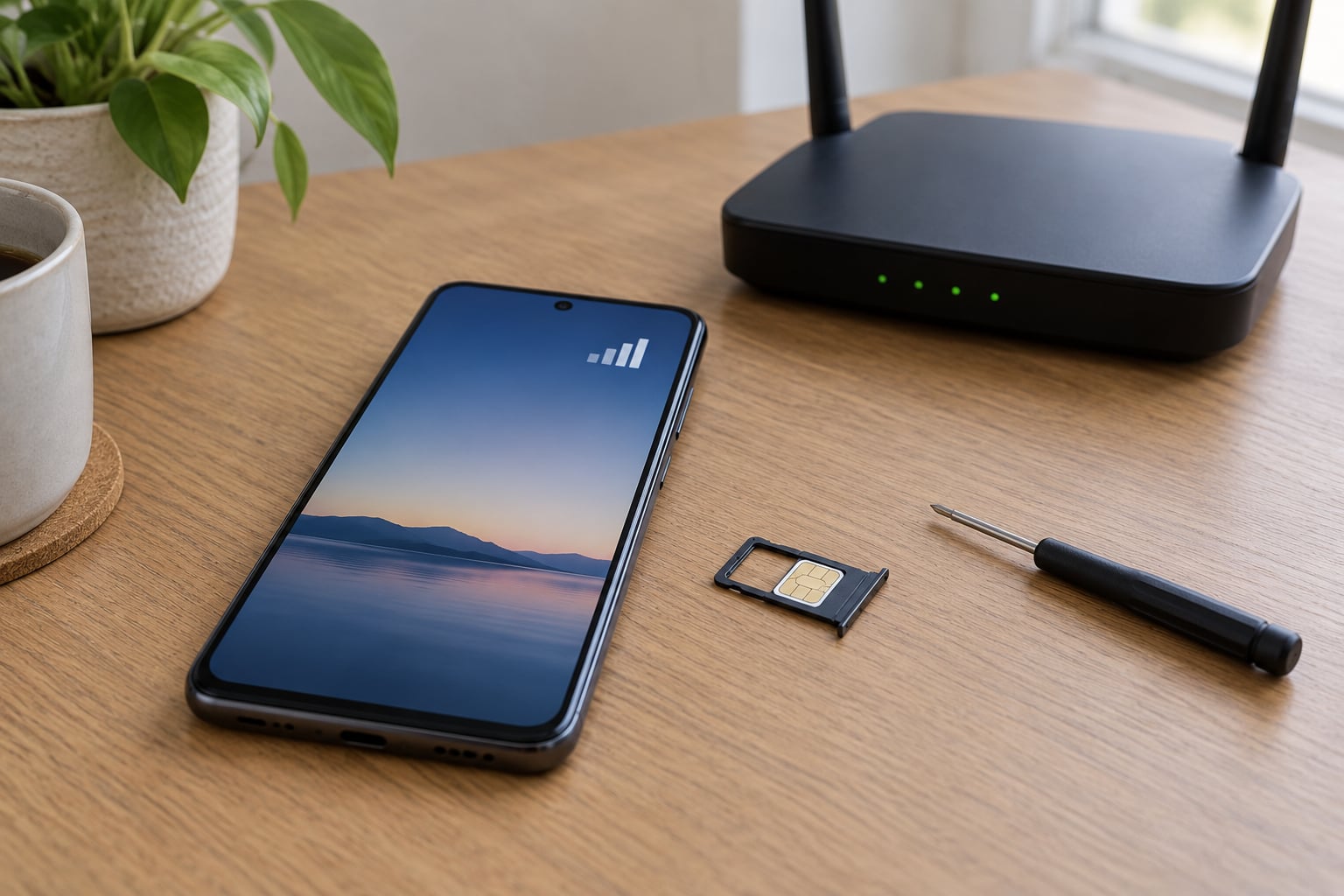
For a physical SIM, power the phone off, pull the tray, and reseat the card. Look for dust, a bent contact, or a card that has been moved around so often the tray no longer holds it. eSIMs fail differently: there’s no card to reseat, so check that the eSIM profile is still active and enabled under Settings, Cellular on iPhone or Settings, Network and internet, SIMs on Android.
Have these ready when you call the carrier: your account PIN, the phone number, the exact words of any error message, and whether the phone works on Wi-Fi. Anyone who has switched carriers recently should also confirm the old line was fully closed, because a phone with two active lines sometimes routes data to the wrong one.
Step 4: Disable VPN, Private DNS, Filters, and App Restrictions
A VPN is the most common hidden cause, and it fails quietly. The phone shows a key icon in the status bar, connects to the VPN server, and then can’t get any real traffic through the mobile network. Disconnect it and test. Don’t delete the app, just switch it off for the test.
Private DNS on Android works the same way. Go to Settings, Network and internet, Private DNS, and set it to Off rather than Automatic or a custom hostname. An automatic DNS provider that goes down can take mobile data with it, and that’s exactly what happened across a wide stretch of users when one popular DNS filter service had an outage.
Ad blockers work on the same layer. If a DNS or ad blocking app is installed, disable it for the test as well. On iPhone, these apps work through a VPN profile, so check Settings, General, VPN and Device Management for a profile you don’t recognise.
Then look at app-level restrictions. On iPhone, Settings, Cellular, then scroll down and check the Cellular Data list, where every app has its own switch. On Android, Settings, Apps, then the app, then Mobile data. If only one or two apps are failing while everything else loads, this is where the answer lives, and it’s usually an app that was restricted by accident during a system update.
Parental controls and device management profiles do the same thing from the other direction. On Android, check Settings, Security, Device admin apps. On a work phone, ask IT before removing anything.
Battery and power saving modes are related but not identical. On Xiaomi, OnePlus, and other Android skins with aggressive power management, background data can be killed entirely while the phone sits idle. If data works when you’re actively using the phone and dies after a few minutes of not touching it, that’s the cause. Exempt your carrier and messaging apps from battery optimisation.
Step 5: Restart, Reset Network Settings, and Test the Device
Do these in order, and only move to the next one when the previous one fails. Restarting a phone clears the radio’s cached state, which is why a phone that has been on for weeks can start working again after ten seconds of downtime.
Next comes a network settings reset. On iPhone, Settings, General, Transfer or Reset iPhone, then Reset, then Reset Network Settings. On Android, Settings, System, Reset options, Reset Wi-Fi, mobile and Bluetooth network settings on Pixel, or Settings, General management, Reset, Reset network settings on Samsung.
Read this before you tap it: a network reset removes saved Wi-Fi networks and passwords, VPN and APN configurations, and cellular plan settings you entered by hand. Nothing else goes. Photos, messages, apps, and files are untouched, which is the question most readers ask and the reason people delay doing it for days.
After the reset, the phone reboots and rebuilds its network configuration from the carrier defaults. That’s why it fixes APN problems you couldn’t diagnose yourself, and it’s the reason to try it before anything more drastic.
Now test properly. Turn Wi-Fi off completely, then load a website that isn’t cached. Run a speed test if you have the app. If the phone works on Wi-Fi but not on mobile data, you’ve narrowed it to the carrier side; if it fails on both, something bigger is going on with the device.
The other test worth running is a second device on the same plan. If your phone’s data works on someone else’s phone in the same spot, the fault is in your handset and the carrier won’t be able to fix it. A full factory reset is the last option and the one I’d avoid, because it rarely helps with a data problem and costs you every setting you had customised.
Common Mobile Data Mistakes and Fixes
Assuming bars mean data works. Bars show the radio is connected to a tower. They say nothing about whether the data session was set up. Look for 4G, LTE, or 5G text, and test with a page load.
Leaving Data Saver or Low Data Mode switched on. It throttles background activity and pushes apps to Wi-Fi. Turn it off for a day and see whether anything changes.
Forgetting that roaming is off. This is the number one surprise when landing in another country. Full bars, zero data, one toggle away from fixed.
Reading a VPN key icon as a network fault. A connected VPN on a mobile network frequently blocks all traffic. Disconnect and retest before you reset anything.
Resetting the whole phone first. Factory resets take an hour to undo and rarely fix a data problem. Reset network settings, not everything.
Skipping the account check. An exhausted allowance, a suspended line, or an unpaid balance looks exactly like a phone fault. Check the plan before you open a single menu.
Confusing Wi-Fi calling with mobile data. Wi-Fi calling sends your calls over the Wi-Fi connection, which is why calls keep working while data does not. It’s not evidence that the mobile network is healthy.
One more that’s worth knowing: on some Android phones, a date and time that is set manually instead of automatic can break the network authentication the phone performs when it attaches to a tower. Turn on automatic date, time and time zone, and only then blame the carrier.
Frequently Asked Questions
Why is my mobile data not working but Wi-Fi does?
Because Wi-Fi and mobile data take completely separate paths through your phone. Working Wi-Fi only proves the Wi-Fi chip and your router are fine. When mobile data alone fails, the problem sits in the mobile radio, the SIM or eSIM, a data setting, or your carrier account. Turn off Wi-Fi, confirm your network type reads 4G, LTE, or 5G, and start with airplane mode and a restart.
Why does my phone show full bars but no mobile data?
Bars only mean the phone locked onto a nearby tower. The data session that carries internet traffic is a separate step, and it fails more often than the signal itself does. Common causes are a restricted data allowance, mobile data switched off, roaming off while travelling, a VPN blocking traffic, or a restricted APN after a failed system update. Check your plan first, then work down the steps above.
How do I reset my mobile data?
On iPhone, go to Settings, General, Transfer or Reset iPhone, Reset, then Reset Network Settings. On Android, go to Settings, System, Reset options, then Reset Wi-Fi, mobile and Bluetooth network settings; on Samsung it is under General management, Reset. Your phone restarts and rebuilds its network configuration from the carrier defaults. This fixes many data problems in about a minute.
Does resetting network settings delete everything on my phone?
No. A network reset clears only saved Wi-Fi networks and their passwords, VPN and APN configurations, and any cellular plan settings you added manually. Your photos, messages, apps, accounts, and files are all left alone, which is why it is safe to try before anything more serious. A factory reset is a different thing entirely, and that one does wipe the device.
Why does mobile data work on another phone but not mine?
That comparison tells you the fault is in your handset rather than the carrier or the tower, so carrier support will not be able to fix it. Work through airplane mode, a restart, and a network settings reset. If data still fails, check for a device management profile that could be restricting it, and then contact your phone manufacturer about a hardware or modem fault.
Why is my data not working when I travel abroad?
Roaming is the usual answer. On iPhone, open Settings, Cellular, Cellular Data Options, then Data Roaming. On Android, go to Settings, Network and internet, SIMs, your SIM, then Data roaming. Some prepaid plans disable roaming entirely until you ask, and some carriers use partner networks with limited coverage. If you are on a local eSIM instead, check that the data plan on that eSIM is active.
Conclusion
Start with airplane mode for fifteen seconds, a restart, and a look at your data allowance. Those three cover most cases, and the whole sequence takes a couple of minutes. If mobile data is still dead, disconnect any VPN, turn roaming on if you’re travelling, and reset your network settings, which restores the carrier configuration without touching your files.
If it survives all of that, the problem is on the carrier’s account or inside the phone hardware. Check for a local outage, then call your carrier with your account PIN and the exact error message. If their diagnostics come back clean and another phone on the same plan works in the same spot, contact your phone manufacturer. Guidance here is current as of 2026, and menu names shift between models, so take the nearest path if yours is worded differently.