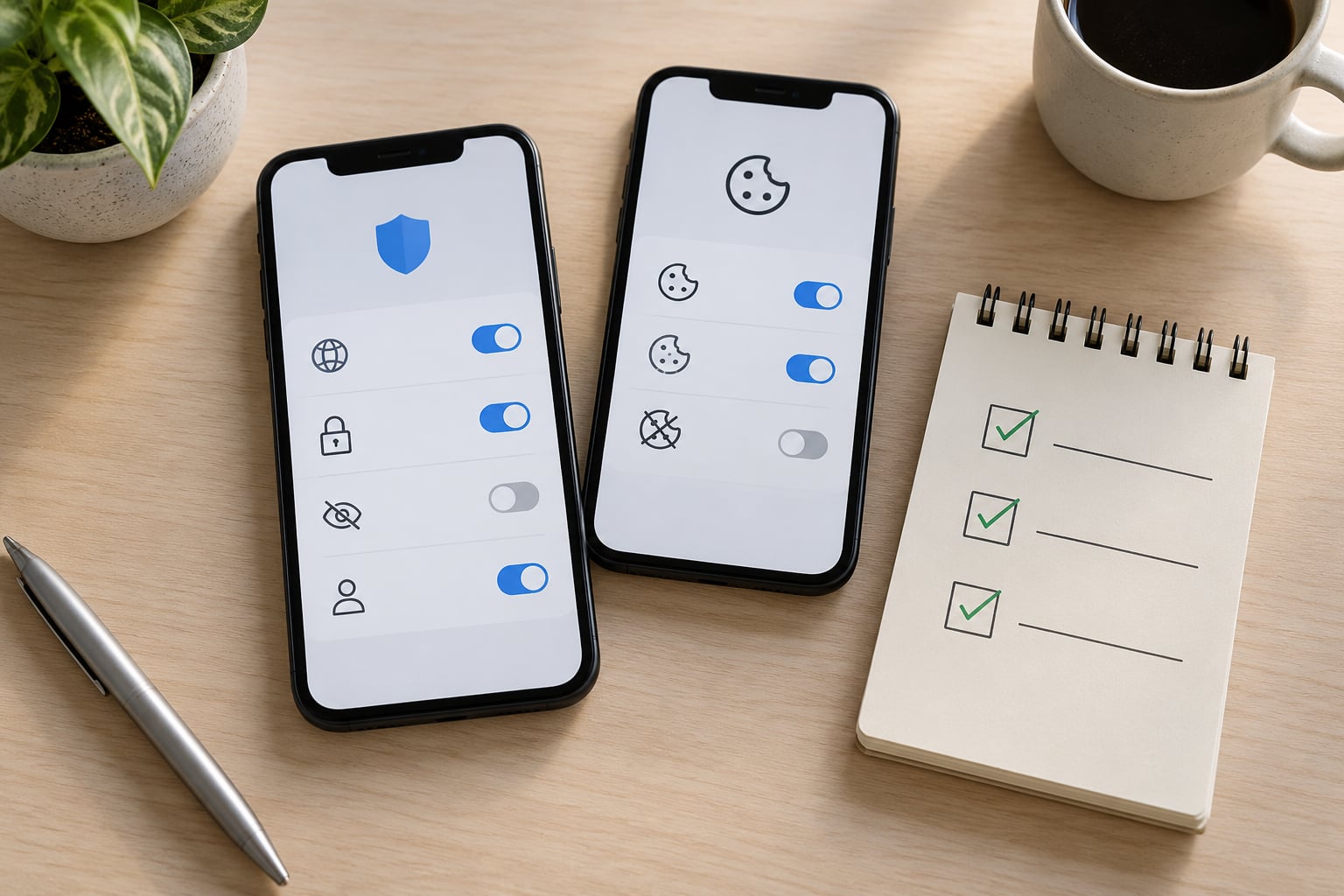
To block trackers in a mobile browser, you turn on the privacy controls your browser already ships with, block third-party cookies where the setting exists, then clear the tracking data already stored on the phone. On an iPhone that means Safari’s cross-site tracking protection; on Android it usually means Chrome’s site-data controls, Firefox’s Enhanced Tracking Protection, or Brave’s Shields. The whole job takes about ten minutes, and it is free.
Here is the honest version, including the parts that do not work as well as the internet suggests. Browser-level blocking stops a real slice of tracking, and the slice that matters most is ad-network cookies following you from one site to the next. It does not touch your IP address, it does not stop fingerprinting scripts, and it does not follow you into the apps on your home screen.
Paths below follow currently shipping builds of iOS Safari, Chrome on Android, Firefox for Android and Samsung Internet. Browser menus move between releases, so if a label reads slightly differently on your screen, look for the nearest equivalent and check your browser version in its About or Settings page.
Table of Contents›
- What You Need
- Step-by-Step: How to Block Trackers in a Mobile Browser
- Step 1: Turn On Your Browser’s Built-in Tracker Protection
- Step 2: Block Third-Party Cookies and Cross-Site Tracking
- Step 3: Use a Content Blocker or Privacy-Focused Browser for Stronger Protection
- Step 4: Clear Old Cookies and Site Data, Then Sign In Again If Needed
- Step 5: Test the Protection and Adjust Browser Permissions
- Turning off ad personalisation in your Google account
- Private browsing on mobile: what it does and does not do
- Common Mistakes
- Frequently Asked Questions
- Does private browsing on a phone block trackers?
- What is the easiest way to block trackers in a mobile browser?
- Does a VPN stop trackers on a smartphone?
- Can Safari on an iPhone block cross-site tracking?
- How do I block trackers in Chrome on Android?
- Will blocking cookies break websites and app sign-ins?
What You Need
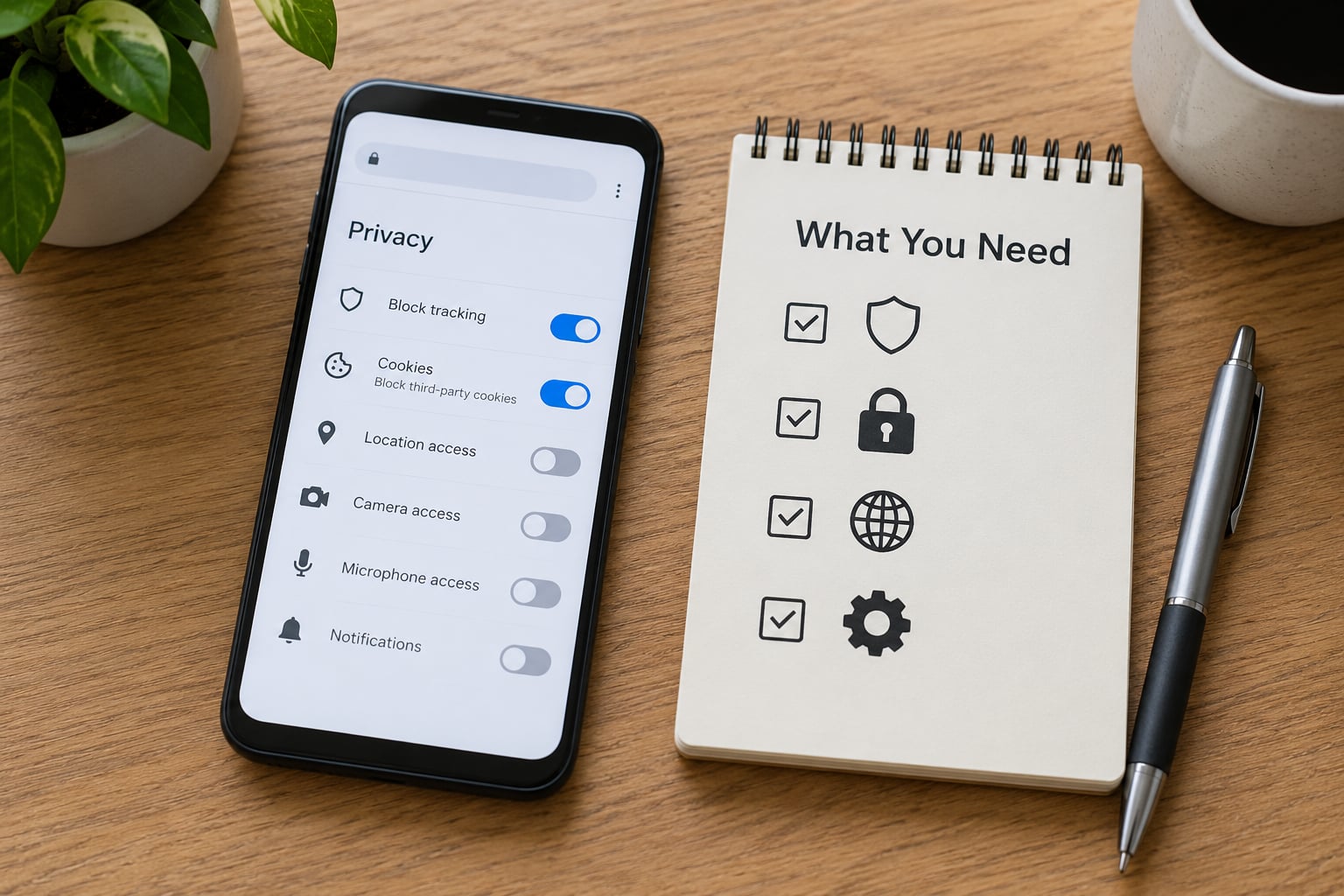
You need a phone you use daily, the browser you already open, and roughly ten minutes. That is genuinely it. No account, no purchase, no extension store required.
Three things to know before you start. First, the exact controls differ by operating system and browser, so find your row below and ignore the rest. Second, private browsing does not block trackers, it simply declines to remember them, so treat it as a different tool. Third, changing cookie settings can sign you out of sites, so do it when you are not mid-transaction.
A useful mental model: think in layers. Cookies and site data sit in the browser. Fingerprinting and your advertising ID sit partly in the operating system and in the apps you installed. A VPN sits on the network. You are only fixing the first layer here, and that layer is still worth fixing because it is where the ad tracking happens.
Step-by-Step: How to Block Trackers in a Mobile Browser
- Turn on your browser’s built-in tracker protection.
- Block third-party cookies and cross-site tracking.
- Add a content blocker or switch to a privacy-focused browser if you want stronger limits.
- Clear the cookies and site data already stored on the phone, then sign back in.
- Test that the protection is active and review site permissions.
Work through these in order. Skipping ahead to clearing data without switching protection on simply resets the board and lets tracking start again from scratch.
Step 1: Turn On Your Browser’s Built-in Tracker Protection
Every major mobile browser ships with some form of tracking defence that most people never switch on, because it is buried three menus deep and named something like site data rather than trackers.
On Safari for iPhone and iPad, tracking protection is on by default, but Advanced Tracking and Fingerprinting Protection lives under Settings, then Privacy and Security, then Advanced Tracking and Fingerprinting Protection. Leaving it on Standard gives you known tracker blocking; Advanced adds fingerprinting protection and isolation, which is the setting to use if you want the stronger version.
On Chrome for Android, open the three-dot menu, choose Settings, then Privacy and security, then Site settings, then Cookies and site data. The control is called Third-party cookies in current builds. Older Android builds may instead show a Use third-party cookies toggle with a Block option.
On Firefox for Android, tap the three-dot menu, then Settings, then Privacy and security, then Enhanced Tracking Protection. Standard blocks social media trackers, cross-site tracking cookies and cryptominers while keeping most sites working. Strict blocks more and breaks far more, so I would start on Standard.
On Samsung Internet, the switch sits under the three-line menu, Settings, then Privacy mode. You want Third-party cookies set to Block and the ad blocking toggle enabled in the same panel. No competitor page I read covers Samsung Internet properly, and it is the default browser on a lot of phones, so it is worth including here.
Brave and DuckDuckGo are different again: protection is built in and on by default, so there is nothing to switch on unless you want to tune the shield settings.
| Browser and platform | Where the setting lives | What it stops |
|---|---|---|
| Safari on iPhone | Settings, Privacy and Security, Advanced Tracking and Fingerprinting Protection | Known cross-site trackers, and fingerprinting in Advanced mode |
| Chrome on Android | Settings, Privacy and security, Site settings, Cookies and site data, Third-party cookies | Third-party cookie reads and cross-site ad matching |
| Chrome on iOS | Chrome, More, Settings, Privacy and security | Limited controls; Apple blocks third-party cookies anyway on iOS apps |
| Firefox for Android | Settings, Privacy and security, Enhanced Tracking Protection | Social trackers, cross-site cookies, crypto miners |
| Samsung Internet | Menu, Settings, Privacy mode | Third-party cookies and known ad scripts |
| Brave | Settings, Shields | Trackers, fingerprinting, cookie write blocking; on by default |
| DuckDuckGo | Settings, Privacy | Tracker blocking on by default, plus App Tracking Protection on Android |
| Edge on mobile | Settings, Privacy, Tracking prevention | Balanced tracking prevention for sites you visit |
Step 2: Block Third-Party Cookies and Cross-Site Tracking
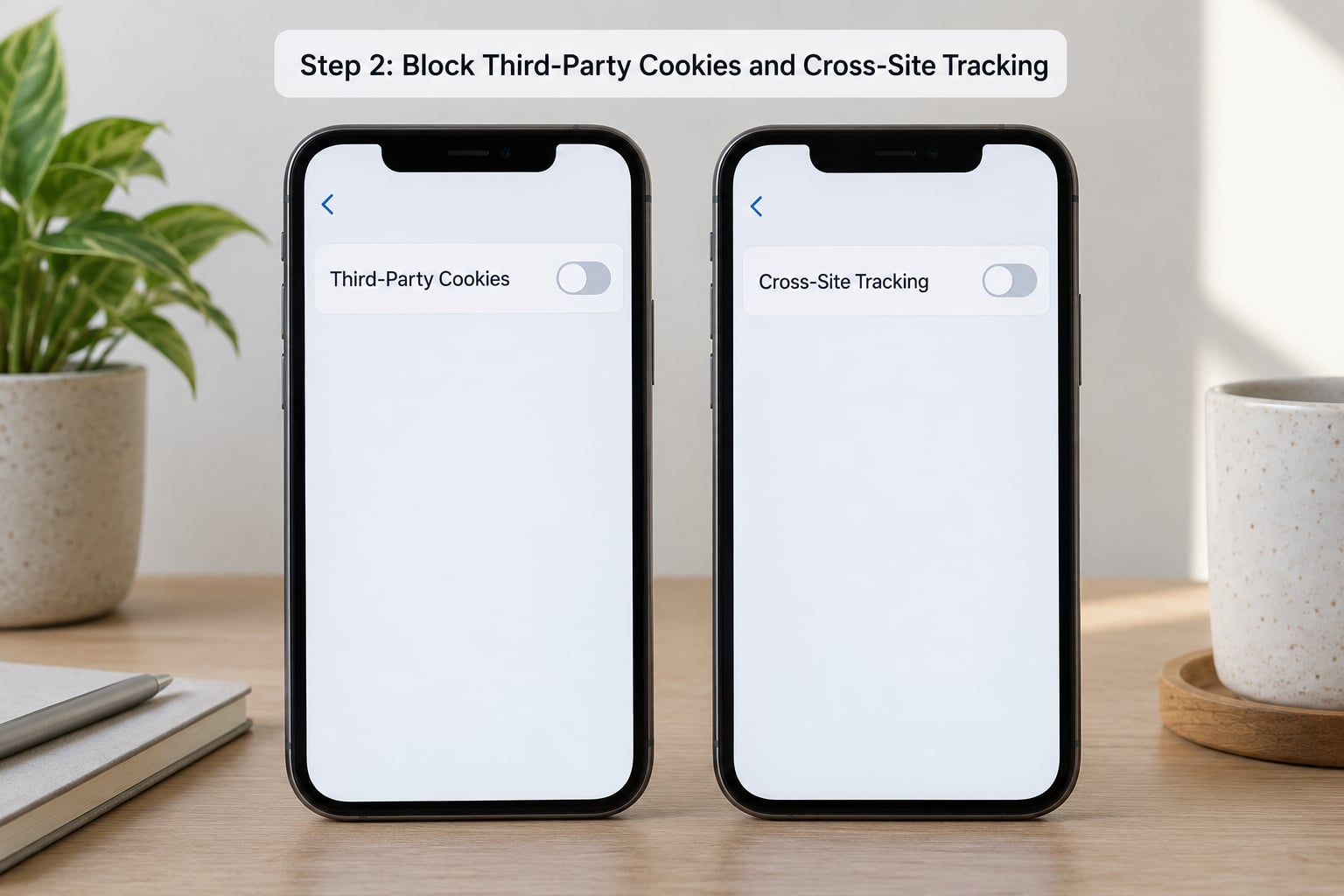
This is the setting that does the heavy lifting. A first-party cookie is set by the site you are on, so it keeps your basket or your login alive. A third-party cookie is set by someone else, usually an ad network, and it is the mechanism that follows you from a news site to a car dealership.
In Safari, the toggle is Settings, Privacy and Security, Prevent Cross-Site Tracking. It is on by default on a current iPhone. Add Hide IP Address in the same menu, which also stops websites seeing your IP from ordinary browsing.
In Chrome on Android, set Third-party cookies to Block in the menu path above. In Chrome on iOS the control is thinner because the browser runs inside Apple’s sandbox, but the privacy and security section still offers Delete browsing data and a Do Not Track request.
In Firefox, Enhanced Tracking Protection on Standard is enough for most people. The blocking happens inside the browser, so the pages you actually visit behave normally while the cross-site read attempts fail.
The trade-off is real and worth stating plainly. Some single sign-on flows, embedded video players, shopping carts and bank authentication widgets depend on third-party cookies, and blocking can break them. If something you use stops working, the fix is an exception for that one site rather than switching protection off globally. Chrome allows per-site cookie settings under Site settings, and Firefox has Enhanced Tracking Protection exceptions under Settings, Privacy and security, where you can pick Custom and allow trackers on specific sites.
There is also a cookie banner decision to make. On a banner, choosing reject all rather than accept all matters far more than most people realise, because declining usually blocks the advertising and measurement categories while keeping the strictly necessary ones.
Step 3: Use a Content Blocker or Privacy-Focused Browser for Stronger Protection
Built-in settings handle cookies. A content blocker handles the other half: the tracking scripts, pixels and ad frames that load on sites with your cookies refused.
On iPhone and iPad, content blockers are system-wide and live in Settings, then Privacy and Security, then Content Blockers. You install one blocker app from the App Store, then enable its switch in that menu. It then filters Safari and any browser that respects the system list. This is the only real extension-style blocking mechanism Apple allows on iOS, which is exactly why a lot of people assume nothing is possible on an iPhone.
On Android, that constraint does not apply, so a browser with built-in blocking is usually simpler than managing a separate blocker. Brave Shields block third-party requests, scripts and fingerprinting by default without a subscription. Firefox for Android supports add-ons, which is the fallback people in privacy forums recommend when they want a specific tracker-blocking extension.
DuckDuckGo for Android has one capability worth calling out. Its App Tracking Protection extends beyond the browser to block trackers used by other apps on the same phone, which is different from everything else on this list because it reaches outside the browser entirely.
Keep content blocking separate from VPN protection in your head. A content blocker removes requests before they load. A VPN changes the network route and hides your IP address from the sites you visit, which does nothing about the trackers a site tries to run once the connection is open.
Step 4: Clear Old Cookies and Site Data, Then Sign In Again If Needed
Switching on protection stops new tracking. It does not remove what is already stored, so this step is about resetting the slate once, not something to repeat every week.
In Safari, tap the Settings icon in the bottom bar, scroll to the website list and swipe left on individual sites to clear their data. For a full reset, open Settings, then Safari, then Clear History and Website Data, and confirm.
In Chrome on Android, tap the three-dot menu, History, then the Clear browsing data icon at the top, choose Cookies and site data, and confirm. Chrome may ask for your device lock to protect the change.
In Firefox for Android, the three-dot menu leads to Settings, then Clear private data, where you pick Cookies and site data.
Here is the warning people skip and then regret. Clearing site data signs you out of every website where you were logged in, clears saved preferences, and can reset shopping baskets. Banking apps often survive because they use their own storage rather than browser cookies, but some retailer apps stored in the browser do not.
Doing it once after you have switched protection on is sensible. Doing it daily is pointless and leaves you in a permanent sign-in loop, which is a fast way to end up disabling the protection you just turned on.
Step 5: Test the Protection and Adjust Browser Permissions
You cannot see blocking from the page you are on, so use an outside check. Public test pages such as EFF Cover Your Tracks or a browser add-on’s own diagnostic page will report the trackers they detected and whether they were blocked. If the result shows a long list of unblocked categories, your protection is not actually on.
Two quicker manual checks work too. Visit a site you rarely use and look at the permission prompt when it asks about notifications or location: a blocked tracker often means fewer odd prompts. And open your browser settings and confirm the toggle you changed is still showing the blocked state after a restart, because some browsers silently revert after updates.
While you are in settings, review permissions for location, camera, microphone and notifications at the system level, in Settings on iPhone or Settings, Apps, Permissions on Android. A tracker cannot use a microphone you denied.
Be clear-eyed about the limits. Browsers can block known tracking systems and cross-site cookies. They cannot prevent every form of profiling, cannot reliably stop fingerprinting in every browser, cannot stop first-party tracking by the site you are logged into, and cannot touch tracking performed by the apps installed on your phone. If ads still follow you from an app into your browser, the tracking happened outside the browser.
| What breaks | What to do |
|---|---|
| Sign-in loops or a logout that will not stick | Add the site as an exception, or clear only that site’s data |
| Embedded videos or comment boxes not loading | Allow third-party cookies for that domain only |
| Payment or bank form refusing to submit | Temporarily allow trackers on the bank’s domain, then remove the exception |
| Captcha looping forever | Retire the content blocker for that one site rather than globally |
| Ads still following you after signing out of Google | Account-level ad personalisation, not a browser cookie; change it in your Google account |
| Ads appearing inside native apps | Android advertising ID and app-level permissions, which no browser setting covers |
Turning off ad personalisation in your Google account
This is the step that finally answers why the same ad follows you from a search to a shopping app to a news site, even after you sign out and clear everything. That behaviour is driven by your account, not your cookies.
- Open the Google app on your phone, tap your profile picture, then tap Google Account.
- Tap Data and privacy, then scroll to More settings and work faster.
- Tap Ad personalisation, then switch off both the ad personalisation toggle and the specific categories you do not want used.
- Tap Delete ad centre activity to remove past ad history.
On iPhone, the same controls are at myaccount.google.com, Data and privacy, then Ad personalisation. Note the wording differences: Google uses personalisation in most regions and personalisation in the UK with different legal options, so the toggle label may read differently for you.
On iPhone, a related and much-requested prompt deserves its own explanation. When an app asks to track you, a system sheet appears saying that the app would like to track you across other companies’ apps and websites. That is App Tracking Transparency. If you tap Allow, the app can link your activity to data from other apps and sites. If you tap Ask App Not to Track, or dismiss the prompt, the app must stop. The critical detail is that this sheet only appears for apps that want to follow you off-device, and it does not cover what happens inside the app’s own screens.
Private browsing on mobile: what it does and does not do
Private mode is worth using for a specific purpose and not for the purpose people assume. It stops your history, form entries and cookies from being stored on the device, so the next person who opens your browser sees nothing. It does not stop trackers loading, it does not hide your IP address, and it does not stop a site from fingerprinting your device or from identifying you while you are logged into an account. Use it on a shared phone or a borrowed device, and treat it as hygiene rather than as tracker blocking.
Common Mistakes
Assuming private browsing blocks trackers. It does not. The scripts still load and the requests still leave your phone. What changes is whether the data is remembered afterwards.
Installing a VPN and assuming tracking stopped. A VPN moves your traffic and masks your IP address from the sites you visit. The tracking on a page you have fully loaded still runs. If the ads reappear the moment you connect, that is the reason.
Blocking every cookie without checking what breaks. Rejecting everything feels pure and breaks real functionality. The pragmatic middle is blocking third-party cookies while allowing first-party ones, which keeps sign-ins working and still cuts most cross-site tracking.
Forgetting the apps. The advertising identifier on Android and the tracking permissions on iPhone operate at the app level. On Android, check Settings, Apps, Special app access, Advertising ID and delete it if you would rather apps could not use it for ads. Also read the Data safety section on a Google Play listing before installing; it is the fastest honest summary of what an app collects.
Expecting a browser to make you anonymous. A logged-in session identifies you regardless of cookies. Your IP address, device characteristics and account sign-in are separate signals that blocking cookies never touches.
Giving up after one site breaks. This is the most common failure in practice. Privacy forum threads describe the same loop over and over: a site breaks, the reader assumes blocking is unusable, protection gets switched off, and tracking returns for everyone. Allow-listing the one site that fails takes about a minute and keeps the rest of the benefit intact.
A few habits that keep the gain: leave Do Not Track on as a request even though a minority of sites honour it, since it costs nothing. Re-check your browser settings after a major update, because menu labels and defaults change. On a family phone, review which apps have location and photo permissions. And prefer free tools that do not require an account, since a subscription for ad blocking is a poor trade on a phone where the built-in options already do most of the work.
Frequently Asked Questions
Does private browsing on a phone block trackers?
No. Private browsing in Safari or Chrome stops your history, form entries and cookies from being stored on the device, so the next person sees nothing. It does not stop tracking scripts loading, does not hide your IP address, and does not prevent fingerprinting. Use it as hygiene on a shared phone, then switch on cross-site tracking and third-party cookie controls for actual blocking.
What is the easiest way to block trackers in a mobile browser?
Turn on the setting your browser already ships with. On Safari use Prevent Cross-Site Tracking and Advanced Tracking and Fingerprinting Protection. On Chrome for Android use Settings, Privacy and security, Site settings, Cookies and site data, and block third-party cookies. On Firefox set Enhanced Tracking Protection to Standard. Each takes about a minute and needs no extra app.
Does a VPN stop trackers on a smartphone?
No. A VPN reroutes your traffic and hides your IP address from the sites you connect to, which protects you on shared public Wi-Fi. Once a page has loaded, the tracking scripts on it run exactly as before, and cookies still set if your browser allows them. To reduce tracking you need browser-level cookie and script controls alongside, not instead of, a VPN.
Can Safari on an iPhone block cross-site tracking?
Yes, and it does so by default. Settings, Privacy and Security, Prevent Cross-Site Tracking stops sites from using your browsing to build a profile of you across other sites. Set Advanced Tracking and Fingerprinting Protection to Advanced for stronger fingerprinting coverage, and add Hide IP Address in the same menu. Apple also requires apps to ask permission before tracking you off-device.
How do I block trackers in Chrome on Android?
Open the three-dot menu, then Settings, Privacy and security, Site settings, Cookies and site data, and set Third-party cookies to Block. Chrome may ask for your device lock. Then clear what is already stored via History, Clear browsing data, choosing cookies and site data. Turning the toggle on only stops new tracking until the old data is cleared.
Will blocking cookies break websites and app sign-ins?
Blocking all cookies, including first-party ones, does break sign-ins, carts, embedded video and some bank authentication. Blocking only third-party cookies breaks far less, and Safari and Firefox both ship protections calibrated to that balance. When a site fails, add it as a per-site exception rather than switching protection off globally, and keep a note of which domains you changed.
Start with the toggle your browser already has, because that is the change with the biggest effect for the least effort. On an iPhone, open Settings, Privacy and Security and check Prevent Cross-Site Tracking and Advanced Tracking and Fingerprinting Protection. On Android, block third-party cookies in Chrome, set Enhanced Tracking Protection to Standard in Firefox, or switch the same controls on in Samsung Internet’s Privacy mode. Then clear site data once, sign back in, and leave the single-site exceptions you need in place rather than switching the whole thing off when one site misbehaves. If ads still follow you across apps, the remaining tracking is at the account and app level, not in the browser.