To clear browser cookies on a phone, open your browser’s menu, choose the option that says Cookies and site data or Website data, and confirm the deletion. On an iPhone that means Settings > Apps > Safari; on Android it means Settings > Site settings inside Chrome. The whole job takes about a minute per browser.
The catch is that clearing cookies signs you out of every site you were logged into. If you only want the site that keeps glitching cleaned up, there is a smaller option further down. Updated for October 2026.
Table of Contents›
- What You Need
- Step-by-Step: How to Clear Browser Cookies on Any Phone
- How to Clear Cookies in Google Chrome on Android
- How to Clear Cookies in Safari on iPhone
- How to Clear Cookies in Samsung Internet
- How to Clear Cookies in Firefox on Android or iPhone
- How to Clear Cookies in Other Mobile Browsers
- Common Mistakes
- Frequently Asked Questions
- Does clearing cookies delete my saved passwords on a phone?
- Will clearing cookies sign me out of Gmail and my banking app?
- Why do my cookies come back seconds after I clear them?
- Does clearing cookies on my phone also clear them on my desktop?
- Is private browsing enough, or do I still need to clear cookies?
- Is clearing cookies different on Android and iPhone?
- Conclusion
What You Need
You need three things: your unlocked phone, the browser you actually use, and roughly a minute. Before you start, think about which accounts are signed in — clearing cookies logs you out of webmail, shopping sites and anything else open in that browser.
It also helps to know that this is not the same as uninstalling the browser. You are not deleting the app, your bookmarks, your downloads, or your account data. You are deleting small text files the websites saved on the phone.
Cookies, cache and history are three different things, and deleting the wrong one is why so many people clear everything twice. Cookies are the small files that keep you signed in and remember site preferences like your language or dark mode. Cache is a saved copy of images and files that speeds up repeat visits. History is the list of pages you opened.
| What it is | What deleting it does | Do you get logged out? |
|---|---|---|
| Cookies and site data | Removes sign-in tokens and saved site preferences | Yes, on every site |
| Cached images and files | Freees a little storage, pages reload slower once | No |
| Browsing history | Empties the list of visited pages | No |
| Saved passwords and autofill | Untouched by every option in this guide | No |
If your goal is a browser that feels faster, clear the cache and untick cookies. If your goal is privacy or a clean handover of the phone, clear cookies too.
Step-by-Step: How to Clear Browser Cookies on Any Phone
Here is the short version for each combination. The table names the exact buttons; the walkthroughs below fill in the details.
| Phone and browser | Exact path | What it clears |
|---|---|---|
| Chrome on Android | Settings > Site settings > Cookies and site data > Delete all data | Cookies and site data |
| Safari on iPhone | Settings > Apps > Safari > Clear History and Website Data | History, cookies, website data |
| Safari on iPhone, cookies only | Settings > Apps > Safari > Advanced > Website Data > Remove All Website Data | Website data, keeps history |
| Chrome on iPhone | Profile icon > Settings > Privacy and Security > History > Clear Cookies | Cookies only |
| Samsung Internet | Menu > Settings > Privacy and Security > Cookies or Site data > Delete | Cookies and site data |
| Firefox on Android | Three-dot menu > Settings > Privacy and Security > Cookies and site data | Cookies and site data |
| Firefox on iPhone | Tab view button > Settings > Data Privacy > Clear Website Data | Website data |
| Edge on mobile | Three-dot menu > Settings > Privacy > Clear browsing data | Cookies, cache, history |
How to Clear Cookies in Google Chrome on Android
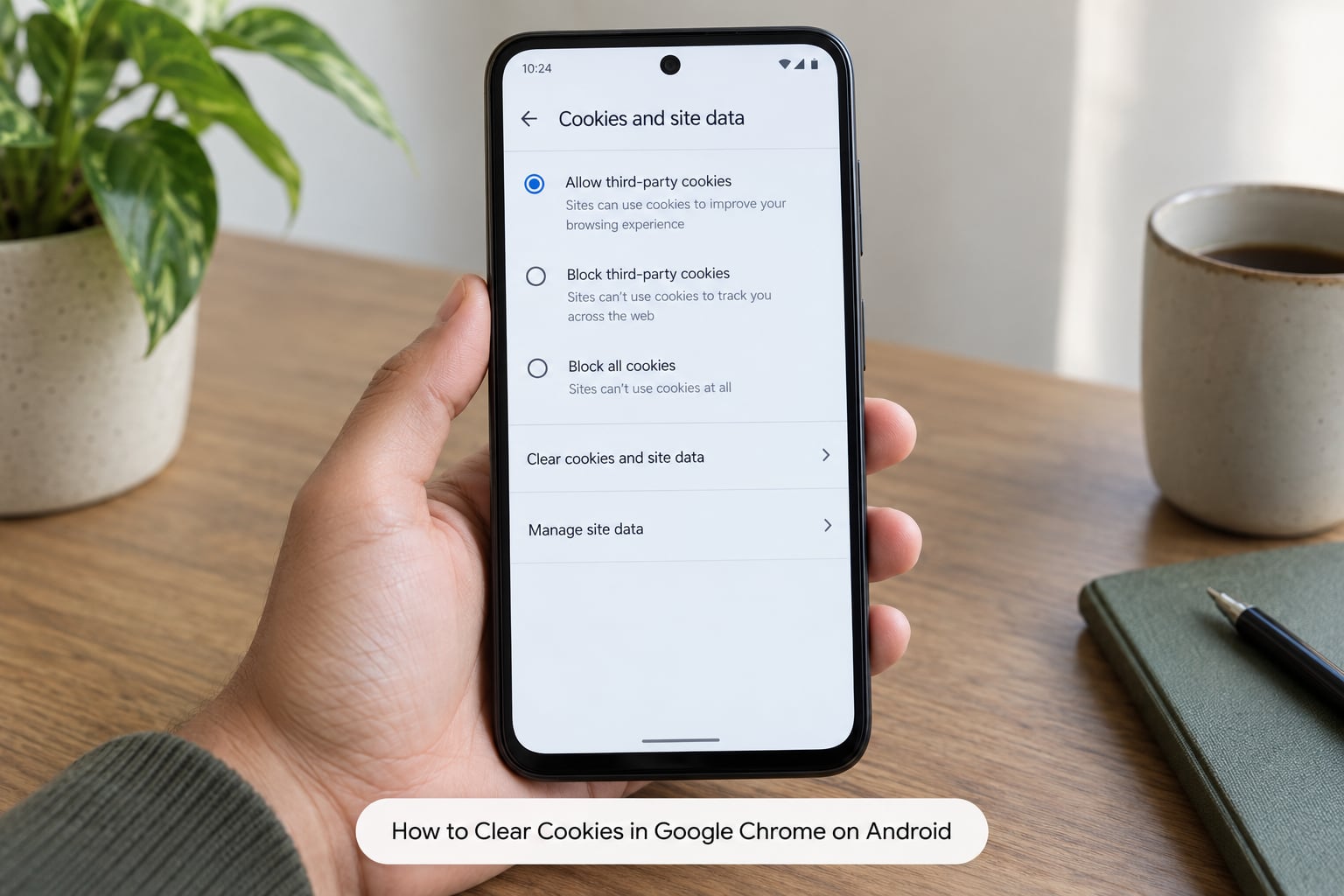
Chrome on Android buries cookies two menus deep, which is why most search results send you to the wrong screen. Open Chrome, tap the three-dot menu at the top right, tap Settings, scroll down and tap Site settings, then Cookies and site data. Tap Delete all data, confirm, and every site cookie stored by that profile is gone in about a second.
There is a faster route when you want to clear history at the same time. Tap the three-dot menu, tap History, tap Clear browsing data, pick a time range (15 minutes, an hour, 24 hours, 7 days, all time), tick Cookies and site data, and confirm. Leave cached images and files unticked unless you also want the storage back.
If you only want to clear one troublesome site, tap the padlock or the tune icon at the left of the address bar, then Cookies and site data and Manage on-device site data. That one is worth remembering, because it keeps you signed in everywhere else.
A note about labels: older guides tell you to look for Clear Sites Data or a setting called Use third-party cookies. Those were replaced. If you cannot see Site settings in the menu, tap the search icon at the top of Chrome’s settings page and type cookies — that jumps straight to the right page.
How to Clear Cookies in Safari on iPhone
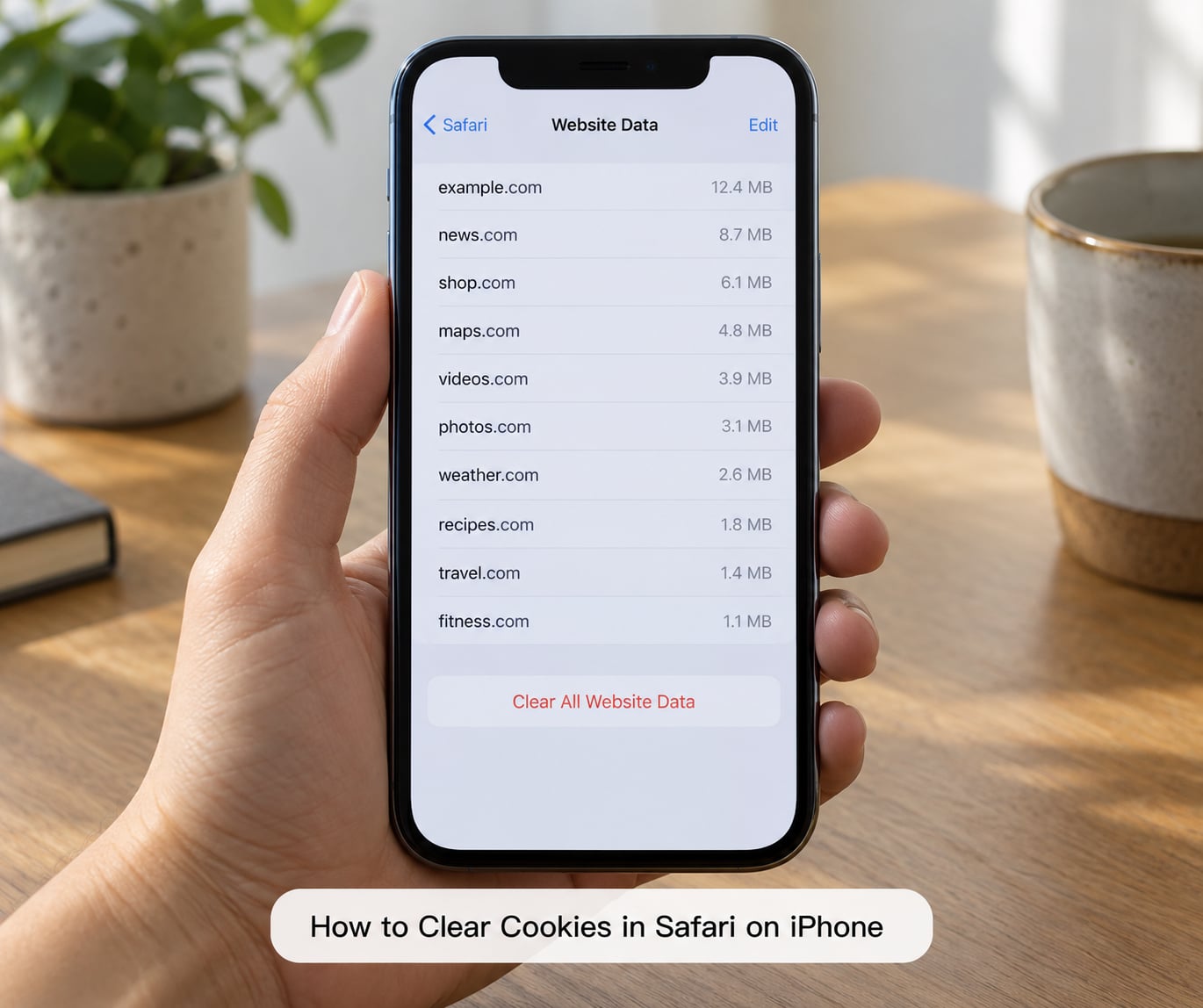
Safari settings live inside the Settings app, not inside Safari itself. Open Settings, scroll down the list of apps, tap Safari, and tap Clear History and Website Data. That single tap clears history, cookies and website data together, and it asks you to confirm with a five-second countdown.
To keep your history and remove only the cookies, scroll further down in the same Safari settings page to Advanced, tap Website Data, and tap Remove All Website Data at the bottom of the list. You can also swipe individual sites away one at a time, which is the tidiest way to clear a single site without touching anything else.
You do not need to delete the Safari app, and doing so would not help — Safari cannot be uninstalled on iPhone anyway. Clear the data from Settings and Safari is clean on the next page load.
Chrome on iPhone works differently from Chrome on Android, so the Android path will not work. Tap the profile icon in the bottom right, open Settings, then Privacy and Security, tap History and Clear Cookies. This clears cookies and leaves your history and cache in place.
How to Clear Cookies in Samsung Internet
Samsung Internet is not Chrome, even though it is Chromium-based, and guides that assume Chrome send Samsung users hunting for a menu that does not exist. Tap the three-line menu at the bottom of the browser, tap Settings, scroll to Privacy and Security, then tap Cookies and site data (sometimes labelled Site data).
On that screen you get two levels. Delete all clears every stored site, or you can scroll the list and remove individual entries with the bin icon. Some One UI versions put the same controls under Privacy rather than Privacy and Security, so if one label is missing, look for the other.
If Samsung Internet is set as your default browser, clearing it here covers every link you open from other apps, including in-app payment pages.
How to Clear Cookies in Firefox on Android or iPhone
On Android, tap the three-dot menu, then Settings, then Privacy and Security. Firefox groups cookies under Sites, where Data shows every stored site and a Delete stored site data button at the bottom.
Firefox on iPhone hides its settings one level deeper because it runs in a tab view. Tap the tab view button in the bottom right, tap Settings in the menu, then Data Privacy. From there you can Clear Website Data or set Firefox to clear it automatically when you close it.
Both platforms also let you delete a single site’s data: tap the padlock in the address bar, then Clear cookies and site data for this site. Firefox’s cookie controls are genuinely granular, which makes it a good choice if most other browsers feel blunt.
How to Clear Cookies in Other Mobile Browsers
Brave, Edge, Opera and DuckDuckGo all follow the same shape: menu, privacy or security settings, cookies or site data, delete. In Brave that is three-dot menu > Shields > Other content settings > Cookies. In Edge it is three-dot menu > Settings > Privacy > Clear browsing data. In DuckDuckGo the equivalent lives under Fire Button. The exact names differ per browser, so read the menu rather than hunting for one name.
Privacy browsers are the exception worth knowing. In a private or incognito session, most browsers grey out the cookie-clearing controls because the session is already designed to discard them on close. Switch to a normal tab first.
WebView browsers — the ones inside apps like Gmail, Instagram or an airline’s app — have no settings page of their own. Their cookies belong to the app, and you clear them through the app instead: on Android, open Settings > Apps > the app > Storage > Clear storage. That app will log you out of itself as well.
Common Mistakes
You cleared history, not cookies. This is the most common one by a distance. The history option empties the page list and leaves you signed in. Look for cookies and site data, not browsing history.
You cannot find the site-data option. On Chrome for Android, use the settings search bar and type cookies rather than scrolling. On iPhone, remember the setting lives under Safari inside the Settings app, not inside Safari.
You expected app cookies to go with it. Clearing a browser does nothing for the Facebook or banking app on your phone. Apps keep their own storage, and clearing it signs you out of the app.
Everything logged you out. Unavoidable, and the reason to check your accounts first. Sign back in to the few that matter rather than clearing again. Re-doing two-factor authentication on work or banking accounts is the part people hate most, so check those before you tap delete.
Your cookies came back. A handful of sites rebuild identifiers the moment you reload, and some browsers store session restore data separately. Closing the browser fully, then clearing again, usually settles it. Apple Community threads have long-running complaints about Safari cookies reappearing within seconds of deletion — there is no user-side fix for that one, and it is not a sign your phone is broken.
A page says cookies are blocked. That is the opposite problem: your browser is refusing to store them. In Chrome for Android go to Settings > Site settings > Cookies and site data and turn site data on, or add the site to your exceptions list. In Safari, check that you have not enabled Prevent Cross-Site Tracking for that site, and make sure you are not in a private tab.
Your old guide’s steps do not match. Menu names change with app updates. Anything written several app versions ago will use labels your phone no longer has, which is why the instructions here name the current buttons rather than the historic ones.
Frequently Asked Questions
Does clearing cookies delete my saved passwords on a phone?
No. Cookies and saved passwords are stored separately. Clearing cookies and site data, clear browsing data, and website data all leave your saved passwords and autofill entries intact. If a password seems to disappear after a clear, the app usually just asks you to sign in again, and your password manager will offer to fill it straight back in.
Will clearing cookies sign me out of Gmail and my banking app?
It signs you out of websites in that browser, including webmail and any online banking you use there. Your banking app on the phone is separate and keeps its own storage, so it stays signed in. Before you clear, note which accounts you use most so you can sign back into those without fumbling for codes.
Why do my cookies come back seconds after I clear them?
A few sites rebuild an identifier the moment the page reloads, so a new cookie is created within seconds. Some browsers also keep session restore entries outside the cookie store. Closing the browser fully and clearing again usually stops it. Apple Community threads have long documented this behaviour in Safari with no dependable user-side fix, so it is not a sign your phone is faulty.
Does clearing cookies on my phone also clear them on my desktop?
Usually yes, if you are signed into the same browser account. Chrome, Safari through iCloud, Edge and Firefox all sync browsing data between your devices. Deleting cookies and site data on the phone can therefore end your desktop sessions too. Signing out of the browser sync account first, or deleting on a device where sync is off, keeps the wipe local.
Is private browsing enough, or do I still need to clear cookies?
Private browsing limits what gets stored while you use it, but it does not remove cookies already sitting in your normal browsing profile. It is a good habit, not a substitute. Note that most browsers grey out the cookie-clearing controls during a private session, so switch back to a normal tab before you try to delete anything.
Is clearing cookies different on Android and iPhone?
Yes, and the difference confuses people who switch phones. Android browsers handle cookies inside the browser app, usually through Settings or the site settings page. iPhone Safari keeps its settings in the iOS Settings app under Safari, which is why Safari is listed alongside your other apps. Chrome on iPhone follows the iOS rules too, not the Android path.
Conclusion
Start with the browser you use most. Clear cookies and site data there first, not history, and if a single site is the problem use the per-site option so everything else stays signed in. Sign back into only the accounts you actually need.
Clearing cookies fixes stale pages, storage creeping up and privacy worries on a shared phone. It does not remove every kind of tracking, and it does not touch what your apps or synced accounts hold. For that, pair the clear with private browsing and the auto-delete settings built into your browser.