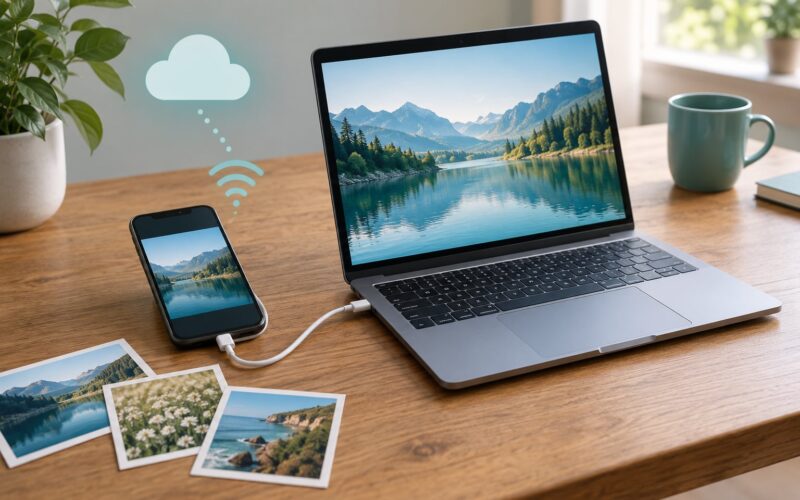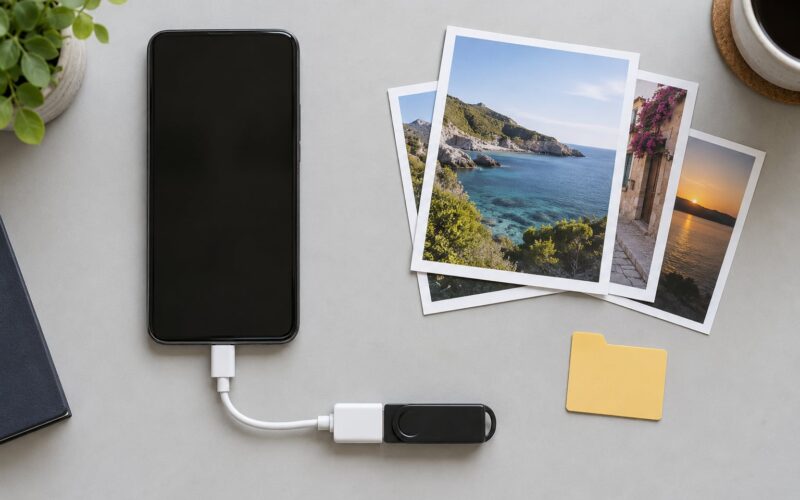
You can recover deleted photos on Android by checking the Google Photos trash and your phone’s native Gallery Recently Deleted folder within 30 to 60 days of deletion. After that window closes, deleted files start getting overwritten by new photos and app data, and the originals are usually unrecoverable.
Before you tap through menus, do one thing: switch on airplane mode. Every new photo, every app update and every sync writes fresh data into the same storage your deleted photos are sitting in. Stopping the phone from doing anything is the single most useful step in this whole guide, and almost nobody does it first.
I have walked through this enough times to know where people go wrong. They install a flashy recovery app before checking the two trash folders that cost nothing to open, they take “before” screenshots of the problem and quietly ruin their own chance, and they assume a photo is gone because it vanished from one app when it is sitting in another.
The good news is that the first two routes take about three minutes and bring back the full-size original, not a preview. Work down the list below in order and stop as soon as you find what you lost.
Table of Contents›
- What You Need
- Step-by-Step: How to Recover Deleted Photos on Android
- How to Recover Deleted Photos on Android Using Recently Deleted
- How to Recover Deleted Photos on Android From Google Photos Sync
- How to Recover Deleted Photos on Android From Local and Device Backups
- How to Recover Deleted Photos on Android With Recovery Software
- How to Recover Deleted Photos on Android From Chat and Messaging Apps
- Common Mistakes
- Frequently Asked Questions
- Can I recover deleted photos after Recently Deleted is empty?
- Will Google Photos restore photos I deleted from my Android phone?
- Can deleted photos be recovered from an Android phone without a backup?
- How long does Android keep deleted photos in Recently Deleted?
- Can I recover photos from an SD card after deleting them on Android?
- Conclusion
What You Need
Each recovery route asks for something slightly different, so gather these before you start.
- The phone and its passcode. Android keeps photo folders encrypted while the screen is locked, so expect to unlock the device before any restore or backup step will work.
- The Google account signed in on the phone. The same account, not a work account or a secondary one. If you cannot remember which account is attached, check Settings > Accounts to see before you go hunting.
- A little free storage. Restored photos need space to land. If the phone is nearly full, clear a few gigabytes first.
- A USB-C or micro-USB cable and a computer for the PC-based route. A data cable matters; a charge-only cable will not enumerate the device.
- A microSD card reader if your photos were saved to a removable card rather than internal storage. That route is far more forgiving than internal storage.
- Ten quiet minutes with the phone in airplane mode. Recovery software scans take longer than people expect, especially on a big library.
Step-by-Step: How to Recover Deleted Photos on Android
How to Recover Deleted Photos on Android Using Recently Deleted
Open Google Photos, tap the three-bar icon at the top, choose Collections, then Bin. Photos you removed sit there for 60 days if you used Delete, and permanently deleted items are gone for good.
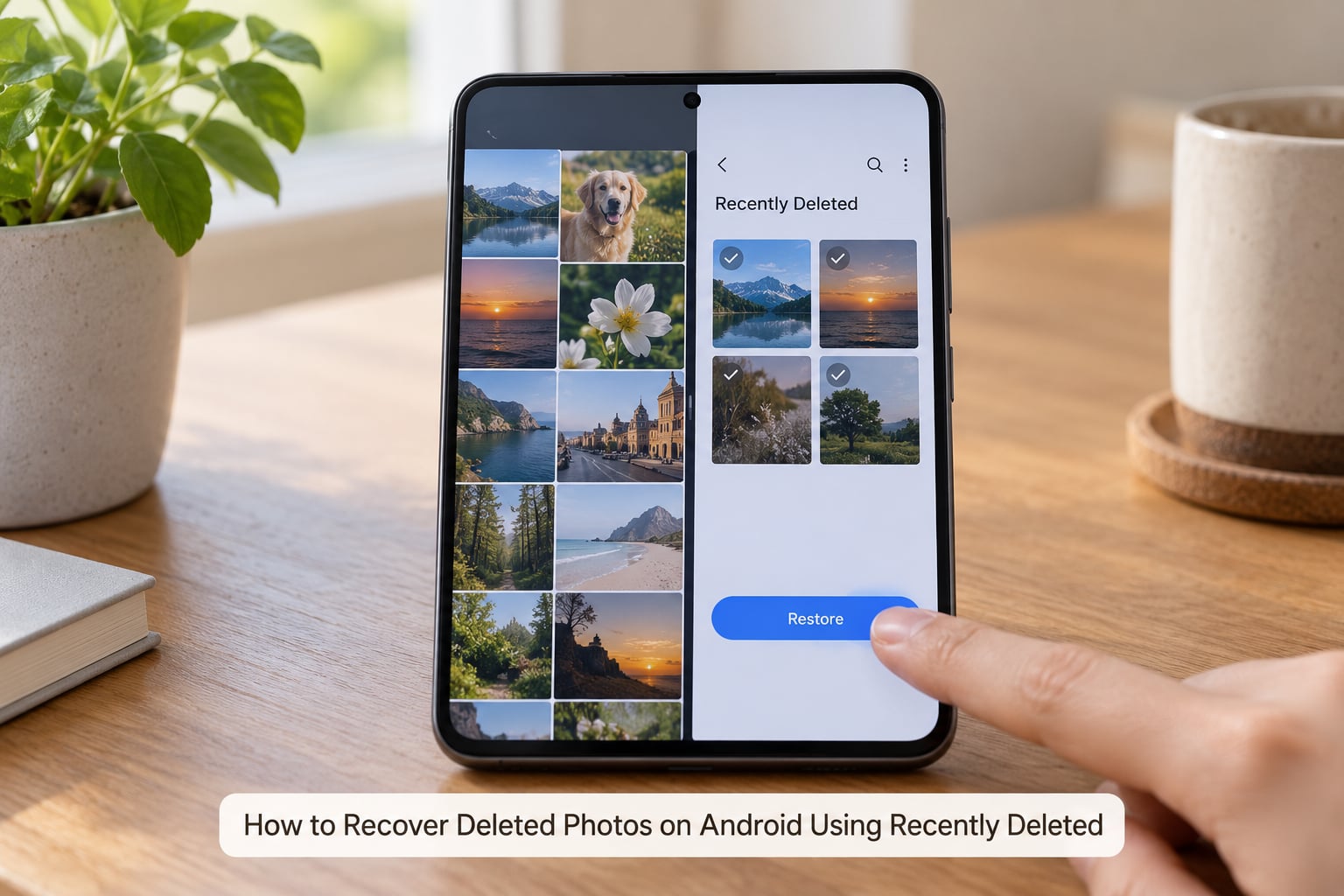
Here is the exact path, which has shifted slightly across app versions. In the current Google Photos app, tap your profile picture in the top right, then select Collections and Bin. Inside Bin, tap a photo to select it and tap Restore at the bottom, or tap Restore all to bring everything back in one go.
Google states a 30-day window in its official Photos Help centre, and many users see items disappear at 30 days even though the folder suggests longer. Some OEM galleries keep photos for 60 days. Treat 30 days as the real deadline and check now rather than next month.
Your phone’s own Gallery app has a separate trash folder with a completely different retention window, and Samsung owners in particular miss this one. Open Gallery, tap Albums at the bottom, find Recently Deleted or Trash, and hit Restore.
How do you know a restore actually worked? Open the album the photo came from and look for the date. If the restored file lands in the wrong folder, that is normal; the metadata survived, the album assignment sometimes does not.
One warning worth repeating: if you deleted the photo inside Google Photos, it was removed from the phone’s gallery too. Checking “the cloud” will not bring it back in that case, because the cloud copy went with it.
How to Recover Deleted Photos on Android From Google Photos Sync
If you deleted photos from the native Gallery app rather than from Google Photos, the cloud may still hold a copy. This is the most commonly missed route.
- Open Google Photos and confirm the right account is signed in by tapping the profile picture in the top right.
- Scroll to the very bottom of the app and tap Manage storage to see how much is backed up.
- Tap Backed up and check whether the missing photos appear in that list.
- Open photos.google.com on any browser and sign in with the same account to confirm the same files are visible on the web.
- Download anything missing straight from the web version to your computer, which is faster and safer than restoring onto a phone that is already full.
If the photos show up on the web but not on the phone, the problem is sync rather than deletion. Toggle Wi-Fi off and on, then force close the app and reopen it. The backup toggle in Settings > Photos > Backup also needs to be on, otherwise new captures stay local only.
Check the backup status icon too. A cloud-with-slash mark next to a photo means it never uploaded, and that photo was never protected by a cloud copy in the first place.
How to Recover Deleted Photos on Android From Local and Device Backups
Several backups hide behind menus most people never open. Here is where to look, service by service.
Google Backup restores app data and settings, not your full photo library, so do not expect your camera roll to reappear here. It occasionally carries recent media for some account types, but it is the weakest of these routes.
Samsung Cloud does sync photos on Galaxy phones. Open Settings > Accounts > Samsung Cloud > Gallery and look for Gallery sync options and a Recently Deleted section with its own separate retention window.
Google Drive, OneDrive and Dropbox all keep a recycle bin. If you ever manually uploaded or auto-backed up pictures to Drive, open drive.google.com and check the Bin. OneDrive’s route is Deleted Items under the three-dot menu, and Dropbox keeps Recent deleted files in its sidebar.
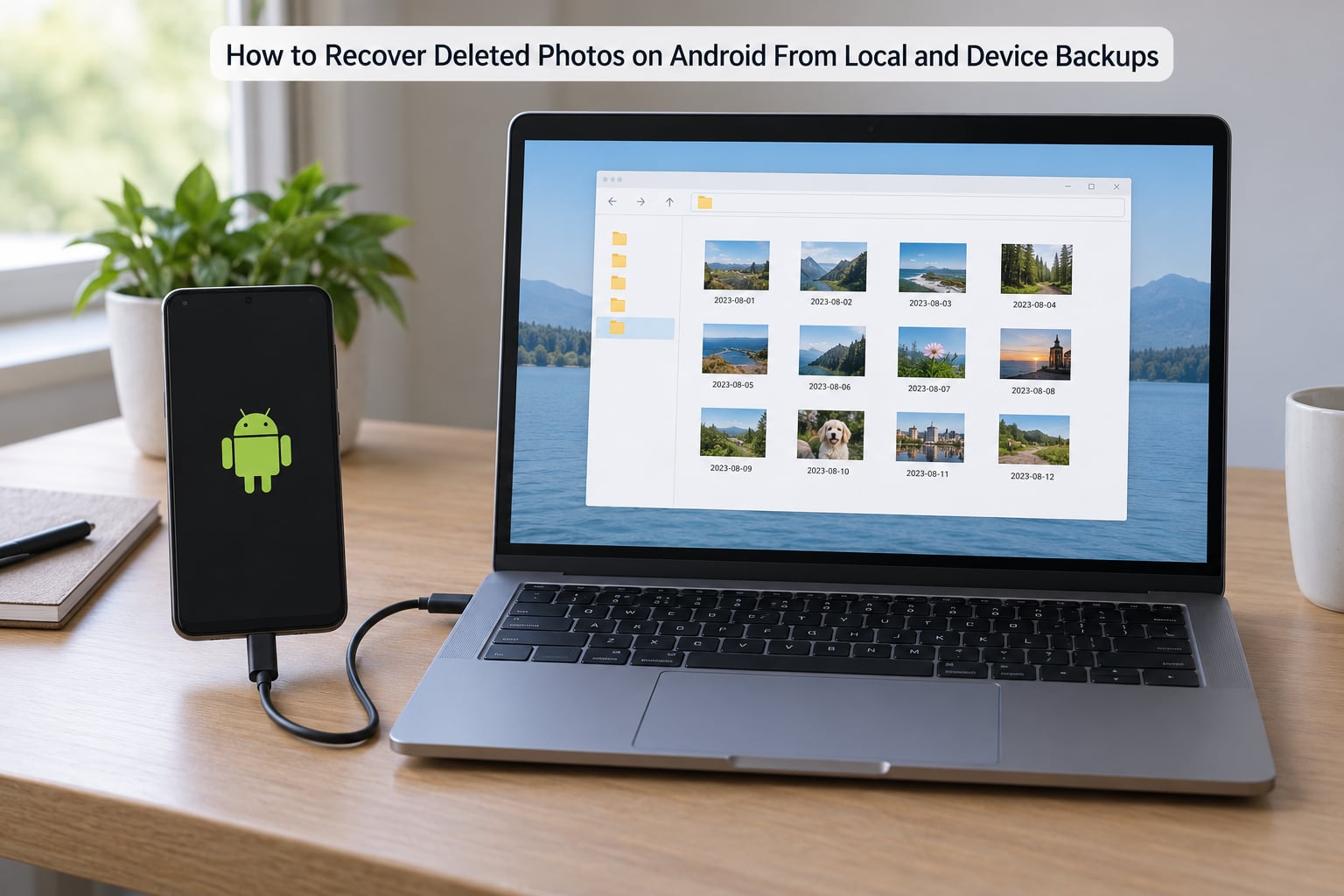
Your computer is the most overlooked backup of all. If you ever plugged the phone in and chose “Copy photos and videos”, or used a desktop sync tool, Windows or macOS keeps the originals until you clear that folder. Nobody expects this one, and it works far more often than recovery software does.
Before you run any scan, do not create new files on the phone. Freeing space by moving photos, deleting a large video or downloading an app writes exactly the kind of data that overwrites what you want back. Free space on the computer instead.
How to Recover Deleted Photos on Android With Recovery Software
Recovery software comes in two shapes, and picking the wrong one wastes your only real chance. On-device apps work without a computer but are limited; PC-based tools scan deeper but need the phone unlocked and connected.
DiskDigger is the default answer on Android forums, and it deserves the reputation. The free version scans unrooted storage and will list recently deleted images, but recovered photos often come back as low-resolution or pixelated thumbnails rather than full files, and the free tier handles photos only. Videos are where it falls apart. That gap between expectation and result comes up in every recovery thread I have read.
PhotoRec and its Android sibling QPhotoRec are free, open source and have no file limit, which makes them the tool of choice for a formatted microSD card. One user who lost 30 GB to a card format described QPhotoRec as a lifesaver with no limits at all. File names and folder structure are lost, so you rebuild the library afterwards.
Windows File Recovery is Microsoft’s free command-line tool. You install it on a PC, connect the phone, and choose between a standard and an extensive file mode. The extensive mode searches harder and takes longer, and it still cannot defeat full-disk encryption on current Android versions.
Recuva, Dr.Fone, EaseUS MobiSaver and Wondershare UltData are desktop suites with free tiers that scan a limited number of files. They work better on an SD card than on encrypted internal storage, and they push paid upgrades hard at the moment you find something.
Expect honest limits here. Recovered thumbnails are usually not the full original. Videos almost never recover when photos do. And genuine recovery from encrypted internal storage technically needs temporary root and key extraction, which is a last resort with real warranty consequences, not a step in a normal guide.
Before installing anything, vet it. A trustworthy app processes files on your own device or your own computer, states its free-tier limits plainly, never asks you to upload personal photos to an unknown server, comes from a developer with a real Play Store presence, and does not demand root access to do a basic scan. If it wants root in the first screen of the install, close it.
How to Recover Deleted Photos on Android From Chat and Messaging Apps
Photos sent to you in a chat have their own copies, and these are often recoverable after you have emptied both trash folders.
In WhatsApp, open the chat, tap the attachment icon and choose Gallery, Internal, or Documents to see media shared in that conversation. Search inside the chat for a file name or “.jpg” to jump straight to it. Long-press the photo and choose Save to gallery. Deleted videos and photos can survive inside chats for a while depending on media settings, which is worth checking before you assume the sender’s copy is your only option.
Telegram keeps received media in the chat and in the Saved Messages area, and cloud chats sync across devices, so signing into Telegram Web often shows media the phone app no longer lists.
Xender and similar transfer apps usually do not keep anything after you delete from inside the app. That route depends entirely on the sender, so asking them to resend is the fastest route and the one people skip.
If all else fails, ask the person who sent it. It takes one message and has a 100 percent success rate, which beats every app on this page.
Common Mistakes
Most lost recoveries trace back to one of these.
Keeping the phone in use. Every new photo writes new blocks into the same storage. Airplane mode first, always.
Emptying the trash to “tidy up.” Tapping Delete in the Bin is the one action that converts a certain recovery into a maybe. If you already did, keep reading; the cloud and PC routes still stand.
Freeing storage by deleting more photos. You are removing the exact data blocks you need. Clear space on a computer instead.
Installing several recovery apps at once. Each one scans and caches, which writes to internal storage. Pick one, run it, and judge the result before trying another.
Rooting to unlock “advanced” features. It voids the warranty, opens a security hole, and rarely improves results on a modern encrypted phone. Treat root as a professional-only option.
Assuming one Google Photos deletion is reversible. Deleting in Google Photos removes the synced copy from the device too. The Bin is your only safety net there.
Believing a photo is gone when it is hidden. Scroll past the end of the library, check for locked or hidden albums, and pull down in the Gallery app to refresh. Storage-full failures and broken thumbnail caches also make photos disappear without being deleted. Clearing the Gallery cache in Settings > Apps > Gallery > Storage fixes the thumbnail case.
Deleting across a synced desktop app. If a Windows or Mac Photos app is linked to the phone, one delete propagates everywhere. That cross-device case is genuinely hard, and the cloud copy or the desktop folder copy is usually the only route left.
Prevention is simple enough to do once. Turn on backup in Google Photos and leave it on, keep the storage meter below about 90 percent so sync never stalls, copy new shoots to a card or computer the same evening, and delete in batches rather than empty-handed one by one so a mistap is easy to spot.
Frequently Asked Questions
Can I recover deleted photos after Recently Deleted is empty?
Yes, sometimes. An empty trash folder means the 30-day window closed and the files moved out of the managed area, not that they were erased instantly. Check Google Photos on the web, Google Drive Bin, OneDrive or Dropbox recycle bins, Samsung Cloud, and any folder copy on your computer. Those routes return full originals. Recovery software is the last option, and on encrypted internal storage its results are usually low-resolution thumbnails at best.
Will Google Photos restore photos I deleted from my Android phone?
Usually, yes, if you deleted them inside the Google Photos app and did not empty the Bin. Open Google Photos, tap your profile picture, choose Collections, then Bin, select the photos and tap Restore. They reappear in your library with their original dates. If you deleted them from the phone’s Gallery app instead, the cloud copy may still exist even though the local file is gone, so check photos.google.com from any browser.
Can deleted photos be recovered from an Android phone without a backup?
Sometimes, and the odds depend on timing. Without any backup, your realistic routes are the Google Photos Bin, your OEM gallery trash folder, and a scan with DiskDigger or QPhotoRec. Results improve sharply within the first 30 days and get worse every week as new data overwrites the old blocks. Photos on a microSD card have the best chance of all, since formatting a card is often recoverable with free tools.
How long does Android keep deleted photos in Recently Deleted?
Google Photos states 30 days in its official help documentation, and deleted items in the Bin expire after that. Many OEM galleries, including several Samsung models, keep trash for 60 days. Because the two apps use separate folders with separate clocks, a photo can vanish from your Gallery trash while still sitting in the Google Photos Bin. Check both, and treat 30 days as the real deadline rather than the generous number the app displays.
Can I recover photos from an SD card after deleting them on Android?
Yes, and a card gives you a much better chance than internal storage. Power the phone off, take the microSD card out, and connect it to a computer through a card reader. Run QPhotoRec or PhotoRec against the card drive and preview before recovering. File names and folder structure are usually lost, so expect to sort the results afterwards. Avoid writing anything new to the card and avoid reformatting it until you have your files back.
Conclusion
Start with the two trash folders, because they take three minutes and return the full original: Google Photos Bin first, then your Gallery’s Recently Deleted album. If both are empty, move to backups, meaning the web version of Google Photos, Drive, OneDrive, Dropbox, Samsung Cloud and any copy on your computer.
Keep the phone in airplane mode the entire time, and clear space on a computer rather than on the phone. Recovery software is the last step, not the first, and treating a low-resolution thumbnail as a recovered photo is how people end up disappointed twice.
Turn on Google Photos backup tonight, whatever the outcome today. It costs nothing and it is the difference between losing a photo forever and losing an afternoon.