Turn email notifications off at three layers: inside the apps that email you, inside your mail service with filters and priority senders, and on your phone and computer. Most people only touch the last one, then wonder why the same subject line pings them four times a day.
That is the whole answer, and the rest of this guide is the exact path for each layer on iPhone, Android, Gmail, Outlook and Apple Mail, checked against the current menus in 2026. Ten minutes of setup, and most people find the fix is narrower than they feared: silence the automated noise, keep alerts for a short list of humans, and check the rest on a schedule.
Before the paths, one honest note on why this is hard. Email behaves like a variable-reinforcement machine. Most checks turn up nothing, but roughly one in ten delivers something urgent, and that unpredictable payoff is exactly what keeps your thumb moving. The result is not a willpower problem, it is a design problem, and it is fixable.
Table of Contents›
- What You Need
- Step-by-Step: How to Stop Email Notifications From Overwhelming You
- 1. Identify Your Most Noisy Email Sources
- 2. Change Alerts in Gmail to Stop Email Notifications
- 3. Reduce Alerts in Outlook
- 4. Control Mail Notifications on iPhone
- 5. Control Email Alerts on Android
- 6. Adjust Apple Mail on Mac
- 7. Add a Daily System for Keeping Email Under Control
- Common Mistakes
- Tips for Keeping Notifications Manageable
- Frequently Asked Questions
- Can I stop email notifications but still see unread messages?
- Why do I keep getting notifications for the same email thread?
- Should I use Do Not Disturb or Focus instead of disabling email alerts?
- How do I receive notifications only from important senders?
- What should I do if I miss an important email after reducing alerts?
- Do these steps work in third-party email apps such as Outlook or Samsung Email?
- Conclusion: Start With Your Most Noisy Account
What You Need
No equipment, no new app, no subscription. You need three things and about ten minutes.
- Access to your mail service settings. The web version of Gmail or Outlook in a browser is the easiest place to start, because account-level controls live there and apply everywhere you sign in.
- The mail app on each device you read on. Most people check email in more than one place: the phone during the day, a laptop during work, sometimes a desktop. Each one carries its own notification switch.
- The notification settings of the apps that email you. This is the layer most guides skip, and it is the one that permanently reduces volume.
Spend three minutes before touching anything. Open each mailbox, search for notifications and unsubscribe, and see what is actually filling it. On a typical work account the answer is not colleagues. It is automated mail from project tools, calendar systems, status digests and marketing senders, and that mail rarely deserves a sound.
Also count how many places you read email. If Gmail lives in the Gmail app, in Outlook on your phone and in Apple Mail on your Mac, one message can produce three separate alerts. Duplicates are common and they make the volume feel worse than it is.
Step-by-Step: How to Stop Email Notifications From Overwhelming You
Work through these in order. The first two steps cut the number of alerts. The middle steps control what survives. The last one keeps the whole thing from drifting back within a month.
1. Identify Your Most Noisy Email Sources
Start by measuring, not guessing. Sort your inbox by sender and skim the top twenty for a minute. You are looking for the difference between three problems, because each one has a different fix.
Volume means lots of senders, mostly automated. Notifications from project trackers, shared inboxes and marketing platforms. The fix is filters and per-sender settings, not a global mute.
Repeat updates mean one thread pinging you every time someone replies or someone else is added. The fix is muting the thread or turning off per-conversation notifications.
Sound and vibration mean the count is survivable but the buzz is not. The fix is a silent notification, which keeps you aware without the physical jolt.
On your phone, the fastest version of this audit: pull down the notification shade and read the senders on the last twenty email alerts. That list is your real noise profile, and it usually differs sharply from what you expected. Support forums are full of people discovering that a third of their daily alerts come from two or three workplace tools.
Write down the three worst offenders. You will use them in every step that follows.
2. Change Alerts in Gmail to Stop Email Notifications
Gmail separates desktop alerts from mobile push, and both come with a sound switch. Start on the web, then repeat in the app.
Gmail on the web or desktop: click the gear icon, choose See all settings, then open General and scroll to Notifications. Under Email notifications you can set Show a notification with a preview to All Mail, Important Mail, Personal conversations or None. Choosing None here stops desktop popups for every mailbox on the account. Just above it, Notify me only about lets you keep alerts for important mail and personal conversations only. Set it to None first so you can feel the difference.
Just below, Notification sounds is its own control. Turning it off silences new-mail audio while leaving visual alerts in place, which is a good first step if the buzz is the part you cannot tolerate.
Per-label control: return to See all settings, choose Labels, then Edit on a label such as Notifications or Social. Each label has a checkbox for new-mail notifications. Untick the noisy ones and they stop alerting even while they still arrive in the inbox. This is the most useful control in Gmail and almost nobody finds it.
Filters with no alert: go to See all settings, then Filters and Blocked Addresses and Create a new filter. Match on the sender address, choose a label like Notifications, and tick Skip the Inbox. In the actions area, versions that show it also offer a Never notify option, which applies the silence automatically to everything that matches. Build one filter per noisy sender.
Gmail mobile app on Android: tap the profile picture, Settings, then Notifications, then Gmail and choose the account. You get All messages, Priority only or None, plus separate switches for sound and vibration. Setting an account to Priority only is the single best compromise on Android, because priority conversations still alert and everything else stays silent.
Gmail mobile app on iPhone: open the app, tap the bell icon at the top, then Notifications and choose Mail and your Gmail account. The choices are All Messages, Priority Contacts or None.
Per-thread silence: inside a conversation, tap the name or the three dots and choose Mute. On Android, tap the conversation name and set it to silent. A muted thread still delivers mail and still appears in your inbox, it just stops interrupting you. This answers the most common request in mail support forums, and it works the same way in Apple Mail and Outlook.
3. Reduce Alerts in Outlook
Outlook separates focused from other mail, which makes it the easiest client to keep signal while dropping noise. It also notifies you about messages you have already read on another device, which is the most common complaint about it.
Outlook on the web or desktop: click the gear icon, open Mail and choose Notifications. Under Email notification you can set when Outlook alerts at all: Only when I am working, Only when my computer is active, or Always. Set it to Only when my computer is active and your laptop stops telling you about mail while it sits closed in a bag.
On the same page, Notify me only about can be limited to People in my priority list and Important mail. Under Alerts you can also remove specific mailboxes from the alert list entirely, which is useful when a shared team mailbox is generating a hundred alerts a day. Further down the same page, Sounds controls the audio per account.
Outlook mobile app on Android and iPhone: open the app and tap the gear icon in the top corner, then Mail and select the account. You will find Notifications with the choice All mail, Important only or Nothing, plus separate Sound and Vibrate switches. Set Important only rather than Nothing and you keep alerts for flagged and priority senders.
Focused and Other: in the Outlook mobile app, tap the filter icon at the top of the inbox and switch between Focused and Other. Only focused mail alerts you by default. Adding a sender to the priority list inside their message moves them into focused mail permanently, which is the Outlook equivalent of a VIP list.
Read on one device, alerted on another: in Outlook mobile, open Settings and scroll to Account settings, where sync options and notifications are listed separately. Keeping push on while narrowing what counts as important is more reliable than switching sync methods, and it does not risk messages arriving late.
4. Control Mail Notifications on iPhone
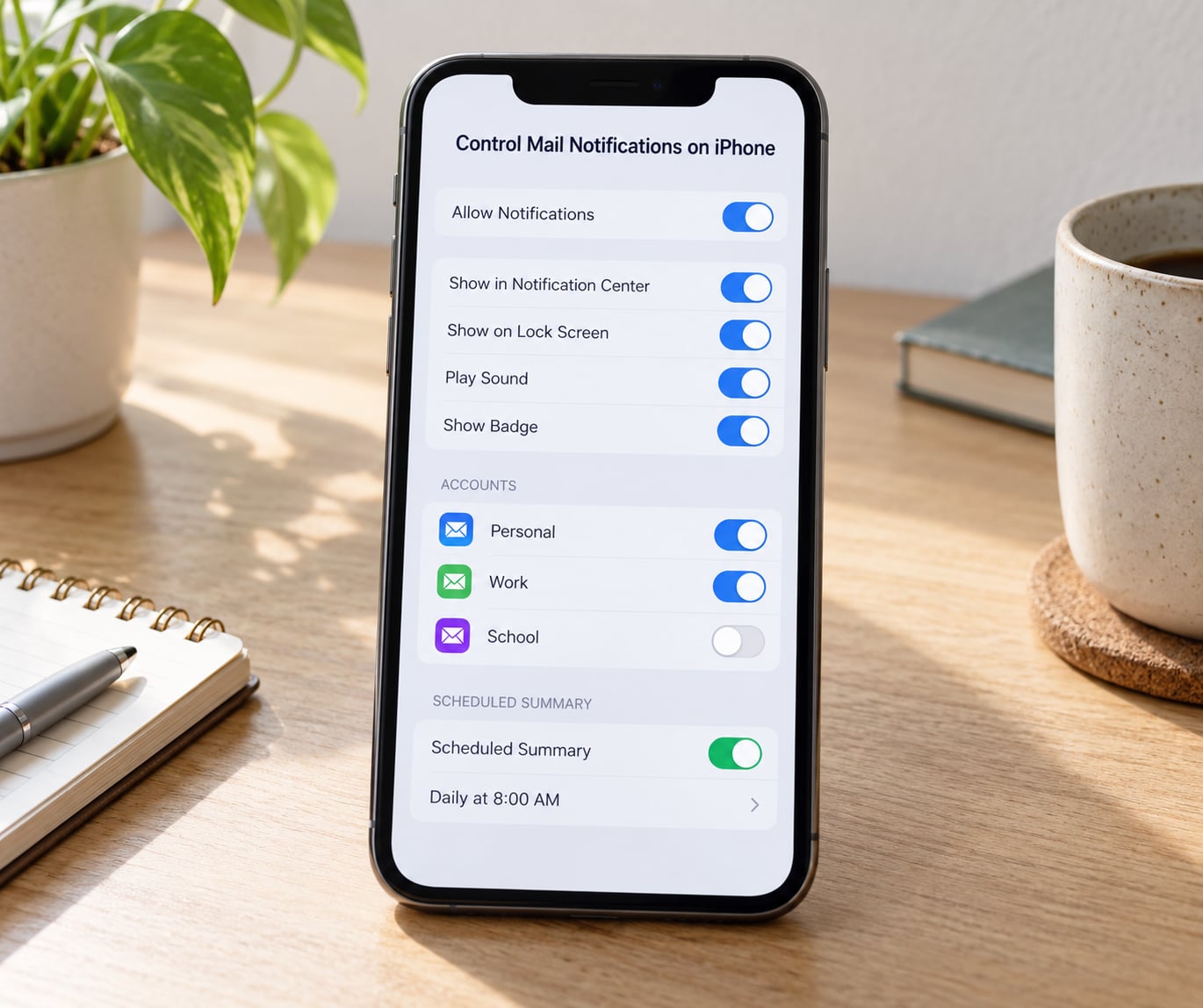
On iOS 18 and later, the Mail controls live under Settings, then Notifications, then Mail. You get a page with Allow Notifications, Notifications Style, Show Previews, Sounds, Badges, Thread Notifications and Scheduled Summary.
Two controls do most of the work here. Thread Notifications groups a conversation so you get one alert instead of one per reply; set it to 8 Recent Items or Summary rather than letting every message ping. Scheduled Summary is the quiet winner: switch it on, pick a time such as 8:00 in the evening, and iOS collects your notifications into a single digest you read once.
Scroll up on the same screen and each mail account is listed separately, with its own toggle. Work and personal accounts can then behave differently, which matters if you read one during office hours and the other only at night.
Focus modes are the outer layer. Open Settings, then Focus, and choose Do Not Disturb or a custom focus mode. Add Mail to the list of apps it silences, then set a schedule under Options or the clock icon. A focus mode running from 6pm to 8am on weekdays, with Mail included, is the cleanest way to get weekends back without giving up alerts during the day.
To verify it worked: ask someone to email you, then lock the phone and put it face down for a minute. You should see one quiet banner or nothing at all, depending on what you chose, and no sound. The Settings path also shows a live list of recent notifications per app, so you can confirm which layer fired.
One warning worth repeating from mail support forums: do not turn off notifications for the Mail app itself if you rely on the app to fetch messages. Change the notification permission, not the account. Disabling the account can leave you with mail that only appears when you open the app, which defeats the point.
5. Control Email Alerts on Android
Android 15 and later treats notifications per app, so the same rules apply whether you use the Gmail app, Outlook or a Samsung account. Open Settings, then Apps, pick the mail app, then Notifications. There you can allow or block all alerts, and open Notification categories to see which kinds of mail still trigger sound.
Notification channels are the feature that matters most. If your mail app has created categories such as Mail from priority senders, Mail from everyone else and Reminders, you can silence each one independently. Set the priority category to alert and everything else to silent, and you have a working VIP system in about thirty seconds.
Two more Android-specific controls. Long-press a single email notification in the shade and tap the conversation name to turn off notifications for that thread only, which is the equivalent of muting in Gmail. And if one app becomes impossible to live with, Notification cooldown temporarily suppresses its alerts for a set period, useful during a meeting you know will generate chatter.
For global quiet, open Settings, then Sound and vibration, then Do Not Disturb. Turn on Do Not Disturb, choose which notifications are allowed through, and set a schedule with the clock icon so weekdays and weekends differ.
Verify the same way as on iPhone: have someone email you, lock the screen, and confirm there is no sound and no repeating buzz as the notification sits in the shade. Repeat alerts that fire while you read the phone are usually caused by the same conversation, so mute the thread or its category as well as the app.
6. Adjust Apple Mail on Mac
On macOS, open the Mail app and choose Mail in the menu bar, then Settings and the Notifications tab. Each account has a Notify me when new messages arrive checkbox and a style menu offering none, banner, sound or alert. Set the accounts you do not want to interrupt you to None and leave the style at Banner for the one account that does.
Just below, the same tab has options to show a preview of the message and to play a sound. Both are worth turning off if you work in a shared space, since a preview can put private content on screen and a sound interrupts everyone around you.
Mac-only niceties: in Notifications you can set Outlook or another mail account to use a distinct alert style, and in View options you can switch a thread to show messages in a single list rather than grouped, which makes long threads easier to scan and therefore quicker to close.
To silence one conversation in Apple Mail, hover over the message header, click the … button and choose Silence. You can also select several messages and silence them together.
Verify with a test message from a secondary account. Send yourself a note, then check whether the banner, the sound and the badge each behaved as configured. Doing this once takes a minute and saves an afternoon of guessing later.
7. Add a Daily System for Keeping Email Under Control
Settings decay. New app versions add new notification defaults, and operating system updates restore some of what you changed. A short routine keeps the gains.
Pick two check windows. Two scheduled passes a day, morning and late afternoon, catch nearly everything before it becomes urgent. People in mail forums who report real success all describe the same pattern: notifications off, checking on a schedule, nothing in between.
Give every message one touch. Reply, delete, file or defer. Nothing stays in the inbox undecided, which is what turns a notification into a task you feel bad about all afternoon.
Use snooze instead of answering now. Snoozing a message until 3pm is a scheduling decision dressed as a mail feature, and it keeps the alert from re-firing before you are ready.
Protect a short priority list. Add your manager, your client and two or three colleagues to the priority or VIP list in Gmail, Outlook or the mail app. Everyone else can be silent. This is the compromise that makes the whole setup survivable, because the fear of missing something urgent is what pushes people to turn everything back on.
Do a five-minute weekly sweep. Unsubscribe from two senders, add a filter for one new offender, and check whether any thread is still re-alerting. Small and regular beats a long cleanup you keep postponing.
Common Mistakes
Disabling the mail app instead of its notifications. The account keeps syncing, but some people switch off the app entirely and then wonder why nothing is arriving until they open it. Change the notification permission, not the account.
Turning off everything before protecting priority senders. Silence without a safety net leads to a missed urgent message, guilt and a full re-enable two days later. Set the priority list first, then mute.
Checking only one device. The phone is the obvious place to change things, but the laptop and the desktop keep their own alerts. Walk through every device you read email on, including any tablet.
Running the same account in three apps. Gmail in the Gmail app, in Outlook and in Apple Mail means three alerts for one message. Pick one app per account and remove the others, or mute the notifications in the apps you use casually.
Assuming a thread is muted when you closed it. Muting has to be set inside the conversation menu, not by swiping the notification away. Open the thread, choose mute or silence, and confirm the bell icon shows as muted.
Letting old conversations keep re-alerting. A thread with forty replies will wake you every time someone is added. Leave those threads, mute them, or archive the whole conversation.
Tips for Keeping Notifications Manageable
Set a notification budget. Decide how many apps are allowed to interrupt you, then give the rest silent notifications. Most people land on three or four, and writing the number down makes later additions easier to refuse.
Use silent notifications as the default. A banner with no sound still tells you something arrived; a sound pulls you fully out of whatever you were doing. Most platforms now separate the two switches.
Batch everything that is not a person. A calendar digest, a project tool summary once a day, and a weekly report are all better than a ping per event. Most work tools have an email frequency setting with options like instant, daily, weekly or never, and choosing never is usually correct when you already see the same information in the tool itself.
Learn where the source apps send mail. Reddit, LinkedIn, Facebook, X, Slack, Asana, Trello, Jira, GitHub, Google Calendar, Dropbox and Shopify all have a notification email setting in their own settings pages. Turning those off removes the mail before it ever reaches your inbox, which is the only fix that reduces volume permanently.
Re-check your settings after a major app or operating system update. Updates frequently restore default notification behaviour, and a Friday afternoon reinstall is the usual reason someone’s phone starts buzzing again.
Frequently Asked Questions
Can I stop email notifications but still see unread messages?
Yes. Notification alerts and mail delivery are separate. In Gmail, Outlook and the phone settings, keep Allow Notifications off for sounds and previews while leaving the account itself active, and unread counts still update normally. Filtering, archiving and marking as read all work the same whether alerts are on or off, so you can still triage your unread list on your own schedule.
Why do I keep getting notifications for the same email thread?
Most mail apps alert on every new message in a conversation, and some also alert on activity such as someone being added or a file being attached. Change Thread Notifications on iPhone, use the muted conversation option inside the thread, or set the thread to silent from the Android notification shade. On Outlook mobile, only focused mail alerts, so moving the conversation out of the focused view also stops the repeat alerts.
Should I use Do Not Disturb or Focus instead of disabling email alerts?
Use both, for different jobs. Per-account settings decide what reaches you at all, while Do Not Disturb on Android and Focus modes on iPhone decide what interrupts you at a given hour. Focus modes with a schedule are the right tool for evenings and weekends, because they apply automatically without changing how your mail is routed. They work for other apps too, which makes them useful beyond email.
How do I receive notifications only from important senders?
In Gmail, set Notify me only about to Important mail and personal conversations, then build a priority list in Contacts so selected people always count as personal. Outlook has Notify me only about set to People in my priority list, and the mobile app can alert on Important only. On iPhone, choose Priority Contacts for the Mail app. Add the same two or three people in each place you read email.
What should I do if I miss an important email after reducing alerts?
It is usually recoverable, because mail keeps arriving even when the alert does not. Open the mailbox, search unread messages from the past week, and check any thread with a muted or silent label. Then fix the gap at its source: add the sender to your priority list, or narrow the filter that silenced them. If a category of mail is genuinely urgent, set an exception for it rather than turning all alerts back on.
Do these steps work in third-party email apps such as Outlook or Samsung Email?
The mail service settings are the part that travels with your account, so Gmail filters, labels and priority senders apply in any app that reads that account. The notification switches are per app, so Outlook, Samsung Email and the Apple Mail app each need their own settings changed. Check the app’s own settings page, then confirm the remaining alerts are being stopped at the operating system level as well.
Conclusion: Start With Your Most Noisy Account
Open your busiest mailbox right now and spend three minutes reading sender names in the notification history, not the inbox. Whichever sender is loudest today is the one worth fixing first, and most of the time it is an automated digest rather than a person.
Then work in this order: turn off the notification email inside that app, add a filter so the mail is filed silently, and narrow alerts to a short priority list. Leave alerts on for the two or three people whose messages genuinely need you, and check the rest twice a day on a schedule you pick in advance.
That is how to stop email notifications from overwhelming you without going quiet on the work that matters. Ten minutes of setup, and the pings become a background detail instead of the thing running your day.