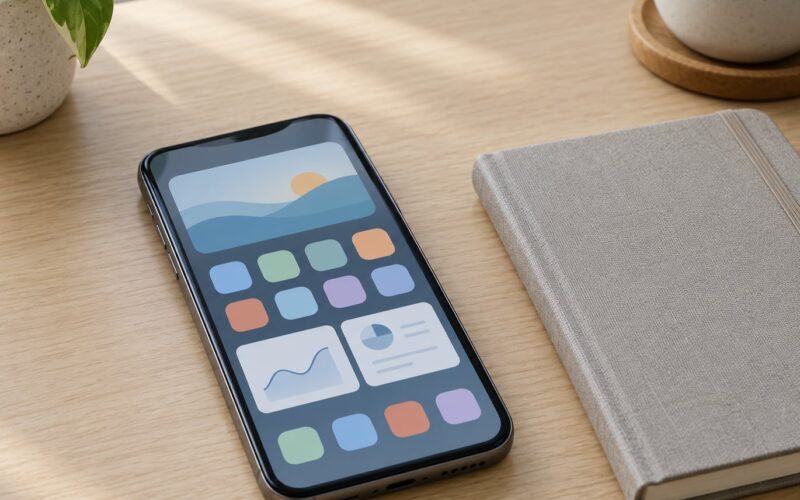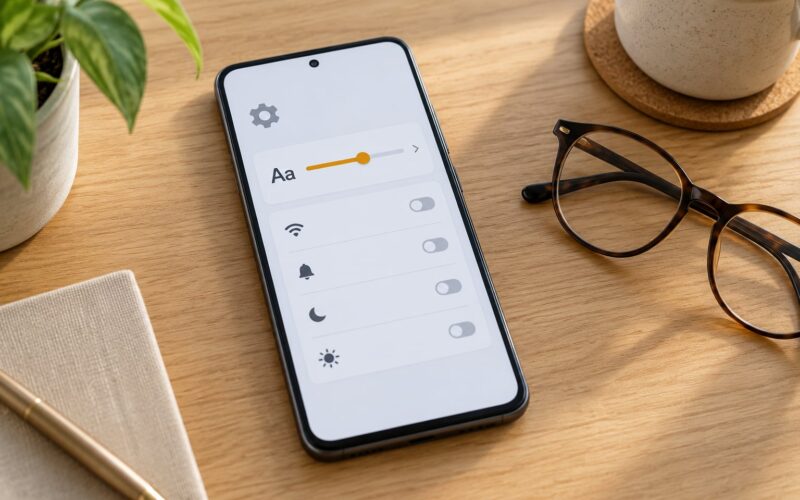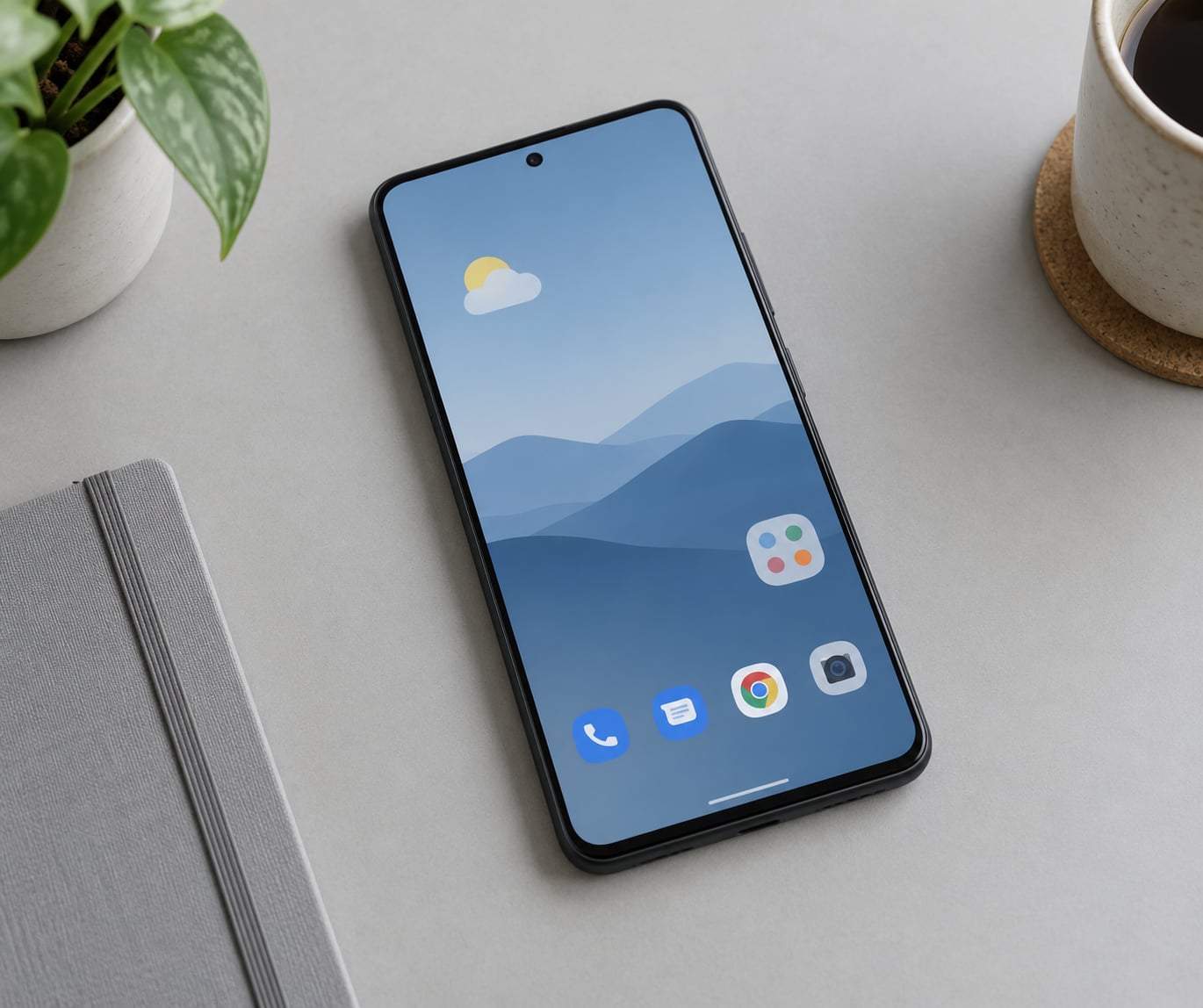
You customize an Android home screen by long-pressing an empty spot of wallpaper, and that one gesture opens every menu you need. From there you can change the wallpaper and style, add widgets, rearrange icons, build folders and change the grid, all without installing anything.
That is the whole trick, and beginners usually need five minutes, not an afternoon. The names change a little depending on who made your phone, but the sequence below works the same on a Pixel and on a Samsung with One UI. Updated for 2026, with the exact menu labels for each major Android skin.
Table of Contents›
- What You Need
- Step-by-Step: How to Customize an Android Home Screen
- Step 1: Choose a Wallpaper or Home-Screen Style
- Step 2: Change the App Grid, Icons, and App Placement
- Step 3: Add Widgets for Useful Information
- Step 4: Create Folders and Organize Apps
- Step 5: Add or Remove Pages and Set a Default Layout
- Step 6: Use a Launcher or Icon Pack for More Control
- Step 7: Save the Layout and Check Every Home Screen
- Common Mistakes
- Frequently Asked Questions
- What is the best way to customize my Android home screen?
- How do I make an Android home screen look aesthetic?
- Can I customize the home screen on any Android phone?
- How do I get my Android home screen back to normal?
- Why are my Android widgets not working?
- How do I hide apps and the search bar on my home screen?
- Conclusion
What You Need
Almost nothing. The home app that came with your phone handles wallpaper, icons, folders, pages and widgets on its own, so you can complete this guide without installing a single app.
Long-press an empty area of the home screen and you should see a menu with Wallpaper and style, Widgets, Settings and Home settings. If that menu appears, you have everything you need already.
Optional extras, in the order they are worth adding:
- A wallpaper source for anything more considered than the built-in backgrounds. Unsplash and Canva both have free images; a photo you took yourself looks better still and costs nothing.
- An icon pack if you want a consistent icon set. These only work through a launcher that supports them, which is the single biggest limitation people run into.
- A third-party launcher if you want a different grid size, gesture control, per-page wallpapers or app hiding. Worth installing last, once you know what the built-in options can’t do for you.
- A widget or two from apps you already use: calendar, weather, tasks, a to-do list, a smart home control panel.
Before changing anything, take a photo of your current home screen with your phone camera. Layouts get wiped by system updates and by launcher changes more often than anyone admits, and a photo takes ten seconds to restore the rough arrangement.
Step-by-Step: How to Customize an Android Home Screen
Work in this order: style first, then structure, then the widgets that add real information. Doing it the other way round means moving everything twice.
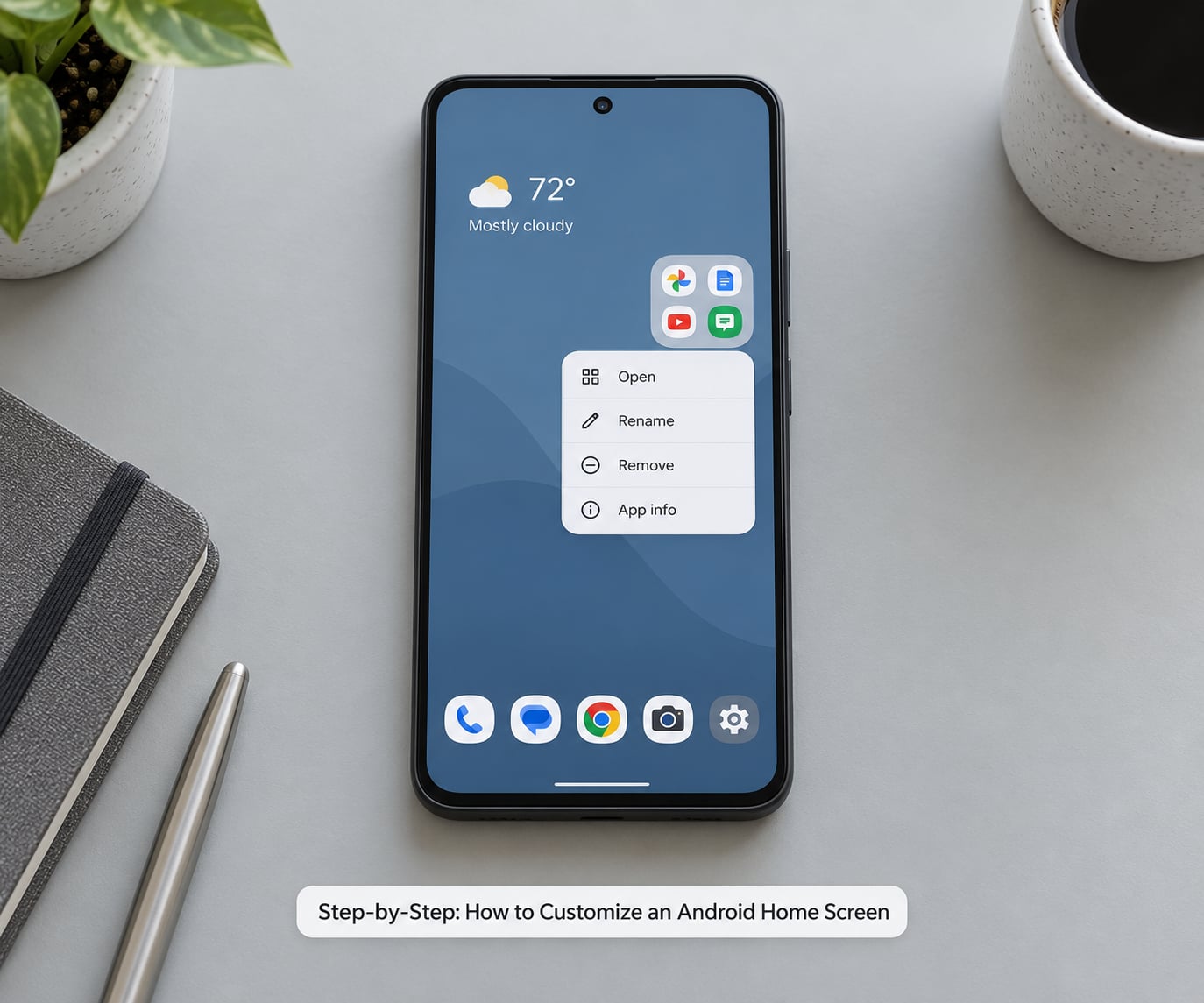
Step 1: Choose a Wallpaper or Home-Screen Style
Open the customization menu with a long press, choose Wallpaper and style, then pick your image and adjust how it sits on the screen.
Long-press an empty spot on the home screen. Choose Wallpaper and style, then select the image you want. Pinch to zoom so the important part of the picture fills the screen, and drag it to decide where the subject sits behind your icons.
Decide whether the wallpaper changes the whole screen or only the home screens. A wallpaper set for Home screen only leaves your lock screen alone, which is the setting most people want. A wallpaper applied to both keeps the two screens matched, which looks cleaner.
Alongside the wallpaper you will usually find a colour palette and a light or dark toggle. On phones with Material You, the palette is pulled straight from your wallpaper, so the system buttons, notification shade and some app icons shift colour to match. That is why a blue wallpaper makes the whole interface look blue.
Menu labels differ between manufacturers, so check your row:
| Phone | Where wallpaper and style lives | Where home settings live |
|---|---|---|
| Google Pixel | Long-press home screen, then Wallpaper and style | Long-press home screen, then Settings, or swipe up and tap the app drawer handle menu |
| Samsung Galaxy (One UI) | Long-press home screen, then Wallpaper and style | Settings, then Wallpaper and style; home screen options under Home screen on the same screen |
| Xiaomi / Redmi (HyperOS) | Long-press home screen, then Themes | Settings, then Home screen and lock screen |
| Oppo and Realme (ColorOS) | Long-press home screen, then Wallpaper and style | Settings, then Home screen and lock screen |
| Stock Google build | Long-press home screen, then Wallpaper and style | Swipe up for the app drawer, then tap the three dots, then Home settings |
Step 2: Change the App Grid, Icons, and App Placement
You can change the number of icons per row and per column in the home screen settings, and it applies to every page at once.
Open the home screen settings, look for Home screen grid, and set the rows and columns. Most phones accept combinations from 4 by 5 up to 5 by 6, depending on screen size. Larger grids fit more but shrink the tap targets, which is a bad trade for anyone with larger fingers or a heavier hand.
Icon size usually follows the grid. On Samsung phones you get an explicit icon size slider under Wallpaper and style, where you can push icons larger without touching the grid. The Pixel home app has no such slider, which is one of the clearest examples of how much more Samsung allows out of the box.
To move an icon, press and hold it until it lifts, drag it where you want, and let go. To remove it, long-press and drag it to the top of the screen where a bin or an X appears. To add one, find the app in the app drawer, long-press, and drag it onto the page you want.
Long-pressing an icon also gives you App info, Uninstall, shortcuts, and sometimes Widget. On Pixel and Samsung that shortcut menu is the fastest route to a widget for an app you already use.
Step 3: Add Widgets for Useful Information
Add a widget by long-pressing the home screen, choosing Widgets, then dragging a widget from the list onto the page.
Long-press an empty area, tap Widgets, and a full-screen list appears. Scroll or search, then press and hold a widget and drag it onto the home screen. Dropping it near the top edge places it on the first page instead of wherever you were standing.
Resize it by long-pressing it once to select it, then dragging one of the handles on its edge. Some widgets snap to a few set sizes only, and a few refuse to resize at all. Tap once more on a selected widget and you usually get options such as a settings gear, an app theming menu or a layout selector.
Four widget types earn their space on a beginner’s home screen:
- Weather and date in the top-left, where you glance first thing in the morning.
- Calendar or agenda showing today’s schedule, which beats opening an app to check one meeting time.
- Task or to-do widget from your notes or task app, so the list is visible without unlocking anything.
- One shortcut row for the three things you open constantly: camera, wallet, fitness tracker, or your smart home lights.
Avoid stacking five widgets on one page. Every widget refreshes in the background, and the crowded look that comes with fifteen icons is exactly what makes a phone feel slow. One page of information plus a clean icon page is plenty.
Step 4: Create Folders and Organize Apps
A folder groups related apps behind one icon, so drag a second app onto the first to create one automatically.
Drag one app icon on top of another and a folder appears with both apps inside. Tap the folder to open it, then tap Name at the top to rename it. Rounded-square folders look tidier on Pixel and One UI devices than the plain square folders older Android versions used.
Once the folder exists, long-press it and choose a display style: the folder can show as a 2 by 2 grid of icons, as a single icon, or as a stack of cards that cycles through the apps inside when you tap it.
A folder on the home screen only shows about four apps at a time. Anything beyond that goes in the app drawer, so keep the fifth app and onward on the home screen only if you genuinely open it.
Step 5: Add or Remove Pages and Set a Default Layout
Swipe between home screen pages horizontally, and manage the number of pages from the same long-press menu you use for widgets.
Drag an icon or a widget to the screen edge and hold it there for a second or two, and a new page appears. An empty page is only temporary, so put at least one icon on it or it will disappear when you tap elsewhere.
Long-press a page indicator, which is the small row of dots at the bottom of the screen, to jump straight to that page. Swiping past the last page opens the app drawer on most devices; Samsung also allows swiping directly to the drawer from anywhere on the home screen.
Long-press an empty area and open Home settings to set how many pages you want and which one opens after a restart. People who add six or seven pages usually stop using three of them within a fortnight.
Step 6: Use a Launcher or Icon Pack for More Control
Install a launcher only when a specific feature matters to you, such as a different grid size, gesture handling, per-page wallpapers or app hiding.
The default Android home app and One UI deliberately limit customisation. Neither one applies third-party icon packs, and both keep grid settings basic. A launcher replaces the entire home screen experience, which is exactly why your current layout disappears the moment one is set as default.
How these options compare:
| Home app | Third-party icon packs | Grid options | Custom gestures | Notes |
|---|---|---|---|---|
| Default Pixel home app | No | Basic | Limited | Cleanest look, least control, best for older phones |
| Samsung One UI home | No | Basic, with icon size slider | Limited | Most options of any built-in home app |
| Nova Launcher | Yes | Very wide range | Yes | Feature-dense and well supported, but heavier on older devices |
| Lawnchair | Yes | Good range | Yes | Free, open source, minimal look |
| Yin Yang Launcher | Yes, plus tints | Adjustable | Yes | Single editor for wallpaper, clock, fonts and icons |
To set one as default, install it from Google Play, press the Home button, and choose the option to set it as default. To undo that, go to Settings, then Apps, then Default apps, then Home app, and switch back to the one that shipped with your phone.
Icon packs install like any other app but only take effect inside a launcher that supports them. Open the launcher’s icon settings, choose the pack, and tap Apply. Without a compatible launcher, the pack sits there doing nothing, which is the most common reason people think their pack failed.
Step 7: Save the Layout and Check Every Home Screen
Nothing needs saving, because every change is applied as you make it, but you do need to check each page before you put the phone down.
Swipe through every page and confirm each widget is where you left it, then check that a cold start still works: restart the phone and unlock it to see the first page you land on.
Test the gestures too. Swipe between pages, swipe up for the app drawer, and swipe down for notifications. On a fresh layout, a shortcut sitting too close to a screen edge will get opened by accident instead of swiped past.
If the result is worse than before, set the home app back to default, clear the launcher app’s data or uninstall it, and your phone returns to the layout it had before. On Samsung, Settings offers a Home screen reset option that restores icon positions without removing your apps.
Common Mistakes
Almost every complaint about Android customisation comes down to one of a handful of causes, and each has a quick fix.
| Symptom | Likely cause | Fix |
|---|---|---|
| Widgets stopped updating | The app behind the widget was updated or is being battery-restricted | Open the app once, then clear the app’s cache and allow unrestricted background activity in battery settings |
| Home button does nothing | A third-party launcher lost default status | Settings, Apps, Default apps, Home app, and pick the built-in option |
| Launcher changes do not apply | Icon pack installed but the launcher has not applied it | Open the launcher’s icon settings, reselect the pack and tap Apply |
| Icons look too small | Grid is set to 5 by 6 | Reduce rows and columns, or raise the icon size slider on Samsung |
| Accidental app openings | Shortcut too close to a screen edge | Move it toward the middle and re-test swipes |
| Apps or folders vanish | A system update changed the icon layout or the launcher was replaced | Re-add from the app drawer; restore your default home app and avoid auto-icon restore from backup |
| Interface feels laggy | Too many live widgets, or a custom font | Remove live widgets and switch back to the system font |
| Search bar will not go away | It is part of the built-in home app on some devices | Switch to a launcher that allows the search bar widget to be disabled or replaced |
Widgets freezing on a set value is worth knowing about. Widgets rely on the system waking them at intervals, and manufacturers restrict that for battery reasons, especially on Xiaomi and Huawei devices with aggressive background limits. Opening the app manually usually resets the display.
Micro-stutter from custom fonts is real, and it comes from the font renderer redrawing text in apps that were not designed for a swapped typeface. It is the most common reason people move back to the default look after a month.
Frequently Asked Questions
What is the best way to customize my Android home screen?
Start with a wallpaper, move your ten most-used apps onto the first page, and add one widget that shows information you actually check. Install a third-party launcher only after you know which feature the built-in home app is missing. That order means you get a layout that works before any extra software goes on the phone.
How do I make an Android home screen look aesthetic?
Cut the icon count first. Keep eight to twelve apps on the home screen, group the rest into named folders, and let the wallpaper do the work. Match icon density by using one icon pack across every app instead of mixing styles. Monochrome themed icons and a dark themed wallpaper give a consistent look with no extra apps.
Can I customize the home screen on any Android phone?
Yes, every Android phone lets you change wallpaper, move icons, make folders and add widgets. How far the built-in home app goes depends on the manufacturer: Samsung One UI offers more colour and icon size control than stock Android, while Xiaomi and Oppo rename the menus but keep the same functions. A third-party launcher lifts those limits on any device.
How do I get my Android home screen back to normal?
Go to Settings, then Apps, then Default apps, then Home app, and select the home app that shipped with your phone. Then uninstall or clear the data of the third-party launcher you installed. Samsung adds a Home screen reset option that restores icon positions and folders without touching your apps.
Why are my Android widgets not working?
Usually the app behind the widget was updated, or the app is being restricted in the background by battery optimisation. Open the app once to refresh it, then clear the app’s cache and set its battery use to unrestricted. If the widget still shows stale data, remove it and drag it back on from the widget list.
How do I hide apps and the search bar on my home screen?
The default Android home app and One UI do not allow hiding the search bar or hiding apps entirely. Install a launcher such as Nova Launcher or Lawnchair, open its drawer settings, and enable the hidden apps or hidden pages option. Add those apps to the hidden page and they disappear from search and from the drawer.
Conclusion
How to customize an Android home screen comes down to three moves in the right order: set a wallpaper, put your most-used apps and one or two widgets where your thumb lands, and stop there for a few days.
Only then install a launcher, because that step is the one that can wipe what you just built. If something ends up worse than where you started, the path back takes about a minute through the default home app setting. Updated for 2026.