The main risks of installing custom ROMs are bricking the phone, losing everything on it, running software nobody patches anymore, and breaking the banking or streaming apps you rely on. Most of that trouble traces back to one thing: firmware built for a different model, flashed with no documented way back to factory software.
This guide is current as of 2026, and it is written for owners who have an unsupported phone, want a cleaner interface, or simply want more control over their device. It is deliberately plain about the downside, because the flashing process itself is not the hard part. Deciding whether your phone can survive it is.
Table of Contents›
- What Are the Main Risks of Installing Custom ROMs?
- Most bricks come from flashing a file built for a different model
- Rooting is not the same as replacing your operating system
- What Can Go Wrong During or After Flashing?
- How Do Security and Privacy Risks Change Over Time?
- The risks of installing custom ROMs grow once a build goes stale
- Will Installing a Custom ROM Void the Warranty?
- What Should You Check Before Flashing a Custom ROM?
- What Is the Safest Way to Install a Custom ROM?
- The safest flash is the one with a documented way back
- What Should You Do If a Custom ROM Fails to Boot?
- Is a Custom ROM Worth the Risk?
- Frequently Asked Questions
- Can installing a custom ROM permanently damage my phone?
- Does installing a custom ROM automatically make banking apps unsafe?
- Will a custom ROM remove my warranty?
- What happens to my data when I install a custom ROM?
- Can I install a custom ROM if my bootloader is locked?
- Are custom ROMs legal to install?
- The Risks of Installing Custom ROMs: A Final Checklist
What Are the Main Risks of Installing Custom ROMs?
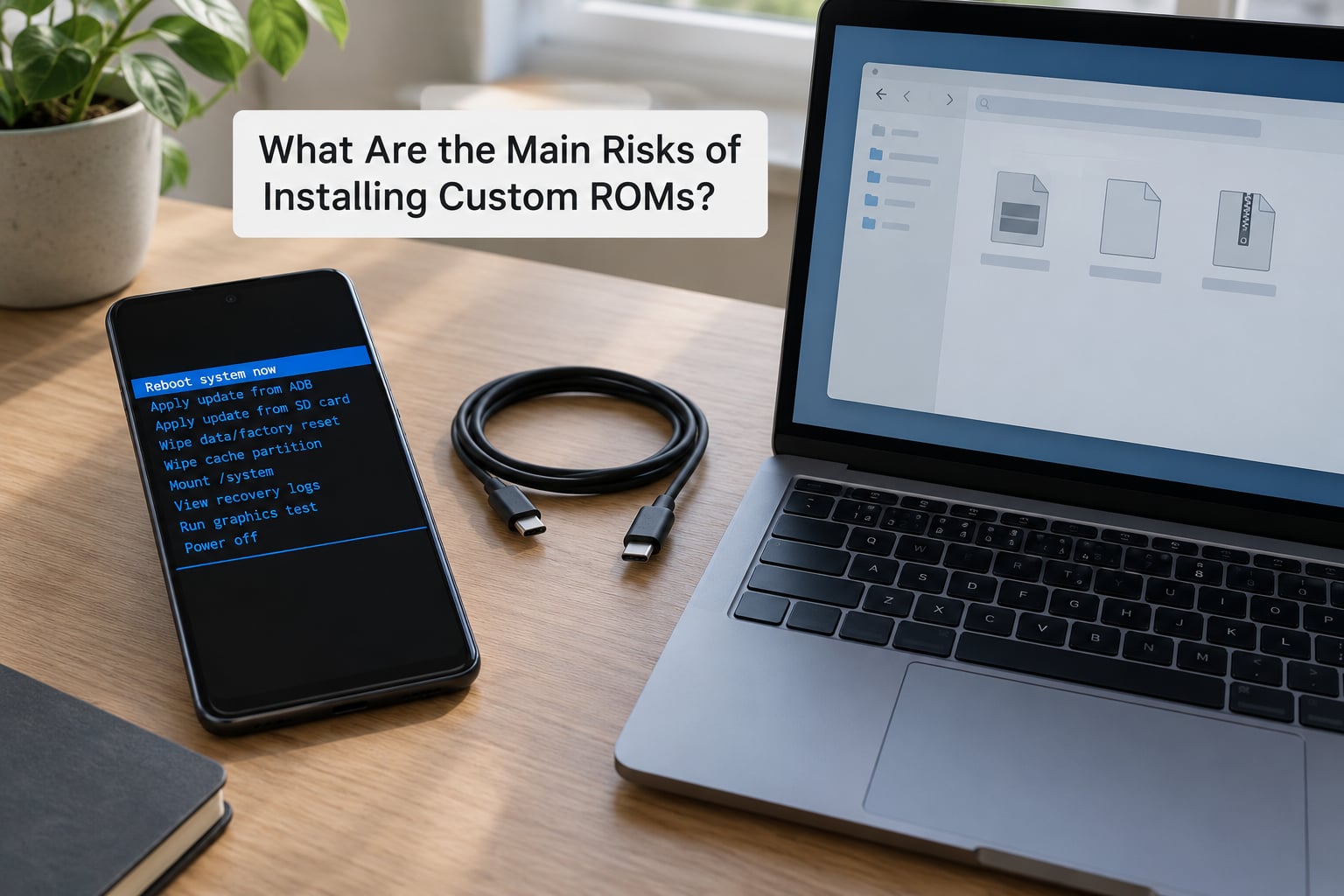
The risks of installing custom ROMs fall into eight buckets, and only two of them are about the flash itself. The rest come from what you live with afterwards.
- Bricking. The phone stops booting and may need a computer, a special service mode, or professional repair to come back.
- Total data loss. Removing the bootloader lock wipes user data by design, and a failed flash can wipe it again.
- Unpatched security. Your updates come from a hobbyist, not a company with a security team and a legal duty to patch.
- Broken banking and DRM apps. Payment, banking, and streaming apps check whether the device passes integrity tests, and many refuse to run otherwise.
- Lost manufacturer features. Secure folders, carrier bands, VoLTE, and some secure hardware services stop working, sometimes permanently.
- Broken hardware features. Fingerprint readers, cameras, proximity sensors, and GPS are the parts custom kernels most often get wrong.
- Worse battery and performance. A poorly tuned kernel or a mismatched driver can drain a phone that ran all day on the factory build.
- No way back. Some devices have no documented recovery path from the ROM you flashed, and the rollback wipes data again.
A custom ROM is simply a replacement build of Android made by a community developer or a third party, written onto your phone after the bootloader lock is removed so the device can boot a non-manufacturer system image. It is not the same thing as rooted, and it is not the same thing as the stock ROM that shipped in the box.
Most bricks come from flashing a file built for a different model
Manufacturers reuse marketing names across regions and carriers while the internal model number in Settings, About phone, and on the box changes. Two phones with the same name and different model codes can have different partitions, different boot keys, and different recovery layouts. A file built for one of them will not boot the other, and that mismatch is the single most common way people end up with a phone that does nothing.
Search by the exact model number, not the product name, and read the project’s device page rather than trusting a forum reply that just says the device name.
Rooting is not the same as replacing your operating system
Rooting grants administrative access to the existing system. Flashing a custom ROM replaces the system entirely. People often want the second when what they actually need is the first: removing bloatware, adding an ad blocker, or fine-tuning an existing build. Tools like Magisk can do that on a factory system that still receives security patches, and the phone stays recoverable the whole time.
What Can Go Wrong During or After Flashing?
Most flashing failures come from an interrupted write, a mismatched file, or a battery that died mid-transfer. A write interrupted partway through leaves a system partition half old and half new, and the phone has no operating system it can boot into.
A boot loop is the mildest common symptom: the phone starts, reaches the logo, and restarts. Sensors that stop reporting, a fingerprint reader that never scans, calls that drop because VoLTE is missing, and cameras that produce black frames all point at a kernel or device tree that does not match the hardware. These are usually fixable with a different build, and sometimes not fixable at all on a specific model.
The word brick covers two very different situations, and knowing which one you have decides whether you panic or go make tea.
| Type | What it looks like | Usual cause | Recovery odds |
|---|---|---|---|
| Soft brick | Stuck on logo, boot loop, or a recovery/fastboot screen | Bad build, mismatched file, interrupted write | Good. The recovery partition and fastboot usually still respond. |
| Hard brick | No power response, no screen, no recovery, computer sees nothing | Write to the wrong partition, damaged bootloader, failed hardware | Poor. Needs a service mode, a programmer, or board-level repair. |
Android separates the recovery and fastboot paths from the main system for exactly this reason. As long as the bootloader still answers, you have a way in. The moment it does not, a phone that cost a few hundred pounds is a repair bill.
Data loss is the other constant. Removing the bootloader lock formats user data by design, which is a security feature rather than a bug. A factory restore back to stock formats it again. Photos, WhatsApp history, and app data that were never backed up do not come back from either step.
How Do Security and Privacy Risks Change Over Time?
Security risk grows the longer a build runs without updates, and it changes shape over months rather than days. A freshly released ROM on a device whose manufacturer has stopped issuing patches can be the more secure choice, because a community maintainer may still be merging fixes that the factory never shipped.
The risks of installing custom ROMs grow once a build goes stale
Android publishes a security bulletin every month with the fixes for that cycle. A maintained ROM merges those patches; an abandoned one does not, and there is no obligation for anyone to merge them later. On a ROM run by a single maintainer with a few thousand users, updates can stop for months with no announcement. One XDA moderator put it plainly: close to every release is tested only by the developer, on their own device.
There is a second, quieter problem. Verified Boot and dm-verity are the parts of Android that let the phone prove its system has not been tampered with. Removing the bootloader lock and replacing the system turns those checks off, and a phone in that state cannot tell a genuine app from one wearing the same name. Google Play Integrity checks and the older SafetyNet attestation are how banking and payment apps spot that difference, which is exactly why they start refusing to run.
Privacy tools do not rescue you here. An XDA senior member explained that a firewall such as AFWall+ will not stop a hostile ROM, because software running as the system can make its traffic look like it came from any app, or exfiltrate over the cellular connection instead of your Wi-Fi. The same member also noted that no widely respected maintainer has ever been caught shipping malware. Both things are true at once: you are trusting a person, and that trust is usually justified.
The counterpoint worth keeping is that factory firmware also means trust. The difference is that a manufacturer carries legal responsibility for what ships on your phone, patches on a published schedule, and has engineers who test on every variant. Flashing does not introduce trust from nothing. It changes who you are trusting and how fast they will admit a mistake.
Manufacturer support is not universal either. Samsung’s Knox hardware fuse trips permanently the first time the bootloader is modified, which can disable secure features for the life of the device, and carrier-locked models may lose bands they depend on. Check what your specific brand does before you start, not after.
Will Installing a Custom ROM Void the Warranty?
It depends entirely on the manufacturer’s terms, and the honest answer is that it often complicates coverage without voiding it outright. Most makers reserve the right to refuse service if software has been modified, while the rest of the fault is unrelated. Unlocking a bootloader also wipes the device, so a claim filed after flashing may be refused simply because there is no fault evidence left on it.
Some things are one-way. Knox fuses do not reset, and a few manufacturers treat that flag as an automatic refusal. Before you unlock anything, read the written warranty terms and ask an authorised repair centre whether they will service a device with an open bootloader. Keep the purchase receipt and the original IMEI details handy either way.
For most people the practical answer is simpler than the legal one: if the phone is under warranty and still receiving updates, wait. The gain from flashing a supported device rarely justifies losing cover on a device you rely on.
What Should You Check Before Flashing a Custom ROM?
Work through this list before you download anything, not after. If you cannot answer most of these, you are not ready to flash yet.
- Confirm the exact model and variant. Read the model number in Settings, About phone, and on the box. Note any carrier branding or regional suffix.
- Confirm the project actually supports that model and Android version. A build for the same phone on a different Android release is not automatically compatible.
- Check the maintainer’s history. Look for a Recognized Developer badge or a long public posting record, and confirm the device has shipped repeated monthly builds rather than one abandoned attempt.
- Read the project’s own installation page end to end. It should name the exact files, the recovery or fastboot commands, and what to do if the flash fails.
- Inspect the download source. Avoid mirrors that ask for a password, route through a survey site, or push a downloader. Unzip the file, scan it, and look at build.prop and any init.d scripts before flashing.
- Confirm a recovery route exists. Know the exact command that returns the device to fastboot or recovery for your model. If there is no documented route, stop.
- Check whether a locked bootloader is possible afterwards. Some projects need an unlocked bootloader permanently, and you should accept that before you start.
- Back up everything, twice. Photos, chats, authenticator apps, and banking tokens need a verified copy off the phone. Verify the backup restores before you wipe.
- Charge the battery fully and use a known-good cable. A dead battery mid-write is one of the most common causes of a bad flash.
- Have a fallback device ready. Some work phone, banking access, and two-factor codes need to work on another handset while yours is in recovery.
If any step makes you guess, that is the answer. Guessing is how phones die.
What Is the Safest Way to Install a Custom ROM?
The safest route is the documented one for your exact device, followed step by step, with a full backup and a known recovery command ready. There is no universal menu path that works everywhere, because each brand ships its own flashing tool, and copying another phone’s instructions is how mismatched files get written.
The general sequence looks like this: confirm the model and build, back up, remove the bootloader lock through the manufacturer’s official process, install a custom recovery such as TWRP if the project requires one, verify the downloaded files, wipe the partitions the project names, flash the package, and flash the Google apps bundle the project uses. Only then boot.
The safest flash is the one with a documented way back
Before anything else, find out how your model returns to fastboot or recovery and how it returns to factory firmware. Write both commands down. A phone that can still reach fastboot is a twenty-minute problem; a phone that cannot is a different category of problem entirely.
Keep the original firmware file too, in case the manufacturer’s own tool wants a full stock image rather than an over-the-air update. Do not interrupt a write, do not unplug during a transfer, and read error messages instead of retrying blindly, because a repeated failed write is how a recoverable soft brick becomes a hard one.
What Should You Do If a Custom ROM Fails to Boot?
Stop flashing. The instinct to run the same command again is what turns a soft brick into a hard brick, and most boot loops are fixed with one clean recovery rather than five attempts.
- Leave it on the charging cable for fifteen minutes. A first boot after a flash can take that long on some devices before settling.
- Enter the documented recovery or fastboot mode. Hold the exact key combination for your model, since it differs per device.
- Run the project’s own recovery command. Most projects publish a one-command wipe and reflash, and that is the correct first move.
- Clear only the partition the project tells you to clear. Wiping the wrong one can make things worse.
- Try the previous build. Projects that keep several releases usually keep the older package available for exactly this reason.
- Re-flash factory firmware. If the project documents it, this restores the manufacturer system and closes the bootloader again.
- Contact the ROM maintainer with your exact model, build, and error. A build-specific bug is common and usually fixable.
If the phone shows no power, no screen, no recovery and the computer sees no device, you are looking at a hard brick. That is the point to stop experimenting and ask an authorised repair centre about service-mode or board-level recovery, and about what it costs before you agree to it.
Is a Custom ROM Worth the Risk?
Sometimes, yes, and the deciding factor is the device rather than the ROM. Flashing makes the most sense on a phone the manufacturer has abandoned, where the factory system no longer receives security patches and the community build still does. On a supported phone with working updates, you are trading a maintained system for one maintained by a stranger, and that trade rarely pays off.
Ask four questions. How old is the device, and has the manufacturer stopped patching it? How active is the maintainer, measured in real monthly builds rather than promises? How much do you rely on the banking, streaming, and work apps that may refuse to run? And do you have a second phone that keeps you reachable if this one goes into recovery?
There is real upside, and enthusiasts are not imagining it. A clean build without bloatware, an interface you actually like, newer Android on hardware that could never get it from the factory, and root access when you want it. People who enjoy this spend more time on their phones, not less.
The honest costs are on the other side of the ledger. Owners report battery and performance drops after leaving stock, and the same threads contain people who have never had a banking problem. The difference between those two outcomes is usually device age, ROM maturity, and whether the flash came with a recovery path.
One practical mitigation that nobody in this discussion mentions: many enthusiasts keep a cheap second phone for calls, two-factor codes, and payments, and flash only the phone they can afford to lose. That is a sensible hedge, and it costs less than a repair bill.
Frequently Asked Questions
Can installing a custom ROM permanently damage my phone?
Most flashes are reversible, but some are not. If your device reaches fastboot or recovery, you can usually reflash factory firmware and carry on. Damage becomes permanent when the bootloader itself is written incorrectly, or when the hardware fails, which shows up as a hard brick: no screen, no response, no computer connection. That risk is low with a matching file and a known-good cable, and higher on models with no documented recovery path at all.
Does installing a custom ROM automatically make banking apps unsafe?
Not unsafe, but often unusable. Banking and payment apps check device integrity through the Play Integrity API, and a phone with an open bootloader and a replaced system image fails those checks, so the app refuses to run. Some makers offer a narrower path with a properly configured system, and some owners report no problems at all. Move your banking to another device before you flash, and expect to keep two-factor codes somewhere that is not the phone you are modifying.
Will a custom ROM remove my warranty?
It depends on the manufacturer, and the terms are rarely as absolute as people claim. Most makers reserve the right to decline service on a modified device, while faults unrelated to the modification may still be covered. Unlocking a bootloader also erases the device, so a claim filed afterwards can be refused for lack of evidence. Some hardware fuses, including Samsung Knox, trip permanently and can block features for the life of the phone.
What happens to my data when I install a custom ROM?
It gets wiped, and that is by design. Removing the bootloader lock formats user data as a security measure, so photos, chats, app data, and downloaded files are all erased before the new system is written. A factory reset back to stock does the same thing again. Anything you care about needs a backup on another device or in cloud storage, verified by opening it before you start, not after.
Can I install a custom ROM if my bootloader is locked?
Yes, but not by force. The lock has to be removed through the manufacturer’s official process, which usually means an unlock token or key, a waiting period on some brands, and a full data wipe. Some carriers and regional variants never offer that option at all. Check the unlock eligibility for your exact carrier and model first, because the popular method for one brand rarely works on another.
Are custom ROMs legal to install?
In most countries, yes, on a device you own. Manufacturers restrict unlocking through contract terms and technical measures rather than law, and the ownership question matters more than the flashing itself. Buying second-hand, checking that the device is fully paid off, and reading the manufacturer’s unlock policy covers the practical side. Note that unlocking can end a fraud or insurance claim on a device you do not own outright.
The Risks of Installing Custom ROMs: A Final Checklist
The risks of installing custom ROMs are manageable when your phone is already unsupported, the build is actively maintained, and recovery instructions exist. They are hard to accept when you are flashing a supported daily driver that carries your banking, your work profile, and your two-factor codes.
Do three things first. Verify the exact model number against the project’s device list. Back up your data and confirm the backup opens. Then find the recovery and factory-restore commands for your device, and if you cannot find them, stop there.
If all three check out, flashing is a reasonable hobby with a real learning curve. It is not a free upgrade, and the price of getting it wrong is a phone that no longer turns on.