What rooting an Android phone actually does is simpler to describe than most guides make it sound: it gives you administrator-level access to the operating system itself, so you can change protected system settings, remove pre-installed apps, and run software that a factory Android phone blocks. It also removes a security boundary that every app on your phone currently relies on, which is why some banking and streaming apps stop working afterward. Nothing about your hardware changes, and most people never notice a difference in day-to-day speed.
I break down the actual technical change below, the benefits and the non-benefits, and the specific situations where rooting is a bad trade. Where details vary by manufacturer — and they vary a great deal — I say so rather than pretending there is one universal answer.
Table of Contents›
- What Rooting an Android Phone Actually Does
- What superuser access means day to day
- What rooting does not do
- Bootloader and Carrier Access vs. Rooting: What Actually Changes
- What Changes After You Root an Android Phone?
- What Rooting Can and Cannot Do
- How Rooting Affects Security and Your Data
- Warranty, Updates, and Everyday Device Reliability
- What Rooting an Android Phone Actually Does to Apps
- How Rooting Is Usually Done
- Who Should Root an Android Phone?
- What to Do Before Rooting
- Frequently Asked Questions
- Is rooting an Android device a good idea?
- What are the downsides of rooting an Android phone?
- Does rooting your phone delete everything?
- Can you unroot an Android phone?
- Does rooting stop OTA updates?
- Is rooting an Android phone legal?
- What to Do First
What Rooting an Android Phone Actually Does
Rooting grants your user account the same system-level privileges as the operating system itself. On a normal Android phone, every app runs inside a sandbox with its own user ID and a limited view of the filesystem. Root access collapses that separation, so an approved app can read and write files across the whole system.
Modern rooting rarely rewrites the system partition the way older methods did. Tools like Magisk and KernelSU patch the boot image instead, which is why the term systemless root comes up so often in current rooting discussion: the change lives outside the read-only system image, sits alongside Android rather than replacing it, and can be backed out more cleanly.
Two other things happen as part of the same chain of events. The bootloader lock has to be removed first, because that is what prevents unsigned system code from running, and the factory reset protection that ties a phone to one carrier account is usually disabled along the way so the device can start without wiping itself.
What superuser access means day to day
Once a superuser binary (commonly just called su) is in place, the phone asks you which apps get root permission, and those apps can then do things no ordinary app can. They can change system settings that are otherwise greyed out, remount partitions, run scripts on a schedule, and alter files belonging to other apps.
Root permission is granted per app, so it is not automatically a blank cheque. The practical problem is that root access rarely stays where you put it: modules and automation apps request it too, and each one you approve widens the blast radius if that software turns out to be badly written or malicious.
What rooting does not do
Rooting does not unlock extra hardware, improve the camera sensor, or make the processor faster. It does not install a different operating system on its own — that is a separate step, custom ROM installation — and it does not remove the Google Play Protect scanning or make your phone immune to malware. It also does nothing at all to a phone you cannot legally access in the first place.
Bootloader and Carrier Access vs. Rooting: What Actually Changes
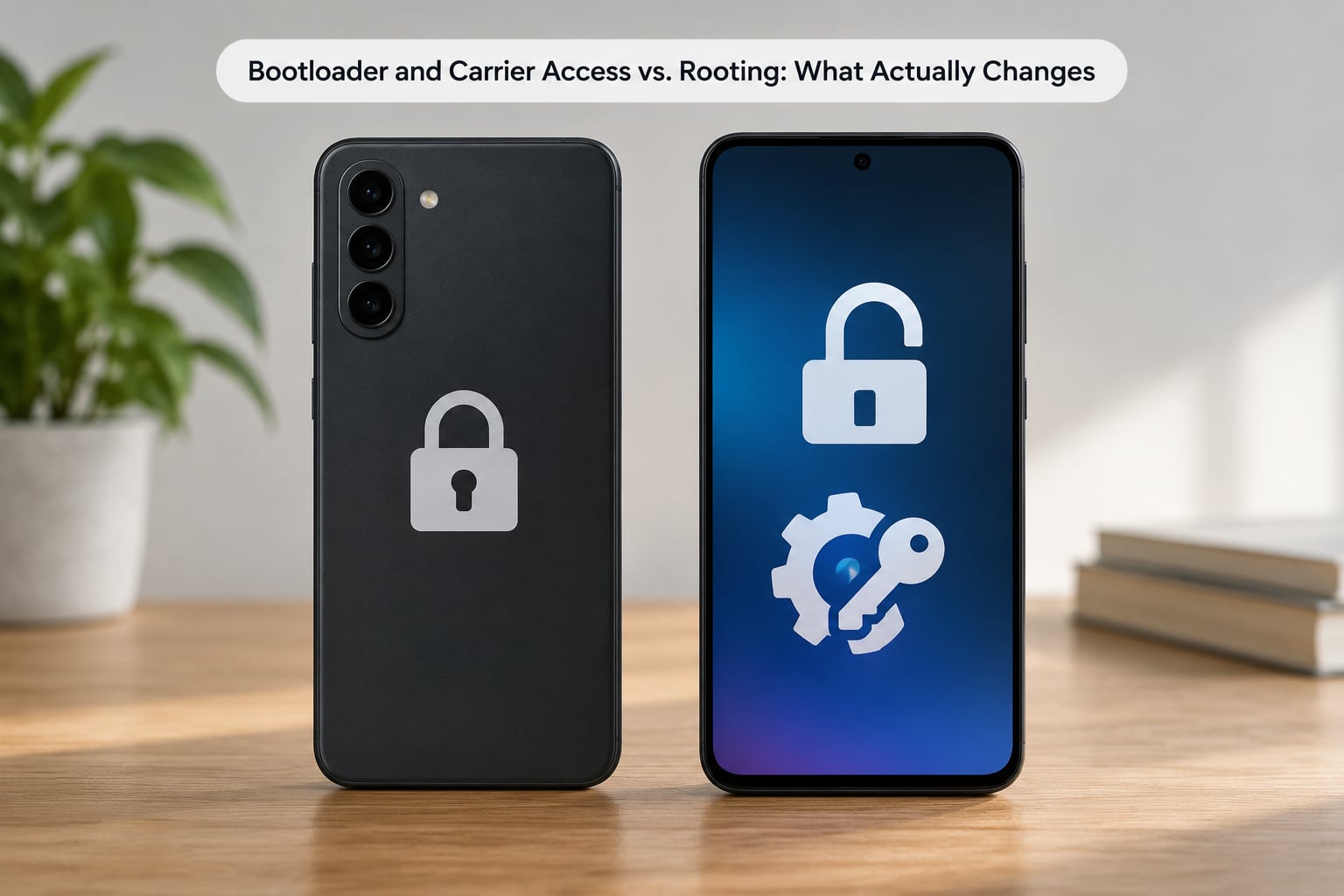
These get confused constantly, and the confusion matters because people unlock a bootloader for one reason, expect rooting benefits, and get neither. Bootloader access is the key. Rooting is the privilege.
| Factor | Bootloader and carrier access | Rooting |
|---|---|---|
| Purpose | Allows the phone to run software the manufacturer did not authorize | Gives administrator-level access to the operating system |
| What it opens | The boot process and the ability to flash images | Protected system settings, files, and permissions |
| Typical procedure | Command-line steps or a vendor unlock tool, often after a waiting period | Installing a rooting tool such as Magisk or KernelSU after the bootloader is open |
| Practical effects | Enables custom ROMs, but changes nothing on its own | Enables modules, backups, and app removal, and trips most app integrity checks |
There is a third option people ask about in forums: opening the bootloader and changing nothing else. That is a real choice. You get the ability to flash a custom ROM later, and you avoid the security exposure and app breakage that come with root itself, but you also erase your data and some manufacturers treat the opened bootloader as a warranty event on its own.
What Changes After You Root an Android Phone?
Here is the honest split. Some capabilities genuinely change, and a good number of things people assume will change simply will not.
| Capability | Stock Android | After rooting |
|---|---|---|
| Removing pre-installed apps | Some removable, many disabled at best | Fully removed for apps that refuse normal uninstall |
| System-level backups | Cloud backup of app data, not app binaries or settings | Full app plus data backup and restore tools |
| System-wide ad blocking | Limited to a browser or a VPN | Hosts file edits and background blocking across apps |
| Interface customization | Wallpaper, colors, launcher options | Theme engines, font and status bar changes, module-based tweaks |
| Automation | Limited triggers and system actions | Automation apps can rewrite system settings and run shell commands |
| CPU and GPU tuning | Fixed by the manufacturer | Overclocking and underclocking with kernel-level tools |
| Hardware performance | As designed | Unchanged unless you deliberately tune it |
| Battery life | As designed | Unchanged on average; tuning cuts both ways |
| Protection from malware | Play Protect plus sandboxing | Weaker, because the sandbox boundary is gone |
| Automatic security updates | Monthly patches | Can continue, but depend on your setup |
The pattern worth noticing: rooting changes permissions, not hardware. Everything in the top half of that table is about what software is allowed to do. Nothing in the bottom half improves on its own.
What Rooting Can and Cannot Do
Rooting can remove bloatware that the manufacturer locked in place, install custom operating systems, run root-only modules, restore complete app backups, block ads at the network level, tune performance, and extend the useful life of a device whose manufacturer has stopped sending updates. People who have rooted for years also point to a very practical case: making an inexpensive phone behave like a newer one without buying a new one.
Rooting cannot deliver these things, and claims that it can are usually marketing dressed up as fact.
- It does not make your phone faster. Any perceived speed gain usually comes from removing software that was running in the background, not from root access itself.
- It does not improve battery life. Some kernel tuning helps certain devices; much of it does nothing or makes things worse.
- It does not give you every app. Some apps check for a modified system and refuse to install or run on it.
- It does not protect you from malware. The opposite is closer to true, since any app you approve with root can reach everything on the phone.
- It does not unlock carrier bands or hardware. That is a different process with different rules.
- It does not make unsupported devices safe to use. Removing protection does not add security patches to a phone that no longer receives them.
How Rooting Affects Security and Your Data
Root changes the security model from layered isolation to trust-based access. On an unmodified Android phone, a malicious app that gets exploited is still trapped in its own sandbox with its own user ID, and it cannot read your messages or your photos. Rooted, the same malware can reach all of it if it manages to obtain root, and the phone’s built-in protections can no longer vouch for the software running on it.
Two related risks deserve plain mention. The first is old rooting services that ask you to install a profile or an app promising administrator access in exchange for a click; that pattern has produced real malware, and experienced users on forums consistently steer newcomers away from it. The second is unchecked module installs, where a module from an unknown source quietly runs code as root every time the phone boots.
For banking, payment, and password apps, the impact is less about hacking and more about verification. Google Play Integrity is an attestation layer that lets apps confirm the device is running genuine, unmodified, up-to-date software. Root access breaks that attestation, and the typical result is an app that refuses to open or asks you to remove protection you would rather keep.
Legally, you are in a much better position than jailbreaking an iPhone. In the United States, the Digital Millennium Copyright Act exemption for consumer device modification applies to rooting a phone you own, and in the European Union interoperability rules lean the same way. Manufacturers can still refuse to support a modified device, which is a warranty and service question rather than a legality one.
Warranty, Updates, and Everyday Device Reliability
Warranty language varies so much by brand that any blanket claim is useless. Some manufacturers state plainly that root or an opened bootloader voids coverage. Samsung is the outlier worth naming: its Knox security counter permanently trips the first time the bootloader is opened, recorded in hardware that cannot be reset, and that can affect secure features such as Samsung Pay regardless of what happens afterward. That decision cannot be undone.
Other brands impose process rather than permanent damage. Xiaomi and several others require the device to sit in the unlocked state for a waiting period before the command will run, which is why the standard answer on forums is to start early rather than the night before you need the phone. Google Pixel devices make bootloader access straightforward through an official unlock route. Motorola, OnePlus, and Google generally publish an unlock procedure; other brands make you email support and wait.
Automatic updates are a separate question from root itself. A systemless setup patched into the boot image usually survives a system update, though some updates remove it and require reinstalling. A fully flashed custom operating system never receives stock updates at all, which means you take on security patching yourself through a different channel. Users report both outcomes, and the deciding factor is which method you used.
The reliability risk worth taking seriously is bricking. An interrupted flash can leave a device that does not boot. A soft brick often clears with a factory reset or a recovery command; a hard brick can leave a phone that shows nothing but a charging light, and recovery then depends on whether the manufacturer still supplies firmware for it. This is why people in rooting communities repeatedly advise first-timers to practise on a spare or older device.
What Rooting an Android Phone Actually Does to Apps
The effect on individual apps varies a lot, and the reason is usually a check rather than a block. Many apps do not forbid root outright; they ask a security question about the device state first, and root changes the answer.
Several mechanisms show up repeatedly:
- Root detection. An app checks for a superuser binary or a management app running, and then refuses to launch.
- Integrity attestation. The app queries a Google service that verifies the system image, finds it modified, and blocks protected features like payments or protected video.
- SafetyNet and Play Integrity failures. The device no longer passes the checks many apps rely on, even when the app itself never detects root directly.
- Restricted permissions. Certain functions, such as accessing contacts from a background process or using some sensors, stay limited even for apps holding root.
Root management tools include a deny list that hides root from selected apps, and that resolves a lot of cases in practice. It does not resolve everything, and it certainly does not restore the integrity attestation that a modified system gives up. Emulators and spoofing workarounds exist, but they change over time as the checks change, which makes any of them a moving target rather than a fix.
Content and streaming apps are the most likely to break, followed by banking and corporate security apps. Ordinary games, messaging, and streaming apps mostly keep working, which is why the community advice is to test your own top ten apps rather than assume the worst.
How Rooting Is Usually Done
Procedures differ by model, so there is no single set of commands that works everywhere. What follows is the shared outline, not a device-specific tutorial. Use the guide published by your device’s vendor or the model-specific thread on a well-known developer forum, and treat any page that asks for your Google password as a warning sign.
- Confirm your exact model and Android version. Model numbers, carrier variants, and region differences change what is possible, and an unsupported combination is where failures start.
- Read the manufacturer’s access and warranty terms first. Find out whether opening the bootloader is permitted, whether a waiting period applies, and what happens to your warranty. Do this before anything else, because it is the one step you cannot undo.
- Back up your data. Removing the bootloader lock or flashing usually erases the device, and cloud backup does not restore app settings or anything an app stored privately.
- Charge the phone fully and use a stable connection. A partially charged phone that stops mid-flash is the classic soft-brick scenario.
- Follow the official or community-vetted procedure for your model. Download the rooting tool from its official source rather than from a mirror or a link in a comment thread.
- Verify the result and check your important apps. Open the management app to confirm root is present, then test your banking, payment, and streaming apps before you rely on the phone day to day.
- Know how to undo it. Removing the tool is usually straightforward. Restoring the original bootloader lock is often not possible on some brands, so check that before you start.
Who Should Root an Android Phone?
Rooting fits a specific set of people rather than a general attitude toward phones. Experienced users in the rooting forums put it plainly: people often assume they need root to reach an end goal when they do not, and that gap is where most bad decisions come from.
It tends to be worth it when you want to remove manufacturer software that will not uninstall, run an alternative operating system such as LineageOS, or keep a device useful long past the end of its update support. Developers sometimes root to test permission behaviour or capture system-level logs. Owners keeping a phone as a privacy-focused daily driver usually get further with a privacy-hardened custom operating system than with root on a modified factory build.
It rarely makes sense if your priority is a phone that just works with every app and keeps receiving patches, if you rely on banking or corporate security apps for work, or if you have no spare device to practise on. Before committing, it is worth checking whether the thing you actually want is available without root at all. A modern launcher covers a surprising amount of home screen customization. Wireless debugging through ADB covers app management without permanent modification. Shizuku gives many apps elevated permissions through a middle layer, with none of the permanent system-level exposure.
That middle path is the most underrated answer in this whole topic, and it solves more real problems than most people expect.
What to Do Before Rooting
- Identify the exact model and Android version. Write down the full model number, not the marketing name, and check whether your specific variant is supported.
- Review the manufacturer’s and carrier’s rules. Look for bootloader access terms, waiting periods, and anything permanent such as a Knox counter.
- Write down the one outcome you need. “Remove an app” is a solvable problem. “Make the phone better” is not a specification, and it usually means rooting was not the answer.
- Test whether root is even required. Check the Shizuku and wireless debugging routes first; they cover a lot of ground and cost you nothing irreversible.
- Plan your backup and recovery path. Know where your photos, authenticator accounts, and two-factor codes live before you touch anything, and confirm you can restore them.
- List the apps you cannot lose. Check your banking, payment, streaming, and work security apps against current user reports for your model, and decide what you would do if one stops opening.
- Reject any method that wants unrelated credentials. No legitimate rooting process needs your Google account password, banking login, or card details in a third-party app or website.
Frequently Asked Questions
Is rooting an Android device a good idea?
It depends on one thing: whether a specific goal of yours cannot be reached otherwise. Rooting is a good idea when you need to remove locked-in manufacturer apps, run an alternative operating system, or keep an unsupported device usable. It is a bad idea when you want a phone that behaves like a factory device, because root weakens app sandboxing and can stop banking and streaming apps from running. Experienced users on rooting forums consistently advise checking whether a less invasive option solves the problem first.
What are the downsides of rooting an Android phone?
The main downsides are a weaker security boundary, permanent warranty consequences on some brands, disrupted automatic updates, app compatibility problems, and the real risk of bricking the device during flashing. Banking and payment apps often stop working because device integrity checks fail once the system is modified. On top of that, maintenance becomes your job: modules need updating, some system updates remove the root and need reinstalling, and no one supports the phone but you.
Does rooting your phone delete everything?
Usually yes, though not because rooting itself erases data. Opening the bootloader lock or flashing a recovery wipes the device as part of the process, and most modern methods require it. That is why backing up before you start matters, and why standard cloud backup is not enough on its own: it restores your photos and settings, but not app data or files those apps stored privately. Plan for a full restore, not a quick one.
Can you unroot an Android phone?
In most cases you can remove the root access itself, and doing so is usually as simple as uninstalling the rooting tool and rebooting. Restoring the original bootloader lock is a different story: several manufacturers refuse to allow it, and Samsung’s Knox security counter trips permanently the first time the bootloader is opened. So the change is reversible on some devices and one-way on others, which is worth checking for your exact model before you start.
Does rooting stop OTA updates?
Not automatically. A systemless setup that patches the boot image usually survives a system update, though some updates remove the root and require reinstalling it. Flashing a complete custom operating system does stop stock updates entirely, because those updates target a system image you no longer have. Either way, security patches then arrive through a different channel, and on an unsupported device removing protection does not add patches that no longer exist.
Is rooting an Android phone legal?
Yes, in most places including the United States and European Union, where exemptions for modifying devices you own exist specifically so people are not blocked from installing software on their own hardware. That is different from unlocking a carrier’s network bands, which carriers are not obliged to allow. Manufacturer support and warranty terms are separate matters: a company can legally refuse to service a modified device without making rooting itself illegal.
What to Do First
Start by writing down your exact model number and Android version, then check what your manufacturer actually does when the bootloader is opened. That single answer tells you whether you are dealing with a waiting period or something permanent. Next, write down the specific outcome rooting is meant to give you, and spend five minutes checking whether a launcher, wireless debugging, or Shizuku gets you there without touching the system. Only if neither works is rooting a reasonable answer to your problem.
If you do go ahead, practise on a spare device first, treat the bootloader step as the irreversible one, and assume banking apps are the thing most likely to disappoint you.