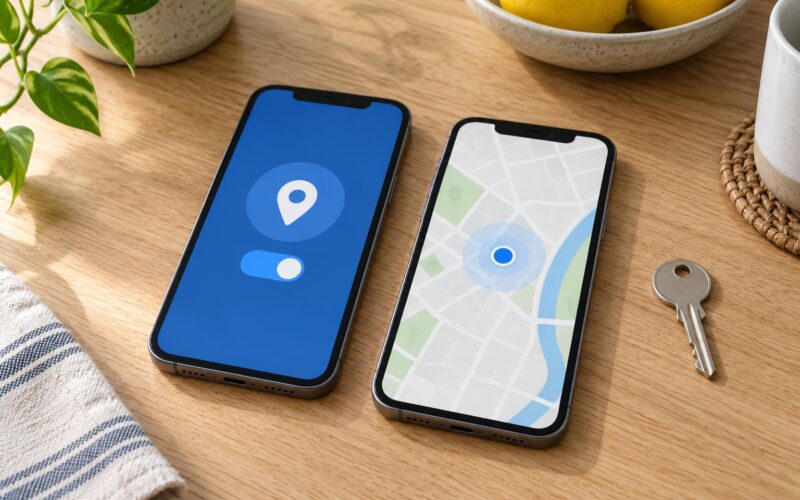
Yes, you can use a phone for navigation without data, as long as you download the map region before you lose signal. GPS positioning comes from satellites and never needs mobile data. Turn-by-turn routing needs either a live connection or map data already saved to the phone.
Here is the short version of how that works: your phone works out where it is from satellites, then draws that position on a map stored on the device. When there is no data, it uses the stored map. When you miss a turn, it cannot ask a server for a new route.
I have set this up before every long drive and every hiking trip where coverage drops. It takes about ten minutes per region once you know where the menus are. The details below cover the setup, the differences between iPhone and Android, and the failures that waste people’s time.
Table of Contents›
- What You Need
- Step-by-Step
- 1. Choose and install an offline-capable navigation app
- 2. Download maps for the area you will use
- 3. Configure location services and navigation preferences
- 4. Plan and save your route before going offline
- 5. Start navigation without mobile data
- 6. Test the route and prepare backups
- Common Mistakes
- Frequently Asked Questions
- Can I use my phone GPS without data?
- How do I use maps without mobile data on an iPhone?
- Which map is best for offline use?
- Do offline maps expire, and how long do they last?
- What do I do if offline navigation fails completely on the road?
- Conclusion
What You Need
Before you start, confirm these five things. Missing one of them is the usual reason a download fails silently.
- A phone with a working GPS receiver. Any smartphone from the last decade is fine. GPS is a separate chip from the cellular modem, so it keeps working with no SIM and no data plan.
- An offline-capable navigation app. Google Maps and Apple Maps both work. So do Organic Maps, OsmAnd, HERE WeGo and Magic Earth if you would rather not sign in to a Google account.
- Free storage. A single Google Maps region is capped at 250MB, which covers roughly the area of Maine. Dedicated offline apps can use far more, so budget a few gigabytes.
- Location services switched on. Both iOS and Android need location permission granted to the navigation app specifically, not just to the system.
- A charger and known destinations. Note where you are going before you go offline, because searching for a place you never saved will fail.
Wi-Fi matters too. Google Maps downloads offline regions over Wi-Fi by default, so a hotel connection or your own hotspot before departure is the easiest way to do this.
Step-by-Step
1. Choose and install an offline-capable navigation app
Google Maps is the default answer because it is already on both platforms and its download flow is well documented. Open the app, tap your profile picture in the top corner, choose Offline maps, and you are already in the right place. You must be signed in to a Google account for the download to work at all. Without a sign-in, the option greys out and nothing happens.
Apple Maps is the other built-in option and needs no account at all. It covers driving, walking, cycling and transit, and its offline regions do not expire the way Google Maps regions do. That makes it a solid choice for a phone that never touches a Google login.
Here is how the main offline-capable apps compare:
| App | Offline maps | Route modes offline | Account needed | Platforms |
|---|---|---|---|---|
| Google Maps | Region downloads, 250MB cap per region | Driving only | Google account | iOS, Android, web |
| Apple Maps | Region downloads by place name | Driving, walking, cycling | None | iOS, Apple Watch, car |
| Organic Maps | Full country or region bundles | Driving, walking, cycling | None | iOS, Android |
| OsmAnd | Vector maps and topo layers | Driving, walking, cycling | Optional account for extras | iOS, Android |
| HERE WeGo | Country bundles, detailed routing | Driving, walking, cycling | None | iOS, Android |
| Magic Earth | Vector maps and topo layers | Driving, walking, cycling | None | Android, iOS |
For hiking, the topographic apps are the ones forum users keep coming back to. On the GrapheneOS community board and on r/GrapheneOS, Magic Earth is repeatedly recommended for de-Googled phones because it works fully offline with no telemetry. Walkers on r/CampingandHiking and the UKGSER forum push similar tools for contour detail that road apps simply do not carry.
2. Download maps for the area you will use
On iPhone and Android, Google Maps takes the same path: tap your profile picture, tap Offline maps, tap Select your own map, then pan and pinch the rectangle over the area you need. When the shape covers your route plus a margin, tap Download, choose a detail level, and wait for the progress bar.
Two things trip people up here. The rectangle gesture is fiddly, especially one-handed, and a rectangle that clips your route leaves you stranded at the edge. Zoom out first, draw a generous box, then zoom in to check that both your start and your destination sit well inside it.
Apple Maps works differently. Search for the city or area, tap the name of the map at the top of the search result to open Location View, and tap the download option. You pick the area by place rather than by drawing a box, which is easier but coarser.
Download over Wi-Fi by default. If you need cellular downloads, Google Maps has a gear icon inside Offline maps labelled something like When to download offline maps, where you can allow downloads on any connection.
Check the download before you leave. Open Offline maps again and confirm the region appears in the list with a delete option beside it. A region that is listed is downloaded. A region that is merely pinned for automatic download is not.
3. Configure location services and navigation preferences
On iPhone, open Settings, then Privacy and Security, then Location Services. Choose Use While Using the App, and scroll down to confirm Google Maps is set to While Using the App or Always. Location accuracy set to High gives a tighter fix, which matters in a canyon or a car park.
On Android, open Settings, then Location, then Location services, then Location access. Make sure the toggle is on and that Google Maps appears under App permissions with a location setting that permits precise position. On Samsung Galaxy devices the path is Settings, then Permissions, then Location.
Inside the app, set your units to miles or kilometres before you leave, then turn off anything that needs a connection anyway. Live traffic, toll layers and some layers keep asking for a network. Voice guidance volume should be loud enough to hear over a road surface.
Battery deserves a decision too. Continuous location use drains a phone faster than normal use, so lower screen brightness and skip the always-on display. A phone that dies at the wrong moment is a worse problem than a map that is slightly out of date.
4. Plan and save your route before going offline
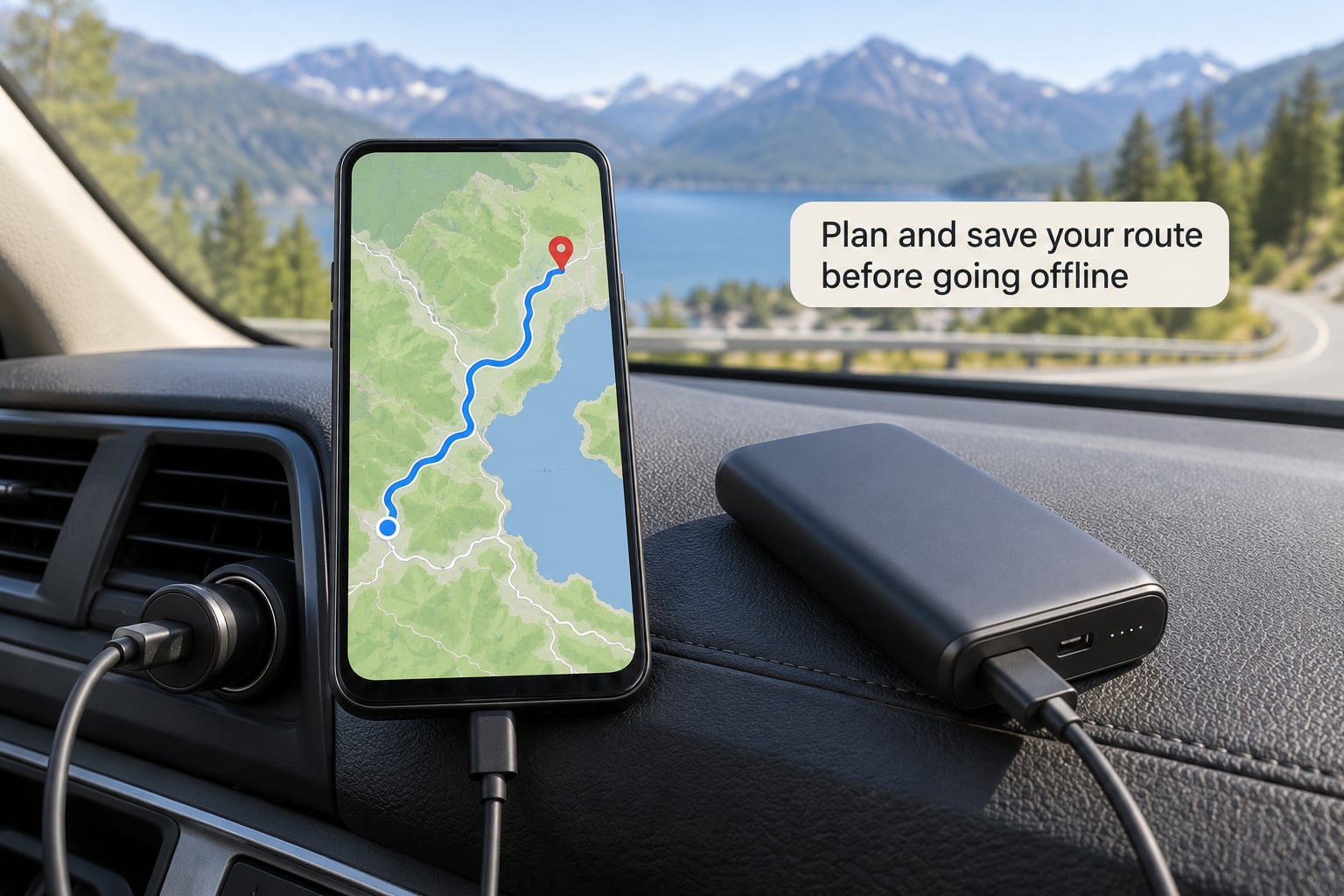
This is the step people skip, and it is the one that matters. With a connection, search for your destination, choose the route, and start guidance briefly so the app calculates and stores the route. Then stop navigation. Save the destination to your list, or pin it on the map.
Offline routing in Google Maps is calculated on the device from the downloaded region, which means the app needs the full route inside that rectangle before you lose signal. A destination outside the downloaded area cannot be routed to at all.
Add any stops the same way. A fuel stop or a lunch place that is inside the downloaded region will appear as an option. Anything outside it will not, and searching for a new place name once you are offline usually returns nothing.
5. Start navigation without mobile data
Switch on airplane mode. That is the honest test: if guidance still works, the offline setup is real. Open the app, tap your saved destination, tap Directions, select the stored driving route, and start.
Look for the crossed-out cloud icon in the corner of the map view. That icon is Google Maps telling you it is running on downloaded data only. No icon means it is waiting on a connection, and the first prompt may stall.
Here is what you get and what you lose:
| Feature | Works offline? | Notes |
|---|---|---|
| Your position on the map | Yes | Satellite positioning, no connection needed |
| Driving turn-by-turn guidance | Yes | Calculated on the device inside the downloaded region |
| Live traffic and road alerts | No | Server-side data |
| Rerouting after a missed turn | No | The most common disappointment |
| Searching for a new place | Limited | Only places inside the saved region |
| Walking, cycling and transit modes | No | Driving mode only in Google Maps offline |
On the r/Android forum the consensus is exactly this: offline Google Maps shows cached map data, but route calculation happens server-side, so a reroute after a wrong turn will not appear. Plan conservatively instead of assuming the app will rescue you.
6. Test the route and prepare backups
Run a short practice leg before the real trip. Pick a destination about ten minutes away inside your downloaded region, start guidance in airplane mode, and confirm the first few prompts appear. If voice prompts do not start within a few seconds, the region probably did not finish downloading.
For anything longer than a few hours of driving, download a second region covering your return route and a wider margin. Storage is cheaper than being lost. On a device with tight storage, delete regions you no longer need from the same Offline maps screen where you downloaded them.
If you are driving abroad, offline maps also solve the roaming bill. You get guidance with data switched off and a local SIM, which is the arrangement most travellers should aim for.
One group worth knowing about: hikers repurpose an old Android phone as a dedicated offline GPS unit with pre-downloaded maps, solving the dead-zone problem for the whole group. The same setup works as a car backup unit that sits in the glovebox.
Drivers of rental cars and borrowed vehicles face a different problem. The screen in the car runs its own Google Maps build, so your phone downloads do nothing for it. In the car’s Google Maps app, go to Settings, then Privacy Center, then Offline maps and turn on auto-download while you still have a connection.
Common Mistakes
The region was never downloaded. Most failures are this one. Open the Offline maps screen before you leave and confirm the region is listed, not just selected for auto-download. A pin means queued, not saved.
You were signed out of Google. Google Maps needs an active Google account for offline downloads. Signing out or switching phone accounts wipes the setting. Forum users on privacy-focused systems hit this constantly, which is why they move to apps that need no account.
Your destination is outside the downloaded rectangle. Offline routing cannot leave the downloaded area. Redraw the rectangle with a margin, download again, and check that your route fits inside.
The region expired before departure. Downloaded Google Maps regions are temporary and are usually cleared after around 30 days of no use. People on r/solareclipse recommend downloading a few days to a week before travel, not a month ahead, and refreshing the region on departure morning. Apple Maps regions do not behave this way.
An app update wiped the maps. Android auto-update can refresh or clear offline regions during an app update. Open Google Maps, check the region list, and redownload anything missing before you leave the house.
You assumed rerouting would work. Take the route conservatively. If you miss a turn offline, pull over safely and re-enter the original destination once you regain signal, or navigate manually from the saved map.
You expected walking or transit directions offline. Google Maps offline mode is driving only. For walking or cycling, use Organic Maps, OsmAnd, HERE WeGo or Apple Maps.
The signal is fine but the position is wrong. A canyon wall or a forest blocks satellite signals. Move to open sky, wait for the fix, and set location accuracy to High before you set off.
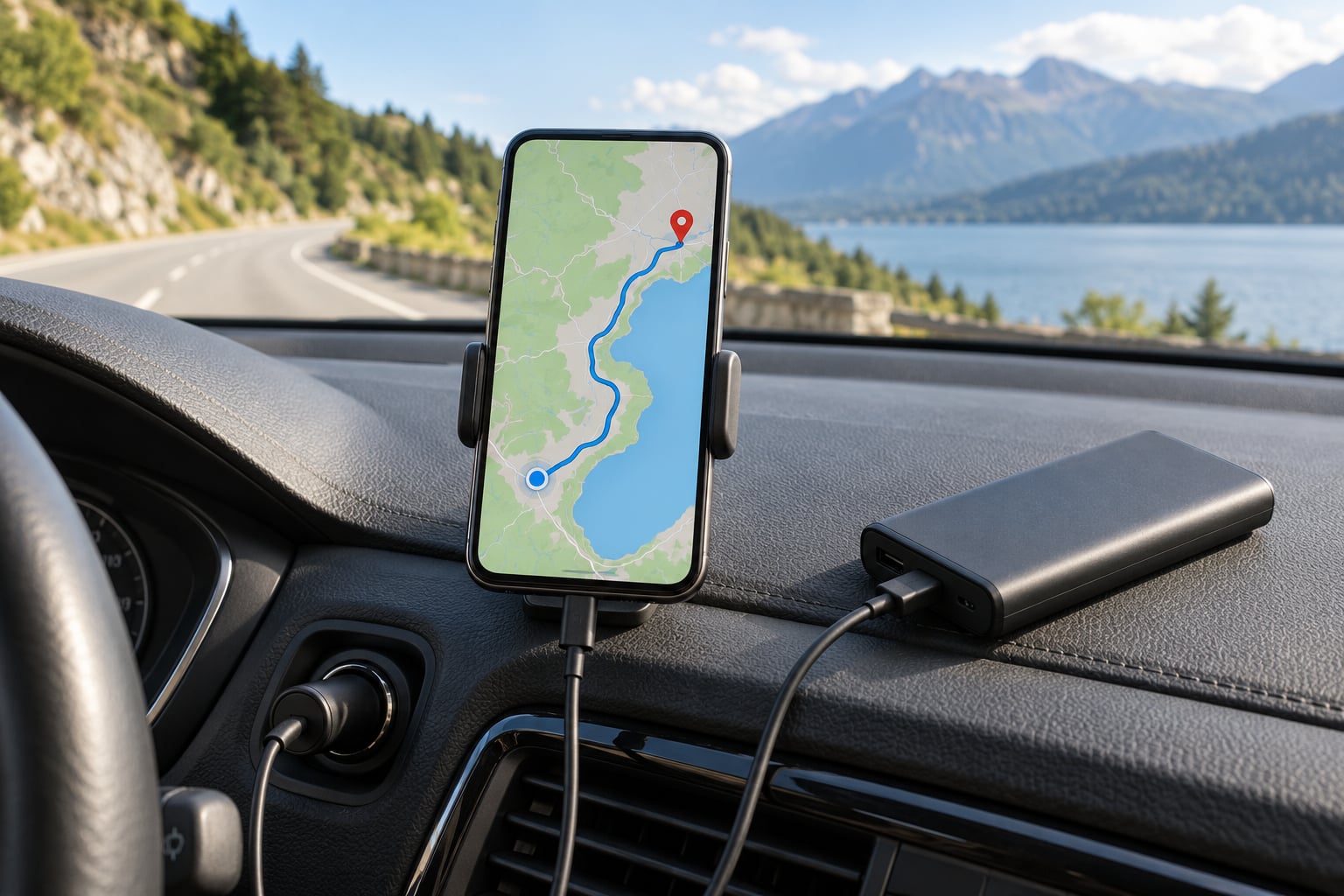
The phone is flat halfway through. Carry a car charger and a power bank. Offline navigation keeps the GPS receiver running for the entire drive, which is heavier on the battery than casual map browsing.
Storage ran out mid-download. Clear old downloads first. A partially downloaded region counts as nothing, and the app will restart it once space is free.
Frequently Asked Questions
Can I use my phone GPS without data?
Yes. GPS positioning is calculated on the phone from satellite signals and needs no cellular network at all. What needs a connection is route calculation, live traffic and place search, unless the map data for your area is already downloaded. Download the region, save your route, then switch on airplane mode and guidance will run from local storage.
How do I use maps without mobile data on an iPhone?
Open Google Maps and tap your profile picture in the top corner, tap Offline maps, tap Select your own map, pinch out a rectangle over your route, and tap Download. Choose a detail level and wait for it to finish. Do this over Wi-Fi. With Apple Maps instead, search the place, tap the map name to open Location View, and tap download.
Which map is best for offline use?
Google Maps is the easiest for driving because almost every phone already has it, but it needs a Google account and offline regions expire. Apple Maps needs no account and keeps its downloads. For hiking or topographic detail, OsmAnd, Organic Maps and Magic Earth are the options regular users recommend, since they route fully offline with no account requirement.
Do offline maps expire, and how long do they last?
Google Maps offline regions are temporary and are generally cleared after roughly 30 days without use, so refresh them close to your departure date. Downloaded Apple Maps regions do not expire the same way. If a region has vanished on the morning of a trip, reopen Offline maps and download it again over Wi-Fi before you leave.
What do I do if offline navigation fails completely on the road?
Stop somewhere safe first, away from traffic. Turn off airplane mode and wait for a signal or Wi-Fi, then refresh the map region. If you have no connection for a while, the downloaded map still shows your surroundings, so use the compass and the scale bar to work out your position and follow roads manually. Keep a paper map in the car as a final backup.
Conclusion
Start with the download: pick your navigation app, download the region covering your whole route plus a margin, and confirm it appears in the Offline maps list. Save your destination while you still have a connection. Test a short leg in airplane mode before you travel, and carry a power bank.
For long trips, download a second region for the return drive. It takes a few minutes on hotel Wi-Fi and it is the difference between a detour and being genuinely lost.