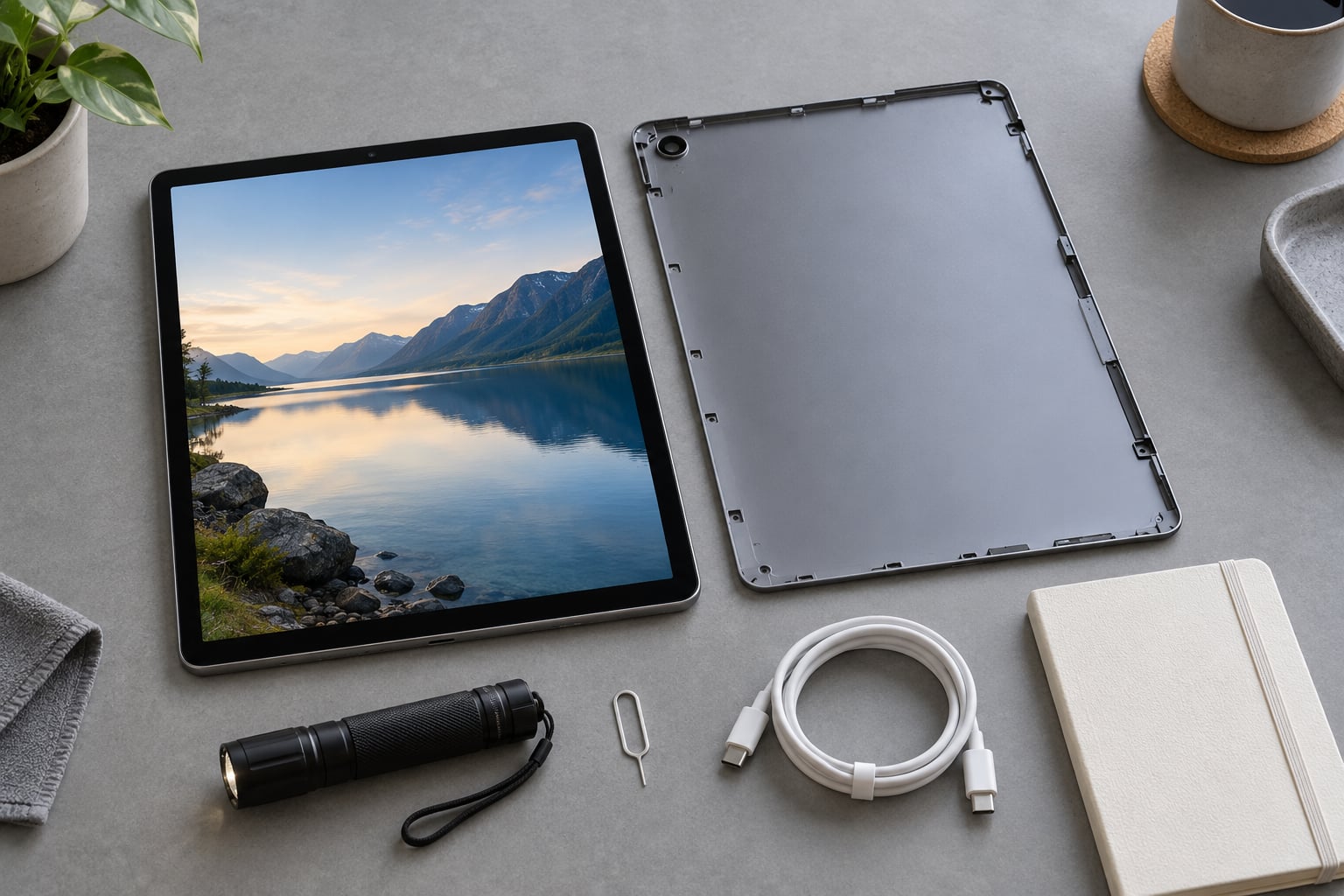
When you are weighing what to check when buying a used tablet, four things decide whether the deal is good: the screen and digitizer, the battery’s remaining capacity, whether the device is fully unlocked and out of the previous owner’s accounts, and whether the serial number is clean. Give yourself 30 minutes, bring your own charger, and you can verify all four in person. Skip that and the cheapest tablet on the list turns into an expensive paperweight.
The steps below cover iPadOS and Android tablets sold by private sellers, local shops, and refurbishers. Menu names shift a little between models and system versions, so I note where the paths diverge. Updated for October 2026.
Table of Contents›
- What You Need
- Step-by-Step: What to Check When Buying a Used Tablet In Person
- 1. Confirm the Exact Model and Specifications
- 2. Check the Screen and Touch Input
- 3. Inspect Battery Health and Charging
- 4. Test Storage, Performance, and Connectivity
- 5. Look for Physical and Water-Damage Signs
- 6. Verify Locks, Accounts, and Activation Status
- 7. Review Software, Security, and Data
- 8. Compare Condition With the Price
- Common Mistakes
- Frequently Asked Questions
- How do I check the battery health of a used tablet before buying it?
- What screen problems should make me avoid a used tablet?
- Can a used tablet still be locked to the previous owner’s account?
- How can I tell if a used tablet has water damage?
- Is it worth buying a used tablet with a cracked screen?
- What should I test before paying for a used tablet?
- Conclusion
What You Need
You cannot test what you were not given, so request these before you meet the seller.
- The exact model number, storage size, and whether it is Wi-Fi only or cellular
- The charger and cable, plus the original box if it still exists
- Proof of ownership: a receipt or bill of sale showing the serial number
- Written confirmation the device was removed from the seller’s Apple, Google, and Samsung accounts
- A 30-minute window with the tablet plugged in, and nobody rushing you
- Your own Apple ID or Google account, ready to complete the first setup
- A phone flashlight, a SIM eject tool for cellular models, and a soft cloth
- A second cable or battery pack if you want to test the tablet under load
- A notebook to write down the serial number, battery figures, and every defect you find
Ask for the battery health percentage and cycle count in writing before you travel. Sellers who dodge those two numbers usually have a reason, and they are the two numbers you will want in front of you when you start negotiating.
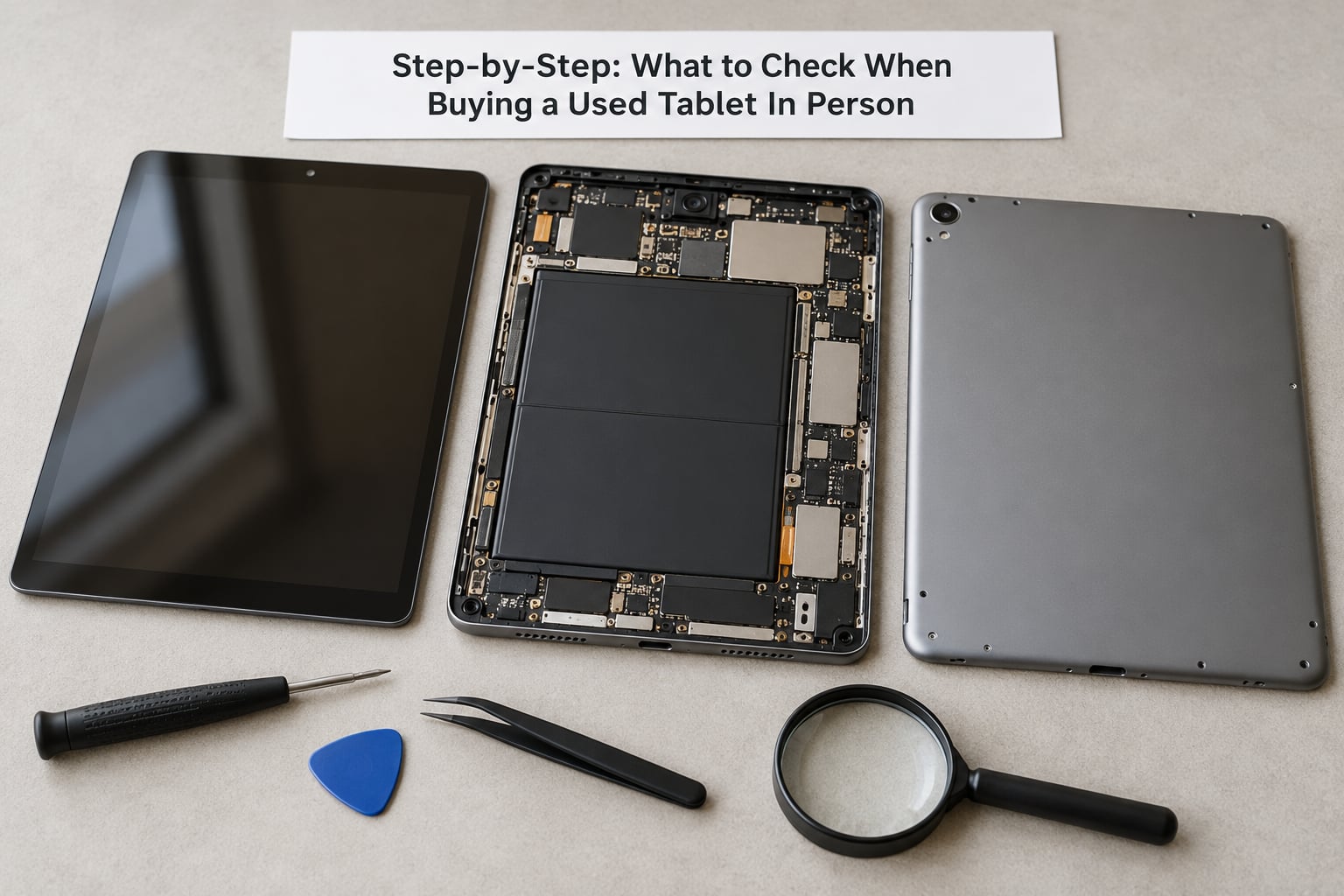
Step-by-Step: What to Check When Buying a Used Tablet In Person
1. Confirm the Exact Model and Specifications
Start by matching the model number in Settings against the listing before you look at anything else. On an iPad it sits in Settings > General > About; on an Android tablet it is in Settings > About phone or About tablet, usually alongside the IMEI.
Confirm four things: the storage capacity matches what is being sold, the manufacturer branding matches the operating system running on it, the screen size class is right for your use, and a cellular model actually has a SIM tray. A body labelled 128GB showing 64GB in Settings is either a mismatched listing or a swapped logic board, and both are reasons to stop.
2. Check the Screen and Touch Input
A tablet can look flawless and still have dead touch zones, and only the drag test finds them.
Open Notes, Google Keep, or any drawing app and drag one long line in a single stroke from corner to corner. A healthy digitizer produces a continuous line. Breaks, gaps, or a line that jumps away from your finger mean the touch layer is failing, and that is the defect buyers most often regret because it looks perfect from across a table.
Then tap-test every edge and corner, paying attention to lag near the bezel. Advice threads on r/iPad and r/GalaxyTab keep circling back to this: people lose good deals over bezel touch lag on otherwise flawless units.
For the display itself, show full-screen solid white and solid black to look for dead pixels, dim the brightness to zero in a dark room to check for backlight bleed on LCD panels, and show a grey or white image to catch OLED burn-in. Look along the bezel seam for unevenness, and run a fingernail along the edge. Check whether a fresh screen protector is hiding a cracked-glass symptom, where the glass was replaced but the display underneath is a lower-quality panel and colours look duller than they should.
3. Inspect Battery Health and Charging
Read the battery’s reported maximum capacity and cycle count before you read anything else about the device.
On an iPad, Settings > Battery > Battery Health & Charging shows Maximum Capacity and, on newer models, Cycle Count. Around 100% to 80% remaining is normal and healthy. Below 80% the pack is worn out, and 80% is roughly where manufacturers consider a battery due for service after several hundred to a thousand cycles.
On Android the path varies. Samsung tablets expose battery information under Settings > Battery, and some models report cycle counts. Where nothing is reported, a battery information app estimates design capacity and current charge from the charge counter, and it needs one near-empty-to-full charge cycle before the numbers mean anything.
Here is the math worth doing in your head. A tablet rated at 8000 mAh design capacity that now reports 6000 mAh has lost 2000 mAh, which is 25% of its original capacity. That drops it under the 80% line, so it belongs in the discount column, not the fine column.
Then plug in your own known-good cable and charger and watch the percentage climb. Feel for heat near the port, and check the tablet while it is running a video, not while idle. A device that runs hot without a charger, or that will not hold a charge for an hour, is telling you about a swollen or failing pack. Swelling shows as a hairline gap between the glass and the frame, or as the tablet rocking on a flat table. Batteries on most tablets are sealed, so a replacement can cost more than the device is worth.
4. Test Storage, Performance, and Connectivity
Storage that sits near capacity constantly wears the flash and the battery faster than one kept half empty.
Open the storage screen, Settings > General > iPad Storage on iPadOS or Settings > Storage on Android, and look at how the space is split between apps, photos, and system files. A tablet with 190GB of photos and no app library has been used as a camera, not as a computer, and it tells you how it was treated.
For memory, 4GB is the floor for reading, browsing, and streaming. 6GB is comfortable for note-taking, video calls, and family use. 8GB or more is what you want for drawing, split-screen work, and games. Ignore any advertised RAM Plus or virtual RAM figure, because that is storage pretending to be memory.
Now run the device. Join a Wi-Fi network and stream a video, pair a Bluetooth accessory, take a photo with each camera, record ten seconds in a voice recorder app to test the microphone, and play something with real bass to hear the speakers. Test the charging port with your own cable and confirm the charge percentage moves. If the tablet has a SIM slot, bring a SIM. A tablet that gets hot and slow within a minute of opening several apps is showing you its ceiling before you own it.
5. Look for Physical and Water-Damage Signs
Clean glass says nothing about what happened inside the tablet, so check the ports, buttons, and screws.
Shine a flashlight into the charging port and the speaker grilles. Lint and bent pins are normal neglect; green or white fuzzy corrosion means liquid got in. Buttons that feel mushy or stay depressed are the classic liquid-damage tell, because liquid corrodes the contacts behind them. Look for the liquid damage indicator sticker, a small strip that starts white and turns pink or red, usually inside the SIM tray area or under the back cover.
Run a fingernail around the bezel. A consistent gap means the display has lifted away from the frame, often because of a swollen battery. Mismatched screw heads, an uneven gap on one side, or a front camera sitting proud of the glass all point to a replacement screen, and a replacement panel is usually a lower-spec part. Ask outright what has been repaired. A seller claiming like new on a device that has had a screen replaced is telling you what you need to know about the rest of their claims.
6. Verify Locks, Accounts, and Activation Status
A tablet still tied to the previous owner’s account is unusable, and if the device was stolen, owning it becomes your problem too.
On an iPad, a Find My or Activation Lock shows up in two ways. Settings carries the owner’s name at the top of the sidebar with an activation banner, and an Erase All Content and Settings will stop partway and ask for the previous owner’s Apple ID password. You can also enter the serial number on Apple’s Find My page; if it can be removed from the account, somebody is still signed in. If it cannot, walk away rather than buying and hoping. Buyers on r/AppleWhatShouldIBuy are consistent on this point: a properly factory-reset, iCloud-unlocked used iPad carries no privacy risk.
Remote management is a separate hard blocker that gets missed. If the setup screen says Remote Management or Mobile Device Management, the tablet is enrolled with a school or company and cannot be set up without that organisation’s credentials. No amount of resetting fixes it, and it cannot be removed by you.
On Android, a reset tablet asks for the previous owner’s Google account during first setup, which is the factory reset protection lock. Before buying, open Play Store, tap your profile, then Settings > About > Play Protect > Device certification and read the status. Samsung tablets can also be tied to the previous owner’s Samsung account, and a tripped Knox warranty void flag is permanent.
| Check | iPad (iPadOS) | Android tablet |
|---|---|---|
| Battery health | Settings > Battery > Battery Health & Charging shows Maximum Capacity | Settings > Battery shows battery usage and, on some models, cycle count |
| Cycle count | Same Battery Health & Charging screen on newer iPads | Reported on some flagships, otherwise read from a battery information app after one full charge |
| Storage | Settings > General > iPad Storage | Settings > Storage |
| Erase device | Settings > General > Transfer or Reset > Erase All Content and Settings | Settings > System > Reset options > Erase all data or Factory reset |
| Serial and IMEI | Settings > General > About, plus Apple coverage lookup by serial | Settings > About phone, or dial *#06# to show the IMEI |
| Lock verification | Settings banner plus the serial on Apple’s Find My page | Play Protect device certification, first-setup Google account prompt, Knox status |
The single best test is to ask the seller to factory reset the tablet in front of you, then complete setup with your own account before any money changes hands. Forum complaints about used-tablet buys almost always come back to sellers who refuse that request.
7. Review Software, Security, and Data
You are buying the years of updates the tablet still has ahead of it, not the ones it has already used.
Check the system version and see whether the device is still on the current major release. Apple publishes which iPads remain eligible for updates, Samsung has committed to seven years of system and security updates for its Galaxy Tab S10 and newer and six years for several mid-range models, and other brands vary widely. If the seller has not touched the tablet in two years, the support window may already be closing.
Once support ends, expect no security patches and apps that slowly drop the device. That is fine for reading and streaming, and a poor idea for banking or work accounts.
On data, skim the apps and profiles still on the device before you reset, then reset and set it up yourself so you know what is on it. On an iPad, entering the serial on Apple’s coverage page also tells you whether the device has ever been serviced, which answers the repair history question without relying on the seller’s word.
8. Compare Condition With the Price
Price the defects instead of the sticker, because every worn component is a repair you are funding on the seller’s behalf.
Work down from what the same model costs new, then subtract for each finding: battery below 80% capacity or a high cycle count, a replaced screen or cracks under a new protector, dents or a bent frame, a missing charger or box, and the absence of any warranty or receipt. Specifics make the conversation easy. Saying battery at 82% with 640 cycles, corner dent, no charger, here is what I am adjusting for ends the haggling faster than arguing about condition.
Walk away when the seller applies pressure. Claims like someone else is interested, test it later, or I need an answer today are the pattern buyers on used-tablet forums describe most often when a deal turns bad. The same goes for a serial number that does not match the box, no bill of sale, a brand-new screen protector sitting over a cracked display, or an enrolment banner for a school or work account.
Common Mistakes
Most bad purchases trace back to one of these six errors, and each has a simple fix.
- Paying before the whole test is done. Fix: finish every check on the step list with the seller still standing there. Once you are home, a locked tablet is your locked tablet.
- Taking the seller’s word on the battery. Fix: read maximum capacity and cycle count yourself, or get them in writing before you travel.
- Overlooking activation and management locks. Fix: watch for the iCloud Lock banner, the Find My serial check, the Android first-setup account prompt, and any Remote Management message.
- Testing only while the tablet is idle. Fix: stream video, open several apps, and charge while using it. Most faults only appear under load.
- Assuming a factory reset repairs the device. Fix: a reset erases data and nothing else. Dead touch zones, corrosion, and swelling all need parts.
- Buying with no record of the deal. Fix: get a bill of sale with the serial number, the date, and both names, and keep screenshots of the listing and messages.
Three smaller habits help more than they sound. Inspect in daylight rather than a dim room, because hairline cracks and bezel gaps show up best in flat natural light. Check the remaining software support before you negotiate, because an out-of-support tablet is worth less to everyone, including you. And be politely prepared to leave, since the willingness to walk is what turns a used-tablet purchase into a fair one.
Frequently Asked Questions
How do I check the battery health of a used tablet before buying it?
On an iPad, open Settings, then Battery, then Battery Health and Charging, where Maximum Capacity and Cycle Count appear on newer models. On Android, check Settings, then Battery for usage and cycle data, or use a battery information app that reads the charge counter after one full charge cycle. Below 80% remaining capacity means the pack is worn out.
What screen problems should make me avoid a used tablet?
Avoid a tablet with gaps along the bezel, which mean the display is lifting, often from a swollen battery. Walk away from broken touch zones found by the drag test, persistent touch lag near the edges, dead pixels, uneven backlight bleed, OLED burn-in, or a cracked display hidden under a fresh screen protector. A dull-looking panel under a new protector usually means a lower-spec replacement screen.
Can a used tablet still be locked to the previous owner’s account?
Yes, and it is the most common reason a cheap used tablet becomes useless. An iPad with Find My still on shows an activation banner in Settings and asks for the old Apple ID password during erase, and the serial can be checked on Apple’s Find My page. Android tablets ask for the previous Google account at first setup, and school or company enrolment adds a remote management lock that cannot be cleared by you.
How can I tell if a used tablet has water damage?
Look for green or white corrosion inside the charging port and speaker grilles with a flashlight, buttons that feel mushy or stay depressed, and a liquid damage indicator strip that has turned pink or red inside the SIM tray area or under the back cover. A display that has lifted away from the frame can also follow a spill. Clean exterior glass means nothing, so always inspect the ports and buttons.
Is it worth buying a used tablet with a cracked screen?
Only if the repair cost is small and the crack is cosmetic. A spiderweb crack with the touch layer and display still working can be replaced, but on most tablets the panel, glass, and digitizer are one sealed assembly, so expect a meaningful parts bill plus labour. Ask the seller to confirm touch works everywhere first, and check for a lifting edge, which points to a swollen battery instead of a simple break.
What should I test before paying for a used tablet?
Test the screen with a drag and corner tap test, read the battery capacity and cycle count, and confirm the charging port charges with your own cable. Check Wi-Fi, Bluetooth, both cameras, the microphone, and the speakers, then verify the serial number matches the box and receipt. Finally, have the seller factory reset the tablet and set it up with your own account before you pay.
Conclusion
Begin in this order: confirm the model and storage match the listing, prove there is no activation lock or remote management enrolment, then work through the screen drag test, battery figures, ports, and wireless functions. Nothing changes hands until the tablet has been reset and set up on your account, and you keep a bill of sale with the serial number.
Walk away from pressure to decide quickly, a serial that does not match the box, a hidden repair, an enrolment banner, or a battery worn past its useful life. A used tablet is a good buy when the seller accepts the inspection, because the device itself is rarely the problem.