
How to clear cache on an Android phone safely takes about two minutes and needs nothing but the Settings app already on your phone. Clearing cache wipes only the temporary files an app stored to load faster, so your photos, messages, downloads, and accounts all stay exactly where they are. The one button to stay away from sits right next to it: Clear data.
Android changed where that button lives more than once, and every manufacturer renames the menus around it. What follows covers the current paths, what each option really does, and how to confirm the cleanup worked before you move to the next app.
Table of Contents›
- What You Need
- How to Clear Cache on Android Phone Safely by App
- How to Clear Cache on Android Phone Safely for One App
- Confirm You Selected Clear Cache, Not Clear Data
- Clear Browser Cache and Other Storage-Hungry Apps
- Restart and Check Available Storage
- Common Mistakes
- Mistakes to Avoid and Quick Tips
- Frequently Asked Questions
- Is it safe to clear cache on an Android phone?
- Will clearing an app’s cache delete my passwords or account?
- How often should I clear cache on my Android phone?
- Does clearing cache delete photos, messages, or offline downloads?
- Why can’t I find the Clear cache option on my Android phone?
- What to Do First
What You Need
Nothing to buy and nothing to install. The Settings app that shipped with your phone handles the whole job, and the same steps work whether you use gesture navigation or the three-button bar.
You do need to know which app is misbehaving, or at least which apps are eating storage. Settings can sort the app list by size, which turns guesswork into a quick scroll through the top ten offenders.
Menu wording is the part that trips people up. Samsung calls the app list Apps, Pixel calls it Apps & notifications, and some Xiaomi and OnePlus builds bury it under Settings > Apps > Manage apps. The storage screen underneath is usually Storage or App storage. If your phone runs Android 8.0 or older, the app manager opens as a separate screen with an App info page, so expect one extra tap.
How to Clear Cache on Android Phone Safely by App
The universal route is the same everywhere: Settings, find the app, open its storage screen, tap Clear cache. Here it is in order, with a check after each step so you know you are in the right place.
How to Clear Cache on Android Phone Safely for One App
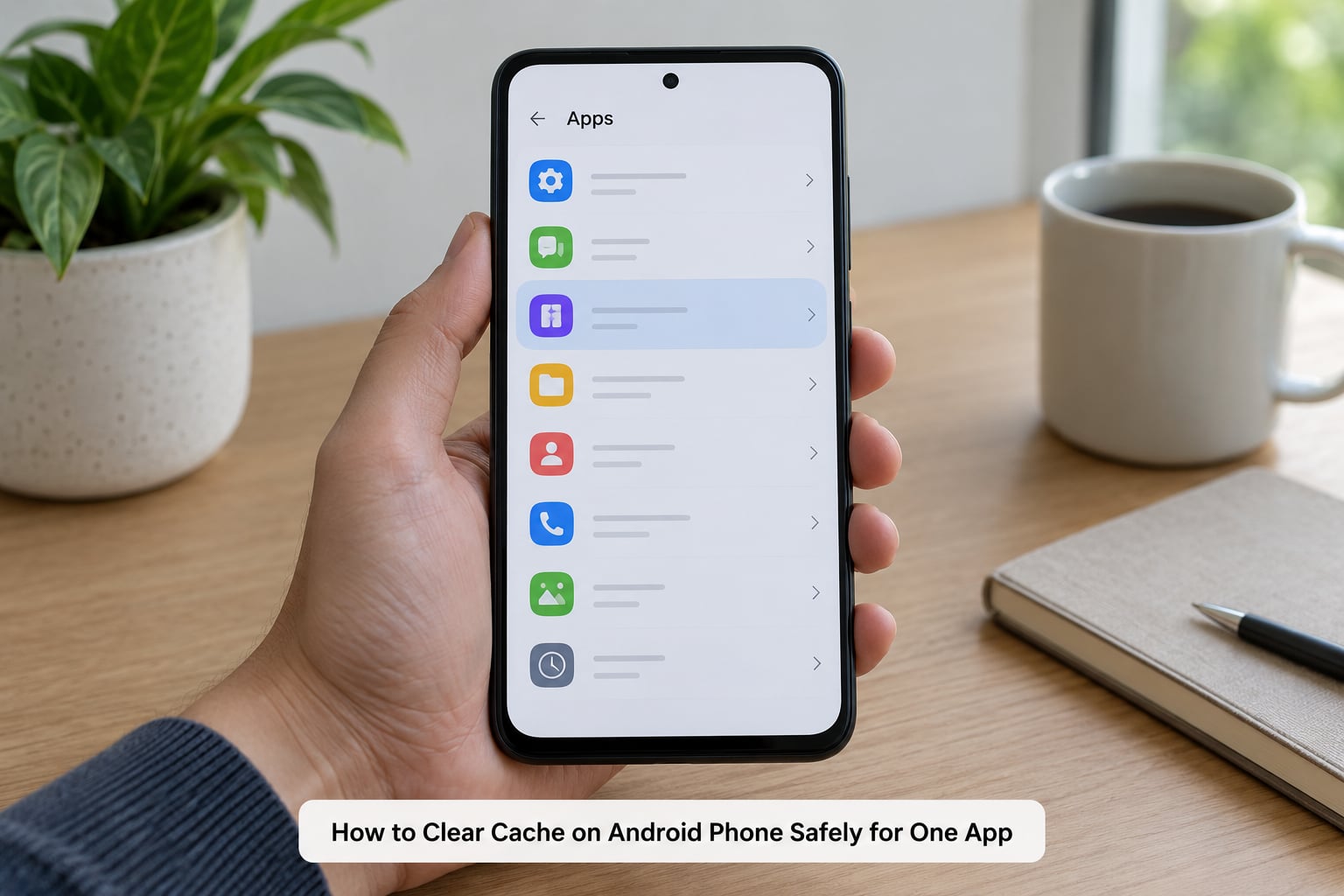
First, open Settings and tap Apps. On Pixel and a few other builds the label reads Apps & notifications instead, which is the same screen with an extra tap before you reach the list.
Tap the See all apps link if the list opens on a recommended row, then scroll to the app you want. Sorting by size helps when storage is the reason you are here: tap the three-dot menu in the corner of the app list and choose Sort by size.
Tap the app name to open its info page. You will see the app icon, the app version, and a line that says whether it is allowed to run in the background. Ignore all of that and go straight to Storage or App storage.
On the storage screen, look for the two buttons near the bottom: Clear cache and Clear data (Samsung calls the second one Clear storage). Tap Clear cache once. No confirmation appears, because there is nothing to confirm — Android simply deletes the temporary files.
How to verify: the cache figure on that same screen drops, usually within a second or two. Reopen the storage screen if you want the updated number in front of you.
Confirm You Selected Clear Cache, Not Clear Data
Clear cache is the quiet button. Clear data is the one that asks Delete all app data? and wants you to tap through a warning, because it resets the app back to its first-launch state.
What Clear data removes: your saved logins, downloaded offline content inside the app, app settings, drafts, and any database the app keeps. Photos and videos in your gallery folder are usually safe, since they live in shared storage rather than app-private storage. Some apps do keep their own copies, so treat this one as the destructive option rather than the routine one.
What Clear cache removes: cached images, thumbnails, and temporary files the app rebuilt to avoid re-downloading them. The app rebuilds those on the next launch, which is why the process is safe but not always instant.
| What you want | Tap | Confirmation prompt | Your logins and downloads |
|---|---|---|---|
| Fix a laggy or crashing app | Clear cache | None | Kept |
| Free up space | Clear cache | None | Kept |
| Reset an app completely | Clear data | Delete all app data? | Removed |
| Stop a battery drain | Clear data | Delete all app data? | Removed |
If a forum post tells you to clear an app and you want the gentle version, screenshot your current storage screen first. You get a before-and-after number and proof that nothing important vanished.
Clear Browser Cache and Other Storage-Hungry Apps
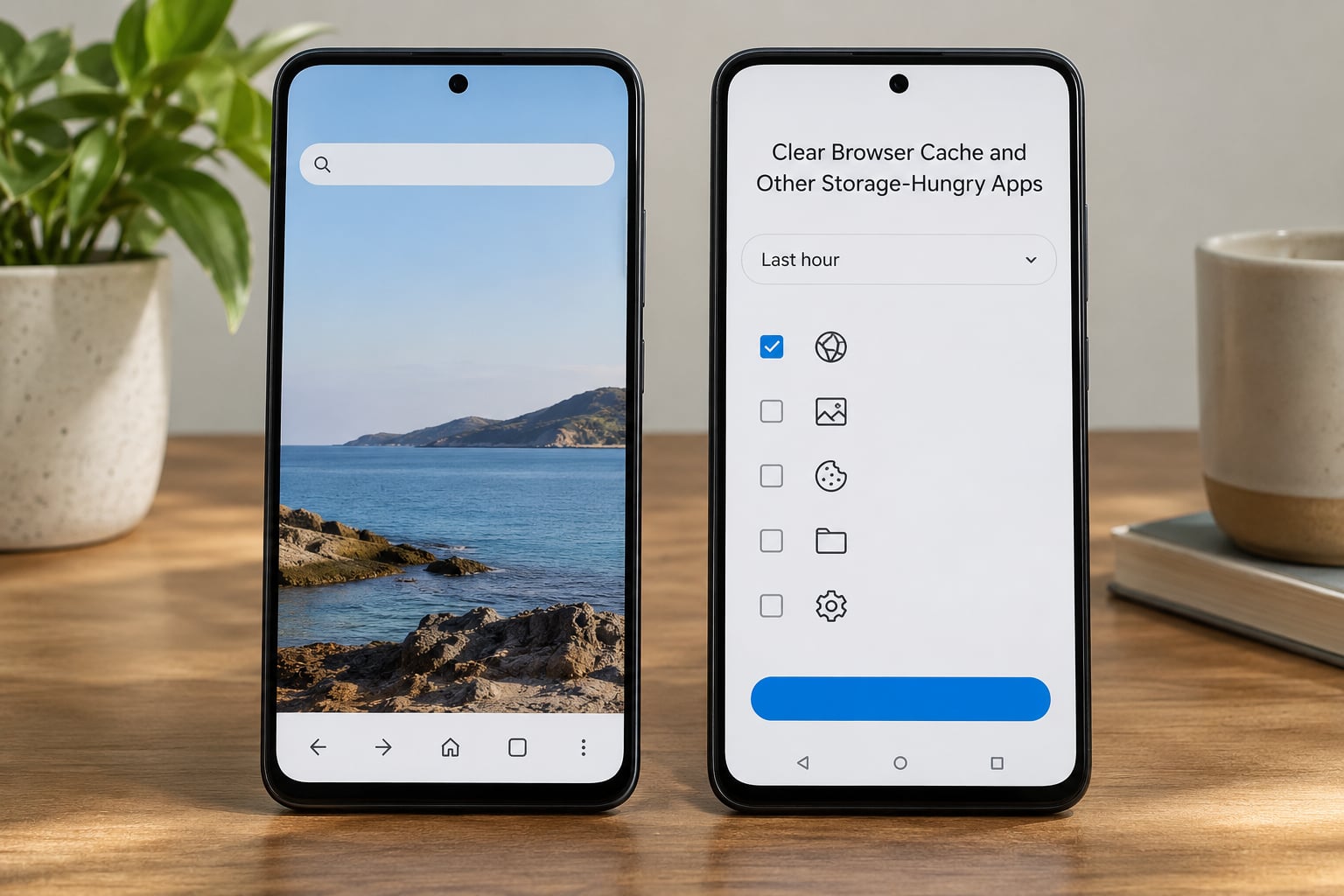
A phone browser holds more cache than most people expect, because it stores a copy of every image and script on every site you visit. Chrome is the one to start with.
Open Chrome, tap the three-dot menu, choose History, then Clear browsing data. Pick a time range — Last hour if a single site is misbehaving, All time for a proper cleanup — tick Cached images and files, and leave cookies unticked unless you also want to sign out of every site. Tap Delete data.
Firefox follows the same shape: menu, Settings, scroll to Clear browsing data, choose cached images, confirm. Edge lives under Menu > Settings > Privacy, search, and services, then Clear browsing data with a time range picker and the same cached-images option.
The other space eaters follow the identical Settings route. Users on Reddit report the Messages app and Google app rebuilding gigabytes within weeks, and streaming apps such as Spotify and Netflix quietly accumulating large media caches in the background.
How to verify: reopen Settings, sort apps by size, and check whether that app dropped down the list. The Storage screen in Settings also carries a per-category breakdown, which tells you whether photos, videos, or other files are eating your space instead of any cache at all.
Restart and Check Available Storage
A restart is optional after an app cache clear and worth doing after a system-wide one. It resets whatever the app had cached in memory and stops a half-finished file operation from confusing things.
To restart on most Android phones, hold the side or power button until the power menu appears, then tap Power off, wait a few seconds, and press the button again. On some Samsung models the same menu has a Restart option directly.
Afterward, open the app you cleaned and sign in normally if it asks. Cache clears do not sign you out, so a login screen is a sign you tapped the neighbouring button instead.
To confirm the space came back, open Settings > Storage and check the free-space figure at the top, or return to the app’s own storage screen and compare it against the number you wrote down earlier.
Common Mistakes
Almost every cache mishap comes from one of five habits. Each has a simple fix.
Mistakes to Avoid and Quick Tips
Tapping Clear data out of habit. It sits in the same spot, it asks for confirmation, and the confirmation feels reassuring rather than alarming. But it wipes app settings and offline downloads. Stick to Clear cache unless you have decided to reset the app on purpose.
Clearing every app in the list. Running through thirty apps in a row is a waste of time, and it guarantees the next launch of each app is slow while it rebuilds its files. Clear the top three or four by size, then check whether the problem went away.
Deleting system caches. Some Settings apps have a Clear all caches or Device maintenance button that only touches system-level files. Those caches are managed by Android itself and wiping them manually tends to do nothing useful.
Replacing clearing with force stop. Force stopping an app frees memory for that moment and nothing else. Force stop is a temporary fix for an app that will not stay open; cache clearing is what removes the stored files.
Installing a cleaner app. Android already has the tool built in. Third-party cleaners ask for permissions far beyond what a cache wipe requires, and several forums report ad-heavy versions that push a subscription after the first scan. Nothing you need is behind that prompt.
On frequency, community consensus lands on every few months, or on-demand when a trigger shows up: storage warnings, an app crashing, a site that will not load, or a phone update that left things sluggish. There is no monthly chore to keep up with.
Recovery mode and wipe cache partition belong in the same list of things to leave alone. It is a legitimate tool after a major system update, but it needs a button combination that differs by brand, and it wipes the cache of every app at once. Check your manufacturer’s instructions before touching it.
One more trigger worth knowing: right after an operating system update, an app sometimes sits on a large cache while it rebuilds itself. Give it a day before clearing anything.
Frequently Asked Questions
Is it safe to clear cache on an Android phone?
Yes, clearing an app’s cache is one of the safest maintenance tasks on Android. The app stores temporary copies of files so pages and images load quickly, and clearing them just means the app downloads those files again. Your photos, messages, and sign-in details are unaffected, because none of them live in the cache.
Will clearing an app’s cache delete my passwords or account?
No. Saved logins, accounts, and app settings survive a cache clear untouched. What disappears is temporary data: cached images, thumbnails, and preview files. The app rebuilds them on the next launch, which is why the first run after clearing is sometimes a little slower than usual. Removing saved passwords only happens when you tap Clear data instead.
How often should I clear cache on my Android phone?
Most people need to do it every few months, and only when something points at a reason. Clear the cache of an app when it starts crashing, lagging, or refuses to load a screen. Clear your browser cache when a site looks stale or will not display properly. If your phone feels fine and storage numbers look normal, there is no schedule to follow.
Does clearing cache delete photos, messages, or offline downloads?
Cache clearing does not delete photos, messages, or offline downloads. Shared photos and videos live in your gallery folder, and messages live in the messaging app’s own database, not in its cache. Offline downloads inside an app can be affected only by Clear data, which resets the app entirely. That difference is the single most important thing to get right.
Why can’t I find the Clear cache option on my Android phone?
The wording and location change with the manufacturer and the Android version. On Samsung, Clear cache sits under Apps, the app name, then Storage, with Clear storage taking the place of Clear data. Xiaomi and OnePlus builds often bury the same screen under Apps, Manage apps, Storage. On Android 8.0 and older, the app manager opens as a separate screen with an App info page instead.
What to Do First
Pick the one app that is slow, crashing, or hogging the most space. Open its storage screen in Settings, tap Clear cache, note the number that drops, and give the app a day to settle before deciding whether anything else needs doing.
That single check solves most of what people search for here, and it carries no risk to anything that matters. Repeat it only where you have a reason to.