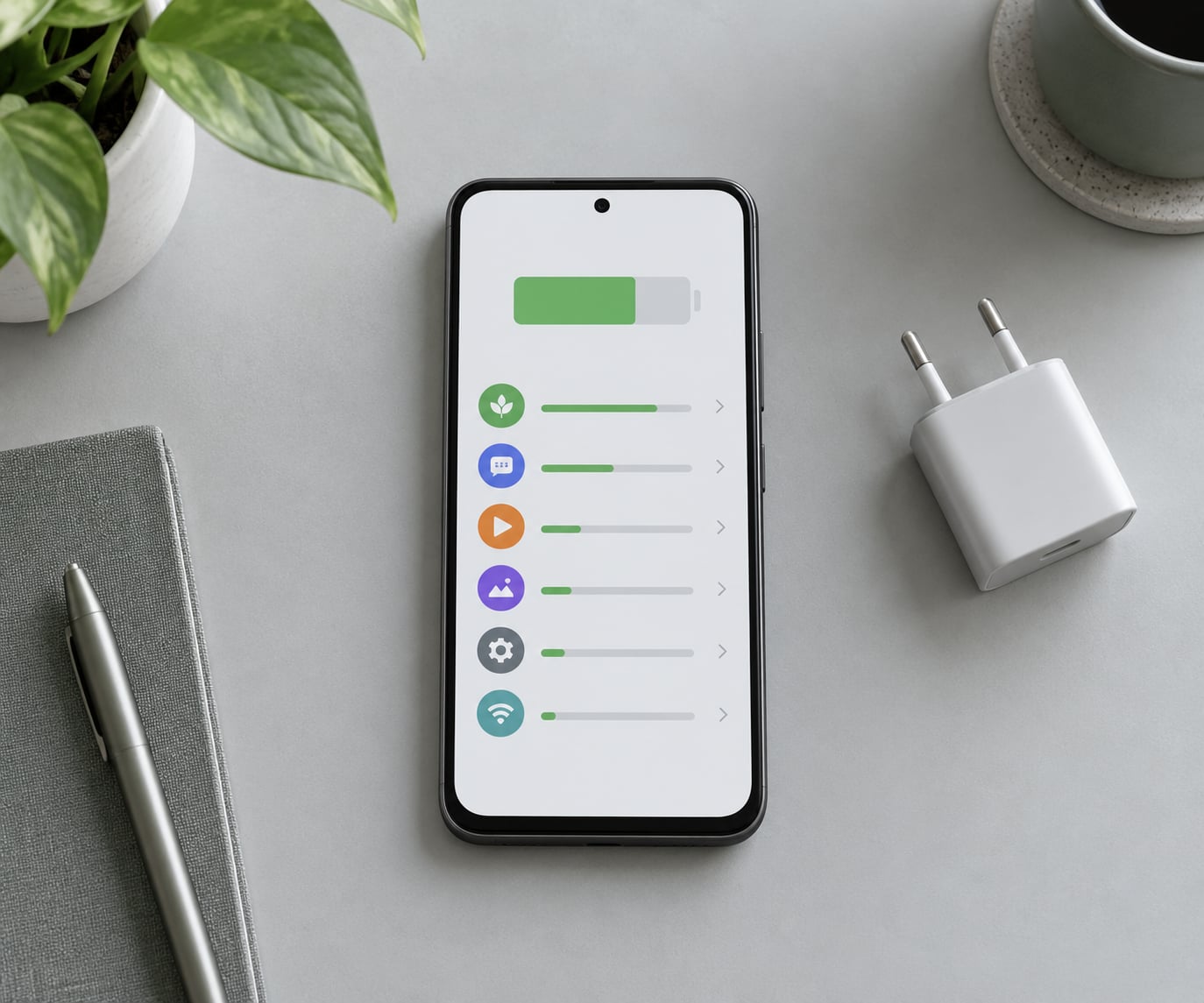
To stop apps from running in the background on Android, open Settings > Apps > tap the app > Battery and set the battery usage option to Restricted. To cut network activity too, open the app’s App info page and switch off background data under Mobile data & Wi-Fi. Most readers need about five minutes per app.
The catch is that background activity is not one switch. Android runs three separate systems underneath this question: the battery manager that decides when an app may wake up, the network layer that syncs mail and photos, and the app’s own background services for playback, location and messaging. Restricting one does not touch the others, which is why so many people restrict an app and then wonder why notifications still arrive late or why the battery number did not move.
This guide covers the current Android settings menus, roughly Android 13 through Android 16, on stock Android, Pixel, Samsung One UI, Xiaomi HyperOS, OnePlus OxygenOS and Motorola. Menu labels changed significantly after Android 8, so older advice that tells you to look under Settings > Apps > Running will send you looking for a screen that no longer exists.
Table of Contents›
- What You Need
- How to Stop Apps from Running in the Background on Android: Step-by-Step
- Open the battery and app settings
- Turn off unnecessary background activity
- Manage battery optimization and unrestricted apps
- Review permissions that trigger background work
- Check restricted settings and force-stop the app only as a temporary fix
- Settings paths by phone maker
- Apps you should not restrict
- Safer steps to try before restricting
- Why a restricted app still shows as running
- Common Mistakes
- Frequently Asked Questions
- Will stopping apps from running in the background save battery on Android?
- Can I restrict an app without losing notifications on Android?
- What does Restricted mean in Android battery settings?
- Which Android apps should not have background activity disabled?
- Why does an app keep running in the background after I use Force stop?
- Do I need a third-party battery-saving app?
- Conclusion
What You Need
Nothing but your phone and about ten minutes. Everything lives inside the built-in Settings app, so there is nothing to install and nothing to buy.
- Access to Settings > Apps and the App info page for the apps you want to change.
- Access to Settings > Battery, which holds battery usage stats and the battery optimization list.
- The battery usage screen from the last day or so, which tells you which apps are worth restricting in the first place.
- A rough idea of which apps you rely on for push notifications, alarms, music, calls or navigation.
On Xiaomi, OnePlus, Oppo, Vivo and Realme phones there is usually one extra screen: an auto-start or app launch manager that sits alongside the standard Android settings and can override them. Open it once before you start, otherwise your changes may not stick.
How to Stop Apps from Running in the Background on Android: Step-by-Step
Open the battery and app settings
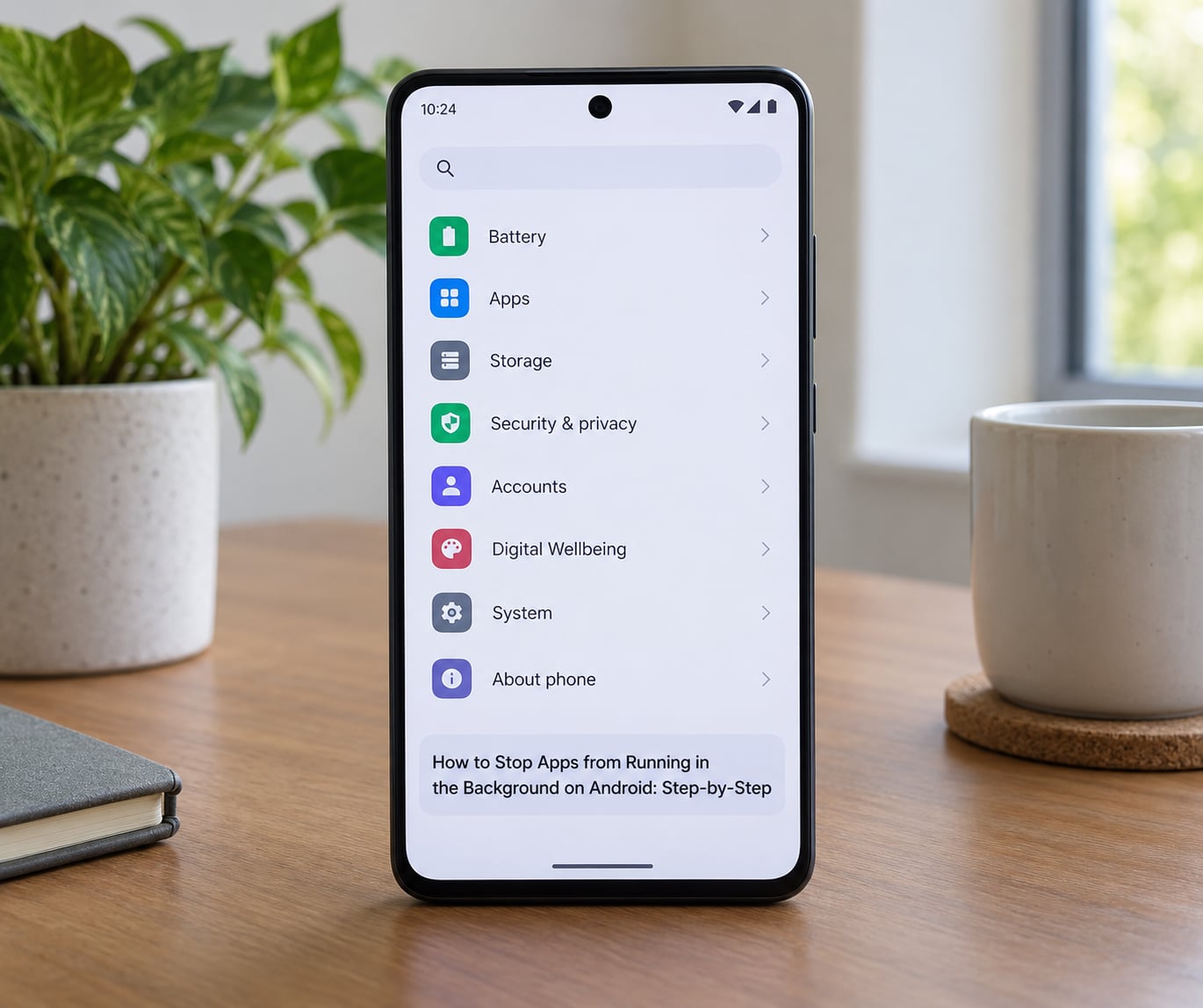
Start with the numbers, not the toggles. Go to Settings > Battery > Battery usage on stock Android, or Settings > Battery > Battery consumption on Samsung One UI, and look at the last 24 hours and the last 7 days separately.
Samsung groups apps under “Battery consumption” and puts the seven-day figures behind the three-dot menu. Pixel and most stock skins show “Since last full charge” and “Last 24 hours”. The hourly bars matter: an app at 6% of a day’s drain is rarely worth restricting, while an app sitting at 25% is.
Then open the app itself. Settings > Apps > See all apps > [app name] on Pixel and most stock builds. Samsung uses Settings > Apps with a three-dot sort by “Most recently used” or “Highest battery usage”, which is easier to scan than typing names.
Turn off unnecessary background activity
Inside App info, tap Battery. You will see one of three states: Unrestricted, Optimized or Restricted. Choose Restricted, and Android stops waking the app for scheduled background jobs. The app still works normally every time you open it.
Some Android versions and some manufacturer skins replace that three-option list with a single toggle called Background activity, Allow background activity or, on One UI, Background usage limits. Setting that to Never allow or Off does the same job.
Not every app exposes the toggle. If App info shows no Battery entry at all, the app is a system component and it cannot be restricted. Forcing it usually causes crashes elsewhere, so leave those alone.
How do you know it worked? Two signals. The app’s battery figure stops climbing while you are not using it, and its notifications arrive only when you open the app instead of pushing to your lock screen. Both are visible in the same battery usage screen after a day or two.
Manage battery optimization and unrestricted apps
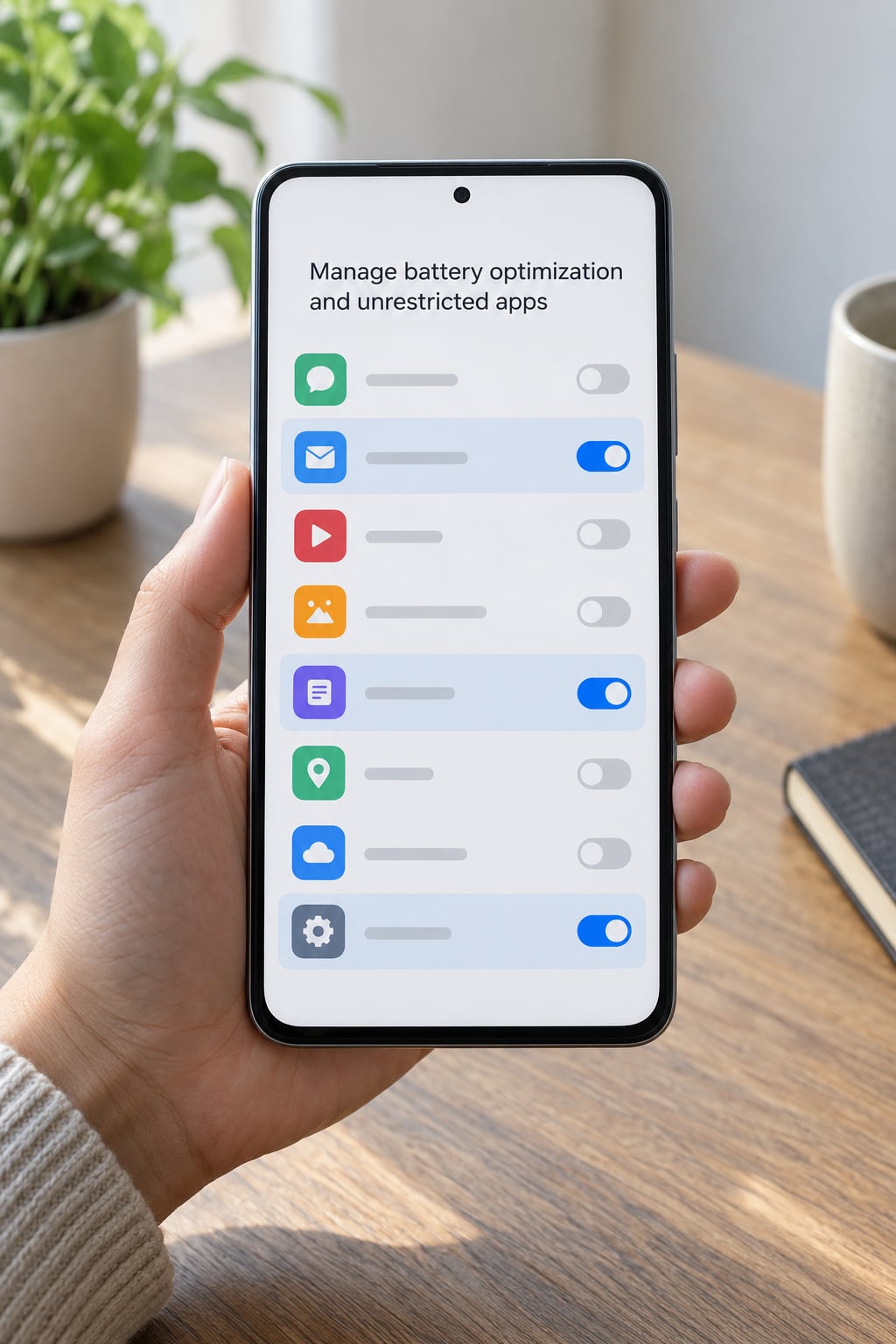
There is a second, older control that sits alongside this one: Settings > Battery > Battery optimization (Samsung calls it “Background usage limits” under Battery, OnePlus hides it under Battery optimization, and Xiaomi calls it Battery saver). This list flags apps the system believes should never be throttled.
| State | What it allows | What you lose |
|---|---|---|
| Unrestricted | Any background job, any time, including syncs and location updates | Nothing, but standby drain is at its highest |
| Optimized | Background work in scheduled bursts, held back during Doze and low power | Push can be delayed by minutes; nothing breaks outright |
| Restricted | Work only while the app is open on screen | Push notifications, background sync, alarms, playback and GPS tracking |
Optimized is the setting most apps should sit on, and it is the default for anything that syncs a mailbox or receives messages. Restricted is for apps that rarely need to wake on their own: a game, a shopping app, a coupon page you opened once, an old launcher you keep around.
Work down the Unrestricted list and check each entry. You will usually find two or three: a VPN, a navigation app, a music service and sometimes a fitness tracker that insists on continuous GPS. Those belong there, because restricting them breaks the thing you installed them for.
Review permissions that trigger background work
Back in App info, the second tab is usually Mobile data & Wi-Fi, called “Data usage” on some builds. Turning off Background data stops the app using mobile data and Wi-Fi when it is not open on screen, while leaving Wi-Fi-only syncing to your choice.
Background data usage is the mobile data and Wi-Fi an app consumes while it sits closed: fetching mail, uploading photos, streaming music, polling for new messages, refreshing feeds. Turn it off and the app works normally when you open it, but it stops syncing on its own. That is a good first move if you are near a data cap, and it does not affect anything that arrives over Wi-Fi at home.
Below that, the App permissions tab controls the switches that actually keep an app awake: Allow background activity on Xiaomi and OnePlus builds, Notifications, Location set to All the time, and Mobile data. Location on All the time is the most expensive permission on this list, because it lets the app keep the GPS chip powered in the background even when everything else is restricted.
Change one permission at a time. Restricting five permissions at once makes it impossible to tell which one caused the broken notification you are now complaining about.
Check restricted settings and force-stop the app only as a temporary fix
Force stop is the App info button at the bottom of the screen. Tap it and Android kills the process immediately, including any notification, alarm or playback it was holding.
It is a reset button, not a switch. Open the app and it runs again with full permissions, and Android itself may relaunch it later through a notification, an alarm or a sync trigger. Force stop also does not survive an app update or a system update, which is why it never feels permanent.
Use it when an app is misbehaving right now: a chat app stuck in a notification loop, a game eating 30% while closed, an update stuck mid-download. Then set the real restriction so the next launch does not undo your work.
One warning worth knowing. If you force stop an app that runs an accessibility service, a VPN, a screen recorder or a device management profile, that service stops until you reopen the app. Companies that manage work phones through a work profile are particularly prone to this, because IT can push settings back automatically.
Settings paths by phone maker
The same four controls carry different names depending on who built your phone. This table covers the labels you are most likely to be searching for.
| Brand | Where app settings live | Background restriction label | Extra switch to check |
|---|---|---|---|
| Pixel and stock Android | Settings > Apps > See all apps > app > Battery | Restricted, alongside Optimized and Unrestricted | Battery optimization list under Settings > Battery |
| Samsung Galaxy (One UI) | Settings > Apps > app > Battery | Background usage limits > Never allow | Sleeping apps, listed on the same Battery screen |
| Xiaomi and Redmi (HyperOS) | Settings > Apps > Manage apps > app | Autostart toggle and Battery saver > No restrictions | Autostart manager, which can override your choice |
| OnePlus and Oppo (OxygenOS) | Settings > Battery > Battery optimization > app | Don’t allow in the optimization list | Auto-launch and Background activity under App launch management |
| Motorola | Settings > Battery > App battery usage > app | Restricted, via the three-dot menu on each row | Adaptive background battery usage in the same menu |
On Xiaomi, the Autostart screen is the one people miss. An app can be set to Restricted in App info and still relaunch itself at boot if Autostart stays on. Turn off Autostart as well, and check the battery saver whitelist, which keeps selected apps exempt from every power saving rule on the phone.
Apps you should not restrict
Some apps break in ways that are confusing rather than obvious. Google Play Services is the classic case: people on r/oneui ask how to restrict it specifically, and the practical answer is to leave it alone, because it handles push delivery for nearly everything else on the phone.
- Google Play Services and the Play Store handle push for most other apps. Restrict them and notifications fail across the whole phone.
- VPN clients need a persistent connection. Restricted means no tunnel while the screen is off.
- Navigation and ride-hailing apps lose background location, so turn-by-turn stops at every lock screen.
- Music, podcast and audiobook players stop playback at end of track when playback runs as a background service.
- Messaging, email and phone apps stop receiving push, so messages arrive hours late or not at all.
- Authenticator and banking apps can reject a restricted session and force a fresh sign-in.
- Wearables and fitness trackers rely on background BLE scanning to reach your phone.
- Accessibility and device management apps can cause real problems if they stop mid-service.
Restricting everything is not a trick that saves power. It breaks your phone in small ways, and the broken parts are far more annoying than the battery you were trying to protect.
Safer steps to try before restricting
Before you set anything to Restricted, turn on the two system-level tools. Battery Saver in Settings > Battery caps background work and dims the screen, and Adaptive Battery (called Adaptive Battery on Pixel, Optimized on OnePlus, Adaptive power saving on Xiaomi) learns which apps you rarely open and puts them on a sleep list automatically.
The sleep list is the gentler version of what you are trying to do by hand. You can also set any app to sleep manually from the same screen without touching its permissions, and most people never notice a difference.
Turn on Data Saver too if mobile data use is the problem rather than battery. It applies one blanket restriction to every app except the ones you allow, which is easier than auditing twenty App info pages.
Third-party tools like Greenify or App Ops come up in every forum thread on this topic. Greenify works without root by relying on accessibility services, and it does roughly the same job as the built-in sleep list. App Ops, which edits permissions directly, needs root or ADB on modern Android and will break your Play Protect integrity check. Built-in settings are enough for almost everyone.
Why a restricted app still shows as running
This is the number one confusion in the comments under every guide on this subject, and it has a clean explanation. Android keeps recent apps in memory as cached processes after you leave them, so switching back is instant. A cached process uses no CPU cycles and no measurable power. It is kept only in case you return.
Modern Android has two background systems you will not see named in the menus: Doze, which suspends network activity while the screen is off and the phone is still, and app standby buckets, which sort apps into active, working set, frequent and rare based on how often you open them. Both handle background work without you touching a single setting, which is why a phone left alone overnight usually survives.
So if an app still appears in memory or still shows a small battery figure after you restrict it, that is not proof the setting failed. Check the percentage, not the presence. A restricted app sitting at 0.2% is doing its job.
Common Mistakes
Restricting an app you rely on for notifications. This is the mistake that generates the most angry forum posts. Fix it by setting that app back to Optimized, which delays push by minutes instead of killing it.
Assuming a high battery figure means an app is faulty. A chat app showing 20% is normal if you use it constantly. It is only suspicious if it ranks high in the 7-day list while you barely open it, or if it shows activity at 3am when the phone was untouched.
Treating Force stop as a permanent fix. It resets on the next launch and on the next update. Use it as a reset button, then set the real restriction.
Changing everything in one sitting. You will not know which setting broke what. Restrict one app, live with it for a day, then move on.
Looking under Settings > Apps > Running. That screen was removed years ago. Battery usage is the closest replacement, and it measures what actually costs power rather than what is merely resident in memory.
Forgetting the manufacturer layer. On Xiaomi, OnePlus and Oppo, an auto-start or auto-launch screen can re-enable what you just disabled in App info. Check it last, and check it every time.
Frequently Asked Questions
Will stopping apps from running in the background save battery on Android?
Usually, but not always. Restricting an app stops Android from waking the CPU and radio to sync or poll, which is where most standby drain comes from. Apps that show less than 2% on the 24-hour battery screen will not make a measurable difference. Apps at 20% or more can add back several hours of screen time.
Can I restrict an app without losing notifications on Android?
Yes, by choosing Optimized instead of Restricted. Optimized lets the app run background jobs in scheduled bursts, so notifications and syncing still arrive, often a few minutes late. Restricted stops push entirely, which is why it should be reserved for apps that do not need to reach you when the screen is off.
What does Restricted mean in Android battery settings?
Restricted tells Android’s battery manager not to schedule background jobs for that app outside of your active use. The app works normally when you open it, but push notifications, alarms, background sync, GPS tracking and music playback stop working while it is closed.
Which Android apps should not have background activity disabled?
Google Play Services, VPN clients, navigation, music and podcast players, messaging and email apps, authenticators, banking apps, wearables and accessibility tools. These depend on background work for their core function, and restricting them causes missed notifications, dropped connections or playback that stops at every track.
Why does an app keep running in the background after I use Force stop?
Force stop only kills the current process. Android relaunches the app when something needs it, such as a pending notification, an alarm or a sync trigger, and a running app is a normal part of how it delivers those features. Force stop also resets on app updates and system updates, so it is never a permanent fix.
Do I need a third-party battery-saving app?
No. Battery Saver, Adaptive Battery and the per-app sleep list already cover most cases, and they are built into the phone with no accessibility permissions required. Tools like Greenify repeat the sleep list with extra permissions, and deeper permission editors such as App Ops need root or ADB on current Android versions.
Conclusion
Start with the app showing the highest unexpected drain on your 24-hour battery screen, not the first one in the list. Set it to Restricted, turn off its background data if mobile data is part of the problem, then leave it alone for a day or two and compare the numbers before moving to the next app.
Leave Google Play Services, your VPN, navigation, music, messaging and authenticator apps on Optimized or Unrestricted. And if your phone already has a battery problem, turn on Battery Saver and Adaptive Battery first, because the system is usually better at deciding what to sleep than a list of apps you restricted in a hurry.
Settings covered here apply to Android 13 through Android 16. Reviewed and updated in October 2026.