If your phone screen has stopped responding to touch, start with a force restart, then unplug any charger and accessories, take the case and screen protector off, and clean the glass with a soft cloth. If touch is still dead after that, boot into safe mode on Android to rule out a faulty app. When the whole screen stays unresponsive through a restart and a safe mode boot, the fault is almost always hardware.
That last sentence is the one most guides skip. There is a real difference between a phone whose operating system has locked up and a phone whose digitizer, the touch-sensitive layer under the glass, has stopped reporting finger contact. Software steps cost you ten minutes. Hardware means a display assembly replacement, and knowing which one you have saves money and, more importantly, saves your data.
This guide covers both iPhone and Android, and the buttons differ enough between models that guessing causes more confusion than it solves. Where a step depends on the model, I say so.
Table of Contents›
- What You Need
- Step-by-Step
- 1. Check Whether Only One Area of the Screen Is Unresponsive
- 2. Disconnect Accessories and Reduce Screen Activity
- 3. Force-Restart the Phone
- 4. Check for a System or App Update
- 5. Test the Digitizer and Check for Physical Damage
- 6. Back Up the Phone Before Resetting It
- 7. Use Safe Reset Options Before a Factory Reset
- 8. Know When to Arrange Repair or Replacement
- Common Mistakes
- Frequently Asked Questions
- Will restarting my phone delete anything?
- What should I do if only part of the phone screen will not respond to touch?
- Can I use my phone normally if it got wet after the screen stopped responding?
- Why does my phone screen show cracks but still work?
- How long should I wait before getting a frozen phone screen repaired?
- Can a factory reset fix an unresponsive touchscreen?
- Conclusion
What You Need
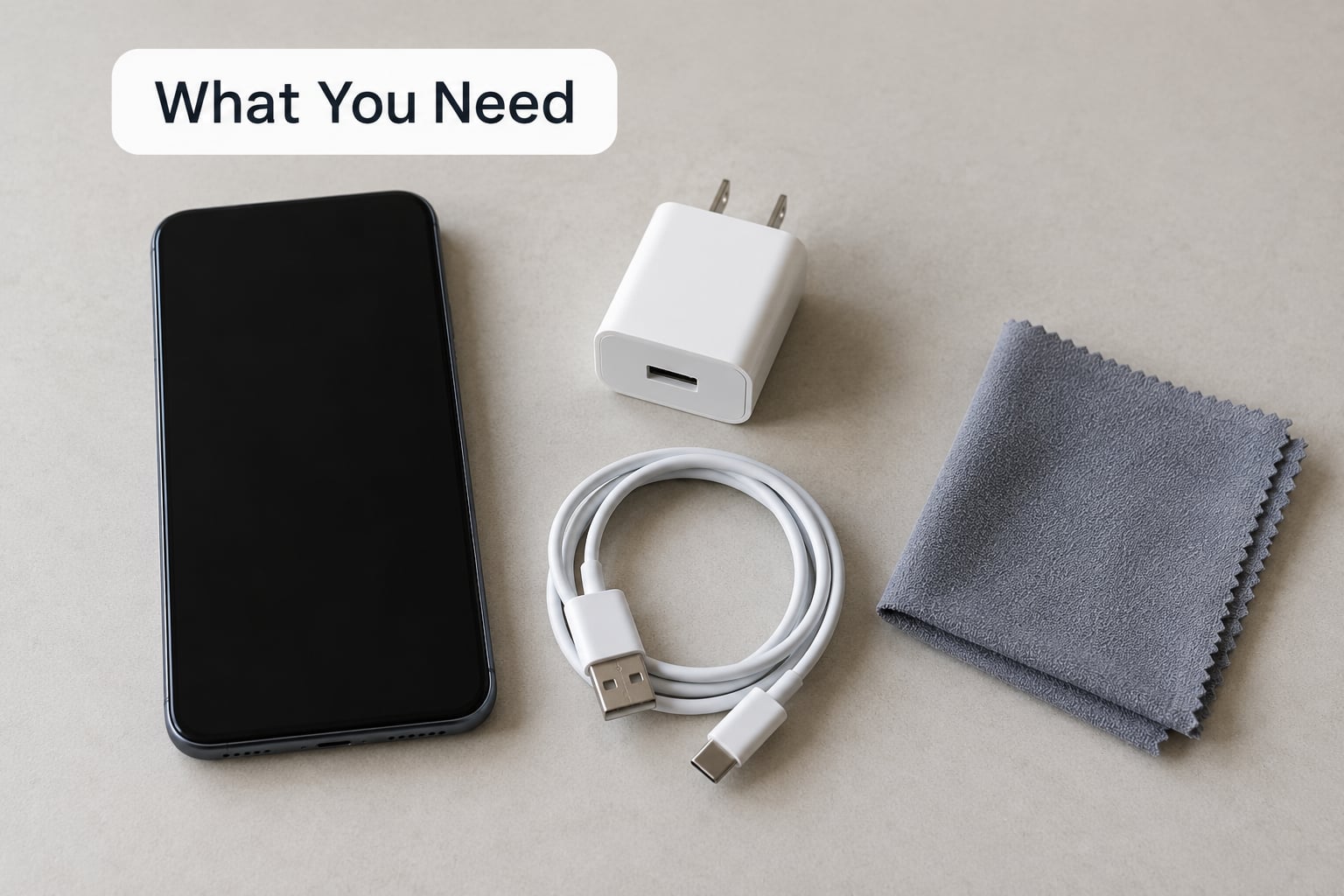
Gather these before you start, because half of the diagnosis depends on removing things rather than adding them.
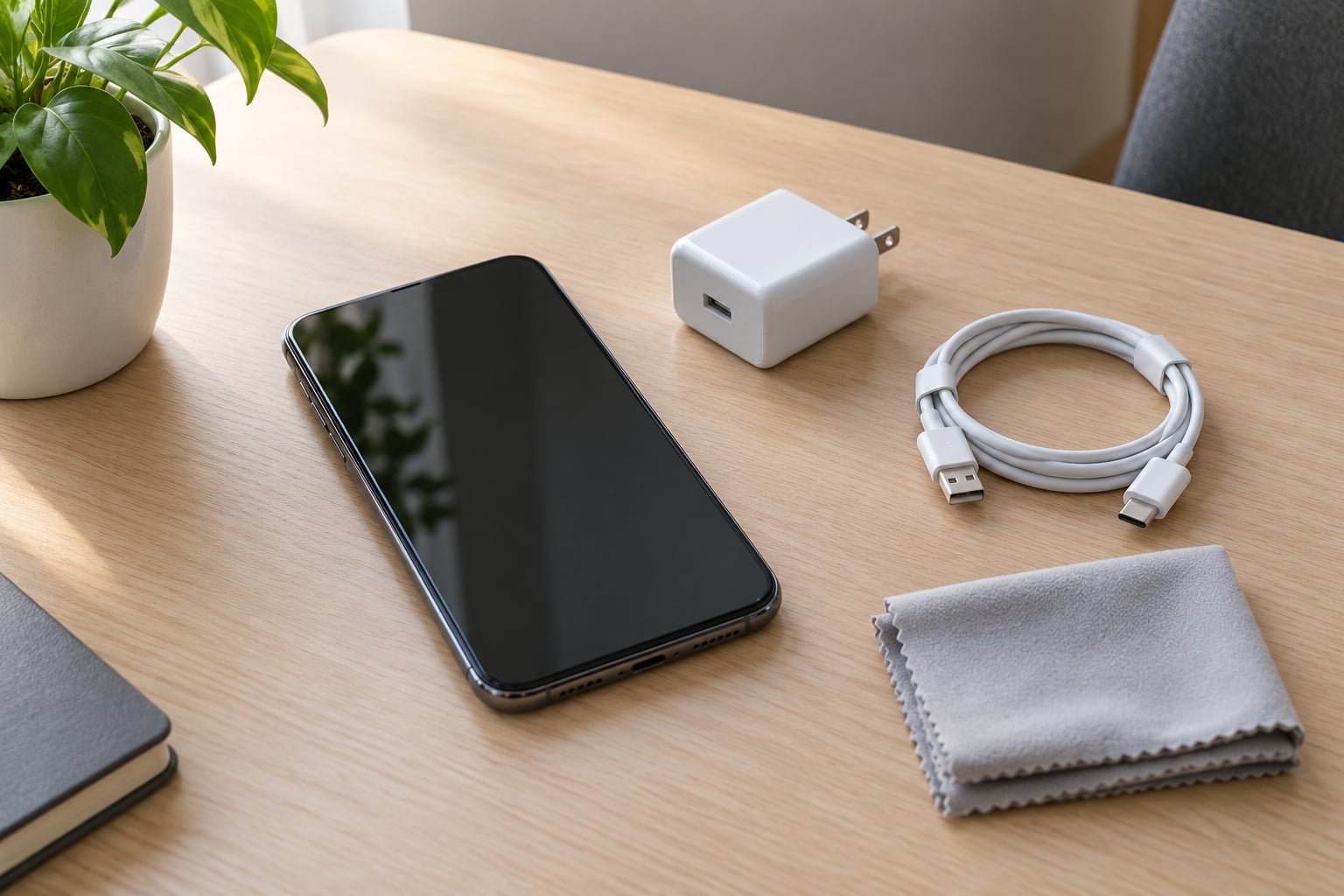
- A charger and a cable you trust. You will rule out a bad cable or a third-party charger as the cause of phantom input, and you want a known-good charger to do it.
- A soft, lint-free cloth. A microfiber cloth is ideal. Grime, oil and a dry screen are the most common reasons a working digitizer feels dead.
- The phone passcode. A force restart can drop you back to the lock screen, and you cannot reach a backup without it.
- Access to your cloud account. Knowing which Apple ID or Google account is signed in matters before you reset anything.
- A computer with a charging cable, if the screen stays dead. Data recovery from a phone with no touch depends on this.
Button combinations and menu paths vary by model and by software version. Treat what follows as current practice for modern phones, and check your model-specific manual if a combo does not respond.
Step-by-Step
1. Check Whether Only One Area of the Screen Is Unresponsive
Before anything else, find out how much of the screen is dead. Tap several spots with a clean fingertip, drag a notification shade down from the top edge, and try the home indicator or gesture bar. Rotate the phone and test the same locations again.
If one corner, one row or one side refuses taps while the display still lights up, that pattern usually means damaged capacitive sensors on a digitizer, not a software glitch. Forum threads about Pixel and older iPhone models repeatedly describe a band or corner staying dead for months because it was mistaken for a software bug. Take the case off and repeat the test, since a case lip can cover a strip of screen.
You should see touch register somewhere else on the display. If nothing responds anywhere, move to step 2.
2. Disconnect Accessories and Reduce Screen Activity
Unplug the charger and every peripheral, then close whatever apps you can and wait a minute before testing again. Cheap chargers and frayed cables are a well-documented source of ghost input, where the phone registers taps nobody made while it is plugged in.
Heat does the same thing in reverse. A phone that has been in direct sun, in a hot car, or charging under a pillow will throttle, and touch input gets dropped before the display dims. Let it cool somewhere ventilated, then test. You are looking for touch to come back without any software change at all.
3. Force-Restart the Phone
A force restart is not the same as a normal restart. It forces the operating system to shut down and reload without you touching the screen, which is the point when the interface is frozen.
On current iPhone models, press and release the volume up button, then press and hold the side button until the Apple logo appears. That is the whole sequence.
On iPhone 7 and 8, hold the side button and the volume down button together until the Apple logo appears. On iPhone 6 and earlier, hold the home button and the side button together for about ten seconds until the Apple logo shows.
On most Android phones, hold the power button and the volume down button together for about ten seconds, then release when the screen goes black or the logo appears. Some Android models need the power and volume up buttons instead, so if nothing happens after ten seconds, try that pair.
On Samsung Galaxy phones, hold the side key and the volume down button together for more than seven seconds until the phone vibrates and restarts. On Pixel phones, hold the power and volume down buttons together until you see the loading screen, which can take around ten seconds.
Nothing in those sequences erases your data. You are looking for the logo, a vibration, or a brief black screen followed by the lock screen. If none of those happen after a couple of attempts, the power circuit itself may be compromised, and it is time to stop restarting and start backing up.
4. Check for a System or App Update
Once touch works, check whether an update is waiting. On iPhone, open Settings, General, then Software Update. On Android, the path is Settings, System, System update, or on some Samsung and Pixel models Settings, About phone, then System update.
Install updates through the phone’s own update service rather than any third-party tool. Partially completed updates are a real cause of frozen touch, and Galaxy owners in support forums report touch failing immediately after an OS update. If your screen froze right after installing one, a restart plus completing or reinstalling that update is the first thing to try.
You should see a new build number on the update screen once it installs. Then test touch again.
5. Test the Digitizer and Check for Physical Damage
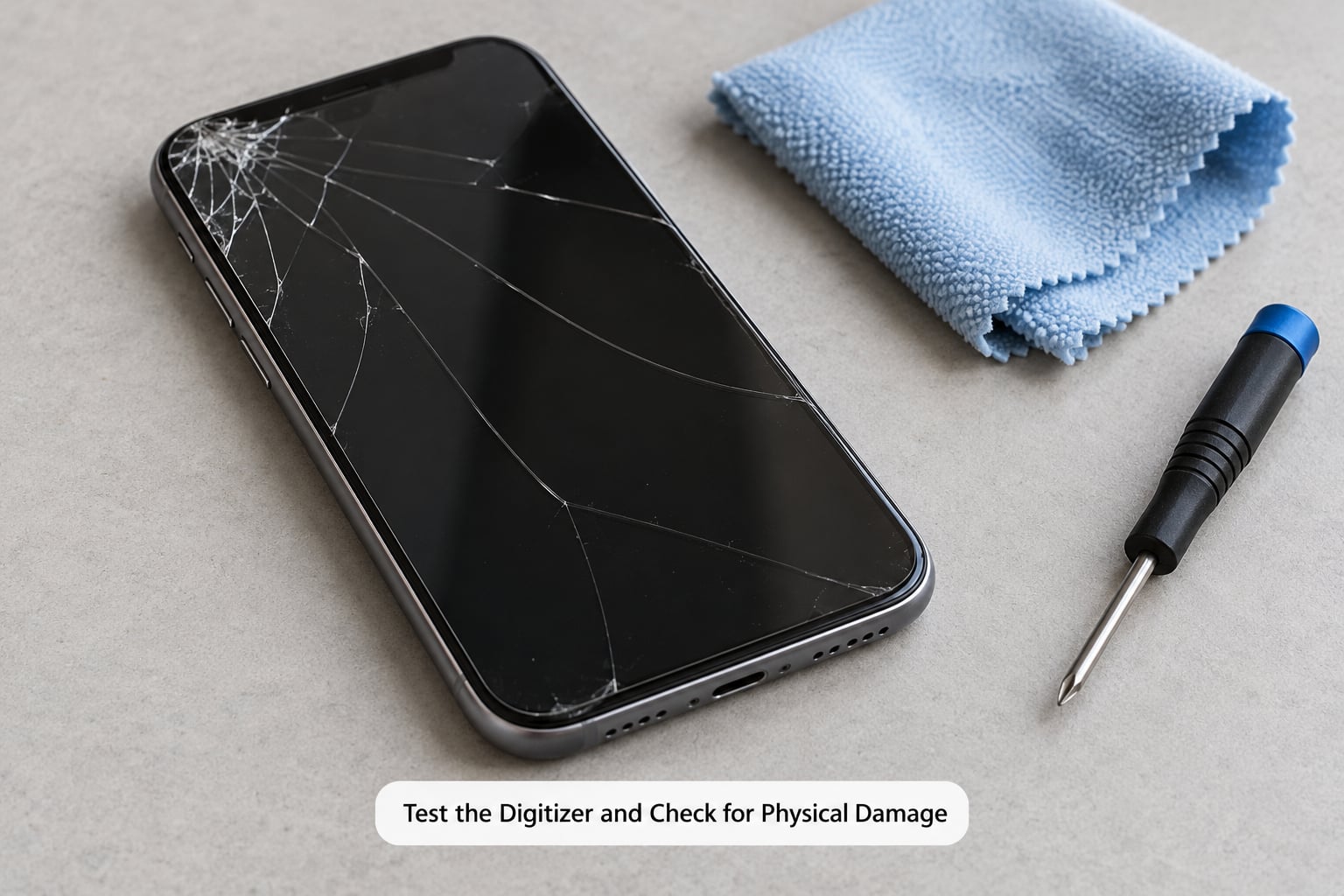
Now separate a frozen interface from broken hardware. Hold a light at an angle across the glass and look for cracks, lifted edges, a gap where the display has separated from the frame, dark blotches, or discoloured patches. A hairline crack can break the touch sensors underneath while leaving the picture perfectly normal, which is why a screen can look fine and register nothing.
Next, try a known-good touch input. If you have a stylus or a capacitive pen, use it on the dead area. A dead corner that wakes up under a stylus points to a sensitivity problem, while a region that stays dead under both finger and pen points to failed sensors.
Think about water exposure too. If the phone got wet, unplug it, do not charge it, and do not put it in rice. Power it off if you can, leave it on a dry surface with the charging port facing down so trapped liquid can drain, and give it at least a day before assuming it is fine. Liquid contact indicators under the battery or near the SIM tray turn pink or red after exposure, which is a quick way to know whether liquid reached the inside.
A phone that responds to touch only when pressed hard, or that taps things on its own, has failed sensors rather than a failed system. That is hardware. Stop with the software steps here.
6. Back Up the Phone Before Resetting It
Any reset can erase local data, so back up before you reset. If touch still works, use the built-in tools: iCloud backup from Settings, your name, then iCloud, or a computer backup through Finder or iTunes on an iPhone. On Android, use Google backup under Settings, Accounts, Google, Manage your Google account, then Backup, or transfer to a computer over USB.
If the screen is completely dead, you have three options that do not require touching it. On an iPhone, trigger a backup remotely with Find My iPhone from another device, which requires Find My to be switched on. On Android, use Find My Device from a browser to locate and lock the phone, and check whether backup has been running in Google settings. Third, connect the phone to a computer by cable and use the manufacturer’s desktop software to make a backup.
Verify the backup shows a recent timestamp before you go further. If it does, you can reset without losing anything you cannot get back.
7. Use Safe Reset Options Before a Factory Reset
Work down from least to most destructive. First, clear the data of any app that was misbehaving when the trouble started: on iPhone open Settings, General, then iPhone Storage, and on Android go to Settings, Apps and pick the app you suspect.
Second, boot into safe mode on Android. Power the phone off, then hold the power button until the logo appears, release it, and immediately press and hold the volume down button until the phone restarts. A Safe mode label appears in the lower-left corner. Safe mode disables every third-party app, so if touch starts working, one of those apps is the cause and you can uninstall or update it. To leave, restart normally.
Third, reset settings without erasing content. On supported iPhones, Settings, General, Transfer or Reset, then Reset, then Reset All Settings clears Wi-Fi, Bluetooth and preferences while leaving your data alone. Android equivalents live under Settings, System, Reset options, or Reset settings depending on the brand.
A factory reset is the last resort, and it does erase everything on the phone. Reach for it only when a backup is verified, a safe mode boot still shows no touch, and you have ruled out hardware. If touch is dead even in safe mode with no accessories connected, a reset will not help, because the fault is not in the software.
8. Know When to Arrange Repair or Replacement
Stop troubleshooting and arrange service when you see any of these: the same region stays dead through a restart, cracks or lifted edges are visible, colours are blotchy or the display flickers, the phone taps on its own, the screen only registers under heavy pressure, or a repair has already been done and touch is still wrong. A loose digitizer connector or a low-quality aftermarket panel is the usual cause of persistent weirdness after a screen replacement, so contact the installer first.
Before paying anyone, contact the manufacturer and check whether the device is under warranty, and check whether your carrier, credit card or home insurance covers accidental damage. If you are out of warranty, ask an authorised provider for a written quote that names the part, states whether the replacement panel is genuine or aftermarket, and includes a digitizer test. If the quote is vague about parts, shop around.
An ageing or swollen battery can also distort the display and interfere with touch, so mention battery health if the phone is several years old. Replace the device entirely when the repair quote approaches the cost of a comparable new phone, or when the mainboard took liquid damage rather than just the display.
Common Mistakes
Pressing harder is the most common reflex and the worst one. More force does not fix a failed sensor, and hard presses on cracked glass will split it further. If touch needs heavy pressure to register, that is a hardware symptom.
Metal tools and heat are worse. Opening the phone to poke at the screen risks the flex cable and the battery, and heat applied with a hairdryer or an oven can damage the display, the adhesive and the battery. Neither belongs in a software diagnosis.
Charging a wet phone can corrode the board. If liquid got in, leave it unpowered and unplugged while it dries.
Deleting apps before you back up throws away conversations, photos and authenticator codes that a cloud copy might not fully restore. Back up, verify, then reset.
Third-party screen repair or calibration apps promise to fix an unresponsive screen from inside the phone. There is no calibration menu on current iOS or Android that repairs a dead digitizer, and any app claiming otherwise cannot reach the failed hardware.
The rule that keeps all of this manageable: start with the least destructive step, and preserve the ability to recover your data at every stage. Work forward, one step at a time, and stop when the steps stop applying.
Frequently Asked Questions
Will restarting my phone delete anything?
No. A normal restart and a force restart both shut the operating system down and reload it without touching your photos, messages, apps or accounts. That is different from a factory reset, which erases the contents of the phone and restores it to its original state. Keep a verified backup before any reset, not before a restart.
What should I do if only part of the phone screen will not respond to touch?
Test several spots with a clean finger and a stylus, rotate the phone, and remove the case and screen protector before anything else. A dead corner or a dead band that the display still lights up usually means damaged touch sensors rather than software. Repeat the test after a force restart and a safe mode boot. If the same area stays dead, treat it as a hardware fault and arrange a display repair.
Can I use my phone normally if it got wet after the screen stopped responding?
Not until it is fully dry. Switch it off, unplug any charger, and leave it on a dry surface with the charging port angled down so liquid can drain. Do not use a hairdryer, do not put it in rice, and do not charge it while moisture is inside. Check the liquid contact indicator near the SIM tray. Give it at least a day before testing, because corrosion keeps working after the phone seems dry.
Why does my phone screen show cracks but still work?
Glass and touch sensing are different layers. A crack in the outer glass can leave the digitizer underneath intact, so the picture looks fine and every tap still registers. Once a crack reaches the touch layer or the flex cable beneath it, you get dead zones, ghost touches or a screen that only responds to firm pressure. The picture looking normal tells you nothing about whether touch is healthy.
How long should I wait before getting a frozen phone screen repaired?
No more than a day of software attempts. If touch is still dead after a force restart, a safe mode boot with no accessories connected, and a settings reset, the cause is almost certainly hardware, and repeating those steps will not change that. Back up your data if the phone still connects to a computer, then contact the manufacturer or an authorised repair provider. Waiting longer rarely helps and liquid damage keeps getting worse.
Can a factory reset fix an unresponsive touchscreen?
Sometimes, but only if software is the cause. A reset can clear a corrupted file, a failed update or a badly behaved app that froze the touch layer. It will not fix a cracked digitizer, liquid damage, a loose connector or a dead charging circuit. Test in safe mode first, since that is free and takes under a minute. If the screen is dead in safe mode, a factory reset will not bring touch back.
Conclusion
Start by testing the whole screen with a clean finger, then unplug every accessory, then force-restart with the button combination for your model. Those three steps cost nothing and fix the majority of frozen screens.
If touch returns but misbehaves, back up your phone and check for updates before clearing anything. If a single region stays dead, or the screen is dead in safe mode with nothing plugged in, you are looking at a digitizer or connection fault, and the next move is a written quote from an authorised provider.
Keep a backup current and keep a case on the phone. Neither prevents every failure, and both make the day something does go wrong much less painful.