A phone keeps disconnecting from Wi-Fi because one of four things is failing: the saved network profile on the device, the DHCP address handshake, the radio itself, or the router’s channel and band settings. Work through the fixes below in order — toggling airplane mode, restarting both devices, forgetting and rejoining the network, then resetting network settings — and most cases stop before you reach the last step.
Paths below were checked against current iOS and Android settings menus. Menu labels drift between versions, so if a name on your phone is slightly different, the location it sits in is usually the same one I describe. Updated for 2026.
Table of Contents›
- What You Need
- Phone Keeps Disconnecting From Wifi: Step-by-Step Fix
- Phone Keeps Disconnecting From Wifi? Check These Settings
- Restart the Phone and Router
- Check for Interference and Signal Strength
- Forget the Network and Reconnect
- Update the Phone and Router Software
- Reset Network Settings as a Last Resort
- Common Mistakes
- Frequently Asked Questions
- Why won’t my phone stay connected to my Wi-Fi?
- Why does my phone keep saying Obtaining IP address and then disconnecting?
- Why does my iPhone keep forgetting my Wi-Fi network?
- Why does my 5 GHz Wi-Fi keep disconnecting?
- Why does Wi-Fi disconnect when my phone goes to sleep?
- Can I rejoin a Wi-Fi network after I forget it on my iPhone?
- Conclusion
What You Need
Before you change anything, gather five things. Having them in front of you turns this into a ten-minute job instead of an evening of guessing.
- Your phone, charged above 50%. Some steps need a restart, and a phone that dies mid-reset leaves you with a second problem.
- The Wi-Fi password, typed from the router label rather than from memory. The sticker on the underside of the router is the source of truth, and it often differs from whatever an installer wrote in a text message three years ago.
- Access to the router. You need the admin page, which is usually at 192.168.0.1 or 192.168.1.1 once you are connected. The admin password is often printed on the router or set by your internet provider.
- A second device on the same network. A laptop, tablet or older phone is enough, and this is what tells you whether the fault is in your phone or in the network.
- A note of when the drops happen. Write down the clock time for two or three drops and which network you were on. Nightly drops, drops in one room only, and drops that started after a router change all point at different root causes.
Phone Keeps Disconnecting From Wifi: Step-by-Step Fix
The ten fixes below are ordered by effort and by how much they can break. Do them in sequence rather than jumping to the last one — the quick checks take under a minute and rule out most causes.
- Switch airplane mode on, wait 30 seconds, switch it off.
- Force restart the phone with the side or power button.
- Turn off Wi-Fi Assist on iPhone, or automatic mobile-data switching on Android.
- Pause any VPN app and set Android Private DNS to Off.
- Forget the saved network and rejoin it with the password from the router label.
- Power-cycle the router: unplug it, wait 30 seconds, plug it back in.
- Compare 2.4 GHz and 5 GHz behaviour in the room where you use the phone most.
- Install the pending phone software update and the router firmware update.
- Reset network settings on the phone, knowing exactly what it erases.
- Check the router’s channel width, encryption mode and band steering for a recurring cause.
Phone Keeps Disconnecting From Wifi? Check These Settings
Start here because these four settings silently override your connection without ever showing an error. Wi-Fi Assist on an iPhone hands you over to mobile data when the Wi-Fi signal looks weak, so the network appears to “disconnect” even though it is still connected. On Android the equivalent behaviour sits under Wi-Fi Assistant.
- iPhone — turn off Wi-Fi Assist: on iOS 18 and later, Settings > Wi-Fi > Wi-Fi Assist > Off. On earlier versions, Settings > Cellular > Wi-Fi Assist > Off.
- Android — stop the automatic switch: Settings > Connections > Wi-Fi > tap the three-dot menu > Wi-Fi Assistant > Off, and switch off “Switch to mobile data automatically” on the same screen.
- Pause the VPN: VPN apps install their own routing rules and reconnect constantly. Quit the app rather than just disconnecting it, so it stops re-establishing in the background.
- Android Private DNS: Settings > Connections > Private DNS > Off, which returns DNS handling to the router.
Two more toggles matter on Samsung phones. Battery optimisation can power the Wi-Fi radio down when the screen is off, so Settings > Battery > Battery usage > Wi-Fi should be set to Unrestricted. Adaptive Wi-Fi on the same network screen hands the connection to whichever band it thinks is better, which is worth switching off while you are testing.
Restart the Phone and Router
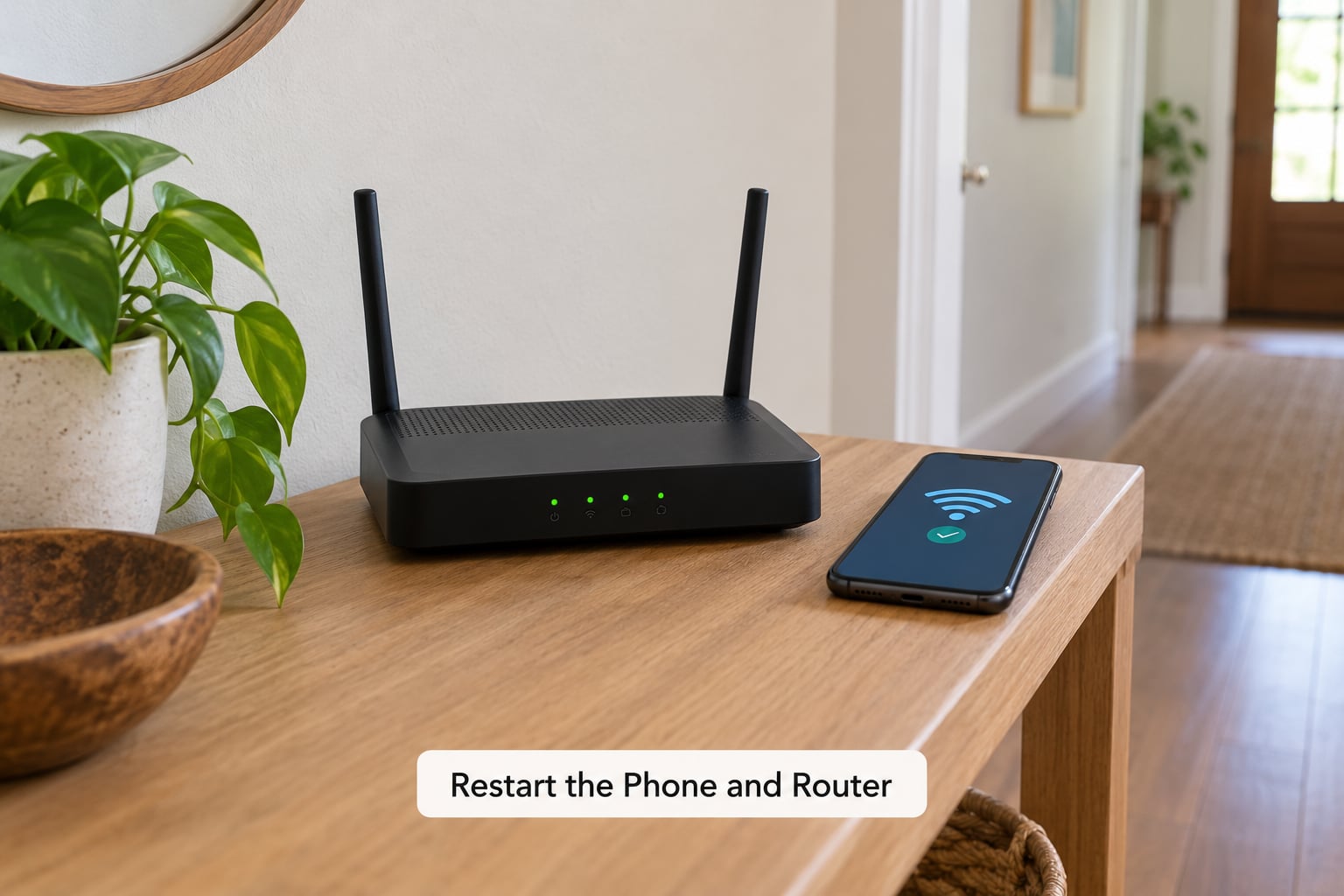
Both devices hold radio state, and a restart clears it. Toggling airplane mode on for 30 seconds and off again powers the radio down and back up without closing anything, which is the fastest single test on the page.
If the drops continue, do a full force restart. On an iPhone, press volume up, then volume down, then hold the side button until the Apple logo appears. On Android, hold the power button plus volume down for about ten seconds. Nothing is deleted; it is the equivalent of unplugging a computer.
Then power-cycle the router: unplug the power cable, wait a full 30 seconds, plug it back in, and give it two or three minutes to finish starting before testing. If you find yourself doing this daily so the connection holds, note that — a router needing daily reboots is telling you something, and step seven covers what to look at.
Check for Interference and Signal Strength
Wi-Fi weakens fast through walls and floors, and a phone held in a hand blocks the antenna more than people expect. Two rooms from the router, a 5 GHz connection dropping every few minutes is a signal problem, not a broken phone.
Band choice explains most of the reports that never get solved:
| Band | Through walls | Speed | Drop behaviour |
|---|---|---|---|
| 2.4 GHz | Good, reaches far | Slower on crowded neighbourhoods | Stable, rarely drops on range alone |
| 5 GHz | Weak, one or two rooms | Fast when close | Drops on distance, walls and DFS checks |
Test it directly: hold the phone near the router and watch whether it stays connected, then walk to the failing room and watch when it drops. If it holds near the router, your fix is placement or band choice — move the router off the floor, away from a metal cabinet or a microwave, and put the phone on the 2.4 GHz network instead.
If the drop is happening on 5 GHz even at close range, suspect the channel. Dual-band routers often broadcast on a DFS channel, and those channels must shut the radio down for a set period whenever the router detects a radar signal, which looks exactly like a random disconnect. In the router admin page, lock 5 GHz to channel 36, 40, 44 or 48, drop the channel width from 80 MHz to 40 MHz, and turn off band steering or Smart Connect. If that stops the drops, the router’s automatic channel choice was the problem all along.
Repeaters and extenders cause the same loop for a different reason: the repeater sits on a channel it cannot hold, so it keeps scanning and reconnecting. A GL.iNet community user traced a repeating disconnect loop on a Pixel 7 to exactly this. If a repeater sits between you and the router, unplug it for a day and test with the router alone.
Forget the Network and Reconnect
A phone saves a profile for each network, including the password and security type. After an internet provider installs new equipment, or after the router’s encryption changes, that saved profile goes stale and the phone keeps rejecting a password that is in fact correct.
On iPhone and iPad: Settings > Wi-Fi > tap the info button next to your network name > Forget This Network. Confirm, then rejoin from the Wi-Fi list and type the password from the router label exactly, checking capital letters and any symbol that could be a zero or an O.
On Android, including Samsung: Settings > Connections > Wi-Fi > tap your network > Forget. On Samsung One UI models, long-press the network name in the list instead. Then reconnect and re-enter the password.
If the Forget button is greyed out on an iPhone, the network profile is usually managed — a work or school phone enforces settings through a configuration profile, and a supervised device cannot forget networks on its own. Tap the info button and look for an “Add to Settings” or management note. Otherwise the network is one the phone joined automatically from a nearby beacon, and it will reappear until that beacon is gone.
Hidden networks need manual entry. On iPhone, tap the network list, then Add Network > Other > Configure > Manual, and fill in the SSID, security type and password by hand. On Android, choose Hidden network under Wi-Fi settings and type the SSID with the case the router uses.
What “Obtaining IP address” means: your phone has joined the radio network and now wants an IP address from the router’s DHCP server, which hands out addresses automatically and records who holds which one. If the router is out of addresses, running two DHCP servers, or being reconfigured mid-handshake, that request never completes, the phone gives up and drops. On Android, changing the IP settings for that network to Static and entering a plausible address can confirm the fault in a minute — if the static address holds and the automatic one does not, the problem is DHCP on the router rather than anything in the phone.
Update the Phone and Router Software
If the drops started the day after an update, that update is the prime suspect, because a Wi-Fi driver bug can break the connection for every device running it. Install the next patch rather than hunting further.
Check for a phone update on iOS through Settings > General > Software Update, and on Android through Settings > System > Updates or Settings > About phone. Restart after installing. Router firmware lives in the admin page under something like Administration, Tools or Wireless, and updating it is a few minutes with the power never actually cut.
A router old enough to be running firmware from several years back can behave worse after an update than before. If yours cannot take a recent firmware, or has no update path at all, that is a reasonable moment to plan a replacement rather than keep repairing it.
Reset Network Settings as a Last Resort
Resetting network settings rebuilds the phone’s connection profiles from scratch. Know what it removes before you accept the prompt, because it is not reversible except by typing everything again.
iPhone and iPad: Settings > General > Transfer or Reset iPhone > Reset > Reset Network Settings. This erases every saved Wi-Fi password, all Bluetooth pairings and any VPN configuration stored on the device. Your photos, apps and messages are untouched, and your cellular connection keeps working.
Android: Settings > System > Reset options > Reset Wi-Fi, mobile and Bluetooth. On Samsung phones it sits at Settings > General management > Reset > Reset Wi-Fi, mobile and Bluetooth. Saved networks and Bluetooth pairings are erased; mobile data settings survive.
A full factory reset is a different and much larger step. It wipes your apps, photos, messages and downloads, so back up first and expect an hour to set the phone up again. It is only worth doing if the phone has problems well beyond Wi-Fi, such as random crashes or battery drain that nothing else fixes.
If a network reset fixes the problem for three days and the drops return, the cause is recurring rather than corrupt. Come back to the router checks below — a cycling DHCP lease, band steering or a rebooting extender all look identical on the phone and survive every phone-side reset.
| Fix | iOS path | Android path |
|---|---|---|
| Turn off auto-switch to mobile data | Settings > Wi-Fi > Wi-Fi Assist | Settings > Connections > Wi-Fi > Wi-Fi Assistant |
| Forget the network | Settings > Wi-Fi > (i) > Forget This Network | Settings > Connections > Wi-Fi > network > Forget |
| Reset network settings | Settings > General > Transfer or Reset iPhone > Reset | Settings > System > Reset options |
| Update the system | Settings > General > Software Update | Settings > System > Updates |
Common Mistakes
Rebooting the router every day and calling it fixed. It holds the connection for a while, which feels like progress. A router that needs daily reboots is misconfigured or overloaded, and the fix is the channel, band or extender work above.
Using a password from memory. When the password looks wrong, the password is usually out of date rather than mistyped. Routers replaced by an internet provider come with new ones, and WPA2/WPA3 mixed mode can reject an older saved security type until the network is forgotten.
Ignoring the device limit or MAC filter. Many routers cap how many devices can associate at once, and a MAC filter left over from a guest network can quietly reject one phone. Both show up as repeated drops with a working password.
Assuming the drops are Wi-Fi when they are mobile data. A phone that switches to 4G is not offline, which is why calls keep working while video buffers. Check whether the Wi-Fi icon is still showing before blaming the router.
Factory resetting before writing down passwords. A factory reset does not fix DHCP or a bad channel, and it costs you your photos and settings. The network reset is the correct last step; the factory reset is not.
Changing everything at once. Adjusting the channel, the security type and the phone settings in the same ten minutes leaves you with no idea which change helped. Change one, test for a few days, then change the next.
Frequently Asked Questions
Why won’t my phone stay connected to my Wi-Fi?
Most often the saved network profile is stale or the DHCP handshake fails. Forget the network, rejoin with the password printed on the router, and check whether another device on the same Wi-Fi stays connected. If other devices drop too, the fault is on the router side, not the phone.
Why does my phone keep saying Obtaining IP address and then disconnecting?
The radio connection succeeded but the router never handed out an IP address, so the phone gives up and retries. It usually points to a router with too few addresses, two DHCP servers running, or reconfiguration mid-handshake. Set that network to a static IP address on the phone to test, then restart the router and check its device limit.
Why does my iPhone keep forgetting my Wi-Fi network?
An iPhone drops a saved profile when the router stops broadcasting it, when the security type changes, or after a network reset. Forget the network manually, confirm the name and security type, then reconnect using the password from the router label. If the forget button is greyed out, the phone is supervised by a work or school profile.
Why does my 5 GHz Wi-Fi keep disconnecting?
5 GHz has a short range and often uses a DFS channel, which forces the router to shut the radio down whenever it detects radar. That shutdown looks like a random drop. Lock 5 GHz to channel 36 to 48, set the width to 40 MHz, turn off band steering, and keep 2.4 GHz for the rooms further away.
Why does Wi-Fi disconnect when my phone goes to sleep?
The phone powers the radio down to save battery and has to reconnect when something wakes it. Battery optimisation on Android can make this aggressive, and an iPhone with Wi-Fi Assist enabled moves to mobile data the moment the signal looks weak. Set Wi-Fi to unrestricted on Android, or disable Wi-Fi Assist, and see whether the overnight drops stop.
Can I rejoin a Wi-Fi network after I forget it on my iPhone?
Yes. Forgetting a network only removes the saved name, password and settings from the phone, and it does not lock the network or remove your access. Open Settings u0026gt; Wi-Fi, pick your network from the list, and enter the password again. You will need the password, so check the label on the router first.
Conclusion
Start with airplane mode, a force restart and a router power-cycle, then forget the network and rejoin it with the password from the router label. Those four steps resolve most cases in about ten minutes.
If the drops come back within days, the cause is recurring: a cycling DHCP lease, a DFS channel or band steering on the router, or an extender fighting for a channel. Contact your internet provider if other devices drop on the same network, the router manufacturer if the drops follow a firmware update or a channel change, and your device maker or a repair shop if the Wi-Fi radio fails with Bluetooth too, or after a drop or water damage.