Slow charging almost always comes down to four things: a charger or cable that is not delivering full power, a charging port packed with lint, a phone that is too hot, or a battery that has worn out. If you have wondered why is my phone charging so slowly, work through the checks below in order, cheapest first, because the swap tests take minutes and the last resort is a repair.
Last updated: October 2026
Table of Contents›
- What You Need
- Step-by-Step
- 1. Check the charging cable and adapter for damage
- 2. Clean the charging port safely
- 3. Try a different outlet or charging method
- 4. Remove heat and restart the phone
- 5. Check background activity and battery settings
- 6. Update the phone and test it on another charger
- 7. Check battery health and get the battery repaired
- What to do when the percentage is stuck entirely
- Common Mistakes
- Frequently Asked Questions
- How long should a phone take to charge fully?
- Is it okay to charge my phone overnight?
- Is wireless charging slower than wired charging?
- Can I use my phone while it is charging?
- Is fast charging bad for my battery long term?
- When does slow charging mean the phone is broken?
- Conclusion
What You Need
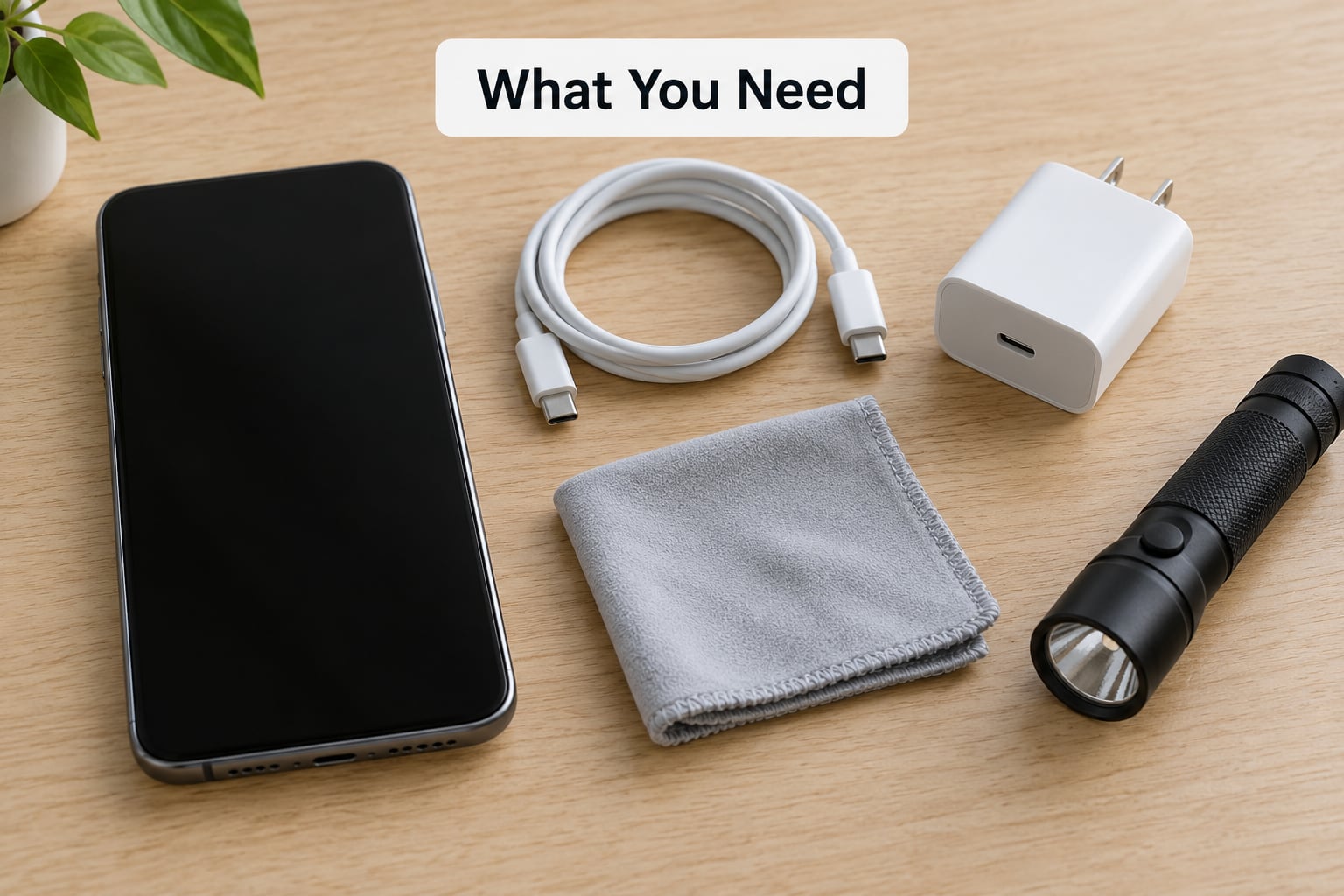
Gather these before you start. Nearly all of the diagnosis happens with the phone in your hand.
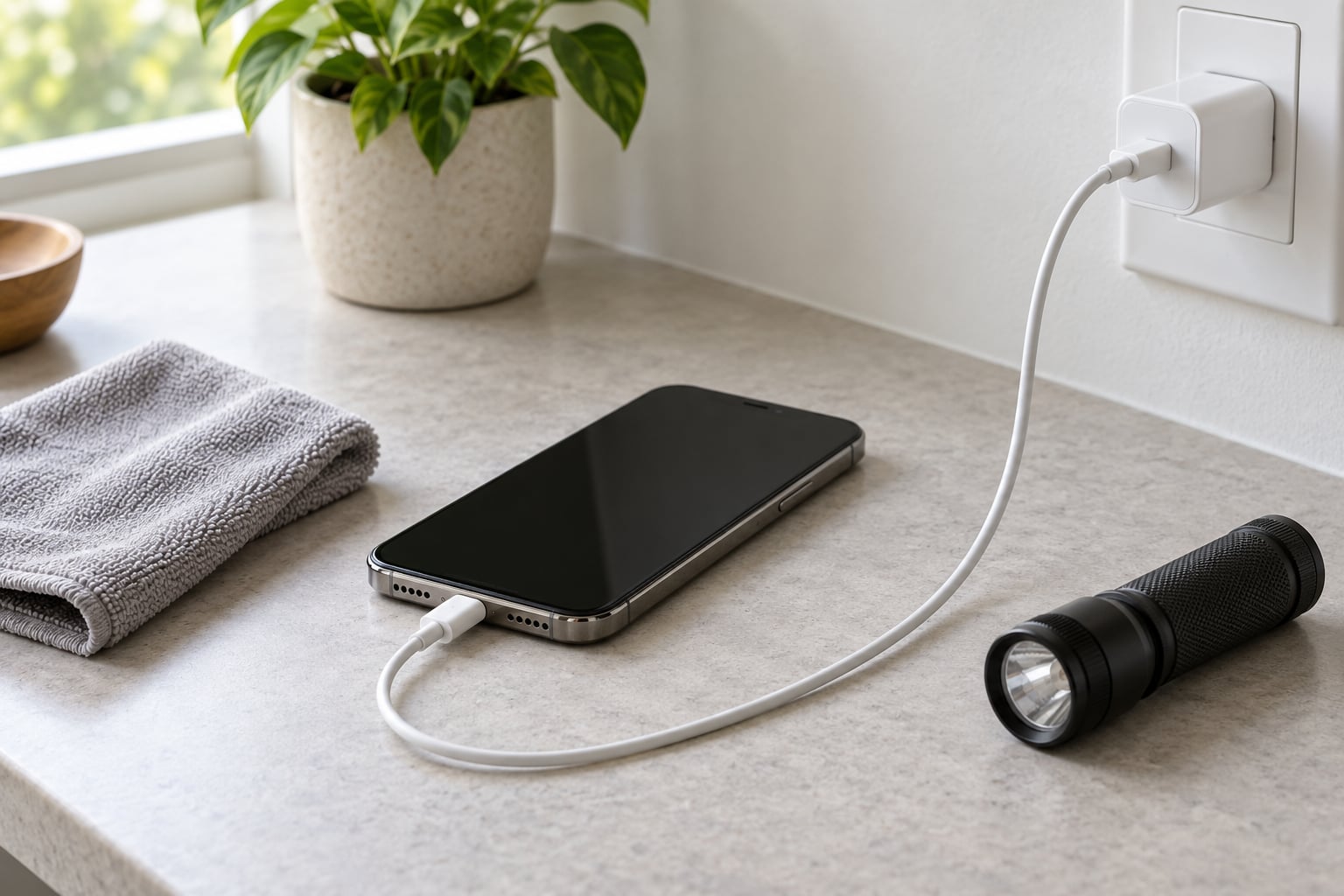
- The cable and wall adapter you normally charge with — the ones that came in the box if you still have them.
- A second compatible charger and cable — ideally the ones from another device, so the swap test is meaningful.
- A flashlight — phone cameras work in a pinch, but a real light shows lint better.
- A soft, dry toothbrush or a plastic SIM ejector tool for the port, plus a can of compressed air if you have one.
- A soft, dry cloth for the cable ends and the phone’s back.
You do not need tools, a disassembled phone, or a repair kit for any of the first six steps. If your phone is under warranty, note the date before you start, because opening anything yourself can affect coverage.
Step-by-Step
Run these in order and stop as soon as charging speed returns. Changing one variable at a time is the only way to know what actually fixed it.
1. Check the charging cable and adapter for damage
Most sudden slowdowns trace back to the cable, and the usual culprit is a break just inside the connector where the cable has been bent toward the phone a thousand times. Unplug it and look closely: a cable that is stiff, kinked, discoloured, or loose inside the plug is a cable that is failing.
Look at the charging port end too. On a reversible USB-C connector, grit and lint pack into the housing where the plug has to seat fully, and a half-seated plug drops the negotiated current. Wipe both ends with the dry cloth, reseat the plug until it clicks in, and watch the percentage for five minutes.
Then do the swap test: try a different known-good cable, and after that a different known-good wall adapter. Swap one thing at a time, and note which change fixed it — that is your answer. A computer USB port, a laptop, a car stereo and many power banks deliver a fraction of what a wall adapter does, so charging from one of those is not a fair test of your phone.
Also check the output rating printed on your adapter. The number on the body tells you its maximum wattage, which is how you can tell a genuine fast charger from a slow one at a glance.
2. Clean the charging port safely
Pocket lint is the single most common cause of a phone that charges slowly but still charges. It compacts into the port over months, looks invisible without light, and stops the cable from making contact.
Here is the safe sequence. Unplug the phone, and for a phone that allows it, power it down first. Shine the flashlight into the port at an angle and look for grey fluff or grit. Brush it out gently with the dry soft toothbrush, working outward from the walls rather than jamming the bristles in. A plastic SIM ejector tool or a wooden toothpick is better than nothing for compacted lint, but push gently, never stab. Finish with a short burst of compressed air, holding the phone screen-down so debris falls away rather than deeper in.
Plug it back in and watch the charge icon. A phone that jumps from a crawl to a normal fill in seconds was just dirty. You will also be able to feel the difference: a clean port grips the plug, a clogged one feels loose.
3. Try a different outlet or charging method
Wall outlets vary more than people expect, particularly in older houses, in shared rooms, or on power strips with several devices plugged in. A cheap charger on a tired outlet can push far less current than the same charger on a fresh one, and a laptop’s USB port typically supplies only a fraction of a proper adapter’s current.
Move to a different wall outlet, directly, with nothing else on the strip. If your phone supports it, test a manufacturer-supported wireless charging pad as a comparison point, and also try the same cable in a car, where a working phone charger is a quick second source. Whichever source gives you the fastest fill is the one your phone was built for.
One thing to expect either way: the last stretch above roughly 80 percent is deliberately slower on every modern phone. That taper protects the lithium-ion cells, so if your phone goes from 10 to 70 percent in 30 minutes and then crawls to full, nothing is broken.
4. Remove heat and restart the phone
Phones deliberately reduce charging current when they get hot, and many people read the resulting slowdown as a fault. Charging while gaming, recording video, or streaming puts a lot of heat into the back of the phone at the same time the battery is already warm, and a thick case makes it worse by trapping that heat.
Take the case off, move the phone to a cool surface out of direct sun, stop the screen, and let it sit for ten to fifteen minutes. Then restart it fully — power off, wait a few seconds, power on. A restart clears a stuck background process, and a software glitch after an update often shows up as charging that never gets past a low battery.
Cold works the same way. Charging throttles in chilly conditions and can stop altogether near freezing, which is why a phone left on a car seat in winter charges worse than one at room temperature. Test after the phone has warmed up naturally — never with a hairdryer or a heater.
5. Check background activity and battery settings
Anything drawing power while plugged in takes some of the budget. Check the battery usage screen, which lists what has drained the most since the last full charge, and close what you do not need. Syncing photos, downloading app updates, and video calls all work against you. Airplane mode is a quick test: leave it on and watch the percentage for a few minutes.
Then look for settings that slow charging on purpose, because each major brand ships its own:
- iPhone and iPad: Settings > Battery > Battery Health & Charging — Optimized Charging holds at 80 percent overnight and finishes when you wake. Also check for a temperature or charging-paused message here.
- Samsung Galaxy: Settings > Battery — check that Fast Charging is switched on, and look at Battery Protection, which can limit charging to 80 percent by design.
- Google Pixel: Settings > Battery > Adaptive Charging, which deliberately slows charging overnight to reduce wear.
- Huawei and Honor: Settings > Battery > Battery manager, where SuperCharge and the individual app power-hungry settings live.
Charging only while the screen is off is worth trying too. It is an old workaround, and it is still a fair comparison because it removes everything competing for power.
6. Update the phone and test it on another charger
Install any pending system update. Charging management lives in the firmware, and a bad update can leave a phone charging slowly until it is restarted or, in rarer cases, until the update is reinstalled.
After updating, restart and retest with the charger that gave you the slowest result in step 1. You now have a clean comparison: your cable and adapter against a known-good one. If the phone charges quickly on the second charger, your accessory is the problem. If it stays slow on both, the fault is in the phone.
Battery and charging behaviour varies by model, and an older or budget phone may simply have a lower ceiling than a current flagship, so compare against your own history rather than someone else’s numbers.
7. Check battery health and get the battery repaired
A worn battery is the last and most expensive explanation, and it is worth ruling out early if the phone is a few years old. Health is reported differently on each platform, and the menu names have moved over time.
On an iPhone, open Settings > Battery > Battery Health & Charging, where you can see the maximum capacity percentage and whether charging has been limited. On most Android phones, look in Settings > Battery or Settings > About phone > Battery information for capacity and cycle count. Samsung users can also run a diagnostic from the dialer by entering *#*#4633#*#* and tapping Battery, which reports the battery status alongside the rest of the hardware.
Below roughly 80 percent maximum capacity, expect shorter battery life and slower charging on top. Seek repair, or a battery replacement through the manufacturer or a qualified service, if the health percentage is low, if the phone is unusually hot while barely charging, or if the back or screen is lifting — a swollen battery needs a technician, not another night plugged in.
What to do when the percentage is stuck entirely
If the charging icon appears but the number has not moved for an hour, treat it as a port and cable problem first. A clogged port can power the charging symbol without moving any charge. Clean the port, reseat the plug, and restart the phone.
If the screen stays black and the phone will not wake even on a known-good charger, the fault is in the phone rather than the accessory, and it is time for service.
Common Mistakes
These are the errors that keep people stuck for days.
- Charging from a laptop or a low-power port. Fix: use a wall adapter. A computer’s USB port supplies a small fraction of the current a proper adapter does.
- Using a cable that only carries data. Fix: any cable rated for charging has a power line. Check whether the phone charges from a different cable before buying anything new.
- Cleaning the port with the case on. Fix: remove the case first, or you will push lint straight back in.
- Using metal tools, needles, or a bent paperclip. Fix: dry soft brush, plastic pick, or compressed air. Metal can scratch and short the contacts permanently.
- Leaving a hot phone on the charger. Fix: let it cool. Continued charging while the back is hot is the phone throttling itself, and a swollen battery often follows.
- Booking a battery replacement before testing the charger and port. Fix: run steps 1 to 3 first. A ten-minute clean and a swap test rule out most causes, and a repair bill should never be the first thing you spend.
One more warning: avoid uncertified high-wattage chargers. Match the adapter to your phone’s supported standard, and buy replacements that carry proper safety certification for the voltage in your country.
Frequently Asked Questions
How long should a phone take to charge fully?
With a fast charger, most current phones reach about 50 percent in 30 minutes and fill in roughly 60 to 90 minutes. On an older or budget phone, or with a basic 5W adapter, expect two to three hours. The final 20 percent always takes longer by design, so judge the speed at the middle of the curve rather than at full.
Is it okay to charge my phone overnight?
Yes. Modern phones stop drawing meaningful power once they reach 100 percent, and most slow the final stretch to protect the cells. What you want to avoid is heat, so charge on a hard surface rather than under a pillow, and turn off optimized or adaptive charging if you would rather it finish at 80 percent overnight.
Is wireless charging slower than wired charging?
Usually yes. A good wireless pad delivers roughly half the power of a matched fast wired charger, and it generates more heat, which slows it further. Alignment matters too, and a case thicker than a couple of millimetres can stop it charging at all. Wired remains the better choice when speed matters.
Can I use my phone while it is charging?
You can, but heavy use slows charging because the phone is drawing power and producing heat at the same time. Light use such as checking messages has a small effect. If you notice the phone gets uncomfortably hot, stop and let it cool, and never charge it under bedding or against soft fabric.
Is fast charging bad for my battery long term?
Modern phones manage the heat of fast charging themselves, and manufacturers rate their chargers for long daily use. The wear comes mostly from heat and from sitting at a high charge level, not from the speed itself. Keeping the phone between about 20 and 80 percent for daily use does more for longevity than avoiding fast charging.
When does slow charging mean the phone is broken?
It is likely hardware if the phone charges at normal speed on a different cable and adapter, if the battery health reading is well below 80 percent, if the phone charges slowly even when switched off, or if the back is bulging. A phone that stays slow through cleaning, a known-good charger, a restart and an update is a service job, not a settings job.
Conclusion
Start with the cable and the adapter, since a bent cable or a tired outlet explains more slow charging than anything else. Clean the charging port, cool the phone down and restart it, then work through background activity, brand charging settings, and any pending software update.
If it is still slow after all of that, check battery health. A well-worn battery on a several-year-old phone is the last explanation and the only one that genuinely needs a technician.