Back up two factor codes safely by storing them in two places that do not depend on the account they protect: one encrypted note in a password manager, and one paper copy kept away from your devices. Never park backup codes inside the account they are meant to recover, and never rely on a screenshot taken with the phone you are protecting.
That single rule does most of the work. Most lockouts happen because a clever-looking backup ends up living somewhere that goes down at the same time as the account it protects, or somewhere a thief checks first.
A phone gets dropped in a puddle, an authenticator app gets wiped in a factory reset, a SIM gets swapped by someone else. None of those are exotic. Each one turns a ten-second login into weeks of identity checks with support, or permanently, on services with no recovery path at all. Spending twenty minutes now on two copies of your recovery codes removes that risk entirely.
Table of Contents›
- What You Need
- Step-by-Step: How to Back Up Two Factor Codes Safely
- Step 1: Inventory Every Account That Uses Two-Factor Authentication
- Step 2: Find the Service’s Official Backup or Recovery-Code Option
- Step 3: Choose a Storage Method to Back Up Two Factor Codes Safely
- Step 4: Store Codes in an Encrypted or Strongly Protected Location
- Step 5: Protect the Backup with a Separate Strong Password
- Step 6: Test the Backup and Document Its Location
- What to Do If You Have No Backup Codes Right Now
- Common Mistakes
- Frequently Asked Questions
- Where should I store backup codes?
- What if I lost my 2FA backup code?
- Can I transfer Microsoft Authenticator to a new phone without a backup?
- Are screenshots of backup codes safe?
- How often do backup codes change?
- What should I do after I accidentally share a code?
What You Need

You need five things, and most people already own four of them.
- Access to each account. You cannot download recovery codes while logged out, so work inside the accounts that matter most, starting with your email.
- Its current authentication method. Know whether each account uses an authenticator app, an SMS text, a hardware key, a passkey, or something older.
- A password manager that encrypts stored items. Any reputable manager works. The one thing that matters is that items are encrypted and protected by a unique master password.
- A printed record. A sheet of paper and a pen, filed somewhere dry and private.
- A second secure location. A home safe, a bank deposit box, or an agreed spot in a trusted relative’s home.
Nothing here needs a purchase. It is a printer, a folder, and about twenty minutes.
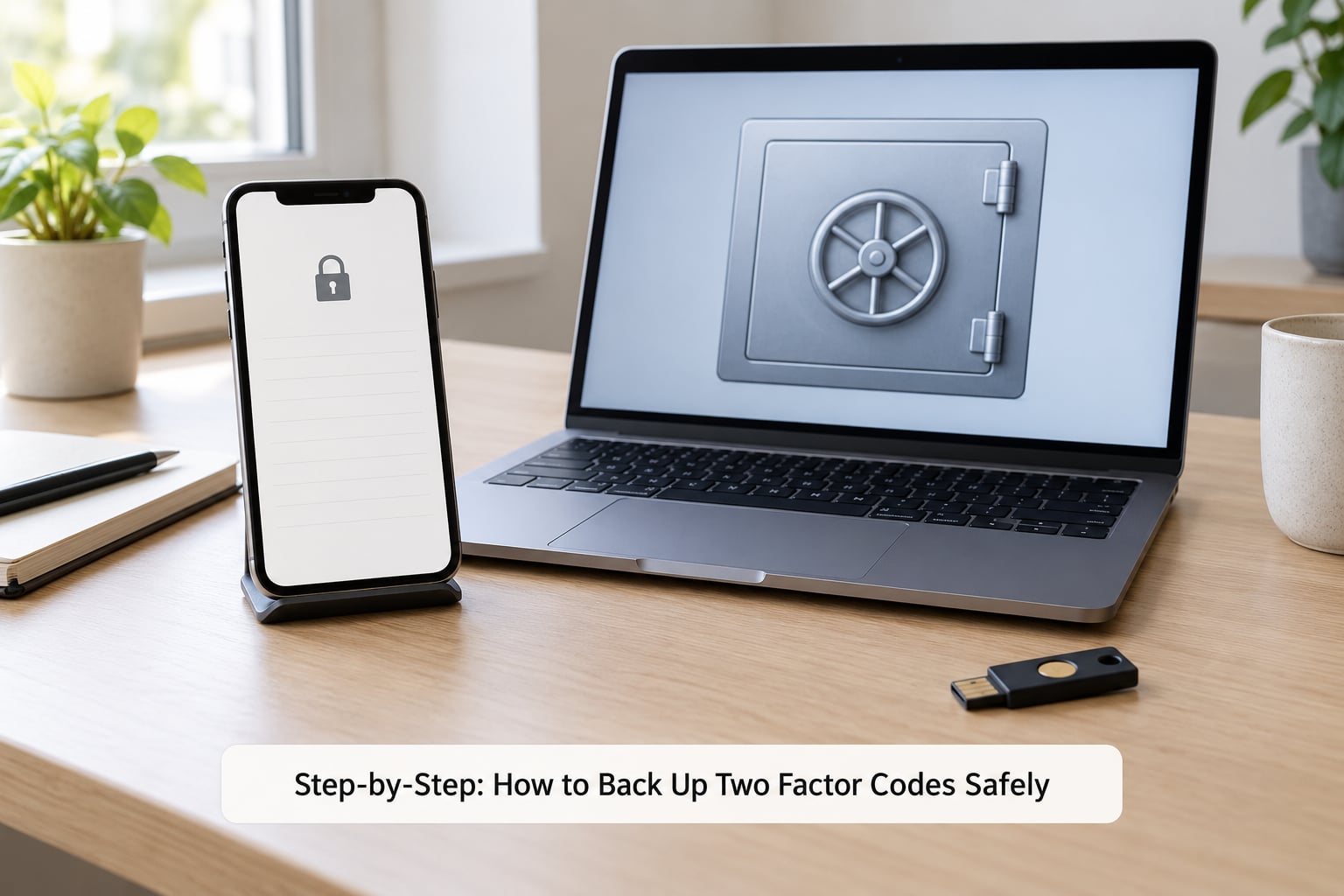
Step-by-Step: How to Back Up Two Factor Codes Safely
Step 1: Inventory Every Account That Uses Two-Factor Authentication
Write a list of every account that asks for a second factor: email, banking, your password manager, cloud storage, exchanges, work systems.
Next to each one, record what it actually uses. Most accounts use exactly one of five methods, and the method determines what a backup even looks like.
- Authenticator app. A rotating six-digit code every 30 seconds. Your real backup here is the seed behind the QR code, not the digits.
- SMS text. Vulnerable to SIM swaps, which is why it is worth adding a second method rather than backing it up.
- Hardware security key. A physical USB or NFC key. Nothing to write down, but you need to know where it is.
- Passkey. Phones and laptops hold it. Your backup is the synced device or platform account.
- Backup or recovery codes. Single-use codes the service generated for you.
If you already have a printed sheet or a saved note from setup time, keep it. You are about to check whether it is still current.
Step 2: Find the Service’s Official Backup or Recovery-Code Option
Recovery codes come from the service itself, inside security settings, not from a third-party app or a support forum.
Menu names shift between versions, but the path is almost always the same shape: account, then security, then two-step or two-factor verification, then a recovery codes or backup codes entry. On Google accounts it is Security, then Two-Step Verification, then Backup codes. On Microsoft accounts it is Security, then Advanced security options, then Two-step verification, then recovery codes. On GitHub it is Settings, then Password and authentication, then Two-factor authentication.
Note the result: some services show ten codes, some show five, and a few only show a single-use code when you need it. Most display the batch exactly once and then hide it behind a re-authentication prompt.
Step 3: Choose a Storage Method to Back Up Two Factor Codes Safely
There is no perfect option, only tradeoffs, so pick two independent locations rather than one clever one.
- Password manager secure note. Encrypted, searchable and available on any device you can unlock. The weak point is obvious: if the manager account is locked, those codes are locked too. Never store the manager’s own recovery codes inside the manager.
- Printed paper. Immune to software failure, malware and phishing. Weak against fire, flooding and nosy housemates. This is your fire escape.
- Encrypted file. Only useful if the key is stored separately from the file. An encrypted archive next to its password in the same folder is just a plaintext file.
- Authenticator cloud sync. Convenient, and the codes never sit in readable form. Read the terms: many services state the backup is only as strong as the account holding it.
- Hardware key plus second device. Enrolling an extra phone or a security key removes the need for paper on some accounts. It also adds another thing to lose.
The verification question I use: if my phone and laptop both vanished tonight, could I be back inside my email within an hour? Paper answers that. A synced notes app does not.
Step 4: Store Codes in an Encrypted or Strongly Protected Location
The simplest way to back up two factor codes safely is a secure note inside a password manager. Open a new note or custom entry, type the codes in, then lock the vault.
Label the note clearly, such as 2FA backup codes, account name and the date you generated them. A date matters more than most people expect, because regenerating a batch silently invalidates every copy you hold.
Print a second copy for the paper file. Write the account, the date and the codes. Keep the list off the phone.
What not to use: screenshots, camera roll, plain text files, unencrypted cloud folders, email drafts to yourself, and any notes app that syncs to a service whose own account needs a second factor.
Step 5: Protect the Backup with a Separate Strong Password
The backup is now a concentration of risk, so it needs its own protection.
Use a master password that appears nowhere else, long enough that guessing is hopeless, and turn on whatever two-factor option your manager supports. Prefer an app lock or biometric unlock on the phone as well, so a borrowed phone does not hand over everything.
Where you put the paper matters too. A laminated sheet in a home safe beats a scrap in a drawer. A second copy in a sealed envelope at another address beats nothing at all.
Avoid circular credentials: never reuse your email password as your manager password, and never make the manager password a variation of the account password it protects. That turns two keys into one.
Step 6: Test the Backup and Document Its Location
You can test most of this without spending a single-use code, which is the part most people skip when they try to back up two factor codes safely.
Lock your phone, unlock your laptop, open the vault, and confirm the note loads and the codes are legible. Then check the paper copy against the screen and confirm the date matches the batch you downloaded.
If you want a real end-to-end test, do it on an account that still has spare codes. Sign in from a private window, choose the option to use a backup code instead of the app, and confirm it works. Then cross the used code off the paper copy and note the new count.
Write down where the copies live, not what they say. “Paper copy: home safe, top drawer” is useful in a panic. Anything more detailed becomes a list for someone looking for you.
What to Do If You Have No Backup Codes Right Now
If you are already locked out with nothing saved, work down this ladder and stop at the first step that works.
- Check whether another device is still enrolled, such as a tablet, a desktop or an older phone, and whether the account shows a “trust this device” option.
- Try a passkey or a session you are still signed into. Many services let you change authentication from an active session without a second factor.
- Use any recovery channel the account already holds: a backup email address, a phone number you still control, or a recovery contact you set up earlier.
- Check for an authenticator backup in the cloud. Google Authenticator on iOS and Microsoft Authenticator both offer cloud backup and device transfer, so a new phone can sometimes restore accounts without new codes.
- Contact support. Expect identity verification, delays, and on some services no recovery option whatsoever.
Once you are back in, do the whole process before you close the tab.
Common Mistakes
Each of these looks harmless and each one has cost somebody their account.
Screenshotting the codes. The image sits on the device you are protecting, and it syncs to whatever cloud backup holds. Fix: print or vault the codes, then delete the screenshot and empty it from the album’s recently deleted folder.
Saving codes in the account they recover. Recovery codes for your email stored in your email is a loop that closes at the worst moment. Forum threads on this are full of people who discovered it the hard way. Fix: put every recovery secret somewhere outside that account.
Using a synced notes app. If the notes account is protected by the same second factor, you have built a dependency loop and put the codes where an attacker looks first. Fix: use the notes feature inside a password manager you already protect.
Saving to email drafts. Drafts sync across devices, get backed up by providers, and are readable by anyone with the account. Fix: same as above.
Reusing one password everywhere. The backup inherits the weakest link. Fix: a unique master password plus a second factor on the manager itself.
Relying on SMS alone. A SIM swap redirects the text to someone else. Fix: add an authenticator app or a hardware key, and keep codes as the fallback.
Keeping old codes you never crossed off. They may already be spent, which turns a working backup into a dead one. Fix: note the date and remaining count on the paper copy, and recheck after every use.
Handing codes to a relative. A spare set is sensible for estate planning, but only sealed, labelled and agreed in advance, never passed around casually.
Frequently Asked Questions
Where should I store backup codes?
Store them in two independent places: an encrypted note inside your password manager, and a paper copy kept away from your devices, such as a home safe plus a second off-site location. Never store codes inside the account they recover, and never rely on a screenshot on the phone being protected. The second copy exists because the first copy shares a failure mode with the thing it protects.
What if I lost my 2FA backup code?
Work down the recovery ladder: check other enrolled devices, look for an active session that lets you change authentication, try a recovery email or phone number you still control, then check whether your authenticator app has a cloud backup you can restore on the new phone. If all of that fails, contact support and expect identity verification and a wait. On some services there is no recovery path at all, which is exactly why the paper copy matters.
Can I transfer Microsoft Authenticator to a new phone without a backup?
Sometimes, and it depends on whether cloud backup was on. Microsoft Authenticator keeps a cloud backup tied to your Microsoft account, and offers a recovery flow during sign-in on a new device. If the backup was turned off, or the account that holds the backup needs a second factor you no longer have, transfer fails and you are left with support or an older enrolled device. Turn the cloud backup toggle on now rather than discovering this later.
Are screenshots of backup codes safe?
Usually not. A screenshot lives on the device you are trying to protect, may sync to cloud photo backups, sits in the camera roll where anyone unlocking your phone can read it, and can end up in an accidental share. It also disappears exactly when needed, after a factory reset. Store codes in an encrypted vault entry or printed instead, and delete any screenshot you have already taken.
How often do backup codes change?
They stay valid until used, but a service that issues a fresh batch invalidates every older copy. Regeneration often happens after you use the last code, change authentication methods, or reset your account. Write the generation date next to each set so you can tell whether your paper copy is still current, and check your vault note after any security change you did not fully plan.
What should I do after I accidentally share a code?
Treat it as a live credential. If the code is single-use, sign in once with it so the service retires it, then regenerate the whole batch so every older code is dead. Store the new set properly and review recent sign-in activity for anything you do not recognise. If what you shared was a password rather than a code, change that too and re-enrol your authenticator.
Start with your email account, because everything else recovers through it. Download that batch of recovery codes, put one copy in your password manager, print the other, and write today’s date on both. Then work down the list you made in step one, one account at a time.