To listen to podcasts offline on a phone, download the episode inside your podcast app first, then play the saved copy. Download it on Wi-Fi, and it will run with no signal, no mobile data and no buffering. Yes, that includes airplane mode.
It takes about two minutes the first time. Once automatic downloads are switched on for your subscriptions, you stop thinking about it entirely.
The 60-second version:
- Podcast apps stream by default, and streaming stops when the connection drops.
- A downloaded episode is a real audio file sitting on your phone, so it plays anywhere.
- Find the episode, tap the download icon (a down arrow or a cloud with an arrow), and wait for the progress bar to finish.
- Turn on automatic downloads per show, set it to Wi-Fi only, and cap how many episodes it keeps.
- Switch on airplane mode to prove the download works before you leave the house.
Table of Contents›
- What You Need
- Step-by-Step
- Step 1: Choose a Podcast App
- Step 2: Download a Podcast Episode
- Step 3: Set Up Automatic Downloads
- Step 4: Listen Without a Connection
- Step 5: Manage Phone Storage
- Common Mistakes
- Frequently Asked Questions
- Can I listen to podcasts without internet on my phone?
- Which podcast apps allow offline listening?
- Does downloading a podcast episode use mobile data?
- How much storage do downloaded podcast episodes use?
- Why does my podcast app say an episode is unavailable offline?
- Can podcast apps automatically download new episodes?
- Conclusion
What You Need
A phone with a podcast app installed and a little free storage. Most mainstream apps download in the background already, but you have to tell them to.
- Storage. A rough guide is 30 to 40 MB for a one-hour episode at normal quality, and around 80 MB an hour for high quality. Ten hours of standard downloads is roughly 300 to 400 MB.
- A connection for the download. Wi-Fi is worth waiting for, especially on a capped mobile plan.
- An account. Apple Podcasts works without one, but Spotify, YouTube Music, Pocket Casts and Overcast all want a sign-in so downloads can be licensed to your device.
- Earphones or a car connection. Downloads play through anything the phone can output to.
If your phone is tight on space, deal with that before you start auto-downloading. r/iphone threads about a full 64 GB phone keep coming back to the same culprit, and podcast downloads are usually it.
Step-by-Step
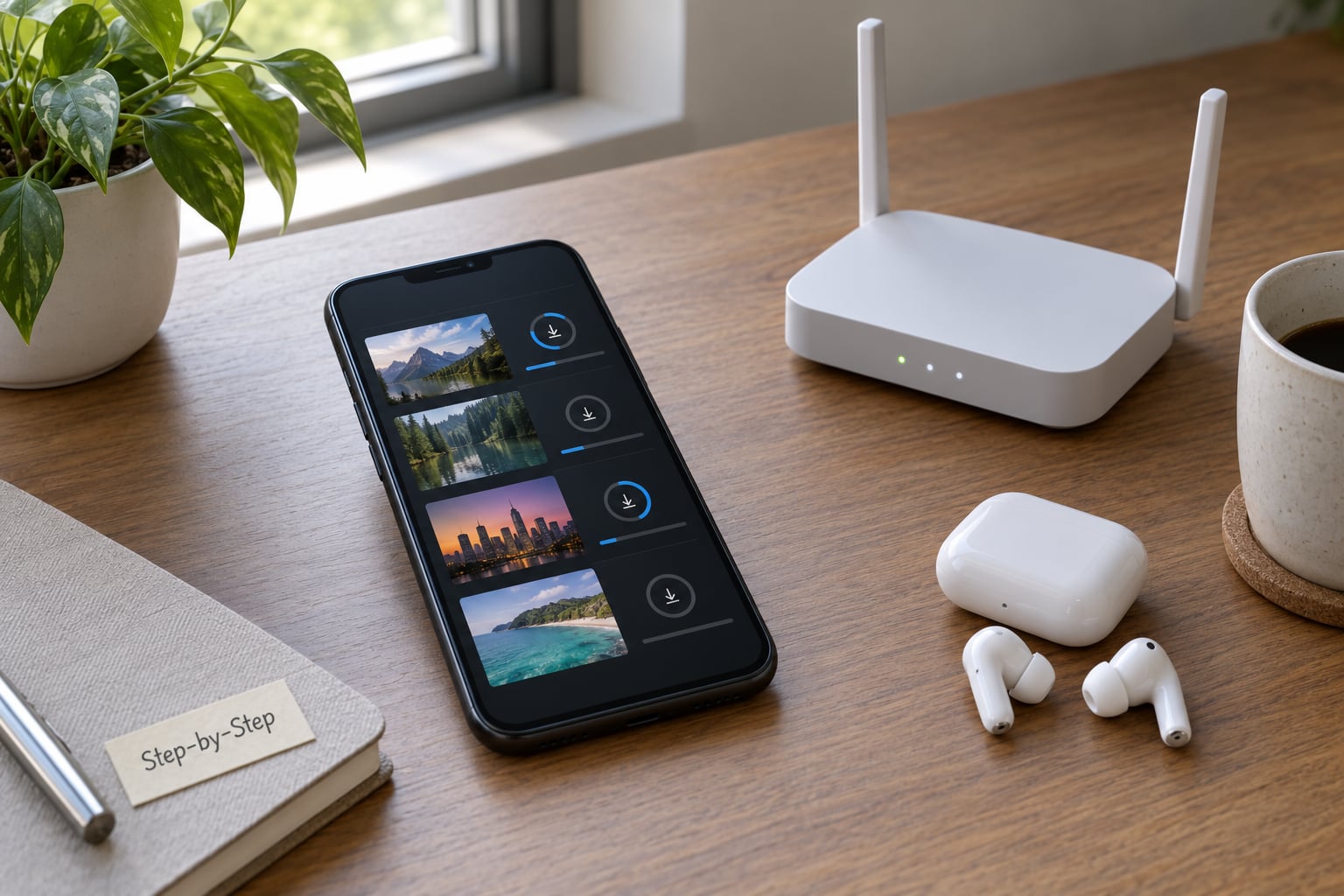
Menu labels shift a little between app versions and between platforms. The names below are current as of 2026, and the exact path is given for each app so you can follow it without guessing.
Step 1: Choose a Podcast App
On iPhone, the built-in Apple Podcasts app is the fastest route and needs no account. Third-party options on iOS include Overcast and Pocket Casts, both of which give you far more control over auto-download limits.
On Android, YouTube Music handles podcast downloads if you already use it for music, and Podcast Addict is a common pick for people who want a free app with no subscription tier. Pocket Casts and Overcast both run on Android as well. A Linux-based phone such as a PinePhone or a postmarketOS handset is a different story: you will need a client that works in a plain browser or a Flatpak build, and downloads land in the app’s own data folder rather than a system media library.
Skip any guide that still recommends Google Podcasts. Members on r/podcasts have been migrating off it since it shut down, and it is not coming back.
Step 2: Download a Podcast Episode
This is the part that answers how to listen to podcasts offline on a phone in practice, because no episode plays without a file on the device.
Apple Podcasts on iPhone: open the show, scroll to the episode you want, then swipe left on the episode row and tap the down arrow icon. It sits next to the play button. Tap the small cloud icon in the same row if you would rather keep the file in iCloud, but note that cloud-stored episodes often will not play with no signal.
YouTube Music on Android: open a show, tap the three-dot menu on an episode, and choose Download. The downloaded icon appears under the episode title once it finishes.
Spotify: tap the episode, hit the download toggle, and make sure Offline mode is on for podcasts under Settings, then Playback. Spotify users on r/podcasts and community.spotify.com report episodes silently dropping out of offline mode, so re-check that toggle after every app update.
Pocket Casts and Overcast: tap the download arrow on the episode row, or long-press a show to apply the setting to every episode. Overcast users have hit the exact problem where a manual download saves to iCloud instead of the phone, which is covered in the fixes list below.
You know it worked when the download icon changes to a filled state and the episode shows a local size. There is no progress bar left to wait on.
Step 3: Set Up Automatic Downloads
Manual downloads do not scale. If you want how to listen to podcasts offline on a phone solved permanently, set each subscription to handle itself.
- Apple Podcasts: Library, then Settings, then Automatic Downloads. Turn it on, switch it to New Episodes, and set Keep Downloads to a number you are comfortable with, such as 3. Turn on Delete Played Episodes as well.
- Spotify: Settings, then Playback, then the download toggle next to podcasts. Set it to Smart or High, and keep Wi-Fi only downloading switched on.
- YouTube Music: tap your profile picture, then Settings, then Downloads, then Download over Wi-Fi only.
- Pocket Casts: tap the show, open the three-dot menu, choose Episode Settings, and set New Episodes to Download or Stream. Repeat for each subscription.
The Wi-Fi only toggle matters more than most people expect. Without it, auto-download quietly eats a mobile data plan every time you step out of the house with your phone in a pocket.
Podcast Addict users on r/PodcastAddict report the app holding between 19 and 50 GB even with played episodes set to delete, because auto-download keeps outpacing the cleanup. Set a low episode cap there rather than trusting the default.
Step 4: Listen Without a Connection
Open the app, go to Library or Downloads, and start the episode you saved. Your playback position is stored with the file, so it resumes where you stopped even offline.
Now test it. Put the phone in airplane mode and press play. If audio starts, you are covered for planes, tunnels, mountain trails and dead zones in the car. If nothing happens, the file never made it to the device.
A couple of settings make a long offline session easier. Set a sleep timer so playback stops instead of draining the battery through the night, and turn on background playback so the screen can lock while an episode continues.
Step 5: Manage Phone Storage
Check your phone’s Storage or Storage settings and look for the podcast app in the list. Apple shows the figure in the app’s own settings under Storage as well, and Podcast Addict breaks it down per feed.
Then trim. Delete played episodes in bulk from the Downloads view rather than one at a time, drop any show you have not touched in a couple of months, and lower the keep-newest number if the total keeps climbing.
On Android, some players let you point downloads at an SD card. That helps with capacity but not with offline playback: if the card is ejected or the app is restricted to storage, downloads silently fail and you get an episode that appears present but will not load.
Finally, prune anything you finished on holiday a fortnight ago. Backlogs are the reason most people run out of room.
Common Mistakes
- An episode will not play offline even though it looks downloaded. It was saved to cloud storage rather than the phone. Move it: in Overcast, open the episode and choose Download to device instead of iCloud.
- Downloads stop partway through. Intermittent Wi-Fi is the usual cause. Pause the queue, let the connection settle and resume.
- Auto-download burns through a data allowance. Switch on Wi-Fi only downloading, then delete the episodes downloaded over mobile data from your app’s storage view.
- Storage fills up anyway. Auto-download is beating Delete Played. Cut the keep-newest number and delete in bulk from the Downloads screen.
- Nothing appears in the Downloads list. Some apps separate saved episodes from subscriptions. Look for a filter chip or a Downloaded only toggle rather than expecting them in the feed.
- Playback fails only in the car. Bluetooth and CarPlay or Android Auto can interrupt playback when the phone briefly reconnects to the network. Queuing downloads before you set off removes the cause.
If you are driving regularly, download a couple of episodes while you are still on Wi-Fi at home. r/PodcastAddict users built custom playlists purely to get a downloaded-only view for the car, and a queue does the same job with less fuss.
Frequently Asked Questions
Can I listen to podcasts without internet on my phone?
Yes, as long as the episode is downloaded rather than streamed. Streaming needs a live connection and stops the moment signal drops. A downloaded episode is a complete audio file saved to your phone, so it plays on a plane, in a tunnel or in a dead spot with no data used at all. Always confirm it works by switching on airplane mode before you travel.
Which podcast apps allow offline listening?
Most of them. Apple Podcasts, Spotify, YouTube Music, Pocket Casts, Overcast and Podcast Addict all support episode downloads on iPhone and Android. The difference is control: Apple Podcasts and YouTube Music give you a simple keep-newest cap, while Overcast and Pocket Casts offer per-show rules, Wi-Fi only downloading and bulk delete. Pick based on how much you want to tune.
Does downloading a podcast episode use mobile data?
It does unless you prevent it. By default many apps will download over cellular, which quietly adds up on a capped plan. Open your app’s download settings and turn on Wi-Fi only downloading, then queue your episodes while you are connected to home or office Wi-Fi. Downloads continue in the background, so build a habit of checking before you walk out the door.
How much storage do downloaded podcast episodes use?
Expect roughly 30 to 40 MB per hour at standard quality and around 80 MB an hour at high quality, though creators and apps vary widely. Ten hours of standard downloads lands somewhere around 300 to 400 MB. Check the real figure in your phone’s storage settings or your app’s own storage screen, then set a keep-newest limit so the total stays predictable.
Why does my podcast app say an episode is unavailable offline?
The file is probably in cloud storage rather than on the phone, which happens in Overcast when a download is saved to iCloud, and in some Android apps pointed at an SD card that later becomes unavailable. Another common cause is a subscription or episode that expired. Open the episode, choose Download to device, and if it still fails, delete and re-download it on Wi-Fi.
Can podcast apps automatically download new episodes?
Yes, every major app can. In Apple Podcasts it is Settings, then Automatic Downloads. In Spotify and YouTube Music it is a download toggle in the download settings. Pocket Casts and Overcast let you set a rule per show so a favourite always arrives and a talk show does not. Combine automatic downloads with a low episode cap and you will not have to manage anything.
Conclusion
Three things, in this order. Download the next episode of your main show right now and let it finish. Turn on automatic downloads for that one subscription, set it to Wi-Fi only, and drop the keep-newest number to three. Then switch on airplane mode and press play.
If that works, the rest is just maintenance: bulk-delete what you have finished and check your storage screen every few weeks. Once it is a habit, you never have to think about offline listening again.